



Today we're going to bring you another pretty fun urban cultural tourismShort Video. Previously doneLiterature and Tourism VideoSome friends say it's still a little difficult, so today we're going to use a very simple, easy to use and easy to operate the way to make, so that "handicapped party" will be able to quickly get started.
Ideas and Tools:
1. Generate four images: sea of clouds image, Shanghai overlooking lens image, Shanghai overlooking night scene image, Shanghai city name image. Tool: # or Dream
2. Generate video. Tool: # or Dream
3. Clip the video. Tool: # Cutting and Screening
Here we go.
1. Generate four images: Sea of Clouds, Shanghai Overhead Shot, Shanghai Overhead Night View, and Shanghai City Name.
(1) Open the dream
https://jimeng.jianying.com/ai-tool/home
(2) Choose "Image Generation", select: 16:9 ratio, enter "Sea of Clouds" prompt word: top view perspective, sprawling sea of clouds such as rolling snow-white cotton waves, fluffy stacked to the skyline, the sunlight shines obliquely on the top of the clouds, sketching out the golden edges and shades of shadows, the gap between the clouds reveals a small piece of greenish-blue sky, the picture is transparent and bright with a sense of freshness in the morning. A small piece of greenish-blue sky is exposed between the clouds, the picture is transparent and bright, with the freshness of early morning.
Click on the "little star" to submit

(3) Getting the screen result
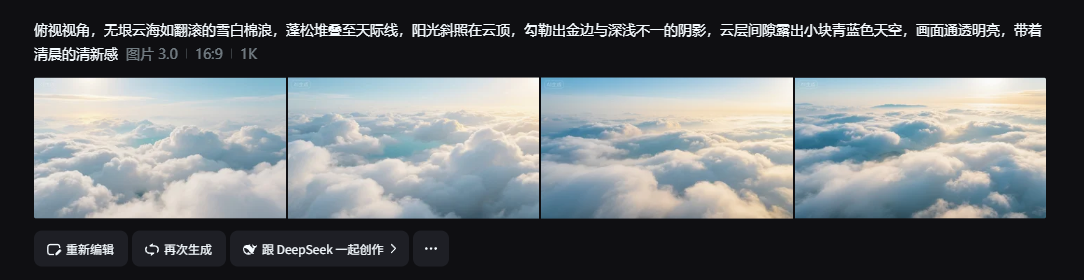
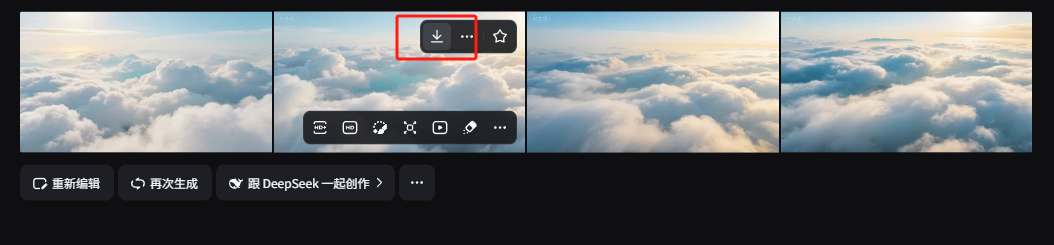
(4) Select a screen, move the mouse over it and click "Download".
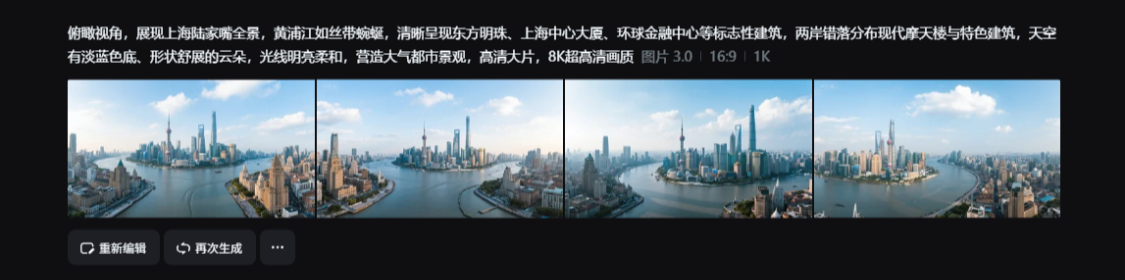
(5) Back to image generation, enter "Shanghai Overhead View" prompt word: Overhead view, showing a panoramic view of Lujiazui, Shanghai, Huangpu River as a ribbon meandering, a clear presentation of the Oriental Pearl Tower, the Shanghai Tower, the World Financial Center and other landmarks, the banks of the staggered distribution of modern skyscrapers and buildings, the sky has a light blue background, the shape of the stretching clouds, bright and soft light, creating an atmospheric urban landscape, HD blockbuster, 8K ultra-high definition image quality. The sky has a light blue background, the shape of the clouds, bright and soft light, creating an atmospheric cityscape, high-definition blockbuster, 8K ultra-high-definition picture quality
(6) Getting the screen result
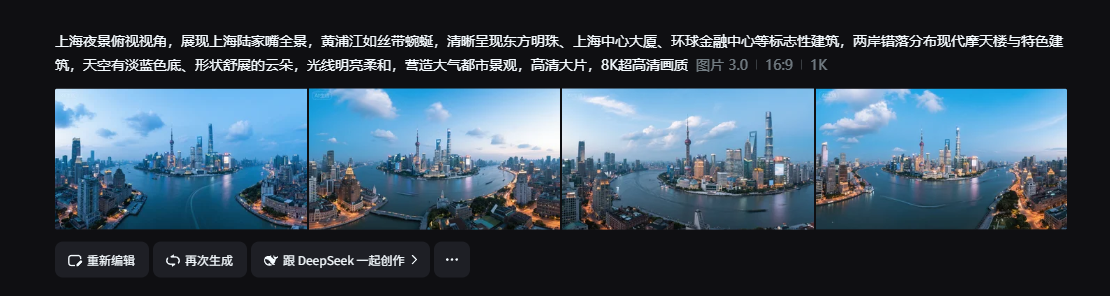
(7) Go back to image generation and upload the "Shanghai Overhead View" screen as a reference image for intelligent reference. Input "Shanghai Night View Overhead View" prompt word: Overhead view, showing the panoramic view of Shanghai Lujiazui, Huangpu River as a ribbon meandering, a clear presentation of the Oriental Pearl Tower, the Shanghai Center Tower, the World Financial Center and other landmarks, the banks of the staggered distribution of modern skyscrapers and characteristic buildings, night scene, high-definition blockbusters, 8K ultra-high-definition image quality!
(8) Getting the screen result
(9) Select "Image Generation", select: 16:9 ratio, enter "Shanghai city name" prompt word: "Shanghai" artistic font design, the requirements of the brush handwriting style, strong artistic writing style. Artistic writing style. Visual shock, brush strokes to increase the ink brush effect, brush strokes cleverly extend the design deformation, black background and white characters. Proportion 16:9
(10) Getting the screen result
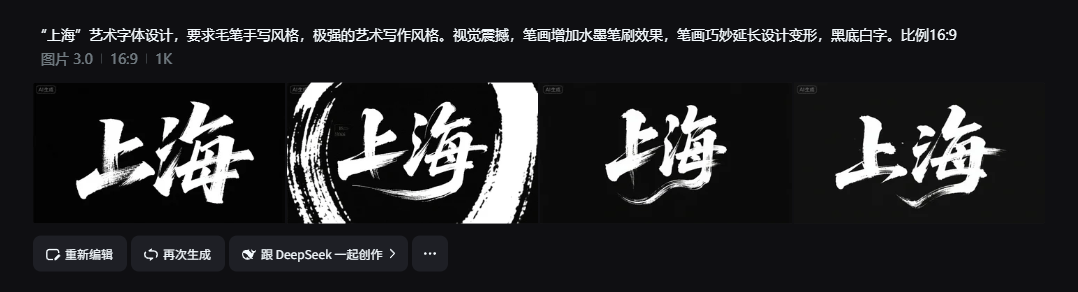
(11) Let's download and save the screen in the same way
2. Video generation
(1) Continue in the dream tool. Select "Video Generation", click "First Frame+", select "Sea of Clouds" for the first frame, after the first frame is uploaded, the last frame will be displayed automatically, click "Last Frame+", upload "Shanghai Overlook View", select "5 seconds" for the video duration, and enter the prompt word. After the first frame is uploaded, the last frame will be displayed automatically, click "last frame+", upload the "Shanghai Overhead View" image, select "5 seconds" for the video duration, and enter the prompt word: "Shuttle propulsion camera, with very high speed, dives vertically from the clouds to the ground, penetrates the clouds, and then dives into the clouds". Weaving propulsion shot, at a very high speed, from the clouds to the ground vertically swooping, through the clouds, to the end of the frame Shanghai, dynamic, dynamic blur.

(2) Getting video results
(3) Continue in the dream tool. Select "Video Generation", click "First Frame+", select "Shanghai Overlook View" for the first frame, after uploading the first frame, the last frame will be displayed automatically, click "Last Frame+", upload "Shanghai Night View Overlook View", select "5 seconds" for the video duration, enter "5 seconds" for the video duration, enter "5 seconds" for the video duration. After the first frame is uploaded, the last frame will be displayed automatically, click "last frame+", upload the "Shanghai Night View Overhead View" screen, select "5 seconds" for the video duration, and enter the prompt: time-lapse photography from day to night, during the process the camera is Rapid distancing, motion blur

(4) Get video results
3. Video editing
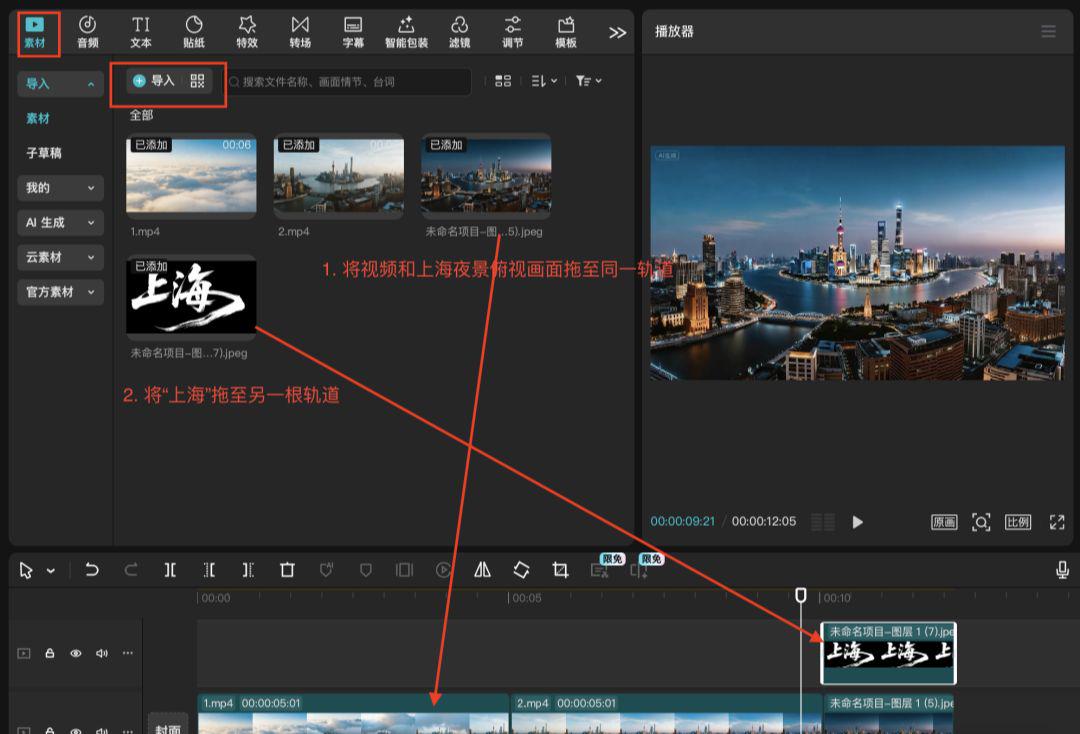
(1) open the cut screen, material click "import", we will generate the video and picture imported to the library, and dragged to the track, will be "Shanghai night scene picture" and the two videos dragged into the same track, will be "Shanghai" city name dragged into another track Drag "Shanghai Night Scene" and the two videos together into the same track, and drag "Shanghai" city name into another track.
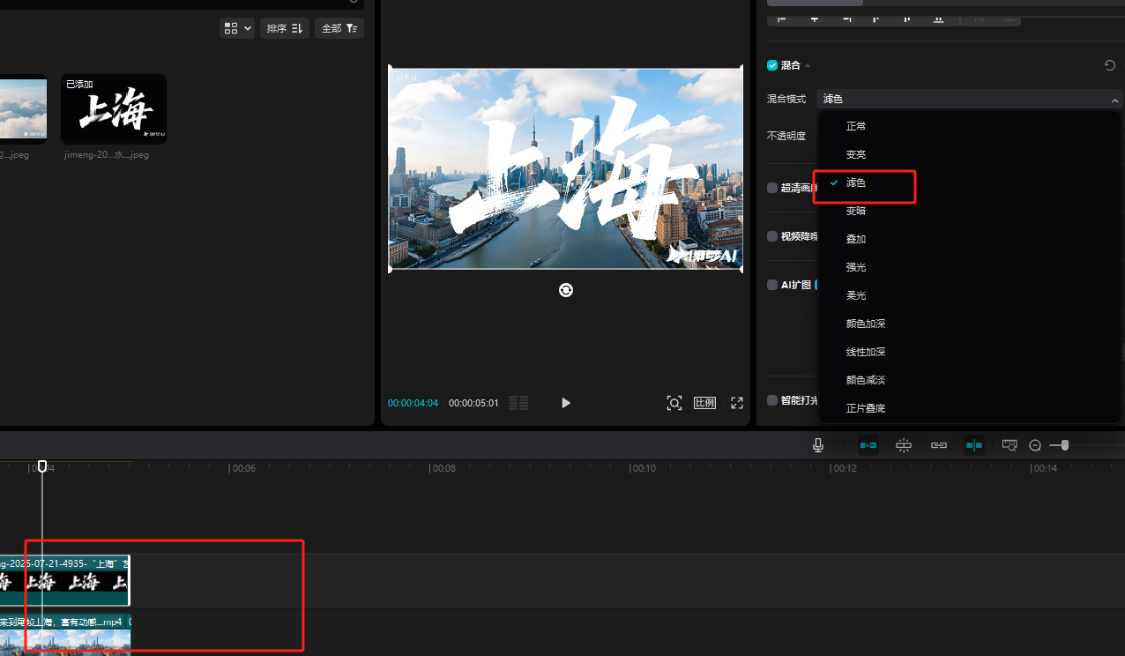
(2) Select the "Shanghai" city name screen, click the screen in the "Blending Mode" select "Color Dropout" This step is to remove the background of the screen!
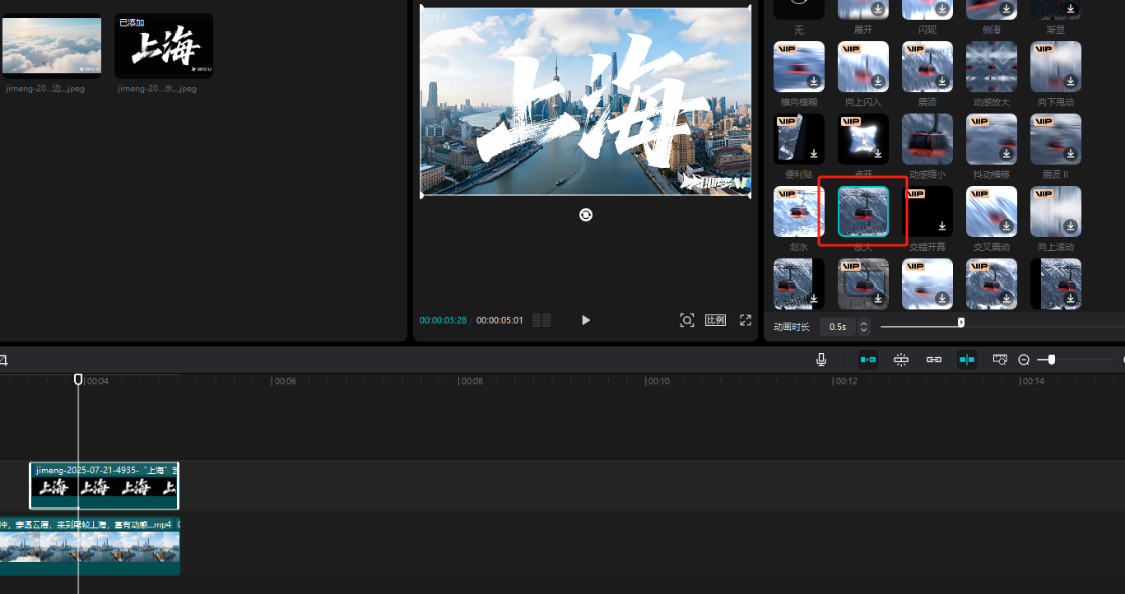
(3) still select the "Shanghai" screen, click on the "animation" we add an entry effect, select "zoom in", will be adjusted to the longest length!
(4) Click "Audio" to search for the original soundtrack created by Shanghai Chingu Store, select an audio track and drag it to the track.
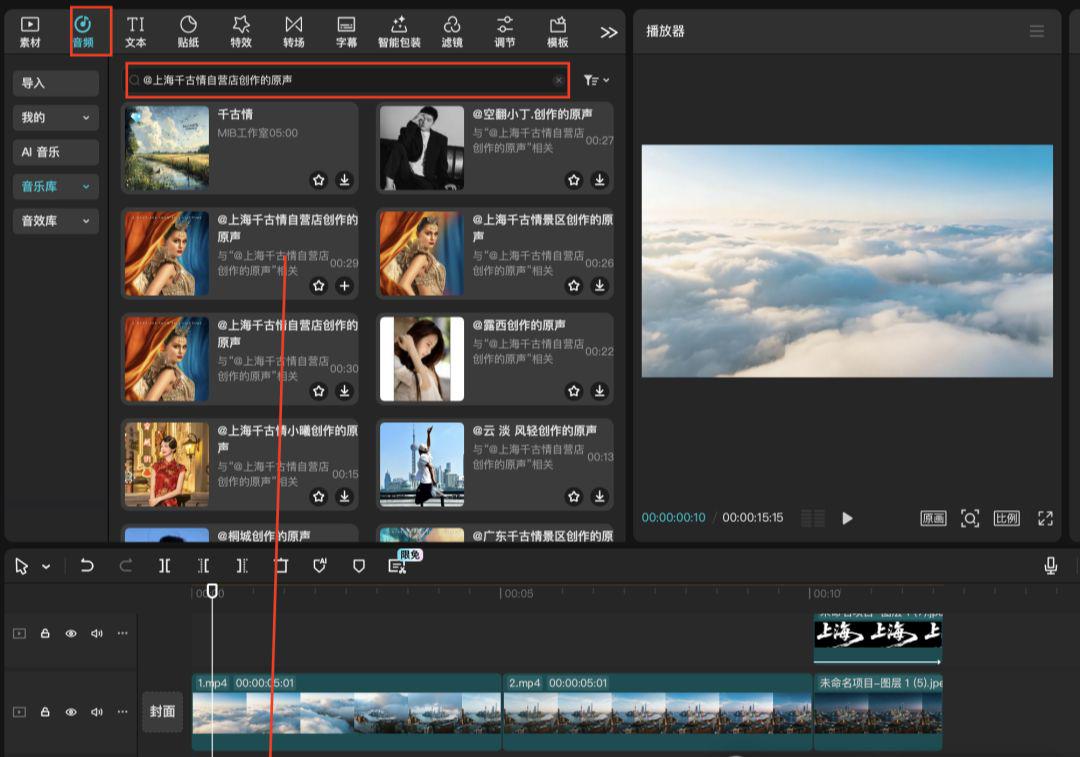
(5) The audio is longer than the video, we position the cursor at the end of the video, click on the toolbar "Crop Right" to remove the excess portion
(6) Add a cover, click on "cover" we select the video frame, any one. Click "Go to Settings"
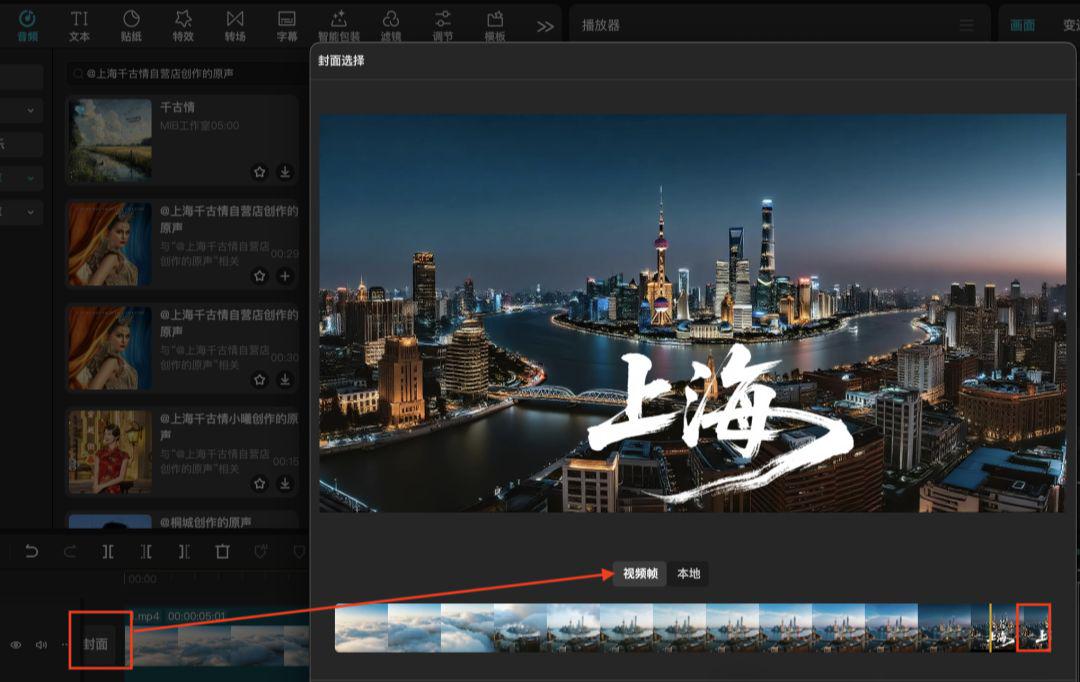
(7) Click "Finish Setting".
(8) Okay, click "Export" to finish exporting the video.
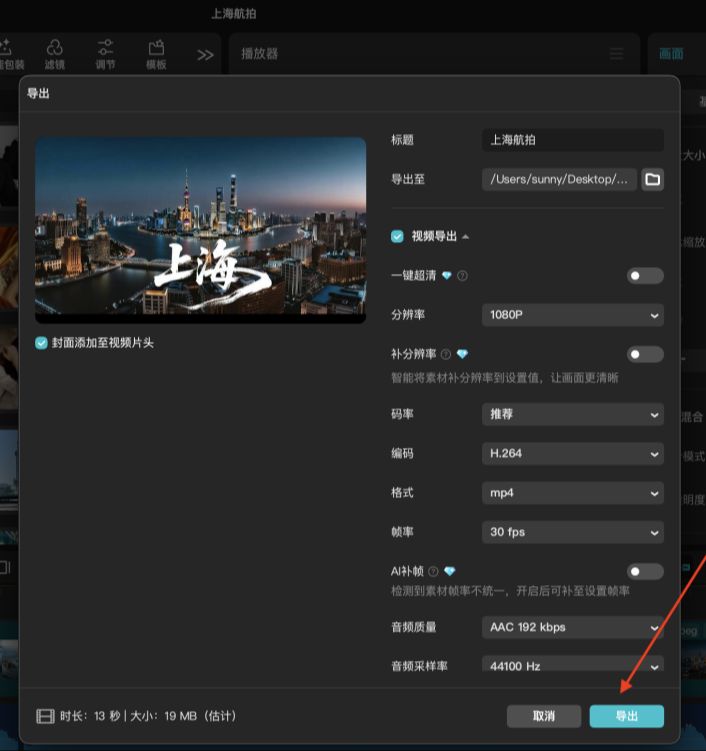
(9) After the export is completed, you will be prompted whether you want to publish it to Jitterbug, if you need to, please click "Publish", if you don't need to, you can click "Close".
Well, you do it and try it too. New tools can help us be more efficient, the key is to master the skills to use it.