



Have you ever looked at a favorite picture and thought - I wish I could reproduce something like that! Now, with MidjourneyYou can do it.
Using Midjourney's "describe" command, we can get four suggested prompts based on the images you upload. However, the generated prompts are usually used only as creative inspiration, not as exact replicas. So, how can we reproduce an image that is very similar to the original? For this, we need the help of Image Prompts.
Below I'll share how to copy an image using the "image tip" and "/describe" commands.
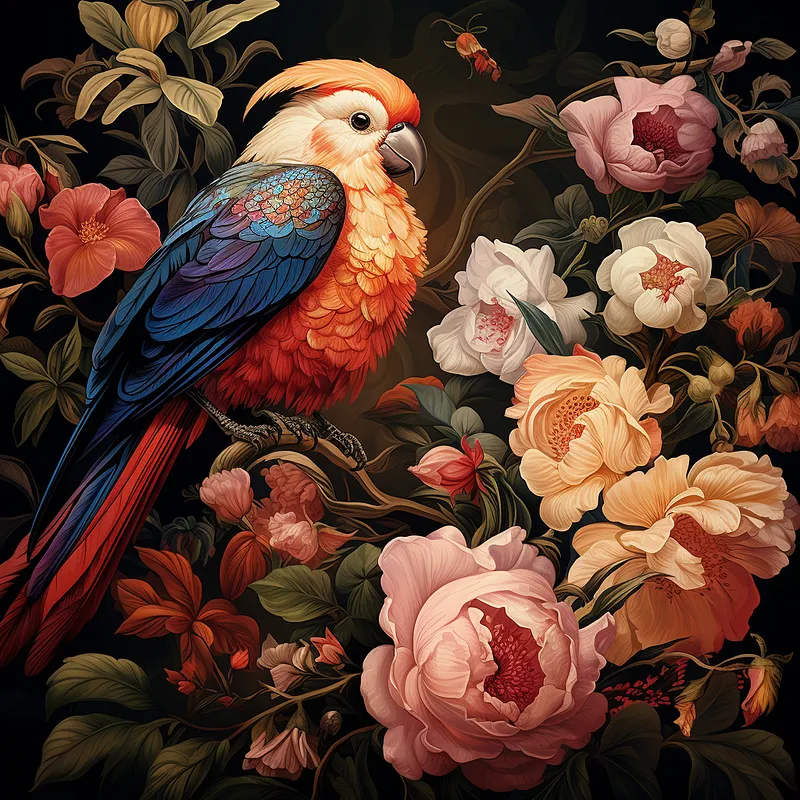
What are image prompts
In Midjourney, image hints allow you to use images as input variables. Image hints can influence the composition, style, and color of the generated images.

How to use picture prompts
- Put the image URL at the beginning of the prompt
- The prompt requires at least two pictures or one picture combined with text
- Accepted image formats: .png, .gif, .webp, .jpg, .jpeg
- /imagine < IMAGE URL > text dectiption
How to get image link from Discord?
- Use the + button to upload an image
- Right-click on the enlarged version and select "Copy Image Link".
- This will copy the full URL to your clipboard for use in the Midjourney prompt. Start creating!
What is /describe command
The describe function analyzes the uploaded image and suggests four possible hints based on the image.
The describe command can be used to explore new vocabulary and artistic styles.
How to use Midjourney" to copy images
Step 1: Use "/describe" to discover new tips
First, we need to get suggestion tips from Midjourney. To do this, use the "/describe" command and upload an image.
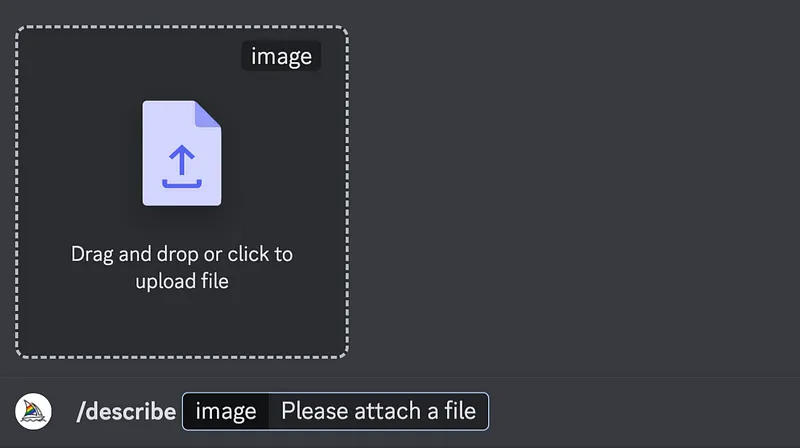
Step 2: Four possible prompts
Midjourney will analyze the image you upload and recommend four prompt ideas for you.
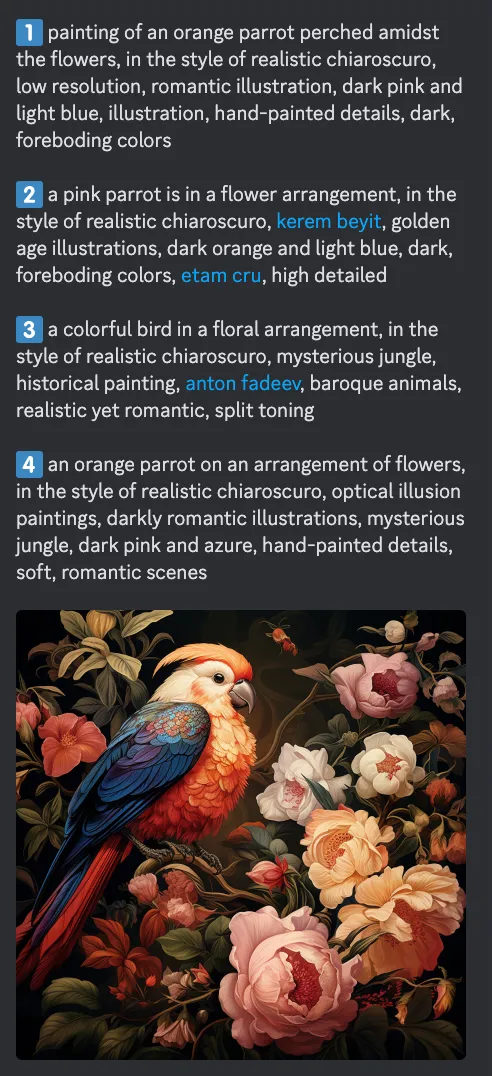
Images generated using only "/describe"
First, let's see what we get from the 4 text prompts suggested by Midjourney without using picture prompts.
You can use Imagine All to generate all four variants at once.
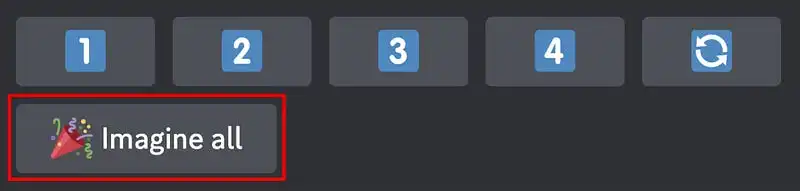
Use "Imagine All" in the description command to generate 4 variants
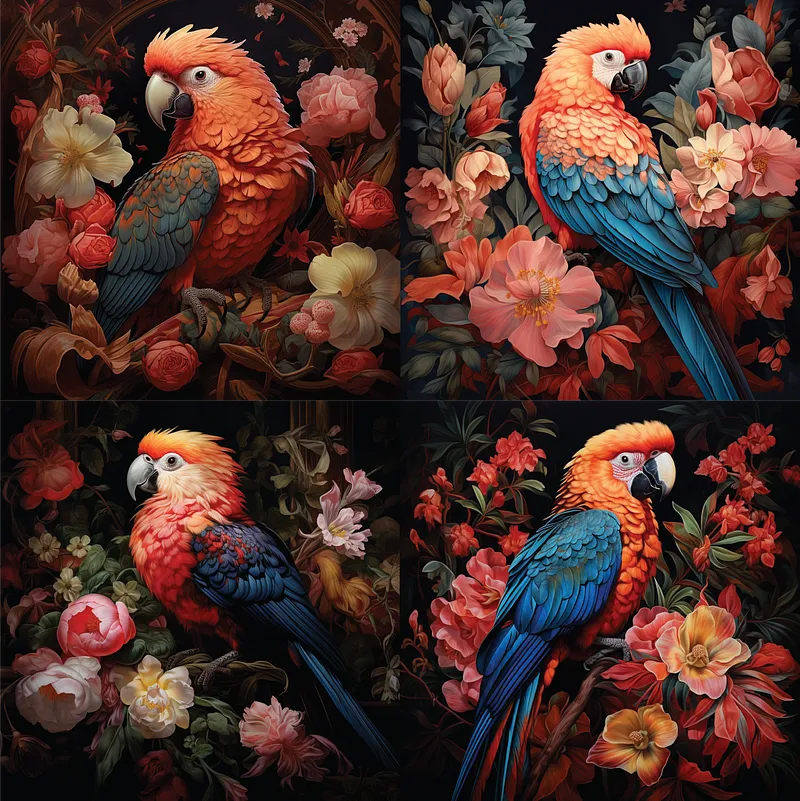
Use "Imagine All" in the description command to generate 4 variants
Step 3: Copy the New Image
Use the "/imagine" command as usual to generate the image.
This time, attach the image file link to the front, then copy and paste the text prompt generated by the "/describe" command.
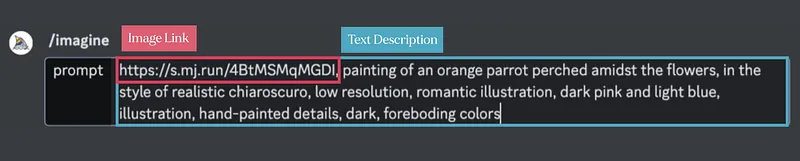
As a result, here are the results of using the "image prompts" and the 4 text prompts suggested by Midjourney.
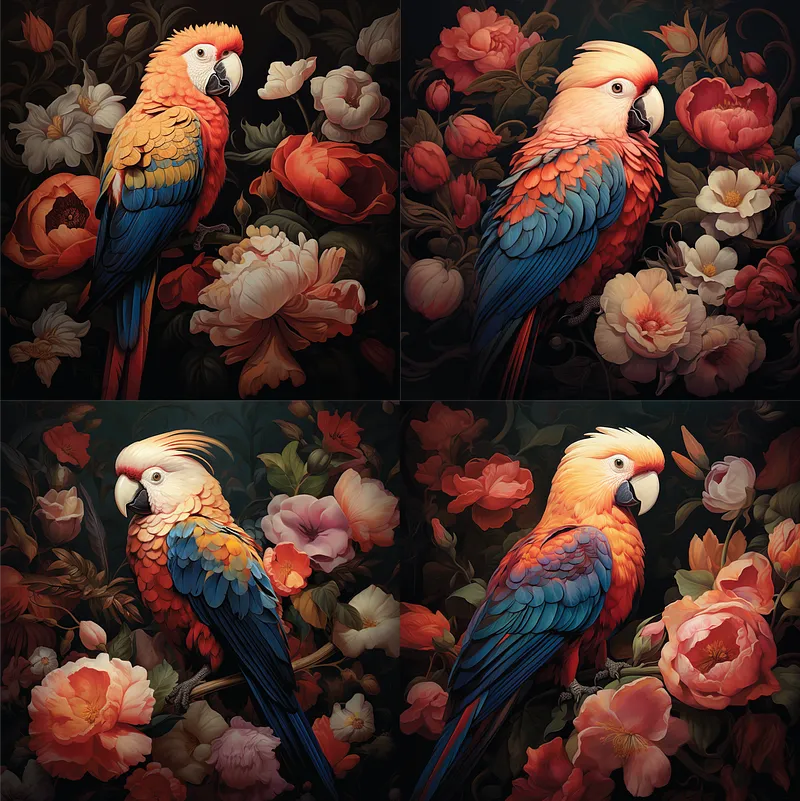
4 variants generated using Midjourney suggested prompts and "image prompts"
Adjust image influence using image weights
The image weight parameter -wiw controls the influence of image cues compared to text cues. If the value of -wiw is large, the image cue will have more influence on the final output.
For example, to make an image more prominent in the bootstrap output, increase the image weight value:
/imagine text dectiption-iw 1.5
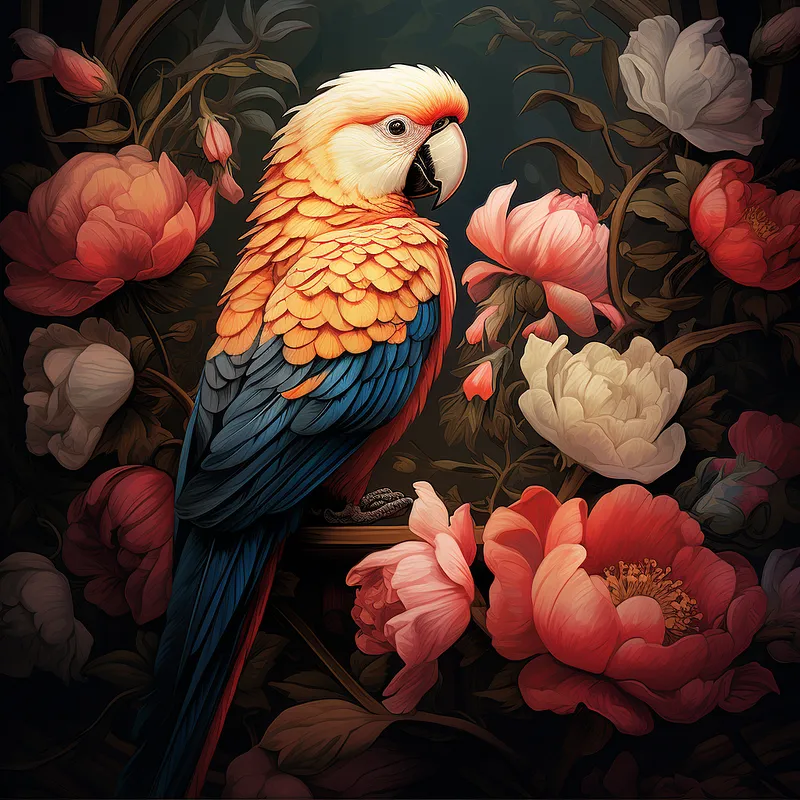
Experiment with image weight values between 0.1 and 2.0 to strike an ideal balance.
This way you can make an image that closely resembles the original.