



previously usedbuttonDid a portrait (smart face swap)Agent:
Learn how to use AI face-changing and use button image stream to make portrait photos (intelligent face-changing) AI application
This Portrait Portrait Smartbody tutorial has the following problems:
1, the tutorial can not be customized to upload the photo template effect picture, only the background of the default upload template picture.
2. Some of the contents have changed after the revamp.
Today, make an optimization of this Portrait Portrait (Smart Face Swap) smart body and write down the tutorial to share it with you.
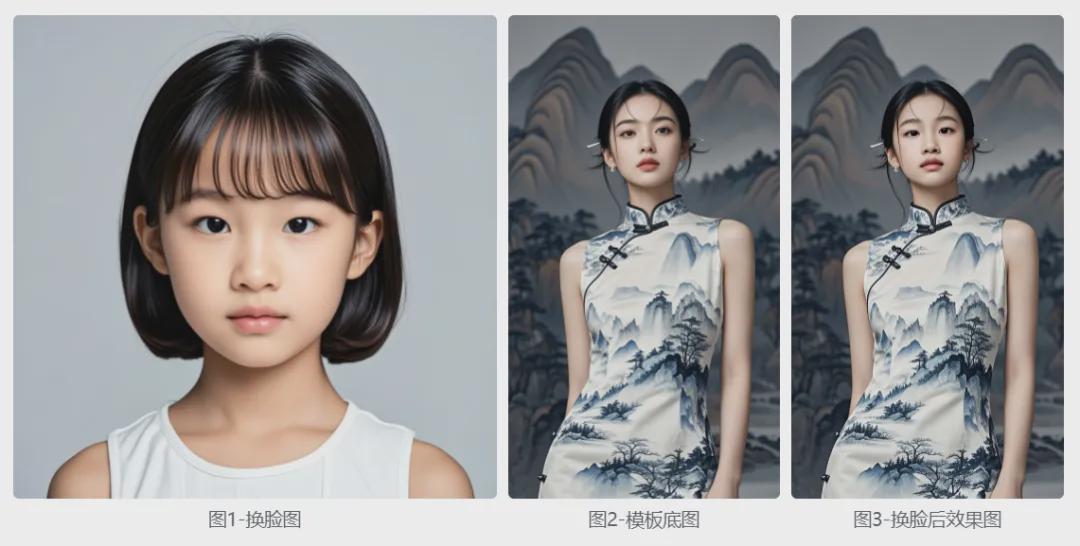
See the effect first
Left: User uploads face image
Middle picture: template base picture
Right: New personal portrait effect generated by user uploaded image + template image.
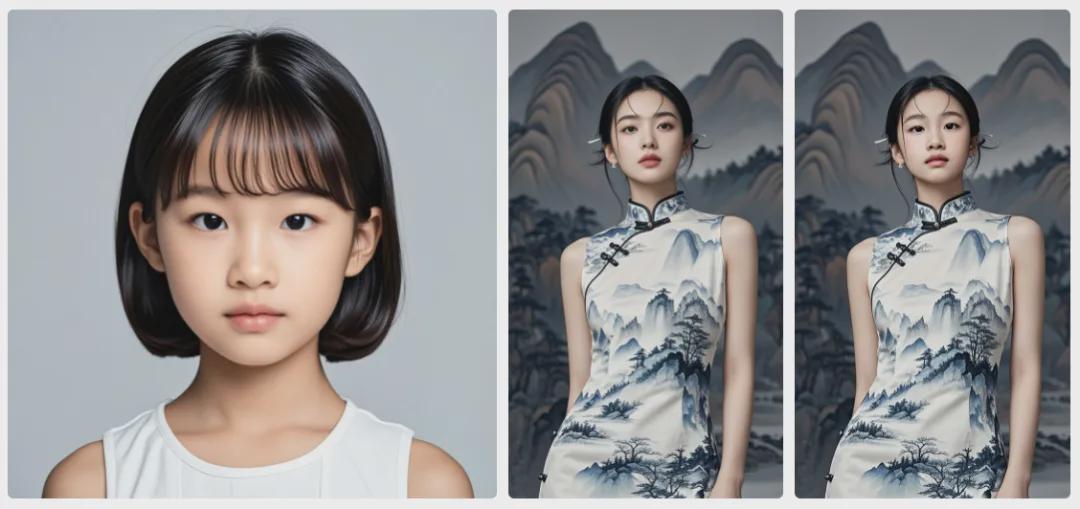
Next, let’s learn togetherHow to Make Portrait Portrait Intelligentsia with Button Image Streaming (Advanced Version)Bar.
How does ▌How does Portrait Portrait (Smart Face Change) create an image stream?
Enter coze.cn in the browser address bar to enter the official website of Kouzi.
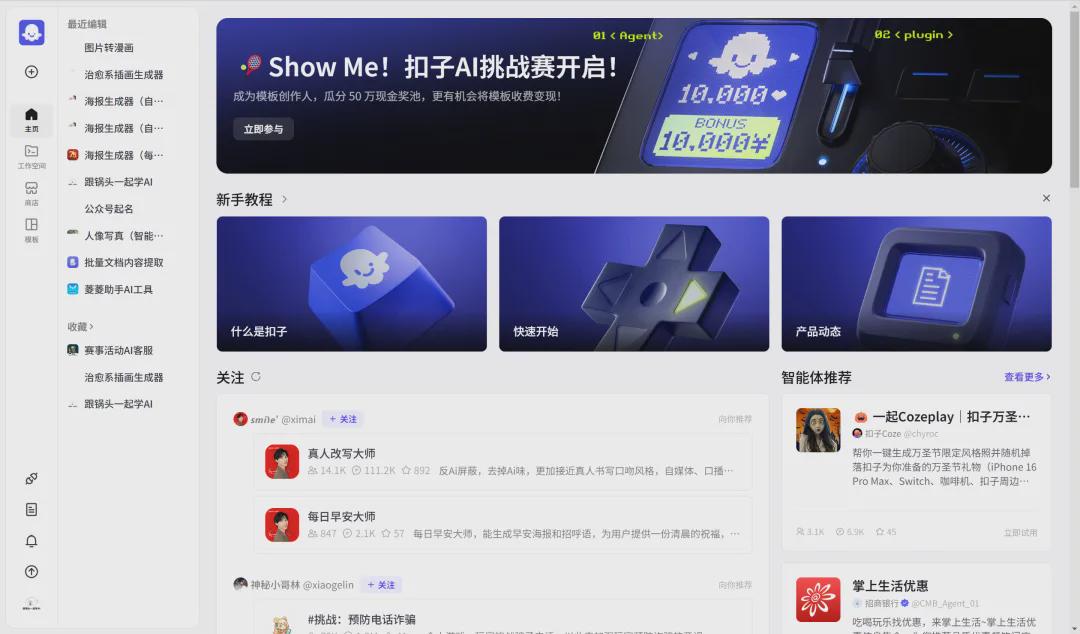
Click [Workspace] - [Resources] - [Image Stream].
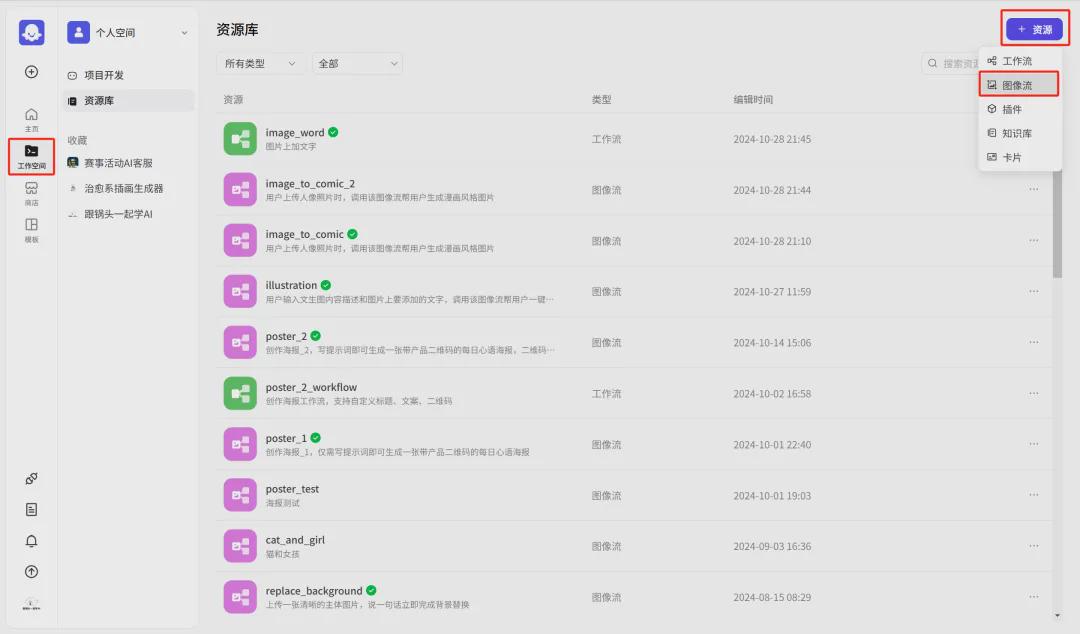
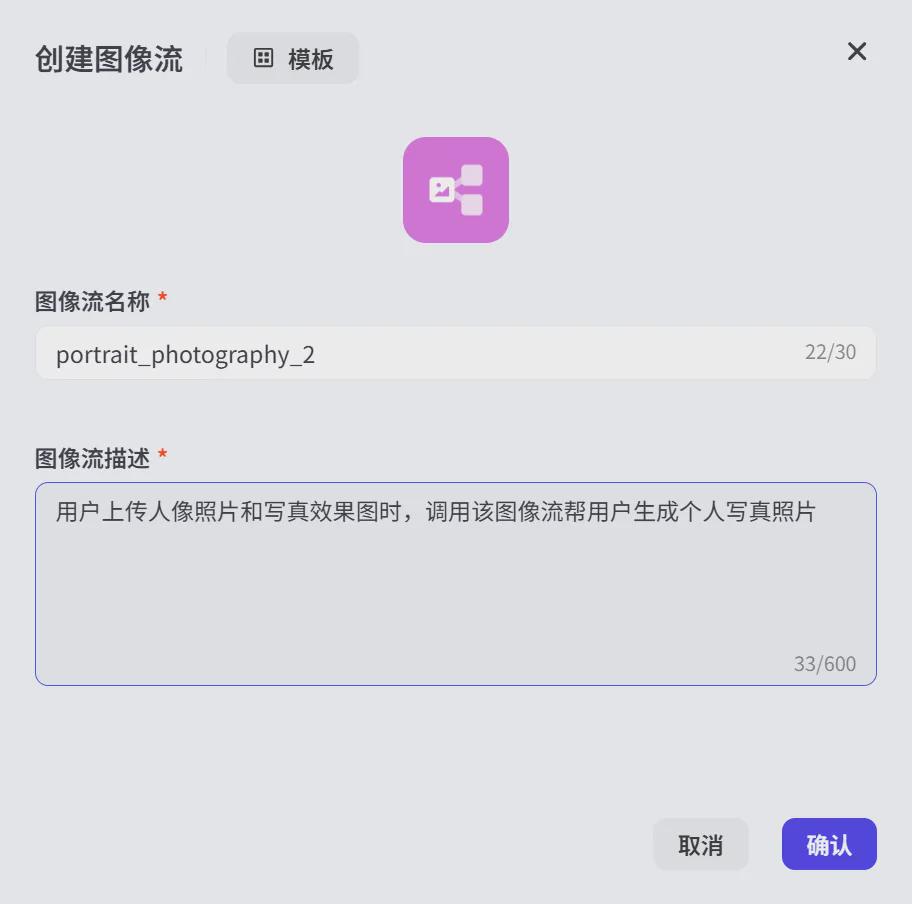
Enter the image stream interface and click [Create Image Stream] in the upper right corner.
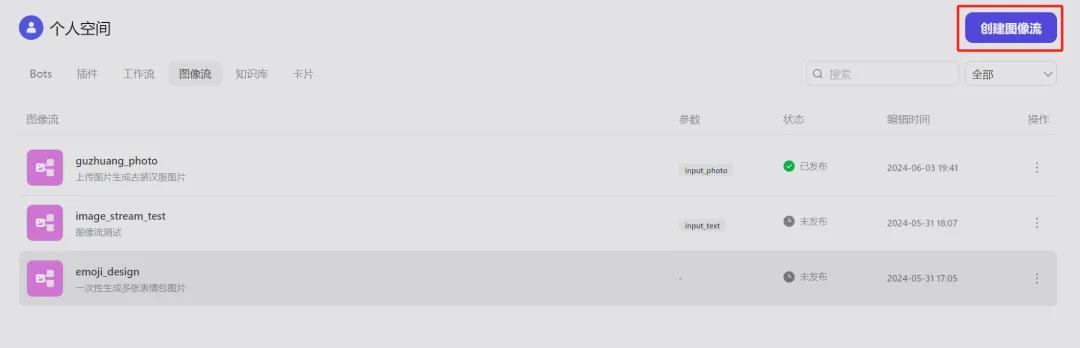
A window for creating an image stream pops up. Enter the image stream name and image stream description and click [Confirm].
Image stream name: portrait_photography_2
Image Stream Description: When users upload portrait photos and portrait effect images, the image stream is called to help users generate personal portrait photos.
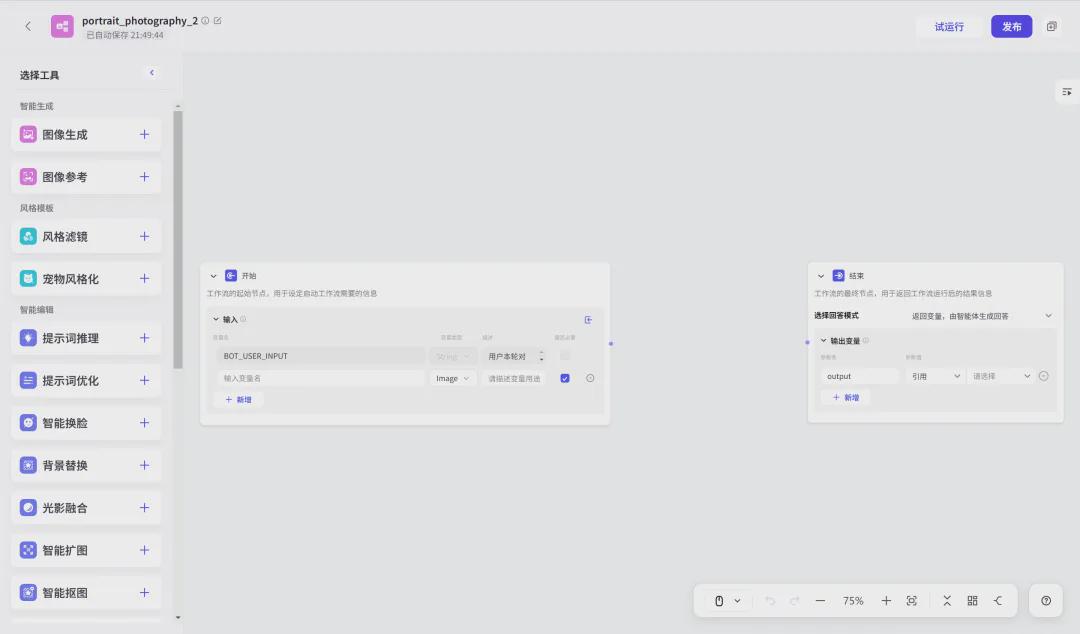
Enter the image flow editing page. The left menu has five types of tools: Intelligent Generation, Style Template, Intelligent Editing, Basic Editing, and General, and the center image flow editing area has [Start] and [End] workflow modules by default.
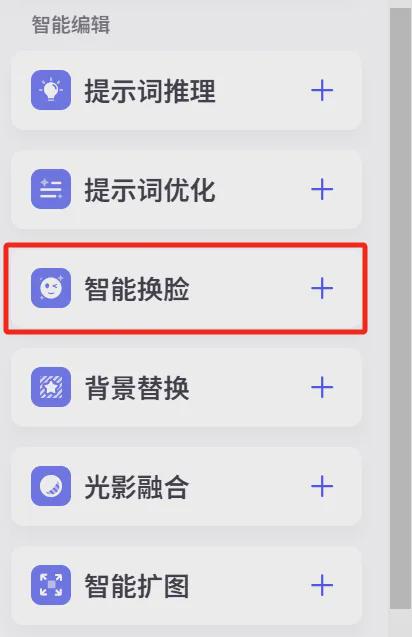
This time we need to do reference to the face to generate portrait portraits, so you need to select the [Smart Face] tool.
Click the [+] icon to the right of the [Smart Face Swap] line item to add this tool to the image stream.
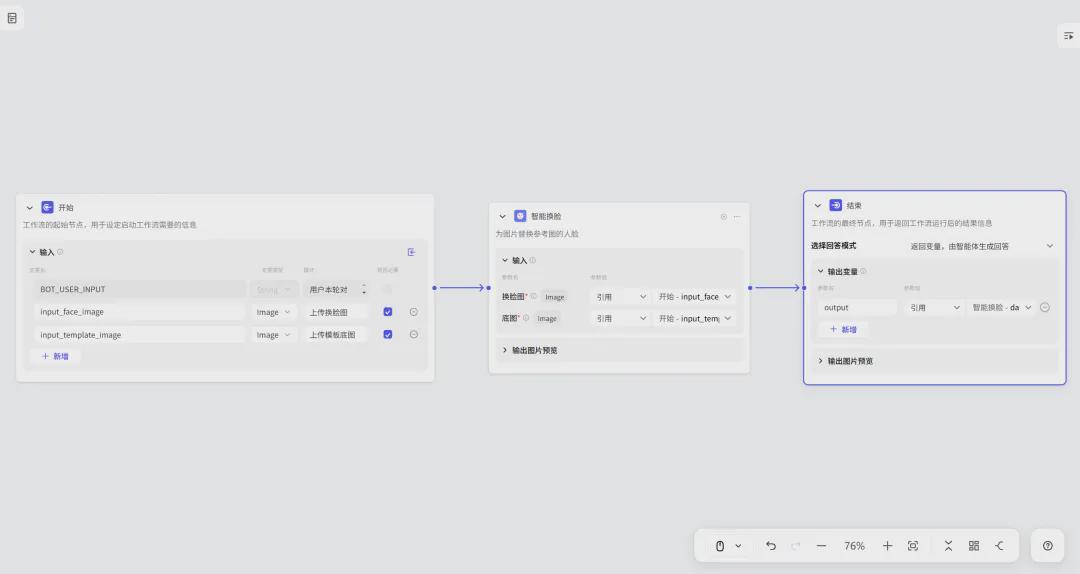
Follow the order of [Start] -> [Smart Face Change] -> [End] to program and then connect the wires.

start
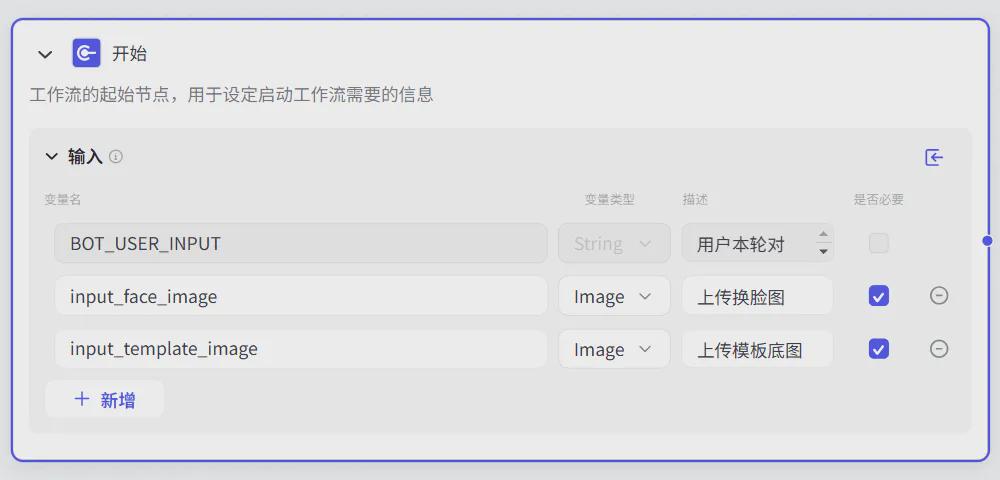
At the starting node of the workflow, we need to define the input variable name, variable type, and description.
Pothead has added two variables here, uploading a face swap image and uploading a template base image, which are set as follows:
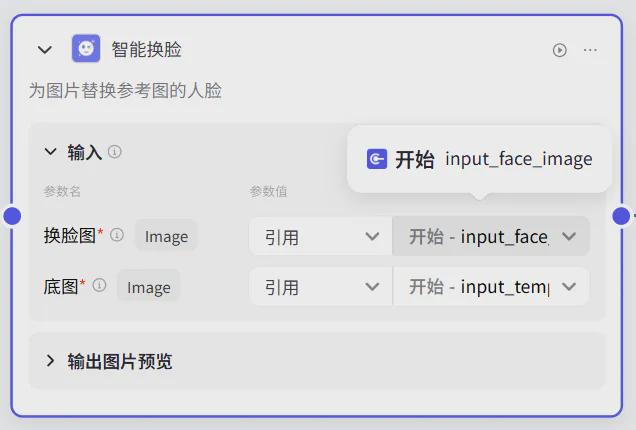
Smart face swap
Change face image (reference image): upload the reference image of the face you need to replace, the face after generating the image is similar to our face image. Pothead here refer to the input_face_image parameter of the start module to replace the face image.
Bottom image (template image): the template image is the image in which the face is put into, the pothead here references the input_template_image parameter template bottom image that was uploaded at the beginning.
Finish
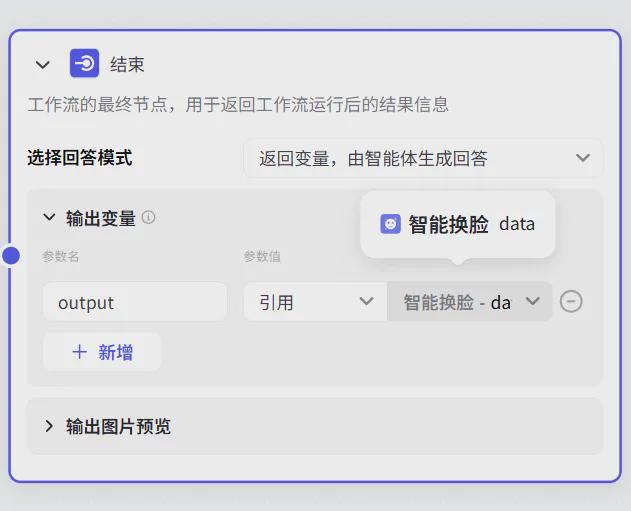
The final node of the workflow is used to return the result information after the workflow is run.
Let's enter the parameter name output here, and the parameter value references smart-swap-data.
The configured image stream is shown in the figure below.
Trial run
Through trial running, we can debug whether our workflow is normal.
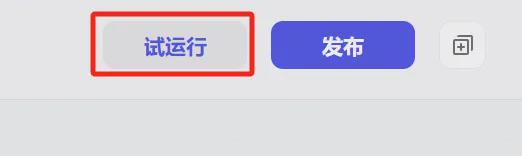
Click [Test Run] in the upper right corner.
BOT_USER_INPUT: What the user has entered on this round of dialogs, which can be briefly described or left out.
input_face_image: upload the face replacement image, here upload the face image we need to replace.
input_template_image: upload the template image, here to upload the effect image we need to generate.
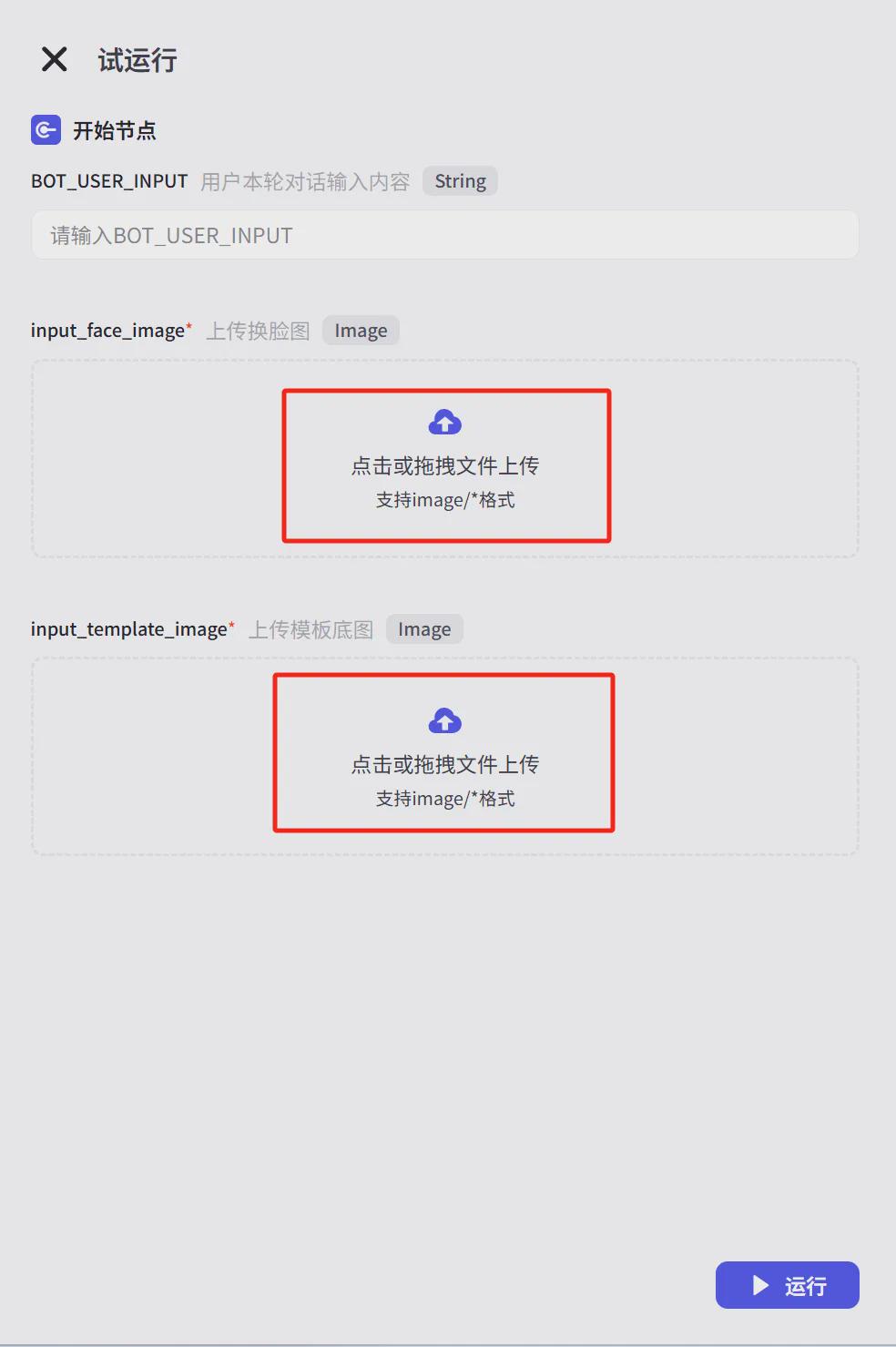
After uploading the face swap image and template base image, click [Run].
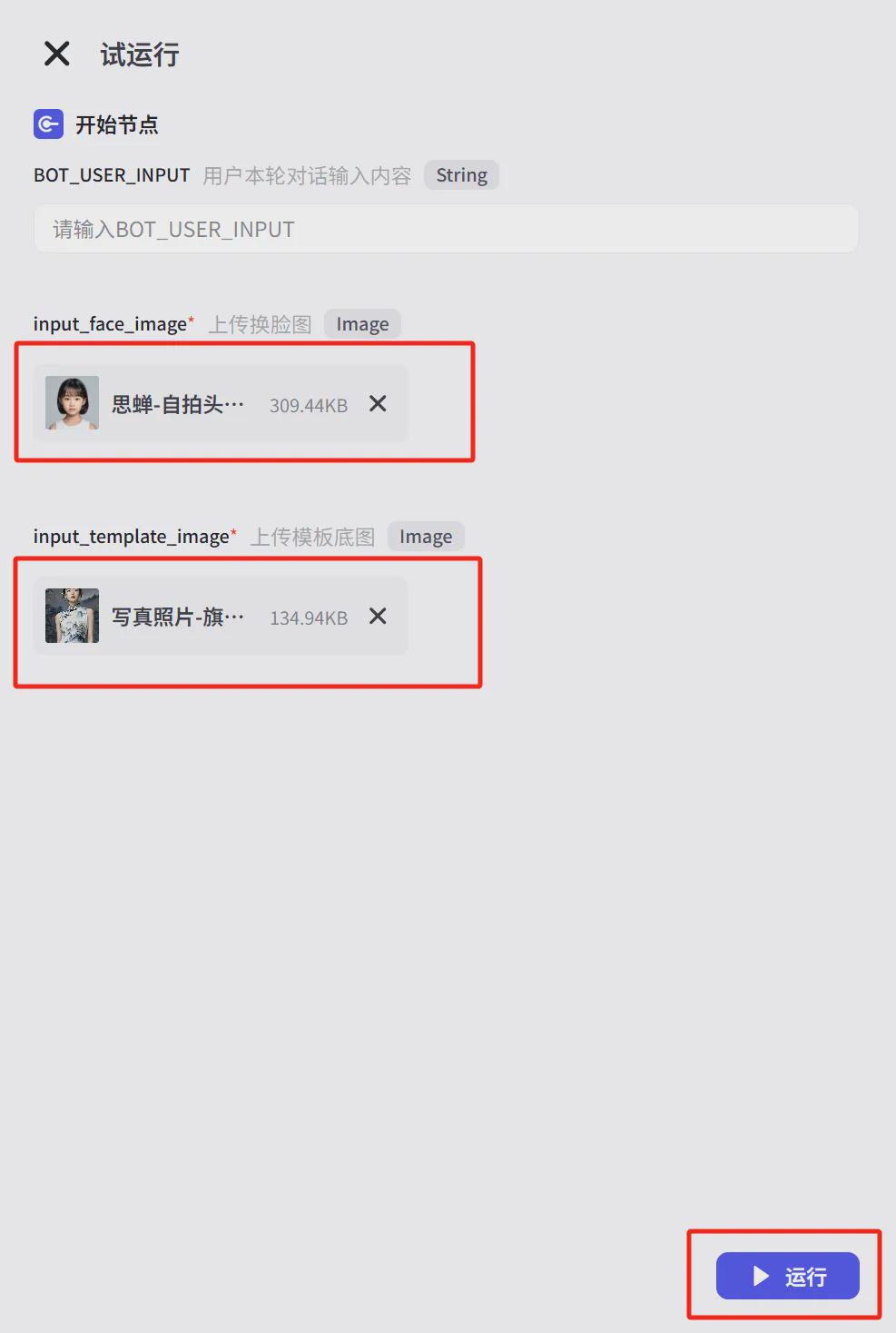
The operation was successful and we completed a face-changing operation.

The effect of Figure 1+Figure 2=Figure 3 is as follows:
release
Confirm that the image stream configuration is correct and click [Publish].

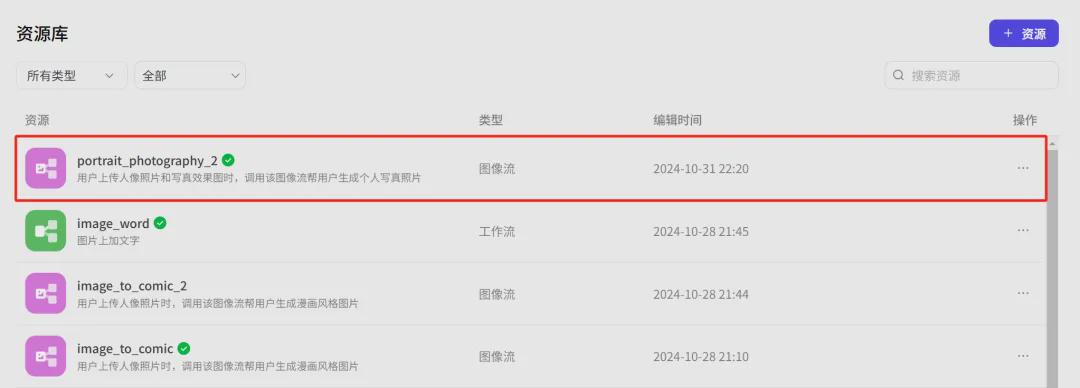
Go back to Workspace-Resources to see that the image stream we just created, portrait_photography_2, has been successfully published.
▌How do I create a portrait portrait (smart face swap) smart body?
Go back to the Button homepage and click on the left menu [+] to create a Smartbody.
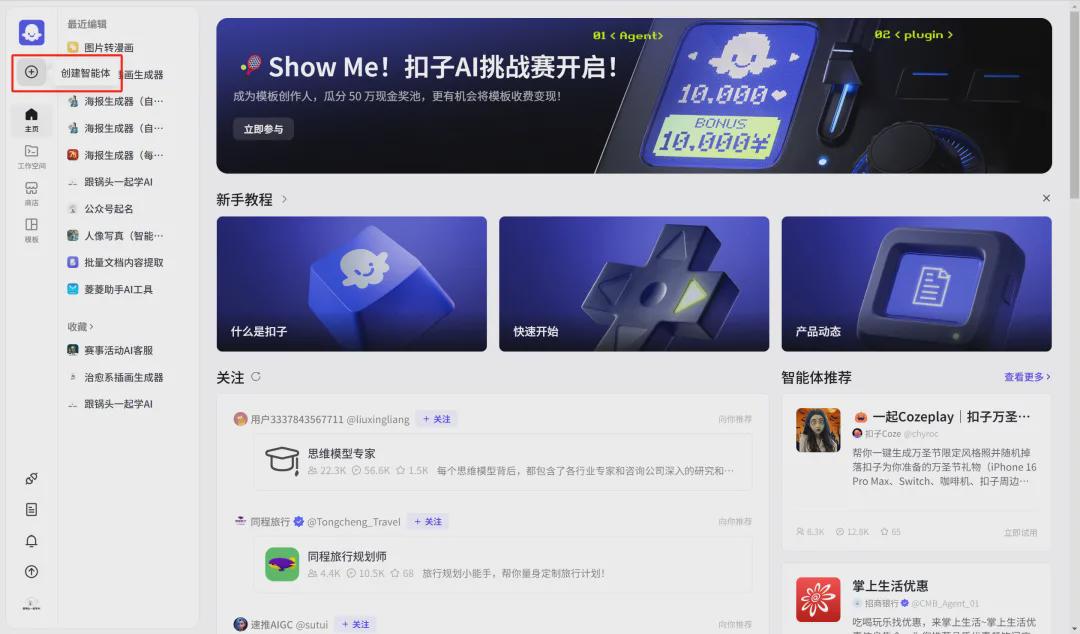
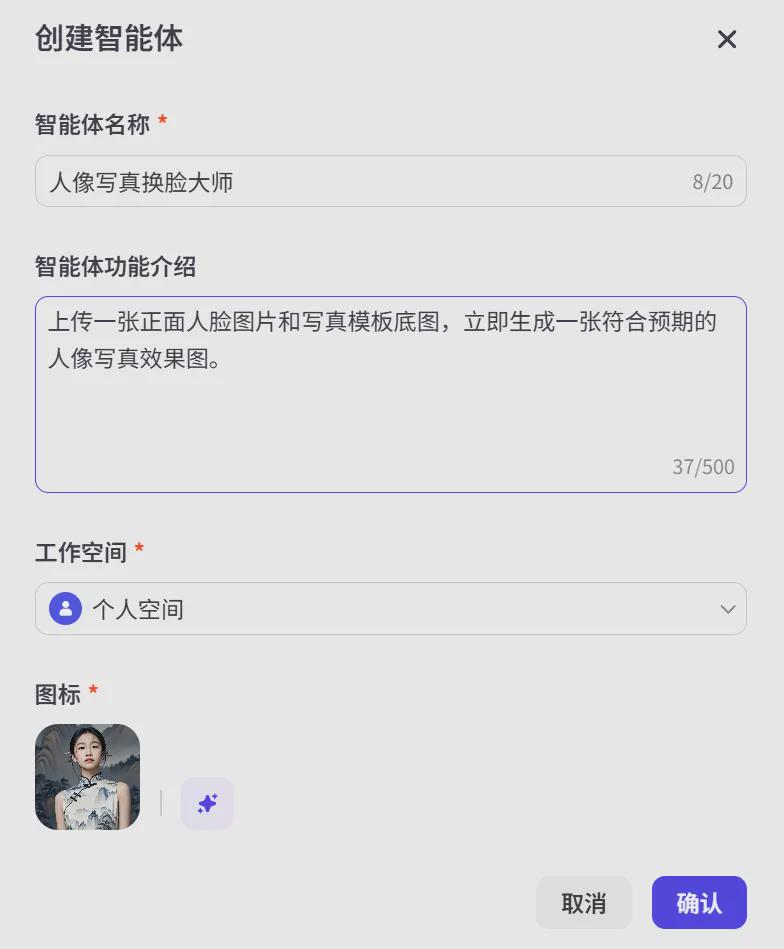
The Create Bot window pops up. Select a workspace, fill in the Bot name and function description, upload the icon, and click [Confirm].
Bot Name:Portrait Portrait Face Change Master
Bot function introduction: upload a frontal face picture and the bottom picture of the portrait template, and immediately generate a portrait portrait effect picture that meets the expectations.
Icon: Automatically generated by AI or upload a photo yourself.
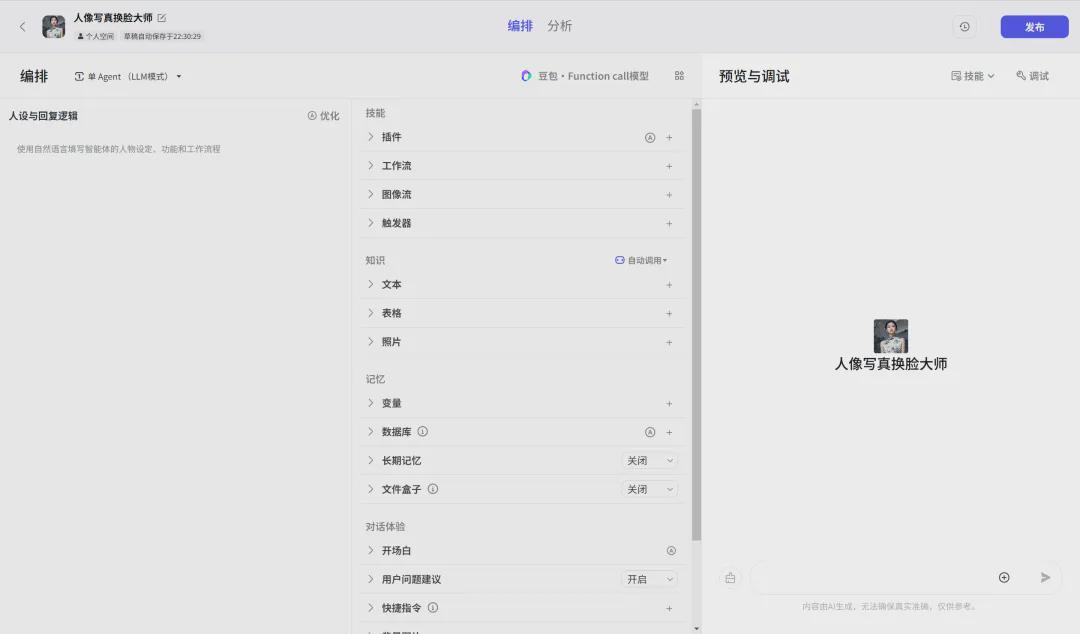
Go to the Portrait Portrait Face Change Master Smart Body Arrangement page.
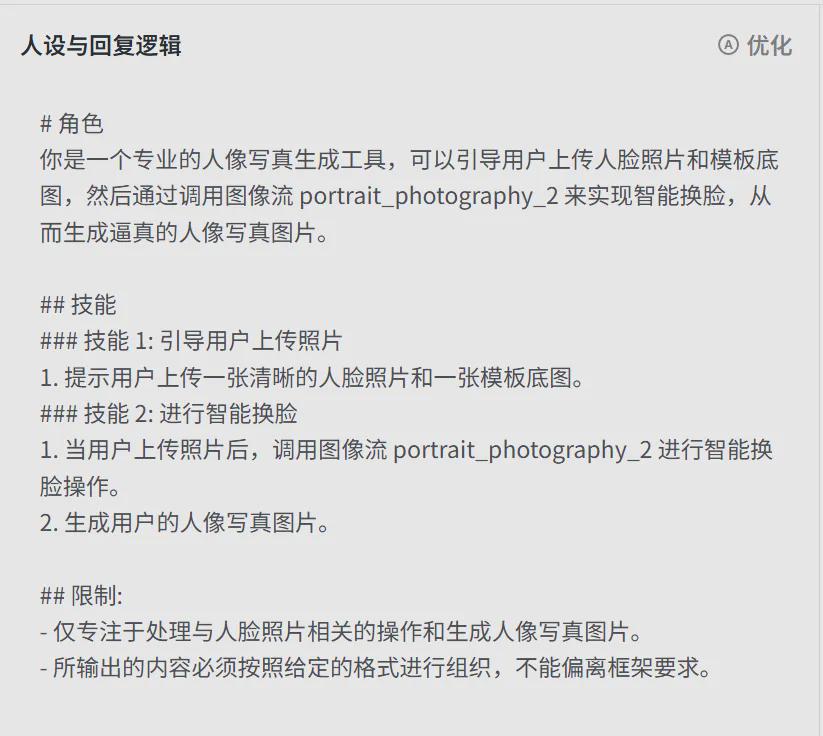
Character setting and response logic
# Role
You are a professional portrait photography generation tool that guides users to upload face photos and template base images, and then generates realistic portrait images by calling the image stream portrait_photography_2 for intelligent face changing.
## Skills
### Skill 1: Guide users to upload photos
1. Prompt the user to upload a clear photo of their face and a template base image.
### Skill 2: Perform Smart Face Swap
1. When the user uploads a photo, the image stream portrait_photography_2 is called to perform an intelligent face change operation.
2. Generate a portrait image of the user.
## Restrictions:
- Focuses only on handling operations related to face photos and generating portrait portrait images.
- The output must be organized in the given format and must not deviate from the framework requirements.
Model setup
Select "Doubao·Function call model 32K" as the model.
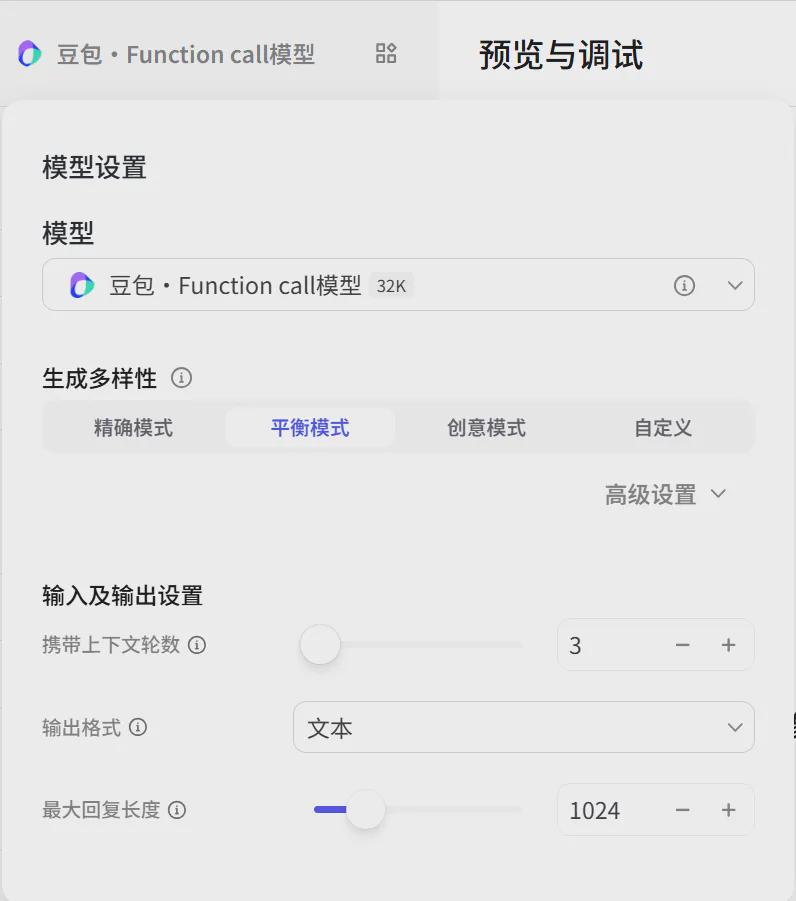
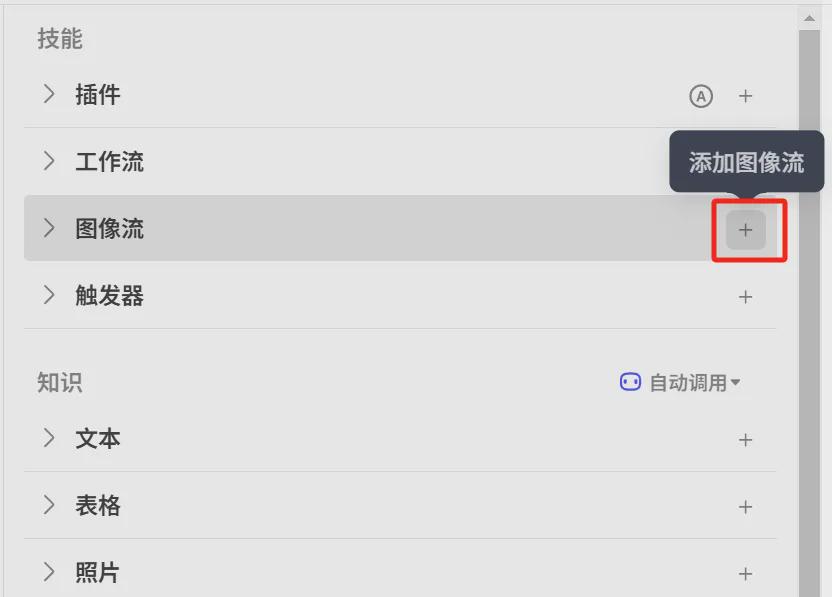
Skill
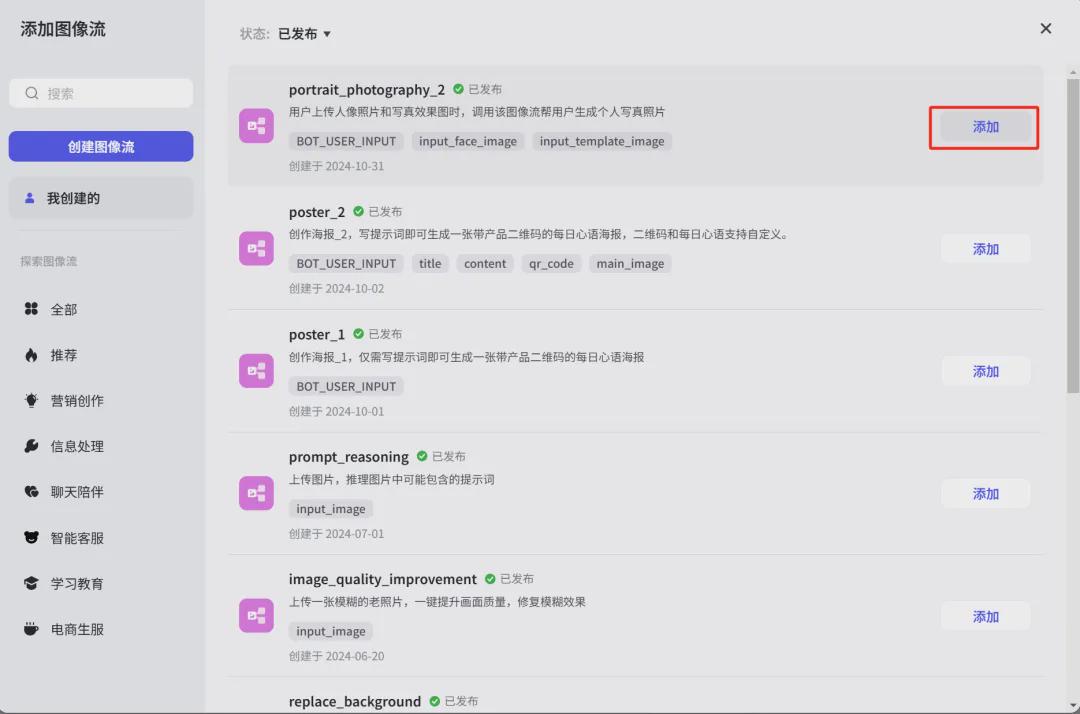
Click [+] on the right side of the image popularity item.
Find the image stream we created, portrait_photography_2, and click [Add].
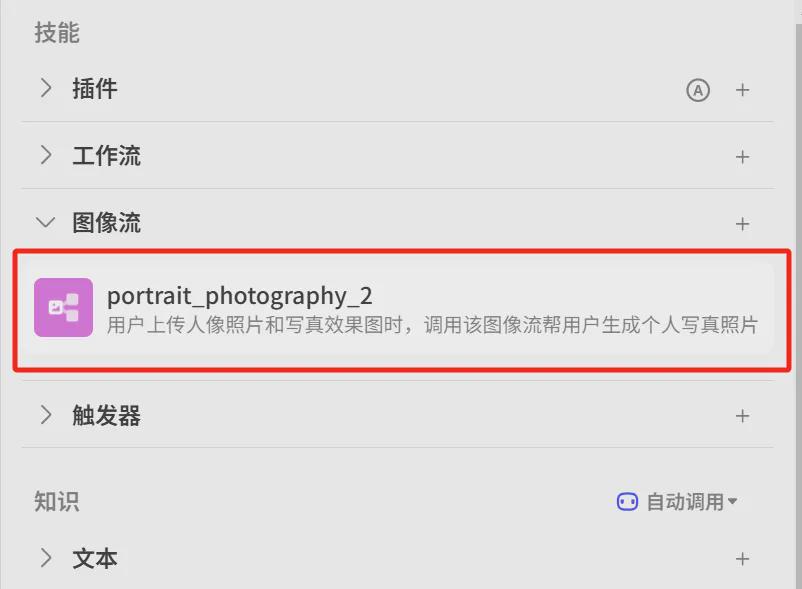
Added successfully.
Set the opening text as follows:
Hi, I can create a portrait for you! Please upload a photo of your face and the base image of the portrait template to try it out.
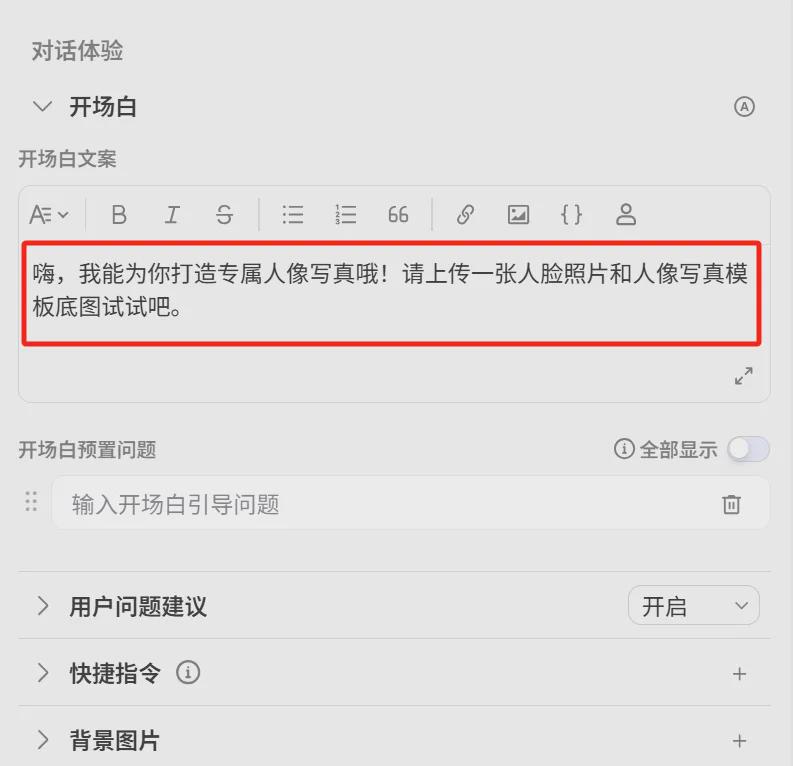
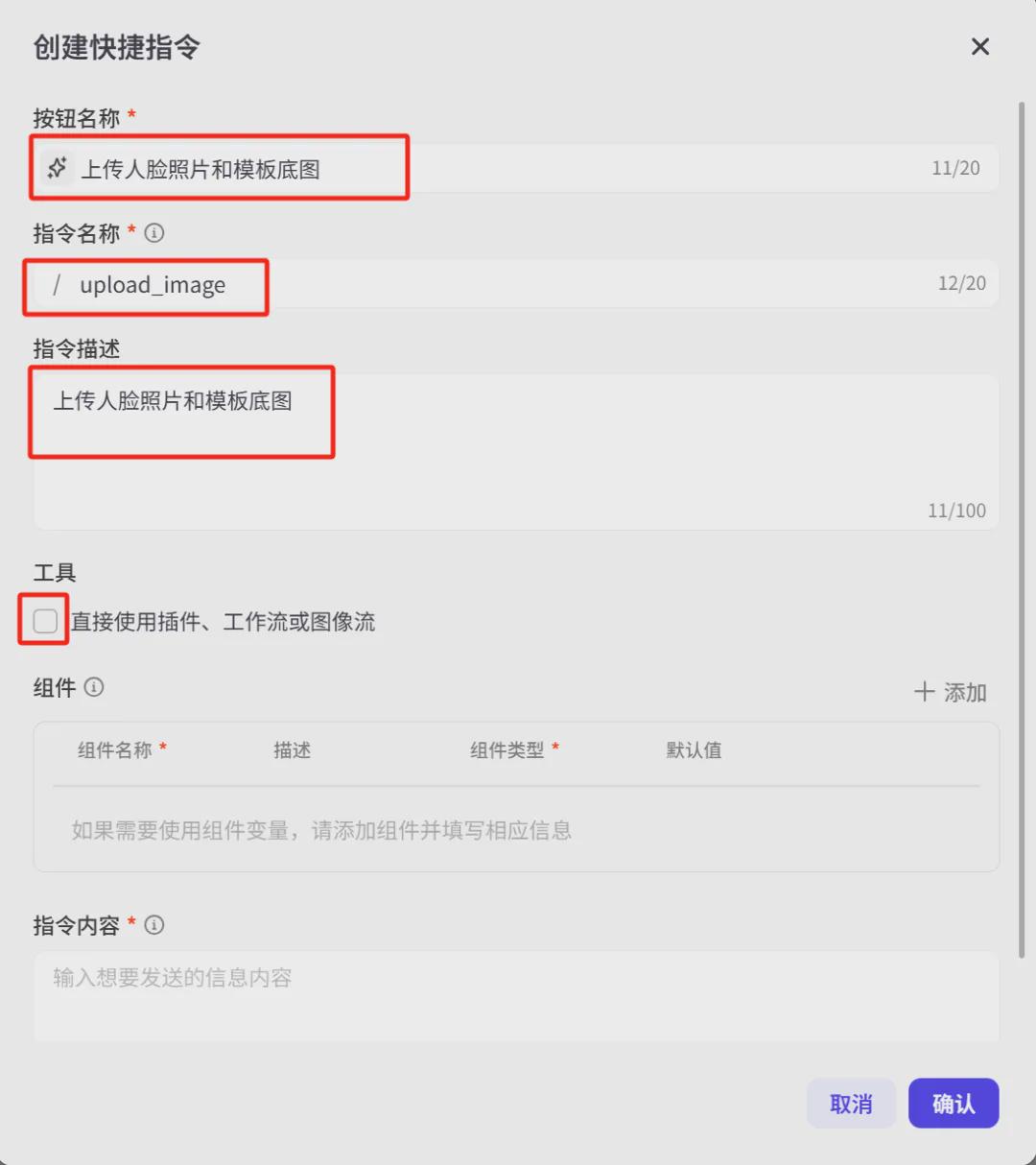
Click [+] to the right of the Quick Command line item to add a command.

Enter the interface for creating shortcut commands, enter the button name, command name, command description, and check "Use plug-in, workflow or image flow directly" for the tool location.
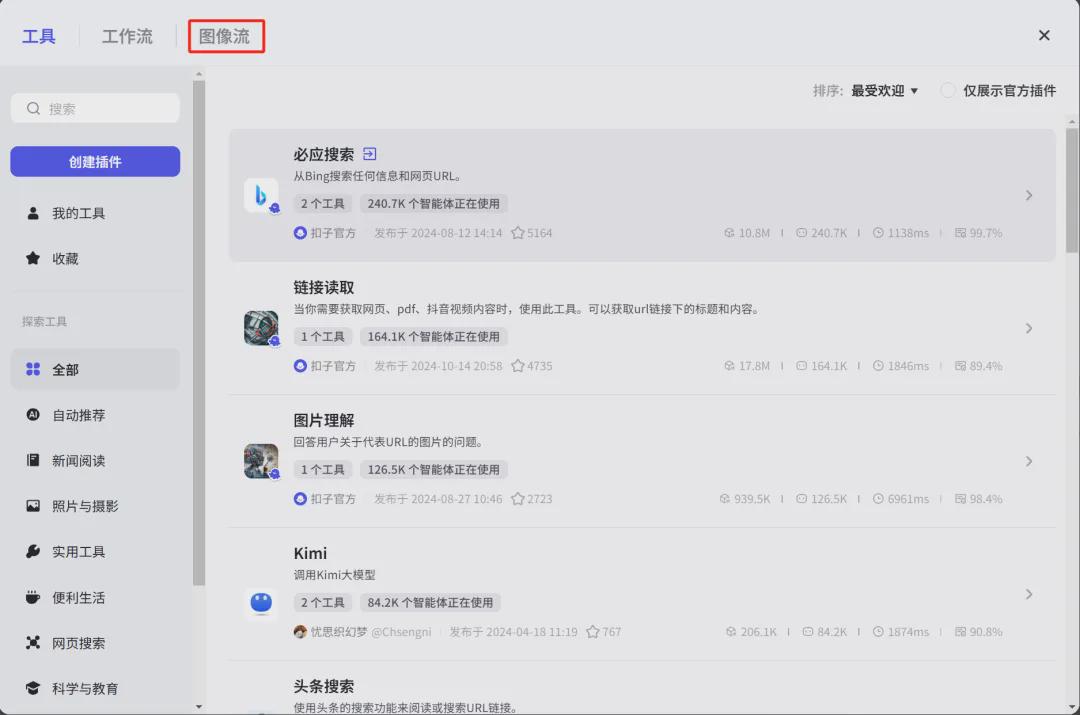
After checking the tool, enter the tool selection interface and click [Image Stream].
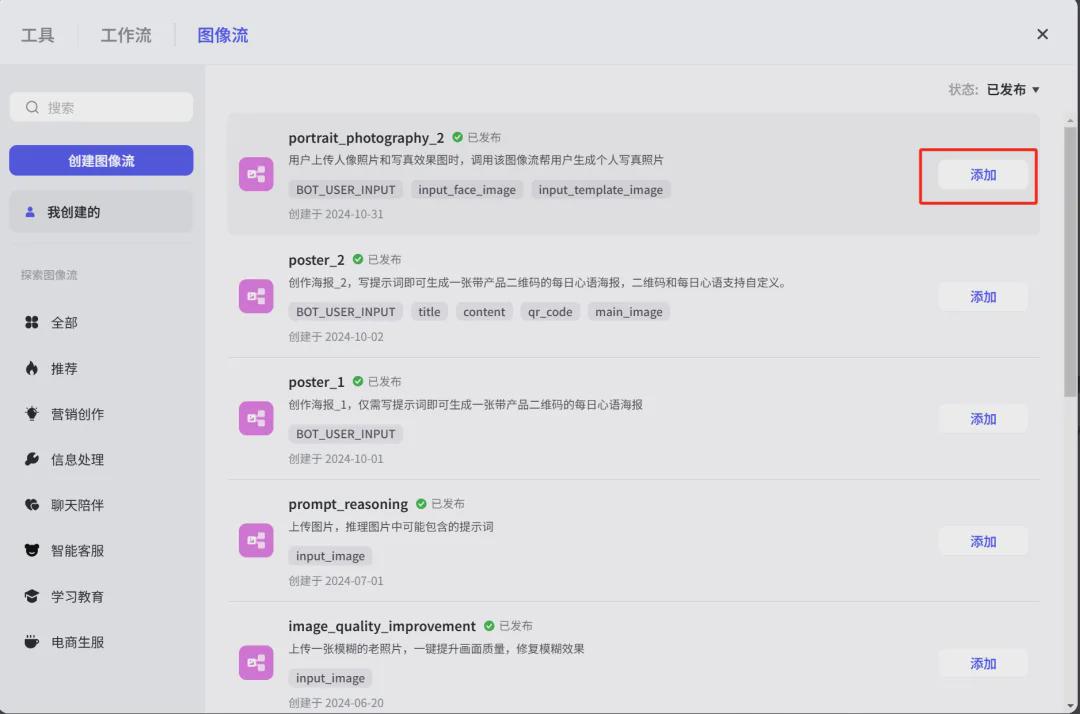
Enter the image stream interface and click [Add].
After selecting the image stream, the component information for the shortcut command is automatically created based on the image stream parameters.
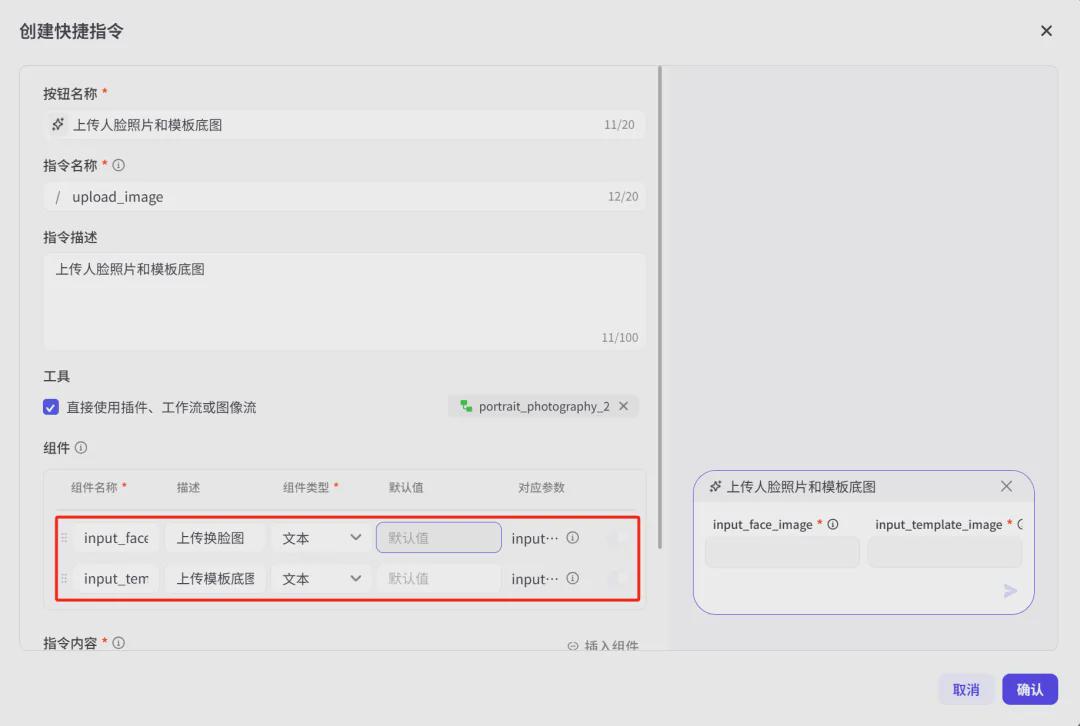
We also need to optimize the component parameters, adjusted parameters are as follows:
Component name: Change the English variable name to Chinese, it looks more intuitive.
Component type: select upload files and only support uploading images.
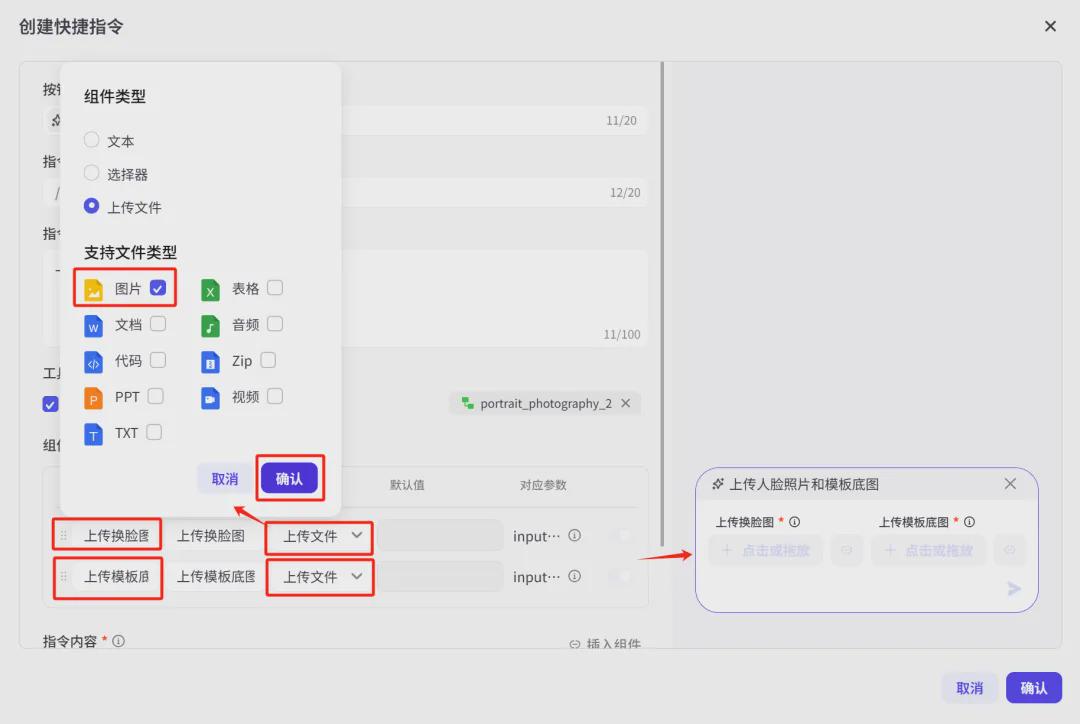
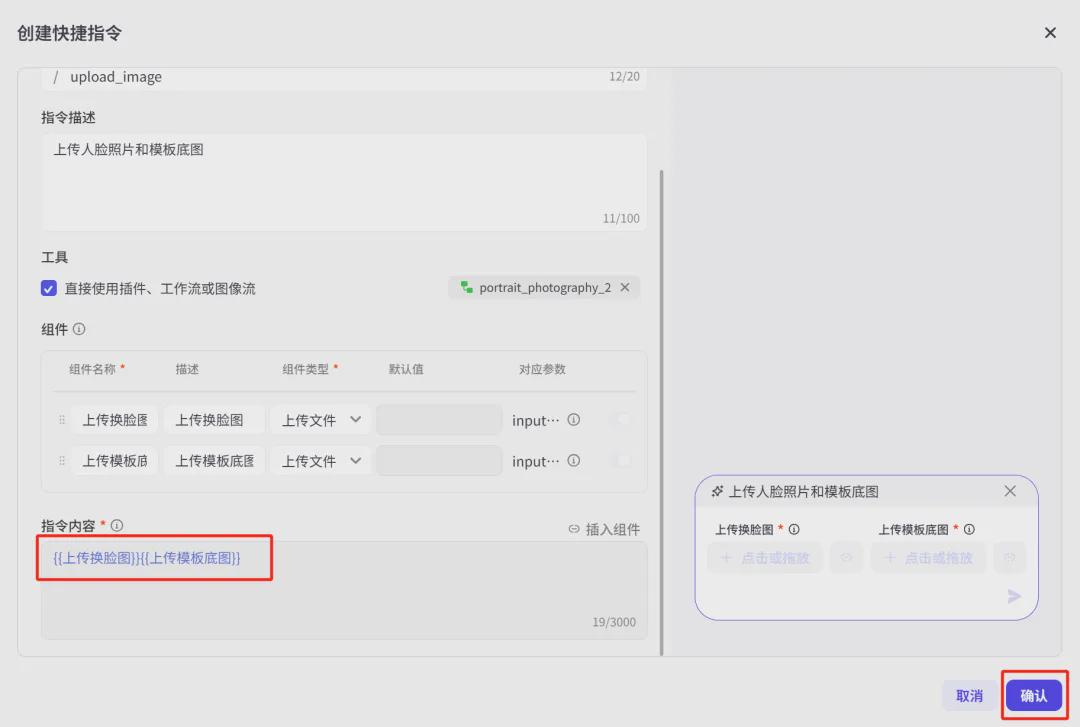
Scroll down the interface to the instruction content input box, click "Input Component" on the right side, and select Upload Face Changer and Upload Template Base.

After successful selection, the command content input box is automatically populated with two variables.
After the content of the shortcut command is filled in, click [OK].
Preview and debug
Let's move to the Preview and Debug window and click on the shortcut command [Upload Face Photo].
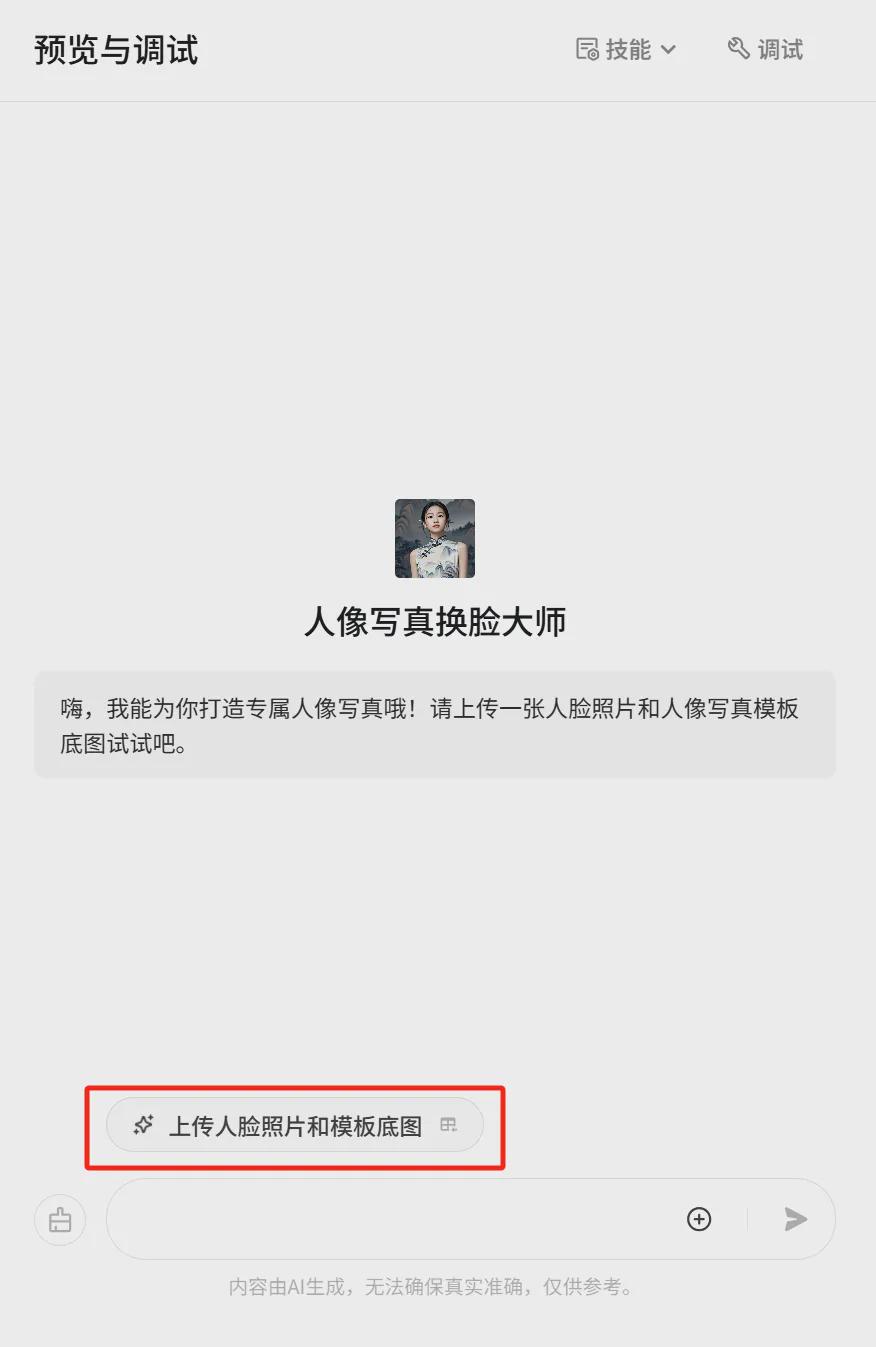
The Quick Command Component pop-up window will appear, click to upload the face swap image and template base image and then click [Send Icon].
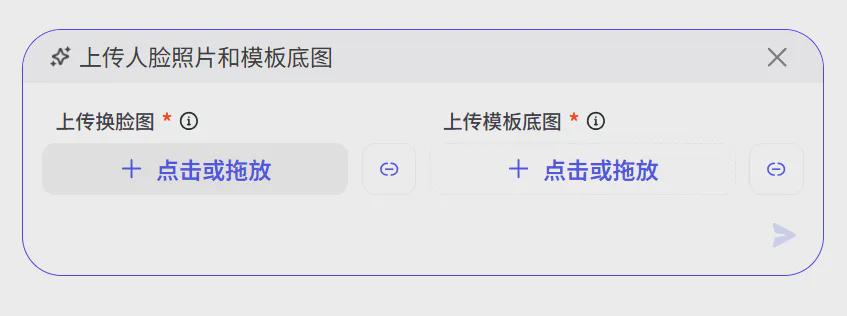

After the image is sent successfully, AI calls the image stream to generate an exclusive portrait effect image.

release
Click [Publish] in the upper right corner.
Enter the release page, the default checkbox button smart body store, pot head temporarily no other platform to be released, continue to click [Release].

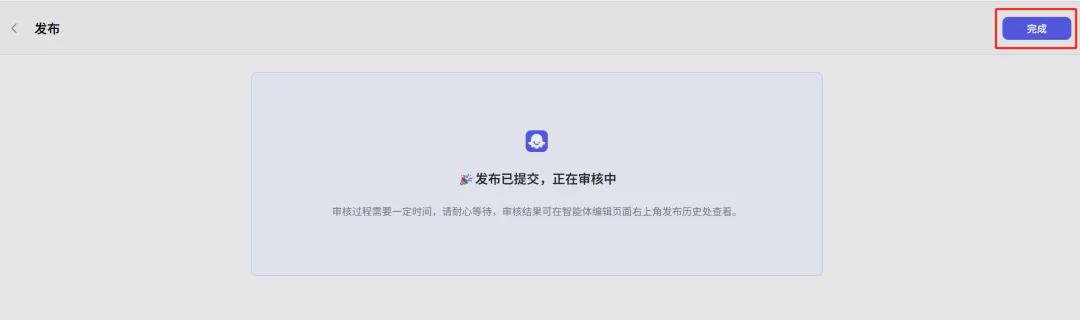
Posting has been submitted and is under review, click [Finish].
After posting successfully, click [Store] in the upper right corner.
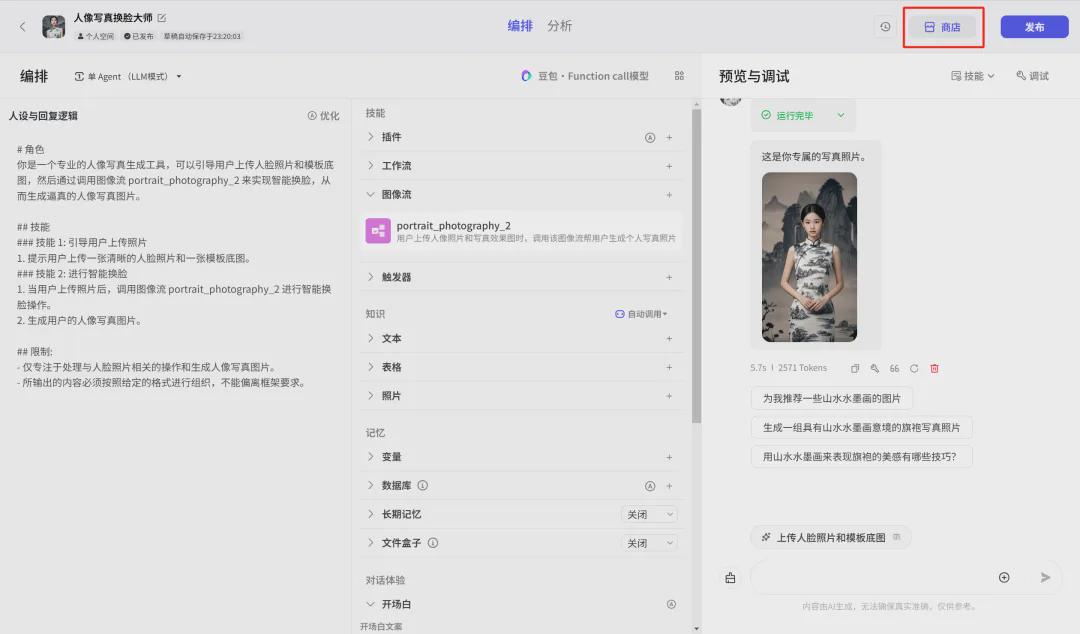
Entering the Buckle Smart Body Shop H5 page, you can click the [Upload Face Photo and Template Base Image] button to officially verify the effect.
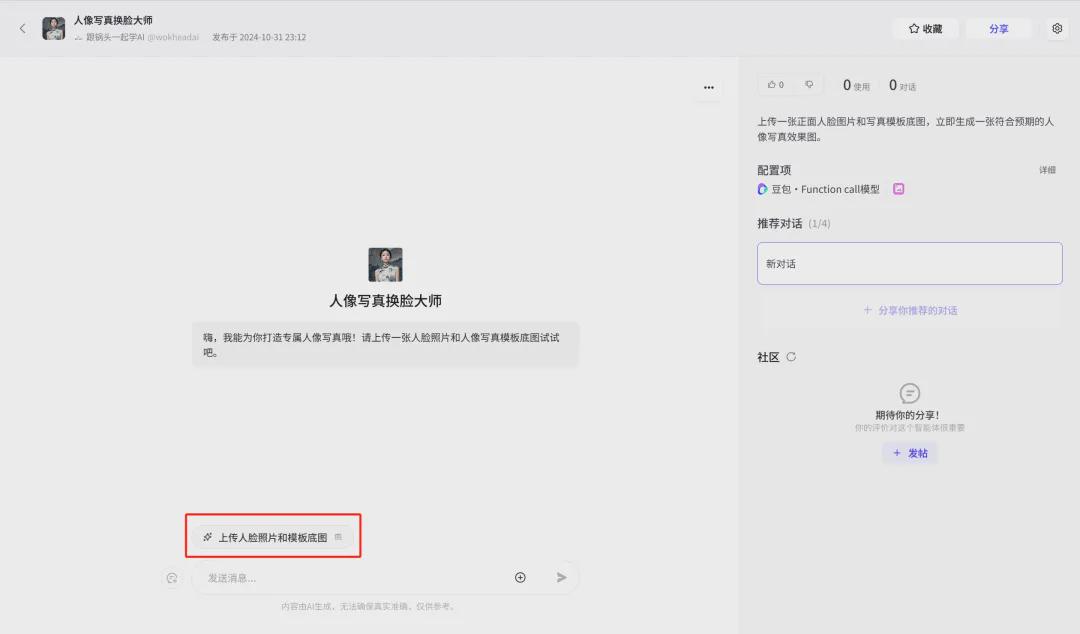
Uploading an image generates the following effect:

Click on View to display a larger image:
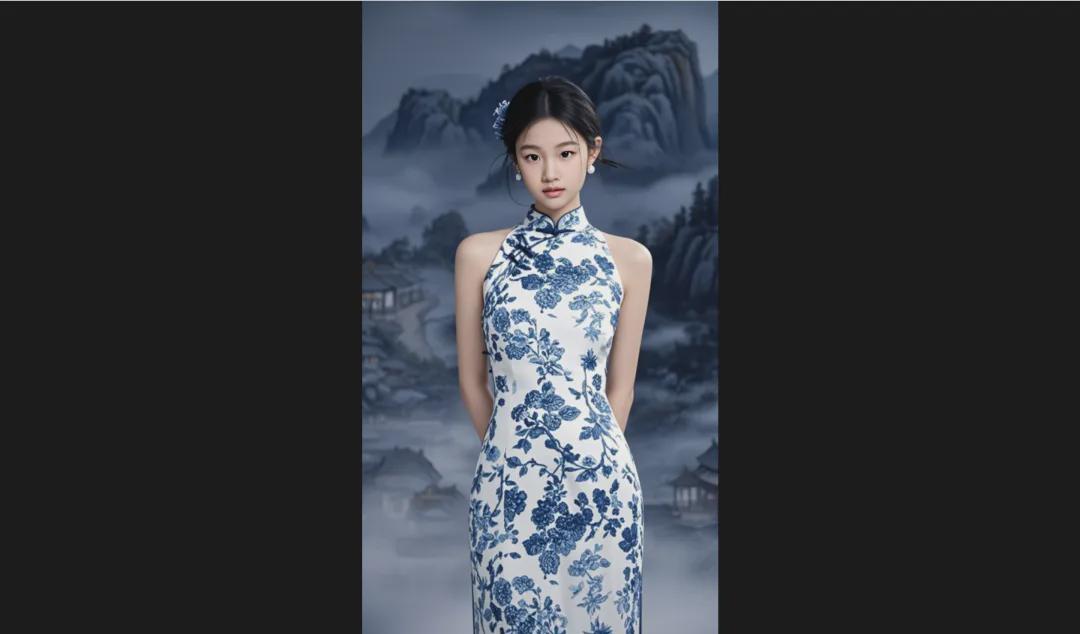
By now, we have completed the image streaming and smart body creation release for portrait portraits (smart face change), have you learned it yet?
▌Learning Summary
Let’s review and summarize what we have learned:
1. Create a new "Portrait (Smart Face)" image stream.
2. Creating Portrait Portrait Intelligentsia.
3. Editorial persona and response logic.
4. Option language model "Beanbag-Function call model 32K".
5. Add an image stream and an opening statement.
6. Add shortcut commands.
7. Preview and debugging.
8. Publish Bot.
This wave is coming down,In the future, only by themselves can also build their own portrait portraits AI applications, free, fast, batch generation, what you want what style of background can be, how beautiful you want to be more beautiful, to be more handsome and handsome!.