



In the previous section, we learned the basics of Lora, including reading author and comment section information, understanding the model, and how to open the additional web interface and fill in the appropriate weight ranges.
Today, we're going to move into a more in-depth study, including how to use trigger words, reference author parameters for generation, and make adjustments based on the results.
I. Detailed steps for using Lora
Step 1: Use Trigger Words
Trigger words are key when invoking Lora. Sometimes, just calling Lora may not produce the desired effect, and positive cues need to be added to trigger it correctly. For example, when generating images, in addition to using weights and big models, specific cues such as "full body" and "chibi" need to be added to trigger specific styles.

Step 2: Refer to the author's parameters for generation
In the process of mimicking the author-generated process, we need to understand the macromodel, trigger words, and refer to parameters such as positive and negative cues used by the author, CFG, seeding, and sampling methods. With the consistency of these parameters, we can replicate almost identical images.

Step 3: Adjustment based on generated results
The final step is to adjust the generated results in many ways, including models, weights and various parameters to achieve the results we want.

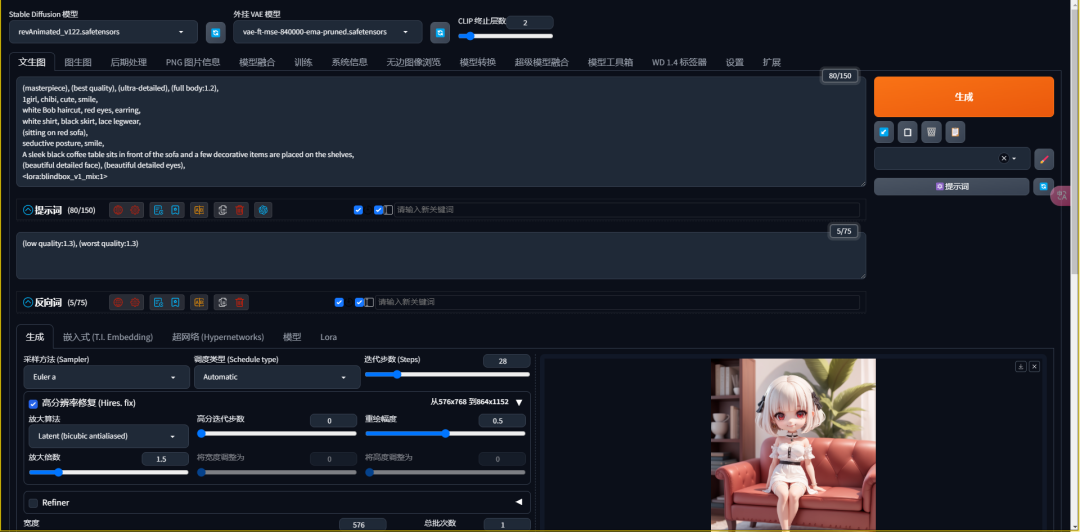
II. Notes on the use of Lora
There are a few things to keep in mind when using Lora:
- Model name consistency: Ensure that the Lora name used is the same as the locally saved name, otherwise it may not be called correctly.
- Beginner's caution with multiple Lora: Using multiple Lora requires some understanding of the underlying principles of Lora, and newcomers are advised to start with one Lora.
- Generate images as cue charts: The generated image can be set as a preview image of Lora to help better understand what Lora does.


III. Practical case sharing
Next, we will demonstrate the usefulness of Lora with a few real-world examples.
1、Picture details in high definition
By using a specific Lora, we can increase the detail and enhance the texture of the image. For example, when generating a still life image of a product, adding a detail-enhancing Lora can make the image look more realistic.


2. Character traits are fixed
In scenes where character features need to be consistent, a specific Lora can be used to fix a character's facial or clothing features.
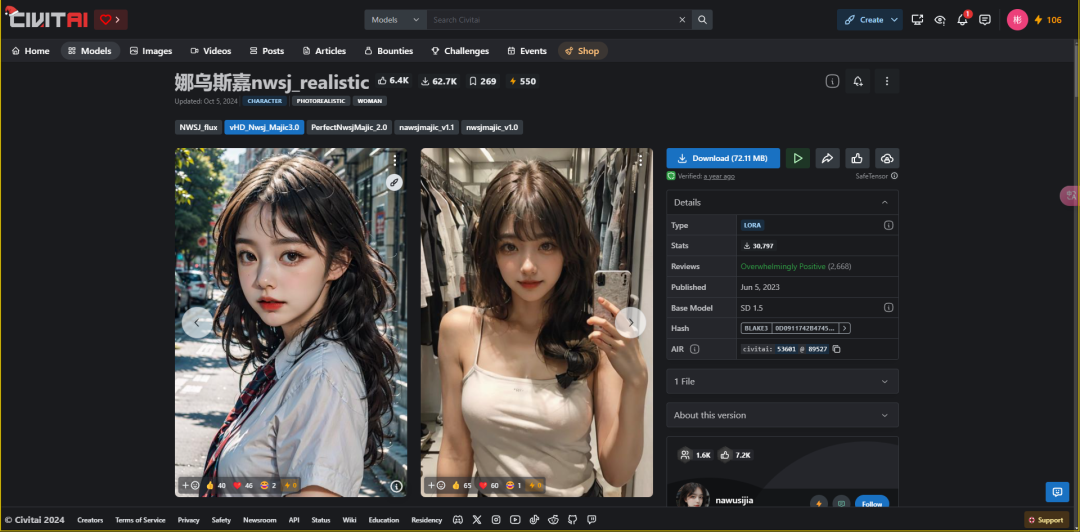

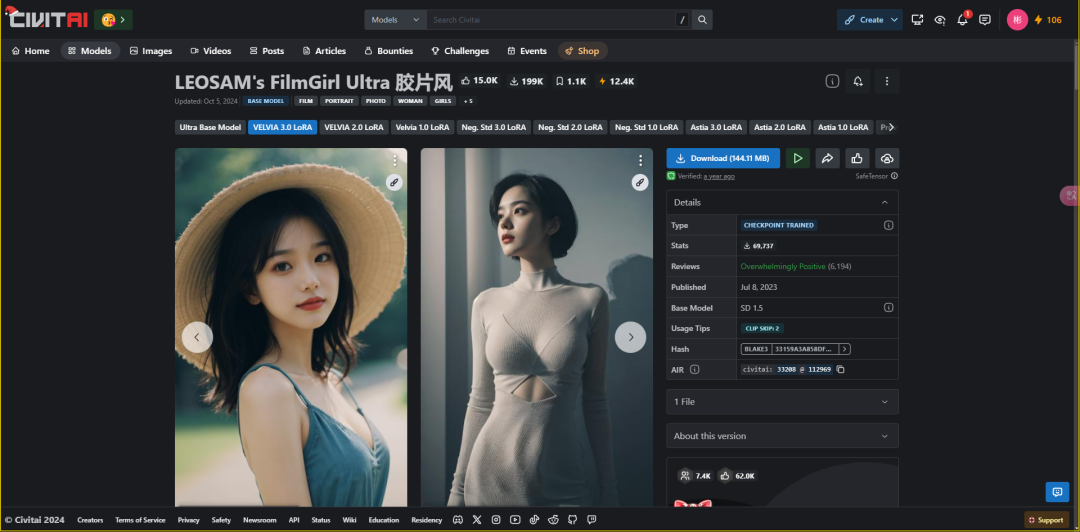
3. Characters de-AI'd
By using a specific Lora, we can reduce the unreality of AI-generated characters and make the images closer to real photos.

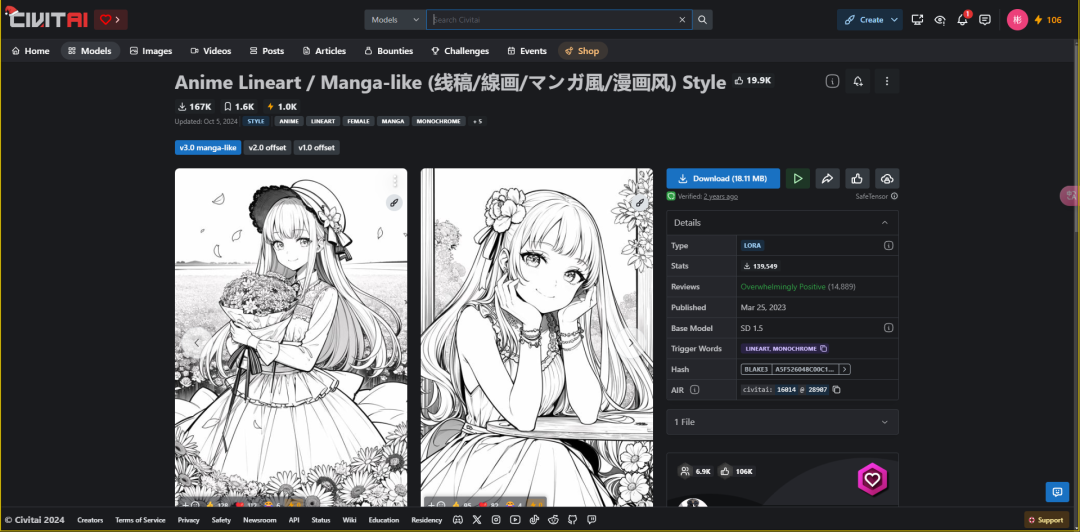
4、Line drawing generation
For designers and artisans, Lora can be used to generate line art effect images, which are useful for creating illustrations and design elements.

5、Picture stylization
Lora can also be used to add a specific style to an image, such as Makoto Shinkai style, and by learning a specific animation style, you can give the resulting image a specific artistic effect.


IV. Conclusion
I hope this article will help you understand and use Lora better.
We have not only refined how to use Lora, but also shared some practical examples. This knowledge will provide a solid foundation for our future project cases.