



Some of my friends asked what to do when they receive an image that doesn't match the size of the image they need, and they need to quickly change the size and keep it in the same style as the original image.
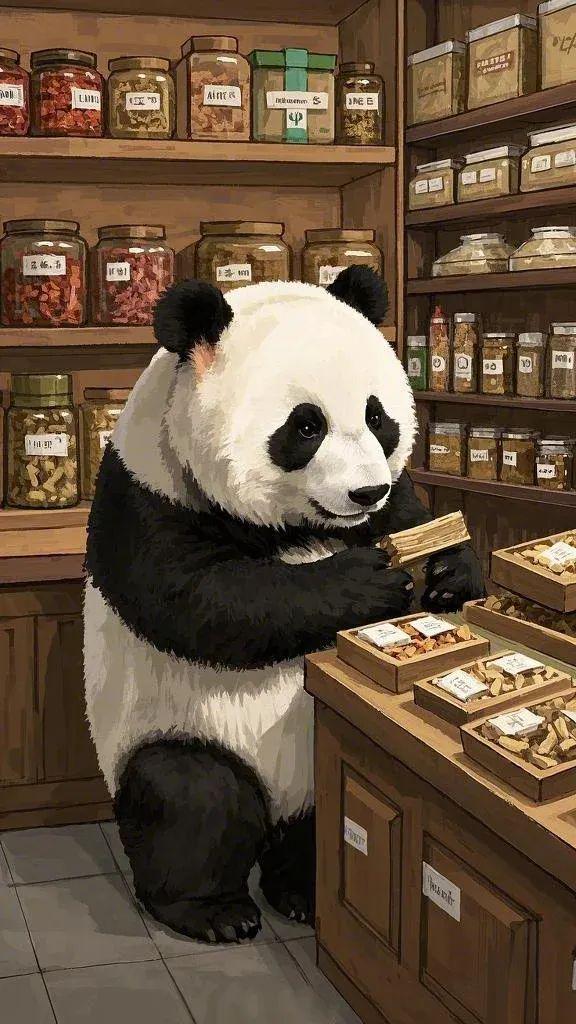
As shown in the picture above, a 9:16 image is received, but like WeChat public cover has 2.35:1 and 1:1, Jieyin cross-screen video is 16:9, and Xiaohongshu Xiaolvshu suggests to use an image size of 3:4.
So, how can we now get the original image to use AI to quicklyModify to different sizes and keep the style of the image consistentWoolen cloth?Requires tools that are free, easy to use, and quick for even a beginner to get started.
Solution
OpenDream AIThe Smart Canvas feature is realized by adjusting the canvas size and expanding the image function.
PS: Currently, the Smart Canvas feature is only supported in the web version of the computer.
Below, learn together how to modify the image size and keep the style uniform with i.e. Dream AI Smart Canvas feature?
▌How do I change the size of my images and keep the style uniform with Instant Dream AI?
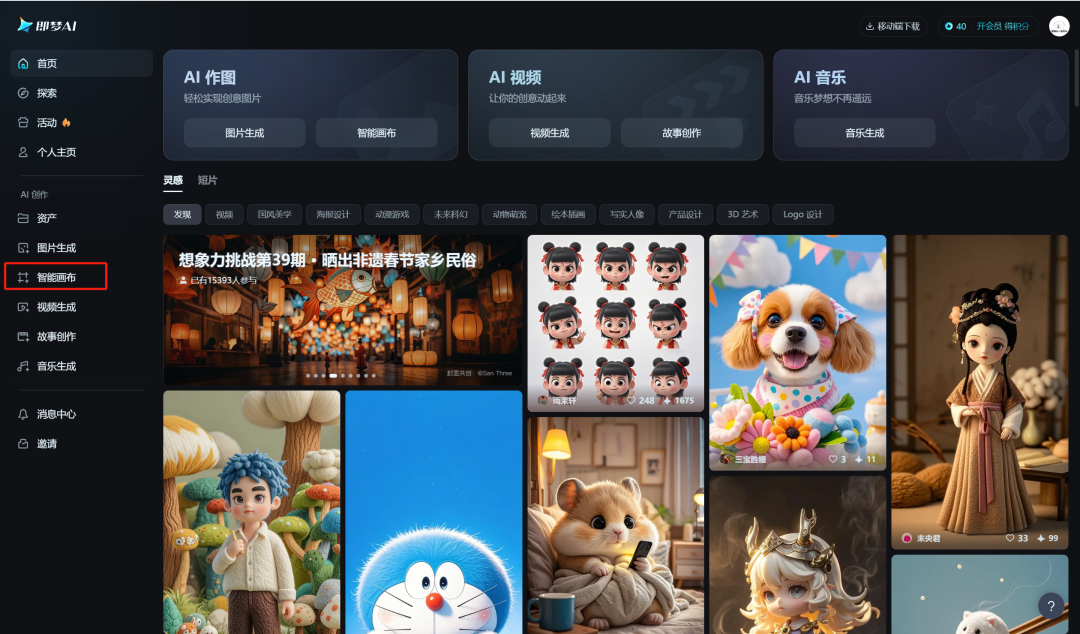
Go to the homepage of the official website of Instant Dream AI and click on [Smart Canvas].
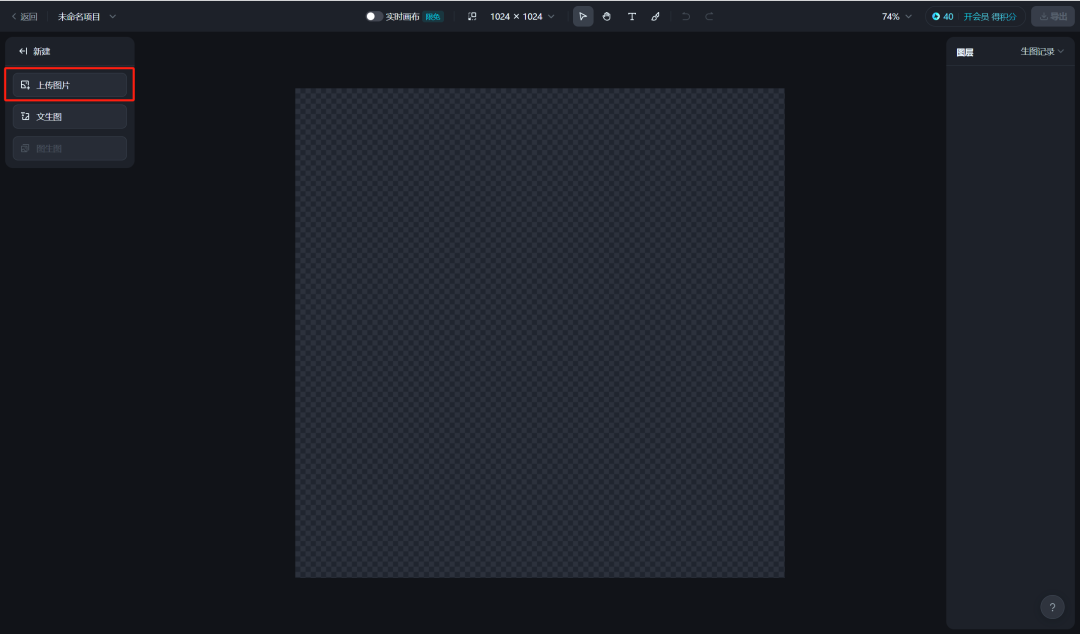
Enter the smart canvas page and click [Upload Image].
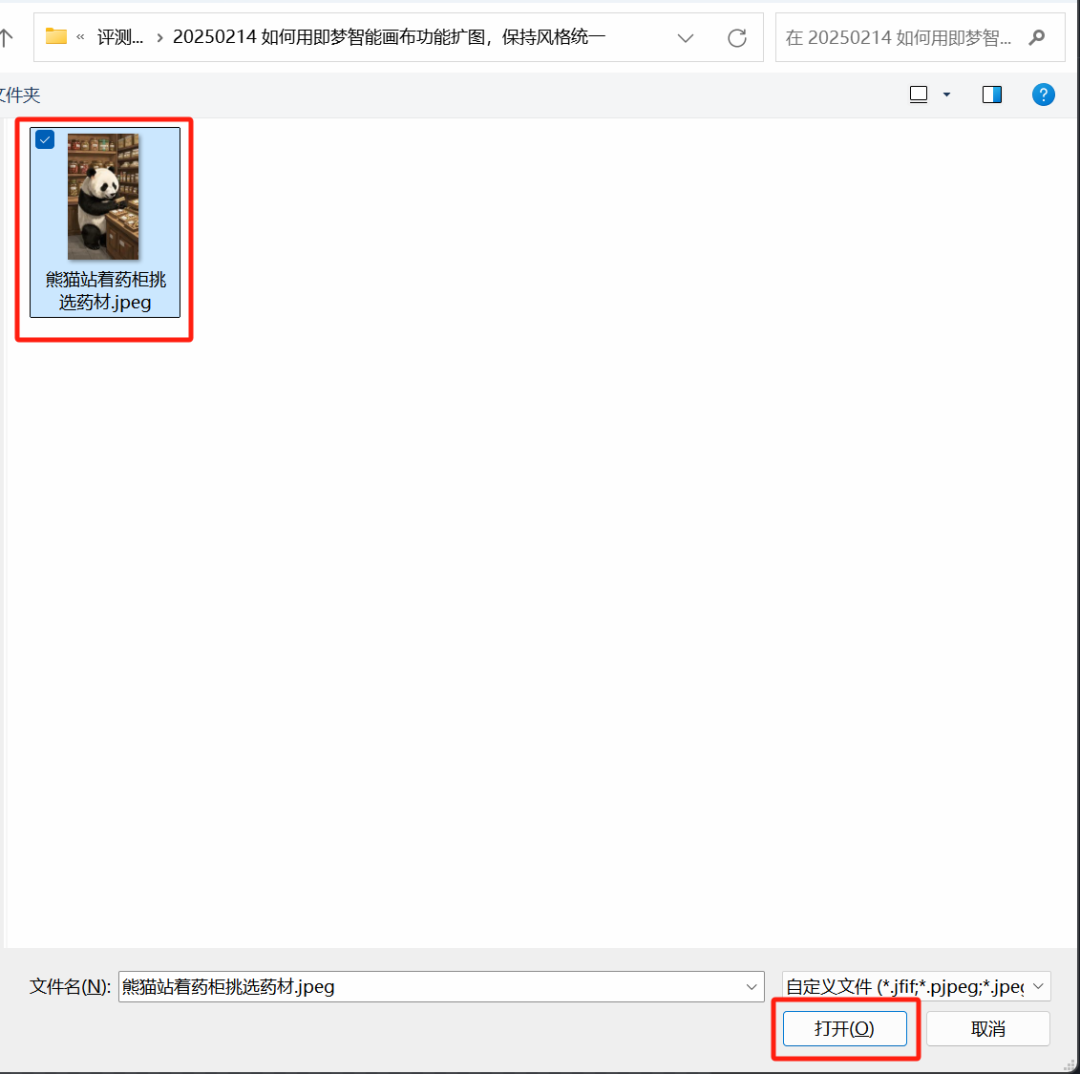
Select the image for which you want to make the size change and click [Open].
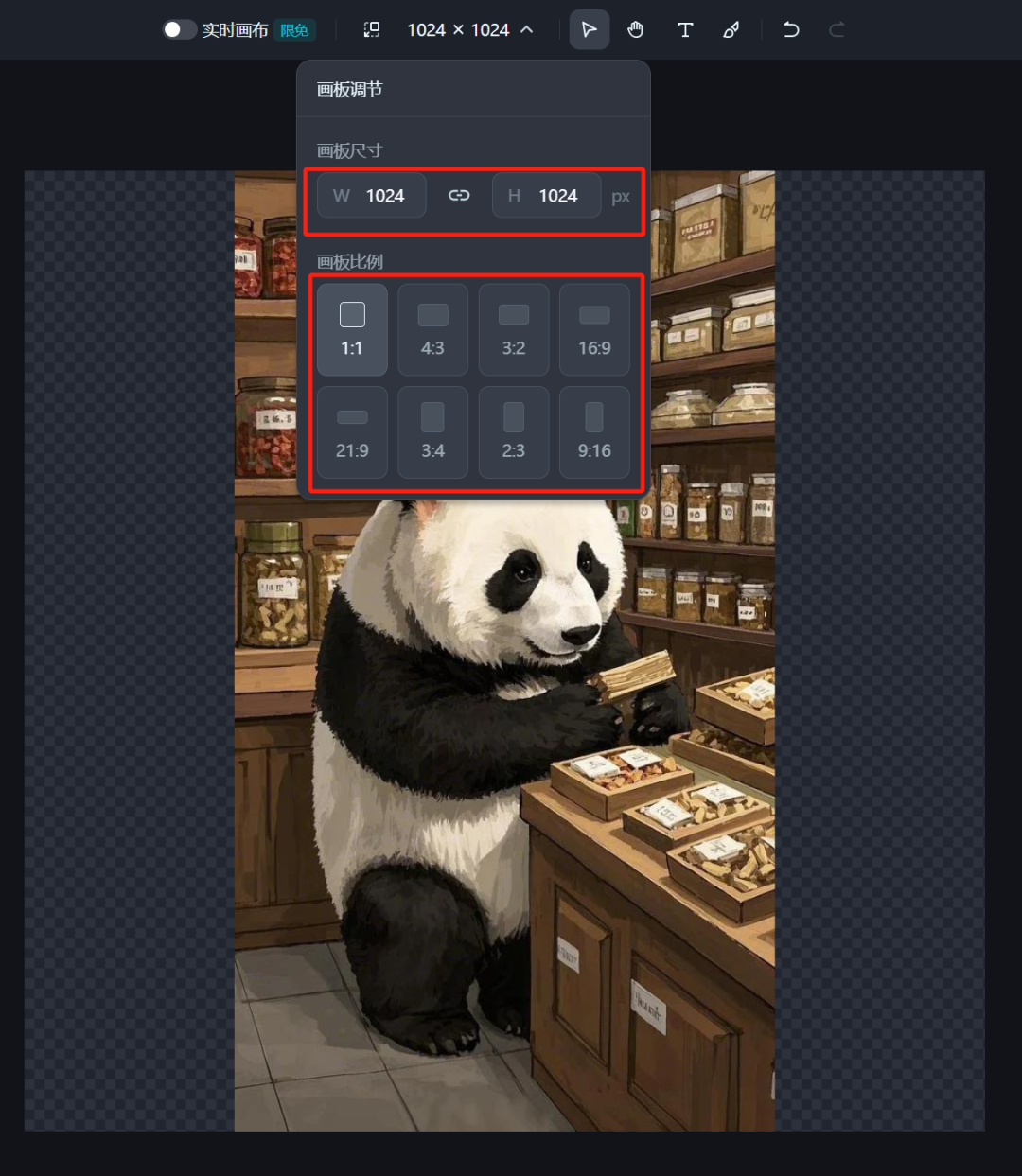
The image will be uploaded automatically after you open it. After the upload is complete, click on the "1024 x 1024" size drop-down arrow at the top of the Smart Canvas interface.

You can see that the size of the drawing board adjustment can be customized at the top, or you can select the corresponding drawing board scale.
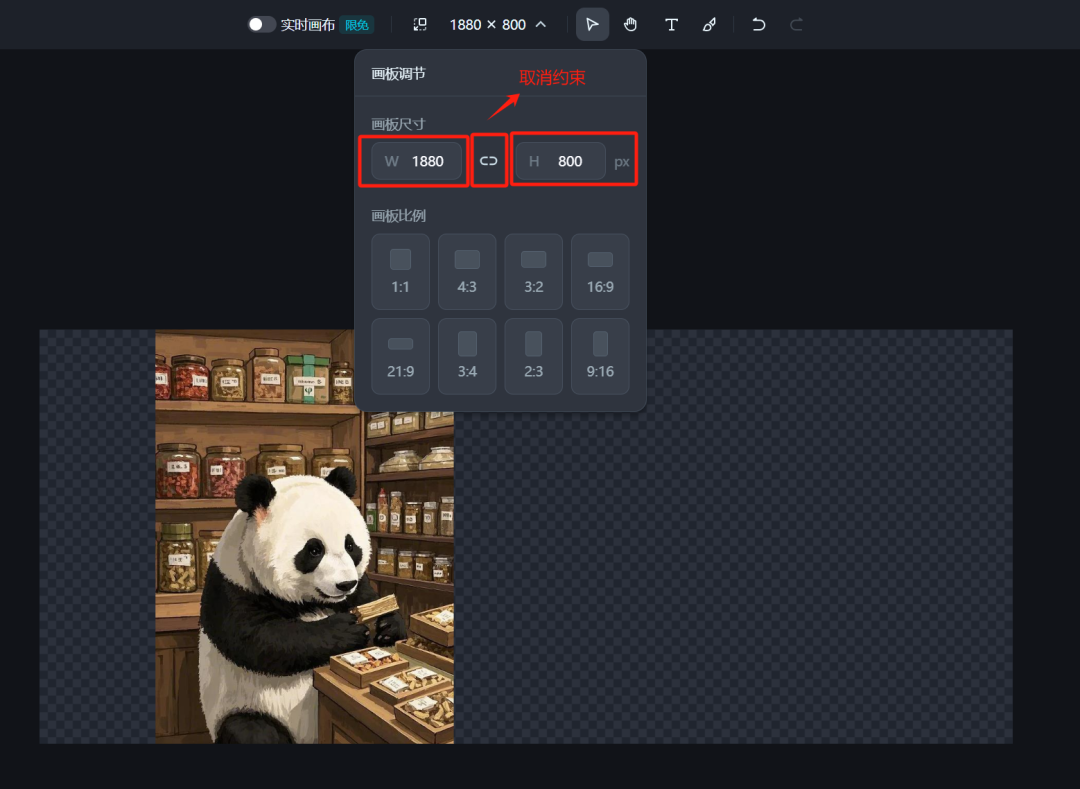
For example, if you want to adjust the image size to the [2.35:1] ratio of the WeChat public cover image, click the center icon in the drawing board size to cancel the constraints, enter the width W as "1880" and the height H as "800", and after the input is complete, the canvas is automatically After the input is completed, the canvas is automatically adjusted to the desired size.
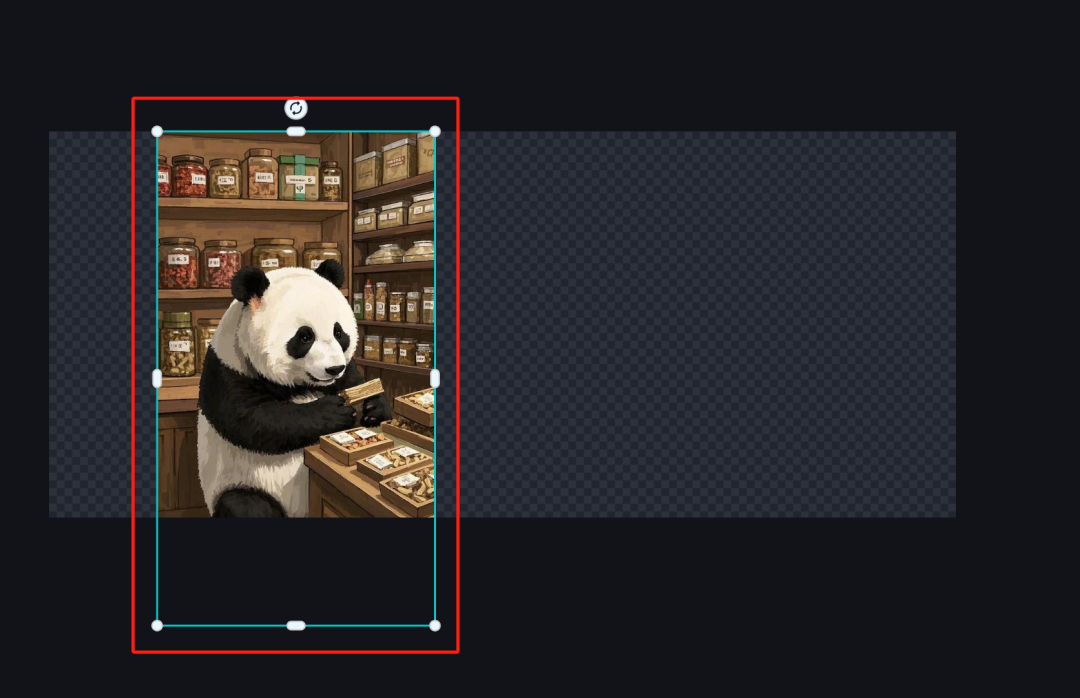
Select the picture, mouse drag and drop to move the picture to your favorite position.
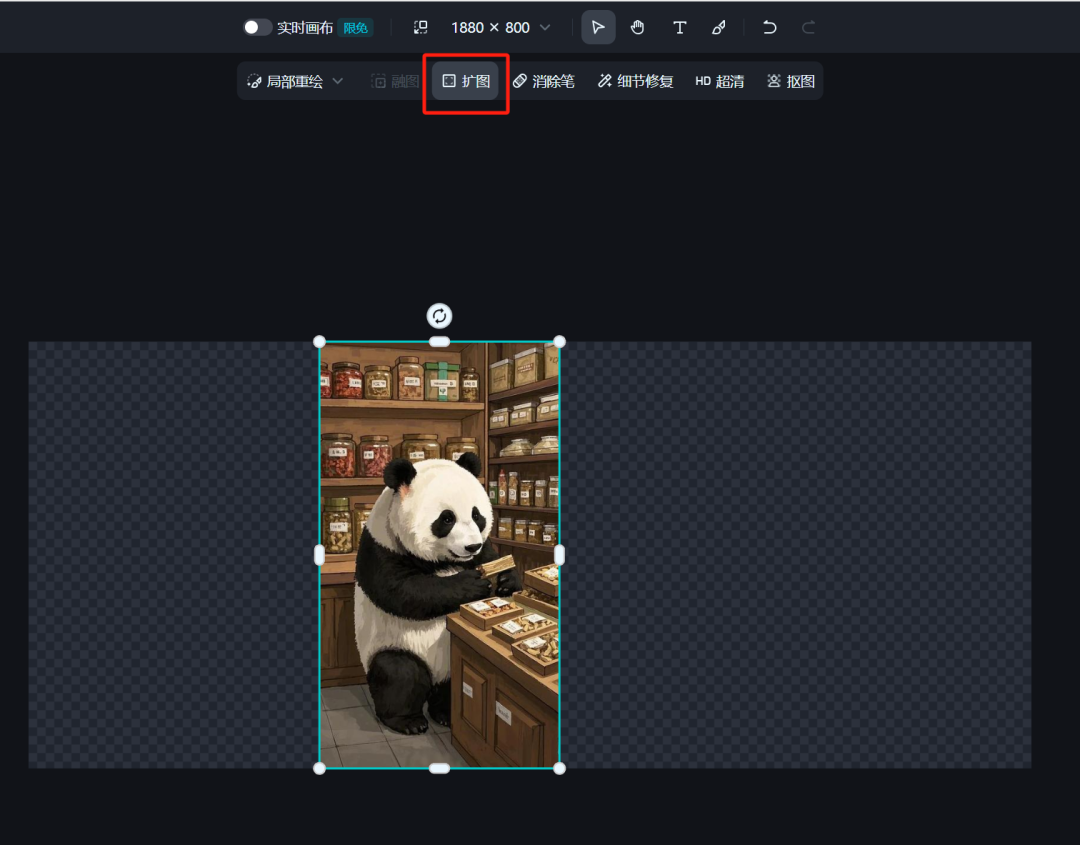
Click [Expand].
Click and drag the image's adjustment border.
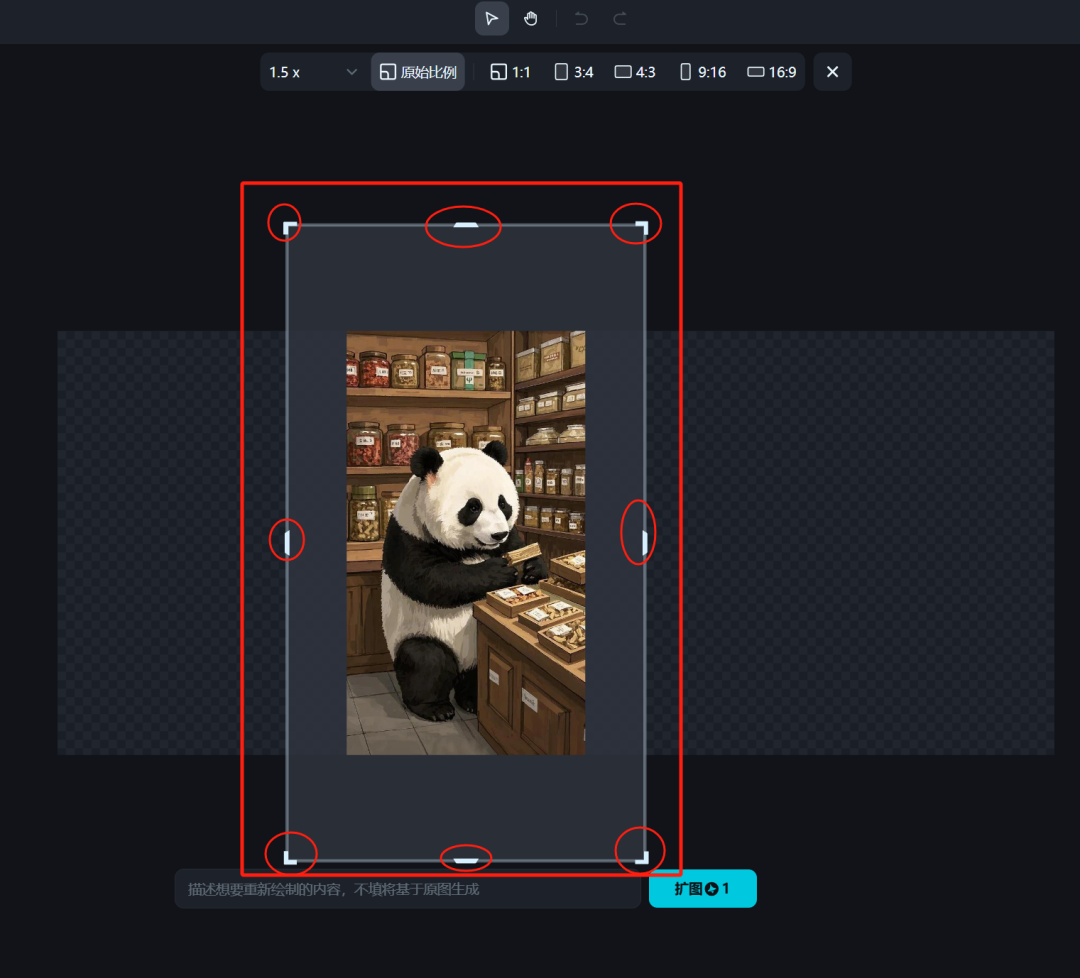
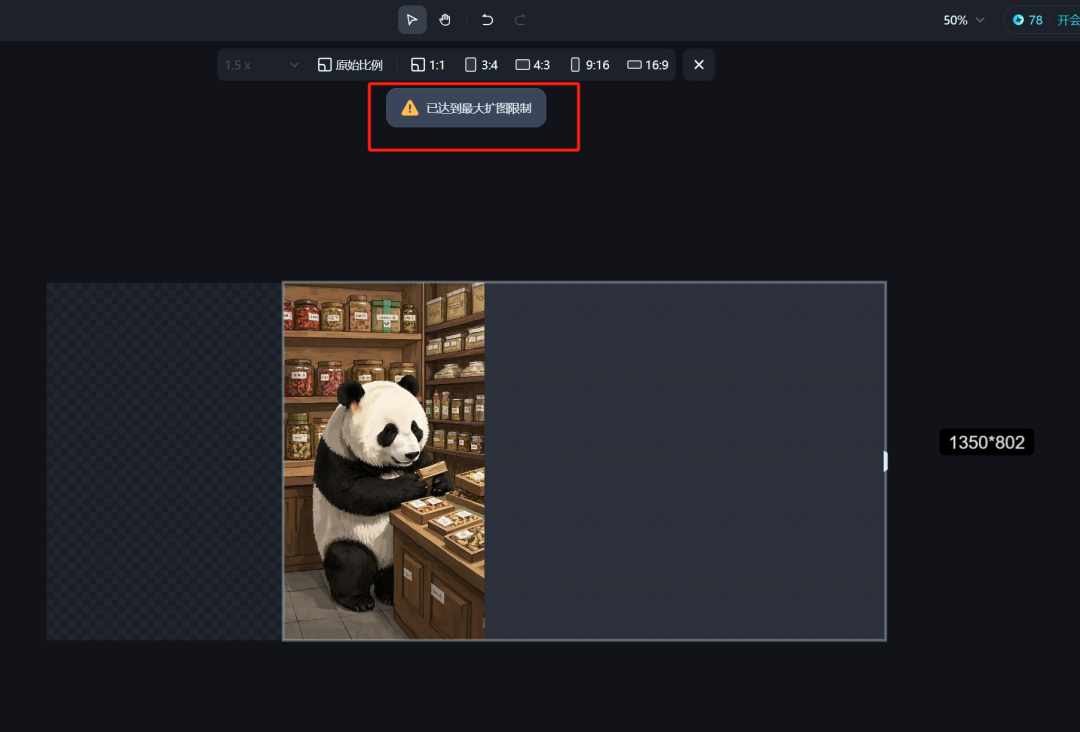
Found a whole bunch of max expansion limits after dragging and dropping, but still failed to fill to completion.
Click [Expand] first.
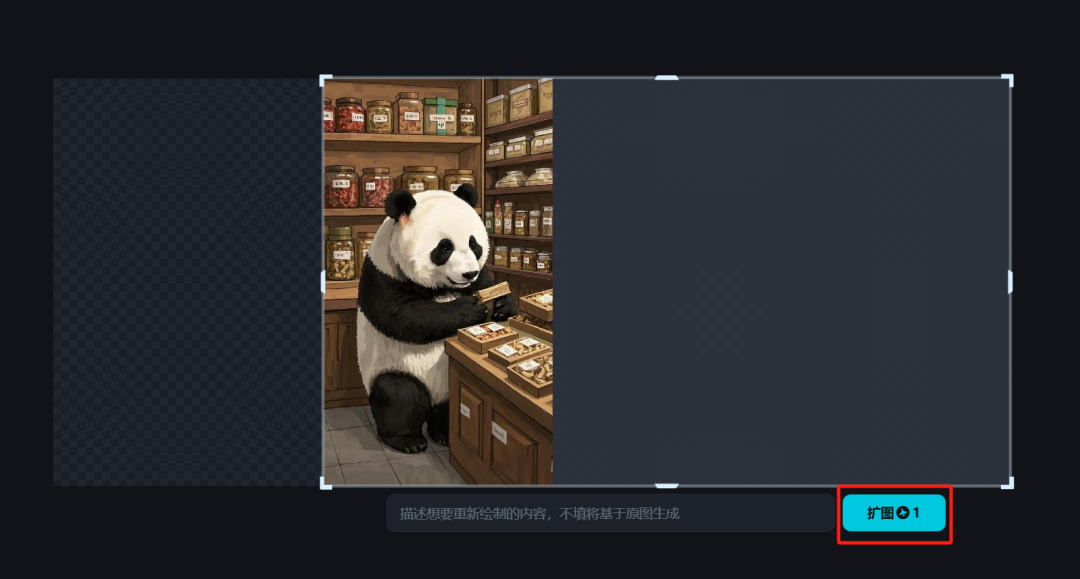
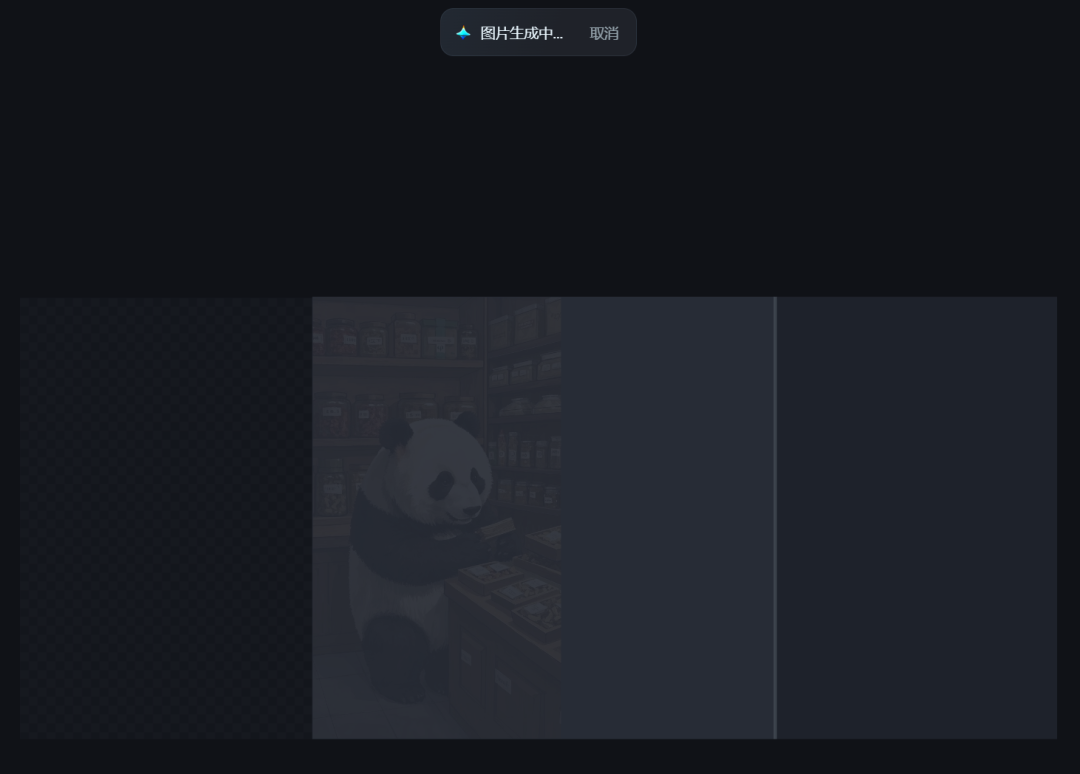
Image generation in progress.
The raw image is complete, look and feel good, click [Finish Editing].
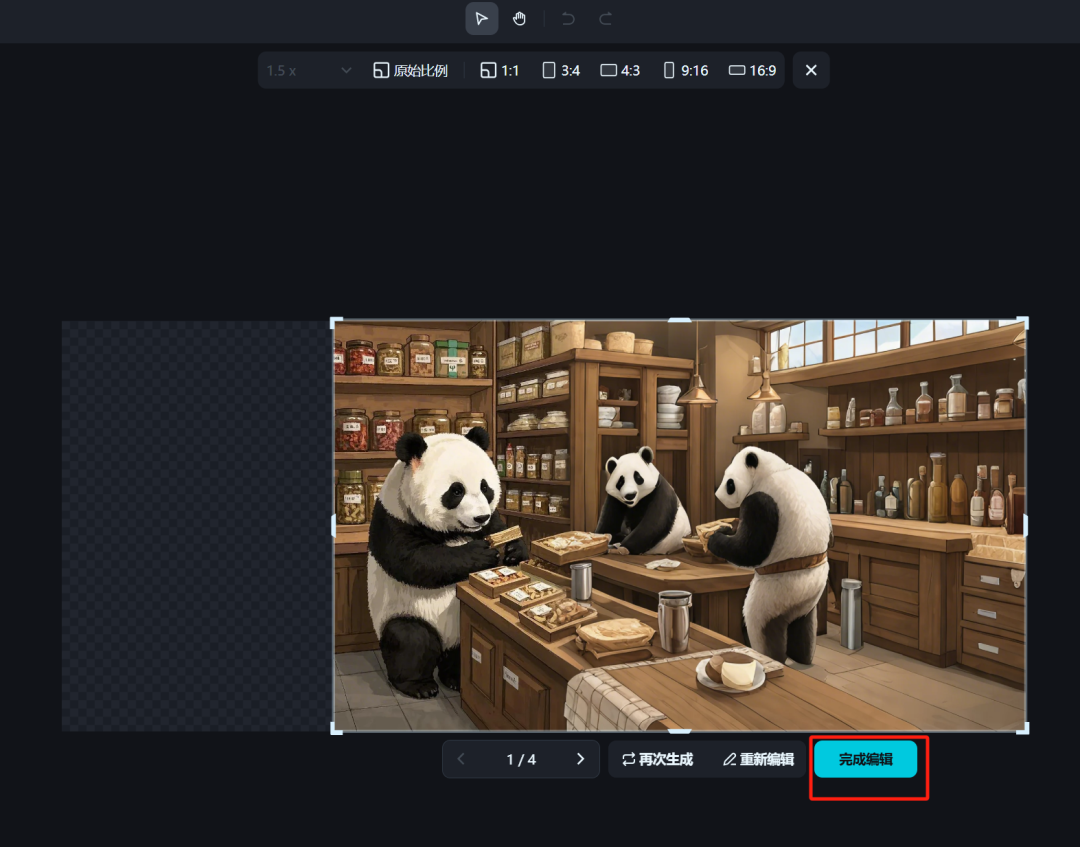
PS: If you are not satisfied, you can click on the 1/4 rightward arrow to see the other three images generated, or you can generate them again or re-edit them.
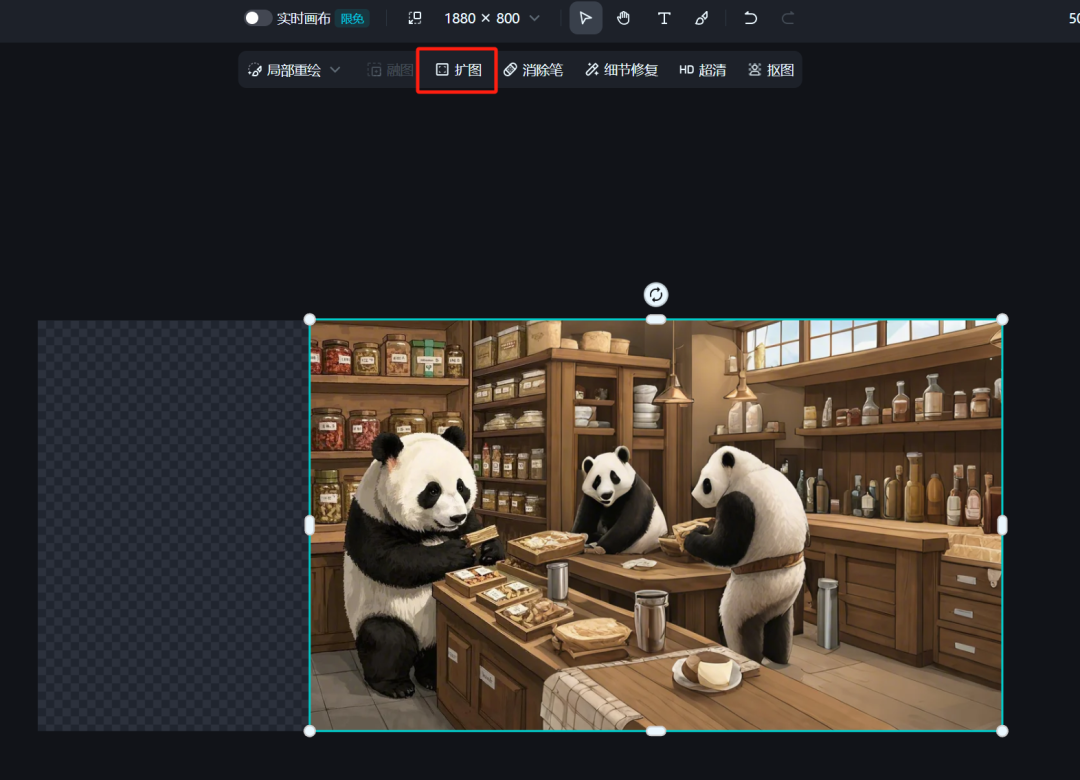
Finish editing into the main interface of the canvas, as there are still parts of the content has not been expanded to complete, continue to click on [Expand].
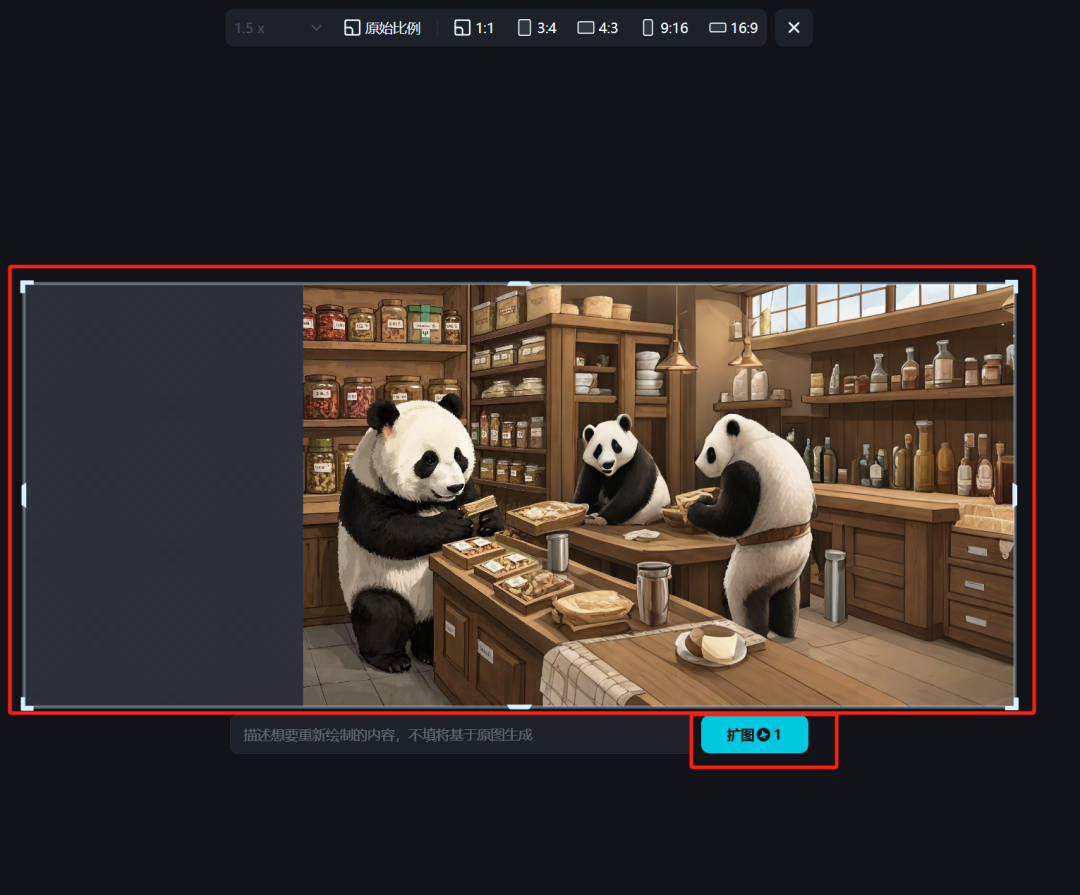
Enter the expansion interface, drag and drop the expansion area to be consistent with the canvas, click [Expansion].
When the expansion is complete, click [Finish Editing].
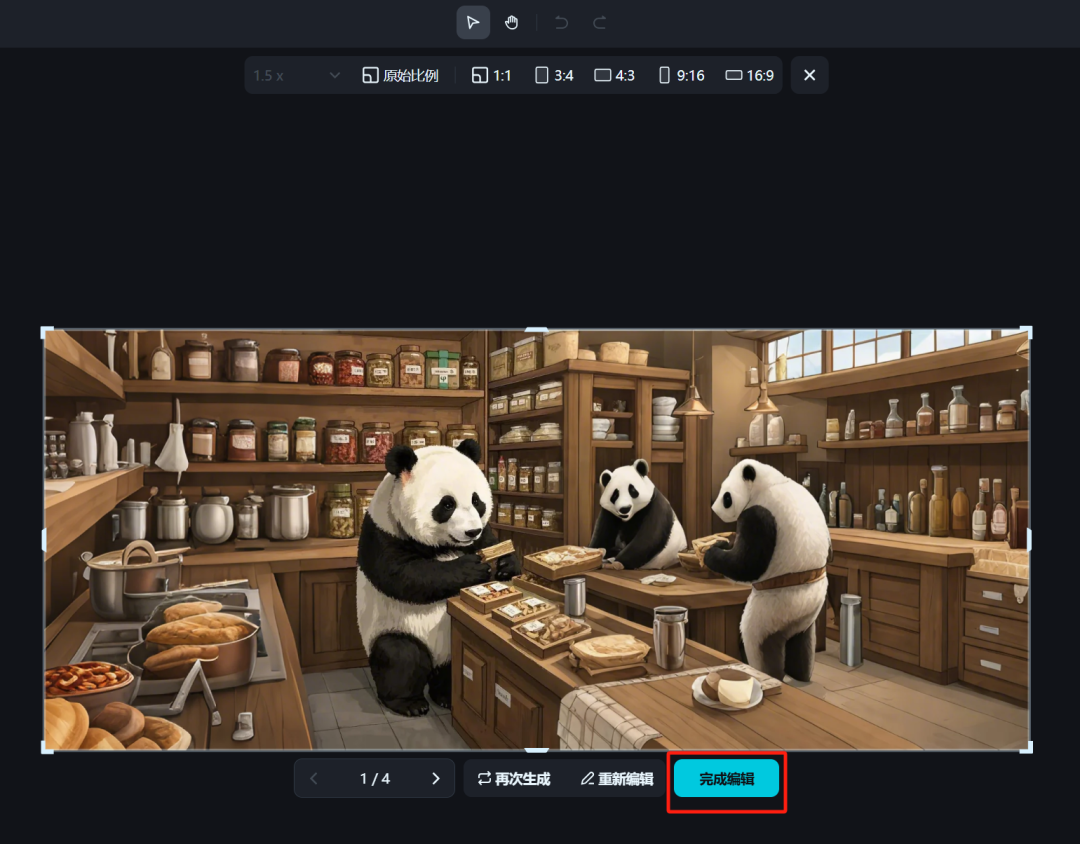
After finishing the editing, enter the main interface of the canvas, click [Export] in the upper right corner, export the content as "current drawing board", click [Download].
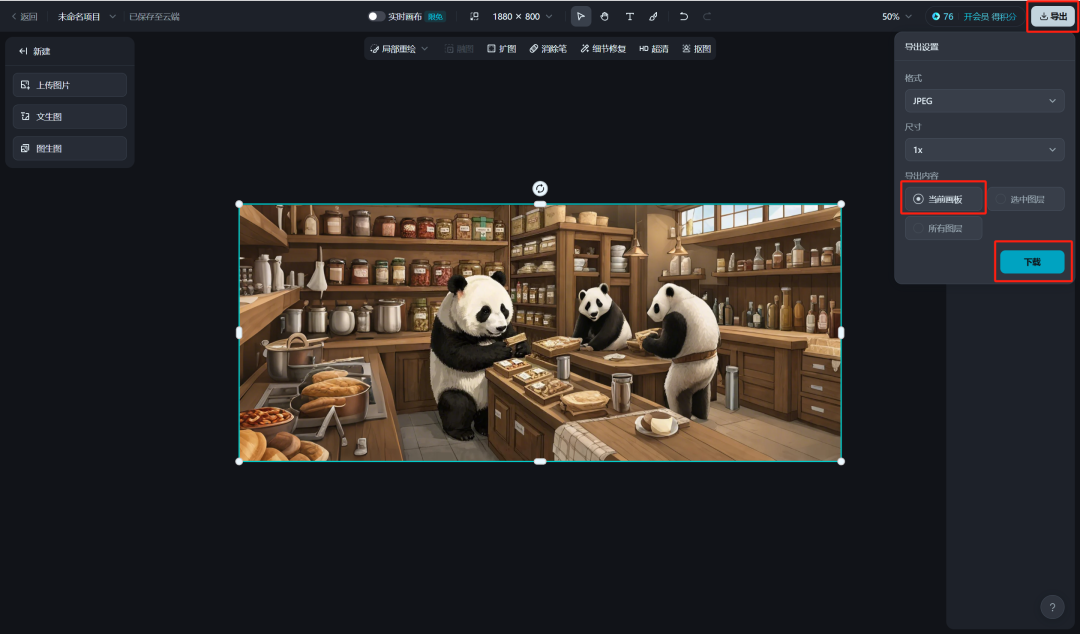
When the download is complete, the image is automatically saved to a local folder on your computer.

Similarly, other different size scale images are generated as follows.
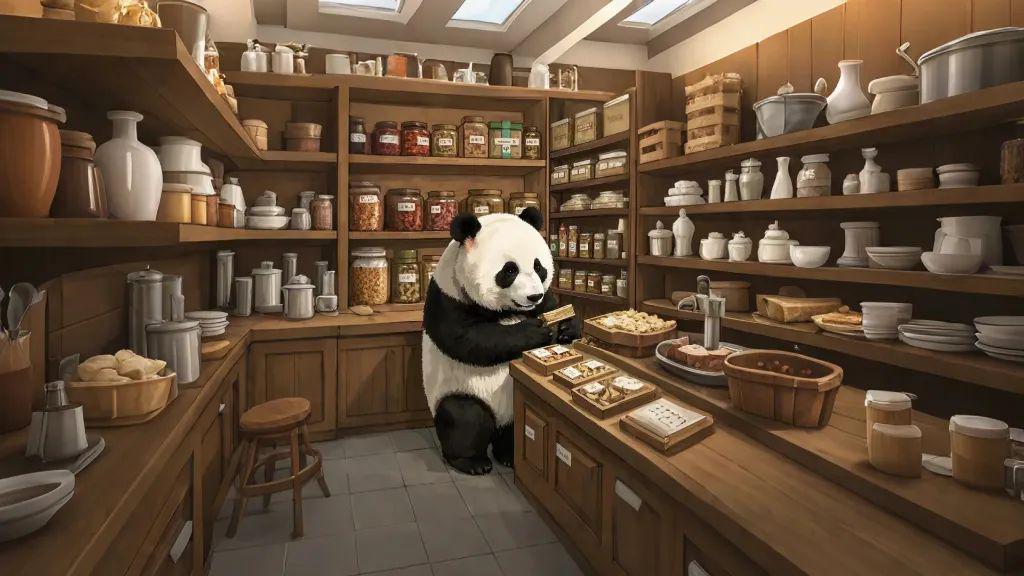
16:9
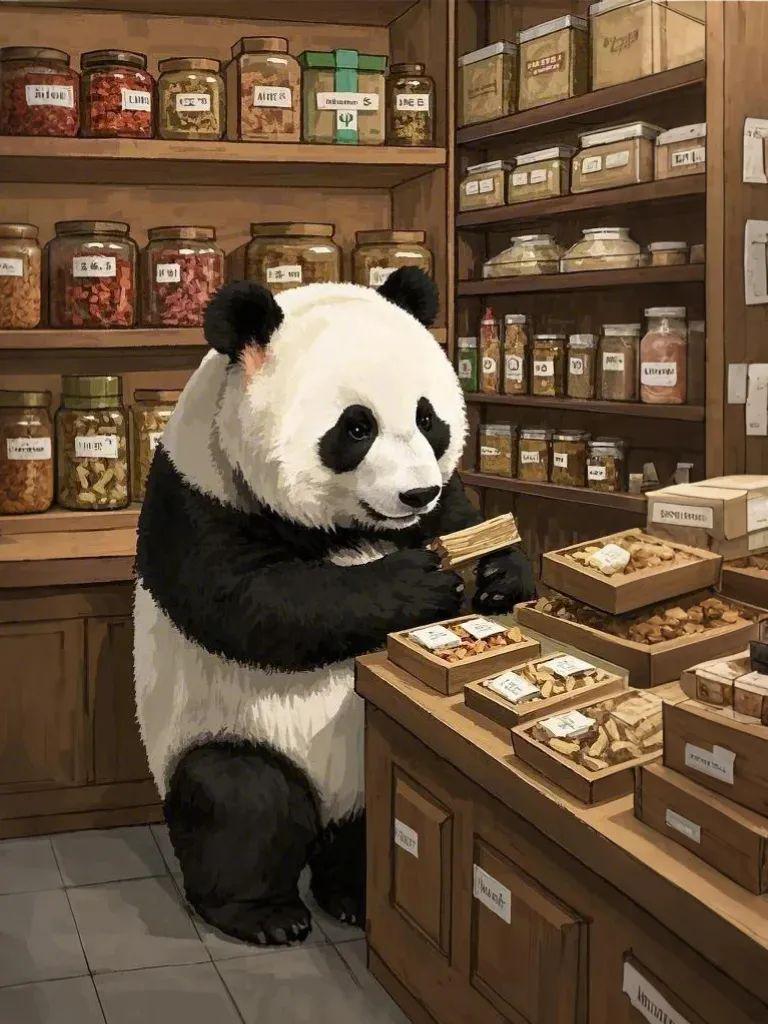
3:4
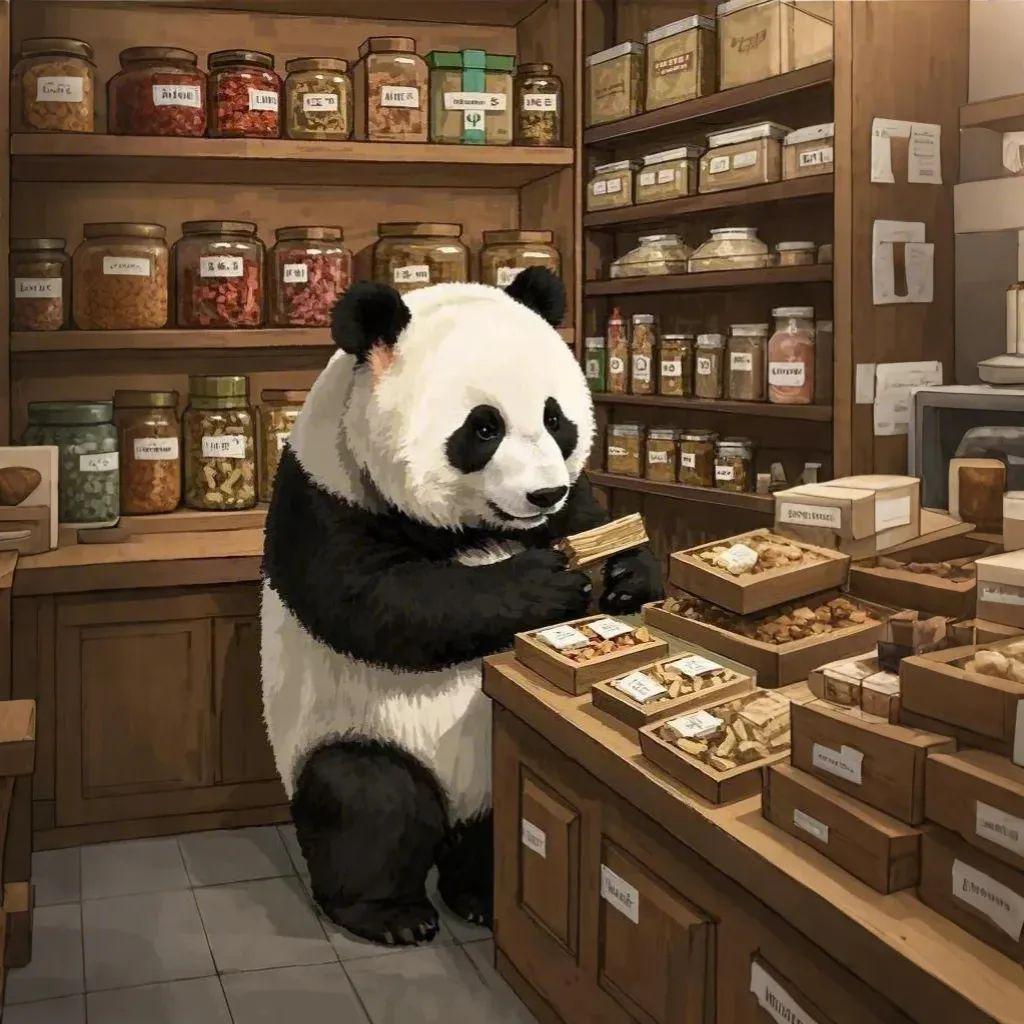
1:1
Here, we together with that dream AI quickly modify the size of the picture, and by expanding the picture to get a unified style of the picture, you learned?
▌Learning Summary
Let’s review and summarize what we have learned:
- Open the official homepage of Instant Dream AI and click [Smart Canvas].
- After entering the Smart Canvas interface, click [Upload Image].
- Select [Panel Size] - [Expand].
- Enter the expansion interface, adjust the scope of the expansion area and click [Expansion].
- After the expansion of the raw image is completed, select the image that meets the expectations and click [Finish Editing].
- Go back to the Smart Canvas homepage, click [Export] in the upper-right corner, select "Current Panel", and click [Download].
- Images are automatically saved to a local folder on your computer when the download is complete.
This wave went down, we use the dream AI smart canvas quickly modify the size of the picture and can be expanded to maintain a unified picture style, the effect is great.