



Today, a multi-scene traversal is brought to youlong shotof how to make them, which can come in handy on many occasions. I hope you have learned something and I look forward to progressing with you.
Without further ado, let's get right to the tutorial!
Step 1: Material Preparation
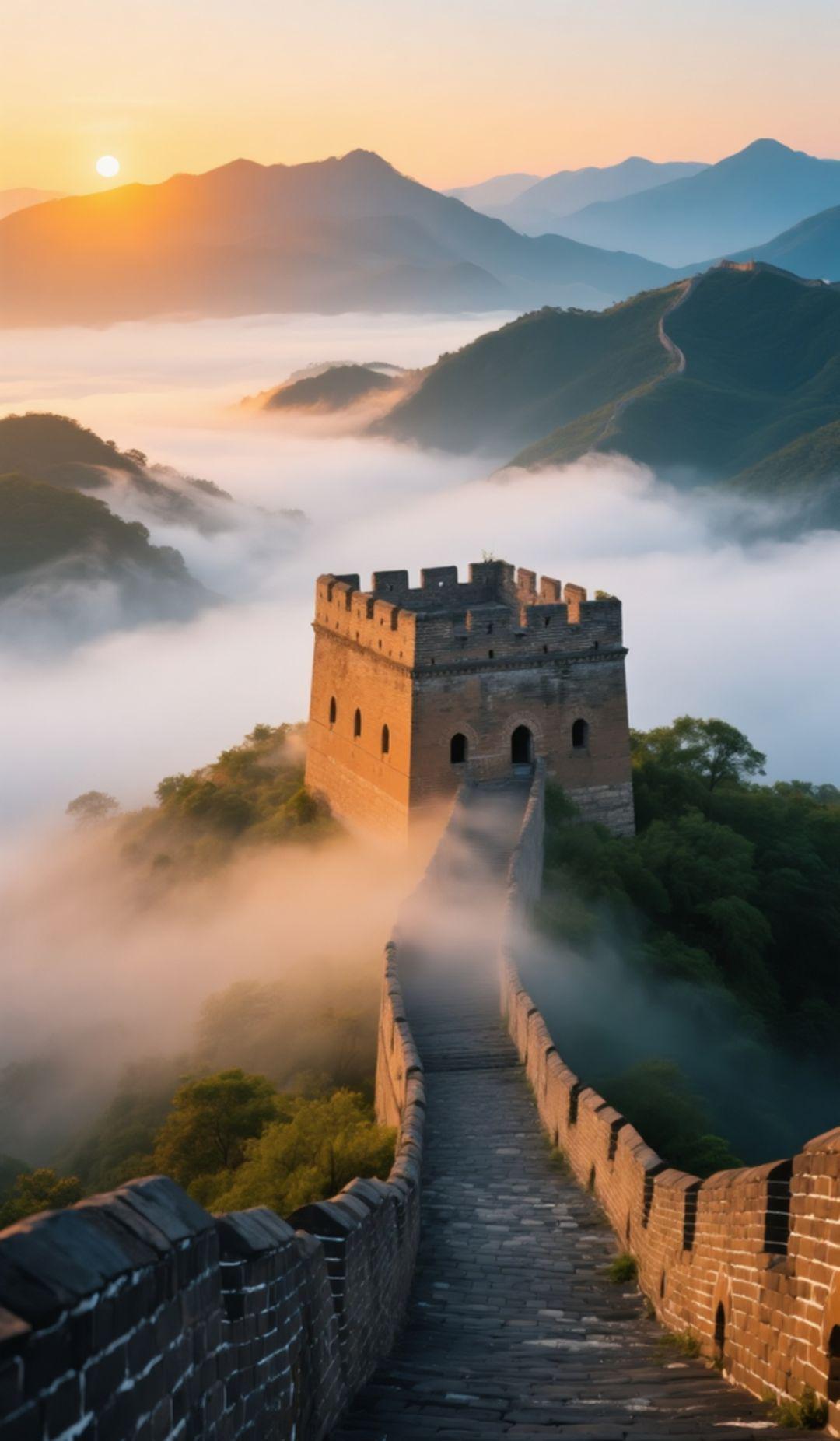
Here is already prepared for you to use the image material directly. Of course, you have your own favorite material, you can always replace it.
If none of them are satisfactory, then do the following to generate your own.
OpenTencent Yuanbao:
Website: https://yuanbao.tencent.com/chat/
enterPrompt wordYou are an expert in AI painting cue words, give me an output of 10 painting cue words that can be used to instantly dream up AI drawings of representative architectural photorealistic styles of painting from various countries.
optionModel: DeepSeek
OpenDeep thinking (R1)
ClickSend button
In the painting cue words given by Tencent Meta, we choose to copy down the ones we are satisfied with and regenerate them if we are not.
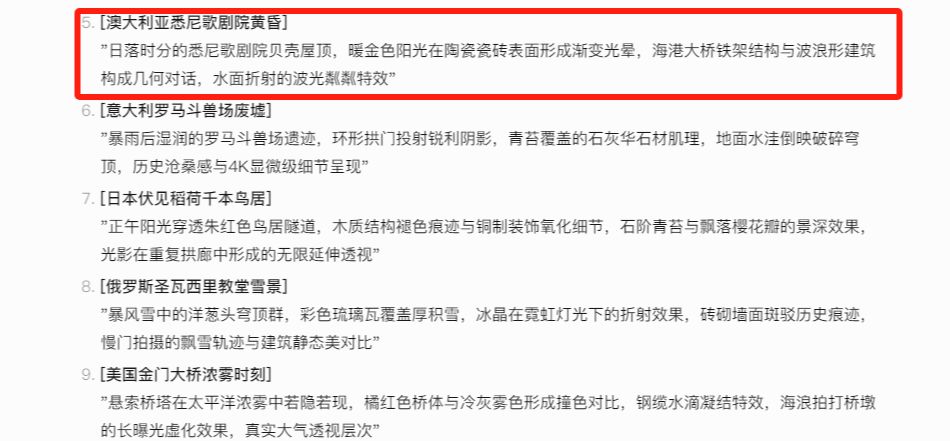
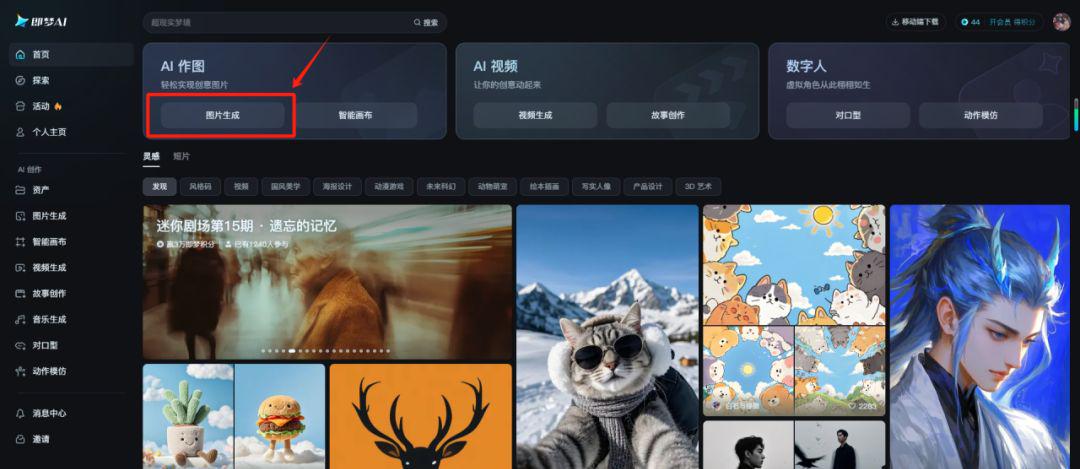
With the cue word you can start drawing, here I use that dream AI just released the picture 3.0 model out of the picture.
OpenDream AI:: https://jimeng.jianying.com/
Home SelectionImage generation
paste (as in "copy and paste")Painting Tips
Charting Model SelectionImage 3.0
claritySD 1K
Picture Scale9:16
ClickGenerate Now

For satisfactory pictures ofultra-high definition processing

Ultra HD FinishGo to the canvas for editing

Click in the canvasright mouse button
optionSave as Image
Follow the steps above, so we easily get all the materials we need!
Step 2: Vidu Toussaint Video
The Toussaint video operation is as follows:
Vidu website: https://www.vidu.cn/create
OpenVidu
optionFigure video
ClickFigure video

Upload separatelyFigure 1 to first frame, Figure 2 to last frame
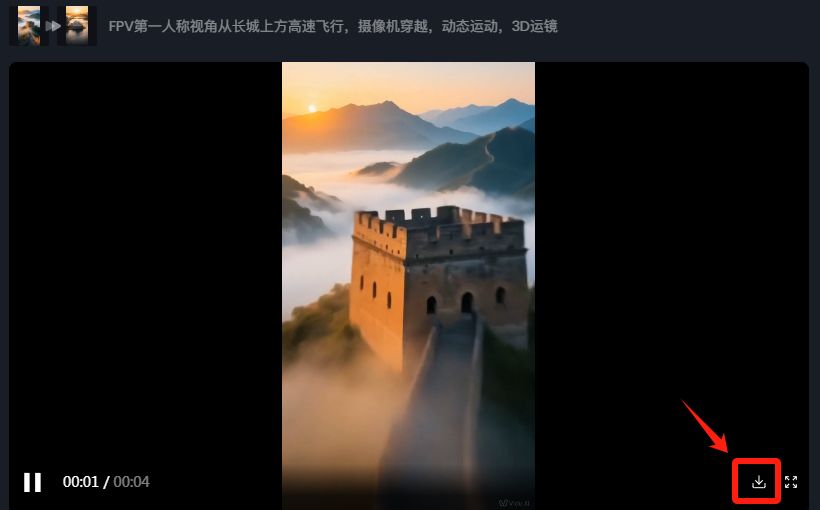
write data in a box (on a questionnaire or web form)descriptive cue: FPV first-person view from above the Great Wall at high speed, camera traversal, dynamic motion, 3D dribbler
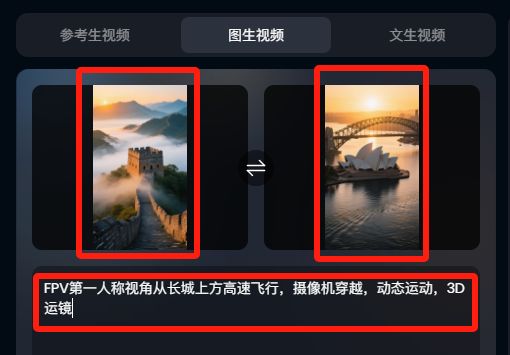
length of time4 seconds.
clarity720P (1080P if available)
range of motionautomatic
ClickStart creating

Once the video is generated, click on the download icon in the lower right hand sideSave to local
Other video clips use the same operation:
uploadFigure 2 to first frame, Figure 3 to last frameGenerateClip 2, Clip 3, Clip 4, Clip 5
Step 3: Edit the movie
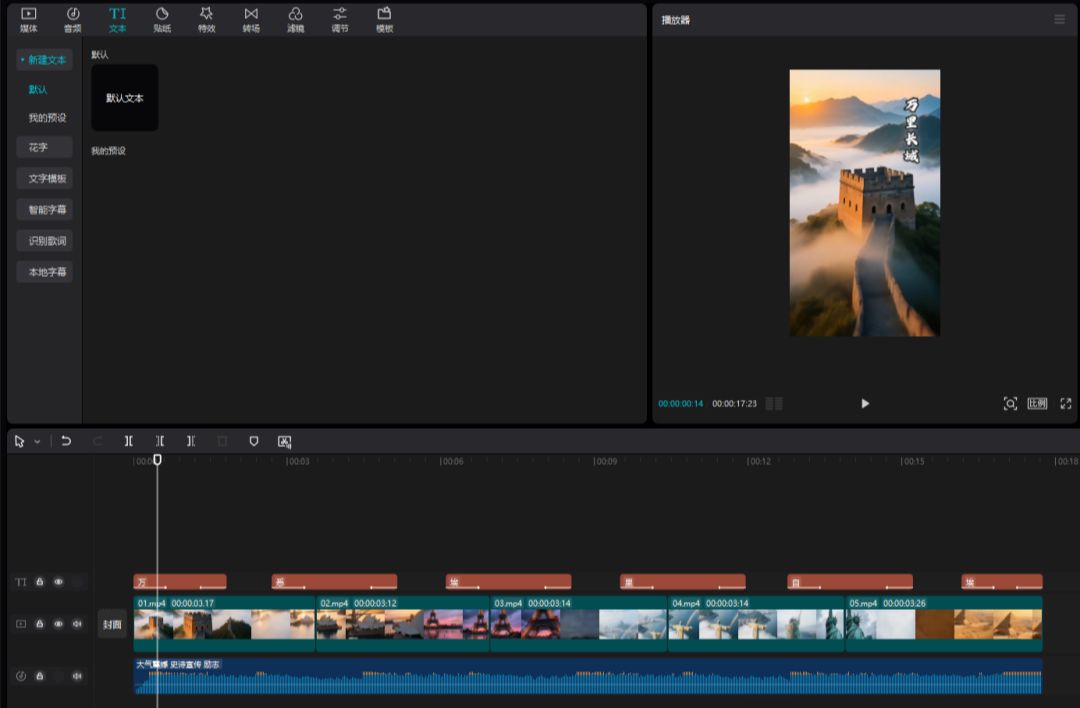
All of the generated video clips will beImporting the cutsceneThen drag them into the timeline in order
Depending on the content of the screen, addBackground music, text introductionwait
at lastAdjustment details,deriveYou can
In this way a long shot of a multi-scene traversal of a world landmark made by AI is completed!
I'm mainly demonstrating the whole process here, so you can polish the details on your own to make it perfect.