



Hello everyone, today we bring you a hardcore but not overly brainstorming ComfyUI User Guide!
If you are also using ComfyUIWhether it's daily diagramming, plugin debugging, node scheduling, or big model workflow building - these 11 tips in this article are worth looking over again and again! Especially the 8th, many people do not know can be so efficient debugging!
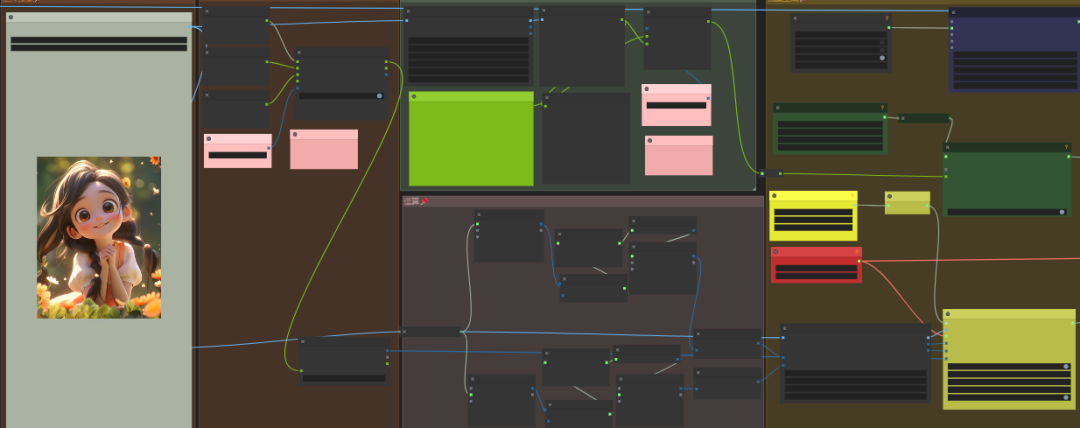
🔧 Tip #1: Paste with connecting lines to copy nodes with less effort
When comparing multiple model parameters, seeds, CFGs, or Vincennes configurations, we usually have to copy many nodes and manually pull the strings one by one, which is time-consuming and laborious.
The correct way is: Ctrl + Shift + V Paste, which not only replicates the nodes, but also preserves the original connectivity structure!
Usage:
- Box the set of nodes you want to copy (e.g. Vincennes graph + sampler + VAE)
- Ctrl + C Copy
- Ctrl + Shift + V Paste
Between nodes copied this wayThe connecting line stays the same.It is ideal for quickly setting up a parameter comparison test area or migrating an existing structure to a new project.
🧩 Tip 2: Expand/collapse nodes to see even complex workflows
When you import someone else's complex workflow, you'll find that some nodes look like a closed box with a small arrow in the upper left corner that you tap to see the internal structure.
This is actually a "collapsed node" feature.
Role:
- Folded interface is cleaner and easier to manage
- Expand it to see the detailed settings, perfect for analyzing someone else's logical structure
Folding and organizing habits are recommended, especially when building large projects on your own, using it makes the interface much more refreshing.
📦 Tip 3: Node grouping for modular management
A lot of people don't realize until mid to late in the process that theGrouping nodes is the key to building "maintainable" workflows.
Steps:
- Box the nodes to be grouped
- Right click → Convert to Group Node
- Input group name (e.g. "Style 1 Output Module")
- Click on the arrows in the upper left corner to expand/collapse
You can also Ctrl+G to shortcut grouping, double-click on a title to rename it, andGroup Node is like a function wrapper in code., reuse, debugging are more convenient!
🎨 Tip #4: Built-in Mask Editor makes localized adjustments easier!
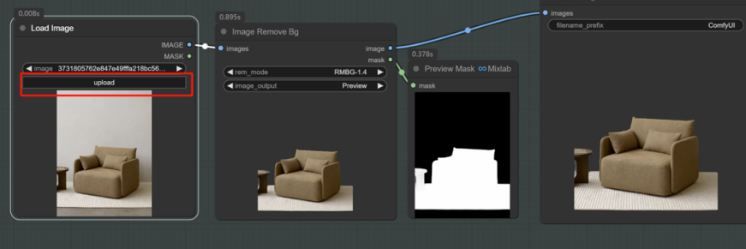
ComfyUI comes with a mask editing feature, which allows you to realize simple area mask operations without third-party plug-ins.
Use the process:
- Load Image → Right click → Open in Mask Editor
- In the pop-up screenDirect applicationAreas to be covered or modified
- Save Mask
- Connect the Mask Preview node to preview the effect
This is especially useful for operations such as localized repainting, background manipulation, and hair restoration.Masking is automatically delivered with the image node, eliminating the need for repeated configuration.
✂️ Tip 5: SAM2 smart keying, one-click high-quality segmentation (plug-in required)
Want to efficiently key out people, animals and objects? We recommend installing the SAM2 plugin!
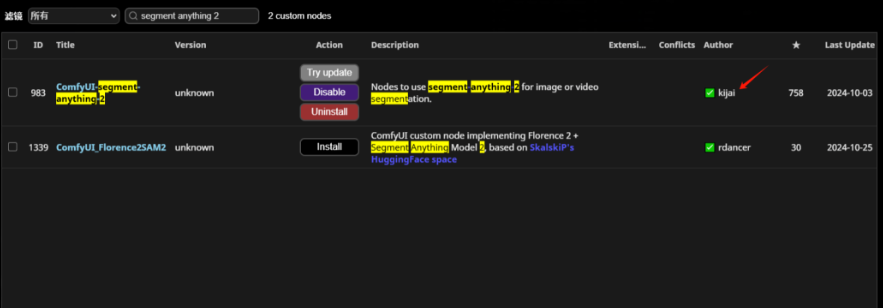
📌 Plugin address: ComfyUI-segment-anything-2
This plugin is based on Meta's SAM (Segment Anything Model) model.Automatically recognizes the subject of the image and generates accurate masksIt is suitable for changing backgrounds, compositing and other work.
Brief process:
- After installing the plugin, search for and pull up the SAM2 node
- Load image → Add curve editor (set click position)
- Automatic Mask Generation → In combination with Mask Preview
In contrast to traditional manual masking tools, SAM2 has a "Selection + Generation" step.Can save a lot of timeThe split edges are naturally smooth.
🔎 Tip 6: Enable node numbering to quickly locate the source of errors
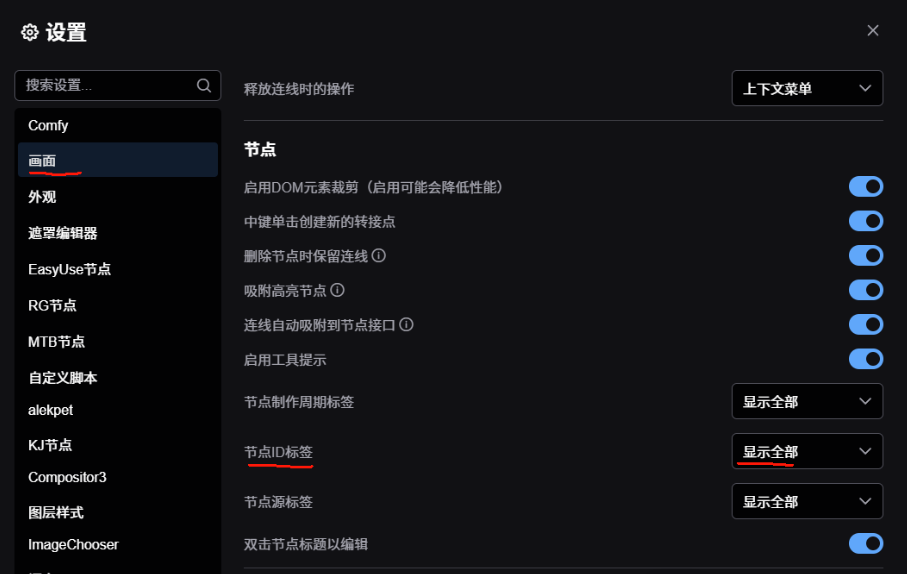
Often the error message during runtime will say "Problem with node #23". But if you don't have numbering turned on, it's hard to know where this node is.
When numbering is turned on, the serial number is displayed in the upper right corner of each node, directly locate the anomaly.
A quick way to jump around:
- Right-click on an empty area → Go to Node→ select target node
- Automatically jump and zoom into focus position
- Debugging + Logic Troubleshooting in a Second
🗂️ Tip #7: The left panel node finder, use it and you can't go back!
ComfyUI actually hides a "node manager" on the left side, which allows you to quickly locate nodes by module.
Features include:
- Search nodes by name
- Categorized by type, e.g. "sampler", "model loader", etc.
- Double click on a node name, auto jump + highlight selected
This panel is much more efficient than going to the canvas and dragging it back and forth to find nodes.It is recommended to turn it on and use it at any time.
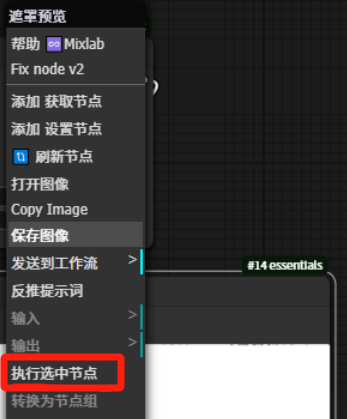
🧪 Tip 8: Run only some of the nodes to increase debugging efficiency by several times (requires rgthree plugin)
Plugin address: rgthree-comfy
After installing this plugin, you can do it:
- Run only to a certain node (e.g. middle preview image)
- Save testing time by skipping the entire downstream process
- Fast transfer without re-running all processes
Usage:
- Right click on the target output node → Queue Selected Output Node
- Click Run to run just this part of the link
For complex process debugging, this feature is a savior!
🎨 Tip #9: Customize node color schemes to make workflows aesthetically pleasing and efficient (requires JOVIMETRIX plugin)
Want to add colors to different modules? The JOVIMETRIX plugin does it!
📌 Plugin address: Jovimetrix
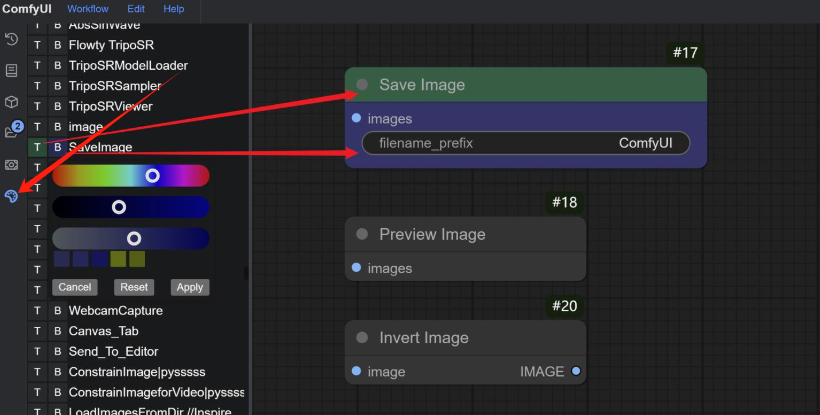
Support for specific nodes to set the title color, background color, but also can be batch unified color matching.
Recommendations for use:
- Input nodes are uniformly blue
- Generated modules are uniformly green
- Special handling modules are marked in red
Your workflow is instantly "organized + pleasing to the eye".
⏯ Tip 10: node groups + fast bypass/mute for smoother module switching (requires rgthree plugin)
What if you have multiple branches, such as Style A and Style B, and you want to switch which set of nodes you're running at any time?
Using Fast Group Bypass or Fast Group Mute nodes you can enable/disable entire groups of modules with a single click!
- Switchable training model A/B
- Realization style comparison experiment
- Temporarily close branches you don't want to run
This technique is particularly useful for setting up multi-branch "controlled experimental streams".
🔗 Tip #11: Plugin GitHub Quick Jump, Learn Plugins/Problem Solving (requires Mix Lab plugin)
A lot of the errors reported are actually due to plugins or models not being installed properly, looking for tutorials but can't always find the source link?
Mix Lab Plugin SupportJump to the plugin's GitHub page with a single click:
- Right click on the plugin node → Help Mix Lab
- Automatically pops up the browser to open the plugin page
In conjunction with the plugin's official documentation, it is straightforward to findDependency libraries, installation steps, usage examples, model linksetc., very hassle-free!
📌 Plugin address: mixlab-nodes
🧵 BONUS EGG: 2 Extra Credit Tips
🔁 Shortcut R: Refresh Model List
No need to restart ComfyUI after downloading a new model, just press R and the model list will be updated immediately!
📌 Bookmark shortcut jump (requires rgthree plugin)
Put a Bookmark node anywhere in the canvas, set a shortcut key (e.g., the number 1), and then just press the corresponding number key to jump to that work area in seconds.
📌 The top toolbar also supports clicking on bookmarks to quickly jump to a set location, superb for managing mega workflows!
✅ Summary
These ComfyUI advanced tips may seem insignificant, but they can save you a lot of repetitive actions, debugging time and work costs at critical moments.
If you're using ComfyUI as well, try incorporating these tips into your daily processes, and there will definitely be a qualitative leap forward!