

How to get deepseek R1 networking? Here comes the tutorial that shows you how to deploy deepseek networking locally!

Many readers mentioned that they would like toLocal deploymentofDeepSeek-The R1 has networking capabilities, so let's talk about implementing them today.

I. Deploying the model locally with Ollama (if already deployed, ignore this section)

Download Ollama via the URL: https://ollama.com.

How to get deepseek R1 networking? Here comes the tutorial that shows you how to deploy deepseek networking locally!

Multiple versions for Windows, Linux, macOS are available:

How to get deepseek R1 networking? Here comes the tutorial that shows you how to deploy deepseek networking locally!

Take Windows as an example, install it directly after downloading, the window will be closed automatically after completion, and then you can judge whether Ollama is started or not by the system tray icon:

How to get deepseek R1 networking? Here comes the tutorial that shows you how to deploy deepseek networking locally!

Click on the "Models" button at the top left of the Ollama website and select DeepSeek-R1:

How to get deepseek R1 networking? Here comes the tutorial that shows you how to deploy deepseek networking locally!

Go to this screen and click on the drop-down menu to select the appropriate version (the higher the number, the higher the video memory requirement):

How to get deepseek R1 networking? Here comes the tutorial that shows you how to deploy deepseek networking locally!

The approximate correspondence between model version and video memory requirements:

How to get deepseek R1 networking? Here comes the tutorial that shows you how to deploy deepseek networking locally!

We download the model for 14b, click here to copy the command: ollama run deepseek-r1:14b

How to get deepseek R1 networking? Here comes the tutorial that shows you how to deploy deepseek networking locally!

Click on the window icon in the menu bar at the bottom of Windows, type "powershell" in "Search Applications, Settings, and Documents", and then click "Windows PowerShell":

How to get deepseek R1 networking? Here comes the tutorial that shows you how to deploy deepseek networking locally!

In the pop-up window, paste the command you just copied: ollama run deepseek-r1:14b and enter to start the download.

How to get deepseek R1 networking? Here comes the tutorial that shows you how to deploy deepseek networking locally!

When finished, the word "Send a message" appears, indicating success. You can close the window at this point.

Second, download page-assist plug-in

The plugin currently supports Chrome and Firefox better, and also Edge (manual installation required).

How to get deepseek R1 networking? Here comes the tutorial that shows you how to deploy deepseek networking locally!

1. Chrome

Download at https://www.google.cn/intl/zh-CN/chrome

The official download requires magic, and while you can find downloads offered by third parties, the subsequent manipulation involves the Chrome Store, which still requires magic.

After installing Chrome, click on the three dots in the upper right corner and select "Extensions" and "Visit Chrome App Store":

How to get deepseek R1 networking? Here comes the tutorial that shows you how to deploy deepseek networking locally!

Enter "page assist" in the search box of the app store to find the plugin we want to use and click on it:

How to get deepseek R1 networking? Here comes the tutorial that shows you how to deploy deepseek networking locally!

Click "Add to Chrome":

How to get deepseek R1 networking? Here comes the tutorial that shows you how to deploy deepseek networking locally!

A pop-up will appear, click "Add Extension":

How to get deepseek R1 networking? Here comes the tutorial that shows you how to deploy deepseek networking locally!

Once added, page-assist can be found in the extensions at the top of your browser as a dialog bubble icon:

How to get deepseek R1 networking? Here comes the tutorial that shows you how to deploy deepseek networking locally!

2、Firefox

Download at https://www.firefox.com.cn

No magic is required throughout, and Firefox is recommended for those who can't handle the internet.

After installing Firefox, click on the extension icon in the upper right corner and select "Manage Extensions":

How to get deepseek R1 networking? Here comes the tutorial that shows you how to deploy deepseek networking locally!

Search for "page assist" at "Find more add-ons":

How to get deepseek R1 networking? Here comes the tutorial that shows you how to deploy deepseek networking locally!

The first one that comes out is, click on it:

How to get deepseek R1 networking? Here comes the tutorial that shows you how to deploy deepseek networking locally!

Select "Add to Firefox":

How to get deepseek R1 networking? Here comes the tutorial that shows you how to deploy deepseek networking locally!

Once done, you can enable page-assist by clicking on the "Manage Extensions" tab:

How to get deepseek R1 networking? Here comes the tutorial that shows you how to deploy deepseek networking locally!

3. Edge browser

You can't find page-assist in the Microsoft Extension Store, so you must install this plugin manually (magic required).

Open the command line window of "Windows PowerShell" and execute the following commands:

powershell -c "irm bun.sh/install.ps1 | iex"

git clone https://github.com/n4ze3m/page-assist.git

cd page-assist

bun install

bun run build

How to get deepseek R1 networking? Here comes the tutorial that shows you how to deploy deepseek networking locally!

When it's done, you can see the directory build in the directory you cloned locally:

How to get deepseek R1 networking? Here comes the tutorial that shows you how to deploy deepseek networking locally!

Click the three dots in the upper right corner of Edge and select "Extensions":

How to get deepseek R1 networking? Here comes the tutorial that shows you how to deploy deepseek networking locally!

Select "Manage Extensions" in the pop-up window:

How to get deepseek R1 networking? Here comes the tutorial that shows you how to deploy deepseek networking locally!

In this interface, click "Extensions" on the left, and click "Developer Mode" to turn it on, then an icon "Load Extension" appears on the right:
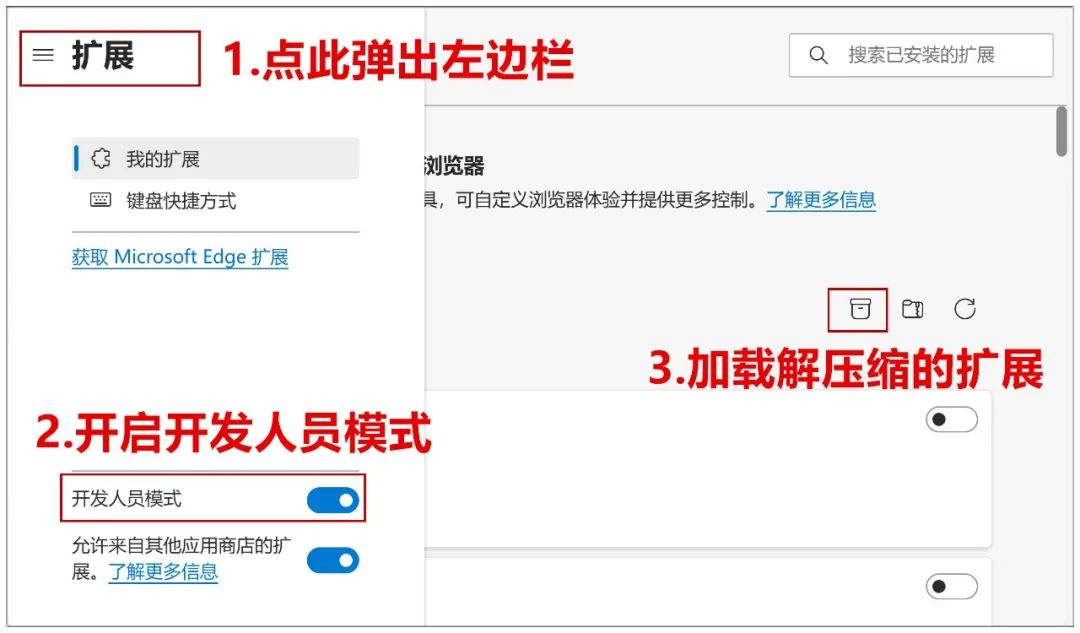
How to get deepseek R1 networking? Here comes the tutorial that shows you how to deploy deepseek networking locally!

Click on it and find the chrome-mv3 subdirectory under the build directory you just created and click "Select Folder":

How to get deepseek R1 networking? Here comes the tutorial that shows you how to deploy deepseek networking locally!

Then you have page-assist in your list of extensions, success.

How to get deepseek R1 networking? Here comes the tutorial that shows you how to deploy deepseek networking locally!

III. Use of page-assist

No matter which browser you open page-assist through, the interface is the same and it will detect that you are running Ollama:

How to get deepseek R1 networking? Here comes the tutorial that shows you how to deploy deepseek networking locally!

Click on the drop down menu above and select the model you have installed:

How to get deepseek R1 networking? Here comes the tutorial that shows you how to deploy deepseek networking locally!

At the bottom of the lower dialog box is a globe symbol; clicking on it to open it opens the web search function:

How to get deepseek R1 networking? Here comes the tutorial that shows you how to deploy deepseek networking locally!

Let's try to ask a question that requires up-to-date information, which is the result of not having networking turned on:

How to get deepseek R1 networking? Here comes the tutorial that shows you how to deploy deepseek networking locally!

This is the result of turning on networking:

How to get deepseek R1 networking? Here comes the tutorial that shows you how to deploy deepseek networking locally!

As you can see, the new information was indeed added inside the answer, with the source of the information at the bottom.

One more weather report:
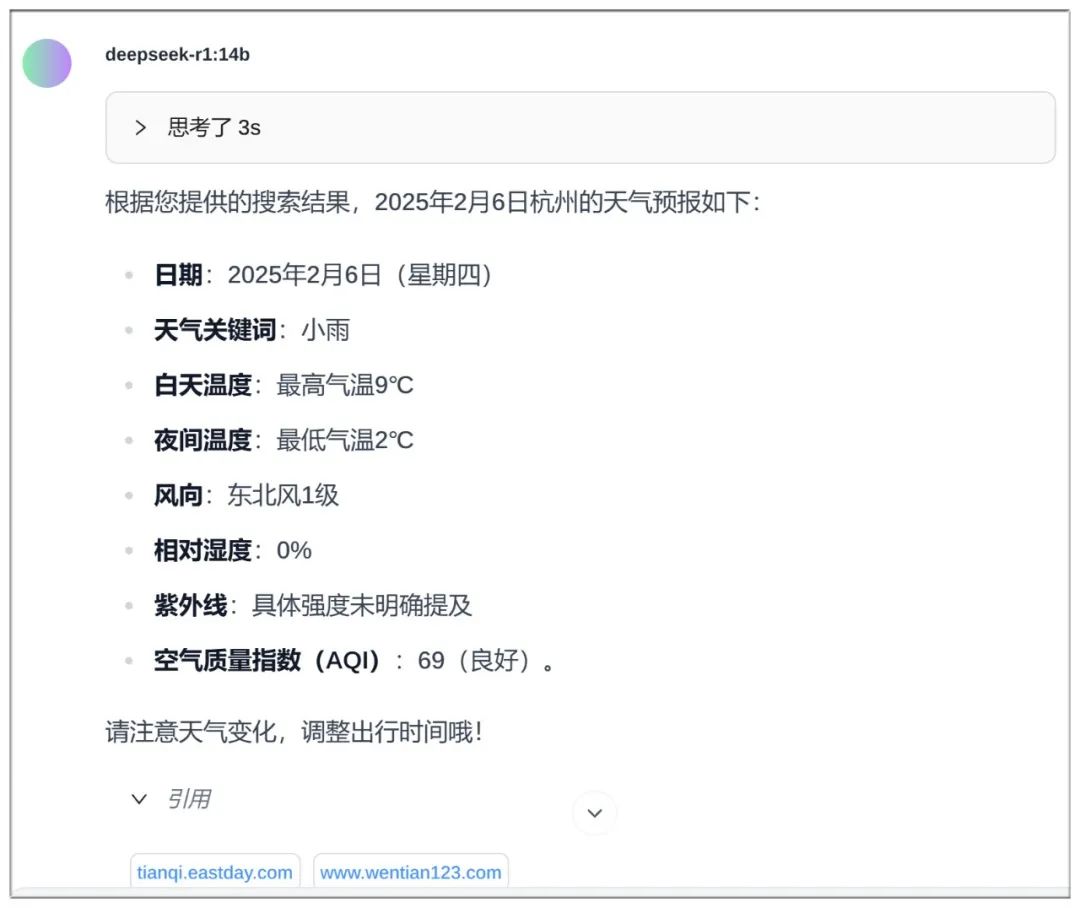
How to get deepseek R1 networking? Here comes the tutorial that shows you how to deploy deepseek networking locally!

Let's go ahead and make some settings on page-assist to get it in tip-top shape.

Click on this gear in the upper right corner:

How to get deepseek R1 networking? Here comes the tutorial that shows you how to deploy deepseek networking locally!

Under this menu, change the "Language" column to "Simplified Chinese":

How to get deepseek R1 networking? Here comes the tutorial that shows you how to deploy deepseek networking locally!

Go back to the main interface, you will find that the interface is already in Chinese:

How to get deepseek R1 networking? Here comes the tutorial that shows you how to deploy deepseek networking locally!

Again, click on the gear in the upper right corner to enter the menu, scroll down to find "Manage Web Search", where you can change the search engine used. The default search engine DuckDuckGo doesn't work well in Chinese.Suggest to change to Google, Baidu, Sogou.

How to get deepseek R1 networking? Here comes the tutorial that shows you how to deploy deepseek networking locally!

At this point, a powerful networkable DeepSeek is ready to serve you!

The article covers the URL:

page-assist code page:
https://github.com/n4ze3m/page-assist

Ollama's official website:
https://ollama.com

statement:The content of the source of public various media platforms, if the inclusion of the content violates your rights and interests, please contact the mailbox, this site will be the first time to deal with.
TutorialEncyclopedia

ai short video production, AI script how to efficiently generate into the mirror script

2025-2-5 11:28:22

TutorialEncyclopedia

Little Red Book's health and wellness track, using AI to make health and wellness graphics to realize the rise of the powder cash

2025-2-5 16:52:53

Search