



With just one ridiculously simple workflow, it's easy to take a batch ofemojiMaking?
Like this.

Yes, you heard and read that right!
It's not some high-flying black technology or a complicated operation that requires you to stay up all night and go bald.
Today, it's going to take you into the door of batch emoji making in a way that's so simple that it will make you doubt your life, so that you can easily have an exclusive emoji gallery!
Doesn't this sound a bit like magic? But let me tell you, it's more than magic, because it only takes a--CozeWorkflow!
And when coze and deepseek are combined, the workflow can become even silkier!
Without further ado, let's get down to business!
It's a two-step process.
Step 1: Create a workflow
Step 2: Create the application
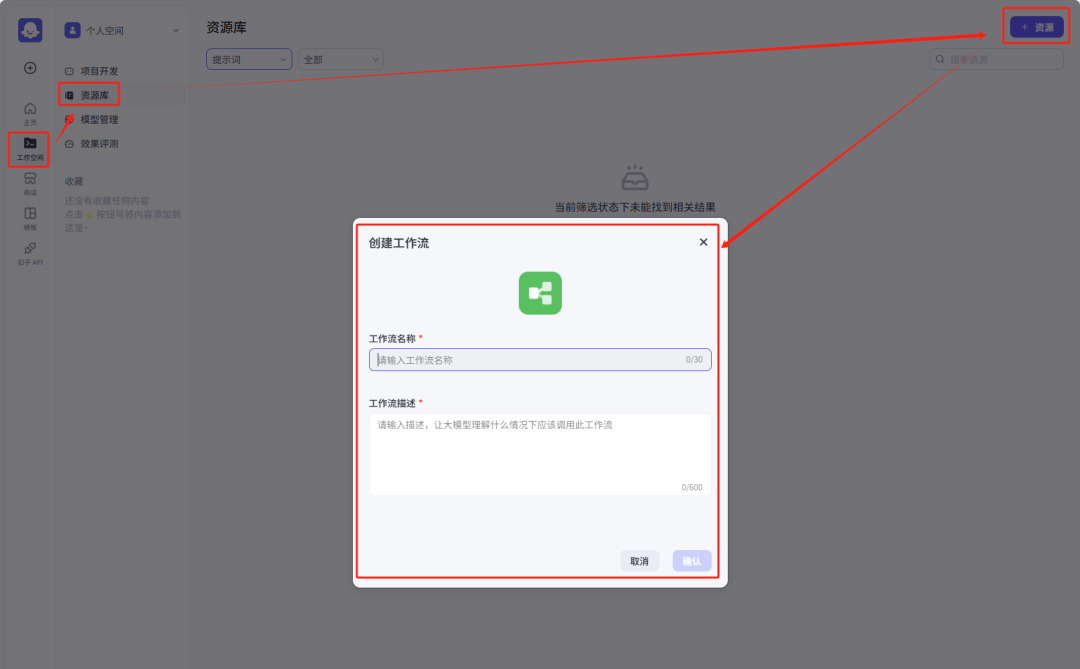
Let's start with the first step, go to the coze homepage, click on Workspace - Resource Library, and then create a workflow
The name and description of the workflow can be filled in as needed.
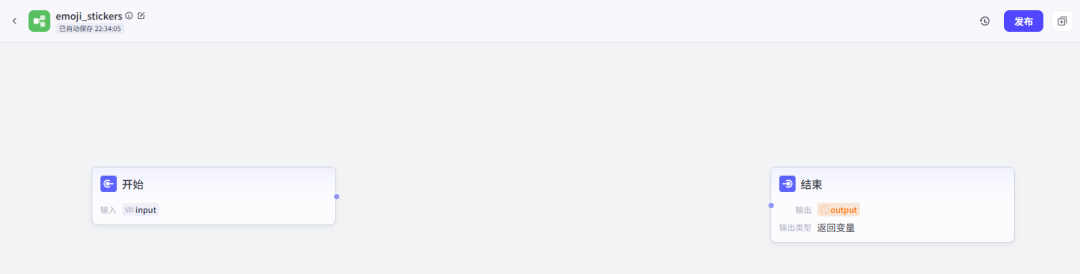
After entering the workflow, there will be two initial nodes, start and end, then we need to add more nodes in these two nodes
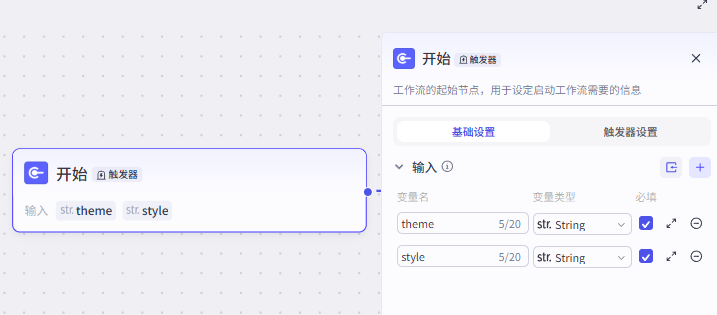
To start the node, we set two parameters, namely theme and style, which are mainly used to fill in the theme and style of the emoticon package
Next, add a new text processing node, used to deal with the prompt word (because this deepseek plugin, we created through the api, in order to ensure that the prompt word is stable, so add a text processing node to splice the prompt word), the parameters are set as follows:
Parameter String1: the theme to introduce the start node
Parameter String2: introduce the style of the start node
String splicing: you can splice as needed, or follow the end of the article to get a free reminder of the words I have set up

Next, below the text processing node, add a new deepseek node.
The parameters of the node are set as follows
api_key: fill in the volcano engine API, or deepseek official website api
base_url: Fill in the address of the volcano engine or deepseek interface.
model: fill in the model ID of volcano engine or deepseek.
prompt: reference to the output parameter of the text processing node

Next in creating a loop node with the following parameter settings:
Loop type: set the number of loops
The number of cycles: set to 2, here you can also set up as needed, but it is not recommended that the number is too much!
Intermediate variable: message referencing the deepseek node
Output parameter: reference to image generation within the loop, variable type Array

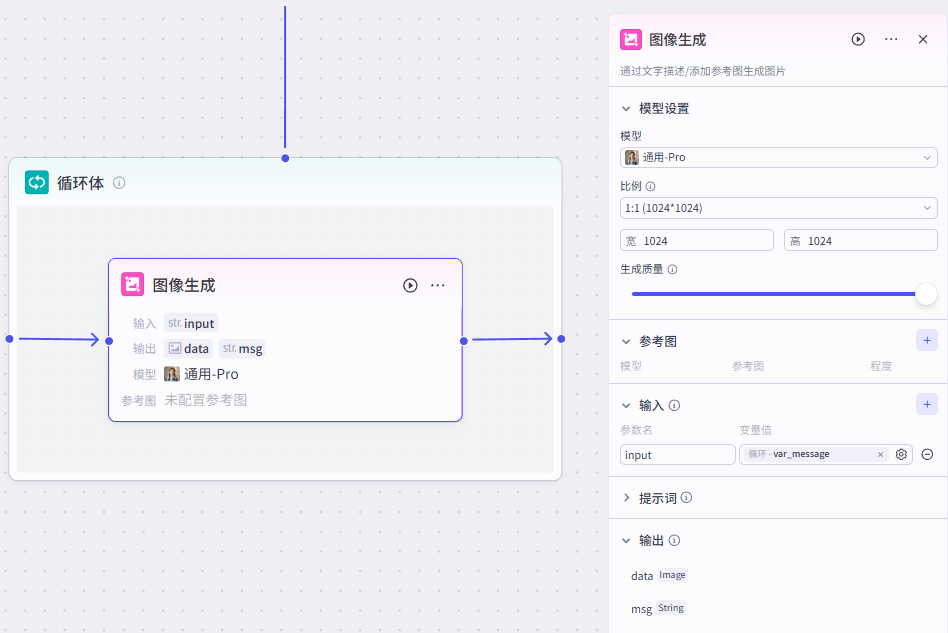
Add an image generation node inside the loop body with the following parameter settings
Model: Select General Pro
Ratio: Select 1:1
Generated mass: pull full
input parameter input: variable value references the var_message of the loop node
Prompt words: you can splice as many as you need, or follow the end of the article to get the prompt words I set up for free!
The end node parameters are set as follows
Output variable output: the parameter value references the output of the loop node.
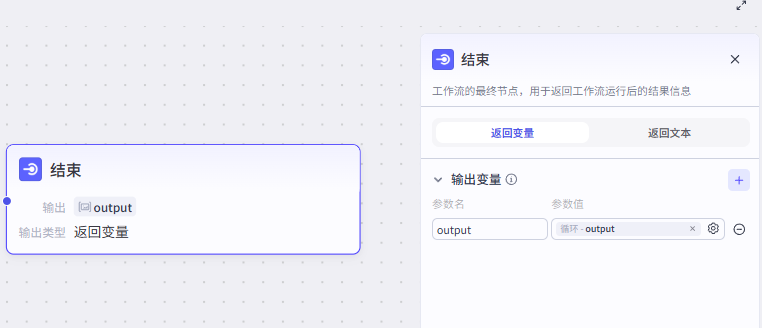
Once it's all done and the trial runs are fine, you can click publish at the top of the page

Moving on to the second step, create an application
Go back to the coze homepage, click on Workspace - Project Development, and then create an application
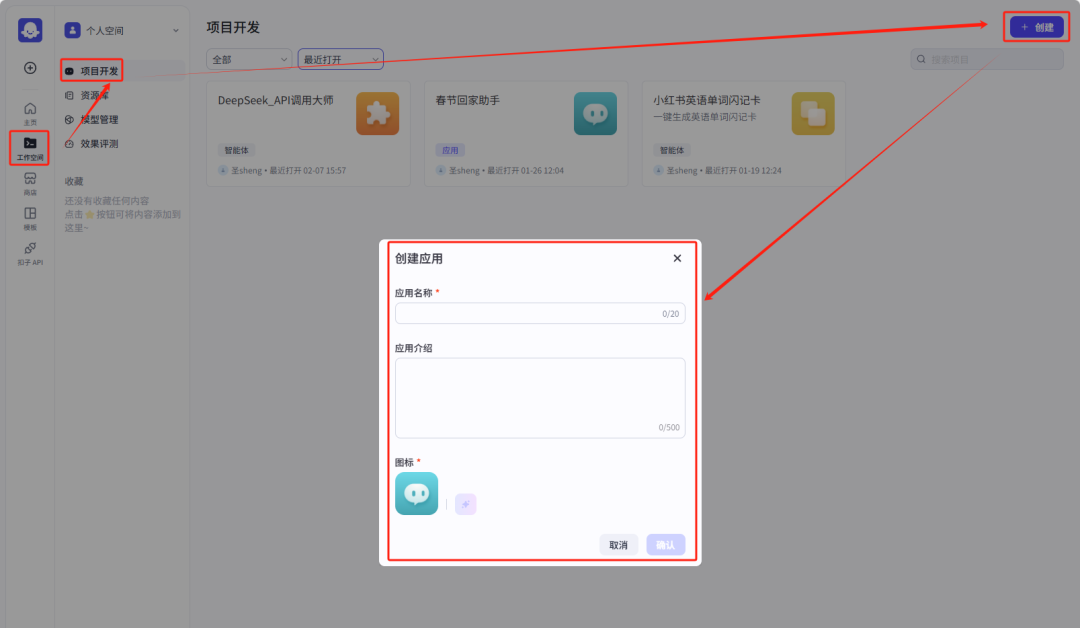
I won't create a new app here, just use the previous one
Once you're on the application details page, add the workflow you just published
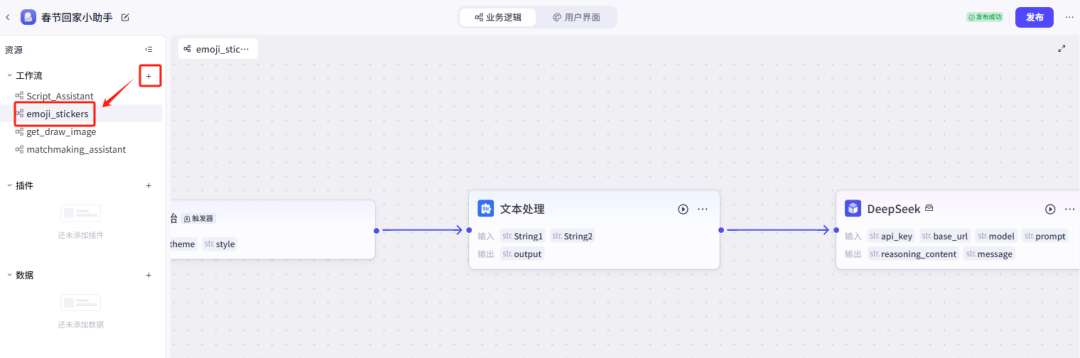
Then add a new emoji entry using the container component, the text component and the image component

Next, add a new emoji theme input page using the button component, container component, multi-line input component and drop-down selection component.
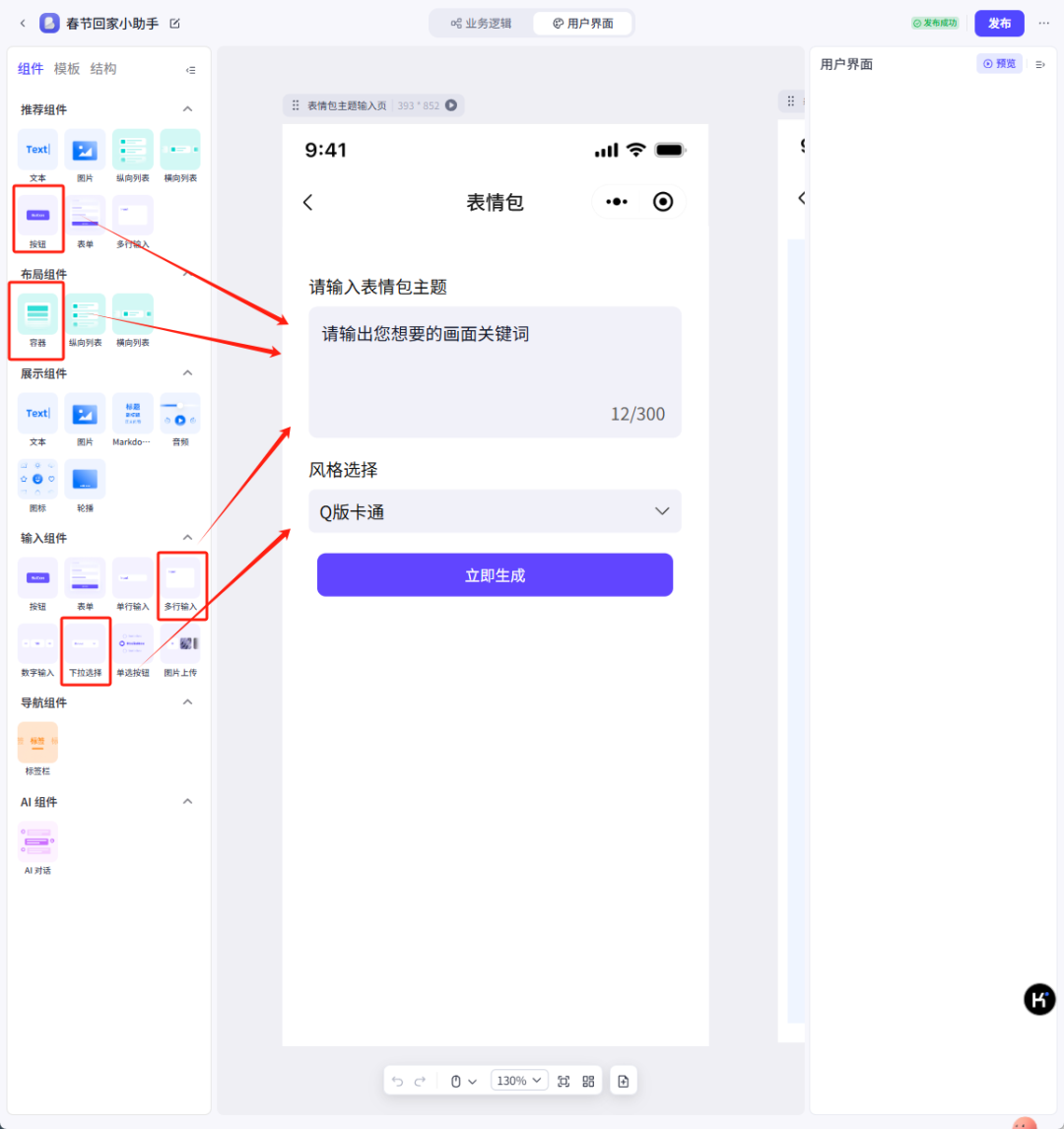
Then add a new emoji generation page using the image component, container component and text component

Once the page design is complete, we next add business logic to the page
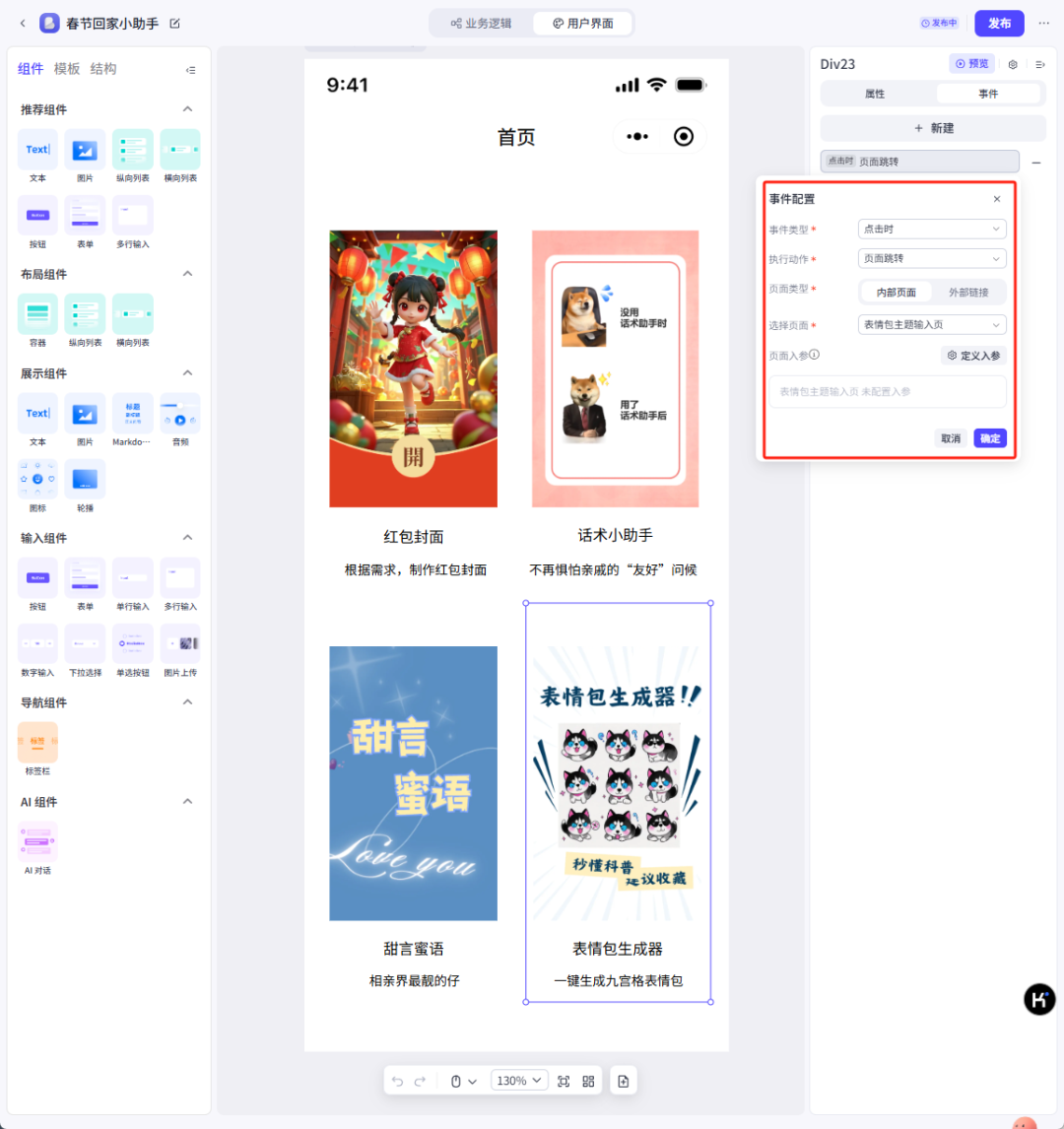
First of all, the home page, we expect that after clicking on the emoticon entrance, you can jump to the emoticon packet theme input page
So add a page jump event with the following parameters
Event type: On click
Execute Action: Page Jump
Page type: content page
Select Page: Emoji Theme Input Page
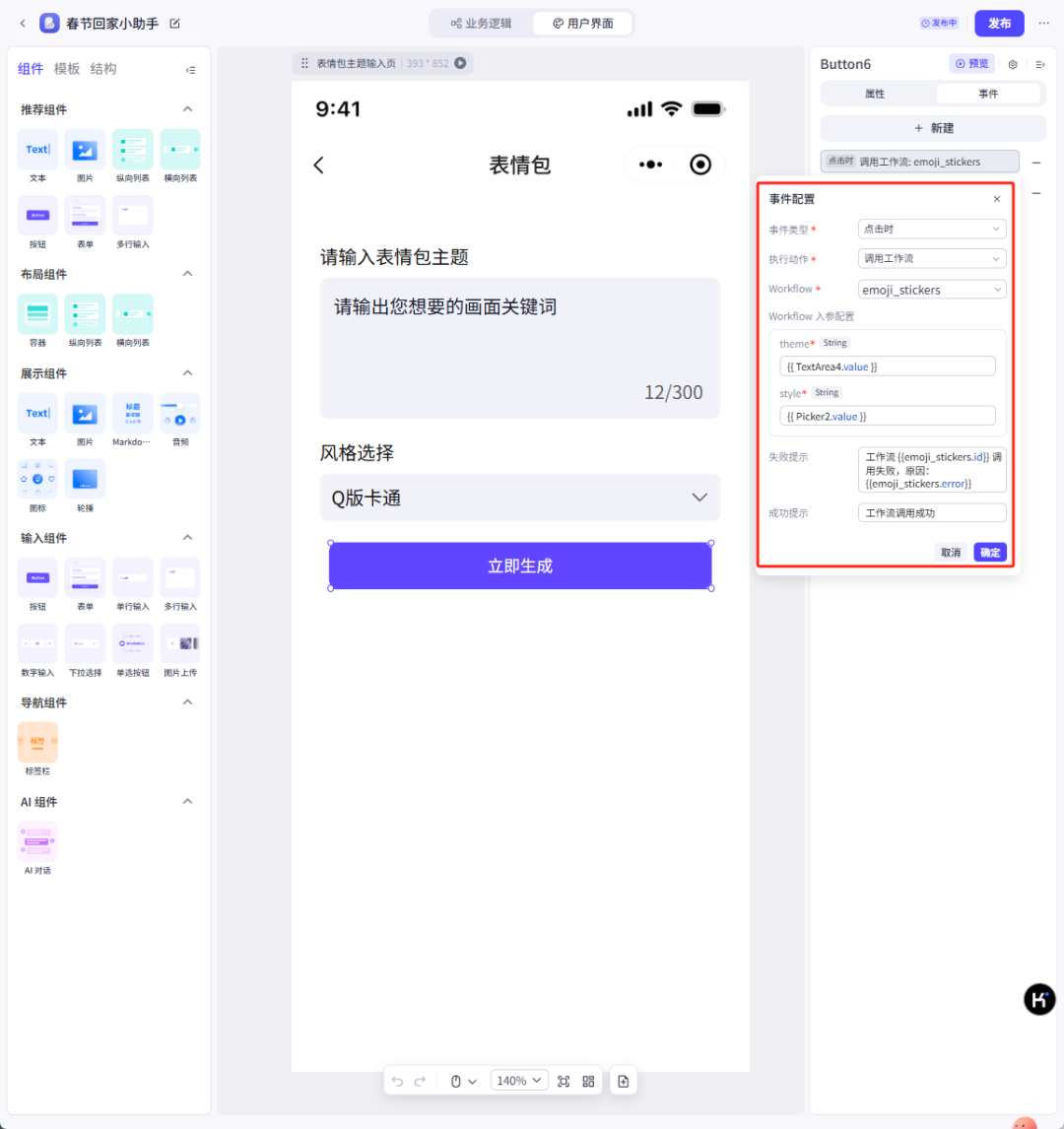
Next, the emoji theme input page, we expect that after the user has entered the content and clicked the Generate Now button, we can call the workflow to generate emojis
So here you need to add events for the button to call the workflow and the page jump.

The invoke workflow event is set up as follows:
Event type: On click
Execute action: invoke workflow
workflow: select the just workflow
theme: selects the contents of a multi-line input component
style: selects the content of the drop-down selection component
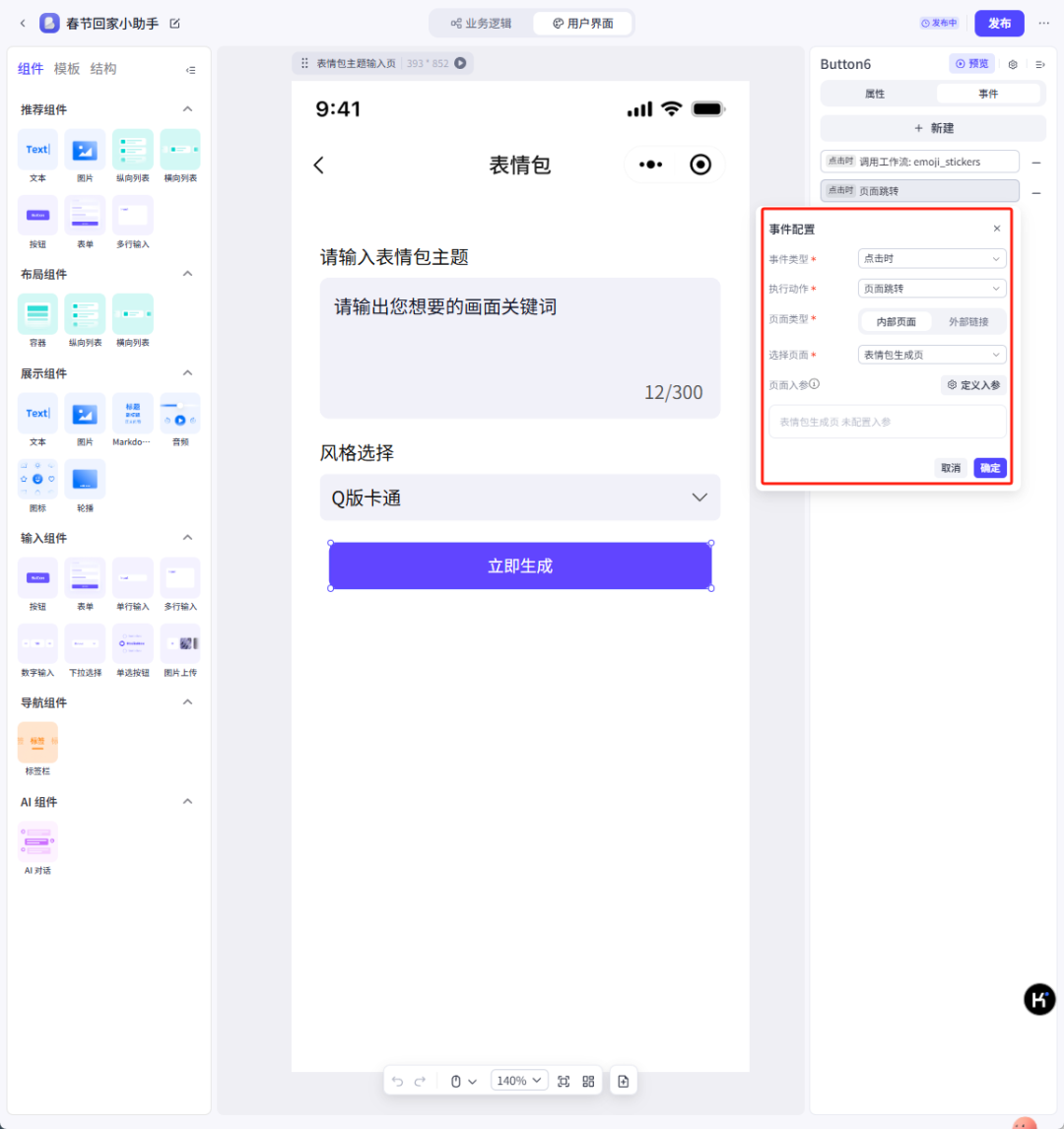
The page jump configuration is as follows
Event type: On click
Execute Action: Page Jump
Page type: content page
Select Page: Emoji Generation Page
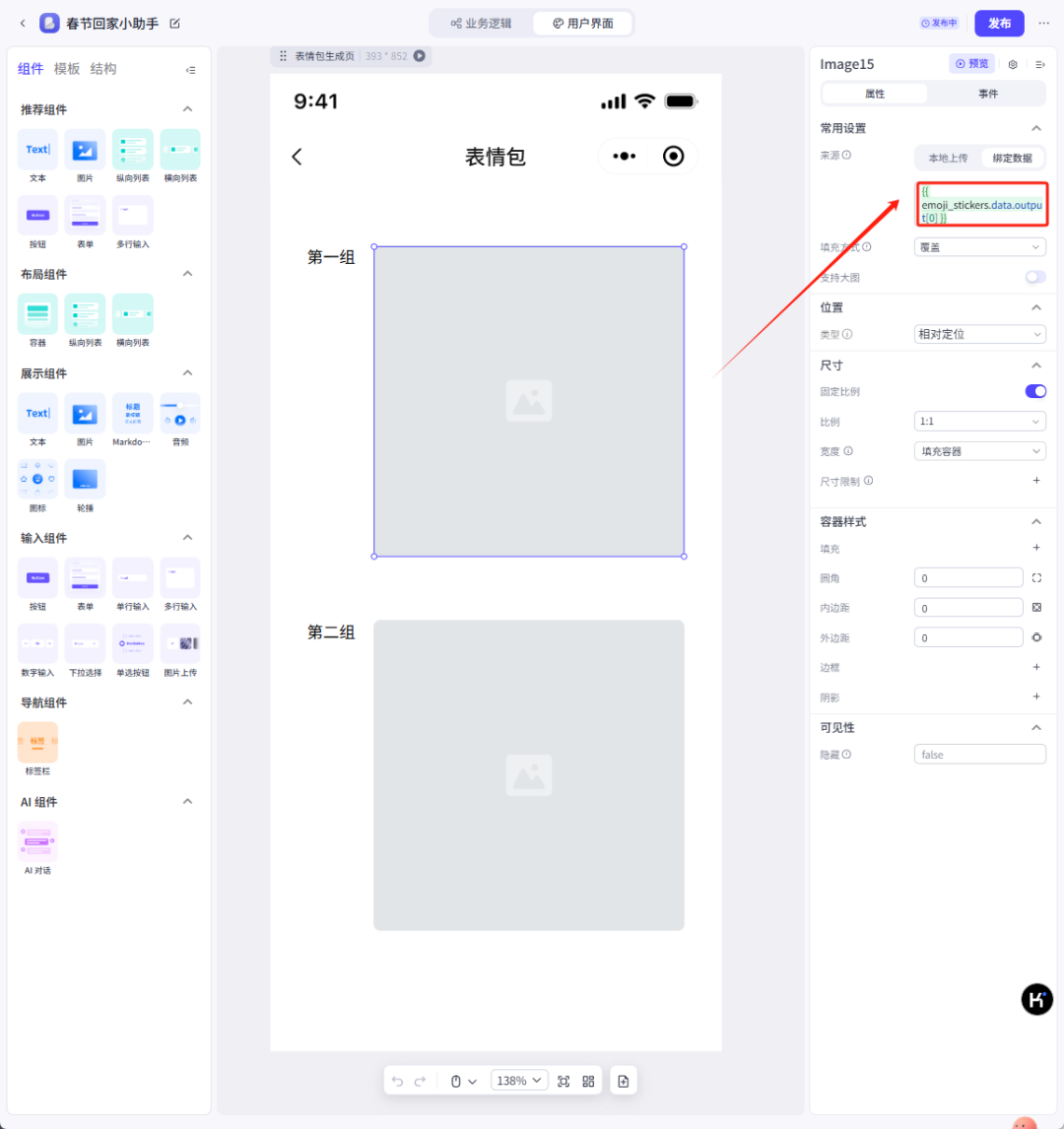
The emoticons on the emoticon generation page, because it is two sets of data, so select the corresponding array of data [0] and [1] respectively
Once it's all done, just click publish and good luck to all of you to be the prettiest boys in the emoji world.