



Detailed information is provided in the basic and advanced chapters of theWorkflowCommonly used AI nodes and how it operates, specifically for Deepseek calling scenarios. Deepseek was chosen because it is cost-effective, cheap and easy to use. According to the article, which describes two AI invocation methods, the currentn8nYou can call all the latest AI models in the world, including domestic AI models, in the new version of n8n (1.78.1) has been integrated with OpenAI just released ChatGPT o3 mini and Musk just released yesterday Grok3 as long as the big models to provide APIs for us to call are OK.
testAI automationWorkflow
I tested our AI workflow today outdoors on the road, in the subway, and in the office. No problem at all, I can get the news filtered by AI every few minutes. Of course, the time interval can be customized in the trigger. Here is a point of knowledge, when we make changes to the workflow in n8n when you want to run a test workflow immediately you need to click on the "Test Workflow" button under the "Canvas", so that you can run the workflow without waiting for the The trigger starts itself.
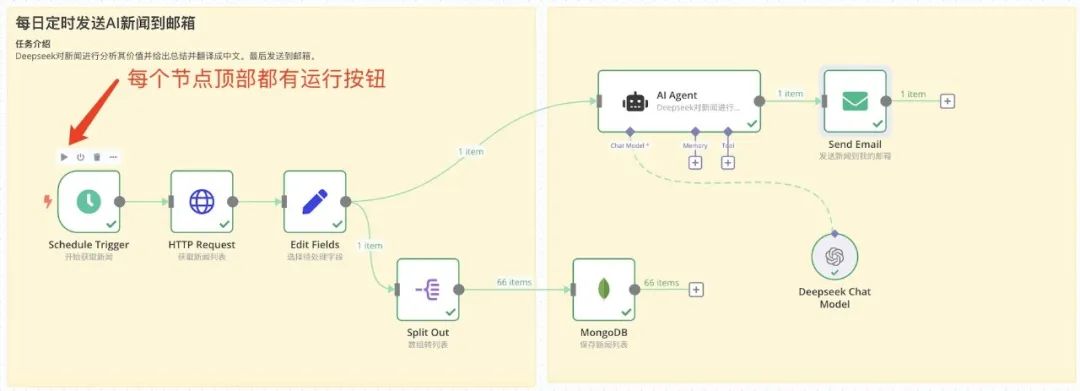
The workflow will show you which node the task is currently running on at runtime, which is very intuitive.
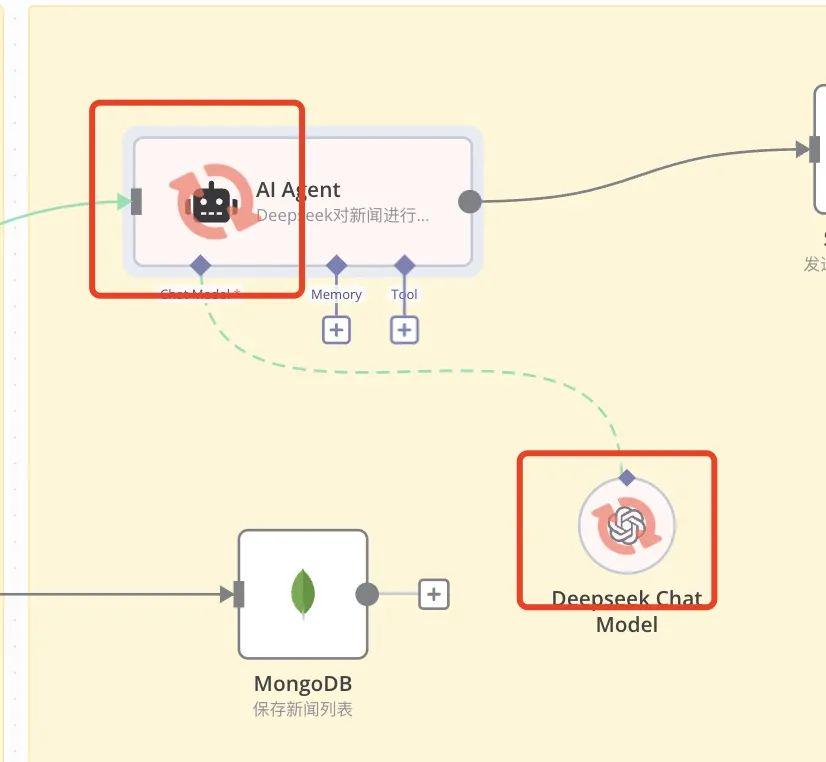
Isn't it intuitive to see which node is currently working and the node will have a rotating red arrow on it.
When the workflow runs through the entire task, the lower right corner will display a prompt box for the workflow to complete normally, and if it encounters an error, there will be a prompt box to display the error message.
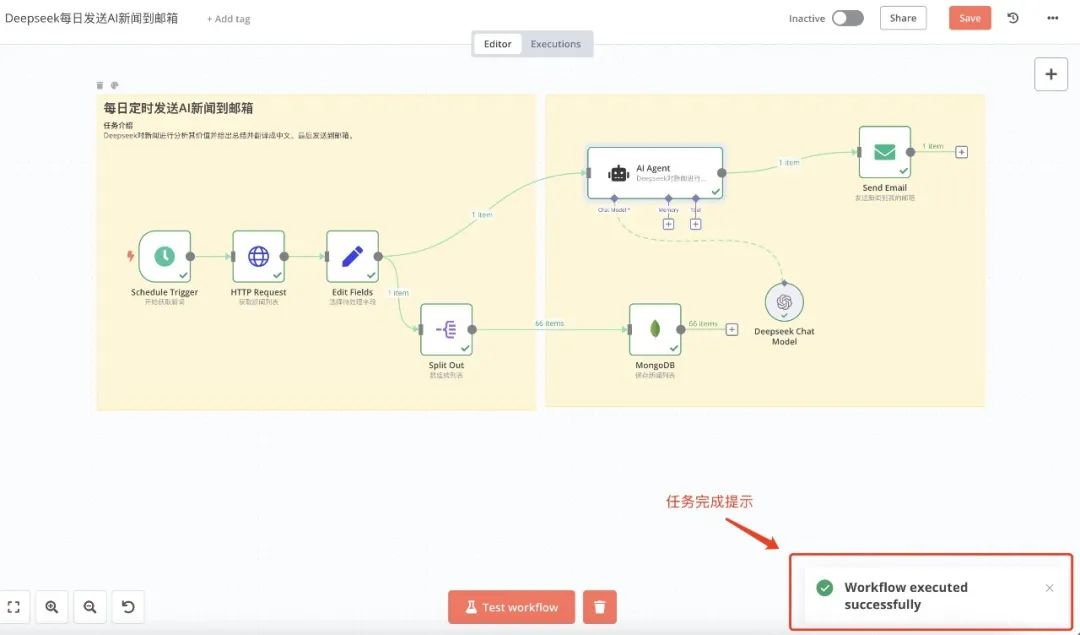
In this case, the "Deepseek Chat Model" node in the AI automation workflow takes a little bit longer to run because it has to wait for the remote Deepseek server to return the AI answer, and if the Deepseek service is busy, the workflow will time out, and the n8n will display a timeout message prompts a timeout message. So, the efficiency of the workflow execution usually depends on the time it takes to get the news and the efficiency of the AI replies, everything else is done very quickly within the n8n workflow.
AI Automation Workflow Scenario Extension
This set of AI automation workflow Demo is kind of a throwback, we can do a small extension of the scene, you can expand on this basis to a very large number of scenarios to play, for example, when the AI assistant to complete a task (automation workflow) to send me the results of the email, but also in turn by replying to the email to tell the AI in addition to pushing AI news I also want to see the entertainment news, and of course, the workflow receives the email after Of course the workflow receives the email and extracts the content of the email back to the AI, and don't forget that n8n supports one workflow calling another workflow. Anyway, cool! Proper executives "information to reduce the burden of God", feel really fragrant.
AI automation workflow execution and deployment
The reason why it is called the "landing chapter" is that in the last two articles, we introduced how to use each node and how to call AI in this workflow, but we didn't teach you how to start, stop, activate the workflow, and check the execution status of the workflow. In addition, we can also download and copy the workflow of n8n.
If you can develop or your company has a technical team n8n provides a complete set of external APIs that allow us to easily incorporate automated workflows on n8n into our own systems or products, and can provide more flexible AI applications that can truly be AI on the ground.
In this post you will learn:
1. AI agents: which AI macromodels are supported.
2. Workflow initiation: types of triggers, their respective roles.
3. Data Edit: The Edit Fields node.
4. Data Split: Data Structure Split ( Split Out ) node.
5. Data storage: Database ( Mongodb ) node.
5. Send Email: The Send Email node.
6. Workflow execution: initiation, activation and checking of execution records (Executions).
7. Workflow permissions: copy, download, delete.
What AI models does n8n support
AI models supported by n8n will be iterated as the version keeps updating, as of version 1.78.1 we can use the big AI models, organized to give you.
Gemini 2/Gemini 2 Flash
Azure OpenAI
ChatGPT 4o/ChatGPT 4o mini
Anthropic
Claude 3.5 Sonnet
OpenAI
ChatGPT o3 mini/ChatGPT 4o
search in depth
Deepseek-v3/Deepseek R1
Alibaba
Qwen2.5 max/Plus/turbo
meta
Llama 3.3
XAI
Grok3
Here we only list the latest big AI models that are currently supported, the lower versions are not listed. In addition, AI models that are not used much and smaller in scale are not listed, such as kimi, wenshin yiyin, doubao and so on. As long as this AI company provides API to the public then n8n can be used. Commonly used AI is Deepseek-v3, Ali Qwen 2.5, ChatGPT 4o and Claude 3.5 these. About AI API calls in the basic chapter, advanced chapter has been introduced, here will not repeat.
👉
Hands-on teaching you to build the basics of intelligent workflow, n8n + Deepseek big model nanny tutorials
👉
Hands-on teaching you to build smart workflow advanced chapter, n8n + Deepseek big model nanny tutorials
Starting a workflow
In n8n, to make the workflow work, we need to start the workflow first, we need to use "Trigger" which is a special type of node used to start the workflow. Trigger nodes are usually located at the beginning of the workflow, responsible for listening to specific events or conditions, and trigger the execution of the workflow when the conditions are met. n8n has dozens of types of triggers, listing three common trigger nodes and their functions:

|
|
|
|
|
|
|
|
Manual Trigger |
|
|
Webhook Trigger |
|
|
|
|
A special trigger that allows you to trigger a workflow through a chat window. |
Typically used in invoking AI dialog workflows, its messages are passed to the next level of AI nodes by default. |
These are just a few of the automation workflow triggers we commonly use. Here, I'd like to say more about the "Chat Trigger" trigger, which is used in scenarios where you need to talk to AI, such as chatbots, intelligent customer service, and so on.
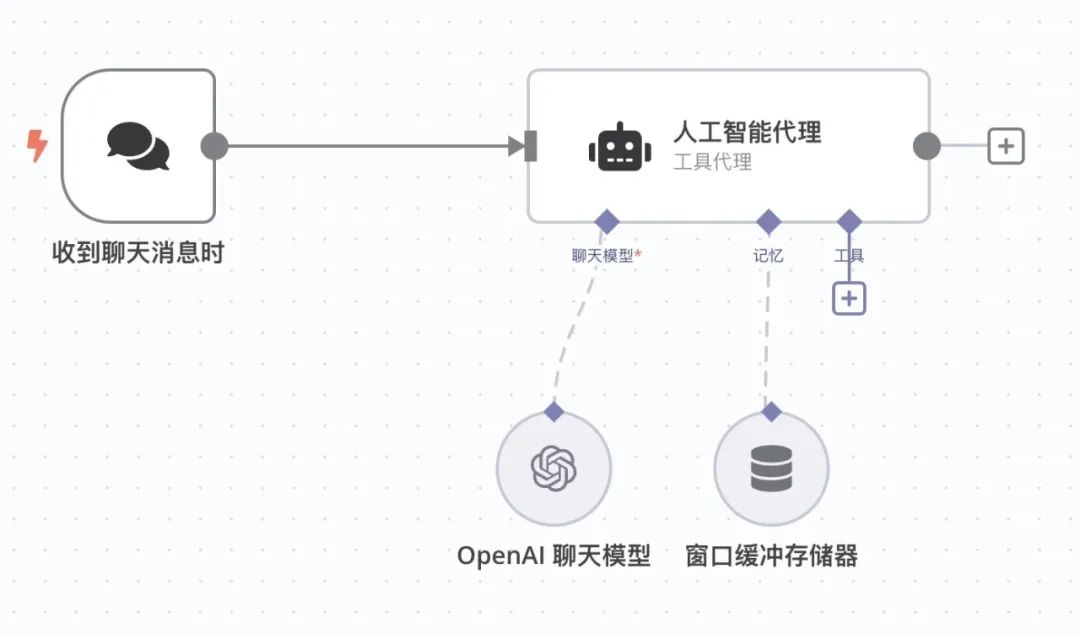
Chat Trigger Details:
Chat Trigger has no parameters to set, just create it in the canvas and switch the Workflow to chat trigger mode. The triggering mechanism is that every message sent will trigger the Workflow once.
If the downstream AI node does not have access to Memory service, Chat Trigger will not retain the previous conversation content every time it is triggered, i.e., it does not have dynamic context capability by default, and the AI cannot memorize the content of the last conversation.
When adding a Chat Trigger, n8n prompts that the trigger needs to be connected to an AI node. However, this is not mandatory, and the Chat Trigger is perfectly capable of being used as an input trigger. For example, if your Workflow needs to filter articles from a database for a specific date, you can enter the date via the Chat Trigger and reference that input date in subsequent filtering steps, avoiding the need to manually change the filters each time you run them.
In this example the "Schedule Trigger" trigger is used.
Data Edit: Edit Fields node
You can set the time interval for workflow execution, such as weekly, daily, hourly, minutely, secondly, and so on. To get the data output from the node we need to use the Edit Fields node, using the Edit Fields node you can flexibly set or modify the data in the workflow. This node can either add new data or overwrite existing data. This node is especially important when dealing with workflows that need to receive data from upstream nodes. For example, the Edit Fields node is often used to adjust or format data before it is inserted into a Google Form or database.

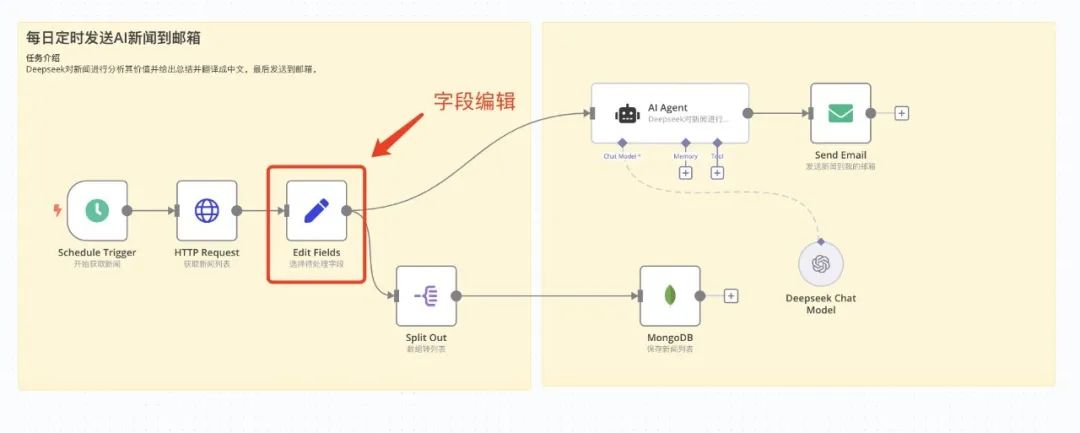
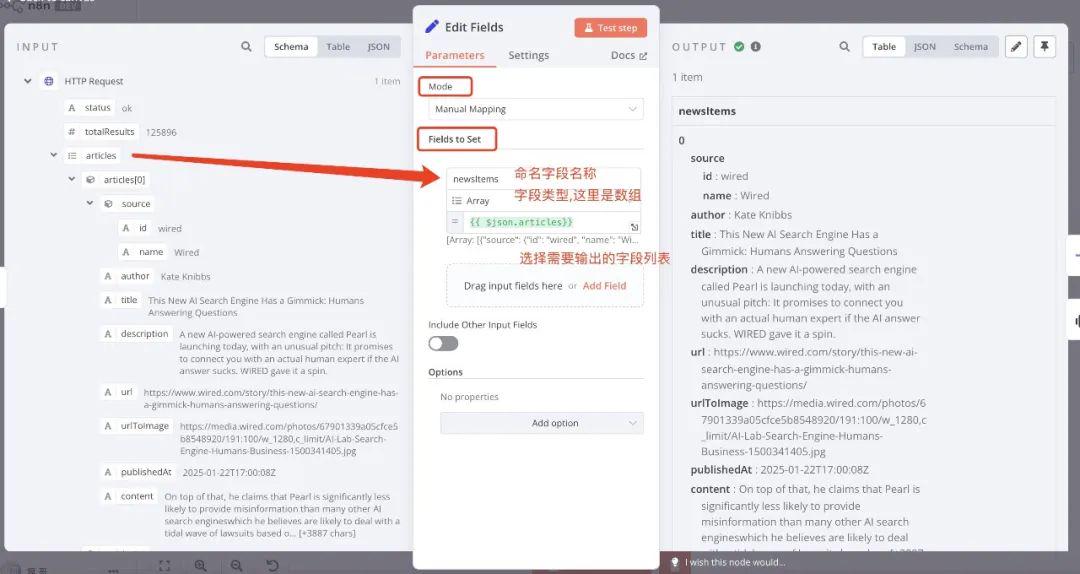
Node parameters:
The following settings and options are available in the Edit Fields node:
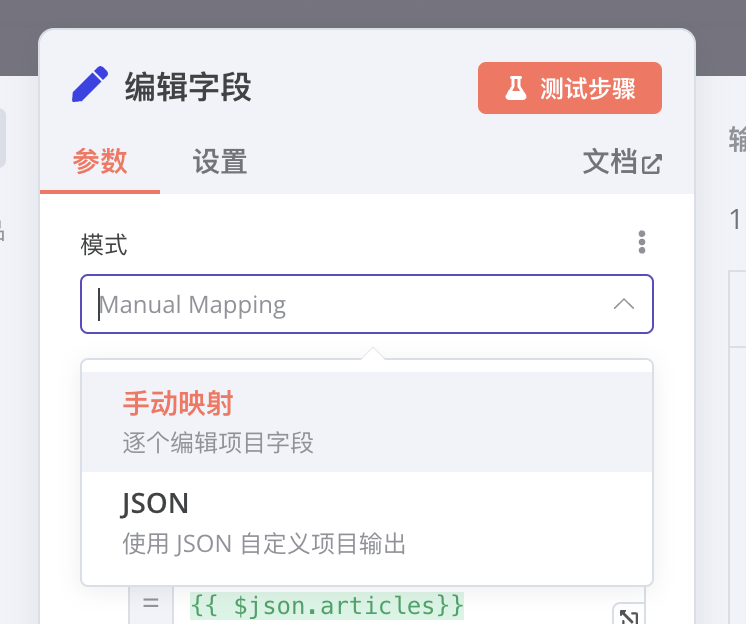
Mode:
1. Manual mapping
Editing fields is intuitive through the graphical user interface (GUI). You can select specific fields and modify them or add new ones. "Manual Mapping Mode Editing" is shown below:
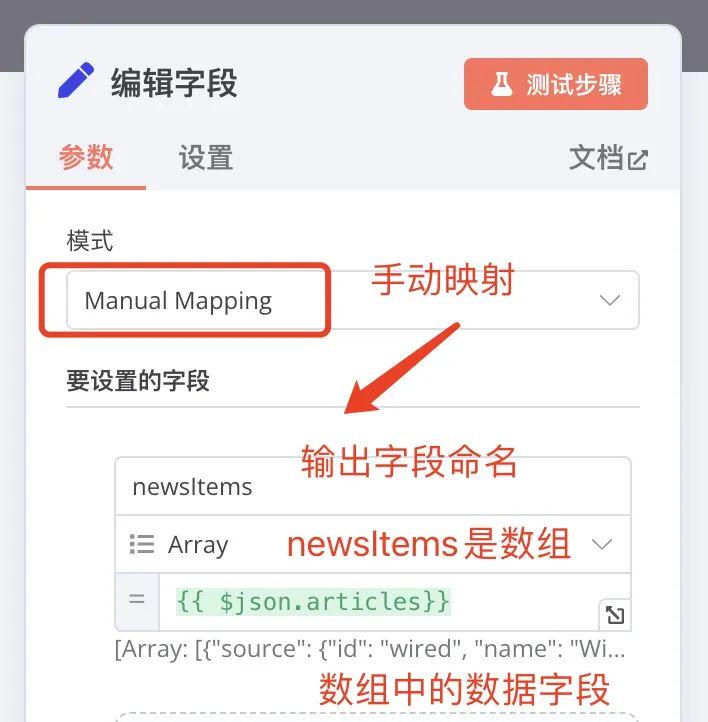
2. JSON output
Define how to modify the input data by writing JSON. This approach is suitable for scenarios that require more complex operations or batch processing of data. You can write JSON objects directly and n8n will apply them to the input data.
The "JSON Output Mode Editing" is shown below:
Suppose, the following data is generated by the upstream node:
[{"id": "23423535","name": "Zaphod Beeblebrox.","email": "captain@heartofgold.com","notes": "Felt like I was talking to more than one person.","country": "CN","created": "1979-10-12"},{"id": "23423536","name": "Edmund Pevensie","email": "edmund@narnia.gov","notes": "Passionate sailor","country": "UK","created": "1950-10-16"}]
Edit the desired output in the JSON edit box.Fields :
{"newKey": "new value","array": [{{ $json.id }},"{{ $json.name }}"],"object": {"innerKey1": "new value","innerKey2": "{{ $json.id }}","innerKey3": "{{ $json.name }}",}}
The following output will be obtained:
[{"id": "23423535","name": "Zaphod Beeblebrox.","email": "captain@heartofgold.com","notes": "Felt like I was talking to more than one person.","country": null,"created": "1979-10-12","newKey": "new value","array": [23423535,"Zaphod Beeblebrox."],"object": {"innerKey1". "new value","innerKey2": "23423535","innerKey3": "Zaphod Beeblebrox."}},{"id". "23423536","name": "Edmund Pevensie","email": "edmund@narnia.gov","notes": "Passionate sailor","country": "UK","created": "1950-10-16","newKey": "new value","array": [23423536,"Edmund Pevensie"],"object": {"innerKey1". "new value","innerKey2": "23423536","innerKey3": "Edmund Pevensie"}}]
With these two modes, we have the flexibility to adapt the data as needed to ensure it meets the processing requirements of subsequent nodes.
Data Split: Data Structure Split ( Split Out ) Node
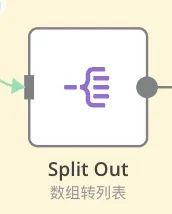
Split Out node Split Out is a powerful tool for splitting input data into separate items. Its main purpose is to break an input data containing an array or a list into individual items so that subsequent nodes can process each item separately.The Split Out node is ideal for working with batches of data or for tasks that require itemized operations.
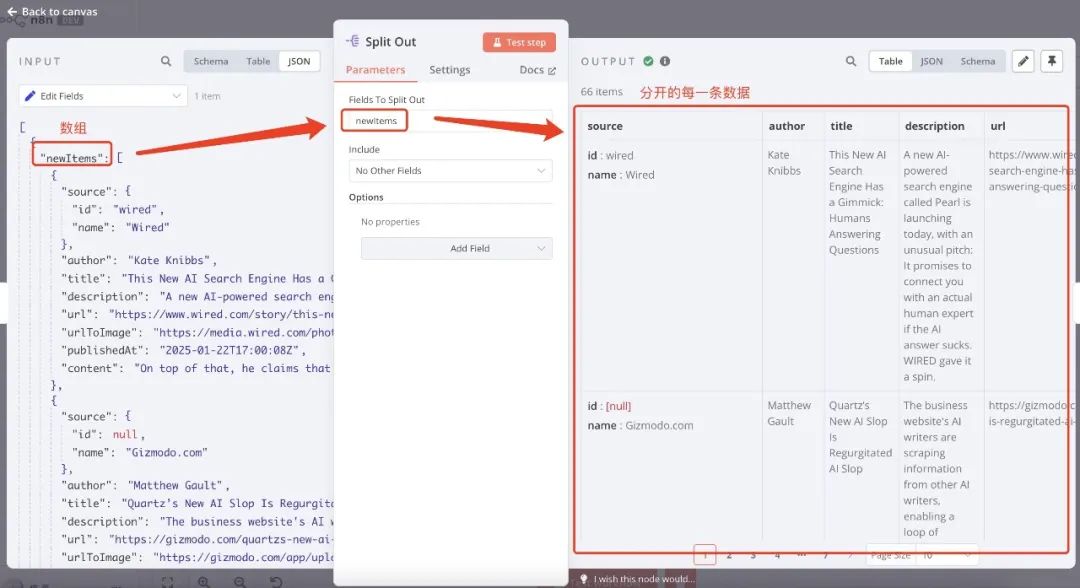
Let's look at a typical application scenario:
Scene 1. Batch processing of data
There is an array containing multiple records (e.g., results returned from an API or database query), and these records need to be processed one by one.
[{ "id": 1, "name": "Alice." },{ "id": 2, "name": "Bob." },{ "id": 3, "name": "Charlie." }]
With the Split Out node, the data is split:
{ "id": 1, "name": "Alice." }{ "id": 2, "name": "Bob." }{ "id": 3, "name": "Charlie." }
Scene 2. message-by-message
Suppose, you need to send a set of messages to a platform one by one (e.g. WeChat or email).
[{ "message": "Hello, Alice!" },{ "message": "Hello, Bob!" },{ "message": "Hello, Charlie!" }]
Scene 3. Insertion into the database on an article-by-article basis
Let's say you need to insert a set of data into a database table line by line. In this example, the Split Out node is used to insert an array of news item by item into a Mongodb database.
[{ "product": "Apple", "price": 1.2 },{ "product": "Banana.", "price": 0.5 },{ "product": "Orange", "price": 0.8 }]
Scenario 3: Calling the API line by line
take: You need to call an external API based on a set of data, line by line.
[{ "userId": 1, "action": "update" },{ "userId": 2, "action": "delete" },{ "userId": 3, "action": "create" }]
Data storage: database ( Mongodb ) node
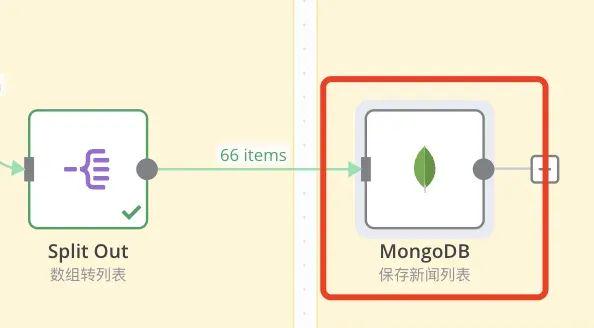
I want to save a list of news items one by one into a database for subsequent processing, such as displaying the list of news items directly on a website. First, let the Split Out section split the news array into one data item and then insert it into the data table one by one.
To clarify, for databases you can use a database that you commonly use or specialize in, such as Postgres
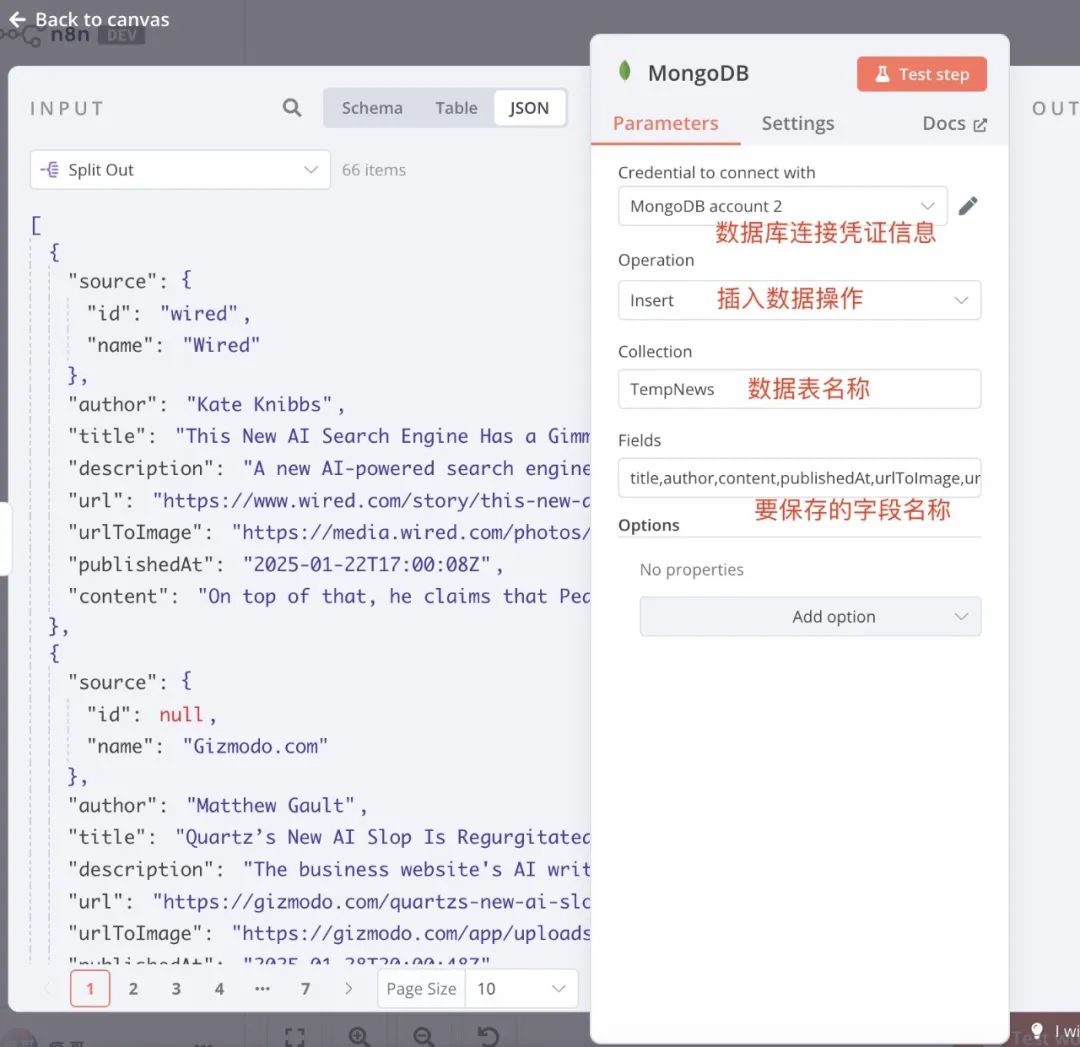
Mongodb setup is simple:
Configure the account password for connecting to the database
Credential to connect with: xxxxxxxxxx
Performing insertion operations
Operation : Insert
Name of the data to be saved to the data table
Collection : TempNews
The names of the fields to be saved, separated by commas
Fields : title,author,content,publishedAt,urlToImage,url
After saving to the Mongodb database it looks like this, below is a screenshot of the TempNews table, which makes it easier for us to process the news data outside of the non-n8n platform.

Send Email: Send Email node
We need to send each news item returned by the AI to the user's mailbox via email, and a common email sending node in n8n is Send Email. The Send Email node supports sending emails via third-party email services (e.g., Gmail, Outlook, QQ, 163 mailboxes, etc.) The Send Email node is ideal for automating notifications, report delivery, workflow status updates, and other scenarios via email. The Send Email node is ideal for automating notifications, reports, workflow status updates, etc. via email.
Role of the Send Email node
- mail: Send emails in text or HTML format by configuring SMTP or integrating a third-party mail service.
- Supported Attachments: Files (e.g., reports, pictures, documents, etc.) can be attached to the e-mail.
- dynamic content: Supports dynamic generation of message content, subject, recipient and other fields using expressions.
- batch file: In conjunction with the Split Out node, it is possible to send emails to multiple recipients in bulk.
This example uses 163 mailbox, because it is a tutorial case not designed for commercial use, then using a personal mailbox to provide the function of sending emails can be, if it is an enterprise scenario you need to find a professional provider of mail services provider.
Let's look at the mailbox configuration, which is very simple.
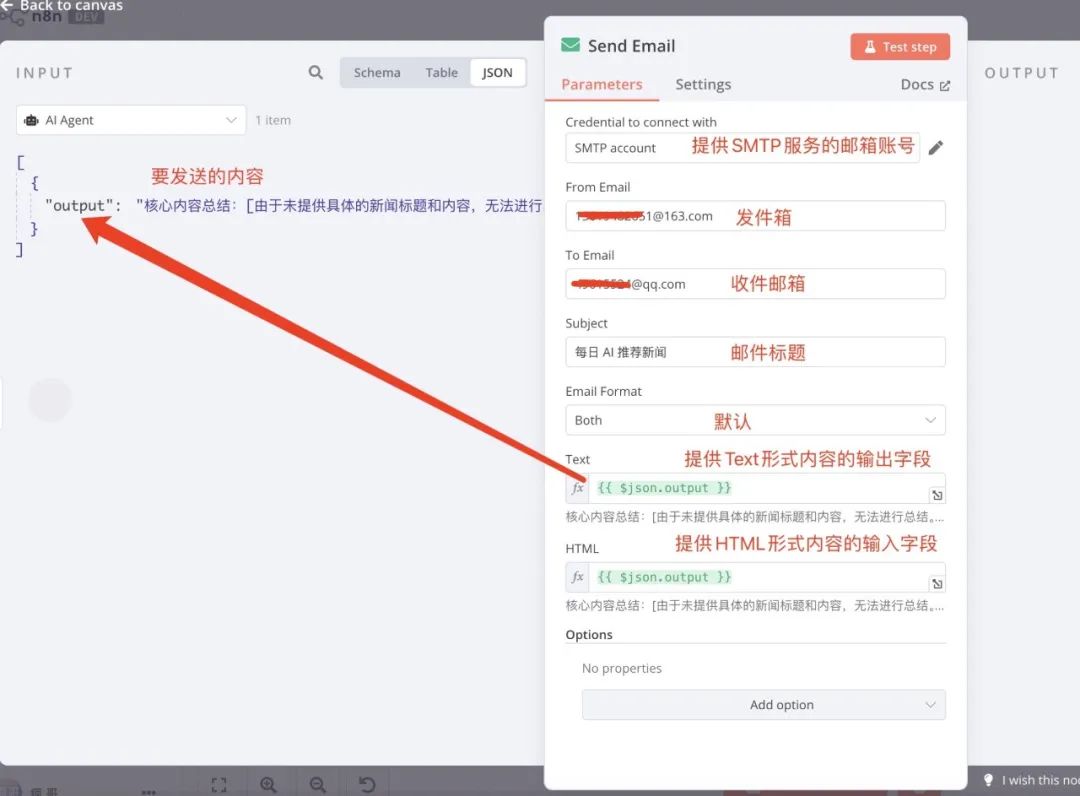
Both parameter means to provide both Text and Html content format, inbox supports that kind of format.
Workflow execution: start, activate and check execution logs
At this point we are done with all the nodes used in the workflow, leaving us with the start, stop, and activation of the workflow, as well as execution logging.
Startup method 1: "Test workflow" button
The red "Test workflow" button at the bottom of the workflow canvas runs the current workflow immediately. Generally used in testing and debugging the current workflow, you can also stop the executing workflow.
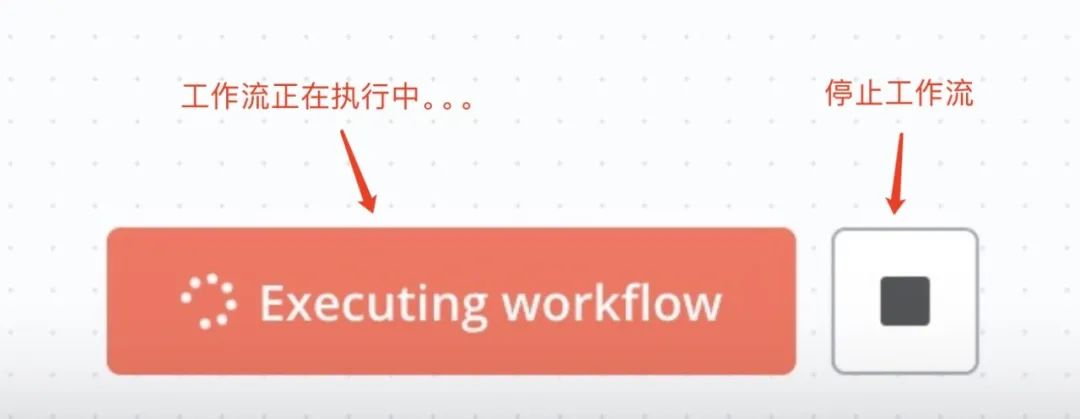
Activation method 2: Trigger
Trigger we introduced before, the configured trigger will automatically execute the workflow according to the rules, we can run the trigger manually, when the trigger is executed it will also drive the whole workflow to start executing. There is a run button on top of each node. (When the mouse moves to the node will appear a row of shortcuts, including execute button, delete button, etc.)
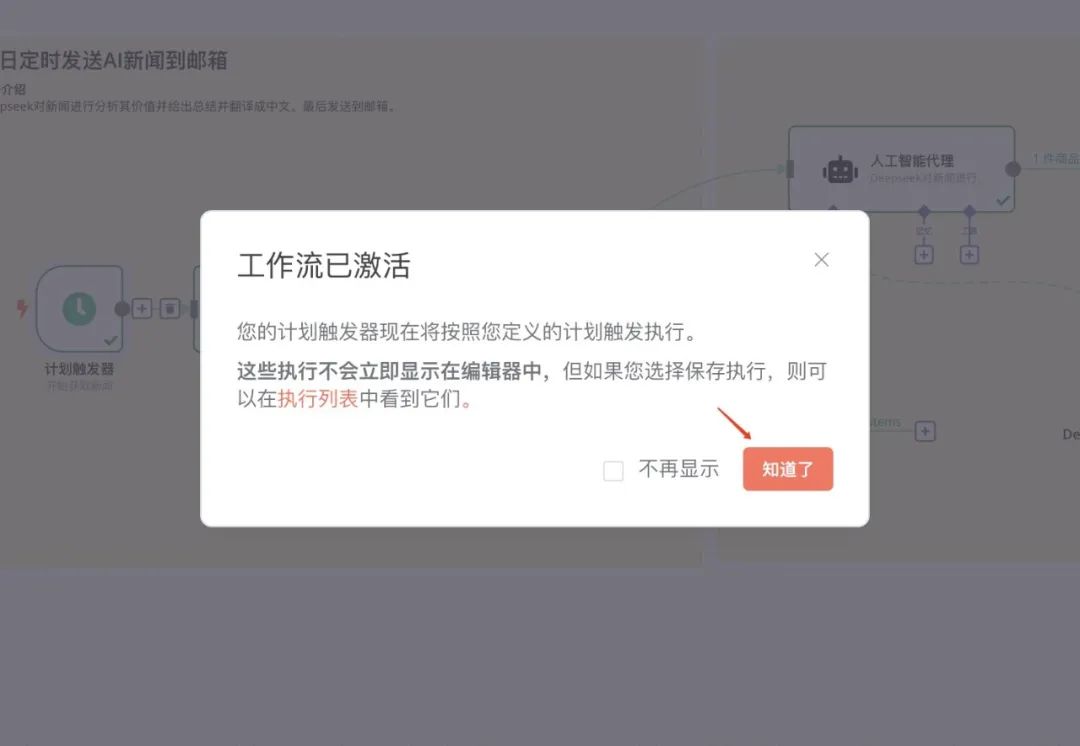
Activate workflows
After the workflow is completed, it will be inactive by default, what is the meaning of "active"? As the name suggests, "activated" means that the workflow can run in the background all the time, such as the website is online, the app is released, the activated workflow can provide us with automation services all the time. After activating the workflow when we exit n8n or close the browser does not affect the operation of the workflow, it silently on the server to perform their own tasks.
To activate the workflow: Click the "Inactive" switch in the upper right corner of the canvas.
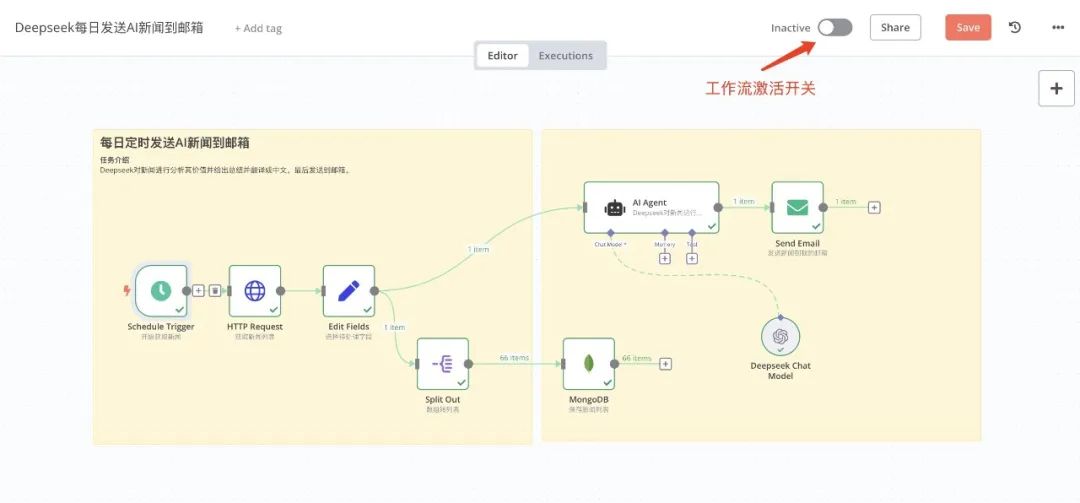
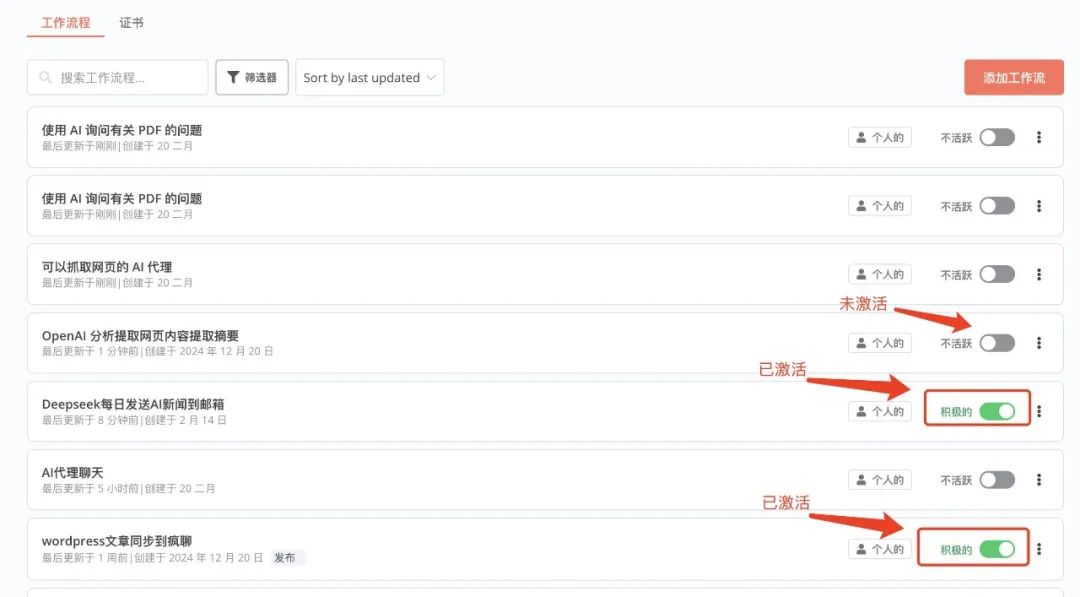
Back to the Home Workflow List page, you can see the current status of each workflow, green means the workflow is running.
Record of implementation
Once the workflow has been activated and started working, we can use the "Executions" function to view information about each execution of the current workflow, including the time of each executed task and whether the task was successful or not.
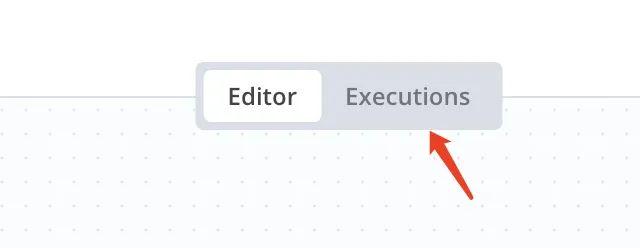
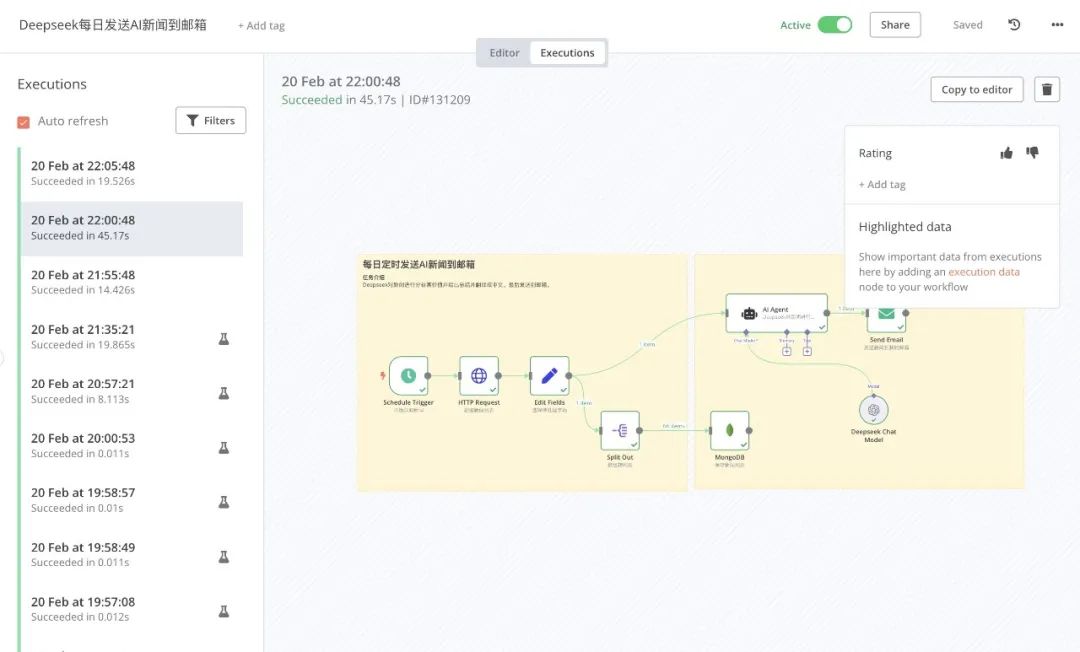

Execution is recorded only in the state where the workflow is activated.
Workflow permissions: copy, download and delete
If we are deploying privately the administrator has the highest privileges, including inviting other users to register, deleting users and all operations on all workflows, including managing workflows generated by other users. In turn normal users cannot see the workflows created by the administrator and other users, so the administrator has the current n8n highest privileges.
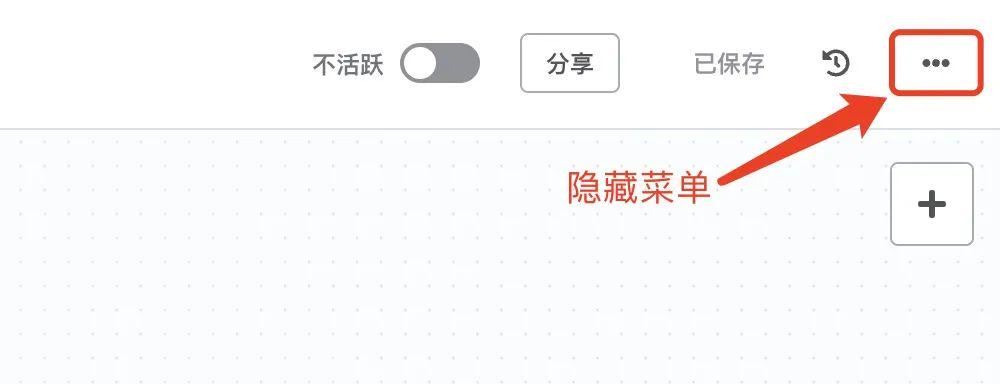
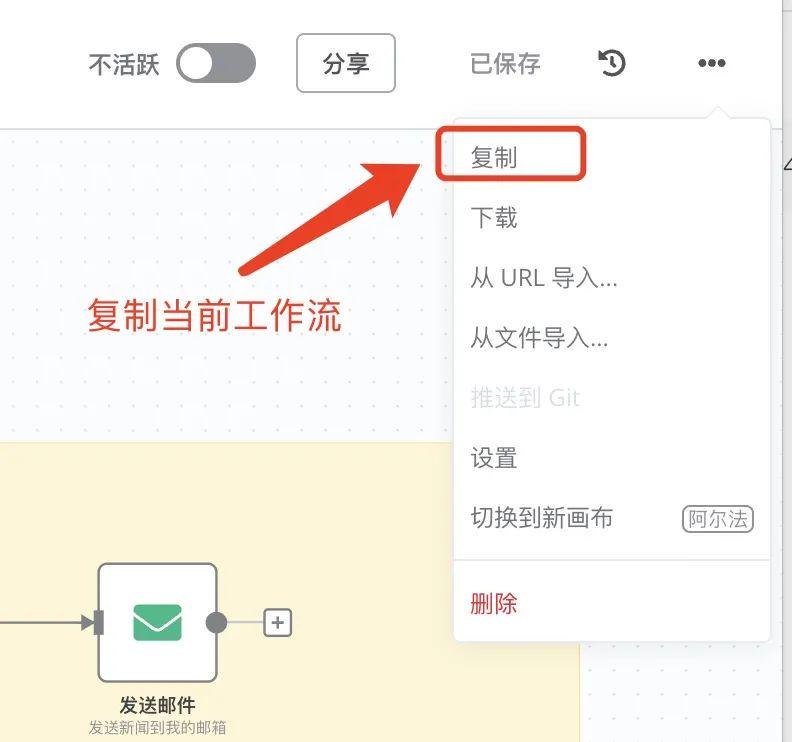
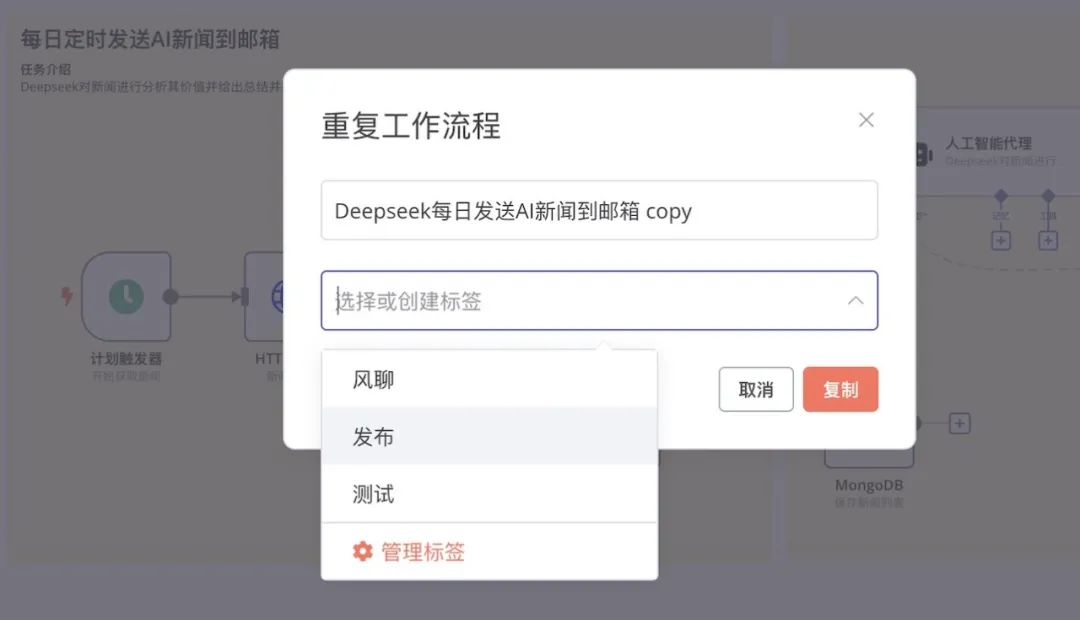
Replicating workflows
Workflows can be copied, first of all, after more workflows in order to facilitate the management we will create some tags used to distinguish between different business scenarios of the workflow, so copying the workflow is similar to move the current workflow to other categories.
Download Workflow
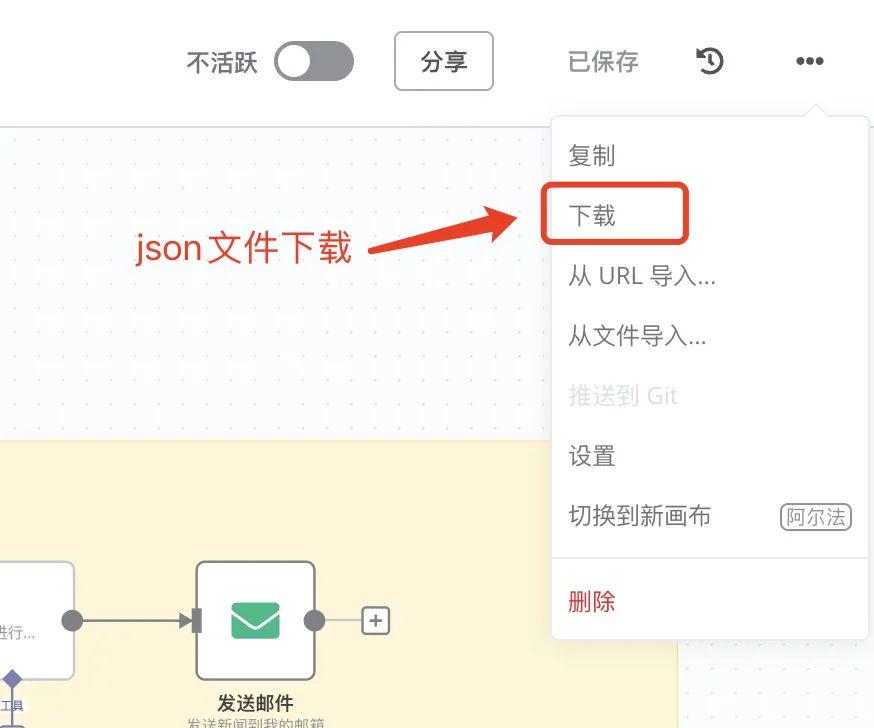
When we need to send the current workflow to a customer or deployed to other n8n platforms, then we need to use the download function, because the download is a json file, this json file is the entire workflow "source code", with this json file can be thrown to a random n8n platform! to any n8n platform to perform the task. Just select Import Workflow in the menu to import the json file.
Open the json file to see the workflow details of the various information, as shown in the figure:
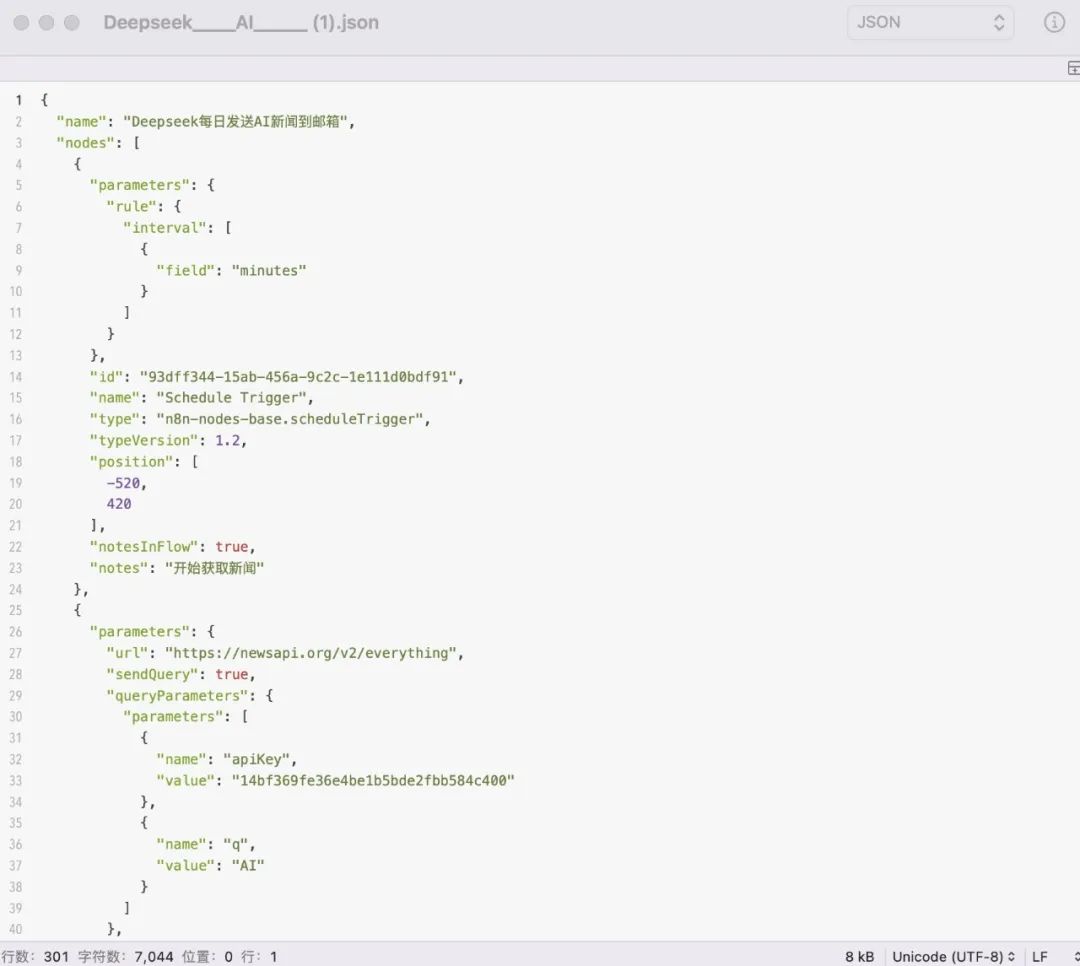
In fact, n8n the use of json, a common information format in the Internet era is one of the best compatibility, record-keeping and de-reading information is very convenient, a variety of development platforms and programming languages can easily operate json files.
Conclusion: Zero code can also play AI, white people into a technical expert!
This example configures an AI automation workflow with n8n to automate the entire process from news crawling, to content filtering, to emailing or social media posting.