



Many of you may say, "Isn't the beanbag's image generation function very simple? Upload a cue word and generate a picture, I can do it too!" But do you know what? Beanbag actually hides a lot of powerful image processing functions, today I will take you to reveal one by one, these functions are even more convenient than PS!
Visit the official Beanbag website (https://www.1ai.net/1252.html) after selecting "Image Generation" dialog box, fill in the description of the picture you want, select the appropriate scale and style, click send to generate the picture. If you are not satisfied with the result, you can also click to regenerate, very simple.
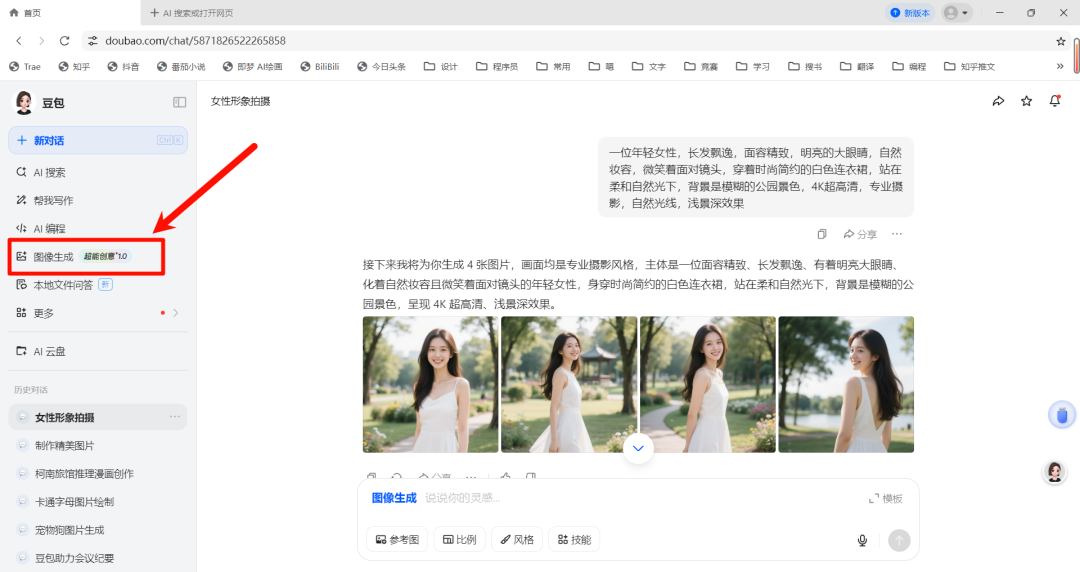
But the real power of the beanbag lies in its hidden features!
Beanbag image transfer function
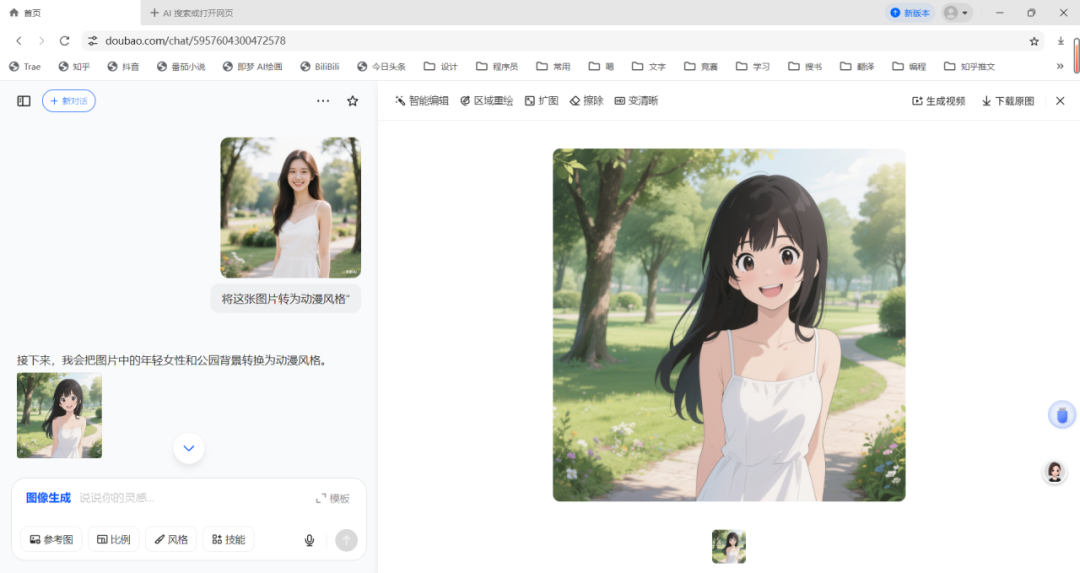
Transpainting is the process of transforming an existing picture into a different artistic style. The operation is very simple:
1. Return to the image generation page
2. Upload your reference image
3. Enter the style you want to convert, e.g. "Convert this picture to anime style".
4. Click to send

You can try all kinds of style conversion, such as anime style, 3D cartoon style, oil painting style, watercolor painting style and so on. I recently used it to convert my photos to Miyazaki animation style, the effect is amazing, my friends thought it was the work of professional designers!
Beanbag image keying function
At the bottom of the home page of the beanbag, there is an "AI keying" function, which can help you quickly get a transparent background picture:
1. Click on "AI Keying".
2. Upload the image that needs to be keyed in
3. Wait a few seconds to get the keyed image


This feature is particularly suitable for the need to P characters into other backgrounds in the scene, than the traditional PS keying time-saving and accurate, even the hair strands are dealt with in place.
Beanbag Picture Erase Function
Sometimes we want certain elements of a picture to disappear, and Beanbag's Erase feature comes in handy:
1、Uploading pictures

2. Use the mouse to erase the elements you want to erase.

3. Click the "Erase Selected Area" button and you're done!

Beanbag Image Expansion Function
The Expand function gives you a "wider view" of your picture, especially for scenes where you need to adjust the composition:
1. Click on the "Enlargement" option at the bottom right.
2. Upload your photo
3. Stretch to your desired size
4. Generation in new dimensions
I used this function last week to deal with a portrait photo, the original characters occupy most of the screen, through the expansion of the picture, add more landscape elements, the overall effect is more atmospheric, a key to complete, eliminating the complex background expansion steps in PS.
Partial repainting of beanbag pictures
Localized repainting allows you to select specific areas of an image for a creative makeover:
1, in the image generation home page, select "local redraw".

2. Upload your photo
3. Use the mouse to paint the area you want to change
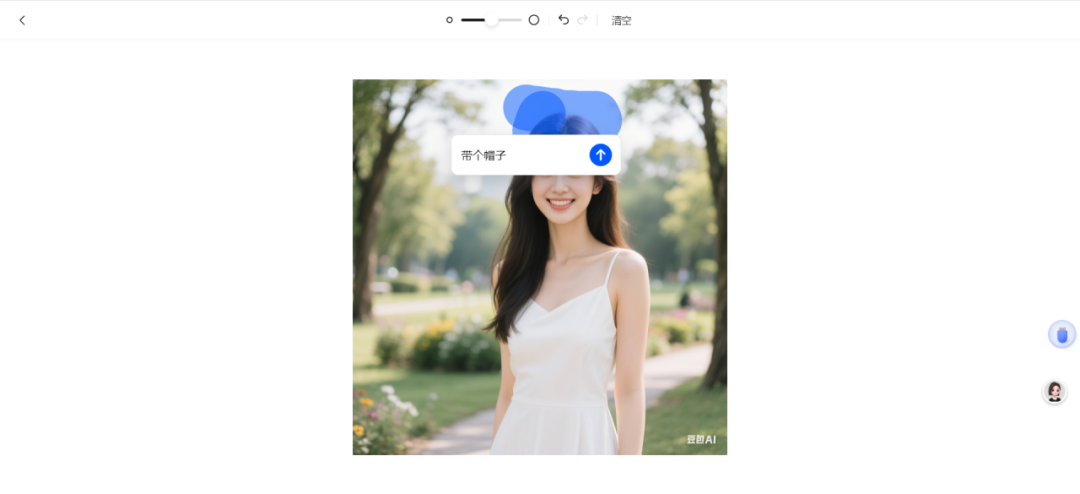
4. Fill in the new content you want
5、Click to send

Beanbag Features Summary
To summarize, Beanbag's image processing features include: basic image generation, image transfer, AI keying, image erasing, image expansion, local redrawing and intelligent editing, which cover almost all of our daily image processing needs. Compared with traditional PS, Doubao is easier to operate, without professional skills, a few minutes to complete high-quality image processing, and truly "everyone is a designer".