



"Recently there are more festivals, every festive season ...... looking for a good picture! I want to find a nice picture as a greeting card to send to my beautiful her~"
"Suddenly I have an inspiration, I want to post a friend circle! Where's the picture? Where can I find the right one?"
"Regarding this idea, I would like to try more styles, it is best to generate dozens at a time, so that I can pick and choose ......"
What to do? In the old days, I would have opened DeepSeekYou can write a cue to generate a drawing instruction, then copy it to Imagine to generate a picture. If you want to try more styles, you will also need to keep tweaking the cue words and generating pictures again and again.
In today's AI-changing productivity, we only need to simply say the requirements of the picture on Flybook, and the beautiful pictures will be generated in minutes!
This is a post that I will share:
- Flybook Multi-Dimensional Forms + DeepSeek + Instant Dream 3.0 WorkflowThe fully automated generation of beautiful pictures.
- Flybook Docking Bot for one sentence out of a picture.
Configuration is very simple, and you definitely deserve a double boost workflow!Let's go!
1 . Creating an Intelligent Body
Step 1: Build intelligences for hosting the workflow of the i.e., dream-generated graphs.
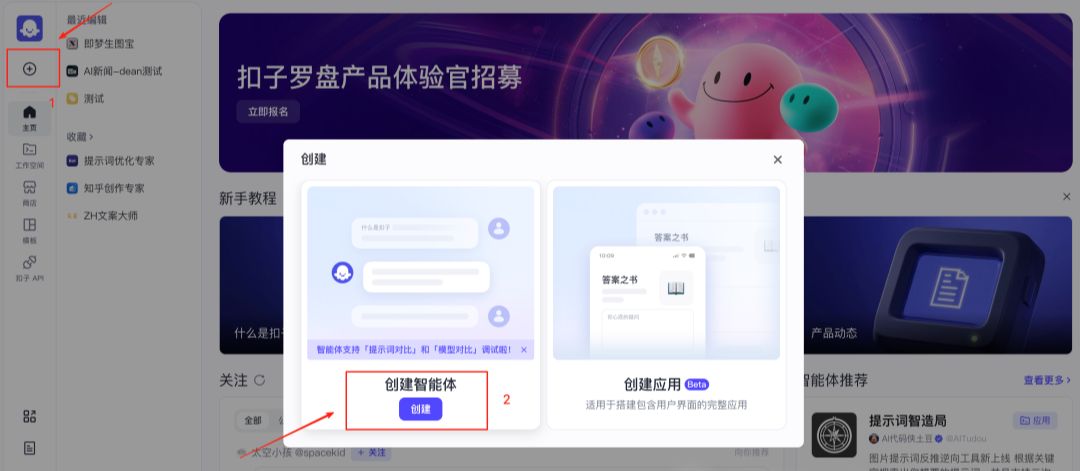
1. Go to the coze domestic website (https://www.coze.cn/home), click on the plus sign on the left side, and select "Create Intelligent Body".
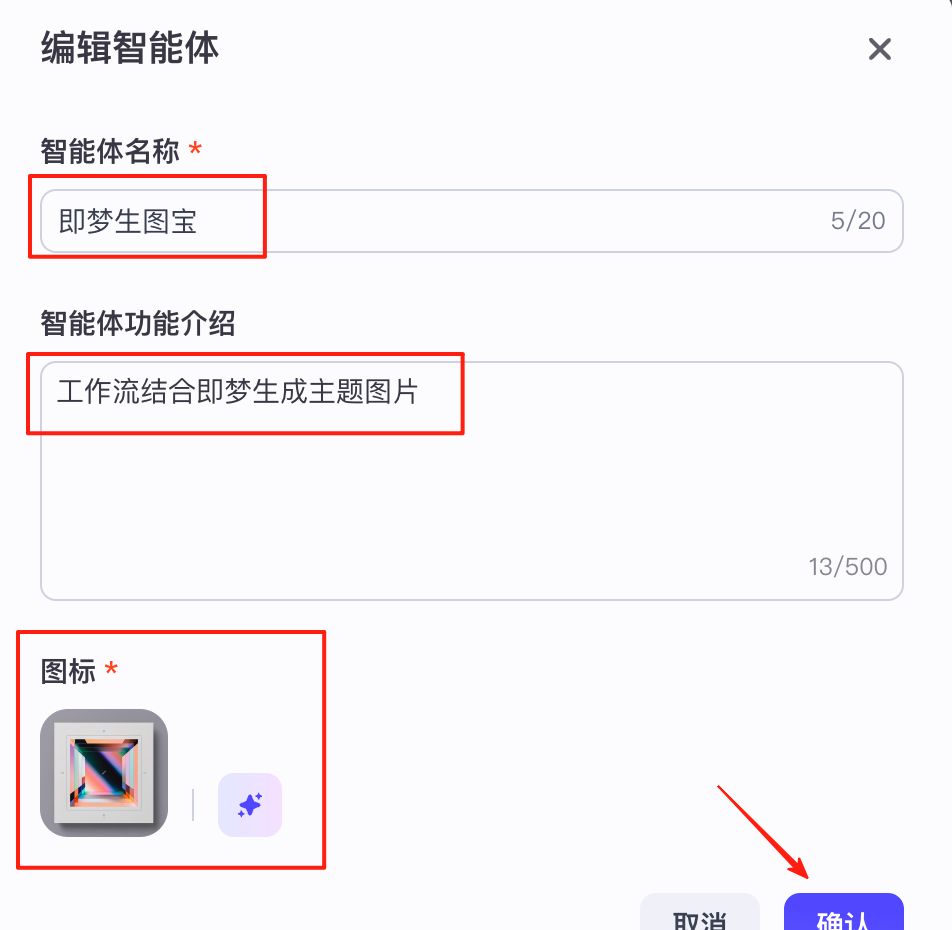
2. Fill in "Smartbody Name", "Function Description" and "Icon" and click "Confirm" button.
Step 2: Create a new workflow in the smart body.
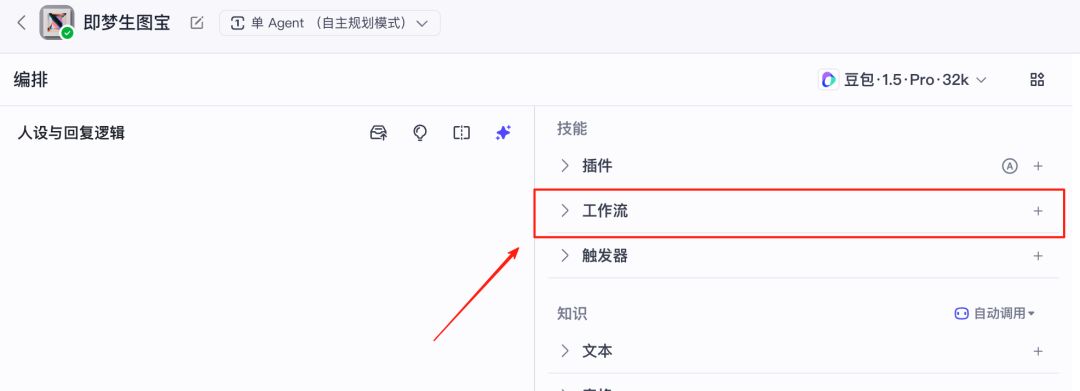
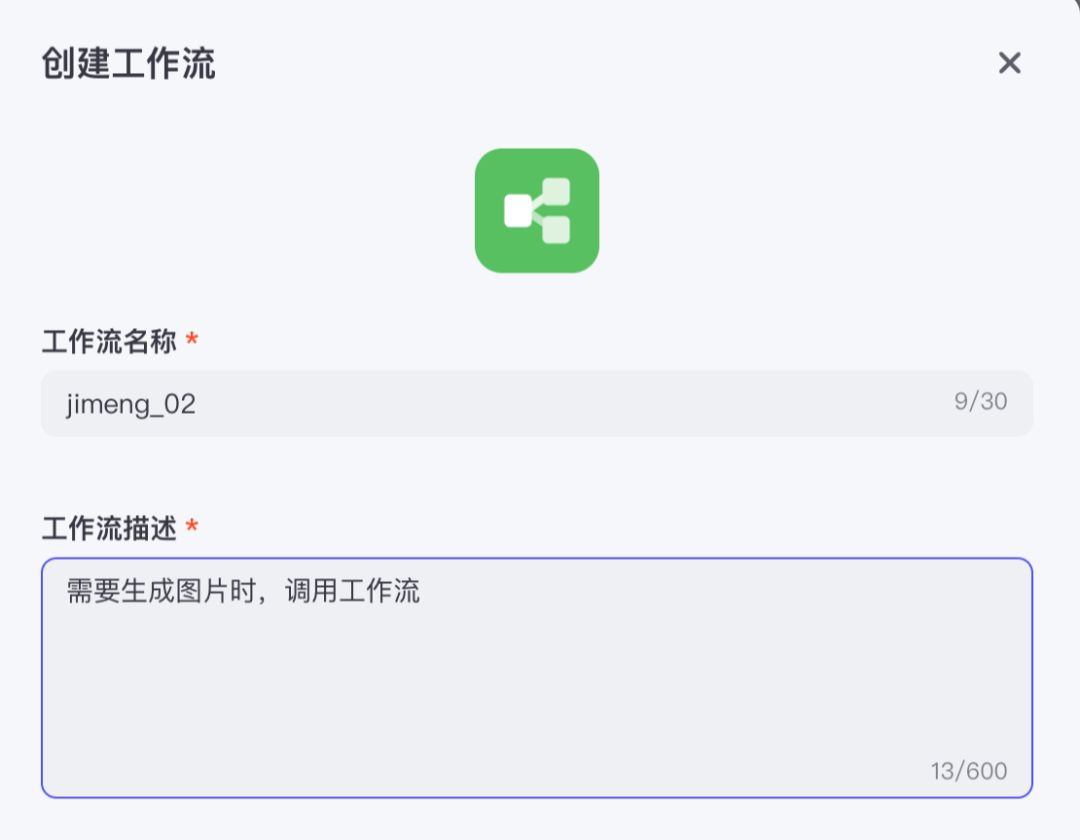
1. Click "+" behind "Workflow" and select "Create Workflow". Create a new workflow as shown below.
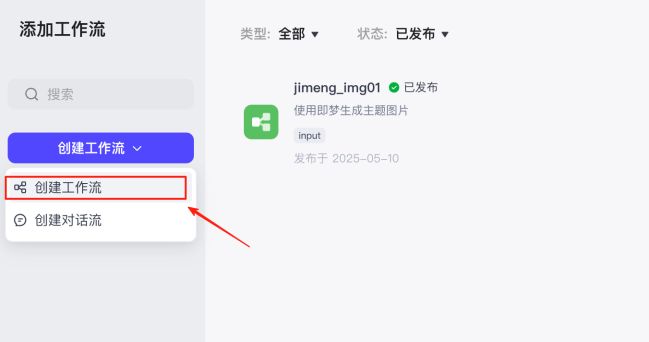
Use English, numbers and symbols for the name of the workflow; for the description of the workflow, just write the purpose clearly, there is no special requirement. Click "Confirm".
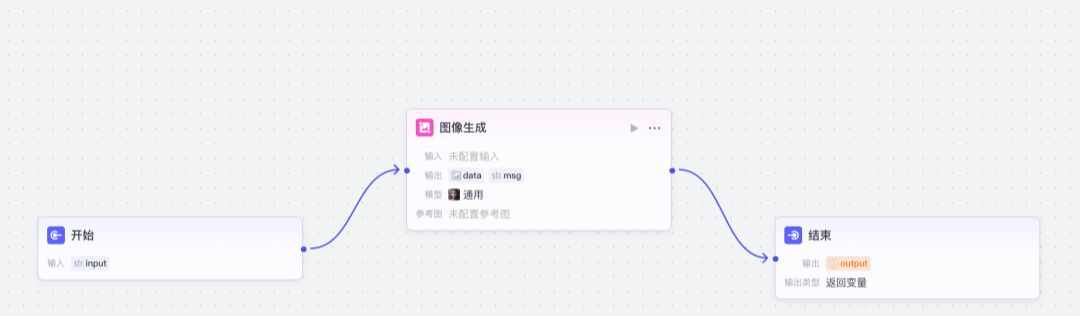
2. Add an "Image Generation" node to the workflow and connect it to "Start" and "Finish".

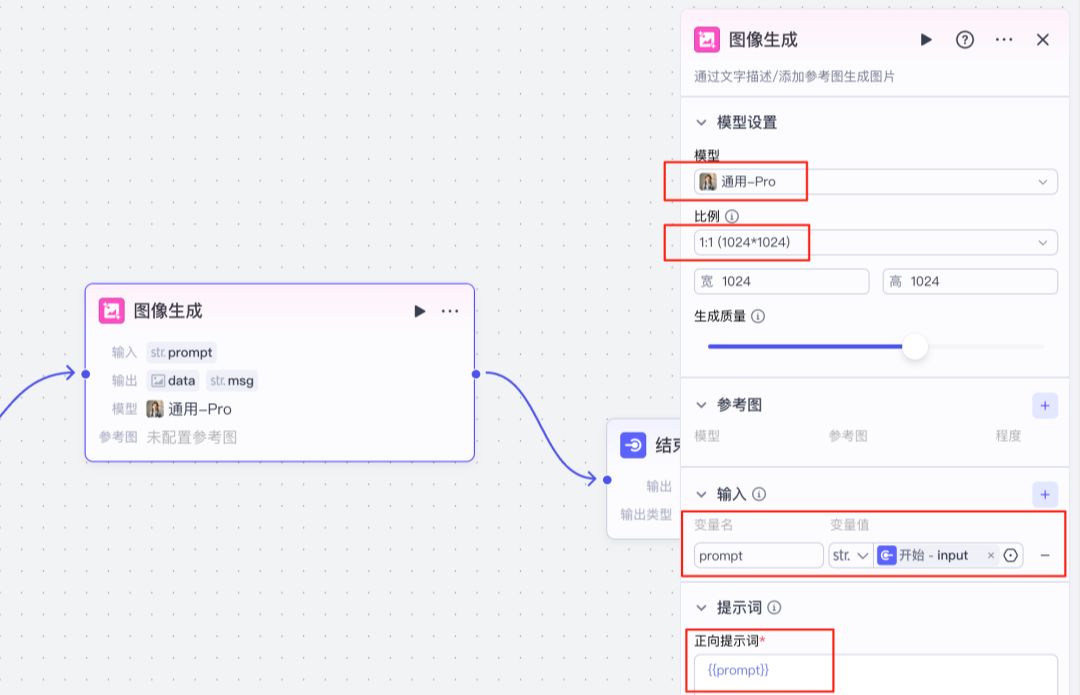
3. Configure the image generation node.
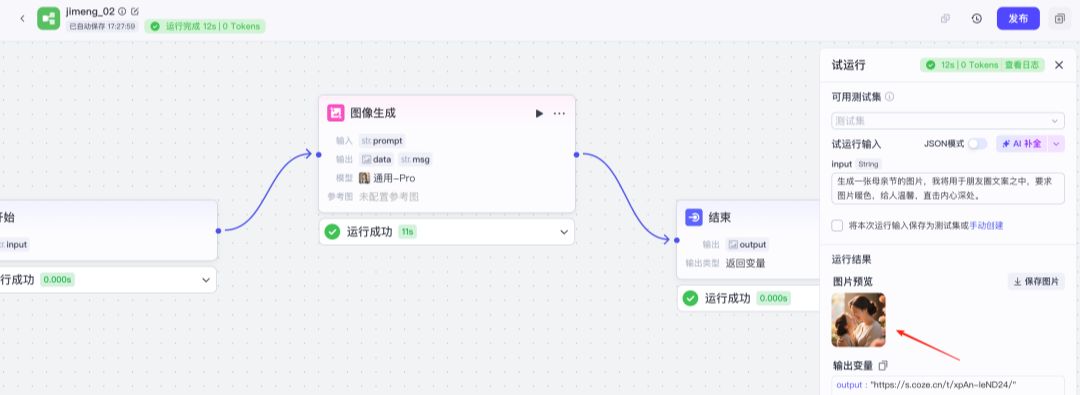
Click on the "Image Generation" node and make the following configuration (as shown in the following figure):
1) Model: Select "General-Pro". This model corresponds to Dream 3.0.
2) Ratio: according to your needs, for example, you can choose 9:16 for friend circle and small red book, and 16:9 for public number.
(3) Input: Variable name is set to "prompt", and variable value is selected as "Start-Input".
4) Prompt word: fill in the {{prompt}}
In this way, the cue word passed by the input (Input) is passed directly to Imagine 3.0, and the diagram can be generated.
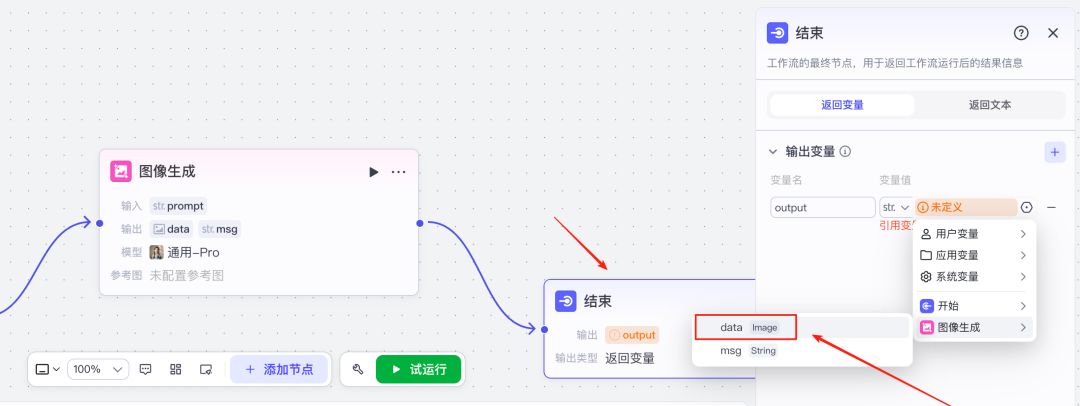
4. Configure the end node. (As shown in the figure below)
For the output variable, select "Image Generation"-data. This is the workflow for the dreamgenerated image.
5. Debugging workflow.
Click the green button "Trial Run" below the workflow, output a prompt in "Input", click "Trial Run", and a picture will be generated in 10 seconds. At this point, it means that the workflow has been adjusted and can be published.
Generate an image for Mother's Day that I will use amongst my friend circle copy.
Requires images of warm colors that give warmth and go straight to the heart.
6. Publish the workflow.
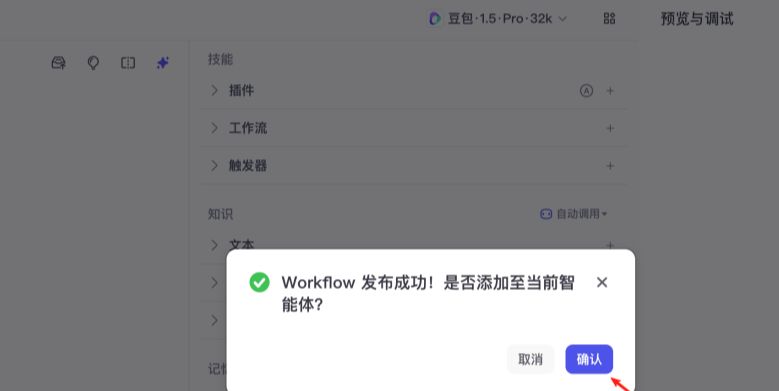
Click the "Publish" button on the upper right corner, fill in the version number and description, and click "Publish". After successful publishing, it will automatically return to the Intelligent Body creation page, as shown in the figure below, click "OK" button to add the workflow to the current Intelligent Body.
Step 3: Publish the intelligences.
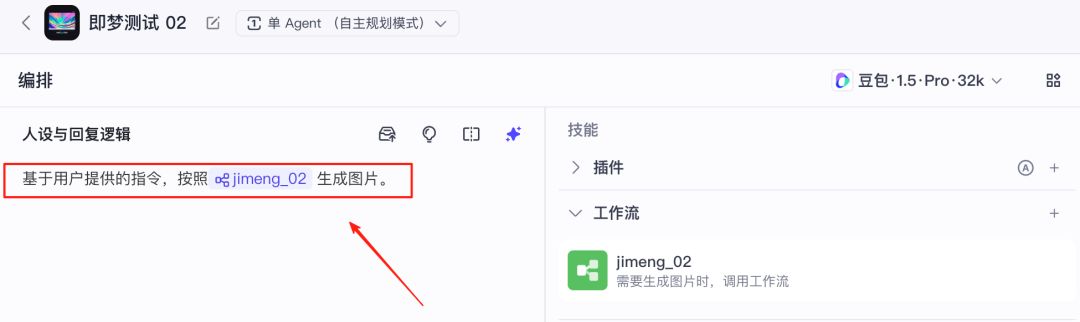
1, add a good workflow, in the left side of the "persona and reply logic" fill in a prompt word:
"Generate images based on user-supplied instructions according to jimeng_02".
Where "jimeng_02" can be manually typed a curly bracket {, it will automatically prompt the workflow, add it.
Next, release the smart body.
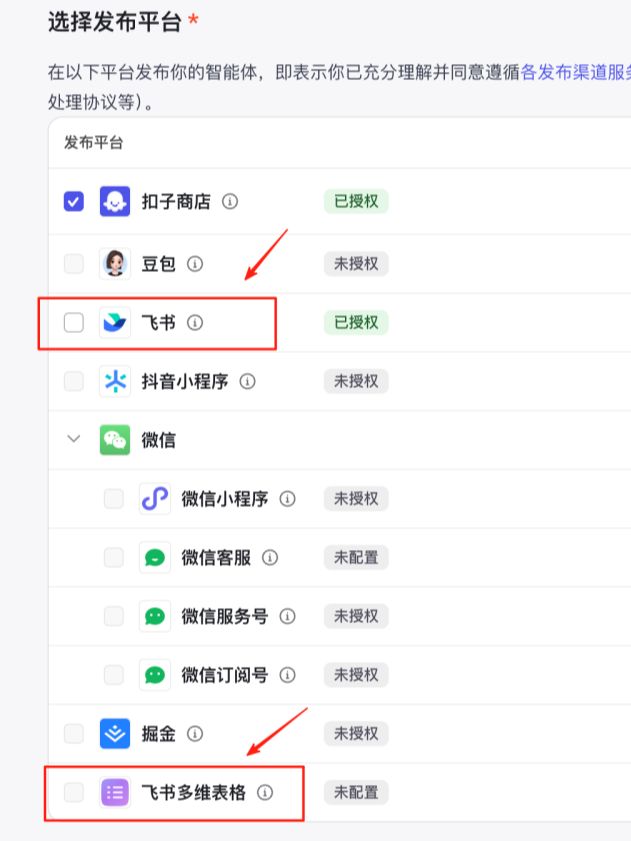
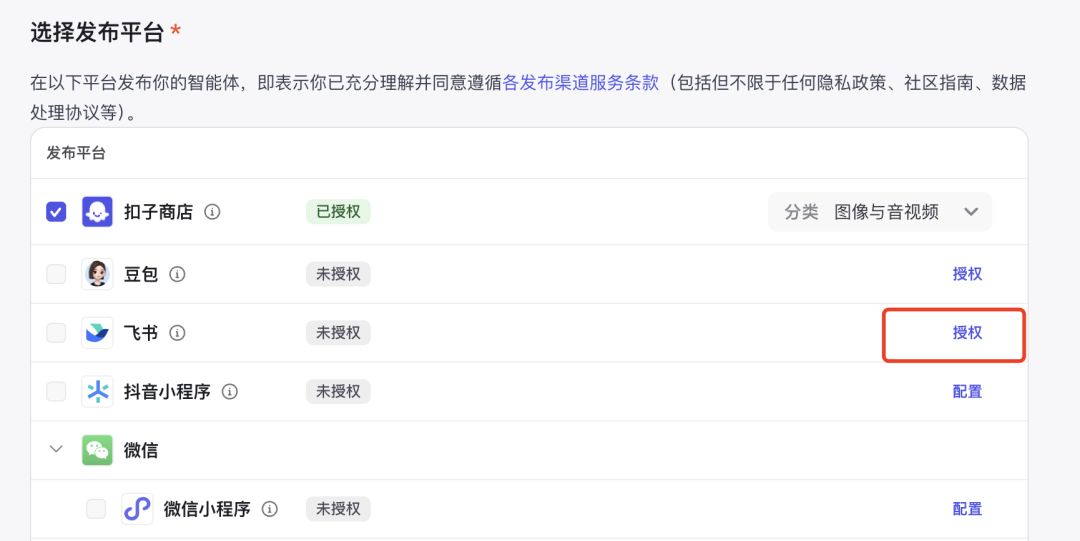
Click the "Publish" button in the upper right corner. Click "Confirm" in the pop-up dialog box to start selecting the publishing platform. We need to publish to Flybook and Flybook Multi-Dimensional Forms, which requires additional configuration work.
2. Authorize "flying books".
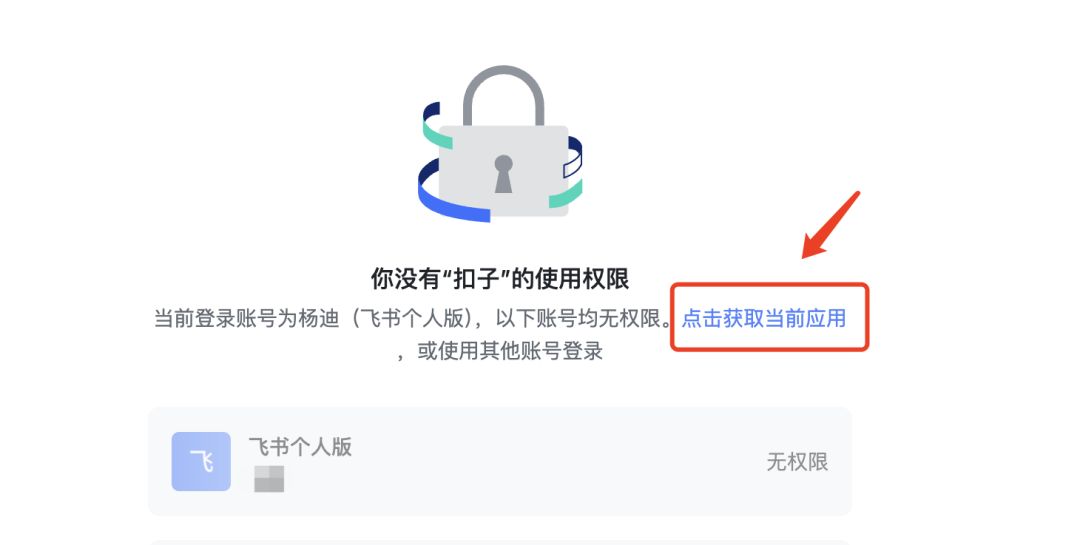
First authorize the flybook and publish the smartbody to the flybook so that the smartbody can be invoked directly in the flybook conversation.
When you publish for the first time, click the "Authorization Button" at the back of the Flying Book, and then follow the platform's step-by-step instructions to open it.

3. Configure the Flying Book multidimensional form.
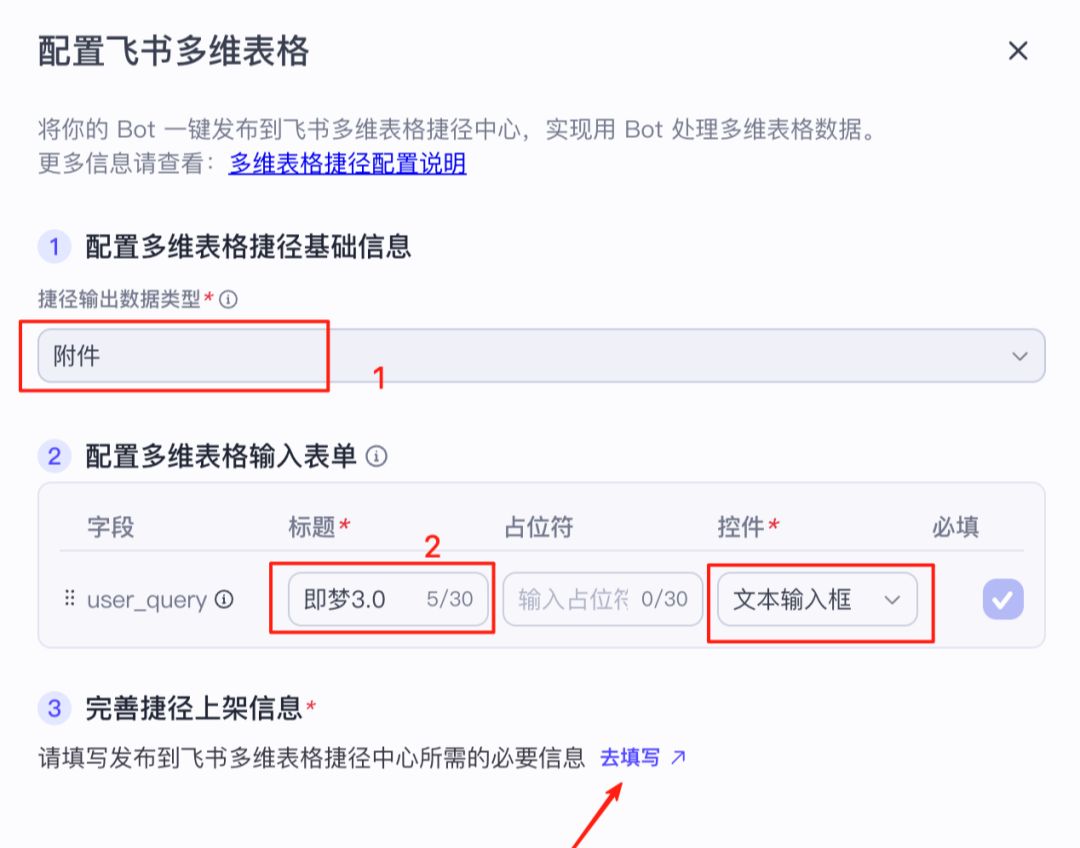
Click the "Configure" button after "Flying Book Multi-Dimensional Forms":
(1) Shortcut output data type: Select "Attachment".
(2) Input form "Title" fill in the customized name, such as "i.e. Dream 3.0", the control type is "Text Input Box".
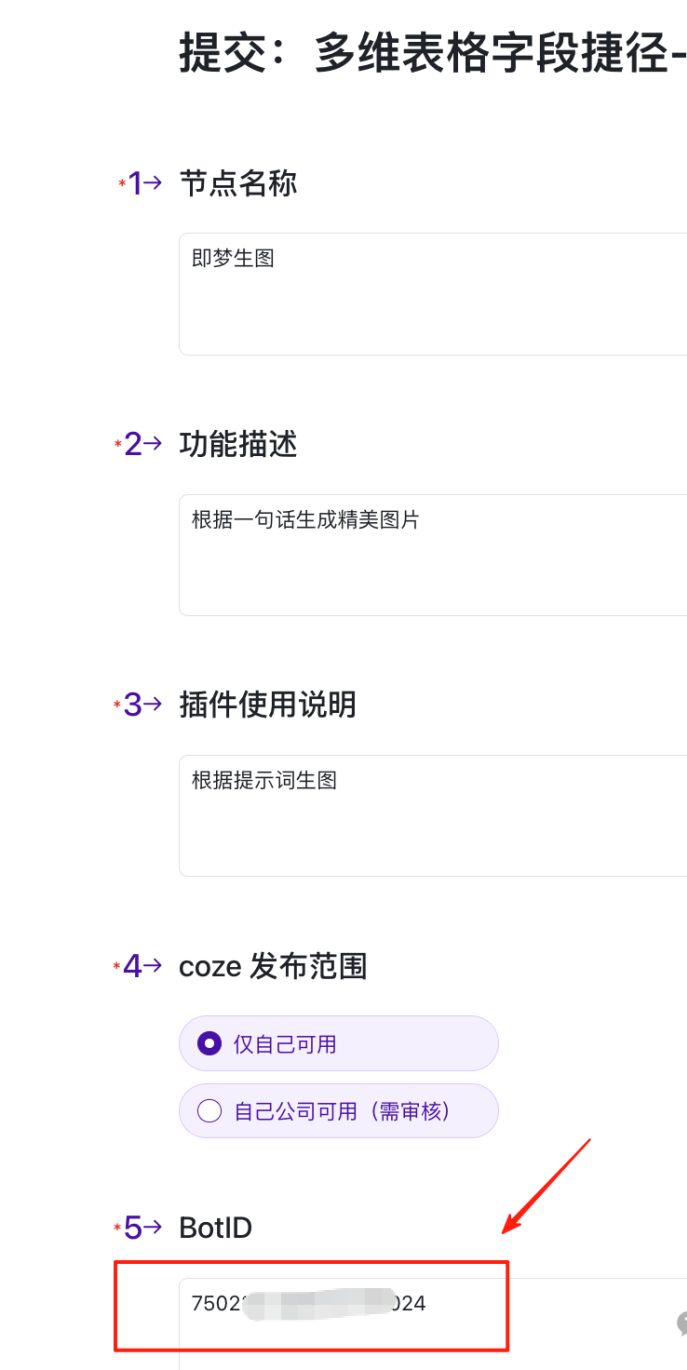
3)Click "Go to fill in" in "Improve shortcut information", you can fill in according to the example in the figure below. The BotID is the ID number of the smart body, which is automatically filled by the system and does not need to be modified.
(4) Fill out the form, click "Submit", "Confirm" button to complete the configuration of the Flying Book multi-dimensional form.
4. Release of intelligent bodies.
Click the "Publish" button in the upper right corner to complete the publishing.
The publishing of Flybook Multi-Dimensional Forms needs to be reviewed, about 15-20 minutes, and after the review is approved, you can find this smart body you published in the Flybook Multi-Dimensional Forms.
At this point, the release of the smartbody is complete. This smartbody has been integrated with the workflow of i.e. Dream Automated Graph Generation.
Next, we configure the Flying Book multidimensional form.
2. Configure the Flying Book multidimensional form
The Flying Book multidimensional form, which can be viewed as a carrier of information, where image requests are entered, drawing commands are generated by DeepSeek, and then passed through the Intelligent Body's workflow to Instant Dream 3.0 to generate drawings.
Step 1: Create a new multidimensional table.
When you create a new multidimensional form for Flybook, make sure that the form is under Documents in Flybook Space, or on a cloud drive.
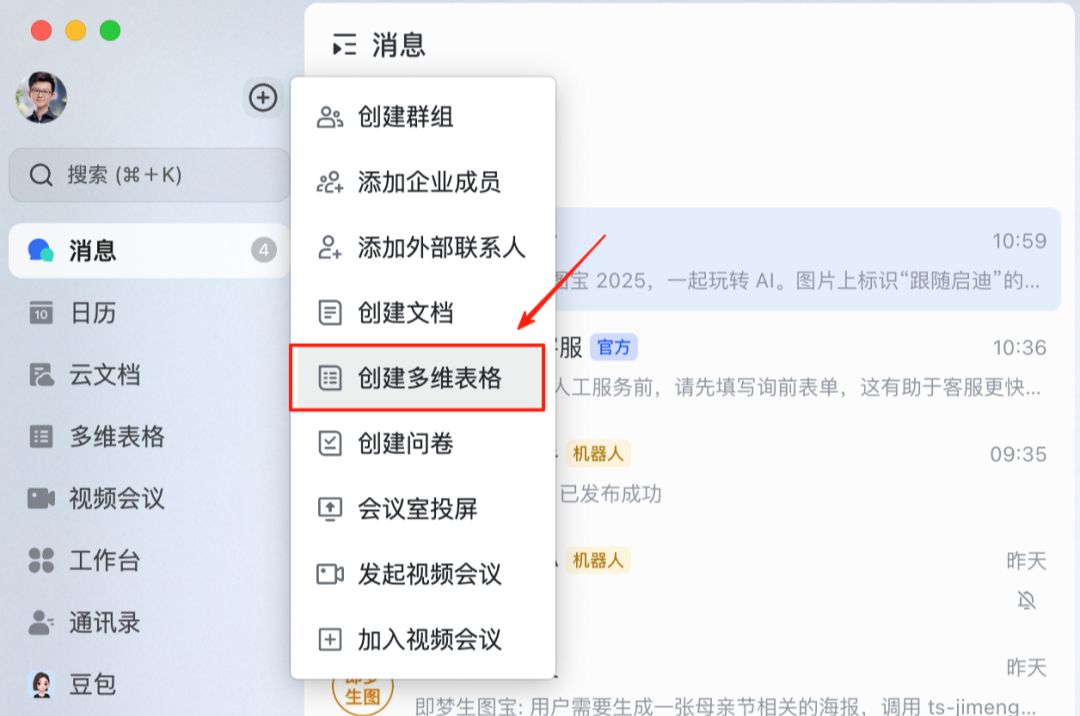
1. New multi-dimensional form.
In the Flybook client, create a multidimensional table and customize the name for the table.

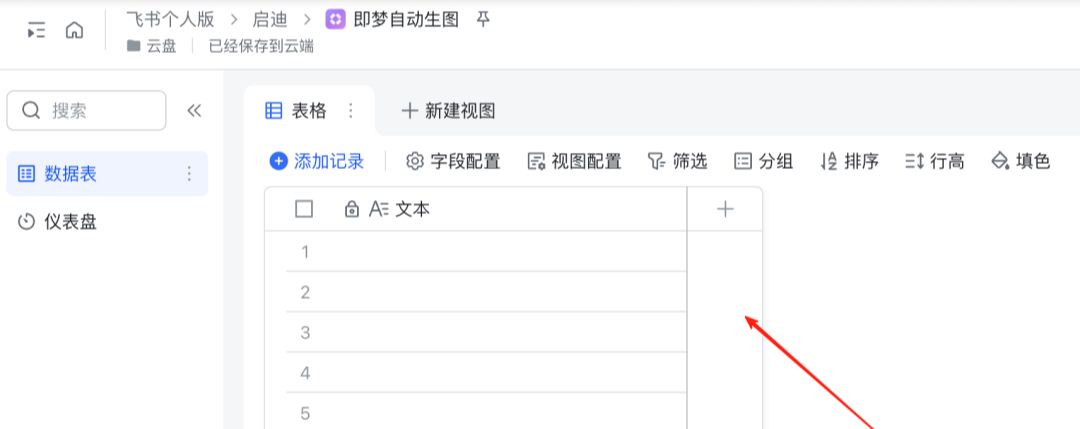
2, only to retain the first column "text", delete the other columns.
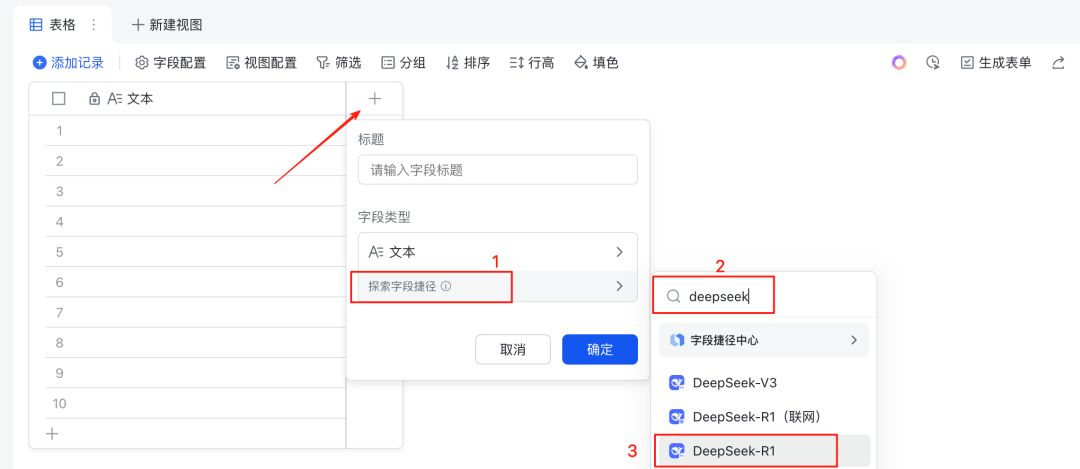
Step 2: Configure DeepSeek.
1. A new column has been added to configure DeepSeek.
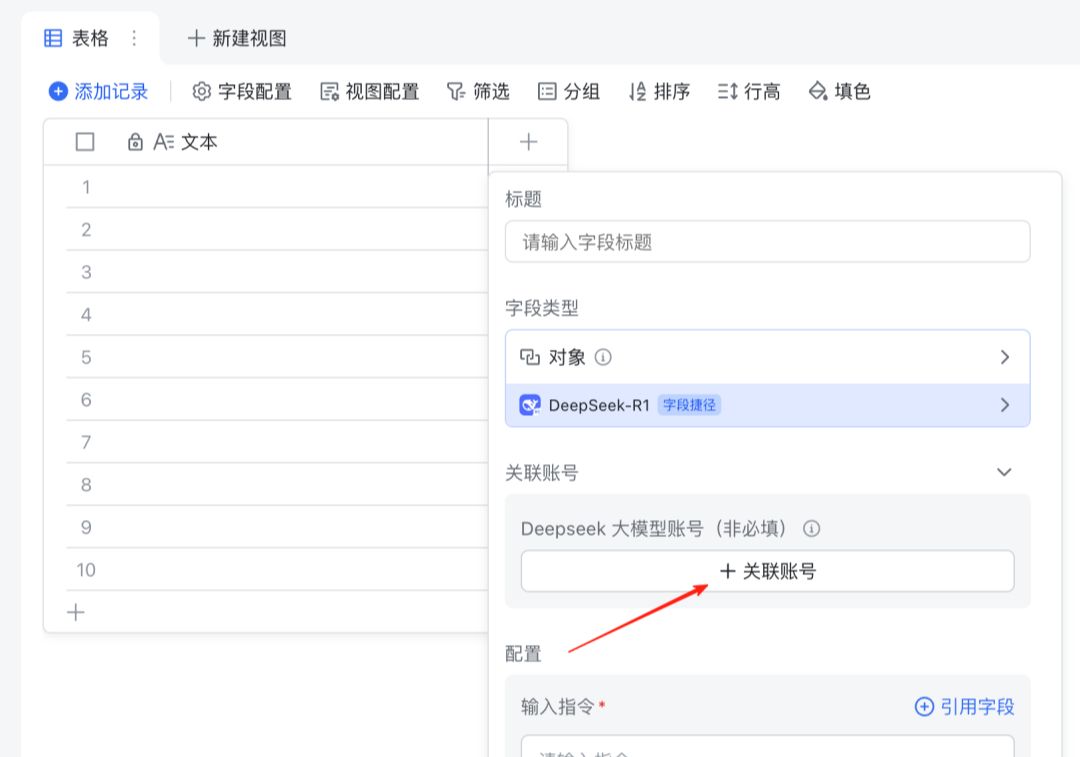
2. Associated accounts.
Click on "Linked Accounts" and follow the step-by-step instructions.
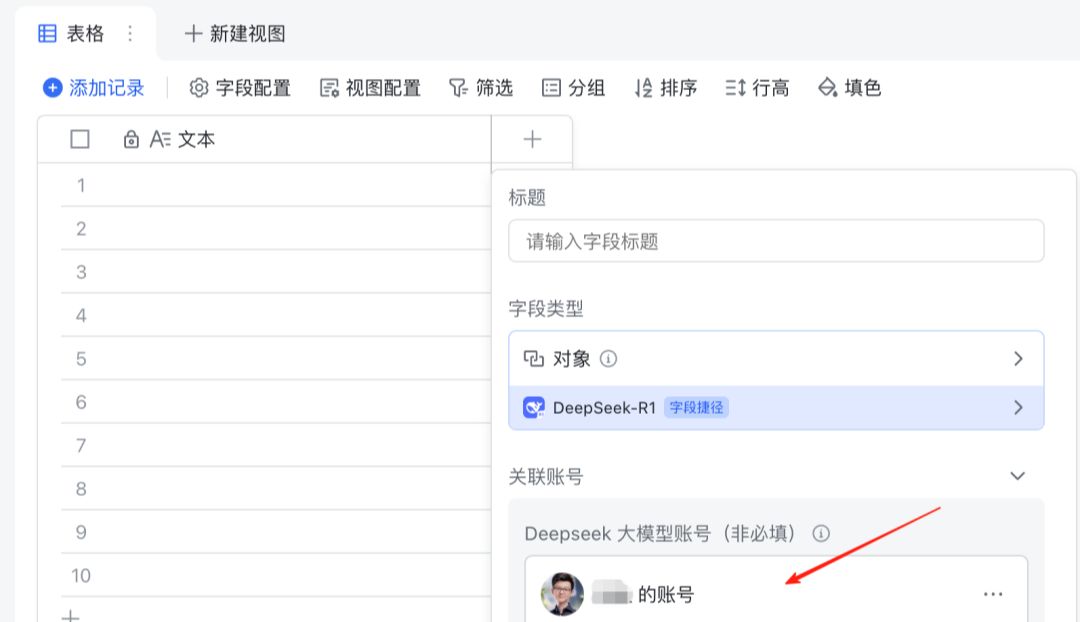
3. Configure the prompt words for DeepSeek.
Paste the following prompt into the configuration field of the command. The purpose is for DeepSeek to automatically generate drawing commands based on the "text" entered by the user.
Please generate a detailed prompt for AI drawing based on my given prompt template based on the copy "{{Text}}" provided by me which can create a small red book high clickable cover image/poster. prompt should be limited to 300 words. prompt template is given below:
"`
1. [Cover theme]: Refine the core content of the copy, clearly define the main object to be displayed, the scene environment and the core attraction.
2. [Audience Positioning]: Analyze the characteristics of suitable target groups, including age groups, gender ratios, interest preferences and spending power, to guide the overall style selection.
3. [Composition Guidelines]: 4:5 vertical composition is recommended to illustrate the optimal distribution of the subject's position and space occupation in the picture, as well as the hierarchical relationship between the primary and secondary elements.
4. [Color scheme]: recommend 2-3 main color combinations, clarify color saturation and contrast between light and dark, explain how to strengthen the theme emotion through color selection.
5. [Picture Style]: Clearly designate a main design aesthetic style, with the corresponding material expression methods, explaining the light processing preferences and the overall atmosphere creation direction.
6. [Detail Enhancement]: Suggested added detail elements and texture effects, recommend specific embellishment decorations and background processing techniques to enhance the richness of the picture.
7. [Text Guidance]: Design appropriate text content according to the theme, with eye-catching content that strikes at the heart of people. Explain the arrangement of the position of the text in the picture, the suggested font style and size, and the handling of the harmonious relationship between the text and the image elements.
8. [Shooting Angle]: Suggested lens angle (front/side/overhead/up) and composition (centered, thirds, etc.).
9. [Reference Inspiration]: Recommend 1-2 famous photographers or artists' work styles in related styles, or specific visual effect references.
"`
Require:
- Please make sure that the prompt is presented professionally, specifically and creatively so that the AI drawing tool can accurately understand it and produce high-quality images, avoid vague expressions, and try to use specific adjectives and clear instructions.
- Output only the drawing commands, not text unrelated to the commands. I use the output directly for drawing large models.
- Note: The output command must be less than 300 words! Note: The output must be less than 300 words of instructions!
Open "Automatic Updates", click the "OK" button and select "Save Configuration Only".

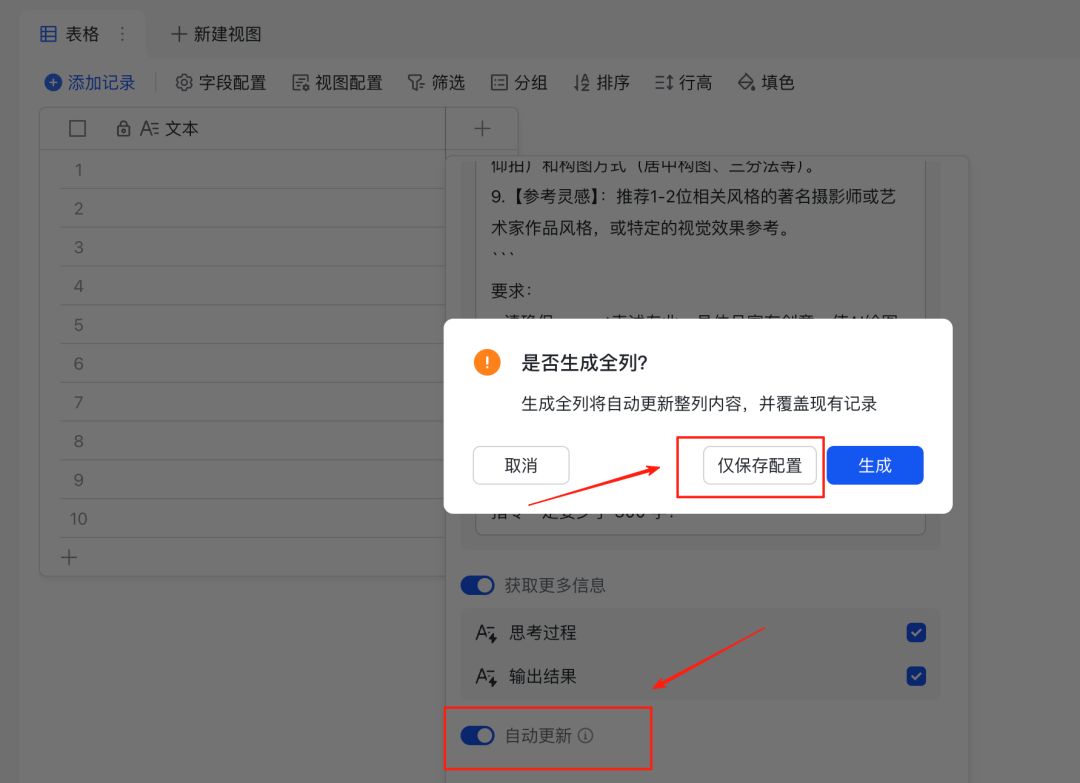
Step 3: Associate intelligences.
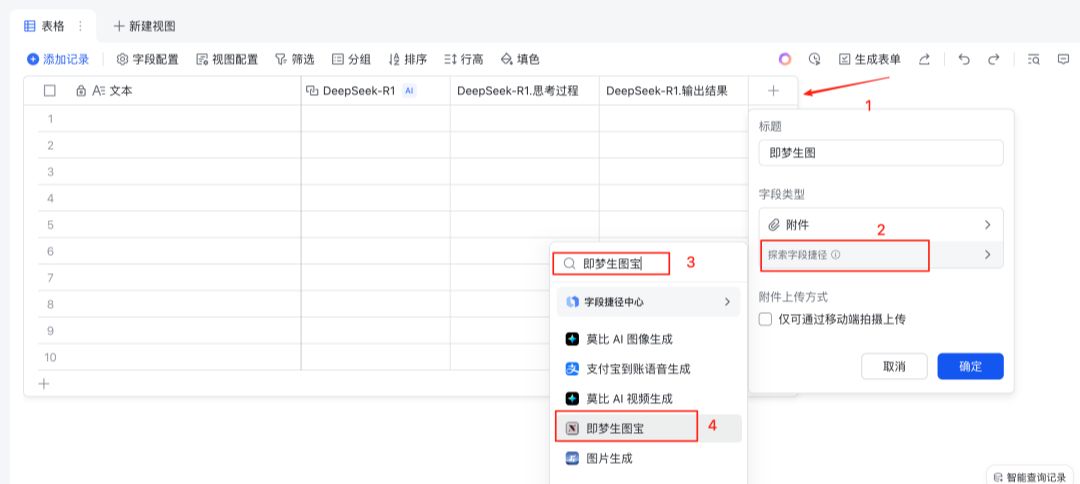
(1) add a new column, the title of the name can be customized, such as "that is, the dream born map".
(2) Field type, select "Explore Field Shortcuts", enter the name of the new smart body just created, and select the smart body.
(3) Configuration, enter "Please generate the corresponding image according to the instruction.", where the reference field selects "DeepSeek-R1.output result", open the "Auto Update", see the figure below. In this case, select "DeepSeek-R1.Output Result" for the reference field, and turn on "Auto Update", as shown in the figure below.
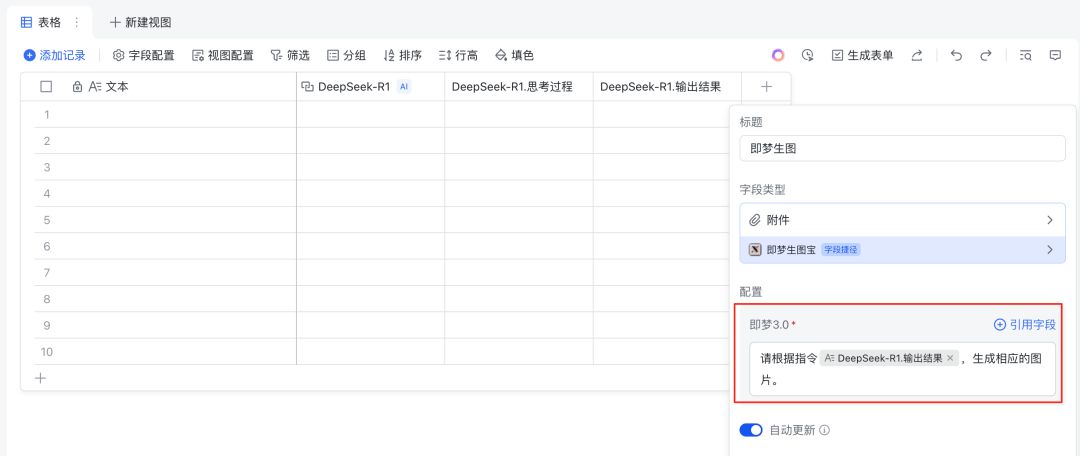
4) Click the OK button to select "Save Configuration Only".
Step 4: Test the effect of multidimensional forms.
We enter "Mother's Day" in the first line of "Text". The next few columns will run automatically until a picture is generated.

How about a good quality picture!

In this way, the multidimensional form is configured.
So what can I do with it? I'll give you some examples.
Scenario 1: In the first column of "Text", I enter each holiday/season, and the images can be generated in parallel, all in one minute!
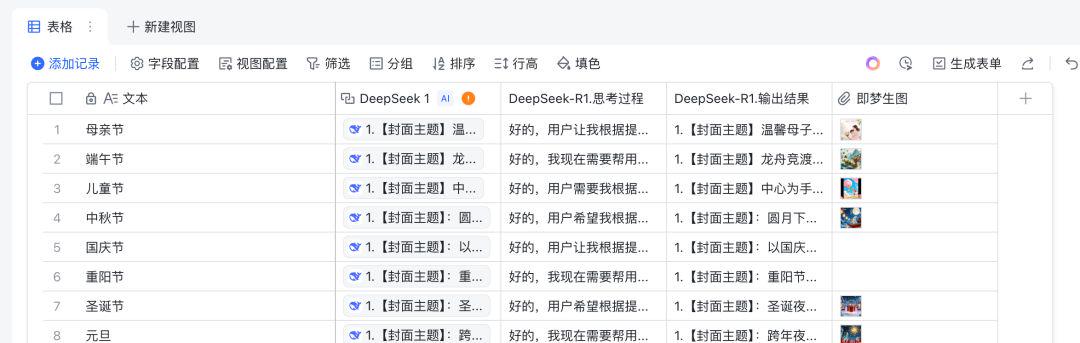
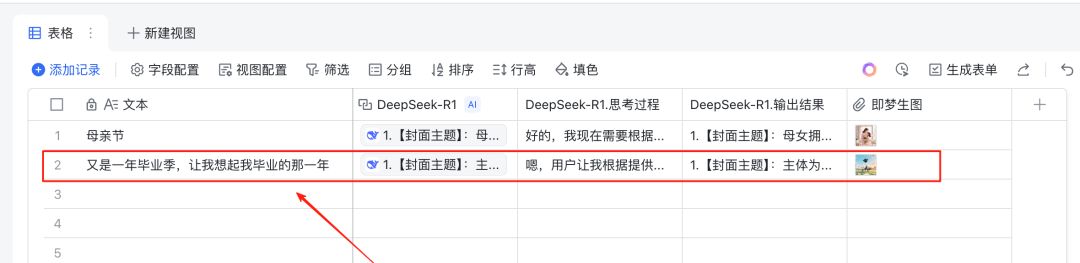
Scene 2: I see graduating students and it reminds me of my own graduation year, so I'll send a friend circle to commemorate it.
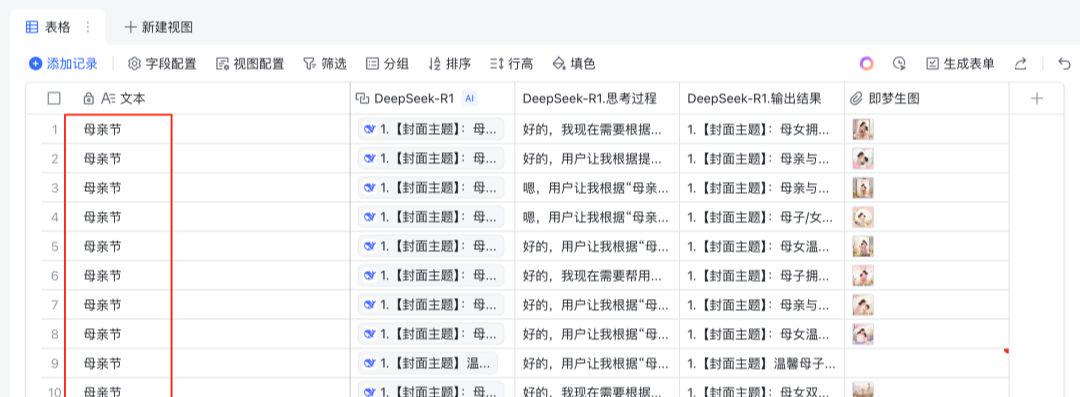
Scenario 3: Batch generate 10 Mother's Day poster images and I'll pick my favorite.
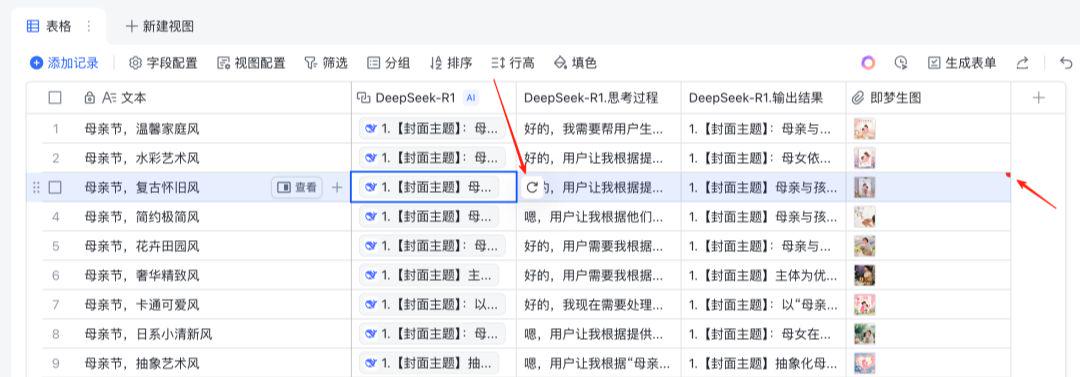
One thing to note is that occasionally during the graph generation process, you will encounter an error, something like: "The current shortcut is abnormal, please try again later (800004783)". I've analyzed it and these are the main things that can happen:
- That is, the interface load of Dream is high, or the interface is abnormal (returns empty content) and no images are generated;
- Some keywords of the forbidden category appear in the drawing prompt, and no raw drawings are allowed.
When this happens, I usually try to regenerate the painting cue word as shown below.
By now, the workflow of AI auto-generated charts has been built. However, I still don't find it very convenient to use, because every time I need to open this multidimensional table and edit the text manually.
Is there an easier way? Arrangements!
3. Flying Book Robot One Sentence Raw Chart
We create a bot and place it in a group. The bot is responsible for receiving commands and entering them into the "Text" column of the Flying Book multidimensional form. This ties together the process of generating the diagram.
Step 1: Create a new Flybook group chat.
On the Flying Book App, select "Create Group" and customize the name, such as "Dream Generation Picture Group".

Step 2: Create the robot.
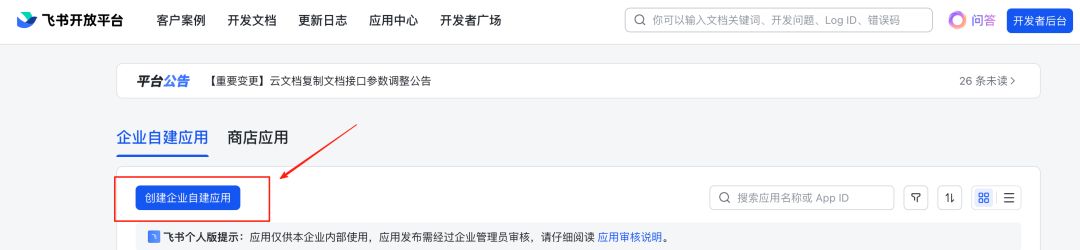
1. Go to the development backend of the robotics platform (https://open.feishu.cn/app?lang=zh-CN) and log in.
2. Create enterprise self-built applications.
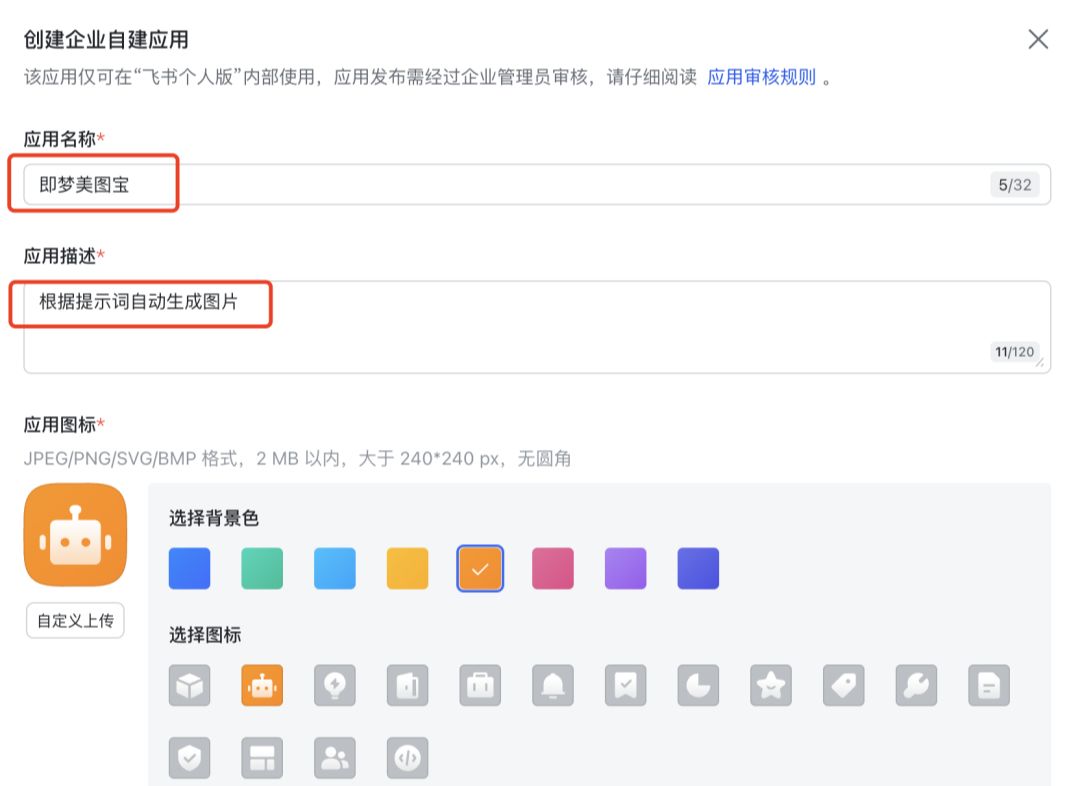
Click the "Create Enterprise App" button and set the name of the app, for example, "i.e. Dream MAPPING BEAUTY".
3. Add robotics capabilities to the application.
After you create an app, you will be automatically taken to the "Add App Capability" page, click the "Add" button under "Robot".
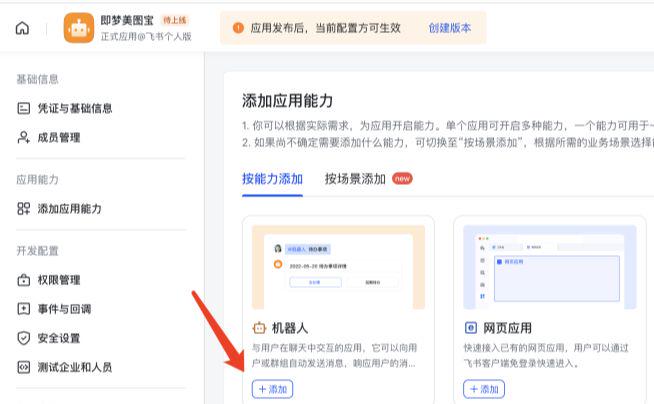
Once added, click "Create Version" at the top of the prompt and fill in the information.

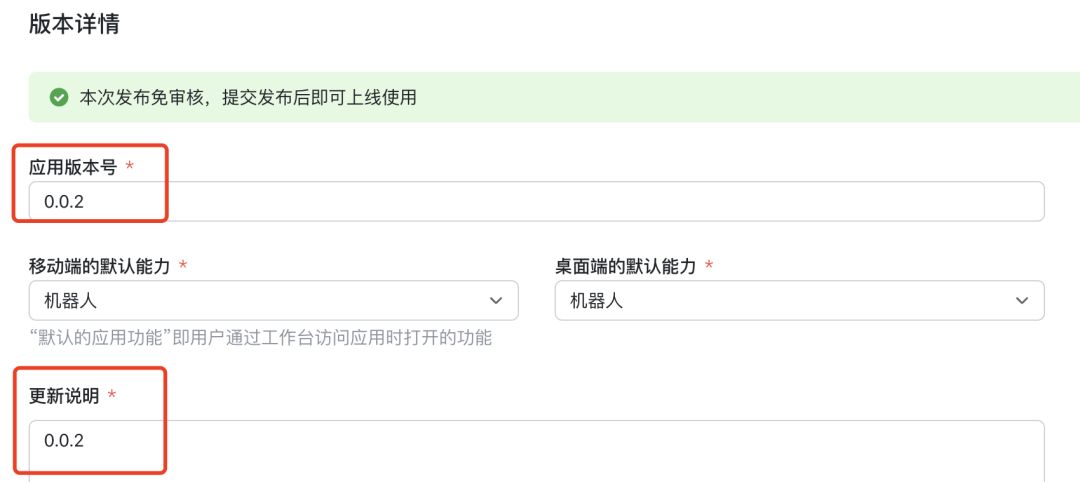
4. Release the robot version.
Click the "Publish" button in the upper right corner to complete the publishing.
Step 3: Add bots to the group.
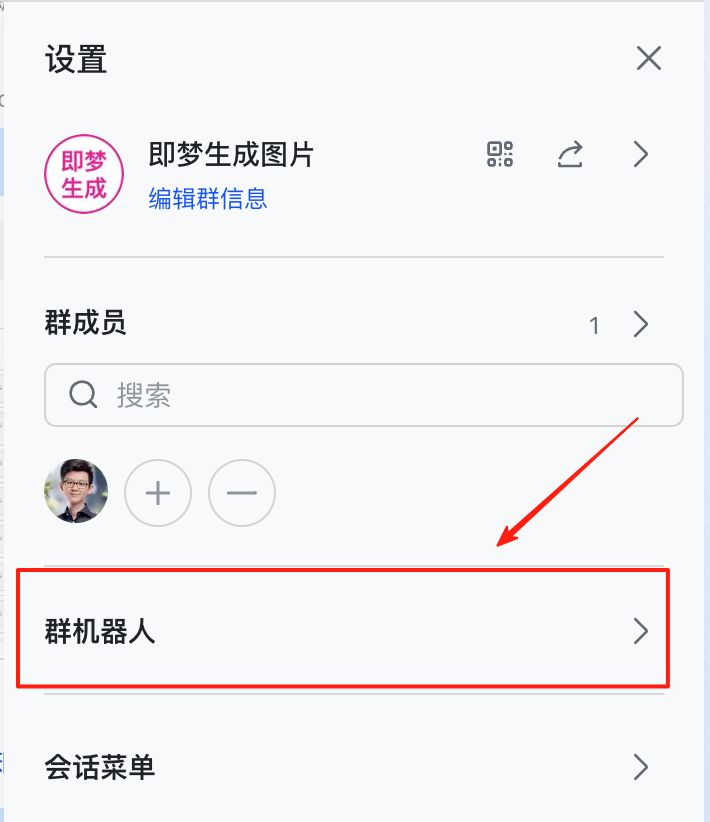
1, we just went back to the new fly book group, click the upper right corner of the "Settings", select "Group Robot".

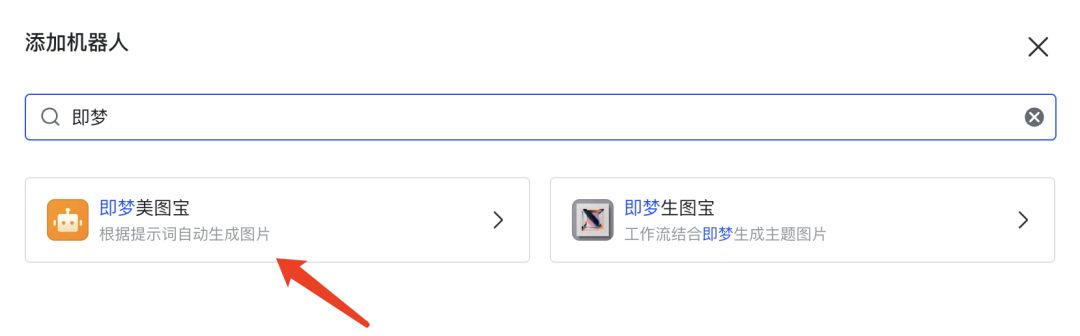
2. Search for the new bot you just created and add it to the group.
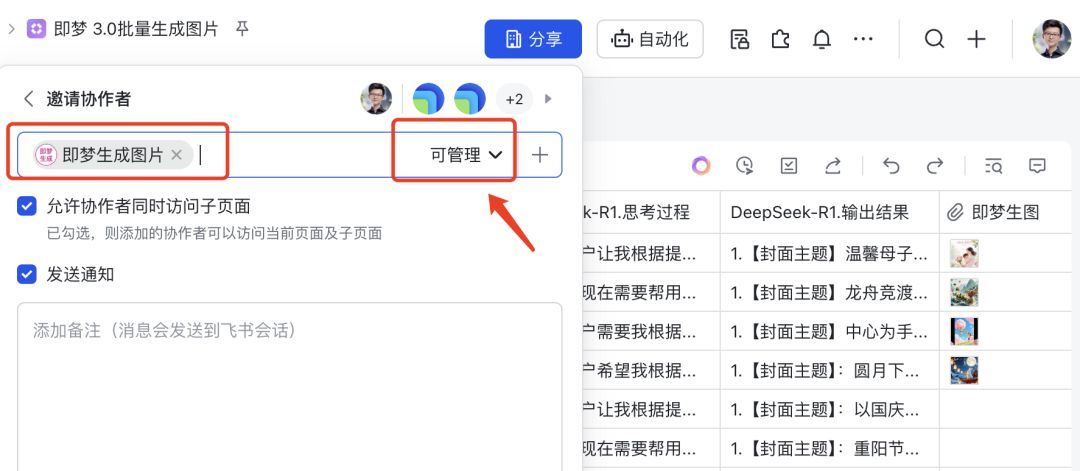
3. Go back to Flybook Multi-Dimensional Form and add editable or manageable permissions for the group. Click "Share" on the Flybook form, add new collaborators, select the group, and set the permission to "Editable".
Step 4: Set up the robot workflow.
1. Enter the Robot Assistant platform (https://botbuilder.feishu.cn/) and click "New Command".

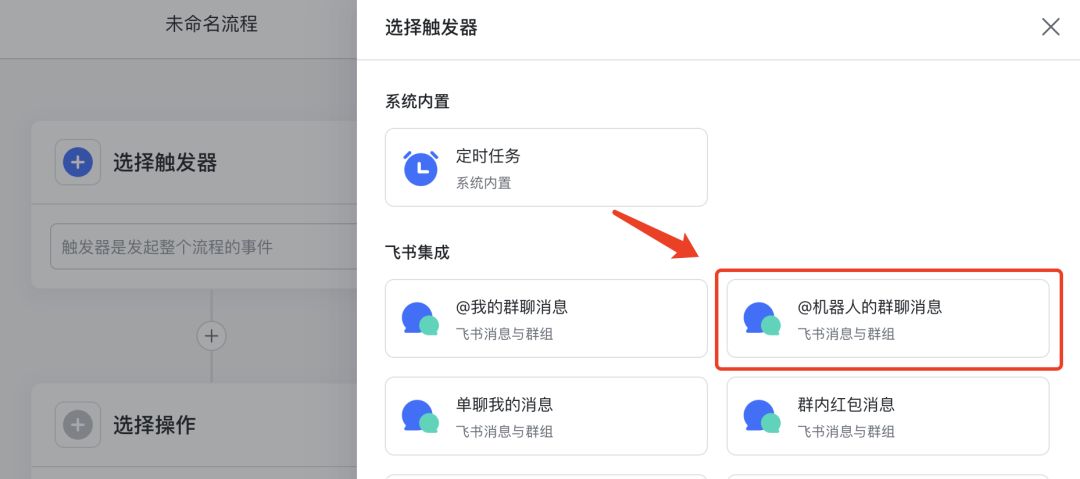
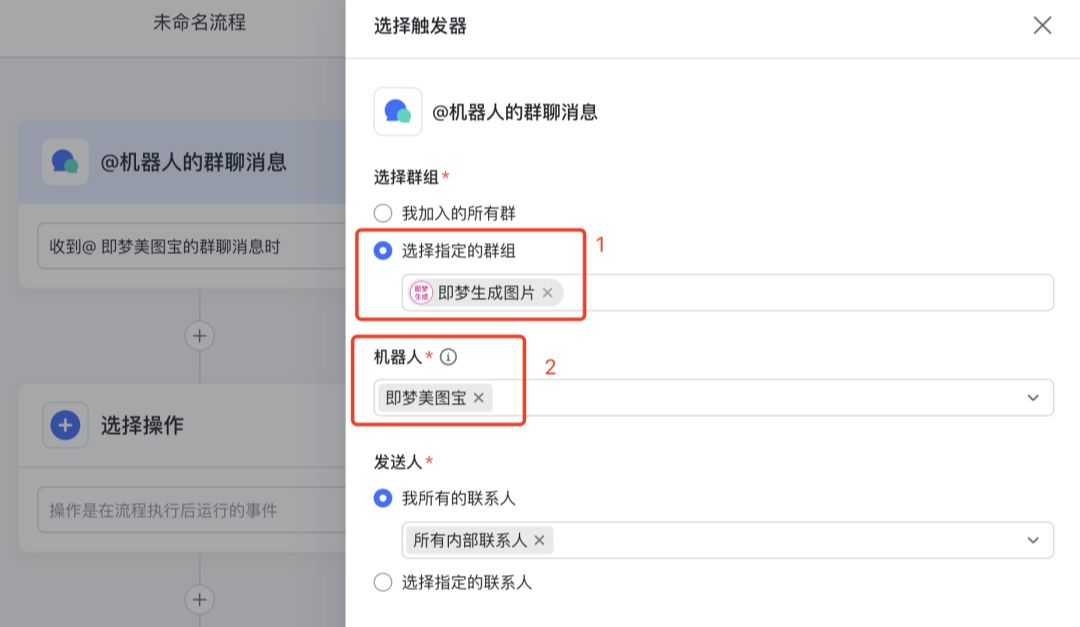
2. Set the trigger. Select "@bot group chat message" and specify the group and bot as shown in the following figure.
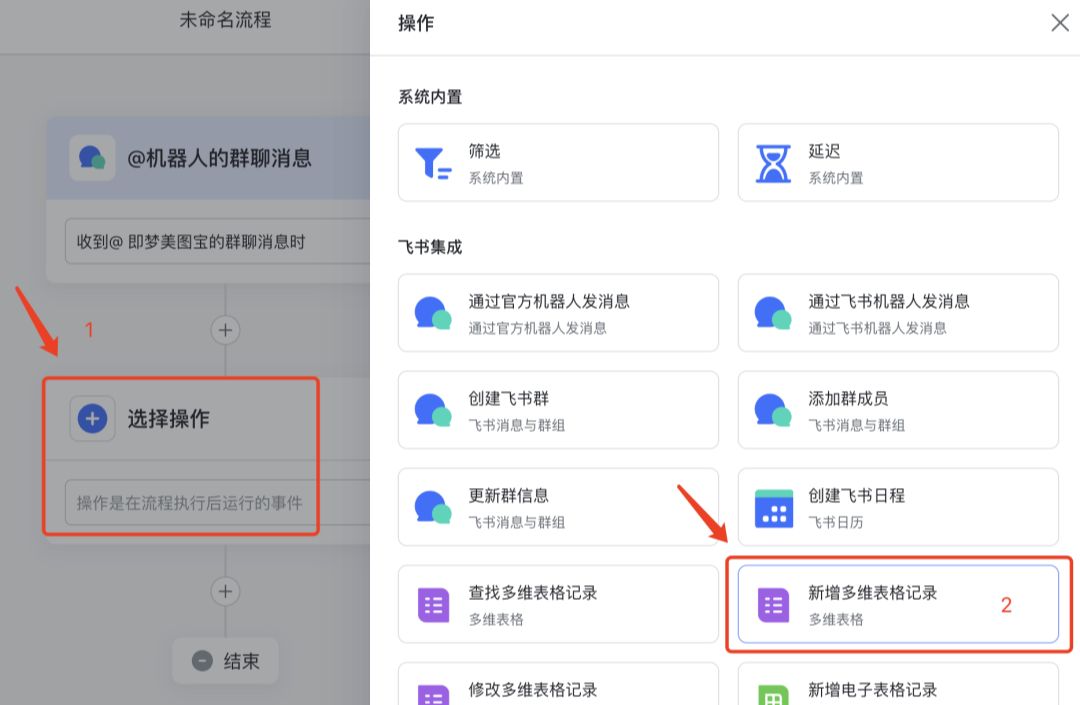
3. Set up the operation. Select "New Multi-dimensional Form Record".
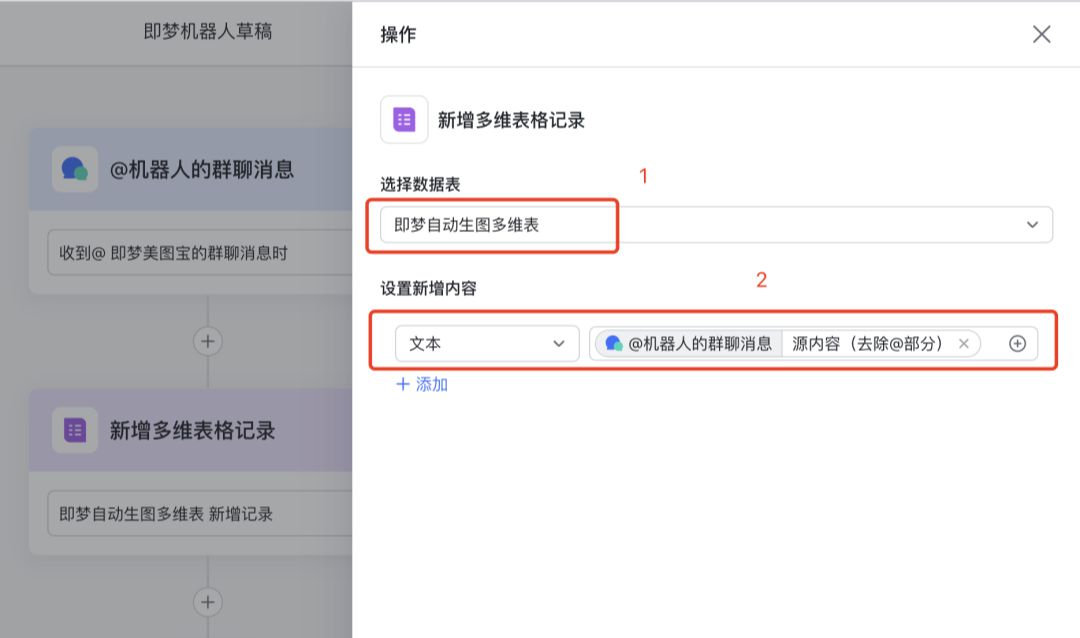
In this way, the whole process is built.
After @bot in the group and entering the image request, a new record will automatically be added to the multidimensional form and plotting instructions will be automatically generated to produce the image.
The Flybook ecosystem is really powerful, and after mastering the cue words, you can implement various fully automated workflows by building workflows and configuring bots.
Was today's content helpful to you? Do you have a really good practice too? Feel free to share your tips in the comments section!