



Now AI technology is becoming more and more mature, as long as a computer, you can also make movie-level AI videos at home, which can be completely fake.
Today I'm taking you throughComfyUIBuild the latest VACE workflow for Wan 2.1 step by step and take you through the power of AI video.
After reading this article, you can make the same AI video.
I. Node Installation
Method I:
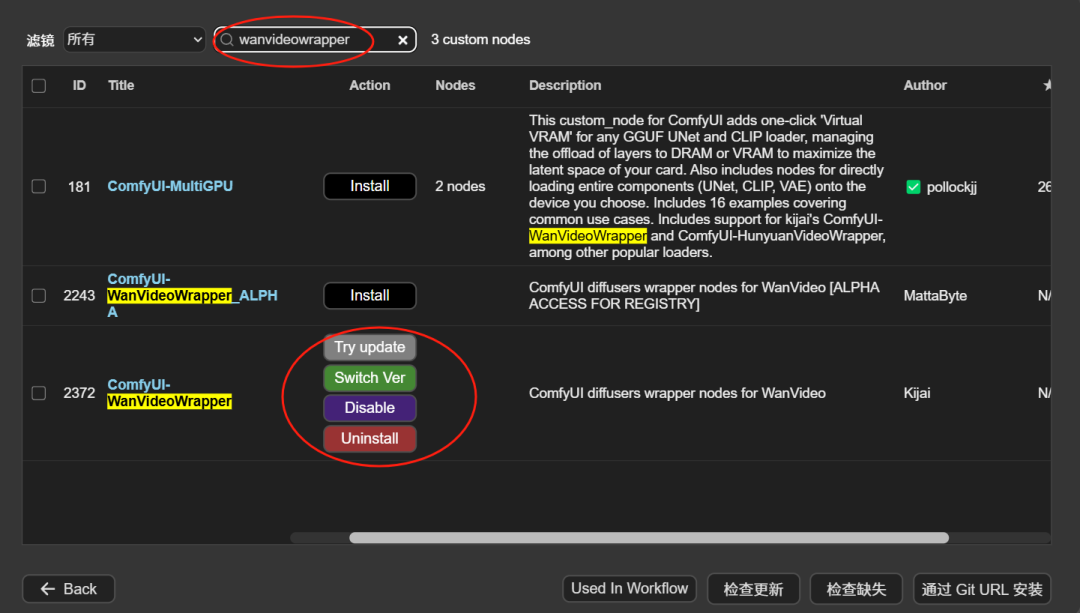
There are many ways to use the node, one is through the node manager, search for wanvideowrapper, find the plugin "ComfyUI-WanVideoWrapper", and then click on install.
Method 2:
You can also download the nodes from github and unzip them into the custom_nodes directory (remember to delete the "main" at the end of the unzipped file name).
Link:
https://github.com/kijai/ComfyUI-WanVideoWrapper
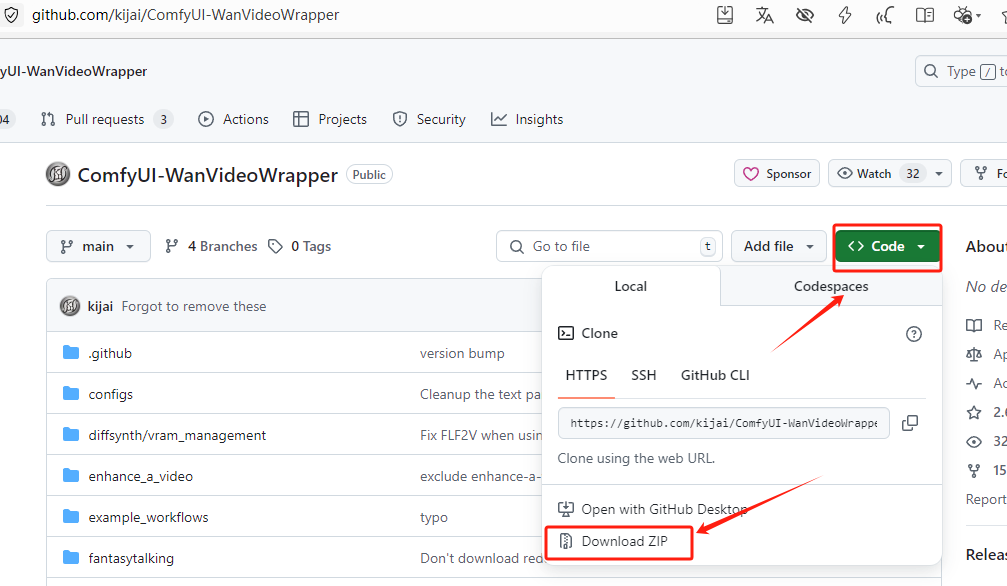
Remember to reboot ComfyUI after the node installation is complete!
For more information on how nodes are installed, see this article:
The secret to making ComfyUI do everything: how to customize nodes! AI Painting, ComfyUI Tutorials, Installing Custom Nodes
II. Basic Model Download
There are more models of Wanxiang, some of which may not be interoperable, so I'll tell you more about how to use them.
First come to the download page for Manphase:
https://huggingface.co/Kijai/WanVideo_comfy/tree/main
1. Text-born video and graph-born video models
The file name with T2V is the Vincent Video model
For video memory larger than 12G, try choosing the 14B model
For video memory lower than 12G, we recommend choosing the 1.3B model

The filename with I2V is the Tucson video model
The Toussaint video model is also available in two versions, in 480p and 720p
For video memory greater than 12G, try selecting the 720P model
For less than 12G of video memory, we recommend choosing the 480 model
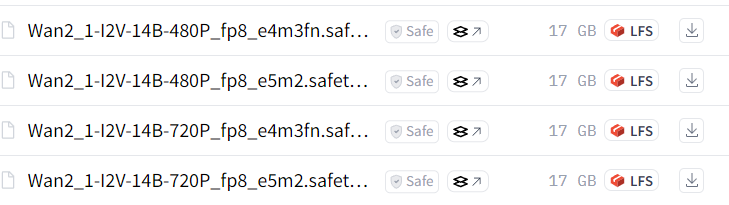
Path to place models for text-generated and graph-generated videos: models\diffusion_models
It is recommended to create a new model folder under the folder to facilitate the management of the model, you can rename the folder as "wan2.1" and place the model in the path:
models\diffusion_models\wan2.1
2. VAE model
Whether it's the official Manphase workflow or Kijai's plugin, VAE's models are universal

VAE model placement path: models\vae
3. clip version and text encoder models
The models mentioned above are generic models, here is how to use the non-generic models
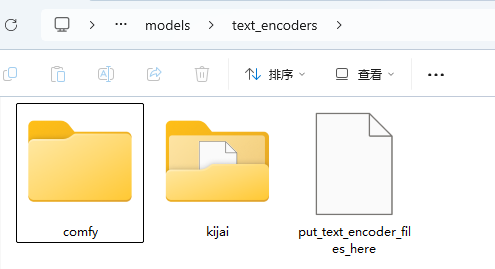
When using kijai's plugin, you need to replace the clip version and the text encoder model, which are the two models boxed out in the image below (there are two versions of each of the two models, so it's four files)
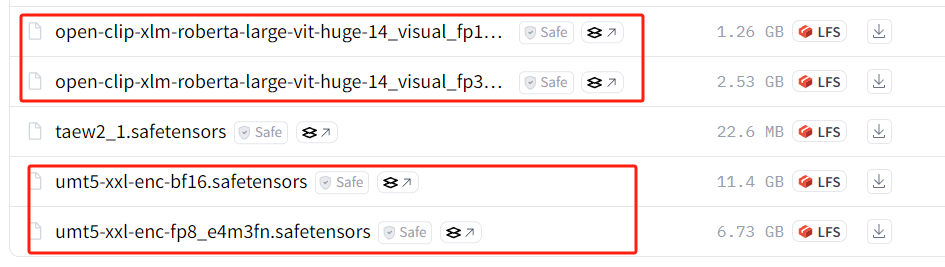
clip version model placement path: models\clip
Text encoder model placement path: \models\text_encoders
As the model file increases, to avoid confusion, you can also create a new kijai folder to put the model just now, so that you can easily manage the model.
III. VACE Model Download
VACE has a total of 3 models, 14B has 2 models, and 1.3B has one model
A 14B model is best served by a video card with more than 12G of video RAM.
Graphics cards with less than 12G of video memory should honestly be used for 1.3B models. 1.3B models can be run with 8G of video memory, but it's slow.
Also the 14B model is recommended to use the fp8 version, although the accuracy is not as good as the bf16 one, it is a bit faster

Model placement path: models\diffusion_models
IV. Basic workflow construction
Here's the start of the workflow build, as long as you follow my steps step by step, the final workflow is certainly not wrong.
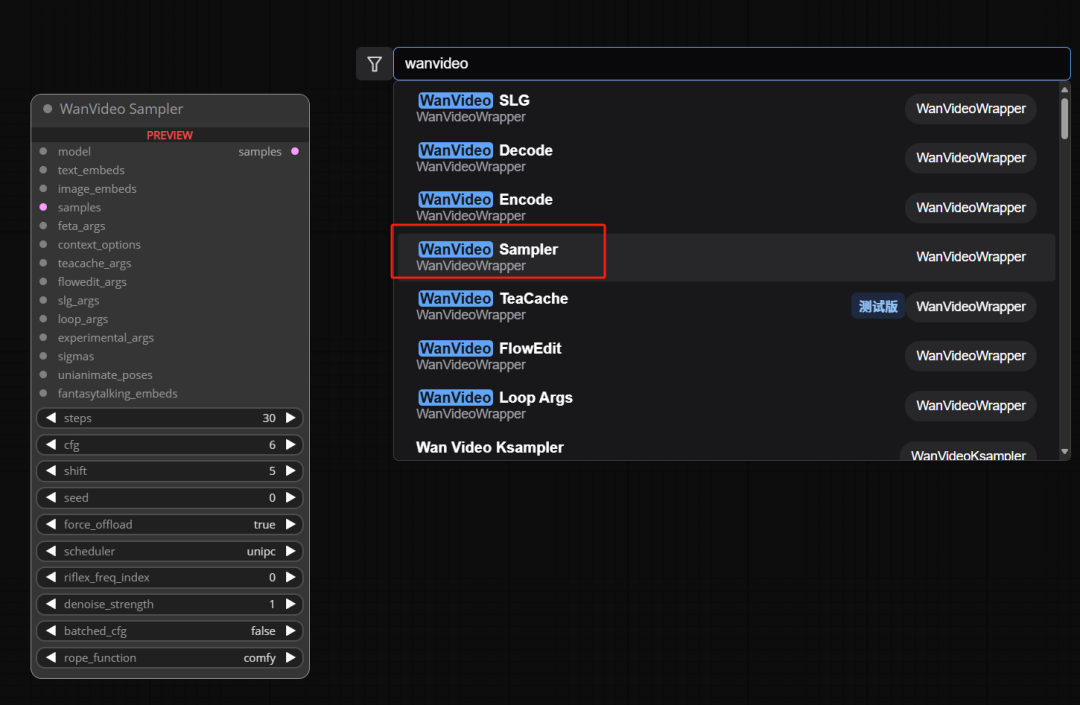
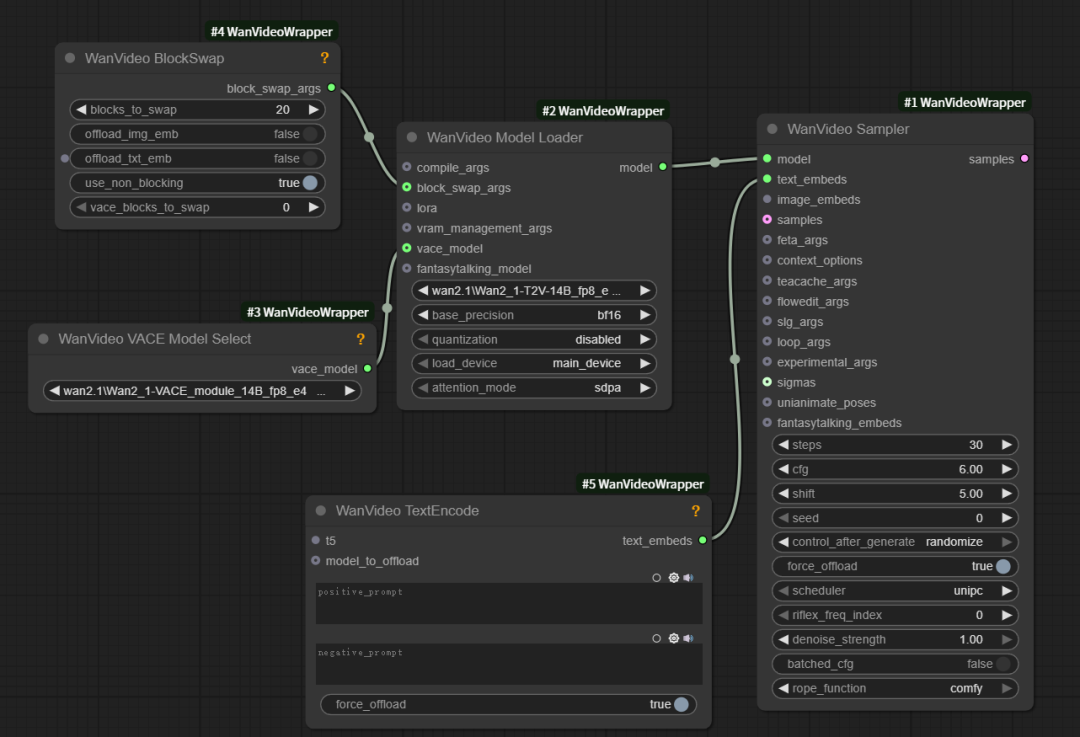
First, double-click in a blank space in the workspace to search for and add the wanvideo smpler node
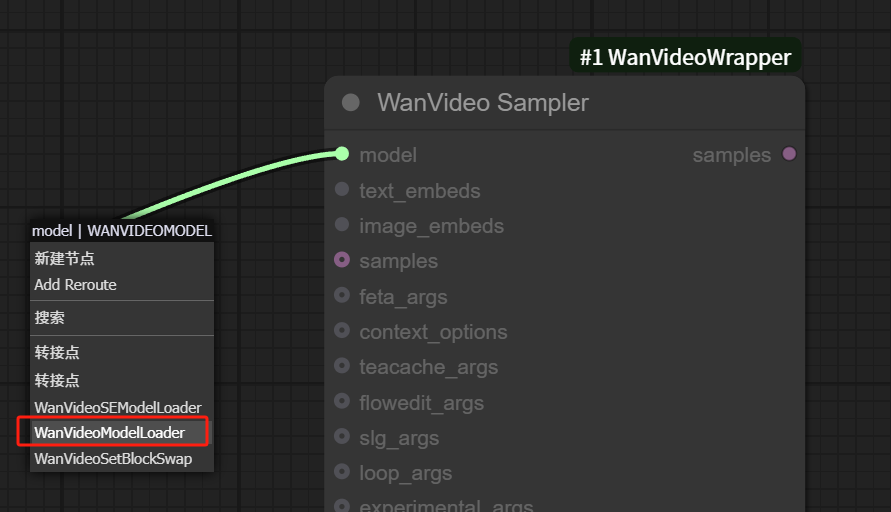
Add the wanvideo model loader node by dragging it outward at the model pipeline
Find the vace_model pipeline, drag and drop and add the vace model selector node
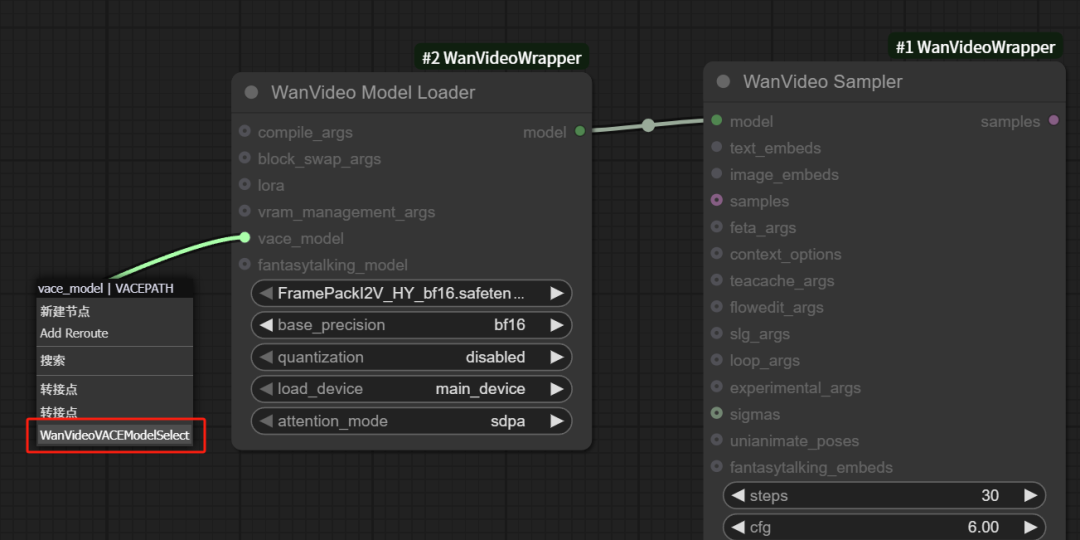
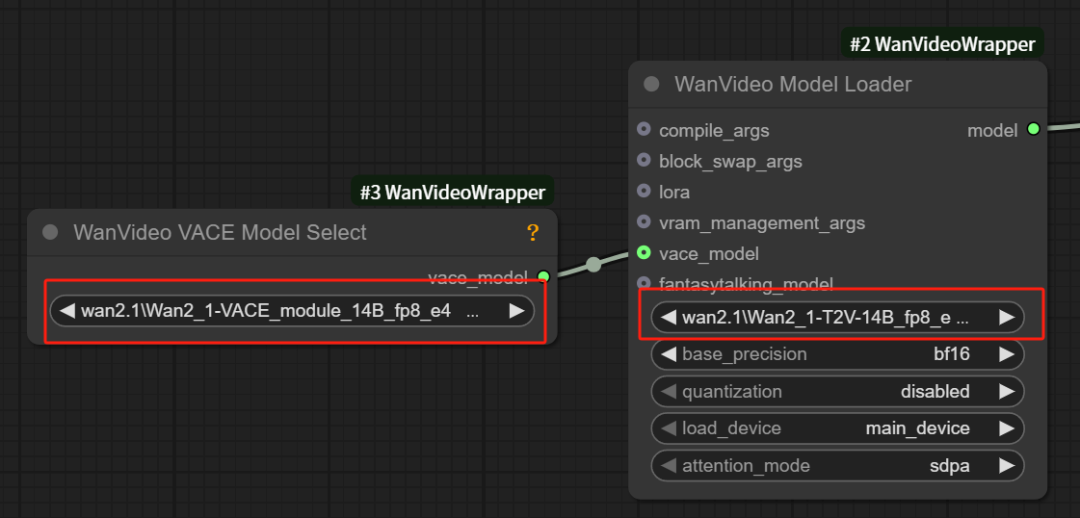
Setting up the correct Vincennes base model and VACE model
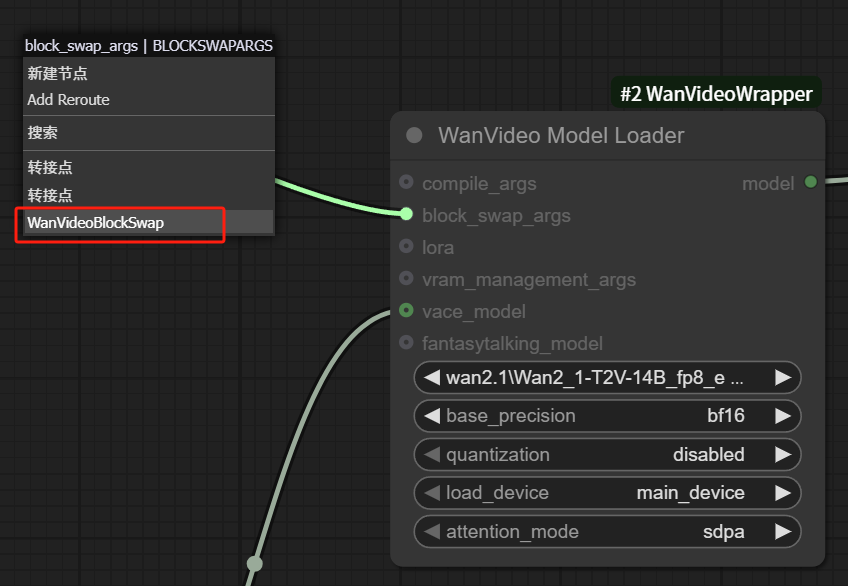
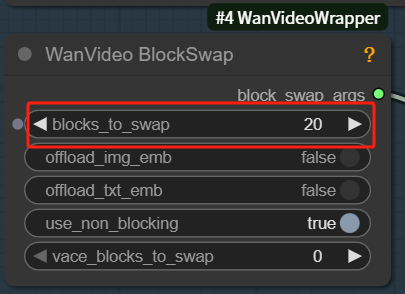
If you're low on video memory, you can add blockswap nodes by dragging outward from the block_swap_args pipe
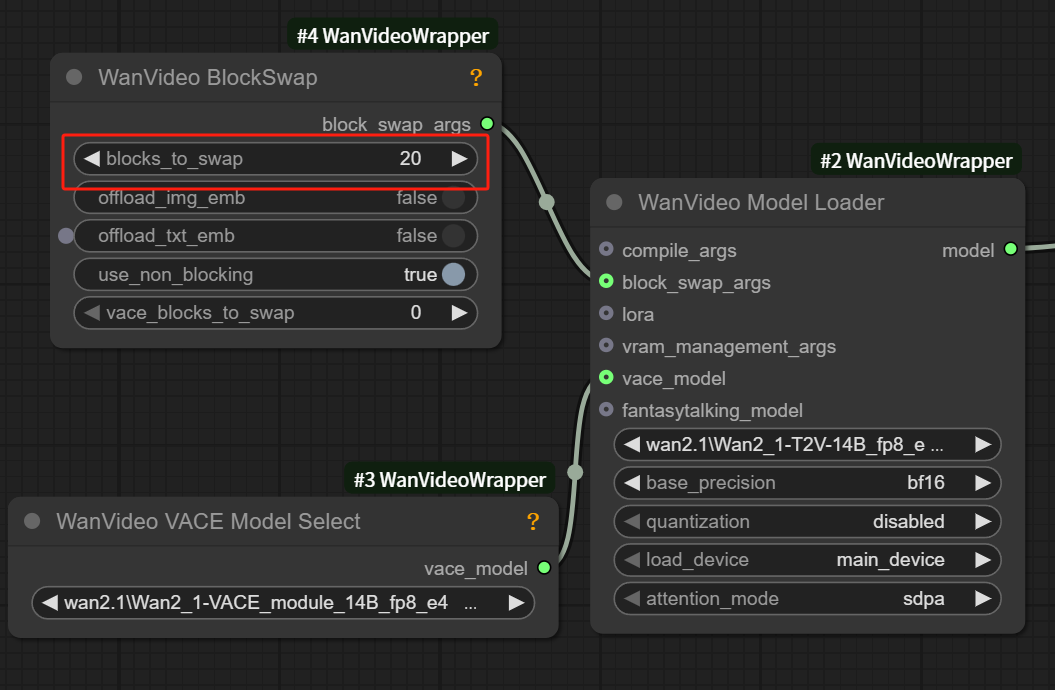
The blockswap node can help us to save the video memory usage, so you don't need to add it if you have enough video memory.
If you want to make a video with high resolution or longer duration, you can also add this node, but the corresponding computing time will be longer.
The general blockswap node value is set to 20 or more.
Go back to the wanvideo sampler node, drag and connect the wanvideo textEncode node from the text pipe
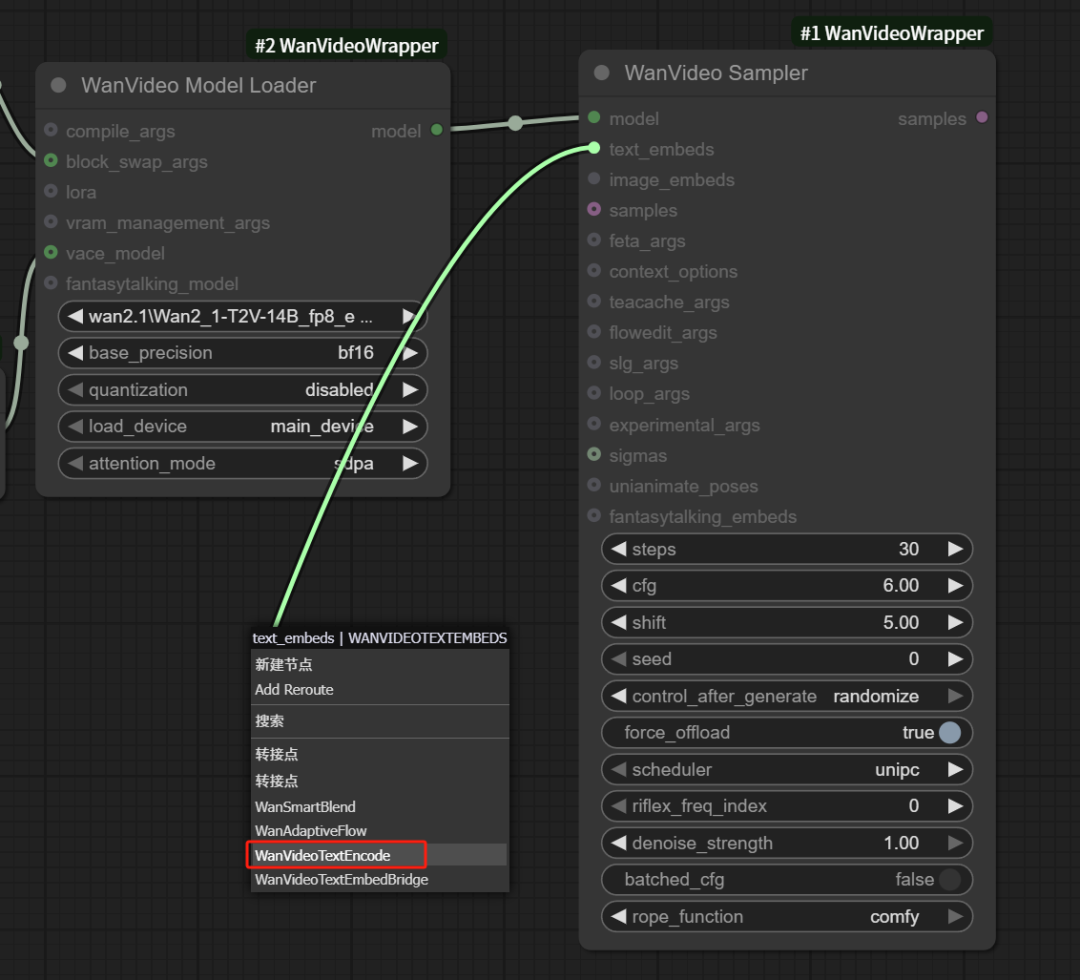
The wanvideo textEncode node is used to write the prompt word
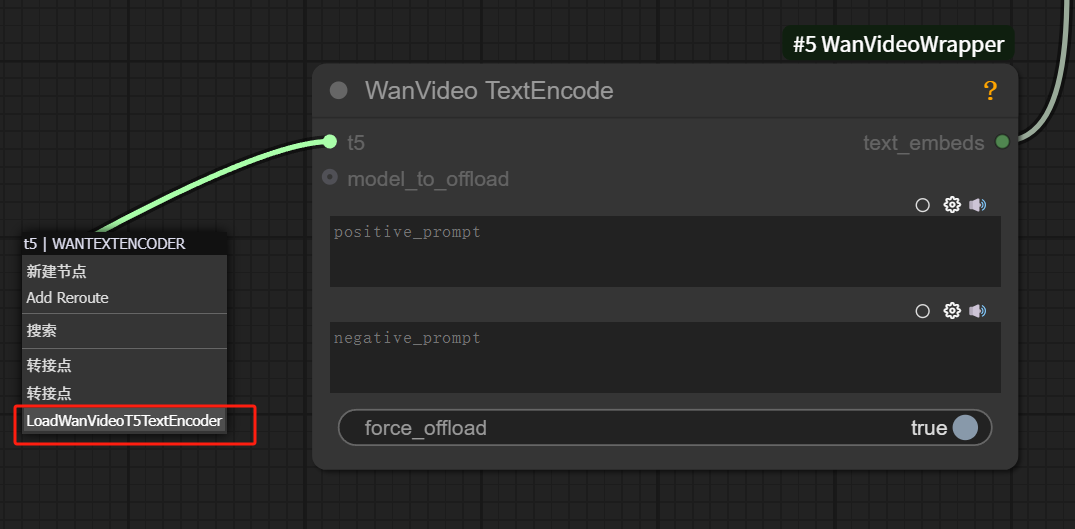
Drag the t5 pipeline from the wanvideo textEncode node outward to find and connect the T5 TextEncoder node
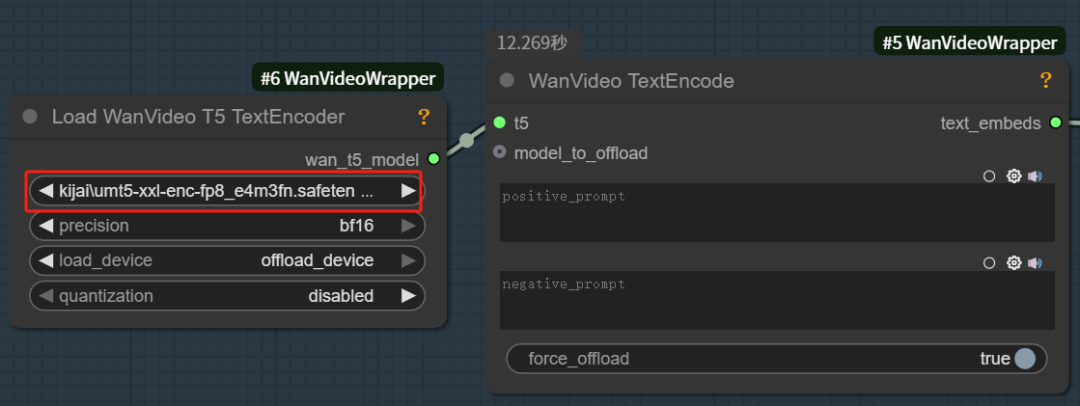
Here we select the text Encode model we just downloaded
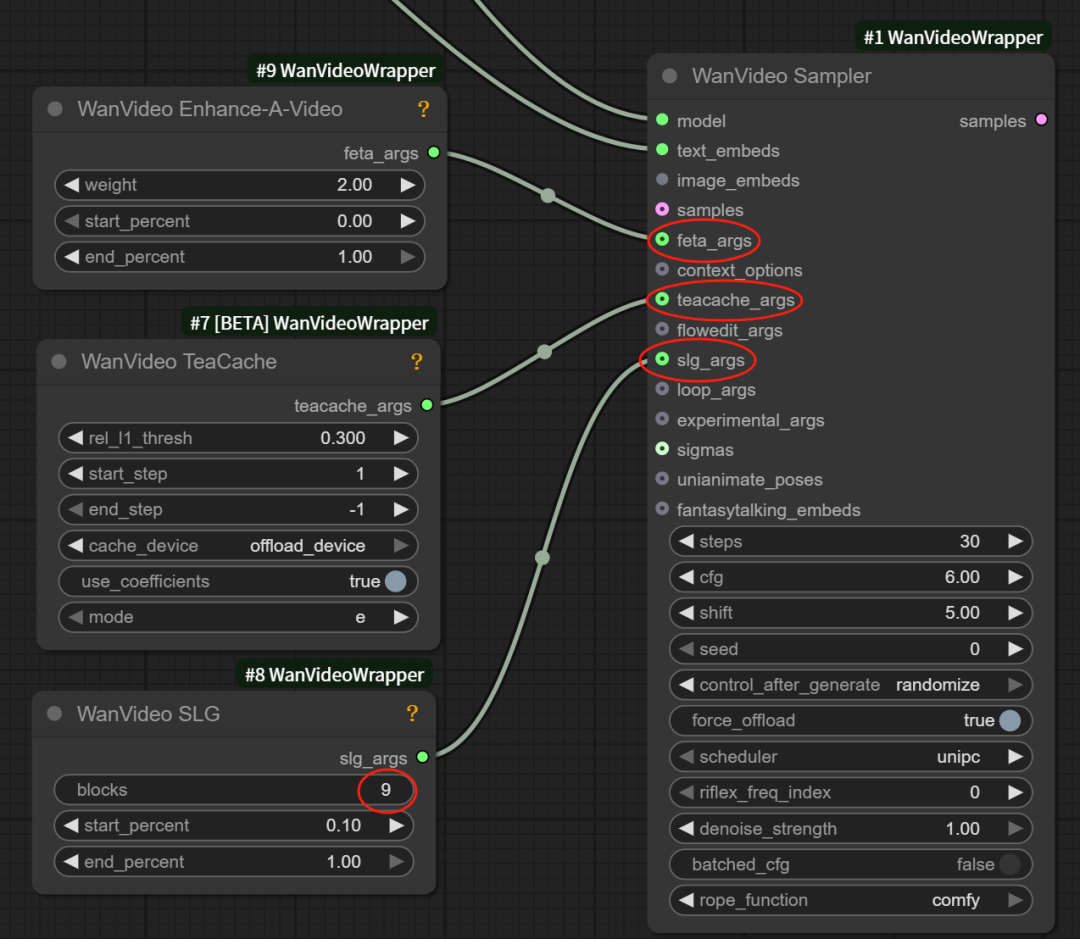
Let's go back to the WanVideo Sampler node and introduce you to the meaning and usage of this node's parameters.
feta_args pipeline, connect WanVideo Enhance-A-Video node, enhance video quality, parameters remain default
TeaCache pipeline, connect to WanVideo TeaCache node to speed up the video generation, keep the parameters as default. If the generated video is hand blurred, you can try to turn off this node
slg_args pipeline, connect to WanVideo SLG nodes to improve video quality, blocks are usually set to 9
WanVideo Experimental Args Node Features
Drag outward from the experimental_args pipeline of the wanvideo sampler node to connect the WanVideo Experimental Args node
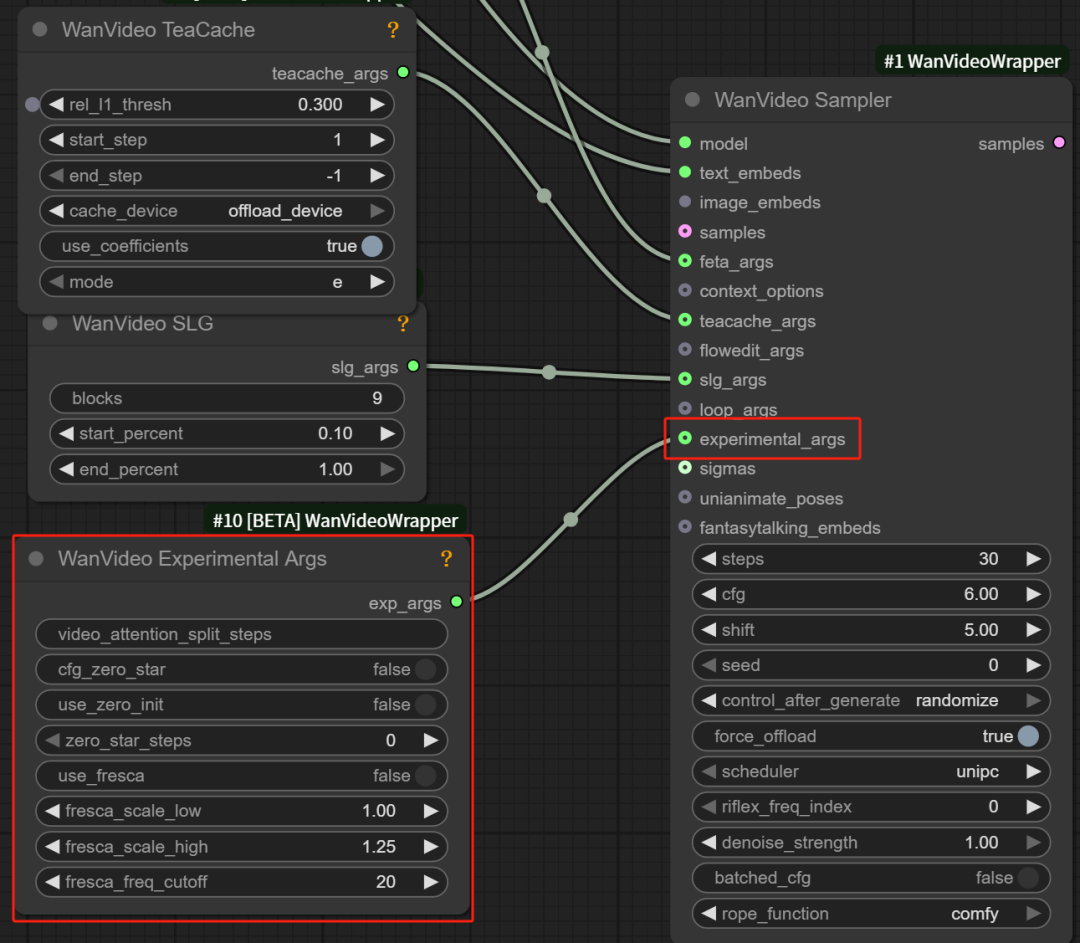
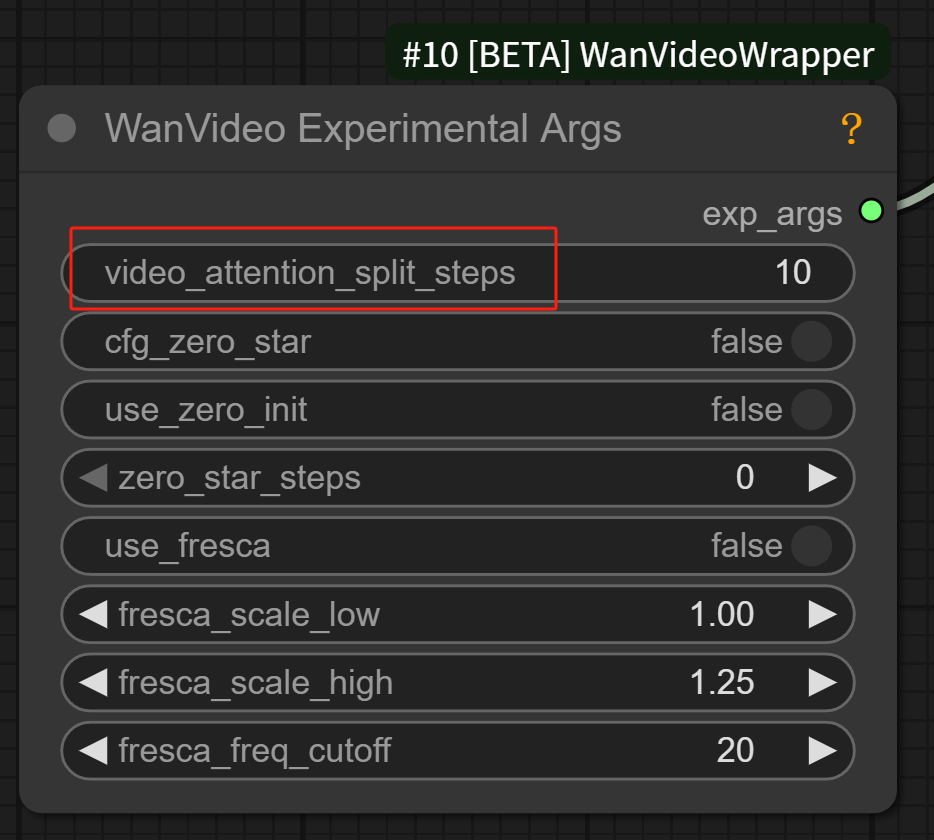
video_attention_split_steps:
Controls when the model starts to handle frame-to-frame coherence.
Example: If this parameter is set to 10, it means that the model only focuses on the details or quality of the model itself in the first 10 steps, and does not deal with the coherence of the picture. This way the beginning of the video will be especially clear and stable, and only after 10 steps will the video coherence calculations slowly start to be added.
You can use it if you pay special attention to the picture quality of the first frame of the video.
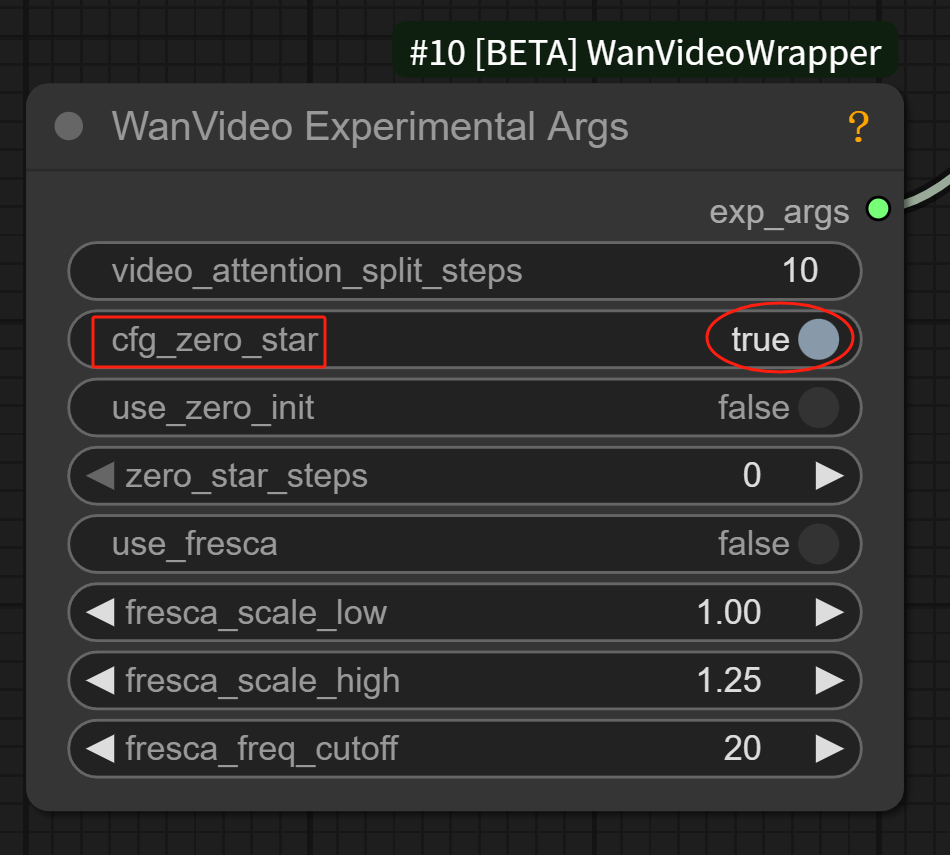
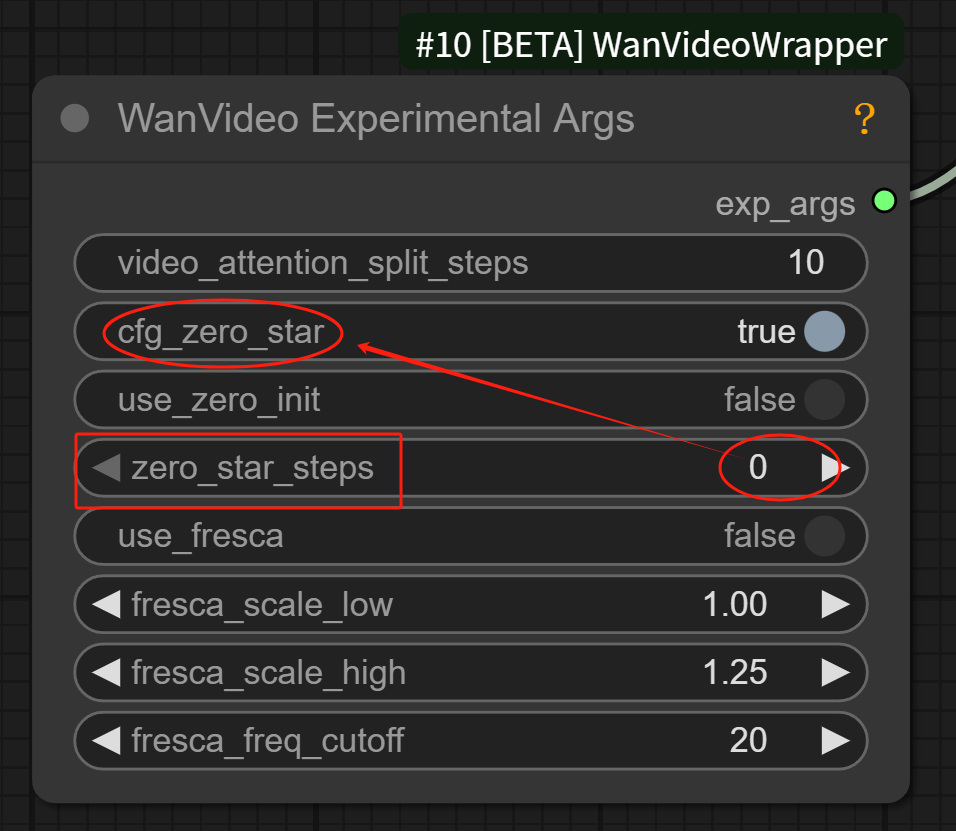
cfg_zero_star: make the initial frame of the video more stable, keep it on by default.
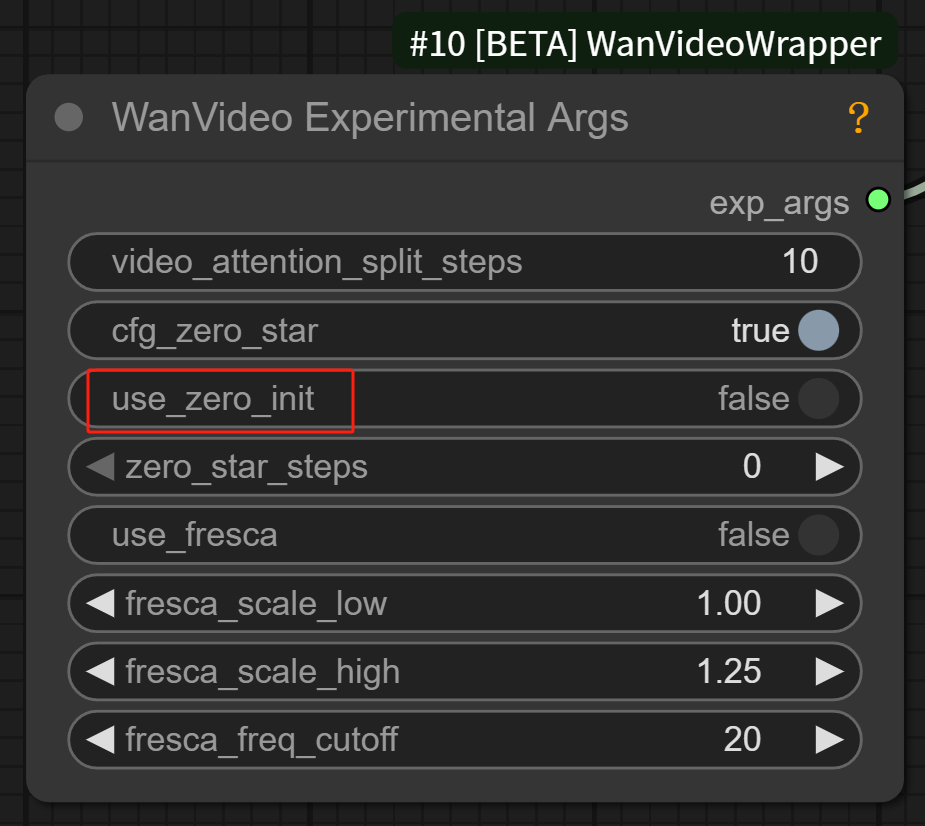
use_zero_init: If the initial screen of the video is confusing and flickering, try turning it on to see the effect.
zero_star_steps: set cfg_zero_star to be enabled from step 0 by default.
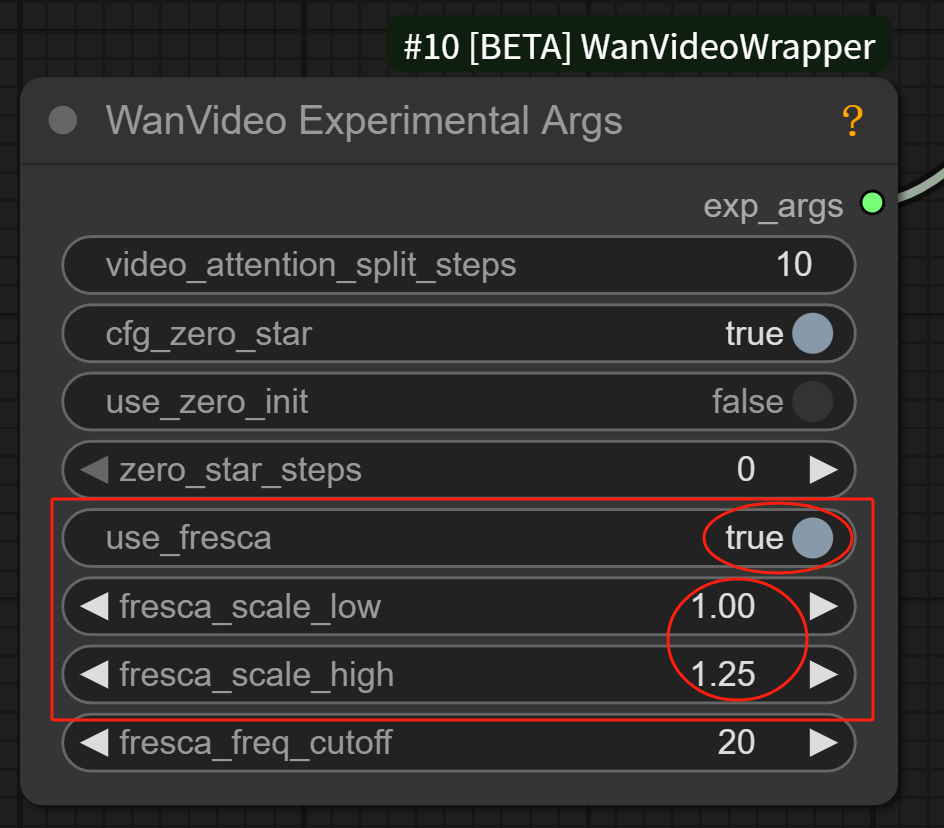
use_fresca: a parameter that adjusts whether the video is more detail-oriented or more overall, after opening this parameter, the fresca_scale_low and high parameters on the bottom side can be used
fresca_scale_low and fresca_scale_high: the higher the parameter, the higher the detail of the video picture, the lower the parameter, the more the video picture focuses on the overall sense of the picture.
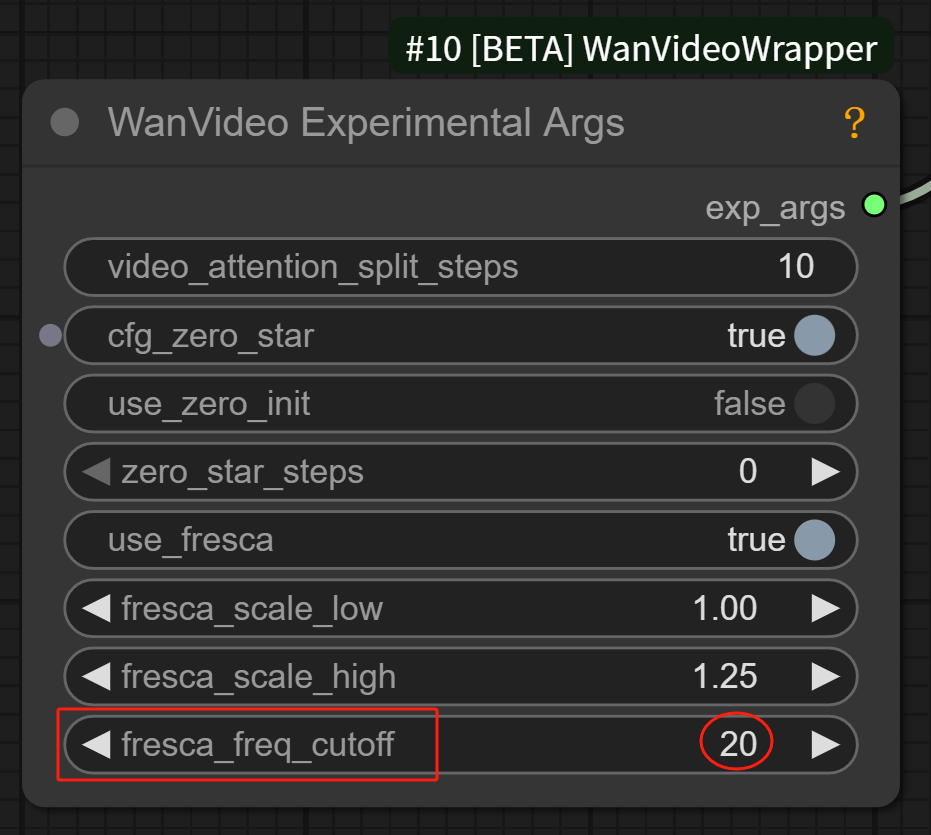
fresca_freq_cutoff: the higher the value of the parameter, the more detail the model will process, the lower the value, the more detail the model will filter out, only blurring, contouring, etc. Just keep the default of 20.
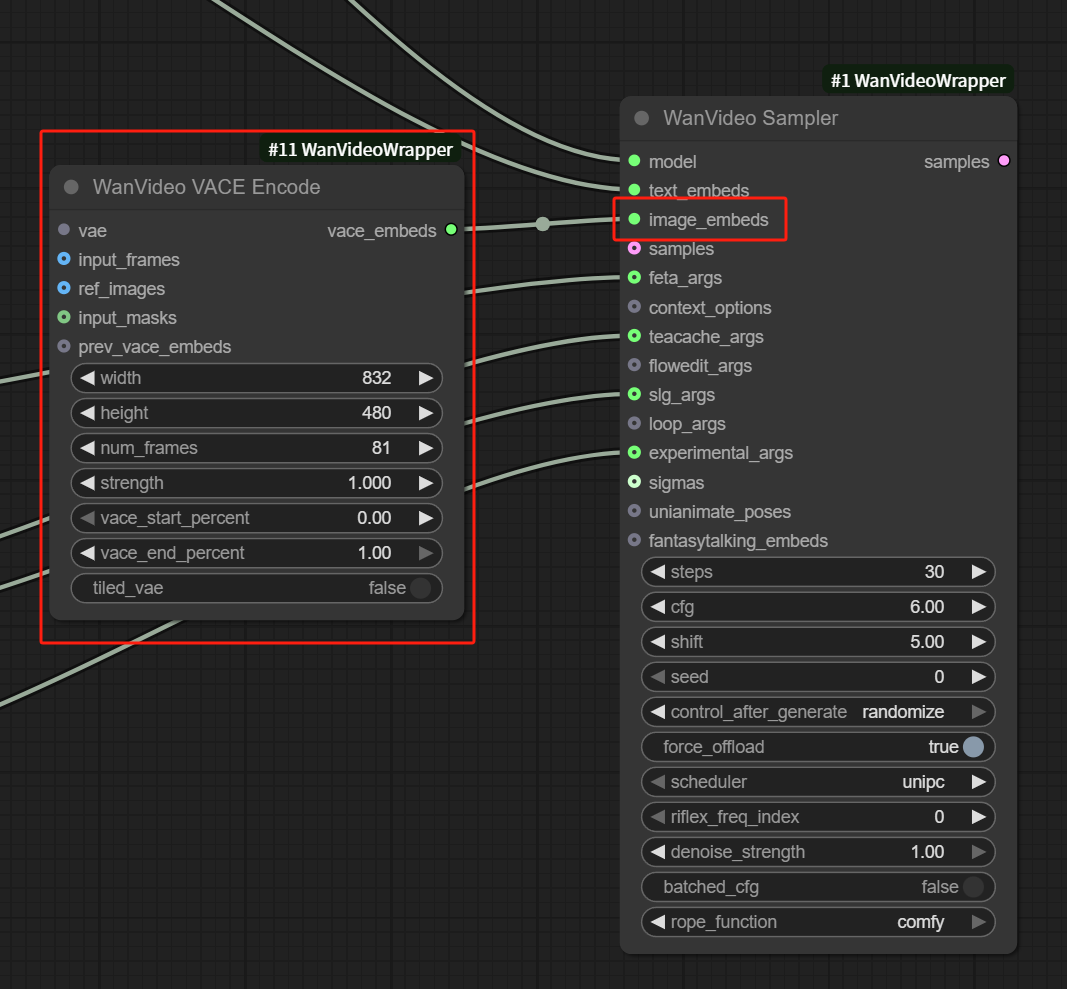
Double click on the blank space and search for WanVideo VACE Encode node to connect it to image_embeds of WanVideo Sampler node
Connect the WanVideo VACE Encode's VAE pipeline to the WanVideo VAE Loader node and set it to the Wan2_1 VAE model
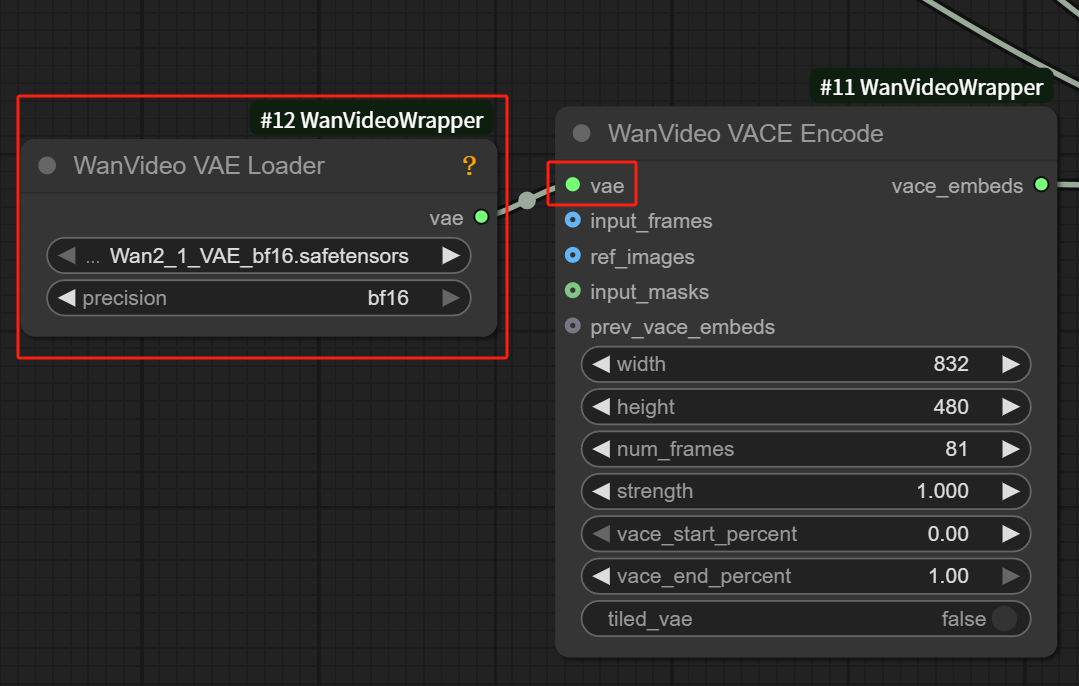
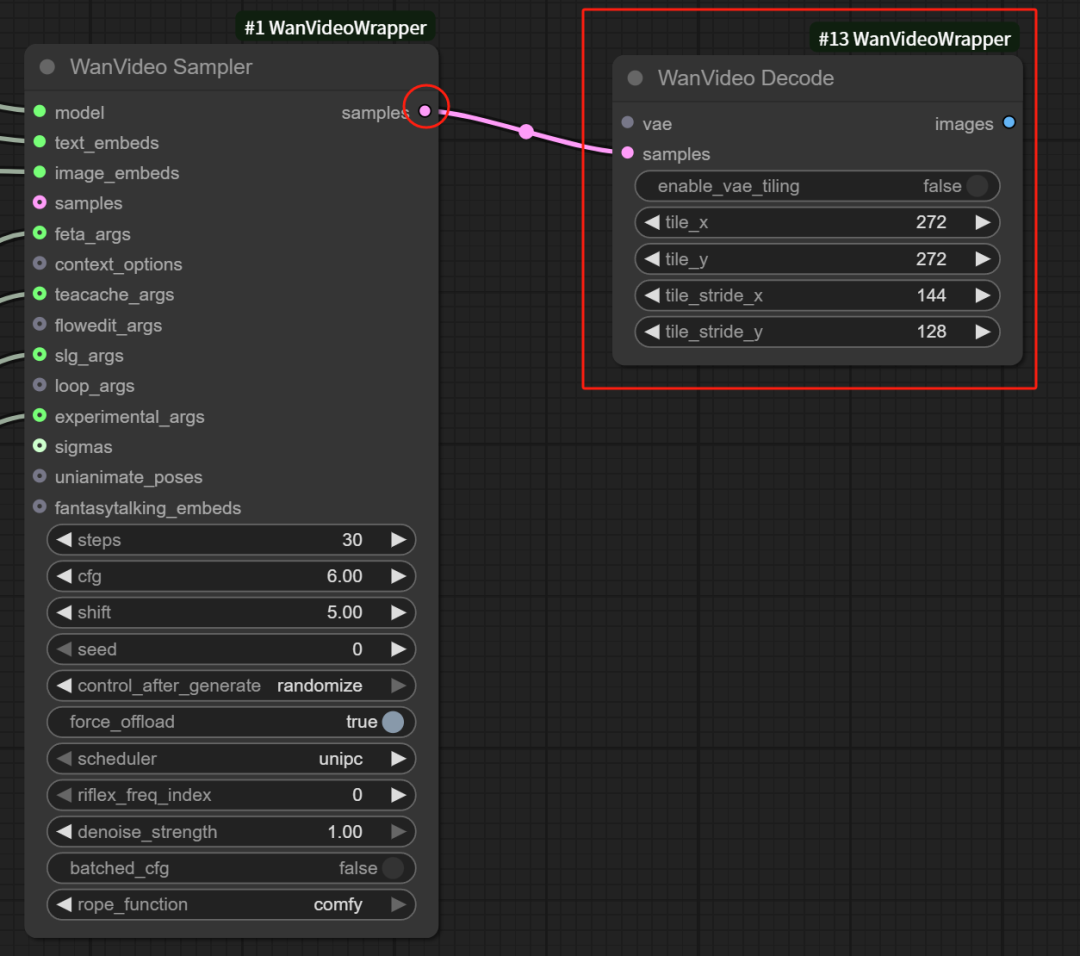
The WanVideo VACE Encode we just added is an edit node, so there's another decode node to add.
Double-click in the blank space to search for and add a WanVideo Decode node to connect to the WanVideo Sampler node.
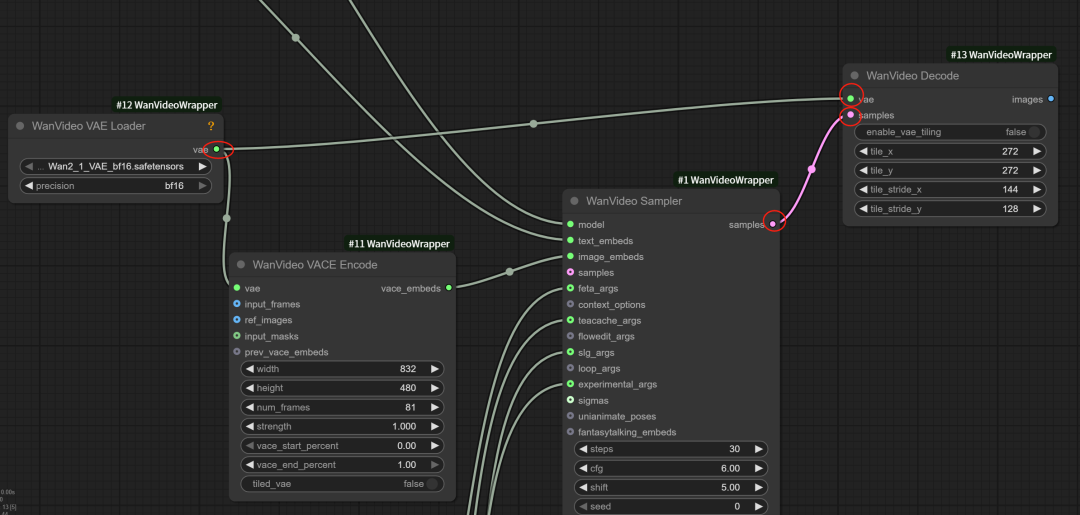
There is also a VAE pipeline above the WanVideo Decode node, connect it again to the VAE node.
Finally search and add a merge as a video node, and video decode WanVideo Decode node to be connected
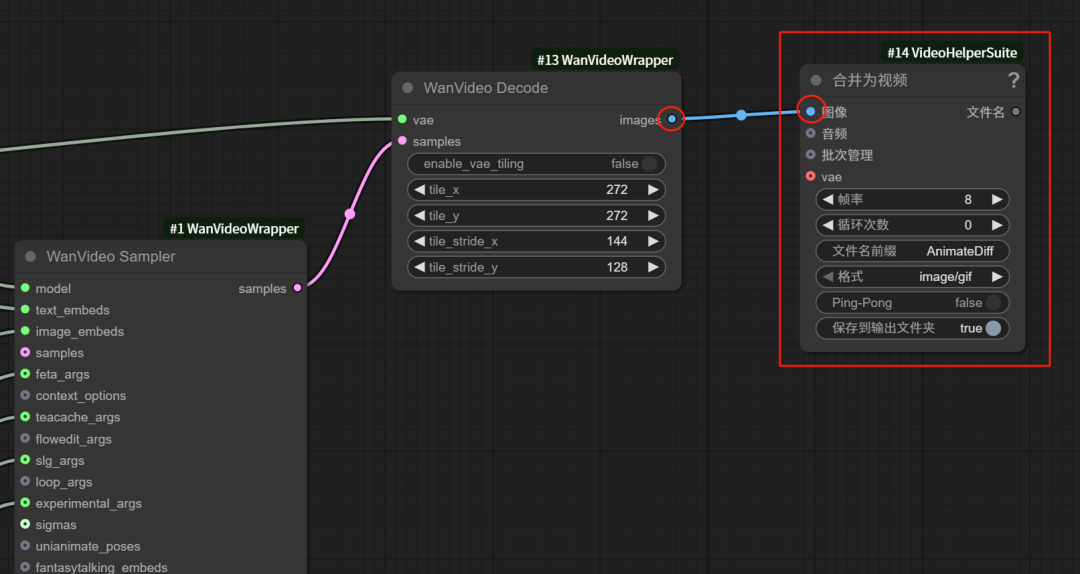
This way the basic workflow is built.
All of our subsequent workflows are built based on this base workflow extension, and the parameters inside this base workflow are basically unchanged.
See below for a full screenshot of the underlying workflow.
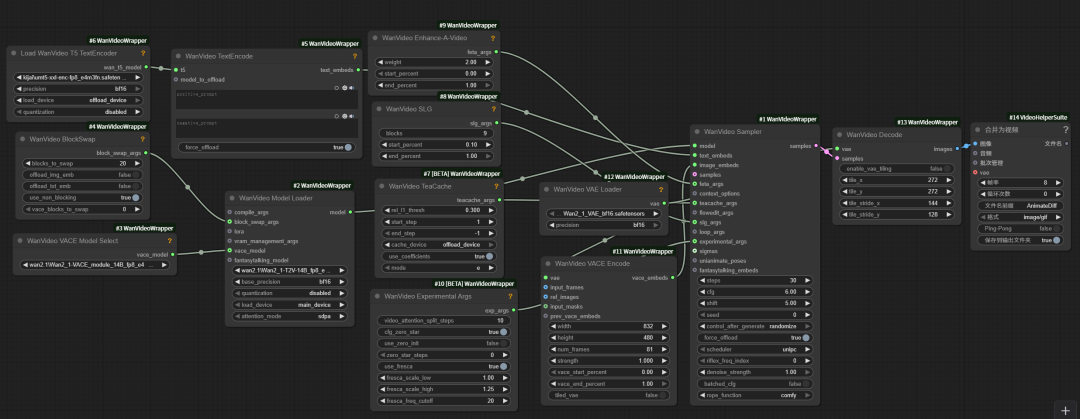
V. First and last frame workflow construction
Here's how to continue building a first and last frame workflow based on the basic workflow you just built.
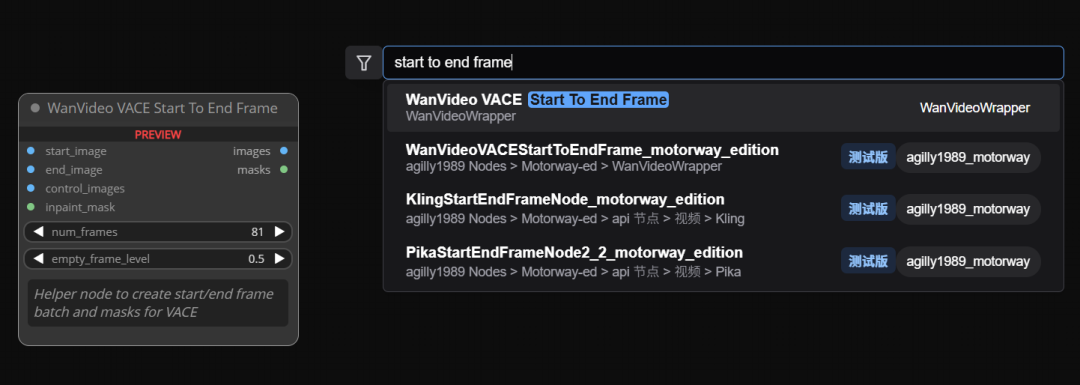
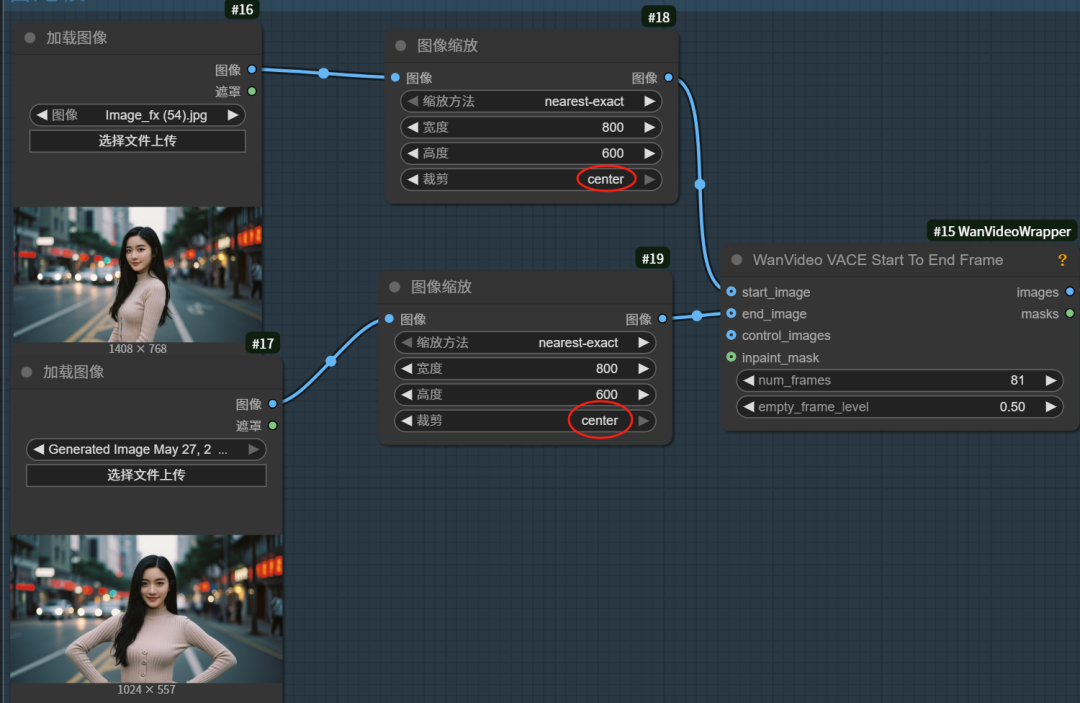
Double-click in the blank space to search for and add the WanVideo VACE Start To End Frame node
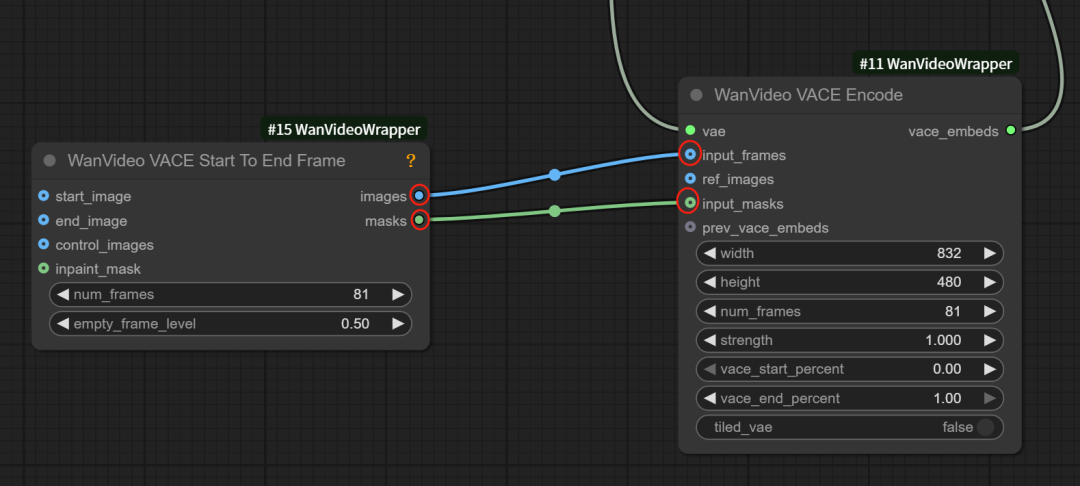
Connect the image output pipeline (images) of the first and last frames to the input frame pipeline (input_frames) of the decoding node
Then connect the mask pipeline (masks) with the mask input (input_masks) pipeline
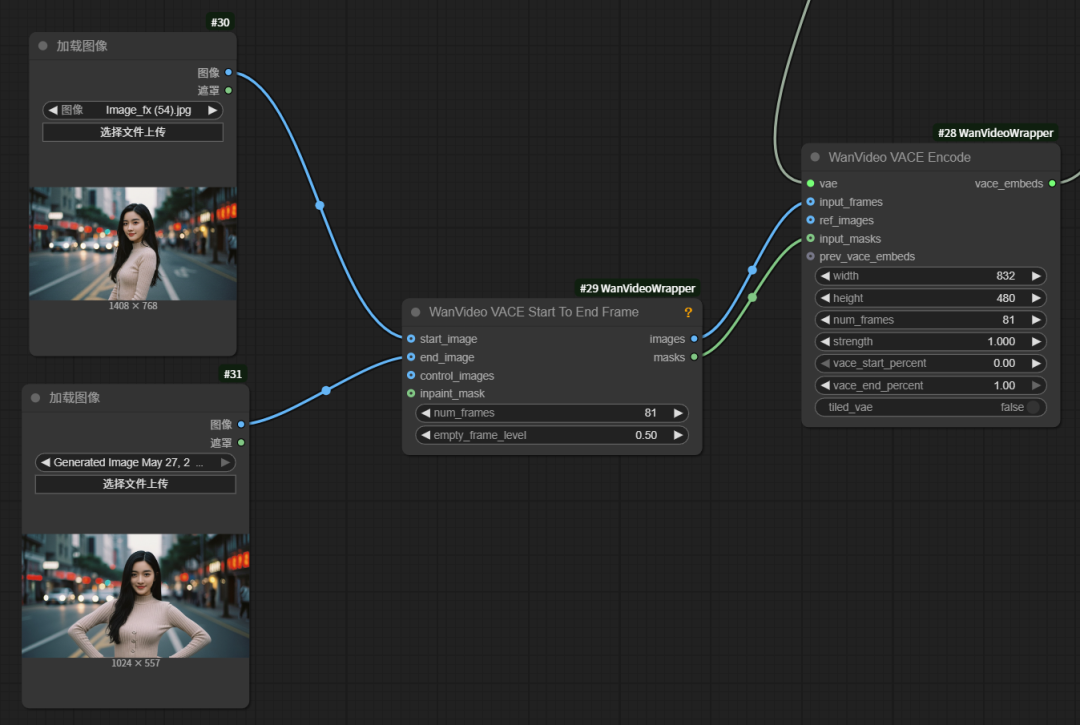
Connect a load image node to the start_image and end_image pipes of the first and last frame nodes, and put in the first and last frame images of the video, respectively.
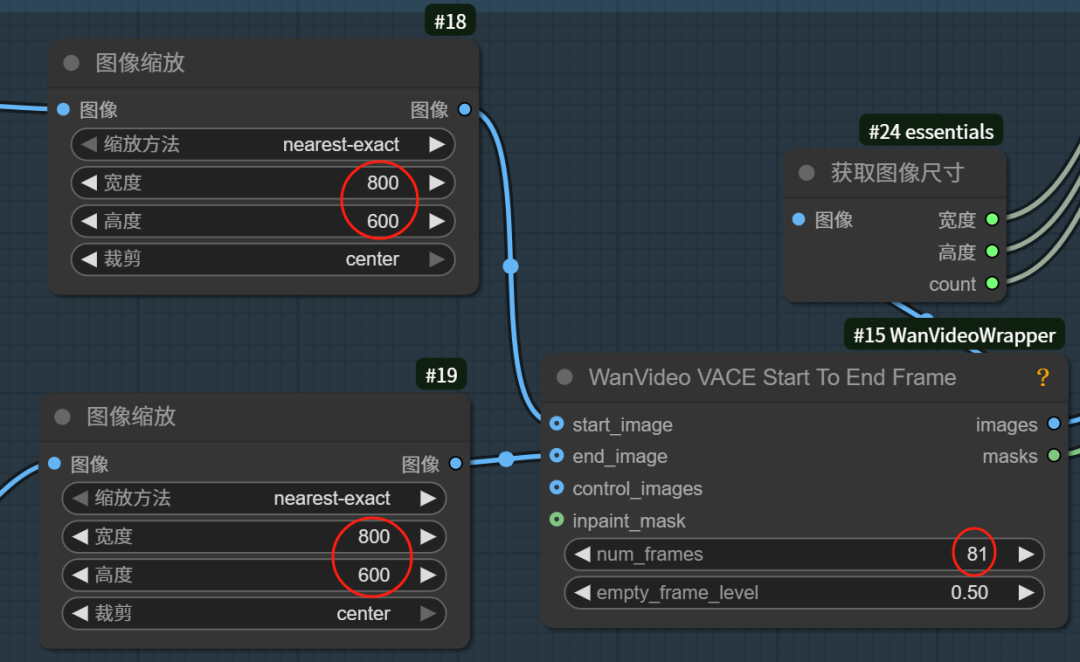
In order to ensure that the size of the first and last frame images are the same, you need to add an image scaling node in the middle of the image loading node and the first and last frame nodes respectively
Turn on cropping for the image zoom node and select center cropping, otherwise the image will be forced to stretch and deform
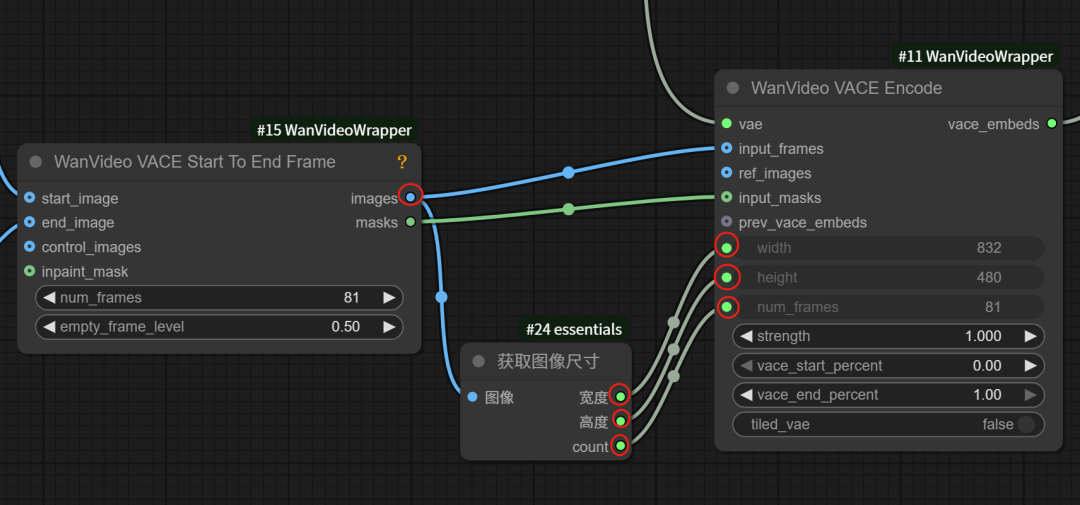
Add a node to get the image size, through which the image size of the Start To End Frame node (WanVideo VACE Start To End Frame), passed to the image decoding node (WanVideo VACE Encode)
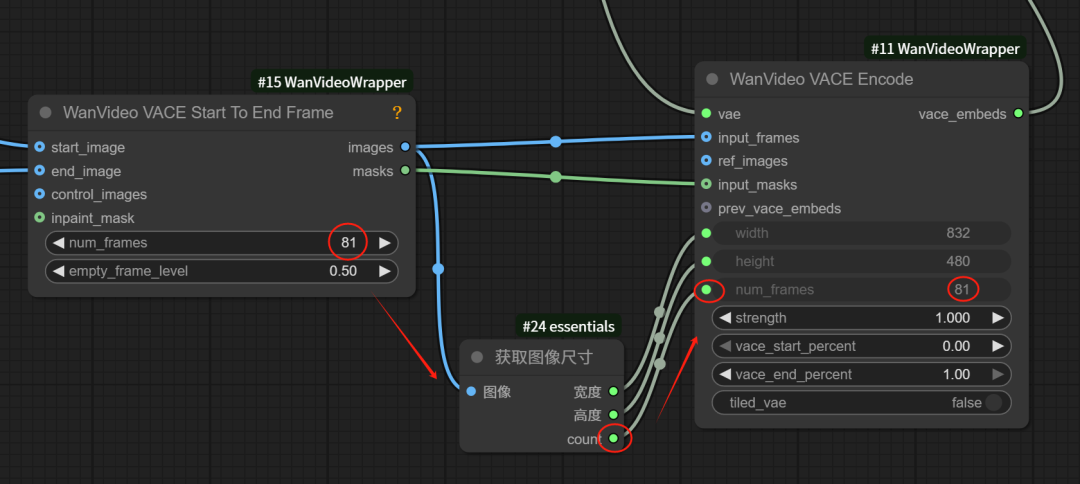
The num_frames node refers to the total number of frames in the video.
This parameter is passed to the video encoding node through the count pipeline of the Get Image Size node
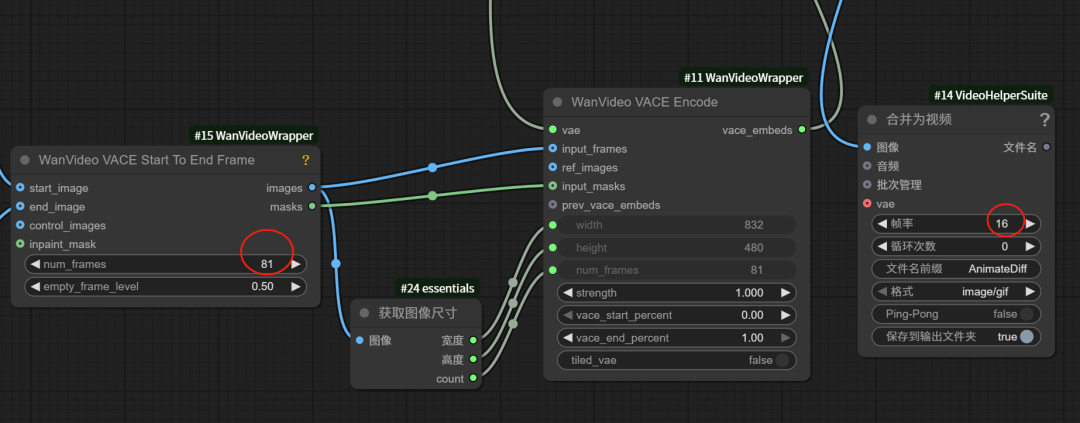
Video Duration Settings
In the first and last frame nodes, the default total number of video frames is 81 frames
In the merge to video node, the frame rate of the video is 16 frames per second.
So the total duration of the video is: (81-1)/16 = 5 seconds
If you want to make the video more silky and coherent, you can increase the frame rate of the video; if you also want to keep the duration the same at the same time, you have to increase the video frame rate at the same time.
Overall, you must increase the frame rate if you want to extend the length of the video, but you also have to increase the frame rate if you want to make the video silkier at the same time, but all of this comes at the cost of increasing the runtime.
Now a first and last frame workflow is built, the following screenshot shows the complete workflow.
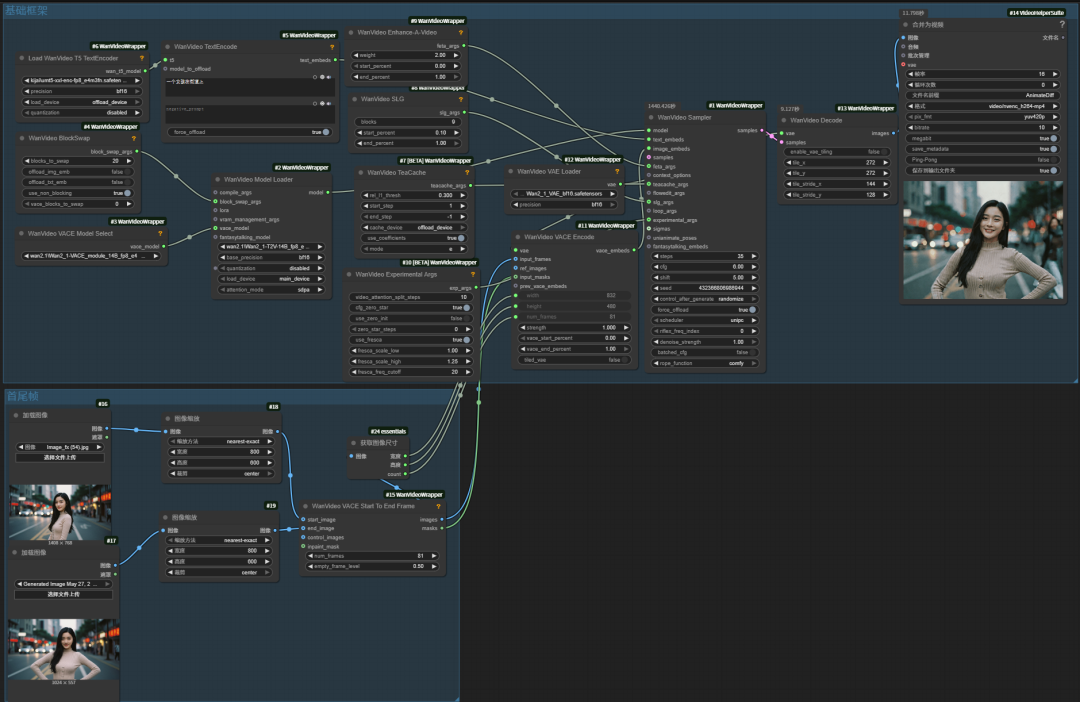
VI. Operationalizing the workflow
Let's start with my local configuration:
3090 graphics card, 24G video memory, 96G RAM
I do have blocks_to_swap turned on with a value of 20, I tried turning it off but when I did the workflow reported an error and wouldn't run!
The video size of this workflow is 800*600, with a total of 81 frames, a frame rate of 16 fps, and a total duration of 5 seconds.
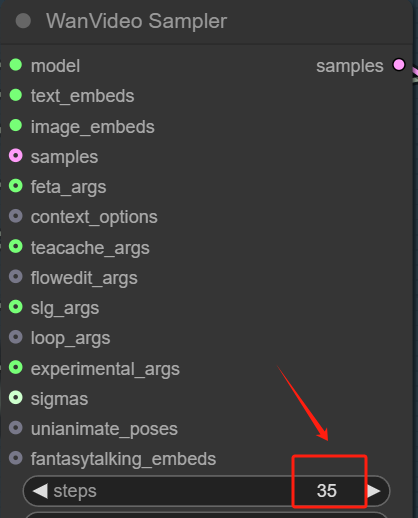
I also adjusted the number of steps in the WanVideo Sampler node to 35, other parameters remain unchanged.
The entire workflow run took a total of 1461.18 seconds, almost 24.35 minutes.
Here is the video from the 24.35 minute run. I reduced the size of the video by more than half because it was so large, and the picture quality is quite a bit lower than it was before, but the result is still good in terms of the overall picture.
Characters have natural expressions and movements, and they also automatically complement the changes of vehicles and characters in the background streets, making the whole video look more realistic.

Overall the video made by the VACE model is more realistic and the details are richer and more delicate, with it, we can also make movie-level AI videos at home.
But then again, AI videos are still a card draw at this point, so if the video doesn't come out perfect at one time, try changing the cue word, draw a few more times and try again.