



Some people's computers are clearly well configured and have good graphics cards, but when they doAI PaintingWhen it's slow, it's probably because you don't have CUDA and cuDNN installed.
My computer just did the system, comfyUI also reinstalled, comfyUI did not install CUDA, out of the map becomes very slow very slow, today I will take you to the CUDA, cuDNN and pytorch installation, so that comfyUI speed up a bit.
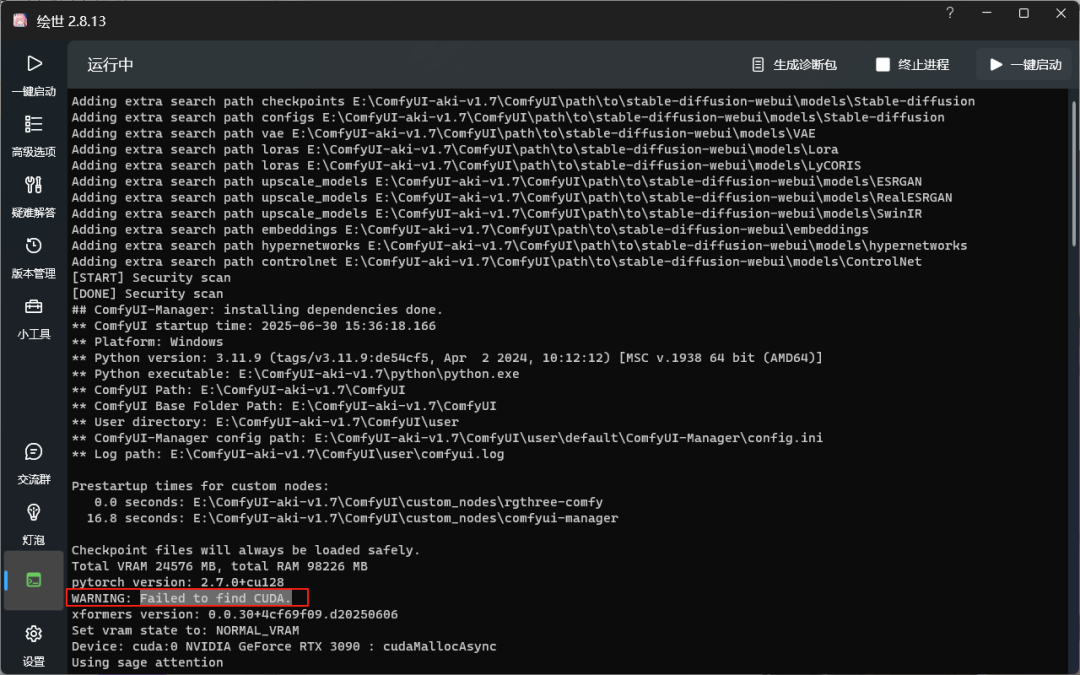
Before I installed it, I ran a graph with kontext and it came in at 285 seconds.

I. Installing CUDA
1, in the installation of the first to determine which version of your computer to install the highest CUDA support
First open the NVIDIA control panel on your computer
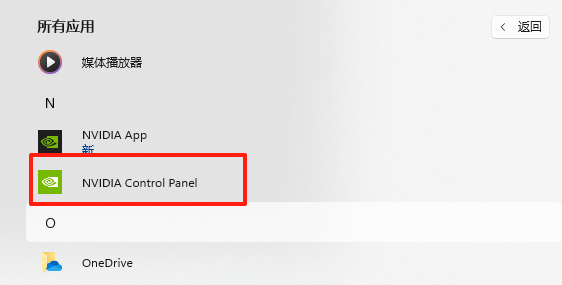
Click System Information -> Components in the lower left corner of the NVIDIA control panel
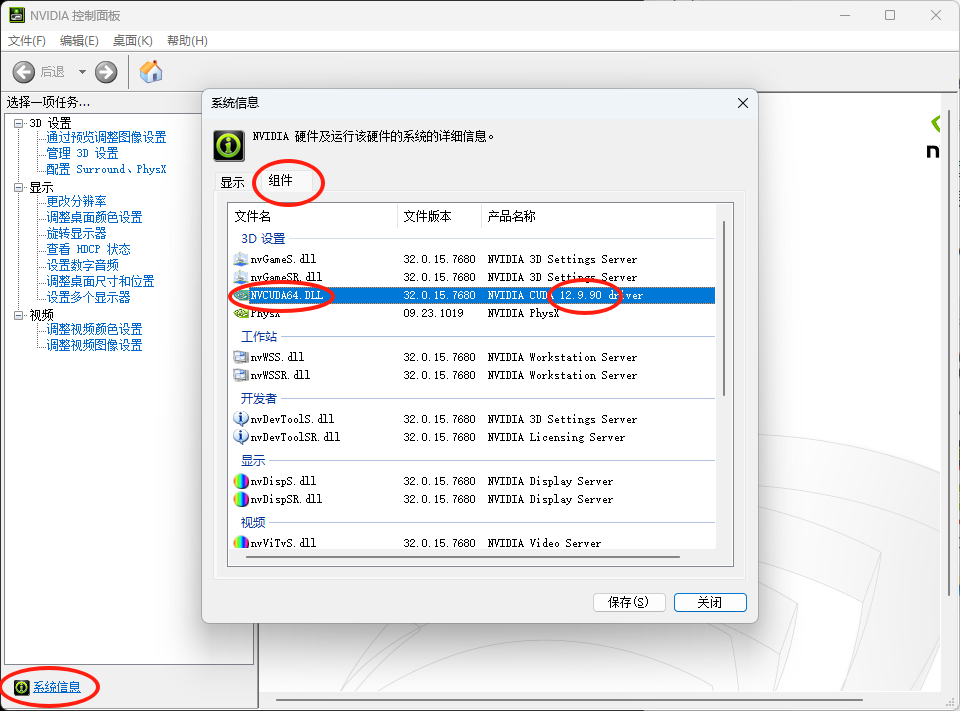
Finding NVCGDA64.DLL means that our computer supports the installation of CUDA
Remember the version number 12.9.90 at the end, this is the highest version supported by our computer and we can only install CUDA versions less than or equal to 12.9.90.
2. Determine the version number of CUDA according to python
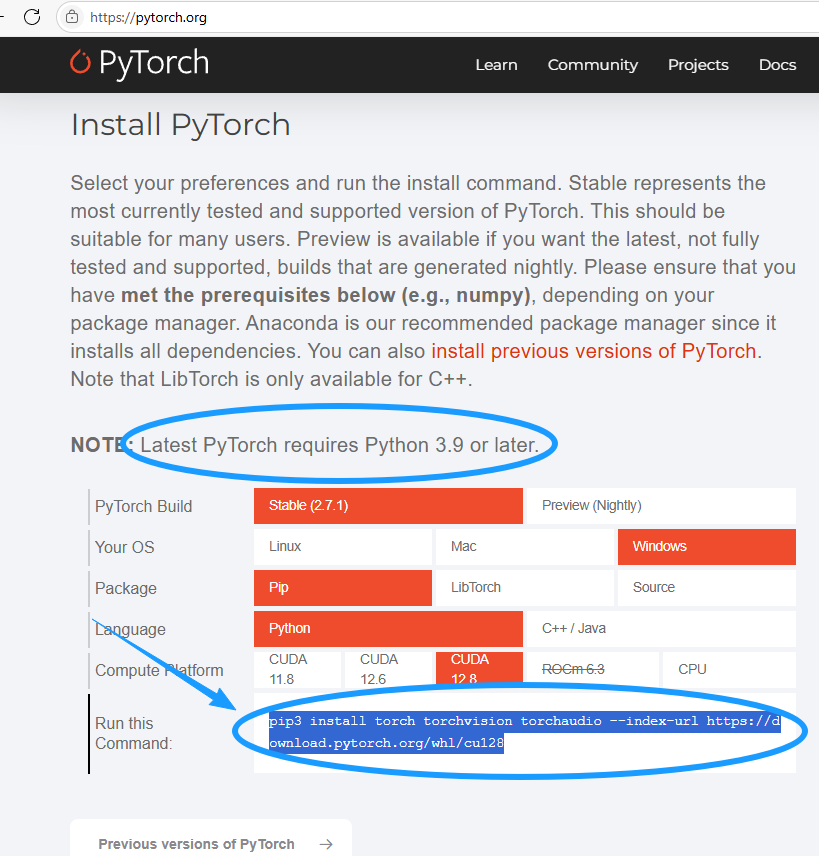
Open PyTorch's webpage (https://pytorch.org) and scroll down to see the python version selection
Since our CUDA supports up to 12.9.90, we have a choice of 11.8, 12.6 and 12.8 versions of CUDA.
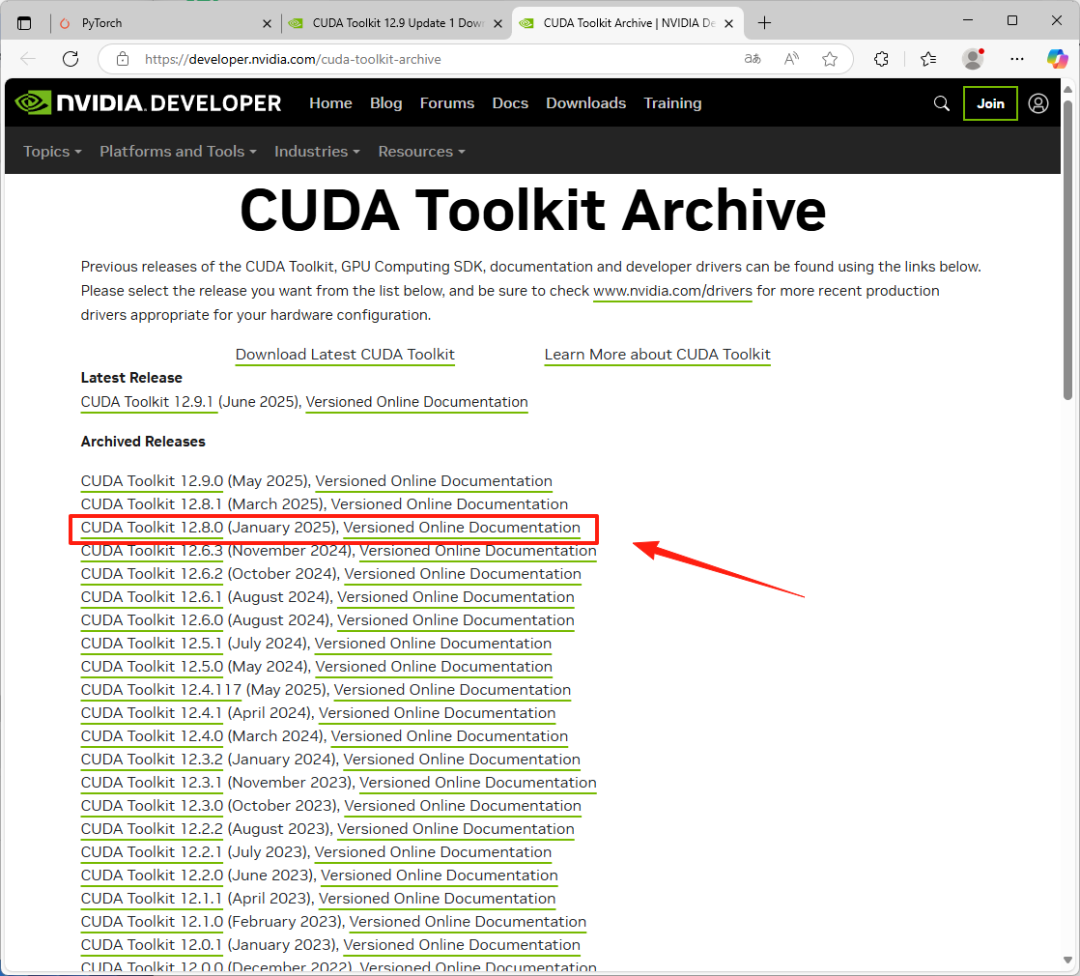
Here we choose version 12.8.
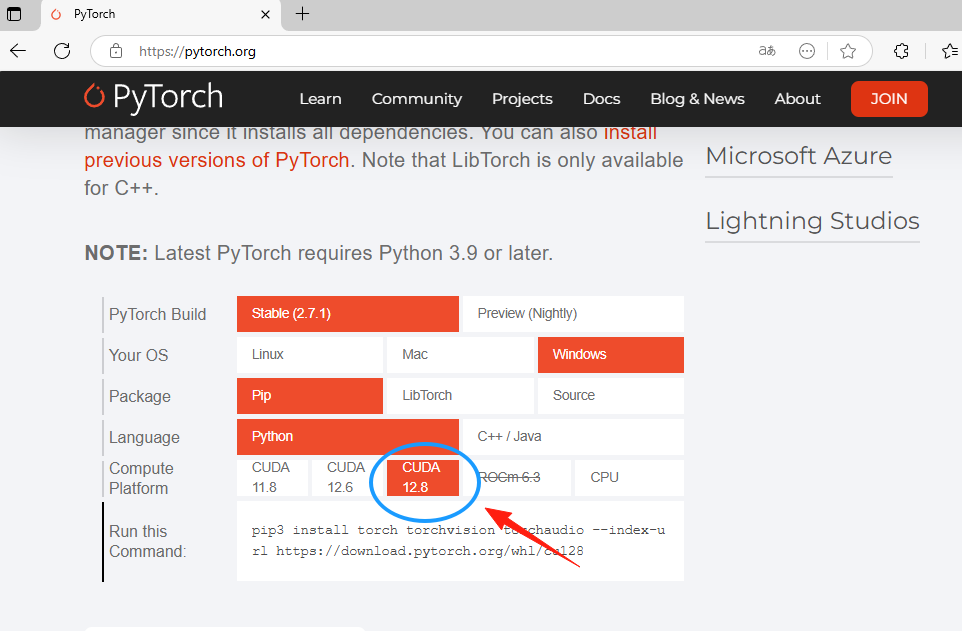
3. Download CUDA
Once you have determined the version of CUDA, go to the CUDA download page and select the correct version to download:
Website:
https://developer.nvidia.com/cuda-toolkit-archive
3. Installation of CUDA
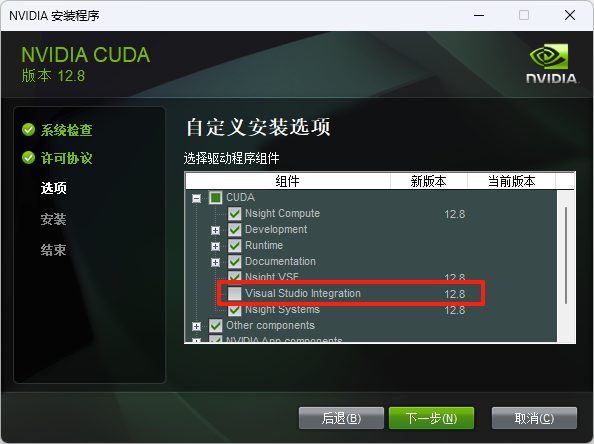
Download and install
Since I already have Visual Studio installed, I didn't check it here.
Click Next and default all the way to the end of the installation.
Once installed, check if the installation was successful
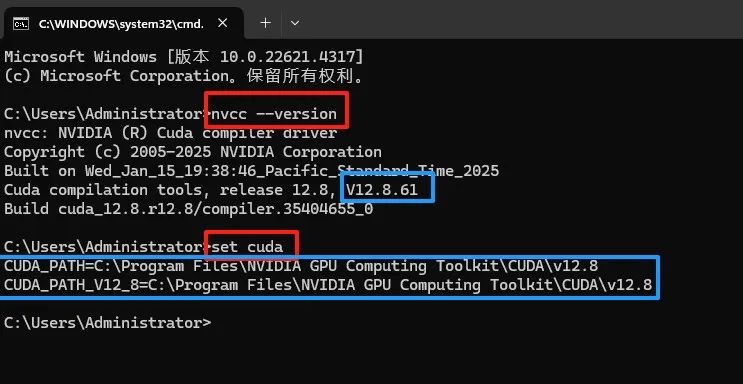
Win+r to open the Run window, type "cmd" to open the command line window.
Input "nvcc -version", you can check the CUDA version number, the current version number is V12.8.61, that means CUDA installation is successful.
Then type "set cuda" to see if the environment variable is set.
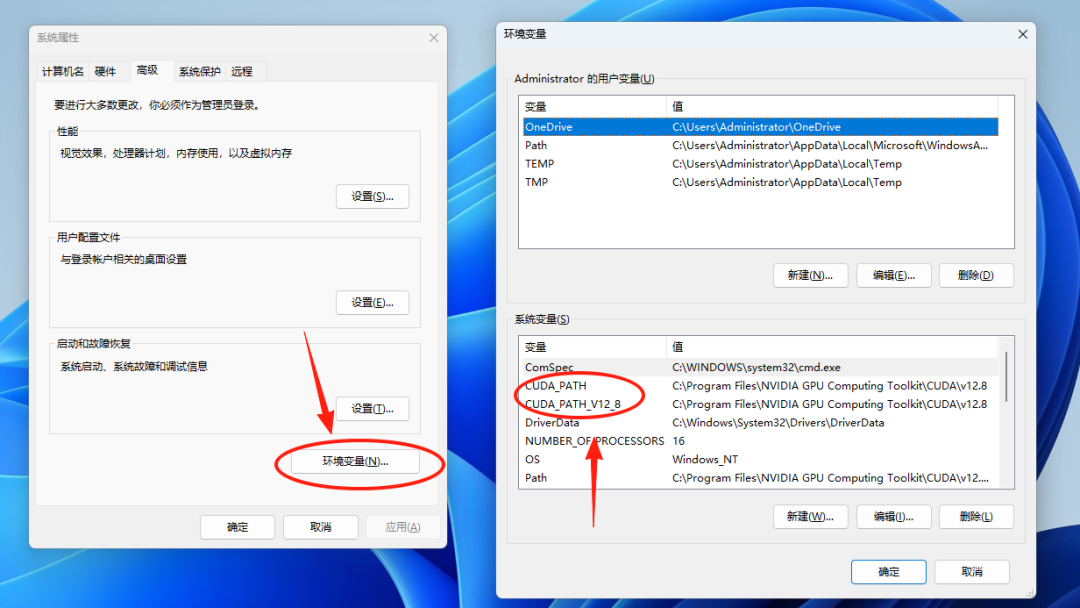
You can also check to see if the environment variables have been set by doing the following:
Right click on my computer -> Properties -> Advanced System Settings
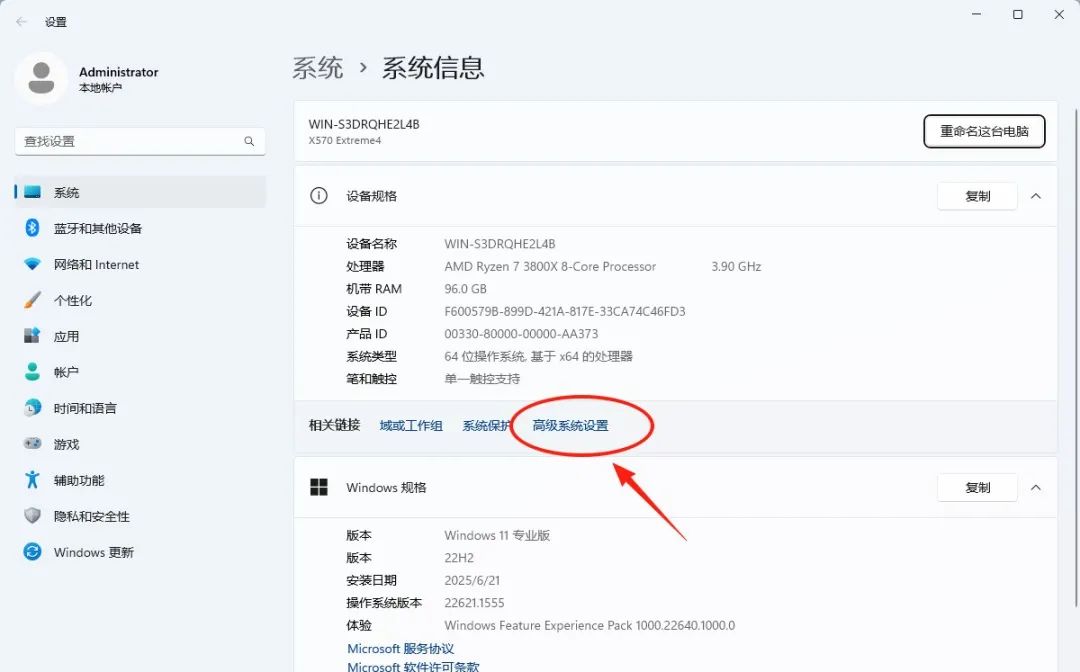
Click on Environment Variables and see that CUDA has been added to the system variables
II. Installation of cuDNN
CUDA should be used in conjunction with cuDNN.
The version number of cuDNN should be equal to or less than the version number of CUDA
cuDNN URL:
https://developer.nvidia.com/rdp/cudnn-archive#a-collapse897-120
Since we installed CUDA version 12.8, the corresponding cuDNN should be installed with version 8.9.7.
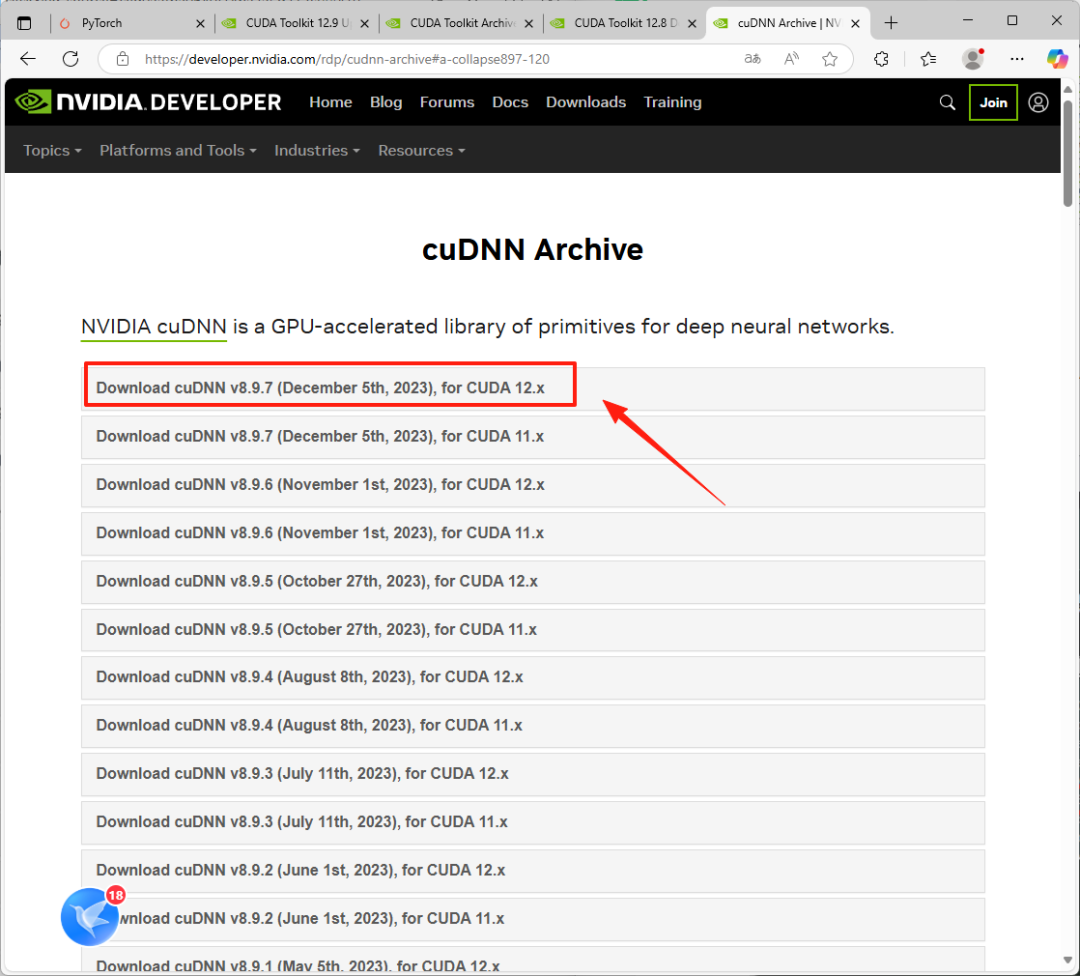
After clicking on the link for version 8.9.7, download the first local an zip file.
You need to log in before you can download it, just register with any email address and log in.
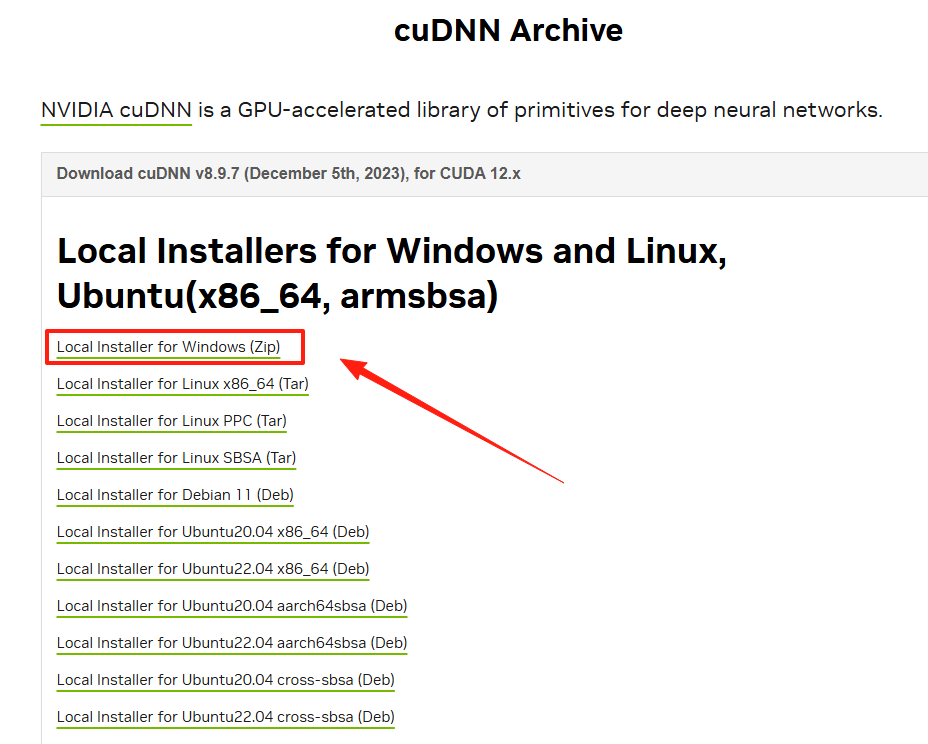
After downloading and unzipping, you get some files
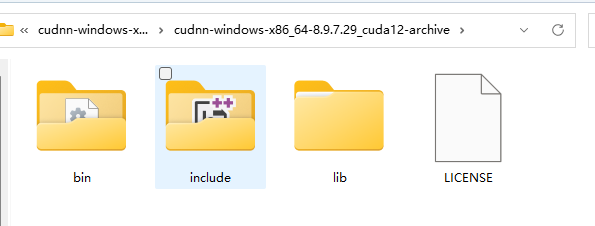
Copy these files and paste them into the CUDA path you just made, replacing the original files
The default installation path for CUDA is:
C:\Program Files\NVIDIA GPU Computing Toolkit\CUDA\v12.8
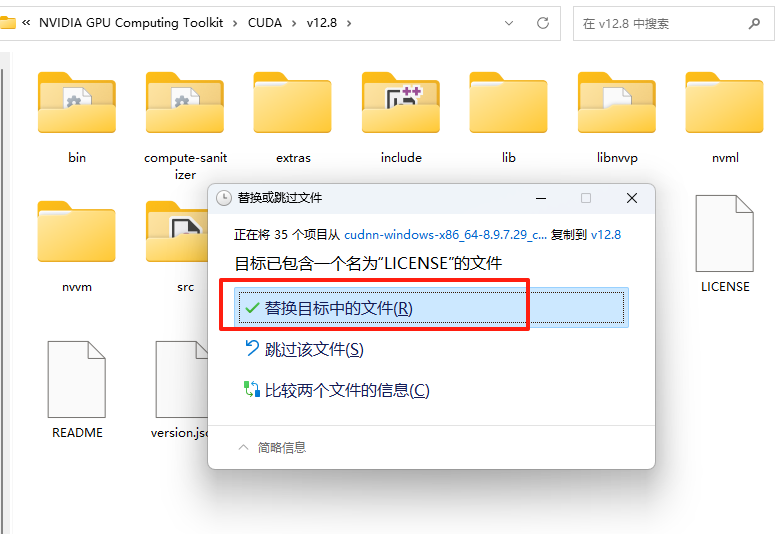
After the copy is complete, the cuDNN installation is successful.
III. Installing PyTorch
Going back to the PyTorch page just above, notice the two circled parts in the image below, the circled part above means that Python must be 3.9 or later
If you don't have python on your computer, you can install a
python:https://www.python.org/
The bottom part is the pytorch installation command, copy it
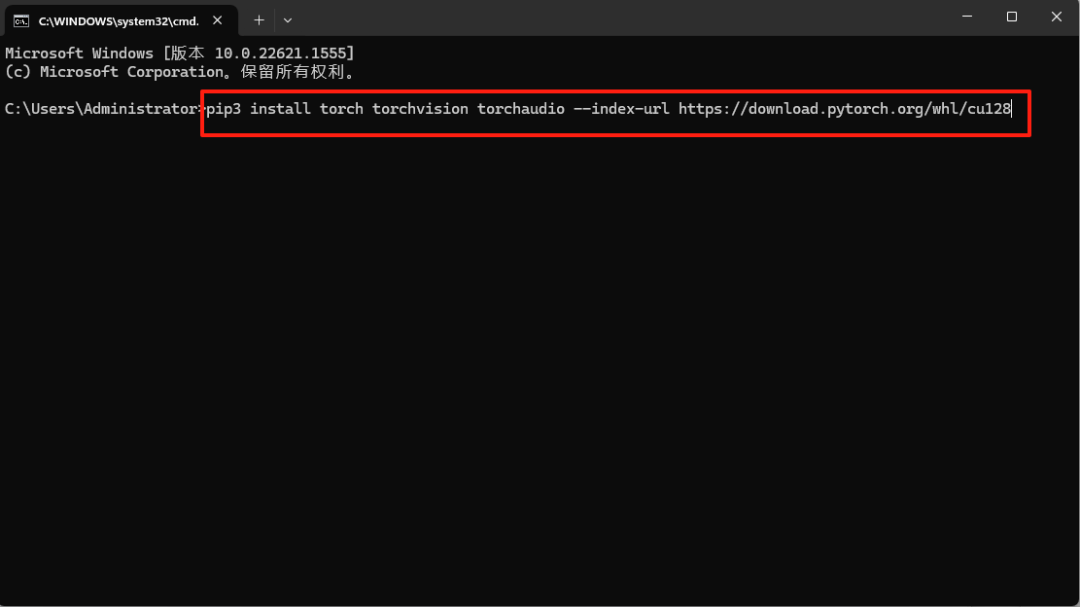
Bring up the command line tool, paste the command you just copied, and hit enter.
pip3 install torch torchvision torchaudio -index-url https://download.pytorch.org/whl/cu128
Wait patiently for the installation to complete
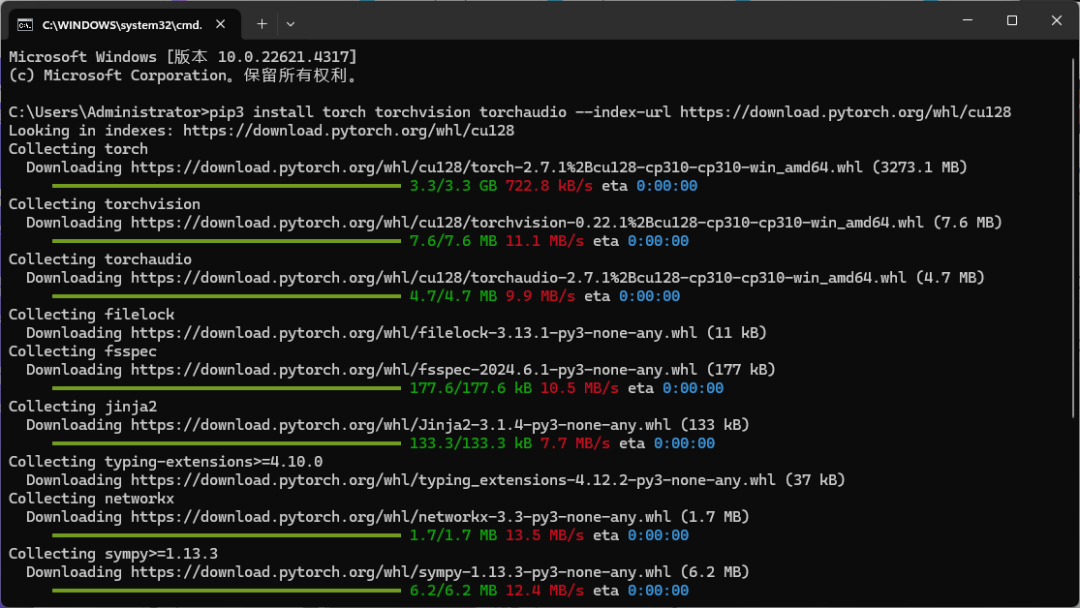
Now that CUDA, cuDNN, and pytorch are installed, it takes a lot less time to run the kontext workflow.

Four, other advanced settings of the Autumn Leaf starter
In fact, Autumn Leaf Launcher has a lot of useful functions integrated into it, and will use it to bring us a lot of convenience.
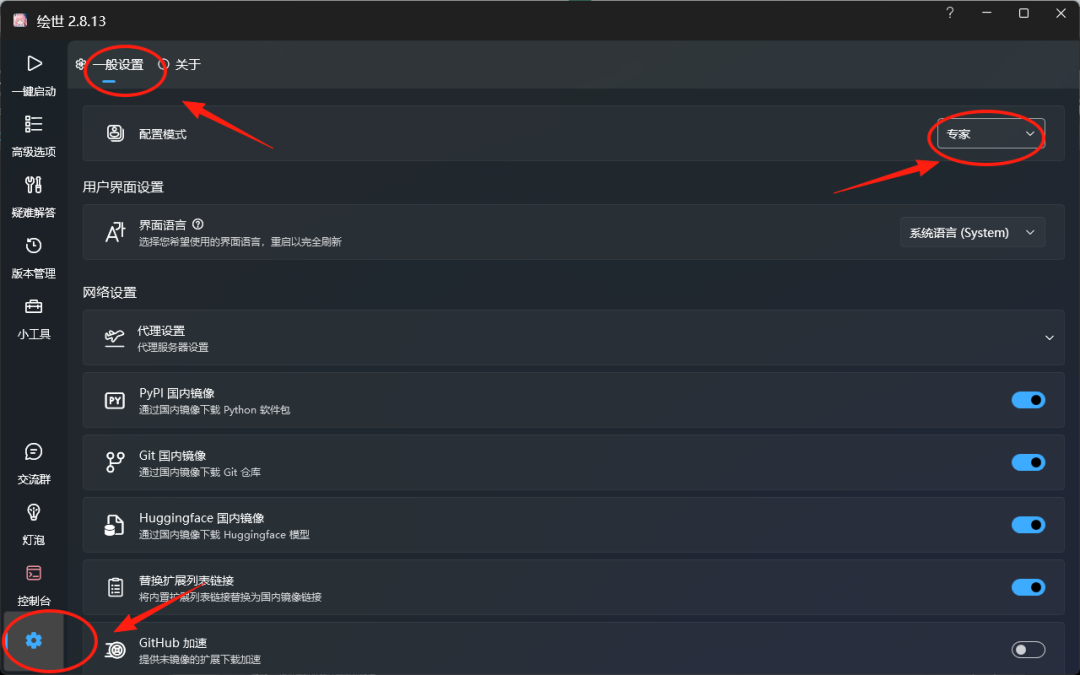
Enter the expert mode according to the following figure: Click on the lower left corner Settings->General Settings->Expert Mode
1. Change the default browser
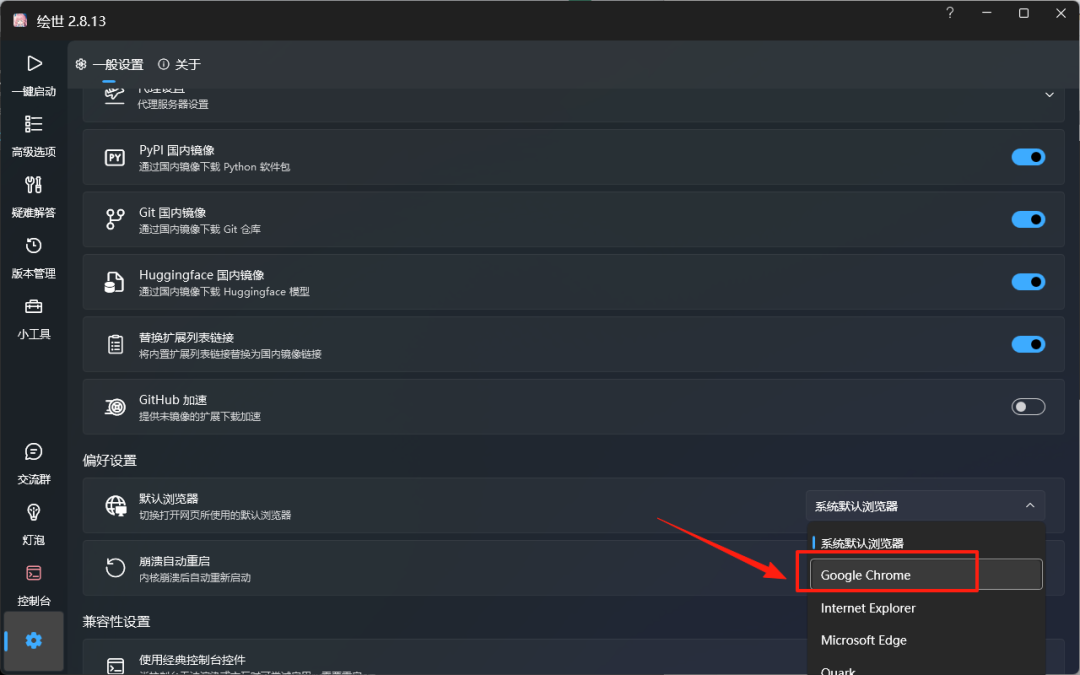
Google Chrome is recommended here because it is the most stable browser, and if you don't have one in your computer, it is recommended to download one.
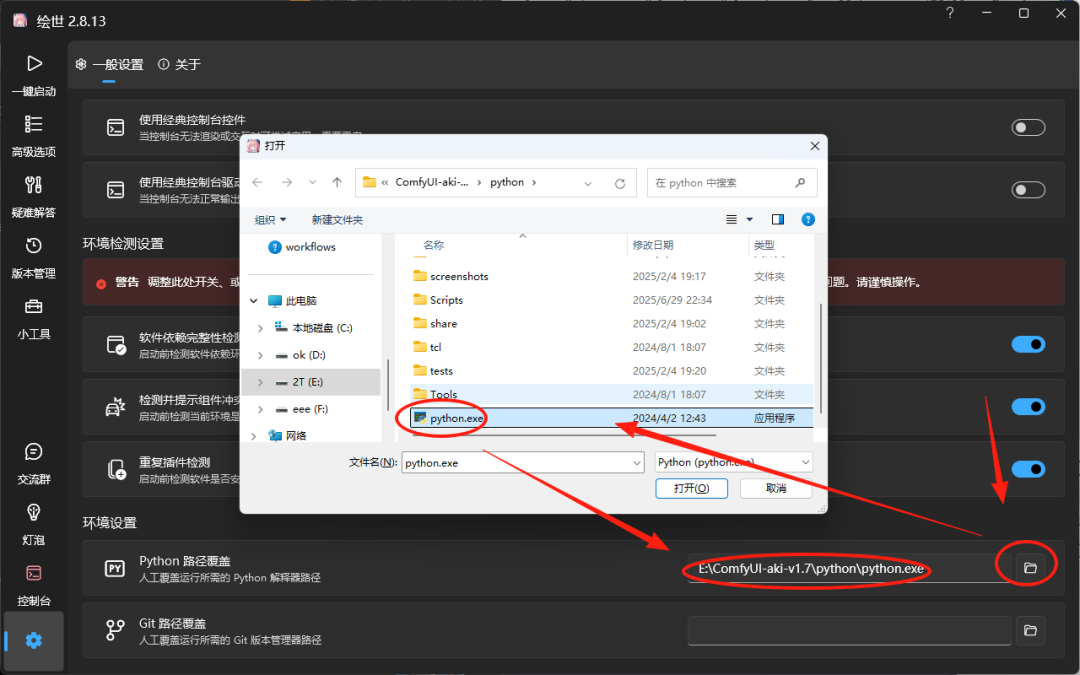
2. python path override
Set the path to python in the installation package as shown below
2, check whether to install transformers and huggingface
Go back to the python folder in akiba comfyui and type cmd in the address bar and enter to bring up the command line.
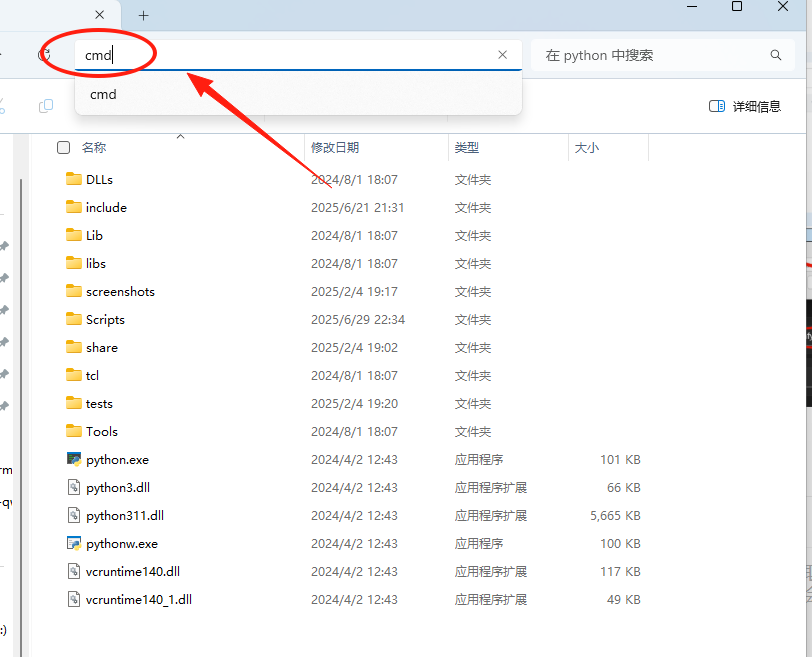
Enter the command: python.exe -m pip show transformers
This command is used to check if transformers are installed.
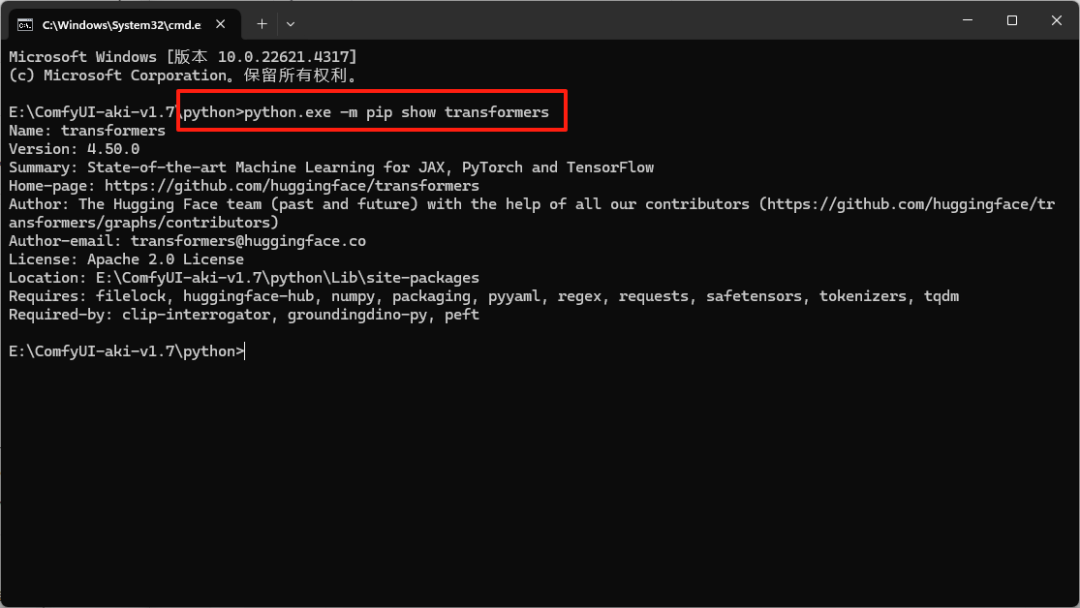
I have this one already installed. If yours is not installed, enter the following command to install it:
python.exe -m pip install transformers
Next, check if huggingface is installed by typing the following command
python.exe -m pip show huggingface_hub
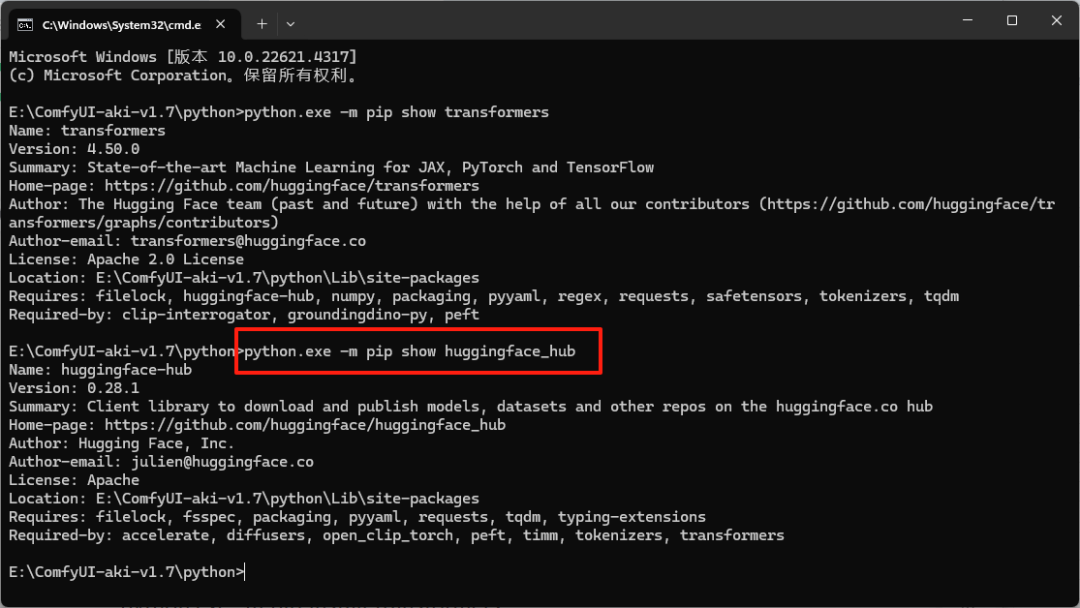
I have this one already installed. If yours is not installed, enter the following command to install it:
python.exe -m pip install huggingface_hub
3. Use the same method to set the git path override
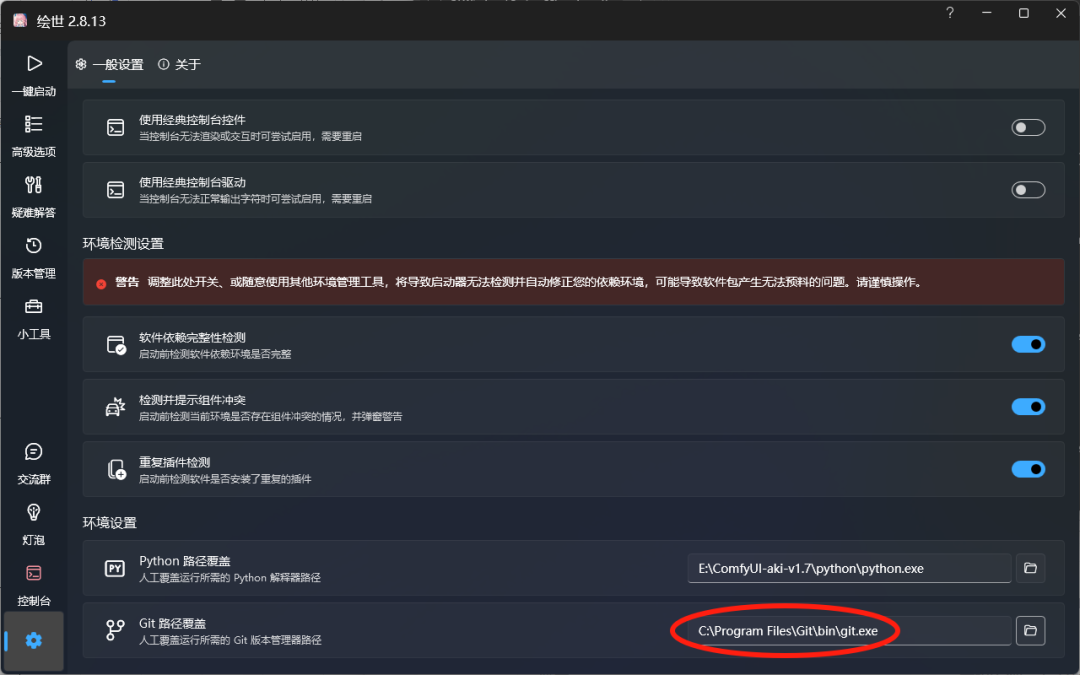
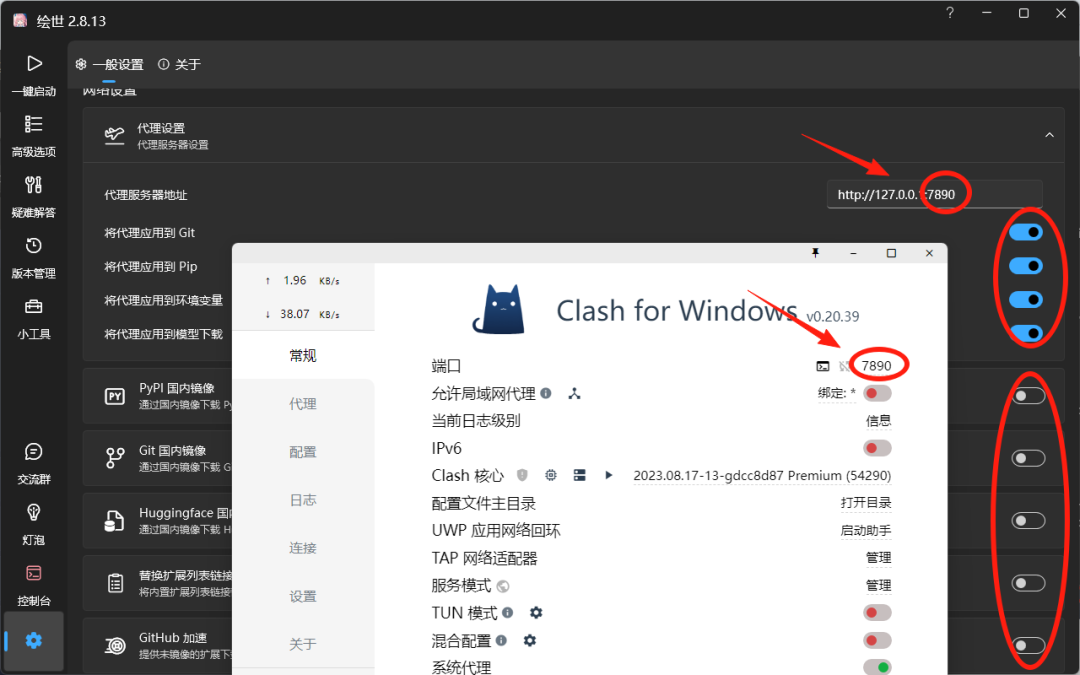
4. Setting up a web proxy
Make sure the port number is the same when setting up the web proxy
Then turn on the four switches behind the proxy and turn off the mirroring switch
Final Thoughts
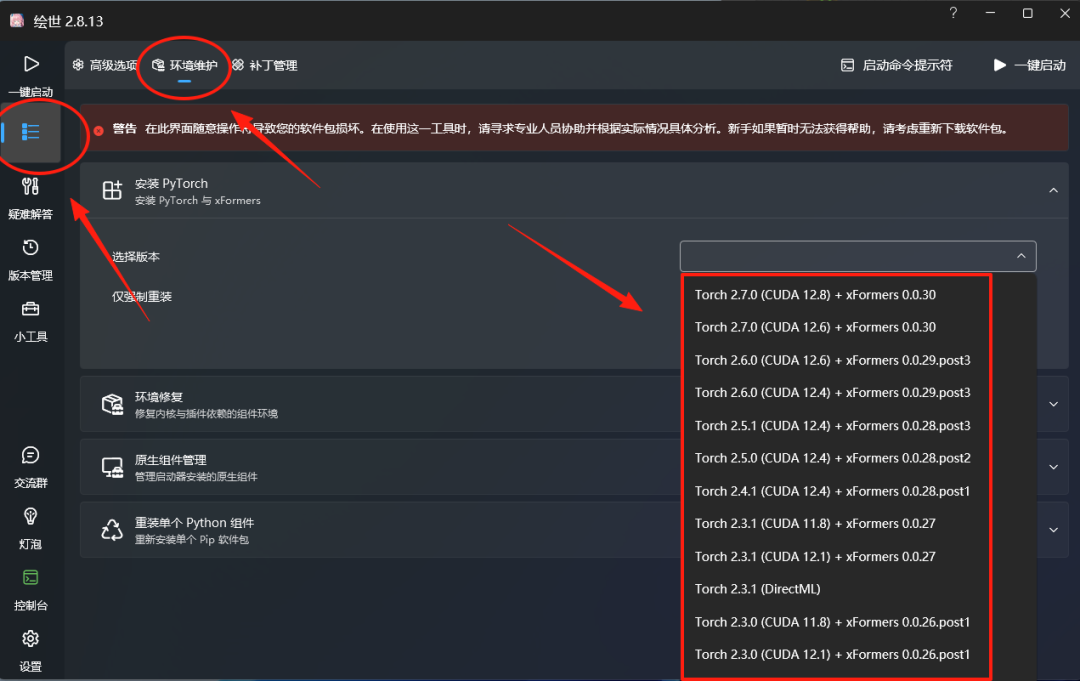
In fact, the GUDA, PyTorch and xformers installation methods we talked about today can be easily done in the Autumn Leaves Integration Pack.
Find "Advanced Options -> Environment Dimension -> Install PyTorch" in the Autumn Leaves Integration Pack, and just click on the desired version for a no-brainer installation.
Of course, you'd better make sure which version your computer supports before installing it as I mentioned above.
That's all for today, I hope you find it helpful.