



When you see a really awesome ComfyUI WorkflowHowever, after downloading it, I found that it doesn't work, like the following.
First there's a huge alert box telling you that nodes are missing.
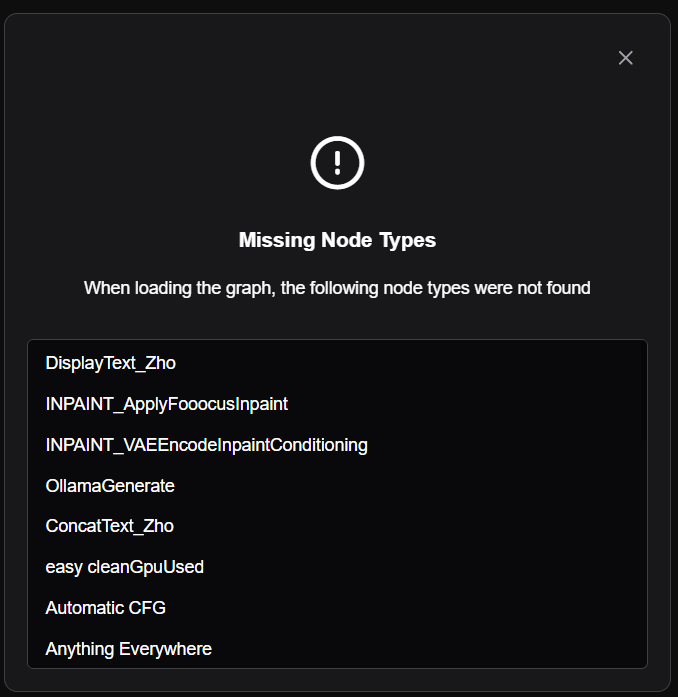
After forking this prompt box, it's a whole bunch of red boxes and the whole workflow doesn't work at all.
What is this about?

The reason for this problem is that this workflow uses a lot of nodes of the developer's own design.
ComfyUI is a very flexible and open system, these designers design their own nodes to give ComfyUI more and more powerful functions.
These nodes, designed by the designer himself, are the "Custom Nodes" in ComfyUI.
Custom nodes in ComfyUI are like various plug-ins in webUI, they make ComfyUI more efficient, rich and powerful.
The workflows posted by the very best on the web use different custom nodes, and if you want to use their workflows, you have to have those nodes installed on your computer as well, or else you like above, you won't be able to open those workflows at all.
Solution:
The easiest way to fix missing nodes is to press a button.
You can install the missing custom nodes with one click by clicking "Manager" -> "install Missing Custom Nodes" in the upper right corner.

I. Installation method of nodes:
Under the installation directory of ComfyUI, there is a "custom_nodes" folder, this is the folder where the custom nodes are stored, just download the custom nodes and store them here to enable node installation.
1、Git Download
First, you need to have Git installed on your computer, and then type "CMD" in the address bar of "custom_nodes" and enter to bring up the command line.

Then type git clone + custom node address on the command line and hit enter.
E.g. "git clone https://github.com/Kosinkadink/ComfyUI-AnimateDiff-evolved"

Seeing the prompt below indicates that the download is complete .

At this point, go back to the folder and you'll find the node folder already downloaded.

2. Go to the Github repository to download
Open the node's page in the github repository and download it directly by clicking the download button.
The download is a zip file, unzip it and put the files in the "custom_nodes" folder.

After the installation is complete, restart ComfyUI, right click on the blank space in the workspace -> New Node, you will find the new node you just installed is already in there.

3. Comparison of the two installation methods
It is recommended to install the node through the Git download method, because the Git download can record the node's repository and version information together, and you can easily update and upgrade the node with the Git pull command in the future.
The way to download the zip from the repository, if you want to upgrade later, you have to download it again manually using the same method.
II. Node management tool: ComfyUI Manager
In essence, ComfyUI Manager is also a node, but it is almost a must-have node for ComfyUI, as it allows downloading, managing and updating other nodes of ComfyUI.
1. Installation method:
git clone https://github.com/ltdrdata/ComfyUI-Manager

After installing and restarting ComfyUI, you will see a blue "Manager" icon in the upper right corner of the interface, click on it to open the Manager's menu.

2、How to use Manager Menu
Click on "Custom Nodes Manager" in the top center to open the list of all custom nodes developed by the developer

This is like the WebUI plugin installation list, where you can search for the node you want to install (1327 custom nodes have been retrieved so far), and restart ComfyUI once it's installed.

2. One-click installation of missing custom nodes
One of the extremely favorite features of Manager is that when you open a workflow with missing nodes, it can install the missing nodes with a single click.
Under "Custom Nodes Manager", there is a "Install Missing Custom Nodes", click it, it will automatically search for the missing nodes in the node list of the current workflow. Then click to install them one by one, remember to reboot after installation.
