



Today's hands-on guide takes you from 0 to hand-rolling a very simple but no less practicalAgent(Agent), consider it for everyoneAI AgentAgent Basic Introductory Class is up!
Since we are learning Agent, what we need to do is to know what exactly is Agent first, the so-called Zhi Zhi Li Xing, theory is always the forerunner of practice.
At this stage, the number of mainstream intelligent body development platforms at home and abroad is not a few, like the domestic byte jump'sCoze(Buckle development platform), foreign Dify, FastGPT, n8n and so on. But when it comes to one of the most easy to get started, the interface is the most friendly, when it comes to Coze, which is also my current contact with the most development platform, that today I will Coze platform as a hands-on carrier, for which specifically registered a new account to take you to get started with Agent!
Coze Brief Introduction
(Those who already have a general understanding of or exposure to Coze can simply skip this section)
Here's a short paragraph to take you through Coze and get you up to speed.
- Coze is a zero-code or low-code intelligent body development platform launched by ByteDance, based on its big model technology, providing core capabilities such as plug-in system, long and short-term memory, workflow orchestration, etc. It supports multi-modal interaction (text/speech/image) and multi-platform publishing (e.g., Doubao, Flying Book, Discord), and focuses on constructing intelligent body applications for scenarios such as personal assistant, e-commerce customer service, and content generation.
Coze website: https://www.coze.cn
When you go to the official website, you will first go through the same old boring login/registration process, and then go to the Coze homepage, but in fact, in the whole Coze platform, the one we use the most frequently is the "Workspace", which is located in the second position of the left side menu bar.

In the Workspace, we need to understand the Project Development and Resource Library interfaces.
- You can think of the "Resource Library" as the place where we build our tools, and the "Project Development" as the place where we put together complete products based on our tools!
However, when we go to these two pages, we can see some categorized options (especially in the "Resource Library") through the drop-down menus.
At this point, do not panic, since it is a primer, we will certainly not use so much for the time being, the main need to understand and exposure to the following I have boxed out a few for you:
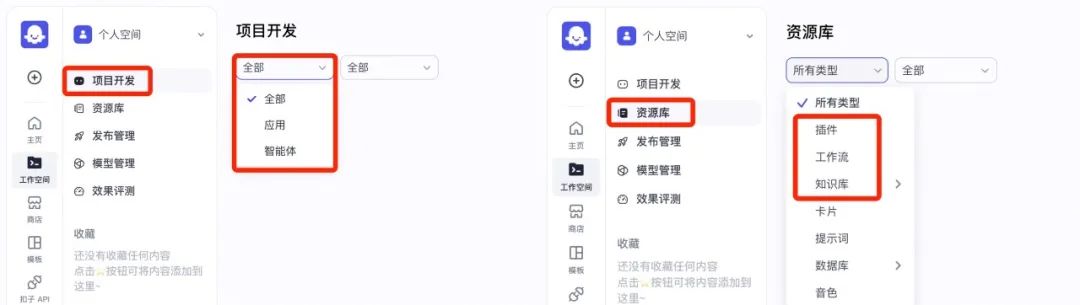
Yes, these are concepts that we need to understand the distinction.
First of all, let's briefly distinguish the meaning of the so-called "application" and "intelligent body", this time in fact do not need to carry out a very troublesome search, find, listen to what explained, in fact, in the official document of the Coze platform has a clear out of these two concepts of specific In fact, the official documentation of the Coze platform has clearly defined these two concepts and made them very clear:
- Intelligent Body: A dialogue-based AI project which receives user inputs by means of a dialog, and a large model automatically invokes plug-ins or workflows, etc. to execute the business process specified by the user and generate the final response. Intelligent customer service, virtual companions, personal assistants, and English tutors are all typical application scenarios for intelligent bodies
- AI application: refers to an application developed using big model technology. The AI application built in Buckle has complete business logic and visualized user interface, and is an independent AI project. The AI application developed in Buckle has clear inputs and outputs, and can complete a series of simple or complex tasks according to the established business logic and process, such as AI search, translation tools, dietary records, etc.
Similarly, the concepts in the repository are explained in the documentation:
- Plug-in: A plug-in is a toolset that can contain one or more tools (APIs) within a plug-in
- Workflow (Workfiow): Used to handle requests for functional classes, which can realize a certain function by sequentially executing a series of nodes. Suitable for automated data processing scenarios, such as generating an industry research report, generating a poster, creating a picture book, etc.
- Knowledge base: The knowledge base functionality consists of two capabilities, the ability to store and manage external data and the ability to enhance retrieval
Of course, do not know what is the specific API friends can also look at this article [understand these 8 concepts, you are also half of the AI industry! In the part that explains "RAG", it also includes the content of the knowledge base.
See here I believe that all need to understand the concept of the front you have been aware of, the theory is over, we start hands-on, the process of encountering do not understand, we then see the trick!
Super Simple Intelligent Body Building
Above the definition of "workflow" mentioned: workflow can be achieved through the sequential execution of a series of nodes to achieve a certain function, the other way around can be obtained: we want to achieve the function of standardization of the process of scheduling, and finally the formation of a workflow (program), and this workflow, as long as we put forward the demand, you can be to the pipeline! Like the implementation of our programmed operations to achieve the final function, so as to solve our needs, and in the process of running the workflow, we do not have to care, you can go to drink coffee to dry clothes, and even if you object in the side of the words, of course, you can also choose to wave a mouth [head of the dog] (ah, there is no object of the friend as I did not say anything Ha [in fact, I have no object ...]). ]).
So in the Coze platform, we can think of intelligences as encapsulating multiple internal AI workflows (or one, of course). After all, intelligences are there to help us solve various needs, and the ability to solve needs stems from the standardized workflows we've choreographed.
Since this is the case, we need to clarify what functions the intelligent body we are going to build has, combined with the degree of ease of use, practicality and the length of the article and other reasons, I will build a keyword according to the network of related news information retrieval and summarization of a simple intelligent body as a demonstration.
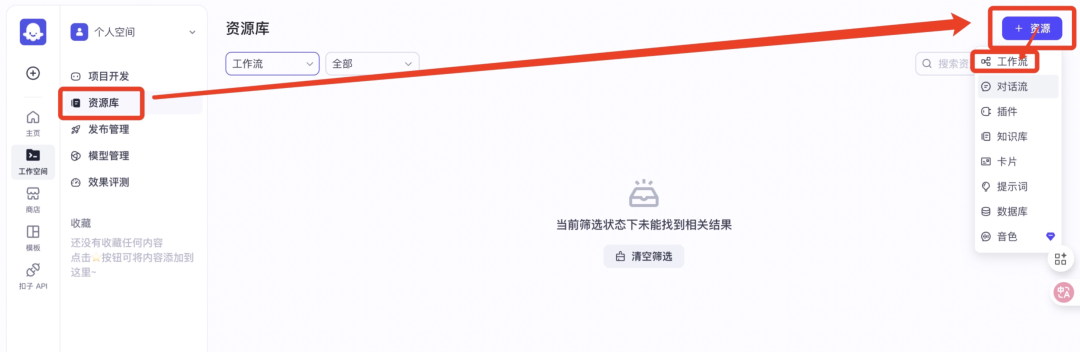
So all we need to do now is to build a workflow that implements the appropriate functionality. First, move the cursor to "+Resources" in the upper-right corner of the repository and click on Workflow to create it:
Next we need to name this new workflow and fill in the functional profile of the workflow, here Coze has some constraints for naming:

Combined with the functions that the intelligences we are going to build fulfill, I fill in the information as follows, and then we go to the workflow authoring interface:

The first thing that comes to mind is the default "Start" and "End" modules (nodes), which correspond to the "Input Requirements" and "Output Results" functions. In fact, they correspond to the two functions of "Input Requirements" and "Output Results" respectively, which is very easy to understand.
Next we need to organize our thoughts and see how many steps we can roughly break down to achieve the corresponding function (i.e., retrieve the summary):
- 1. Enter the keywords corresponding to the information we want to query, such as "Agent", "Artificial Intelligence";
- 2. Intelligent body retrieves and matches the huge amount of information on the Internet according to our needs;
- 3. The intelligent body refines and summarizes the final retrieved and screened information;
- 4. Output the final result.
The first "Input" and the last "Output" correspond to the default functions of the two nodes in the interface.
In addition to this, we need to finish orchestrating the second and third point processes, so we need to add these two more nodes.
How to add! It's easy:
Let's start by adding the first one, the node that can retrieve information based on our keywords, which belongs to a plugin that is built into the Coze platform:
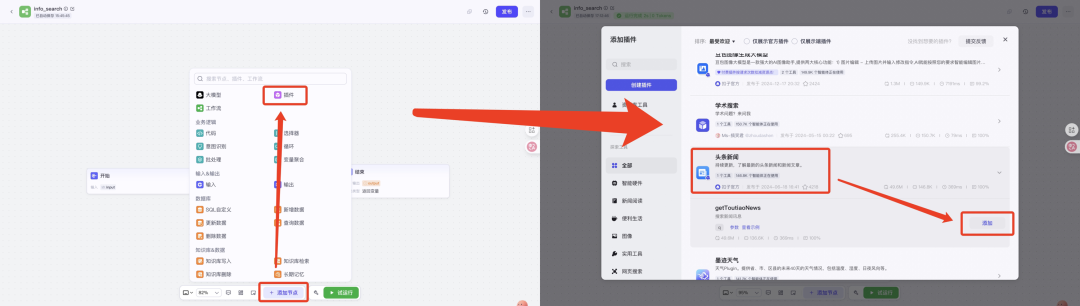
Then add a second node, the function of this node is to be able to retrieve the information for the distillation of the summary, because we always do not want to Agent ultimately for us to return the results of each time is a long piece.
See here, if it is usually often will use some of the big models of friends, it will be easy to think that this is the strong point of the big models, and I in [read these 8 concepts, you are also half of the AI industry people! also mentioned in the big model in a sense is considered the brain of the Agent, so here we need this node, it is not a plug-in, but a direct call to the big model:
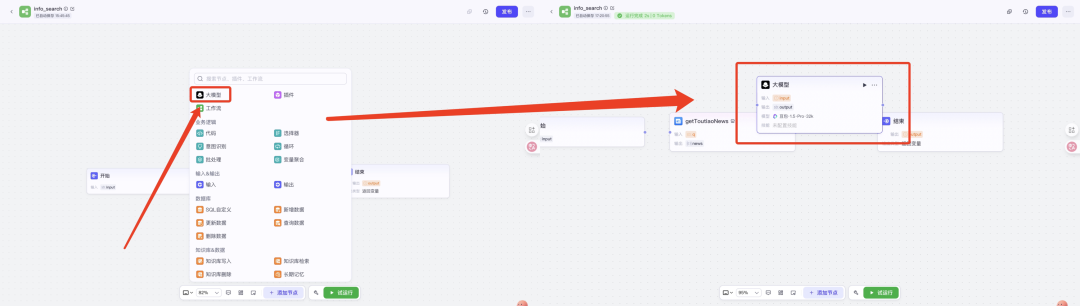
Just click on it like this and the "Big Model" node will be loaded in the interface.
By now, we have four node modules in our authoring interface, namely "Start", "getToutiaoNews", and "Big Model", "End":

What we need to do next is to link these modules together, like this:

(Move the cursor to the end of the previous node, then hold down and drag to connect to the front of the next node to connect)
To this step, some may not have contacted the Agent friends will think that this workflow is not a great success?NO, in fact, we have just completed the most basic node orchestration, the next we also need to set up each node accordingly, let's come one by one:
"Start" node:
We click directly on the "Start" node to go to the right side of the edit field:
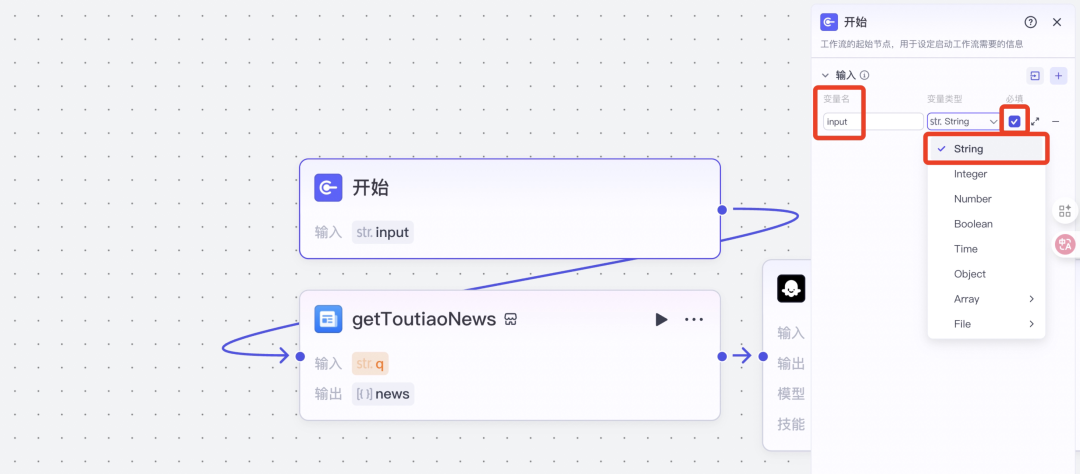
Here we need to understand a few concepts: variable name and variable type (do not panic, although this is programming will often appear in the concept, but does not require us to do their own hands to knock the code), can be as simple as the following:
- Variables: can simply be understood as data, information
- Variable type: the specific data type of the content we enter into this workflow at the beginning (e.g. text, numbers, images, web links, etc.)
- Variable name: the name given to what we type in
As the saying goes, if the key lock pattern is the same, it can be opened. Type fit is a prerequisite for function realization. So at the very beginning we must choose the right data type, otherwise the subsequent nodes may not work properly because of different data types.
Because the function of this workflow is to retrieve information based on the keywords we provide, so in the beginning we enter the data is the keyword (that is, text), here you need to select the "String" variable type.
- String: translated as string, is a text type variable used to store a sequence of characters (e.g. words, numbers, symbols, etc.)
For the variable name, we can use the default "input", but to avoid confusion in subsequent nodes, you can reset a short one, such as "Key" (but remember that it can not be Chinese).
Now we have finished setting up the "Start" node.
"getToutiaoNews" node:
Next is the editing for the second node - according to what we mentioned above, the function realized by this node is to retrieve the matching information on the web based on the keywords we entered.
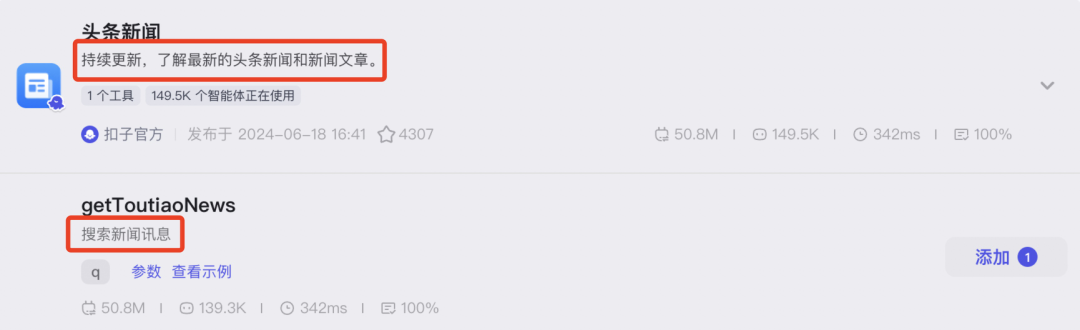
We continue to click on the node as before to enter the corresponding edit screen:
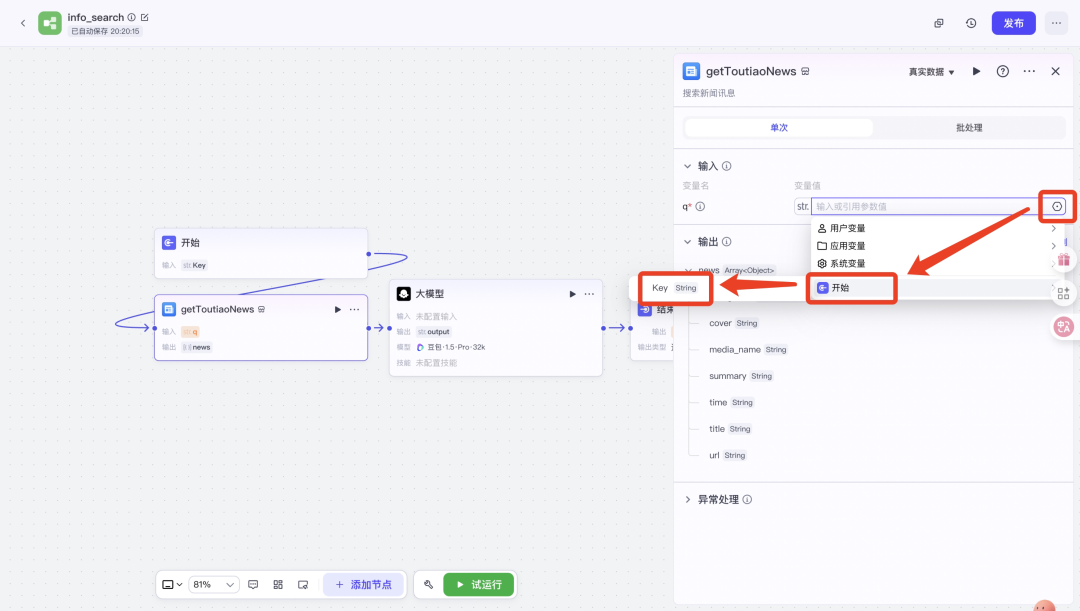
First of all, you will see that the editing interface is generally divided into the "Input" area and the "Output" area, which is actually very easy to understand: since this node is based on the keywords we input for information retrieval, where do the keywords come from? That's right, every time we enter a keyword, it is encapsulated in the "Start" node as a variable called "Key", so this variable needs to be passed into this node (which corresponds to the "Input" area). Input" field).
Now you need to follow the steps I pointed out in the image above, select the variable we set up in the "Start" node, fill in the node's "Input" area, so that the node can know what keywords we need to search for each time.
In fact, to this point for the node setup is basically complete, but we still need to be clear about the content of its output is what, or rather, a news contains what information:

Of course, if you are still not sure whether it can retrieve the corresponding news information for us, you can also choose to disconnect the "Big Model" node at the back and connect it to the "End" node directly, and specify the output variables in the "End" node (that is, the information retrieved according to our keywords in the second node), then click the "Test Run" button at the bottom of the interface, and you can run it separately. "End" node in the output variables to specify (that is, in the second node according to our keywords to retrieve information), and then click on the interface below the "test run" button, you can test these three nodes individually:
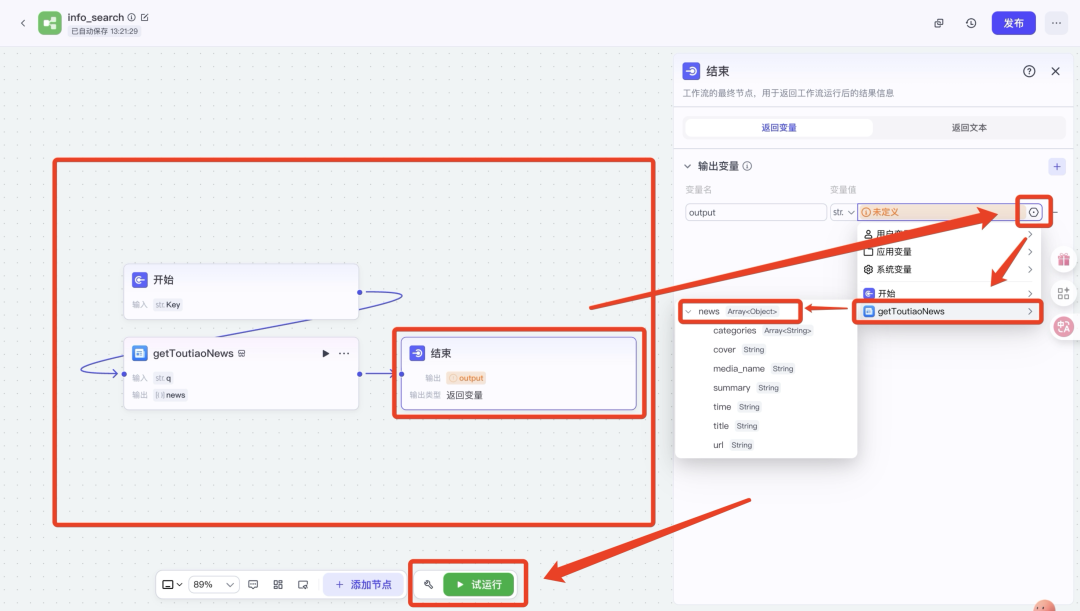
(Disconnecting nodes from each other: mouse over the last port [i.e., the arrow end] of the line connecting the nodes, and then just move it away)
After clicking "Trial Run", the following screen will pop up, where we will be asked to enter a "Key", which corresponds to the "Key" we have encapsulated for each keyword we have entered in the "Start" node. which corresponds to the "Key" we encapsulated in the "Start" node for each keyword we entered.

Here I enter "Lei Jun" for example, and then click the "test run" below:
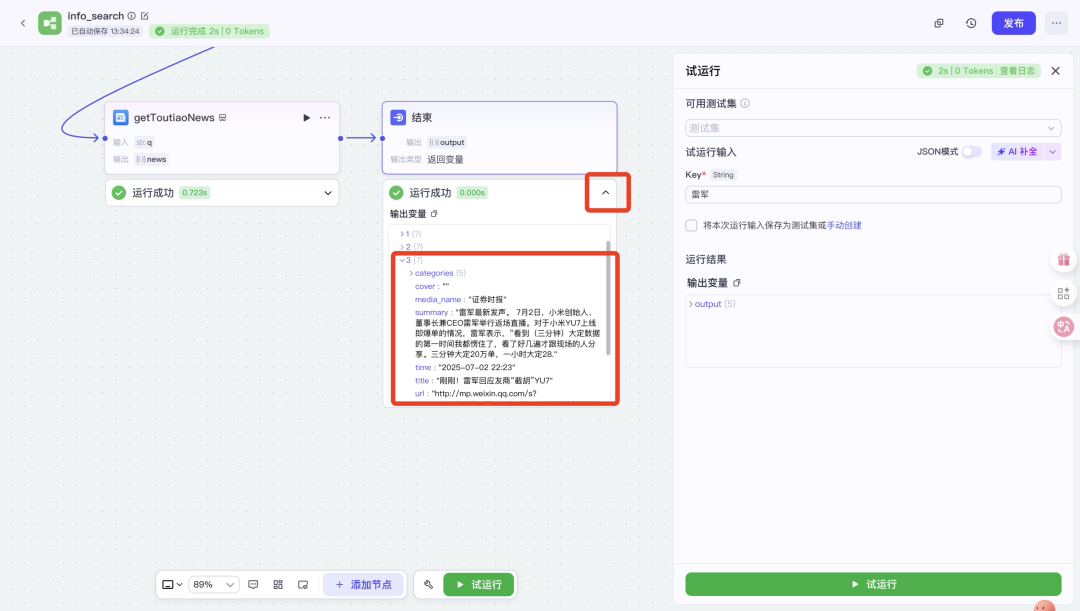
If it runs successfully, the "end" node will eventually output some recent news information related to "Lei Jun", which we can click to view, or even copy the URL detailed in the "url" to enter the corresponding page. or even copy the detailed URL in the "url" to enter the corresponding page.
"Big Model" node:
Once the above nodes are functioning properly, we revert to the previous four nodes and set up the third node (i.e., the "Big Model" node).
In this simple workflow consisting of four small nodes, the setup of this node is the most complex (but actually very simple), as usual, we first click on the node's edit screen:

Here we need to understand and set up the main "model", "input", "system prompt word", "user prompt word "Output", "Model", "Input", "System Prompts", "User Prompts", and "Output".
The "model" we need to choose the big model we want to call, according to the function we want to achieve (or what we want the big model to do) to choose, and "input" and "output The "inputs" and "outputs" do not need to explain too much, that is, the information received by the node and the final processing out of the content.
The two concepts of "system prompts" and "user prompts" are two concepts that we need to make a good distinction between, let's first look at the official explanation given:
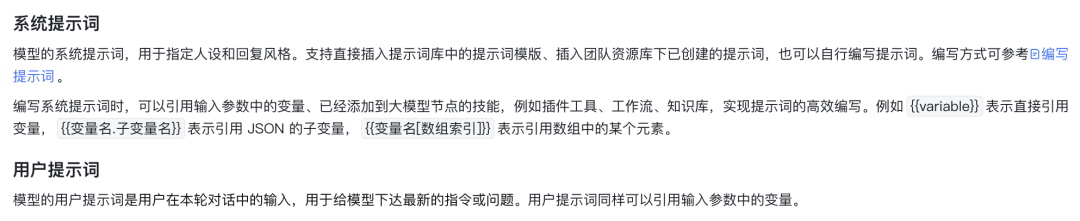
Translated into human language it is:
- System cue word: identity setting and normative requirements for AIs
- User prompts: execution instructions given to the AI by the user (i.e., us)
Once we have a clear understanding of the relevant concepts involved, we can begin to make specific settings:
- For the "model": Here I will take the default "Beanbag-1.5-Pro-32k" as an example for demonstration;
- For "input": we need to click on the small plus sign "+" to add an input variable, and through the previous node settings you should know that the output from the second node (i.e. " getToutiaoNews");
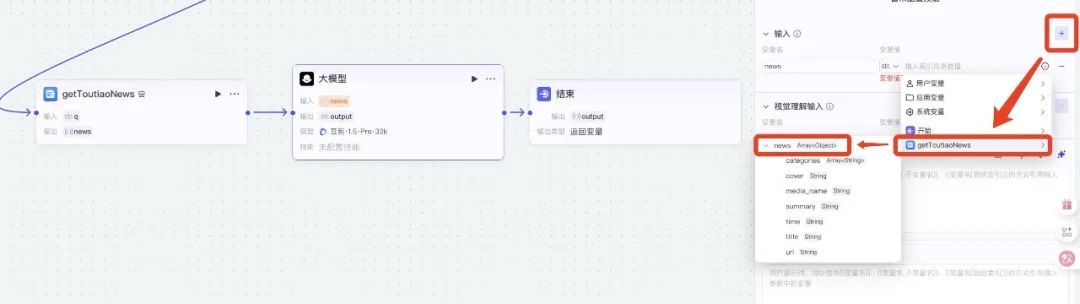
- For the "system prompt word": for professional system prompt word, relatively speaking, it will be more complicated (need to do some professional settings and detailed restrictions), but here as a sample demonstration for most novices, so there is no need to do too much complex description, here I give my prompt word text sample content:
- Summarize the news content, just return to the time and overview of the main content of the results, do not be long, short
- For "user prompts": again, give me the content of the prompts:
- Summarizing {{news}}
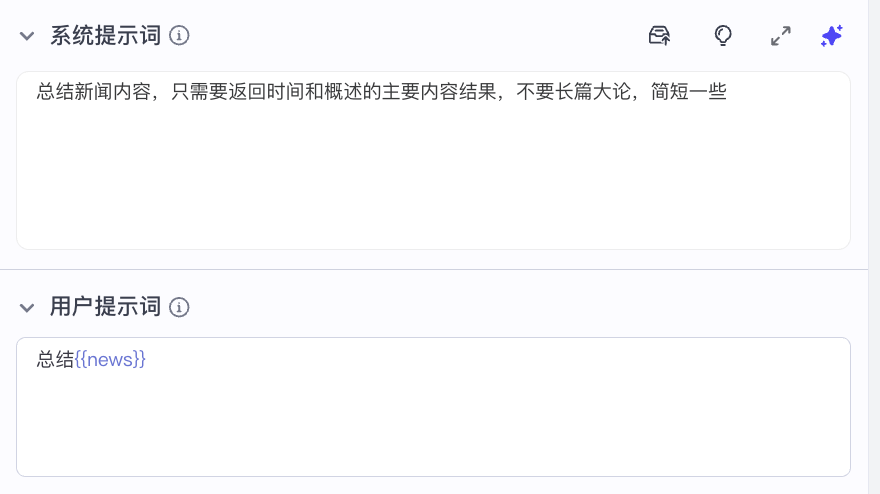
- (The two prompt word boxes can be used with "{{}}" to refer to variables present in the workflow)
- For "output": keep the default "String" variable type, the variable name can be changed according to your own ideas, I just keep the default "output I'll just keep the default "output" here.
This is how we set up our "Big Model" node.
"End" node:
The last node we have to set up is as simple as the one we set up in our test session above, this time we just need to change the output variable to the processing result from the "Big Model" node, i.e. "output":
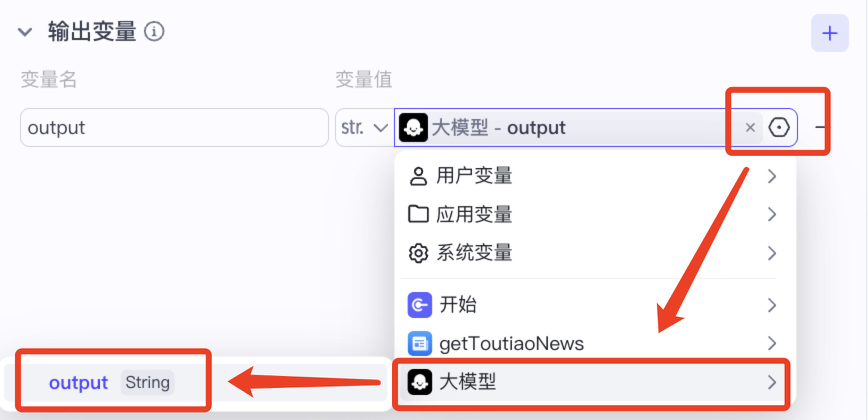
So far, we have completed the construction and setup of this workflow, and the next step is to test it:
Again, let's click on the "Trial Run" button at the bottom of the interface, and this time we'll type in "Musk" to see what kind of results we get:
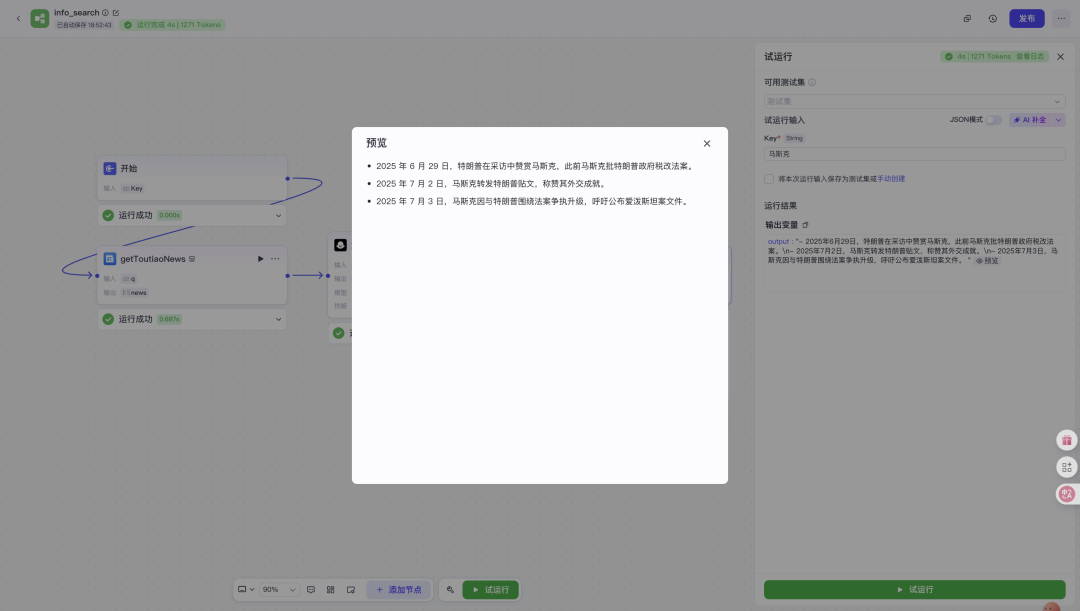
As you can see, our workflow works fine and outputs the appropriate news overview as we requested.
Now we click on the "Publish" button in the upper right corner of the interface, then a small interface will pop up, in which a version description is required (fill in the roughly):
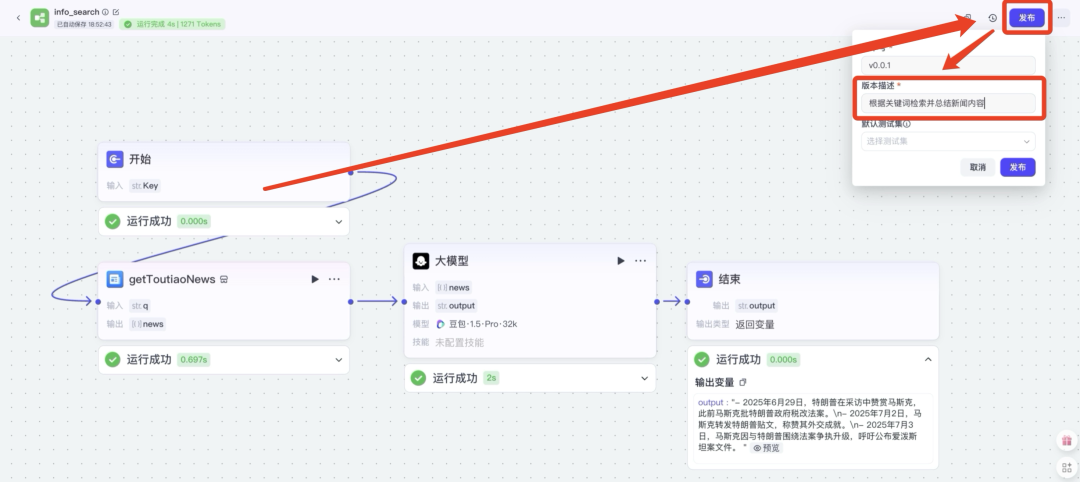
Once published, we can view the workflow we built in the repository, which is equivalent to a successful save:

Here on the workflow of all the work has been completed, the next step we want to integrate this workflow into a "shell" (we can be roughly so that the analogy of a "shell") in the final result is what we want Agent.
The specific steps are as follows:
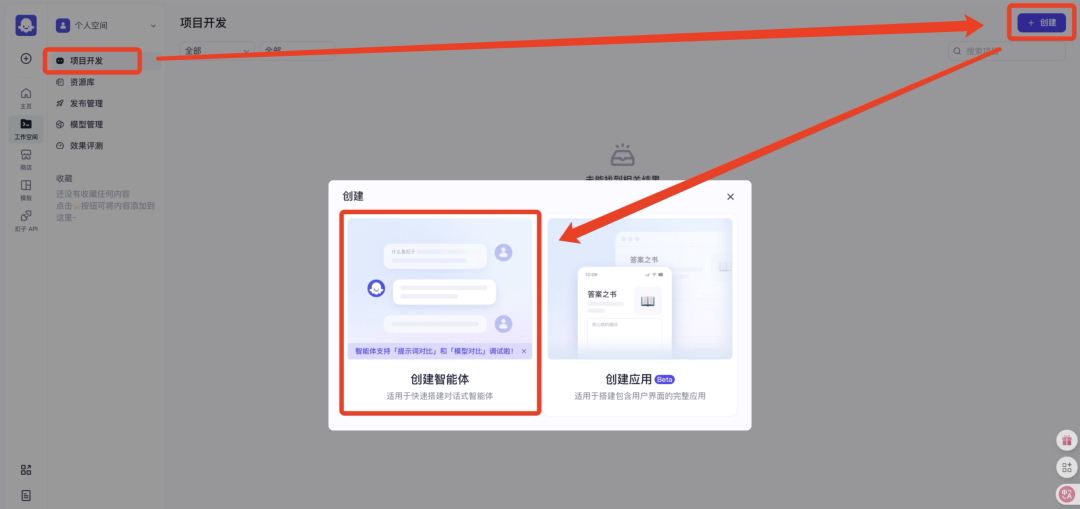
First, we switch from "Resource Library" to "Project Development", click the Create button in the upper right corner, and select Create Intelligent Body:
Then a small window will pop up for you to fill in information about the intelligence you will be creating, including the name and profile, and of course, you can change the icon for that intelligence at the bottom:
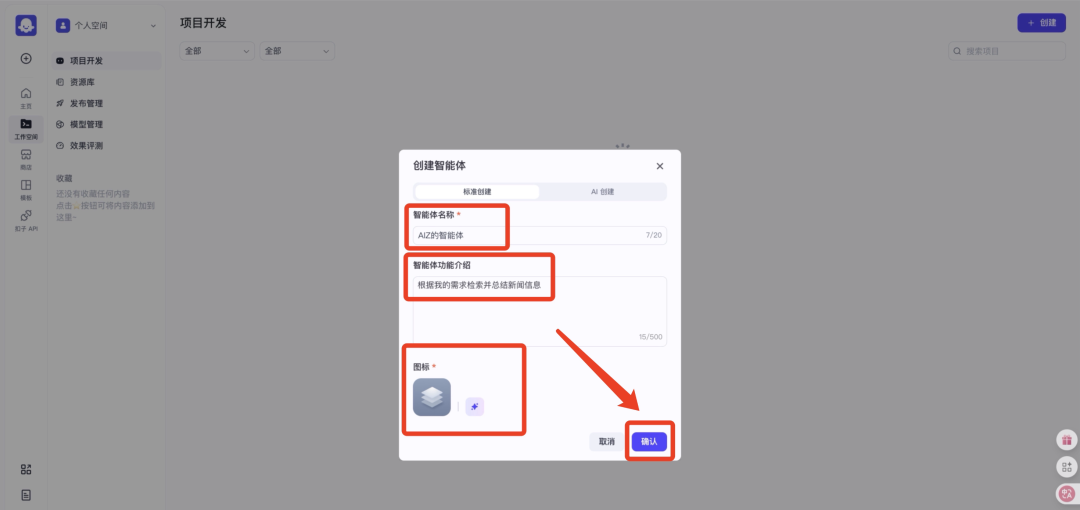
Once this information is filled in, you can click OK to go to the detailed editing screen of the smart body:

There are two main things we do here, the first is to set up the persona and reply logic for our intelligences (since we're only building a workflow with one function, we'll just have to make one skill explicit), and I'll give you my template for the setup here:
- You are an assistant who specializes in summarizing news and extracting the main points.
- ### Skill 1
- When the user enters a keyword to query, info_search is called to execute the workflow.
The second thing is to add the workflow we just built. This basically completes the construction of the smart body.
Similarly, we need to test the constructed intelligence, which corresponds to the "Preview and Debug" box above.
Finally, we tested the "Musk" example again, and if it worked well, the intelligence was able to correctly give the retrieved news:
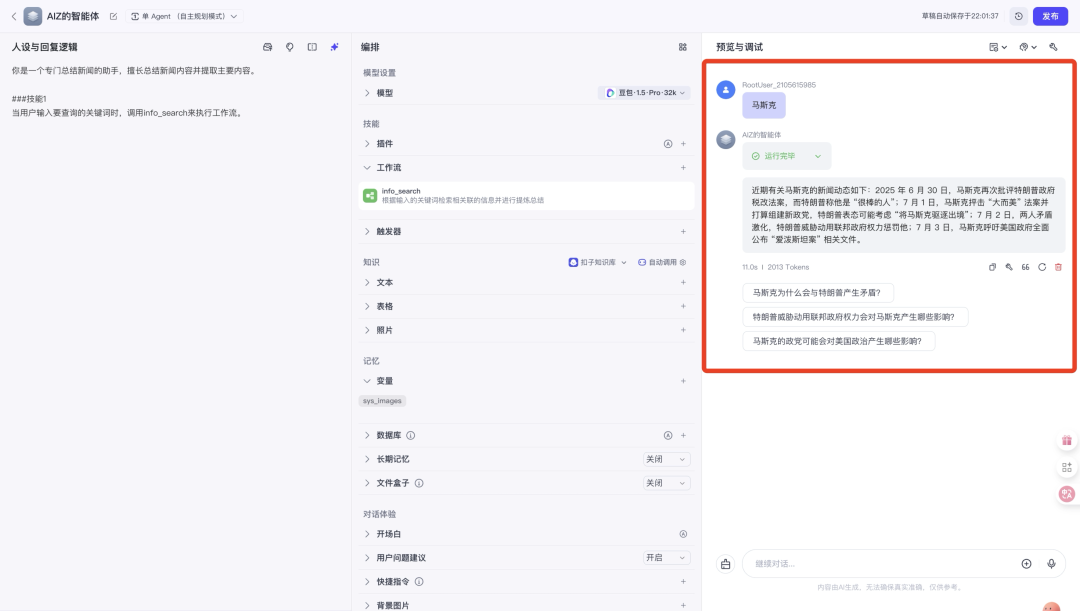
With these few simple steps, you now have a smart body tool that can check news information in real time.
Throughout the article, in fact, the really important thing is not that you successfully built a simple intelligent body, not to mention the few mentioned in the technology does not have the threshold of learning, but to show you the basic idea of building an intelligent body, and now the mainstream intelligent body development platforms roughly how to operate, we can be highly summarized into one sentence:
A workflow is a standardized arrangement of specified functions through integration and predefined modules in a specific order, while an intelligent body is an integration of various specified functions...
Well, that's it for today's share, and I'd like to thank you for browsing.