



What's Configure Bot? How do you choose
To configure Bot's move is actually to choose your access, and what's the access
WHICH CHAT SOFTWARE OR INTERFACE DO YOU WANT WITH THIS AI ROBOTOpenClawDialogue。
DOMESTIC: QQQ, BUSINESS WISDOM, FLYING BOOK, NAIL, ETC
Abroad: Discord, Telegram, etc
The most silky robot in the country today is the flying book, which you can focus on。
Custom API model OpenClaw configuration preaction:
IF YOU CHOOSE THE CUSTOM API IN THE SECOND STEP: CONFIGURATION MODEL, THEN YOU NEED TO MODIFY YOURSELF TO THE FOLLOWING CONFIGURATION. I DON'T KNOWHarderIt's where you have to change, you don't understand, you can ask AI about every empty thing
{"models": {"mode": "merge", "providers": {"bailian": {"baseUrl": 'https://coding.dashscope.aliyuncs.com/v1“, “apikey”:YOUR_API_KEY“, “api”: “openai-complications”, “models”: [{id]:Mini Max-M2.5", "name":Mini Max-M2.5“, “ressoning”: false, “input”: [“text”), “cost”: {“input”: 0, “output”: 0, “cacheread”: 0}, “contextWindow”: 196608, “maxTokens”: 32768}, “agents”: {“defaults”: { “model”: {primary”:billian/MiniMax-M2.5}, "gateway": {"mode": "local"}
Example: Flying Book + Kimi 2.5
Configure Bot (Flying Book)
create a flying book robot. access to the open flying book platform: https://open.feishu.cn/app, click to create applications:
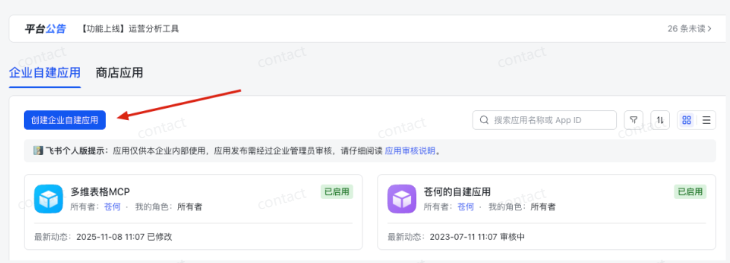
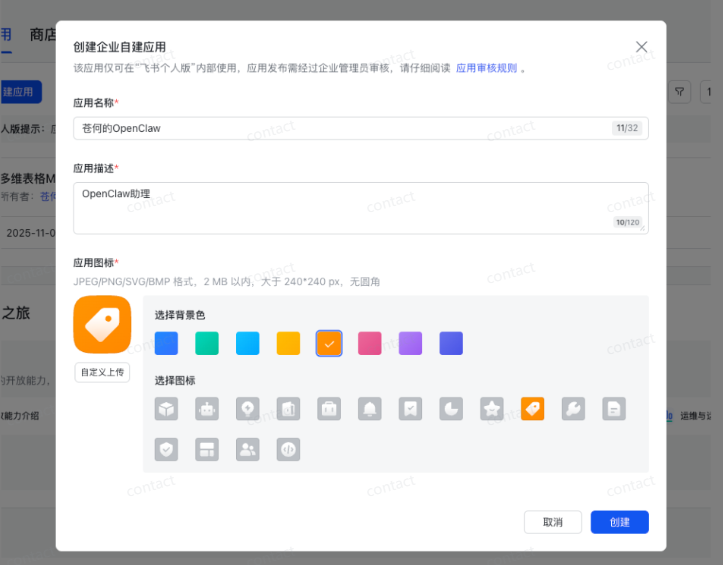
Creates:
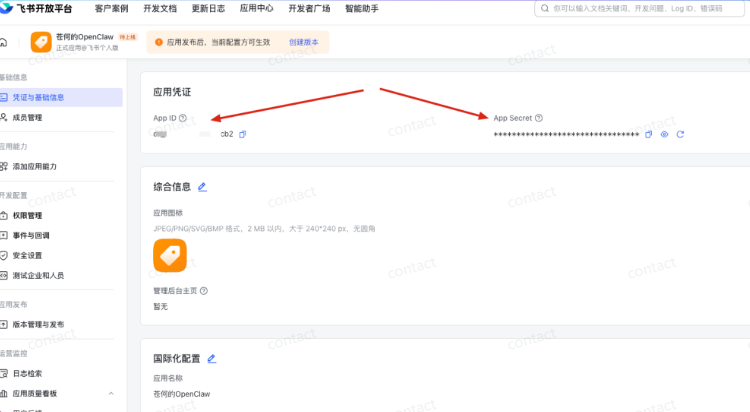
After creation: Find App ID and App Secret in the Document and Basic Information and copy them。
then, log in to your telecommunication cloud: https://console.cloud.tencent.com/lighthouse
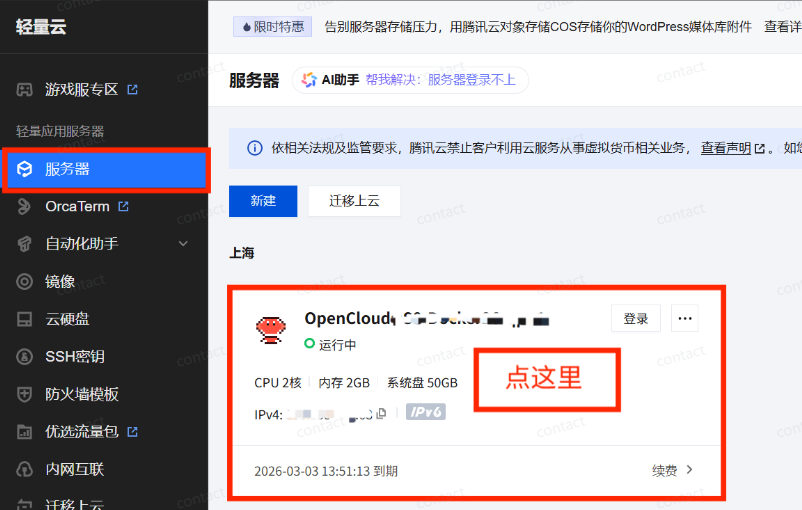
Enter and click Application Management

The operation is as follows:

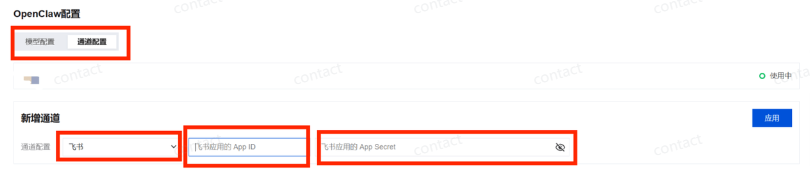
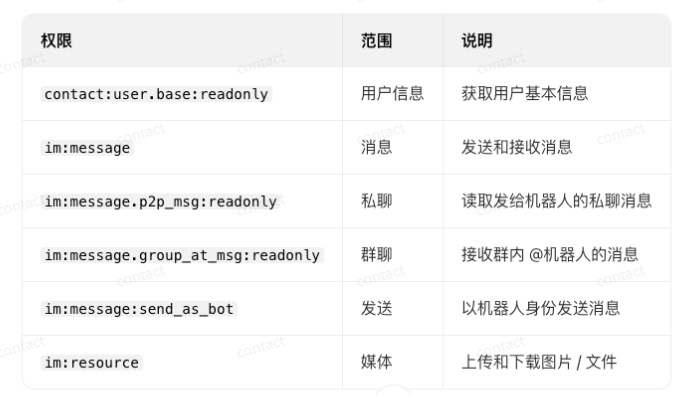
Configure permissions. At least the following permissions are required:
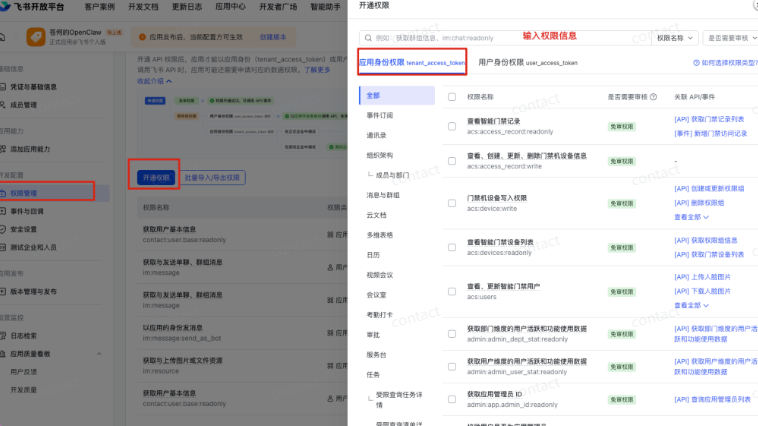
You can select the permissions you need to operate manually here:
You can also directly import the following permission configuration:
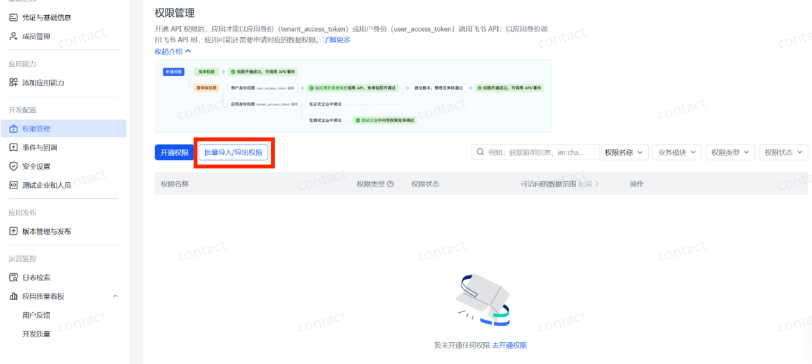
{“scopes”: {“tenant”: [“contact:user.base:readonly”, “im:message”, “im:message:send_as_bot”, “im:resource”), “user”:[“im:message”, “contact:user.base:readonly”)}
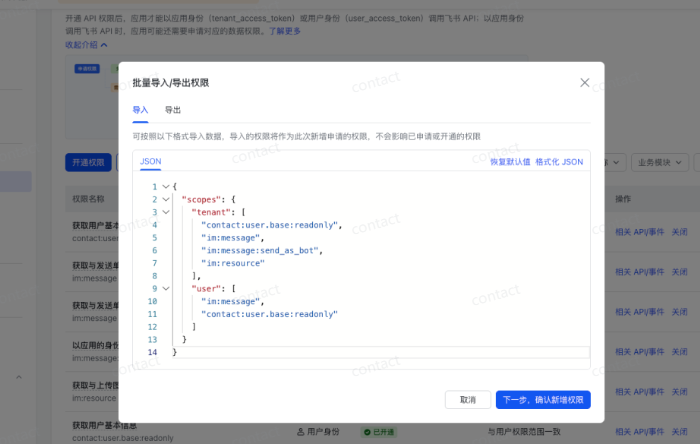
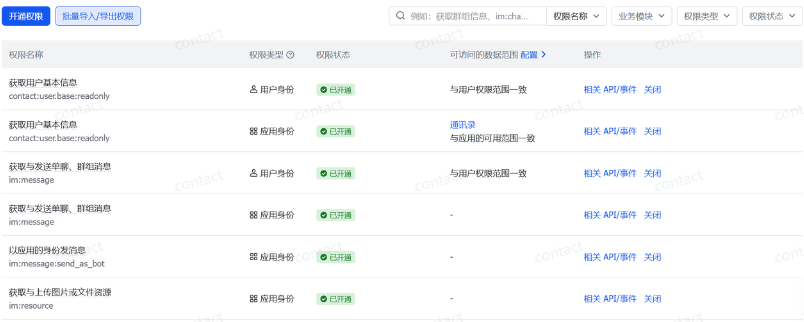
After success, these six rights will be shown
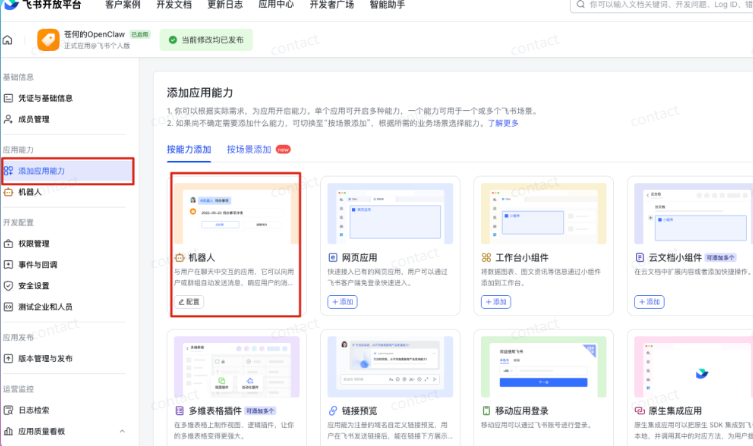
The operation, as shown in the figure, requires the addition of application capabilities to add robotic capabilities to applications:
The operation is as follows:
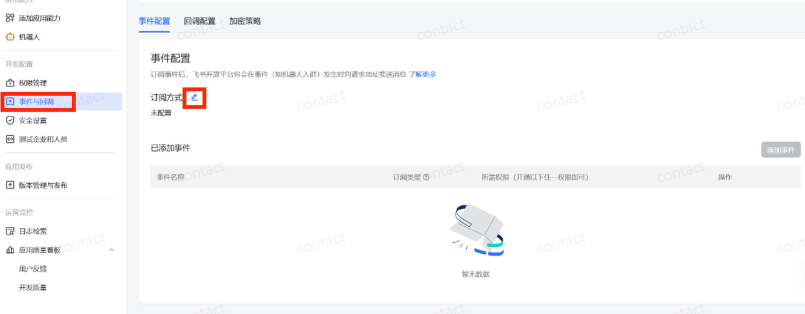
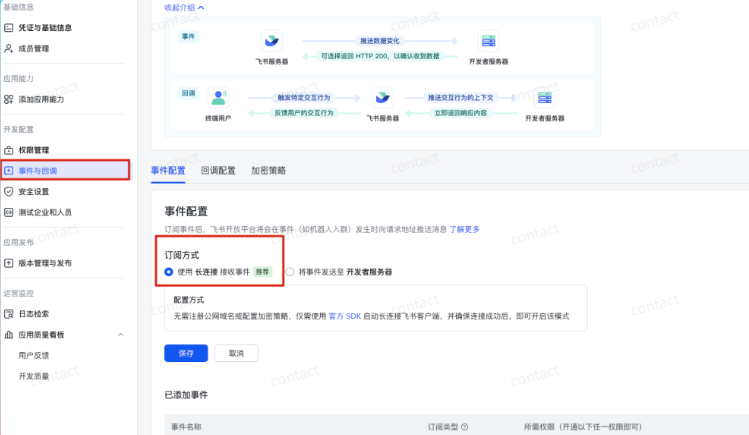
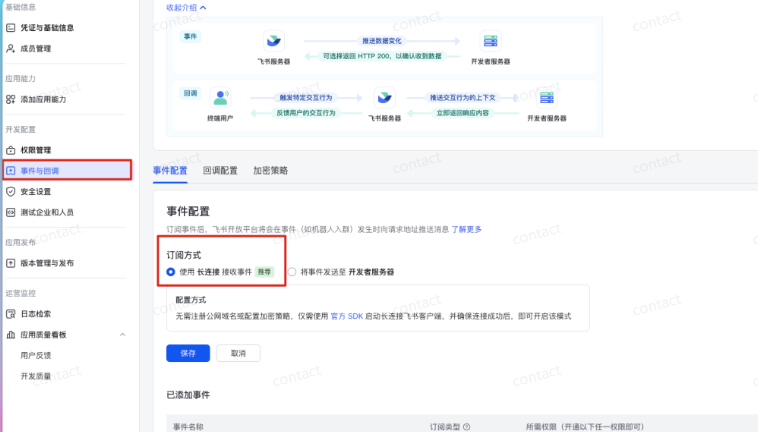
And add the following:
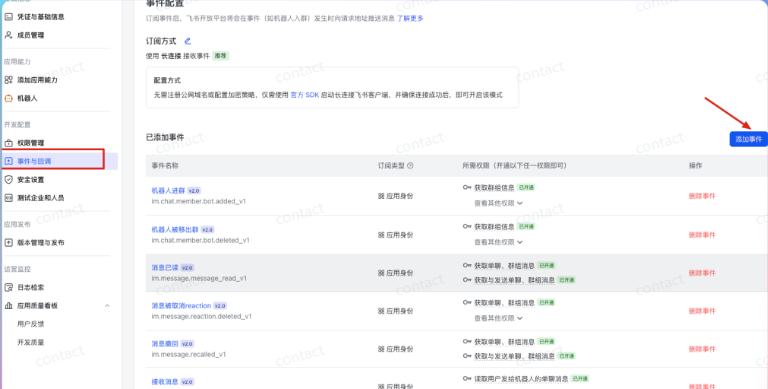
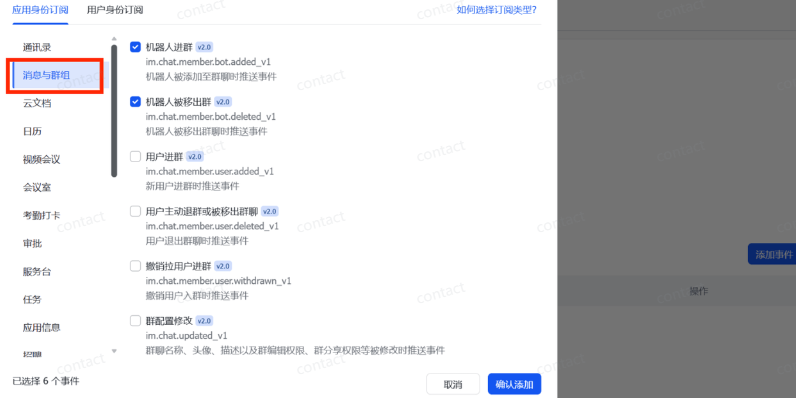
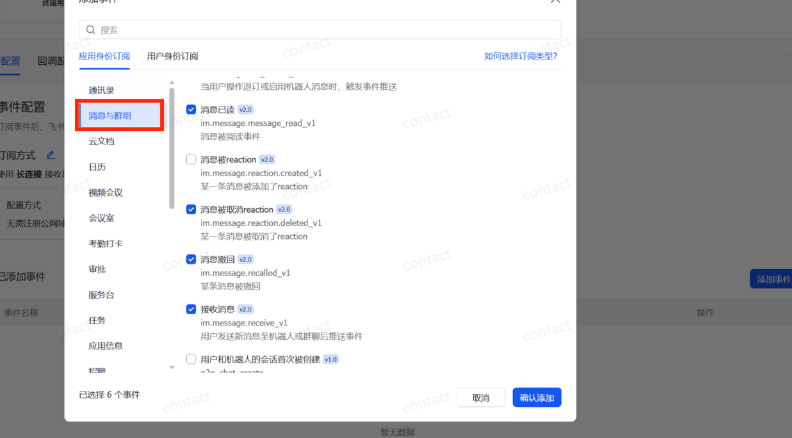
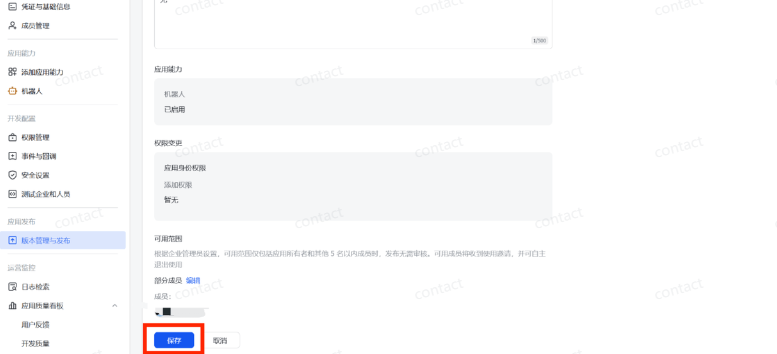
And then you create a version, both of which go in。
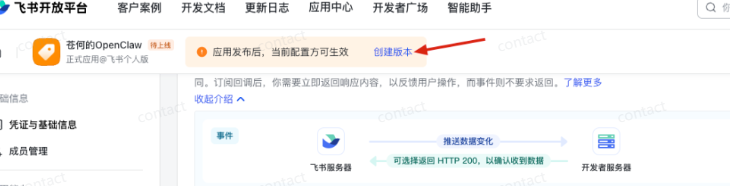
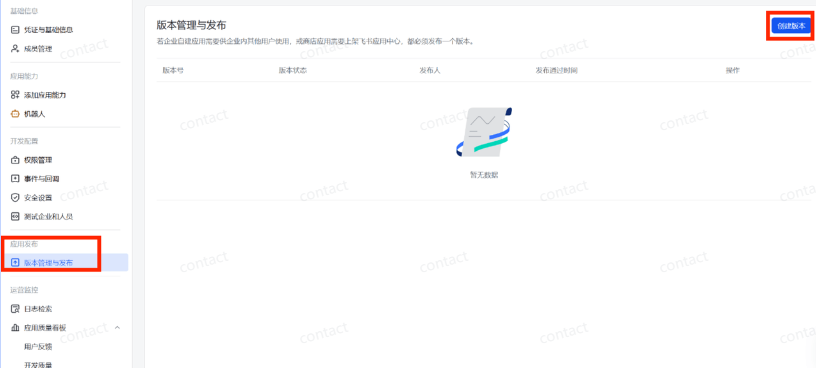
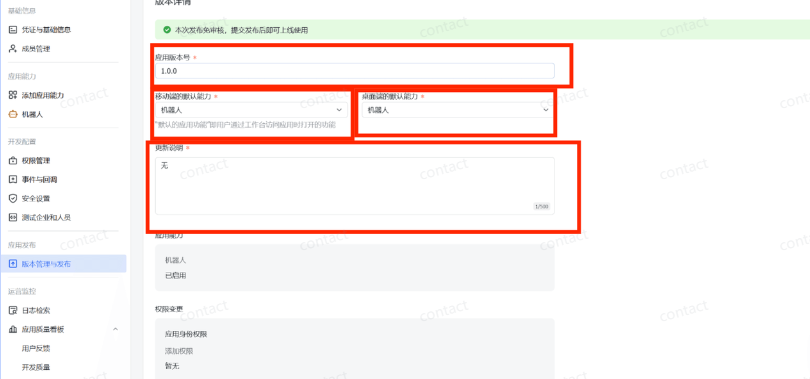
Saves and then releases the application。
OpenClaw Configuration
Enter the following command on the server:
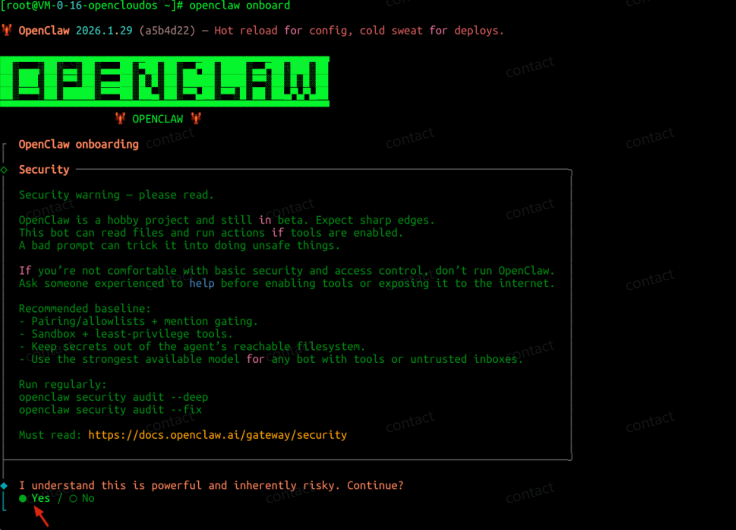
it's an openclaw onboard
Choose Yes Accept Risk:
Then choose: QuickStart

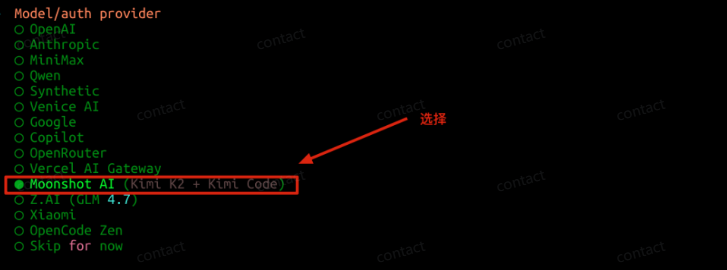
Next is the model. Here is the: Moonshot AI
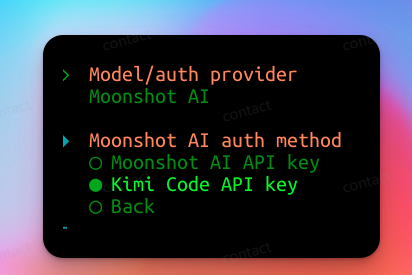
Select Kimi Code API Key, paste the key
Select the default model to: kimi-code/kimi-for-codi (OpenClaw's built-in list is dynamically updated, and perhaps when you see the tutorial, you can no longer find the exact name for it, and if so ask AI)
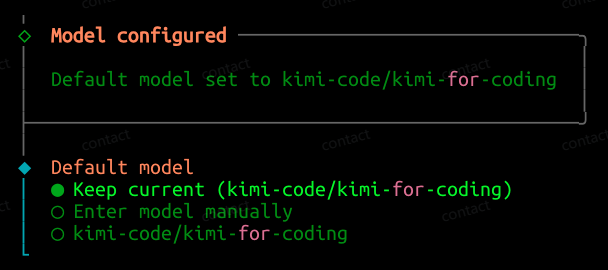
Take one step above and choose the configuration book:
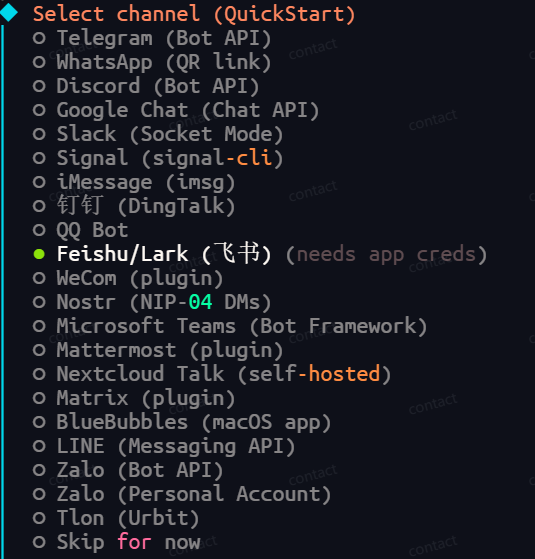
Several steps have been made very clear:
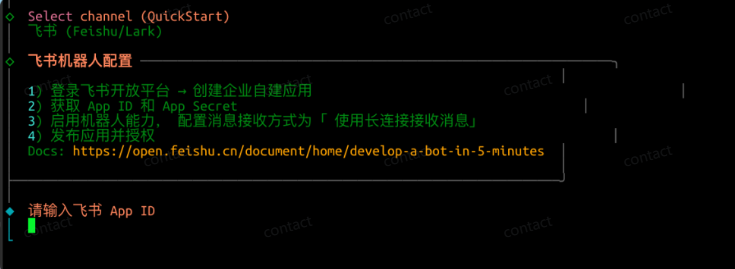
Select as follows:

Select to use skills: Yes
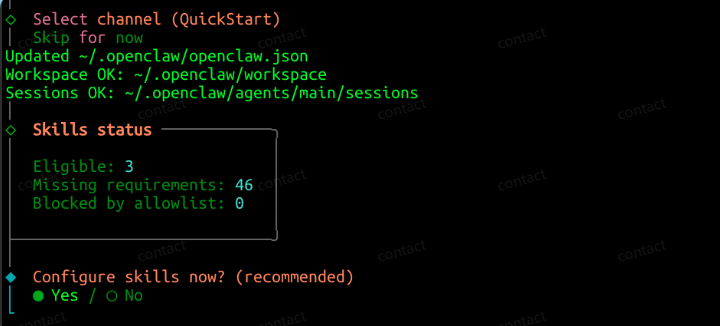
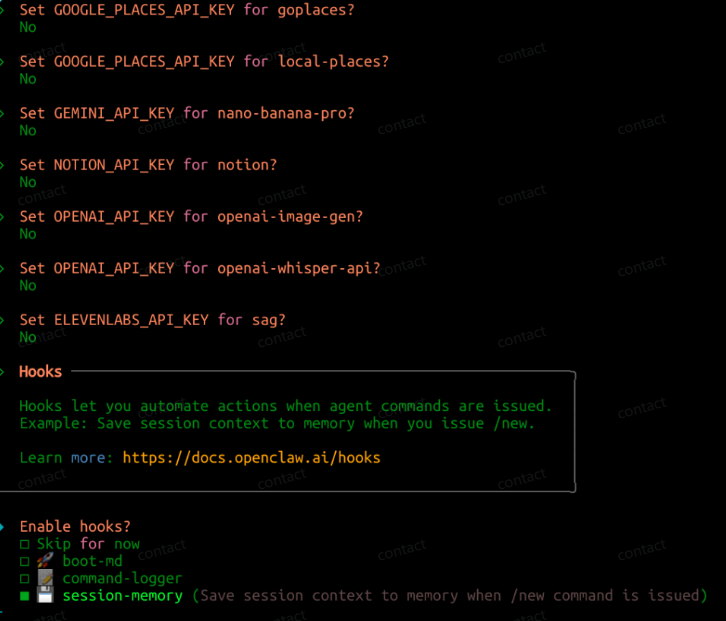
Just choose by graph. It can be a self-defined installation with many dependencies and can be left unloaded。
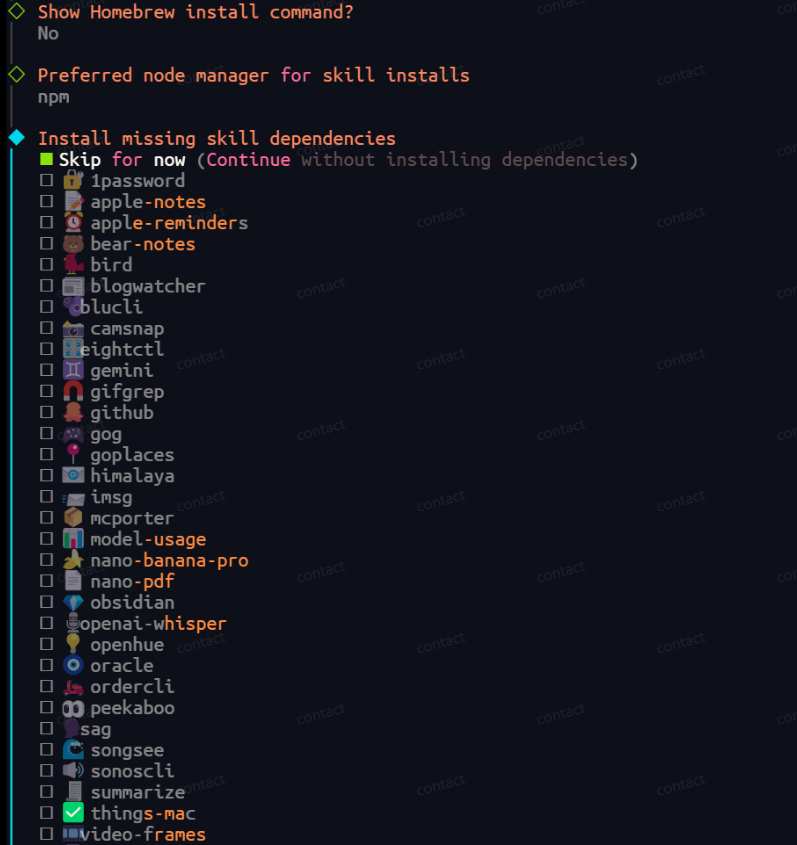
here is the selection: session-memory
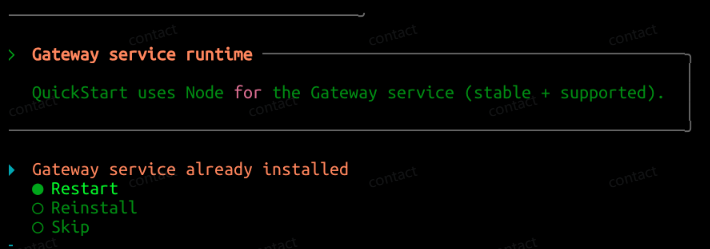
restart gateway service:
SELECT TO OPEN TUI TO OPEN THE INTERFACE ON THE SERVER, AND ALL CONFIGURATION OPTIONS ARE NOW INSTALLED。

then you can cross-examine him in the dialogue box, ask him what his model is, and the bottom right corner will show token。
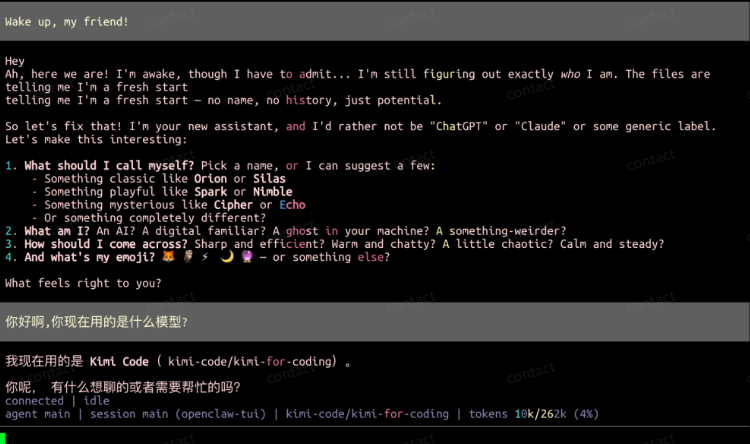
It's time to open the book and talk directly:
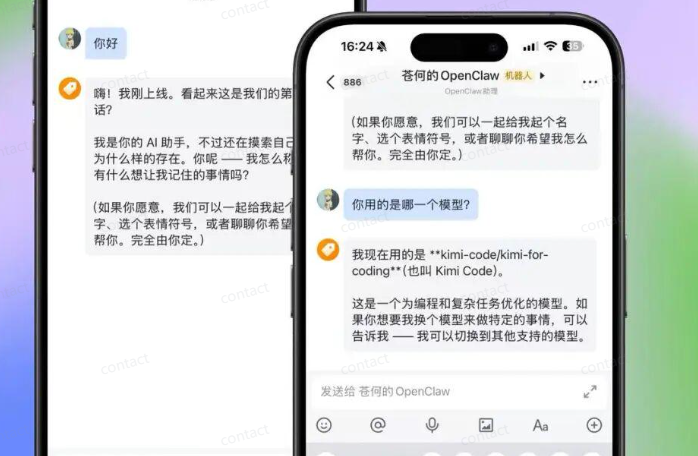
Okay, so you're fully equipped with OpenClaw
OpenClaw from the Introduction to the Advanced Guide: OpenClaw Theory, OpenClaw What
OpenClaw From Introduction to Expert Guide: OpenClaw Core Features and Differing Advantages
OpenClaw from the Introduction to the Advanced Guide: White One Deployment, Kimi OpenClaw Hands Up
OpenClaw from the Introduction to the Advanced Guide: White One-Pilot Deployment to OpenClaw-WorkBuddy Hand-Train
OpenClaw from the Introduction to the Advanced Guide: White One-Pile Deployment, Quest Cloud Server Clouds Deployment Handheld Course
OpenClaw from Introduction to Advanced Guide: OpenClaw Configuration Model Handheld