



OpenClawConfigure Boot (QQ) tutorials
access to your telecommunication cloud: https://console.cloud.tencent.com/lighthouse
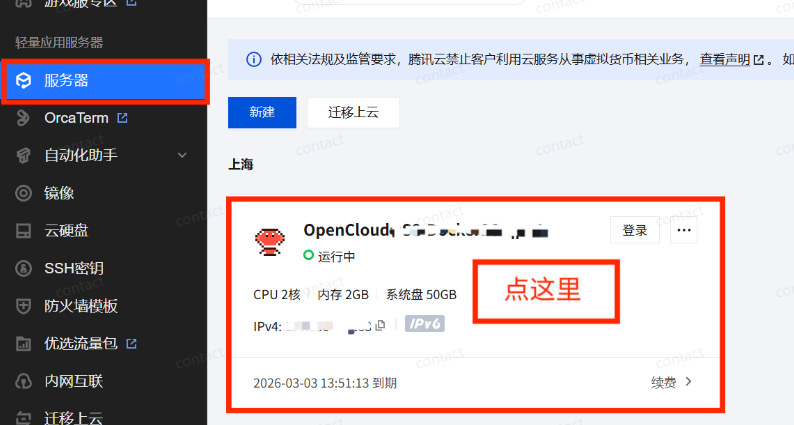
Enter and click Application Management

JUST CLICK ON THE TOP RIGHT CORNER AND COPY THE IP ADDRESS
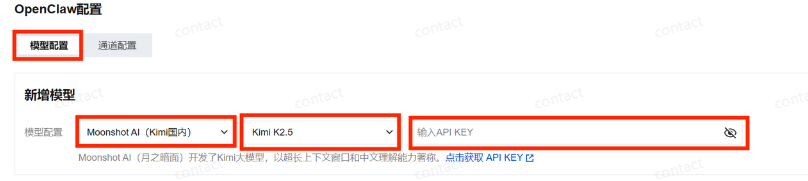
The operation is as follows:
After three blanks have been filled, do not turn off and open a new web page。
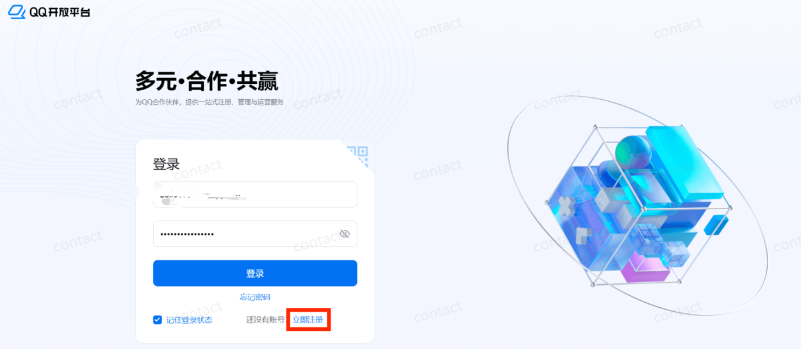
Go to Open Platform QQ: https://q.qq.com/#/ register first! First sign up! And then log in
After step-in registration, login
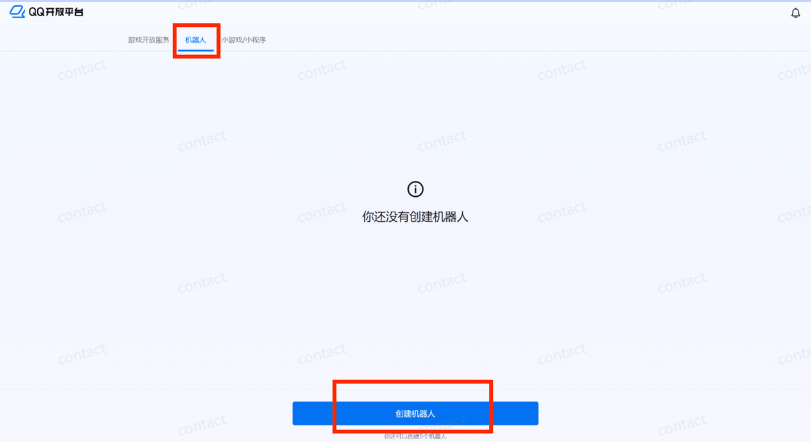
After landing, click on the robot, and then create the robot
Make it yourself. Fill it out as you like
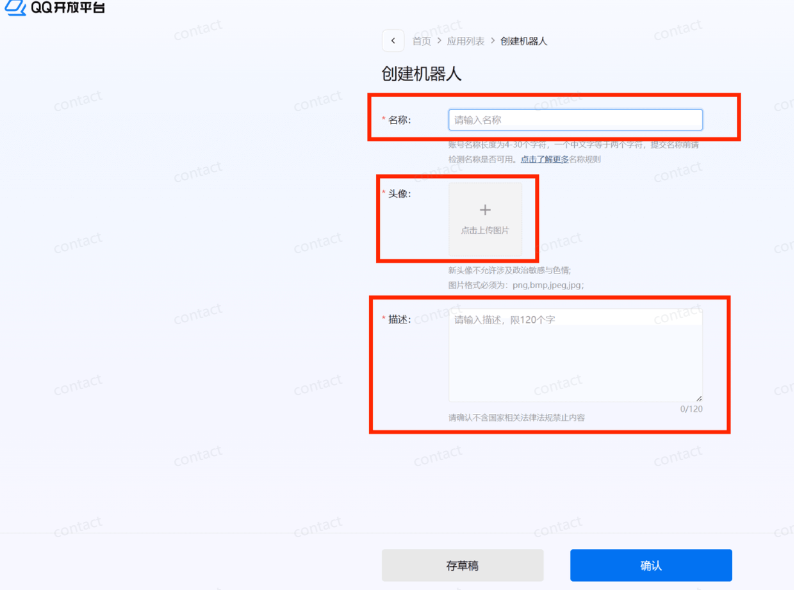
After success, you can see it. Then click on it and get into the robot details。

The following operations are shown:
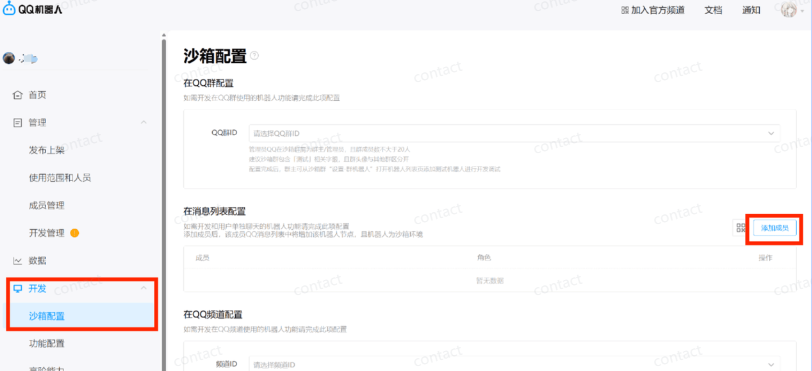
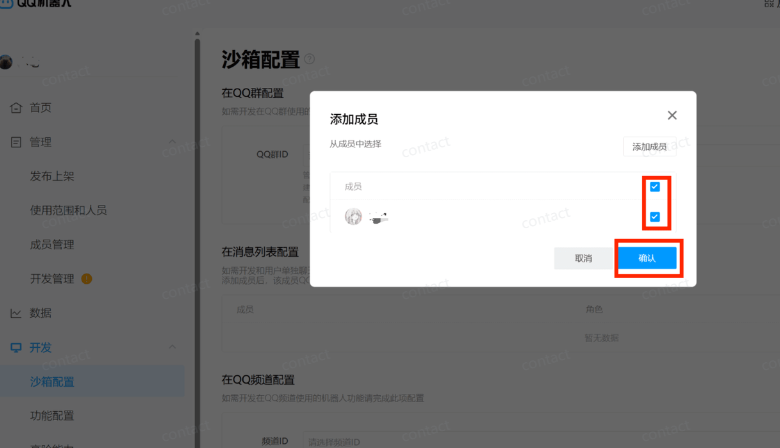
Add yourself in
LET'S USE YOUR Q-Q-SCAN AND ADD A ROBOT FRIEND
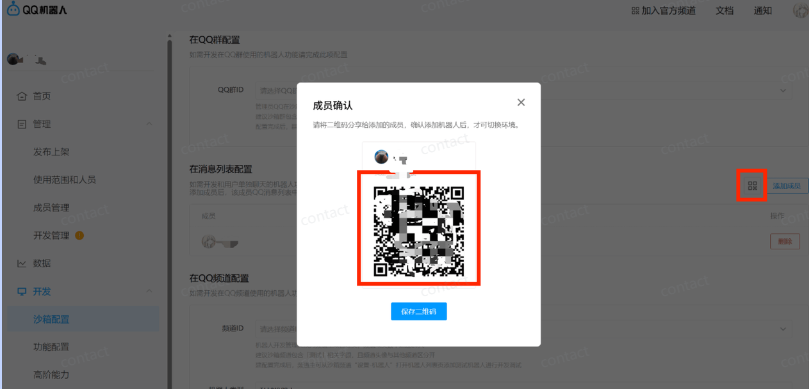
Plus friends, you can't talk at this time because it's just an empty shell, and you can have a nice conversation with OpenClaw
The following operations are shown:
THE IP WHITE LIST FILLS OUT THE IP ADDRESS OF THE CLOUD SERVER THAT YOU JUST COPIED
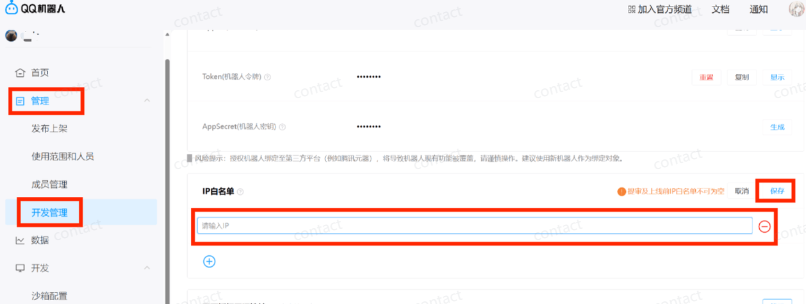
Then, "manage" and "development management."
COPY THE ROBOT'S ID AND KEY (NOTE: ONCE THE ROBOT'S KEY IS GENERATED, YOU HAVE TO SAVE IT, BECAUSE ONCE YOU'RE OFF, YOUR ROBOT KEY WILL NEVER BE SEEN, AND IF YOU FORGET IT, YOU'LL HAVE TO RESET IT NEXT TIME. I'M NOT SURE
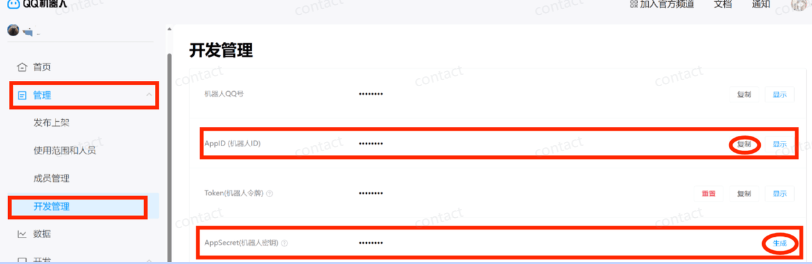
All right, then go back to the Unclosed Quest Cloud Server and finish filling in。
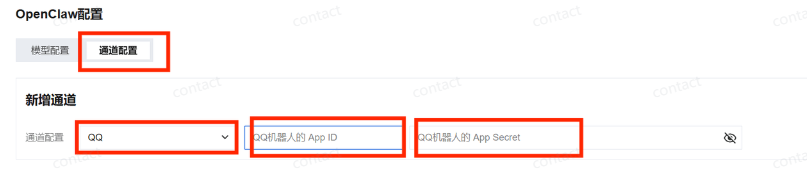
OpenClaw Configuration
Enter the following command on the server:
it's an openclaw onboard
Choose Yes Accept Risk:
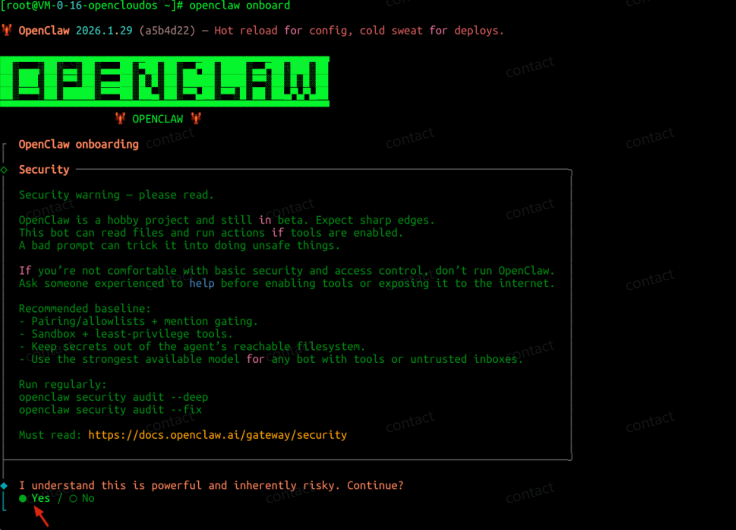
Then choose: QuickStart

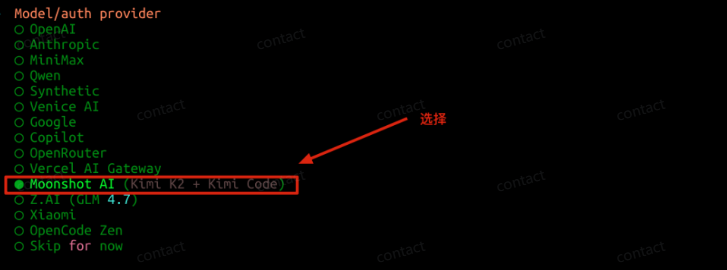
Next is the model. Here is the: Moonshot AI
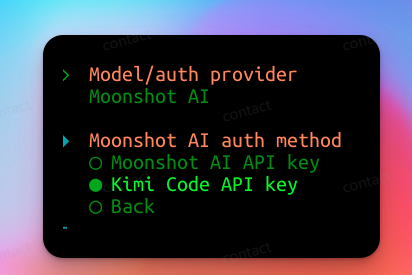
Select Kimi Code API Key, stick to Kimi's key
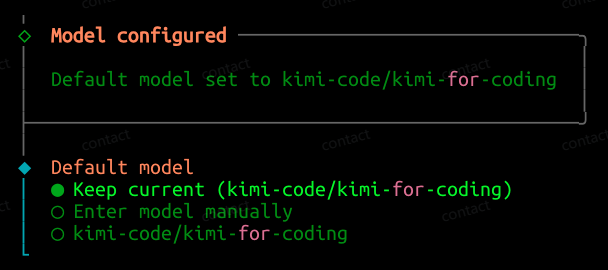
Select the default model to be: kimi-code/kimi-for-codi (because OpenClaw's built-in list is dynamically updated, and maybe when you see the tutorial, you can't find the exact name for it, and if so ask AI how you choose)
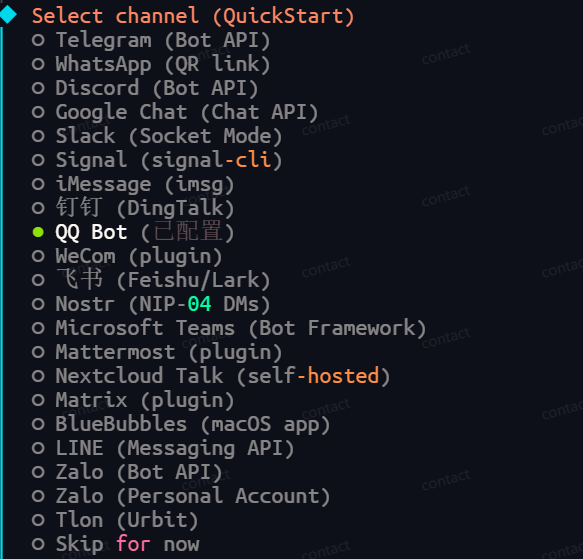
SELECT CHANNEL (ACCESS): QQQ
FILL OUT YOUR QQ ROBOT'S ID AND KEY
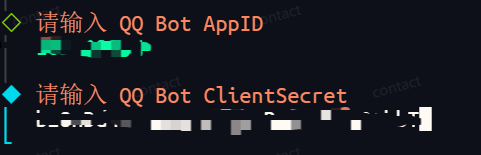
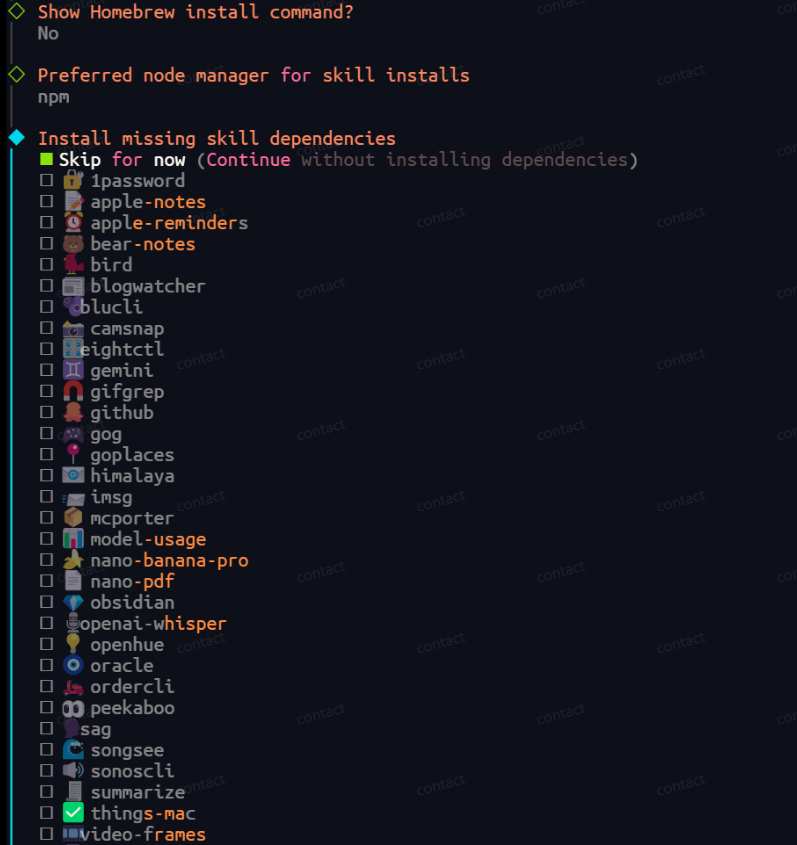
Then, just choose by the picture:
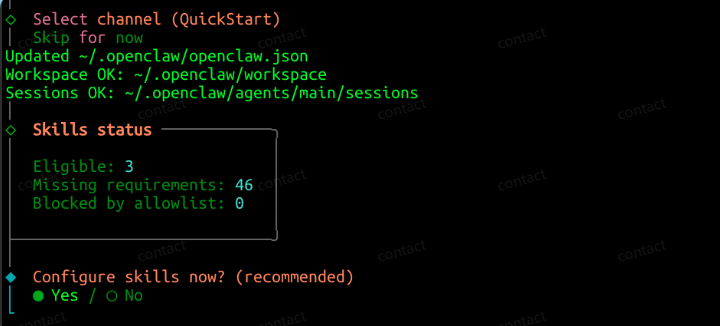
It can be a self-defined installation with many dependencies and can be left unloaded。
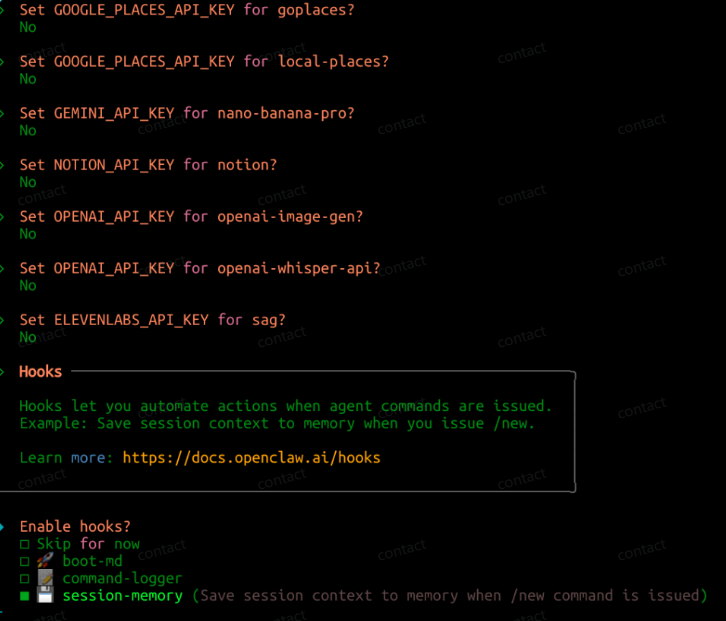
here is the selection: session-memory
restart gateway service:
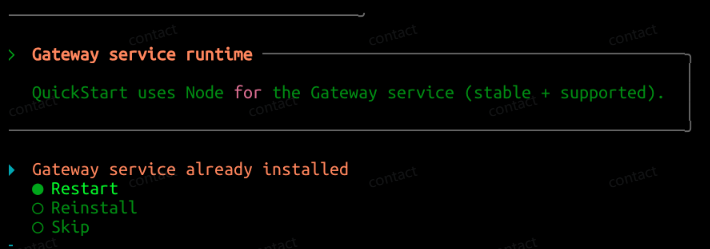
SELECT TO OPEN TUI TO OPEN THE INTERFACE ON THE SERVER, AND ALL CONFIGURATION OPTIONS ARE NOW INSTALLED。

then you can cross-examine in the dialogue box, and the bottom right corner shows its model and token usage。
Or you can stop talking, just press Ctrl+C and go to QQQ to talk to it:
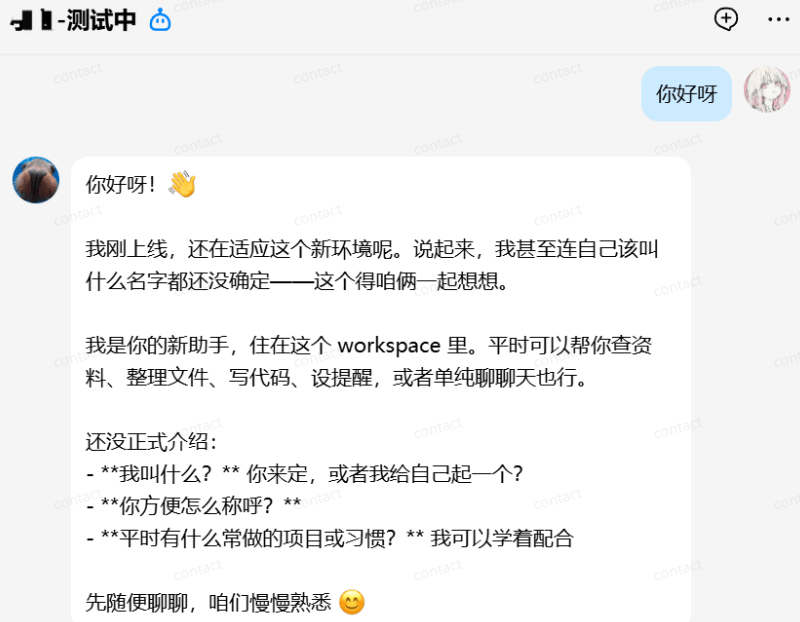
Okay, so you're fully equipped with OpenClaw
OpenClaw from the Introduction to the Advanced Guide: OpenClaw Theory, OpenClaw What
OpenClaw From Introduction to Expert Guide: OpenClaw Core Features and Differing Advantages
OpenClaw from the Introduction to the Advanced Guide: White One Deployment, Kimi OpenClaw Hands Up
OpenClaw from the Introduction to the Advanced Guide: White One-Pilot Deployment to OpenClaw-WorkBuddy Hand-Train
OpenClaw from the Introduction to the Advanced Guide: White One-Pile Deployment, Quest Cloud Server Clouds Deployment Handheld Course
OpenClaw from Introduction to Advanced Guide: OpenClaw Configuration Model Handheld