



A few days ago I introduced you to theComfyUIHow to zoom in on a picture in HD in 4 ways, see the article for details:Picture lossless enlargement becomes clear, ComfyUI picture HD enlargement workflow sharing tutorials!
Today, I'm going to introduce you to how to make batch enlargements of images.
The batch zoom function can be realized by the for loop node of Easy-Use plugin, which can bring a lot of convenience to our work and is very practical.
There are a couple plugins that need to be used here:
Easy-Use plugin
https://github.com/yolain/ComfyUI-Easy-Use
KJNodes Plugin
https://github.com/kijai/ComfyUI-KJNodes
I. Basic operation of for loop
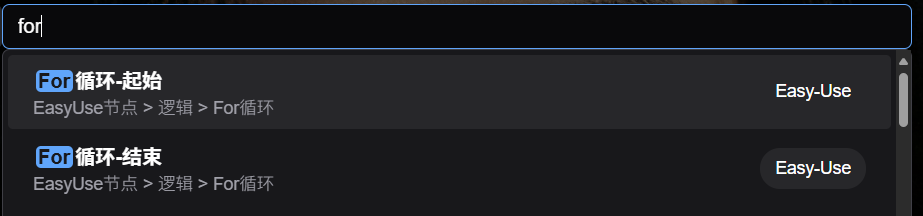
Start by adding two For loop nodes to ComfyUI and let it help us perform some repetitive operations.
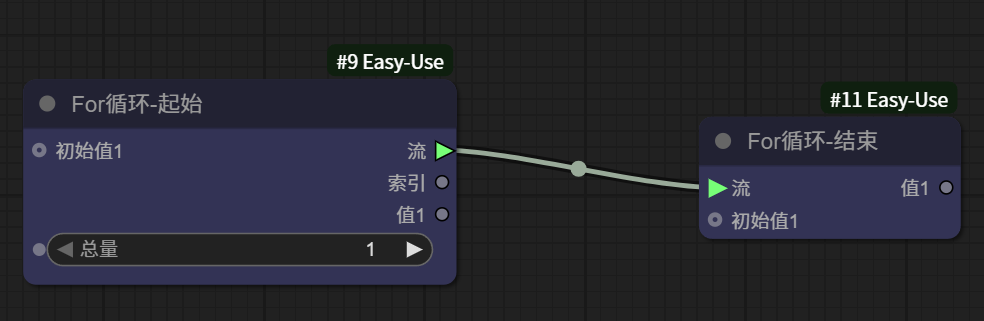
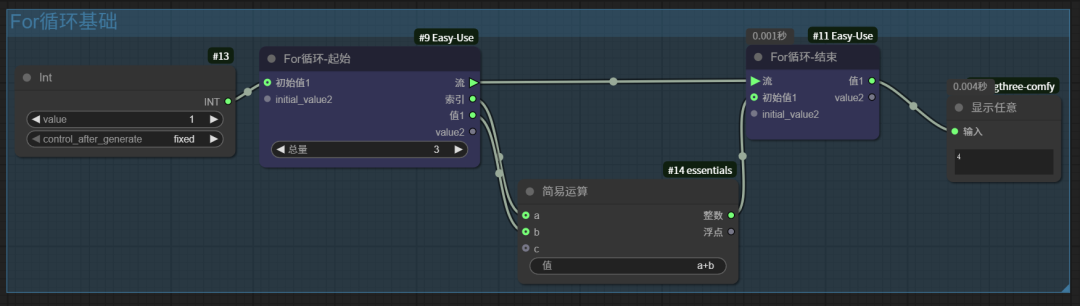
Indexes are used to quickly recall eligible data, usually integers incremented from 0, such as 0,1,2,3 ......
Here is a basic Fro loop workflow.
I. Basic amplification workflow
1. Basic amplification workflow
The following is the most basic and simple workflow for zooming through a model. With this workflow it is possible to realize very efficientlyImage Enlargementfunction and does not change the basic information of the original image.

If you only run this workflow, the amount of video memory it needs to take up is acceptable, but if you add this workflow behind other workflows, it may take up more video memory, and the low video memory indicates a lot of pressure.
2、Image chunking
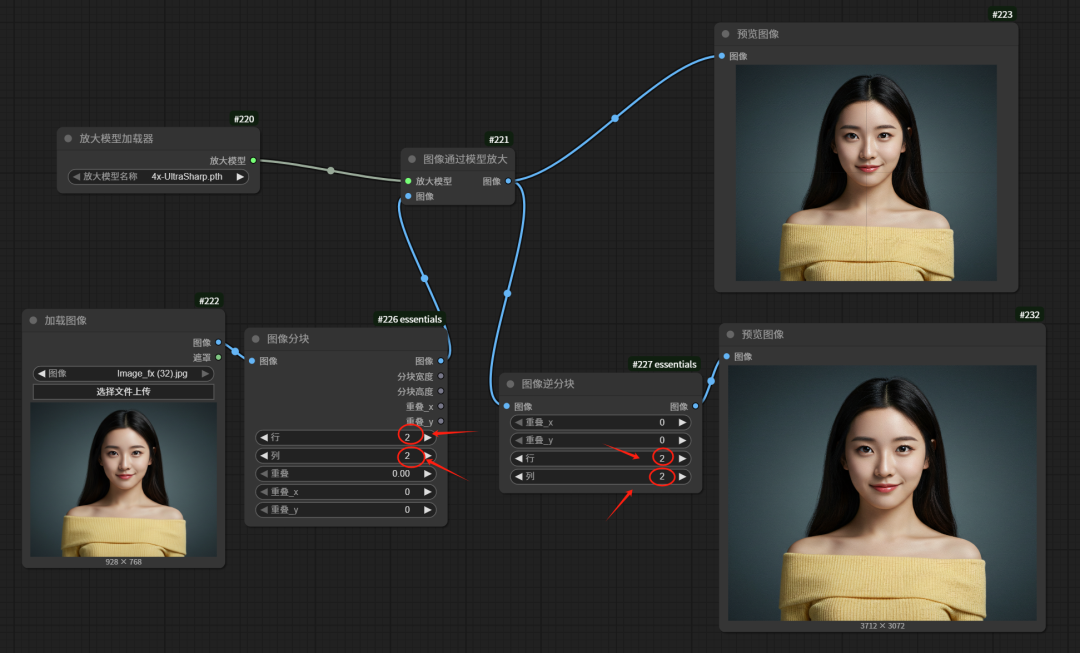
We can add an image chunking node, the following figure will be set to 2 rows and 2 columns of rows and columns, so that the enlarged image will be divided into 4 pieces of separate calculations, greatly reducing the video memory occupied.
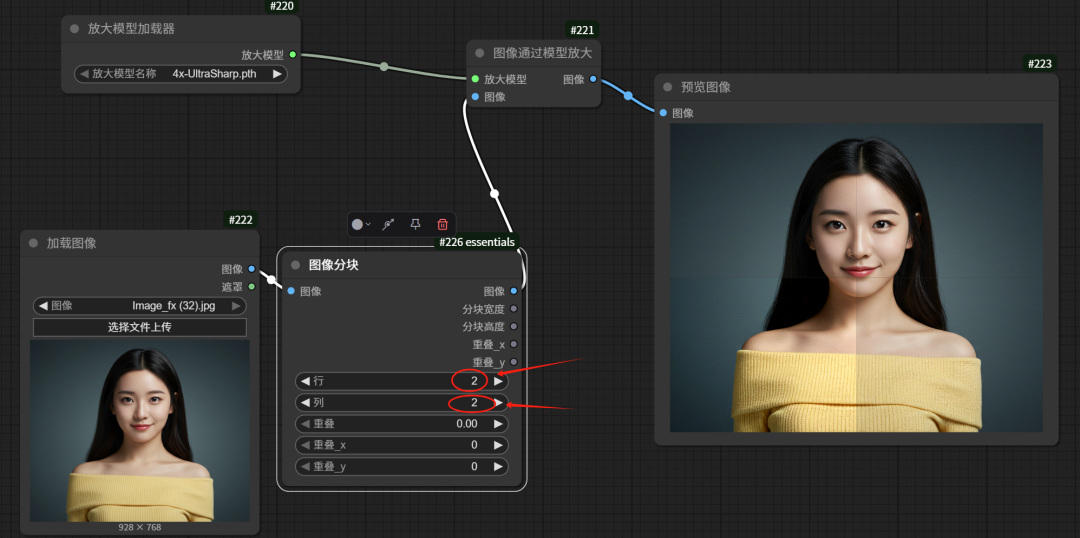
Add another chunk merge node to merge the chunked images, here the number of rows and columns should be consistent with the previous one.
It is also possible to add another image comparison node to compare the force of the image before and after zooming.
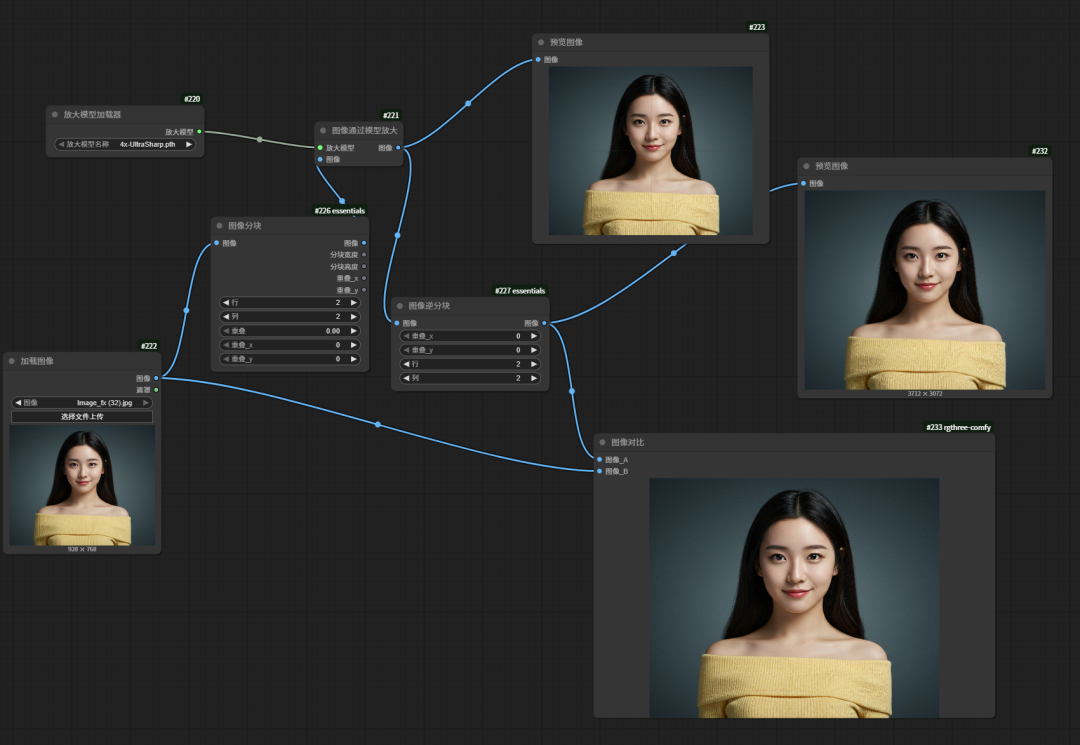
By comparing left and right, you can clearly see that the image has indeed been enlarged, especially at the eyebrows and hair which are much clearer compared to the original image.
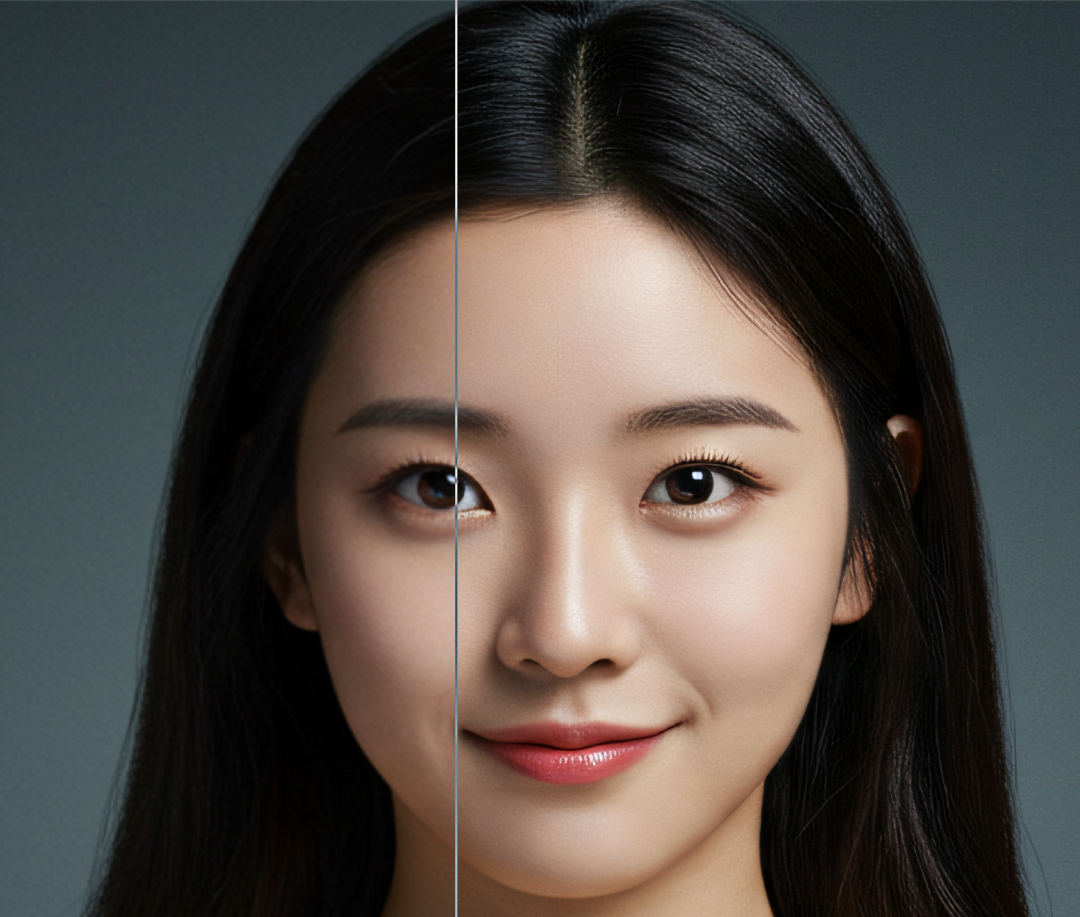
With this chunking node, it can effectively reduce the pressure of low video memory graphics cards to enlarge the picture, and if the number of chunks is increased some more, such as 4*4 or 8*8, low video memory graphics cards can also accomplish the challenge of enlarging the picture to 8K.
For high graphics memory graphics cards, this chunking node allows you to utilize the parallel computing of the graphics card to improve computational efficiency and reduce image computation time.
III. Batch Enlargement
Combine the zoom workflow just described with the previous for node workflow to realize the batch zoom function.
1, add a KJ node for loading images, which allows us to load multiple images directly from the folder
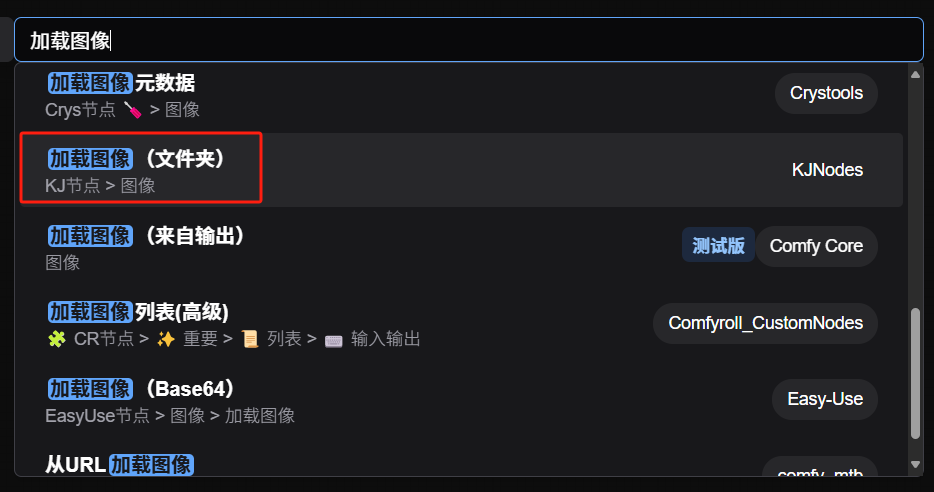
2, add the image path, set the image limit to 100, connect a preview image node, click run to preview the images in the folder.
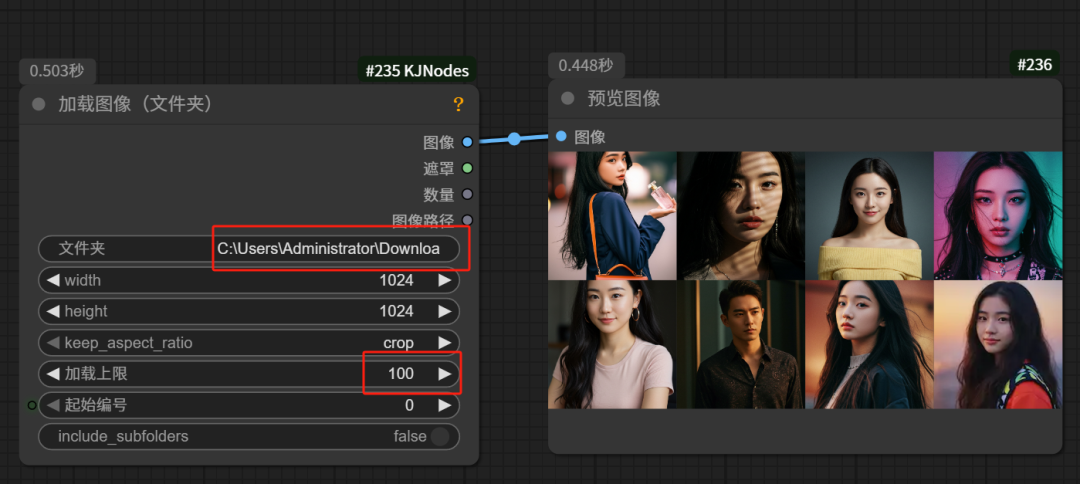
3. Replace the Load Image node of the Image Enlargement workflow with the Image Batch Load node with Path.

4. Then connect the left side of the image batch loading node to the index end of the for loop - start
The number here is set to the total number of images in the folder.
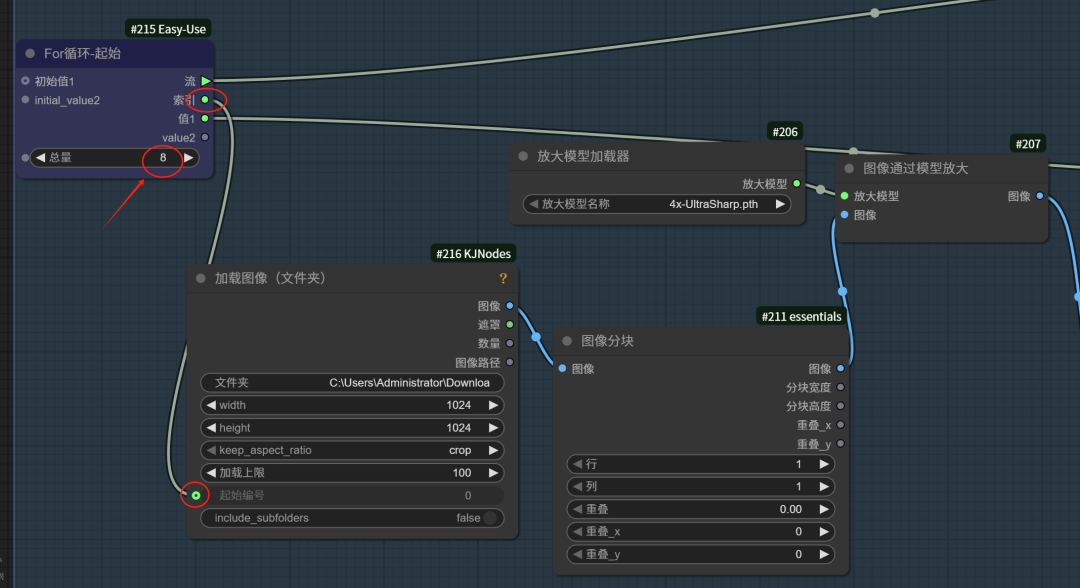
5, at the end of the workflow also need to add a "any batch combination" node, respectively, connected to the beginning and end of the Fro cycle
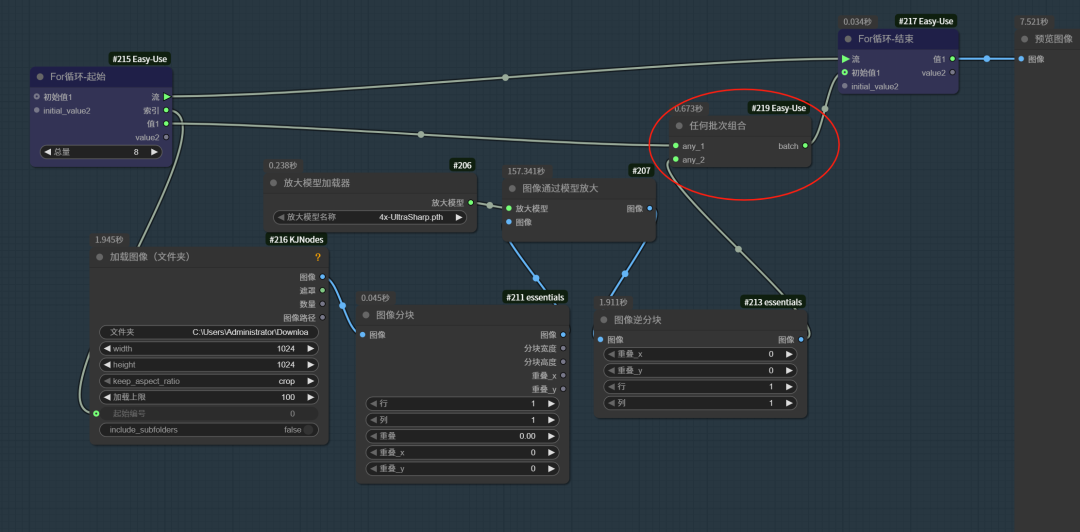
Take a look at the full workflow
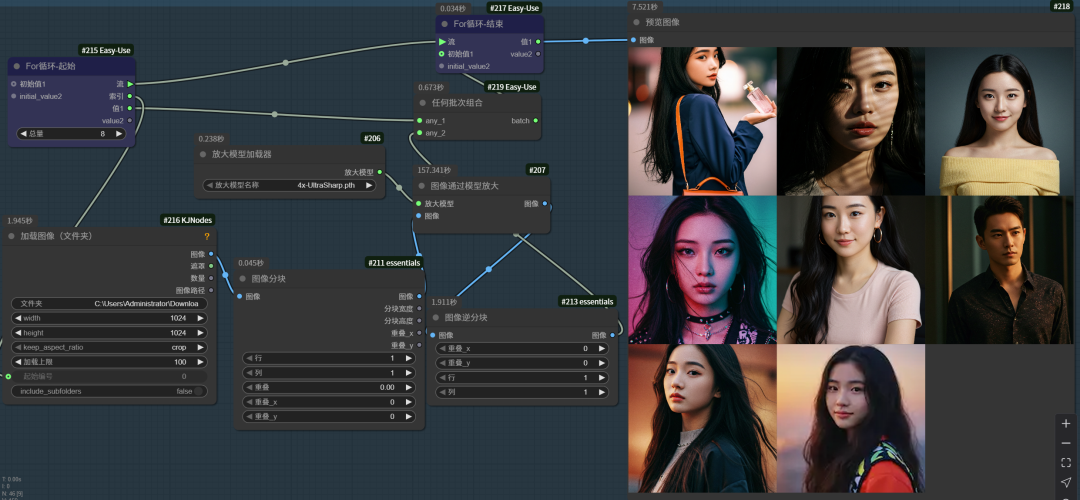
Pick one and zoom in to see the details, the details are drawn out and the hairs are clearly visible.

Above is today's content, the use of For nodes to achieve one-click batch zoom function of the images in the folder, I hope it will help you.