



Aliwan phase recently new VACE model can be said to pull the video editing function to a new height, today we look at how to use it to realize the video expansion function.
First of all, how to use VACE locally, the specific method you can read the article I wrote before, which has a very detailed introduction, I believe you can easily learn after reading it.
ComfyUI locally deploys Wan2.1 open source AI video generation model to create movie-quality AI videos at home
In this article we describe how to build the basic workflow of VACE, with this basic workflow you can realize the text-born graphic video function.

Below we describe how to implement the operation of expanding the video frame on the basis of this basic workflow.
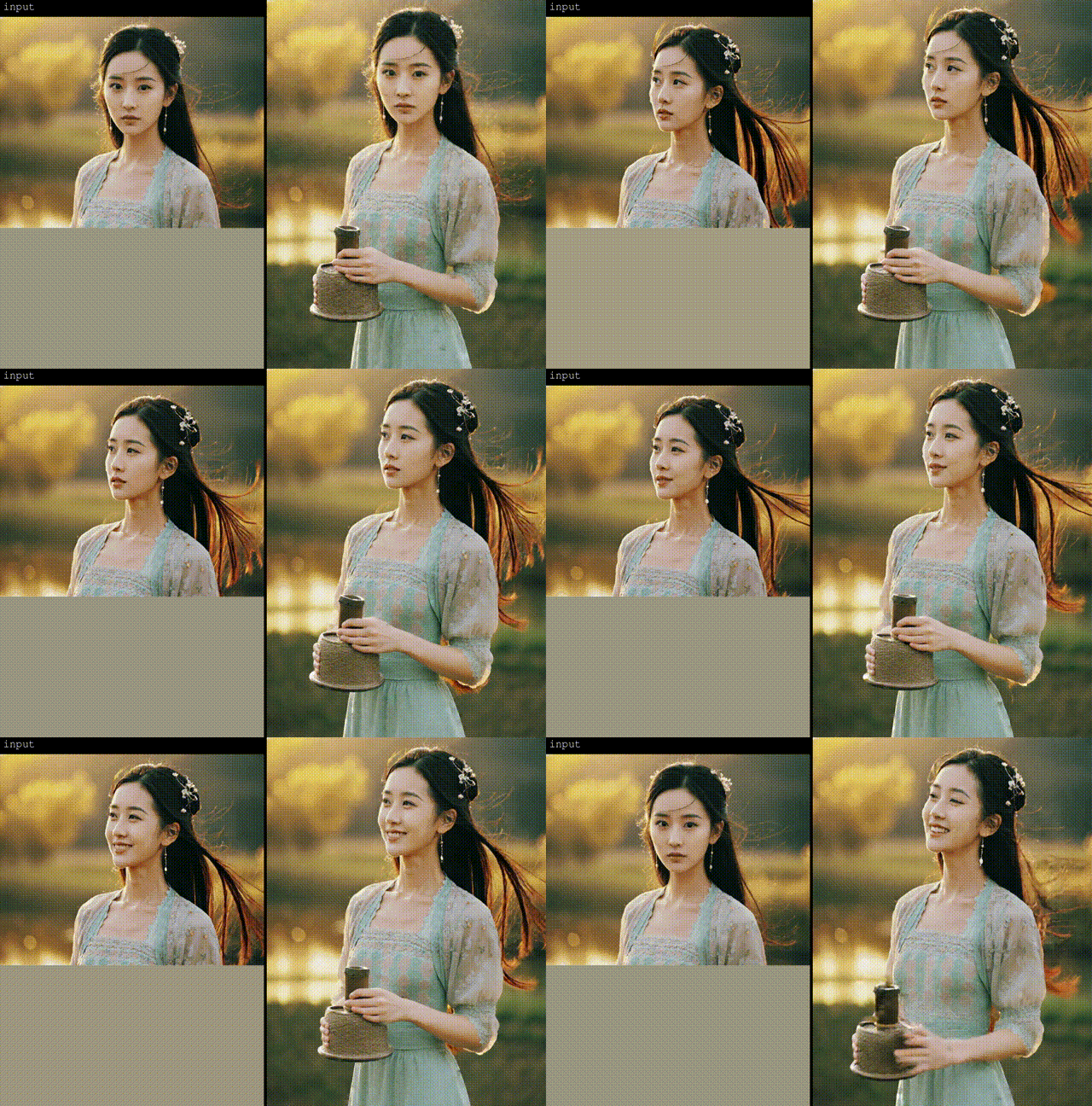
First look at the effect, the left is the original video, it is the gray part of the lower part of my kind of want to expand the size, the right is the effect of the video after the expansion. The effect of the expanded video screen can be said to be very perfect, can not see that it has been modified.
I. Expanded map workflow construction
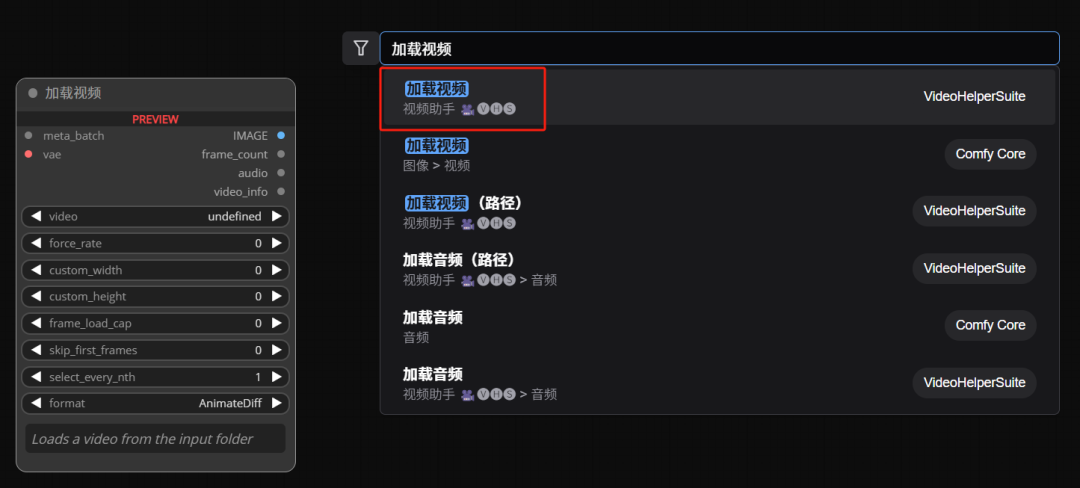
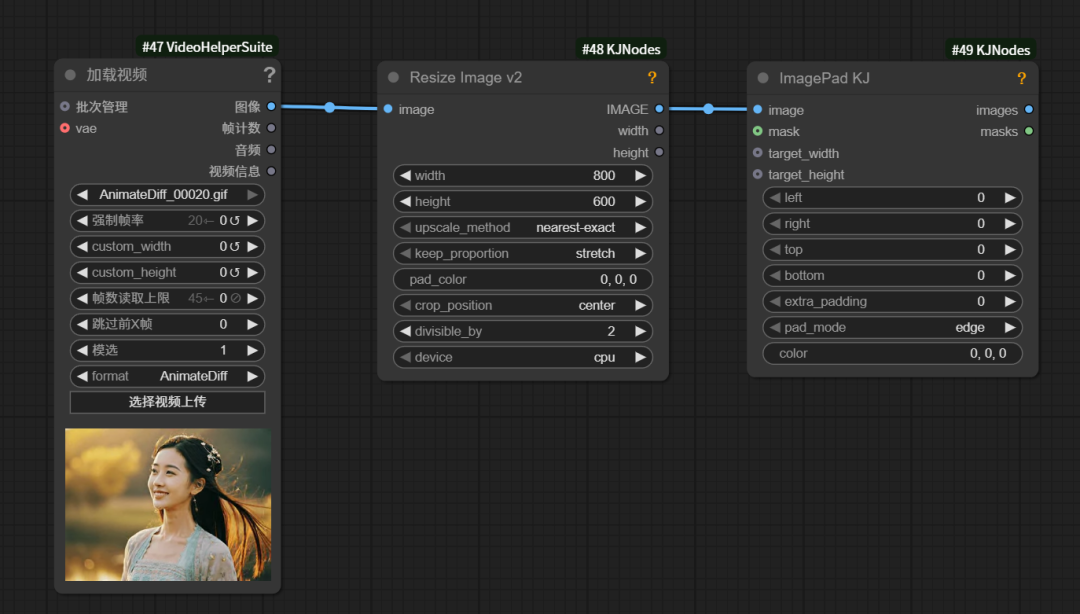
First, double-click in a blank space in the workspace to search for and add the Load Video node
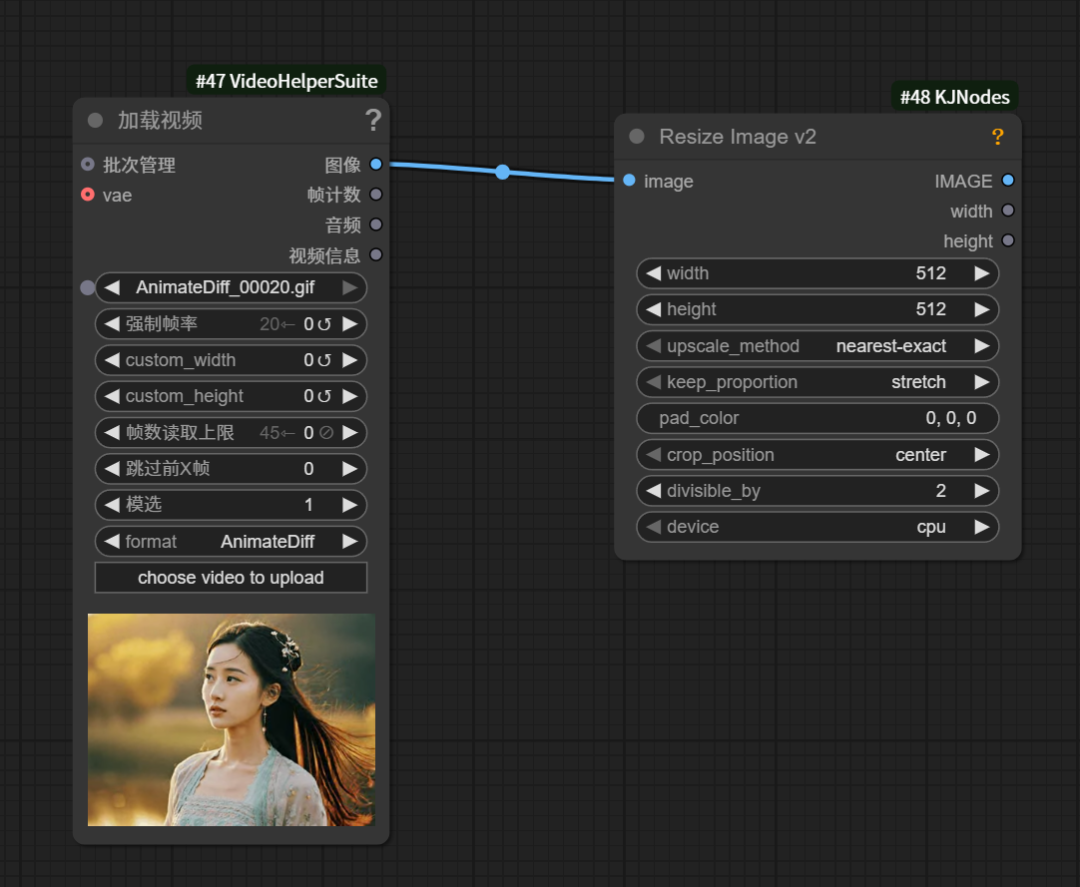
Double-click in a blank space in the workspace to search for and add the plus Resize Image v2 node

Connect the two nodes, the Load Video node is responsible for loading the video from local and the Resize Image v2 node is responsible for fixing the size of the video
Add ImagePad KJ node
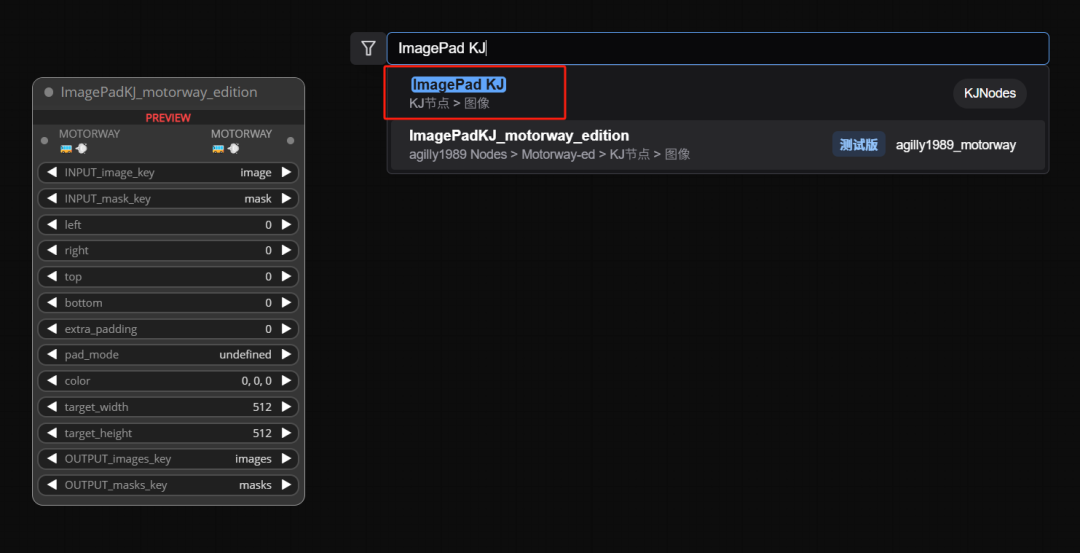
ImagePad KJ is responsible for expanding the original video.
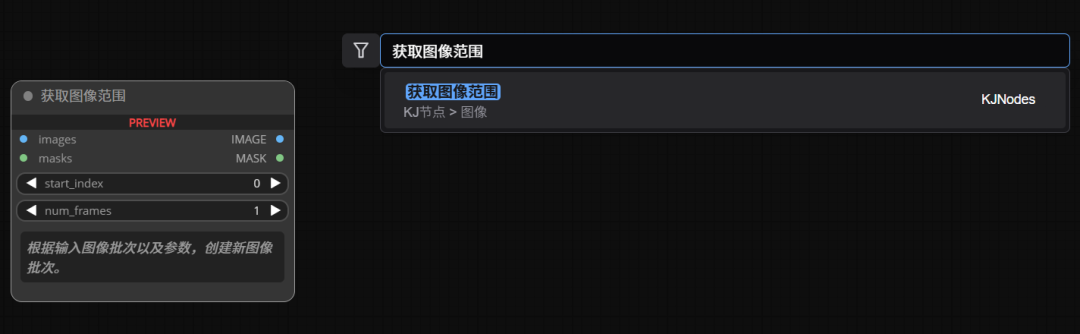
Add two Get-Image-Size nodes named "Get-Image-Range-1" and "Get-Image-Range-2".
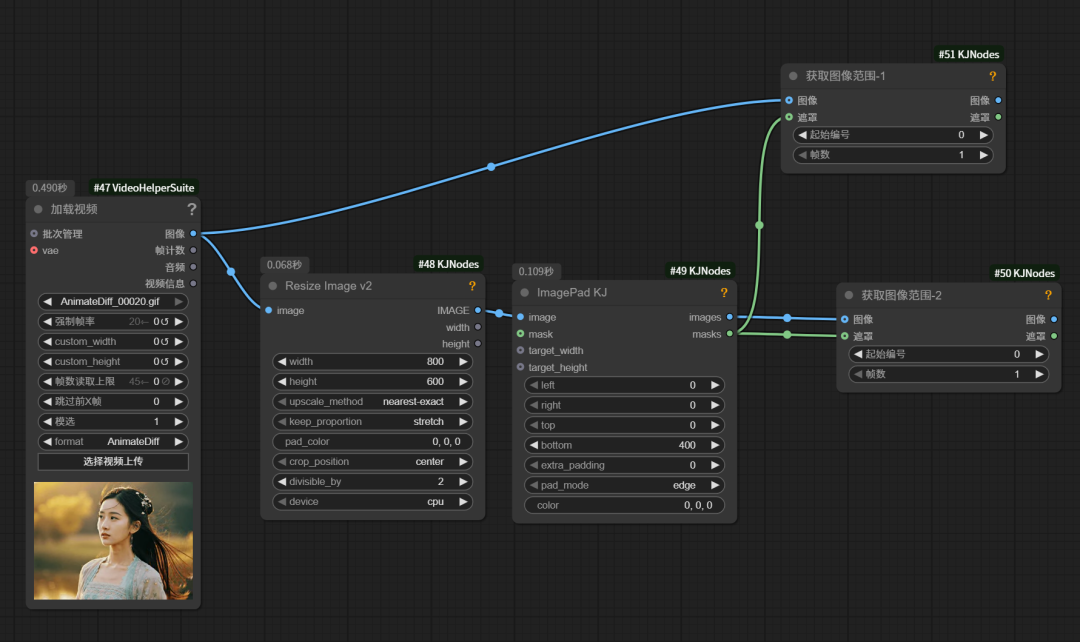
The connection method of "Acquire Image Range-1" and "Acquire Image Range-2" is shown in the figure below.
"Acquire image range-1" and "Acquire image range-2"
Connect the preview image node and preview mask node at "Get Image Range-1" and "Get Image Range-2" respectively.
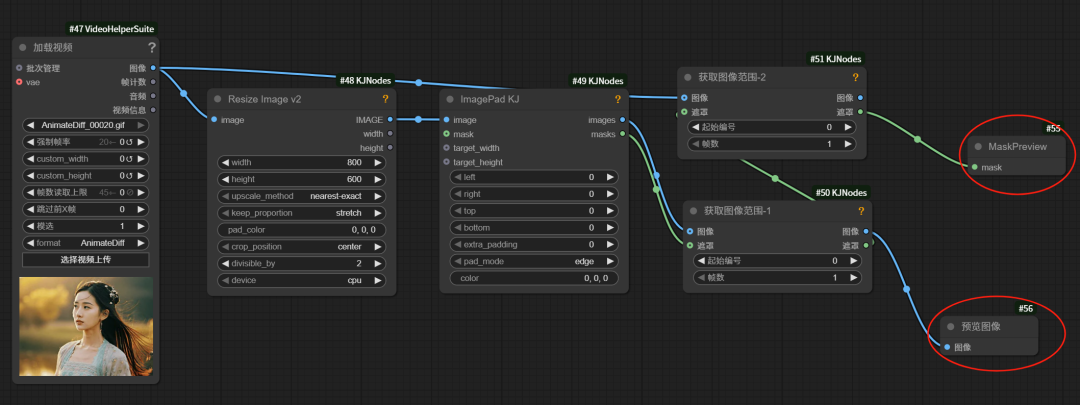
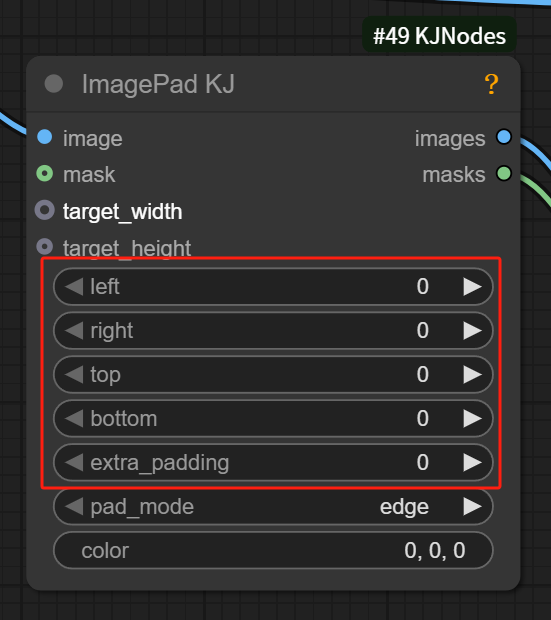
Here we focus on the role of several parameters of the ImagePad KJ node
The role of this node is to expand the size of the original video outward, specifically how to expand, expand how much, through the parameters set in the red box in the following figure
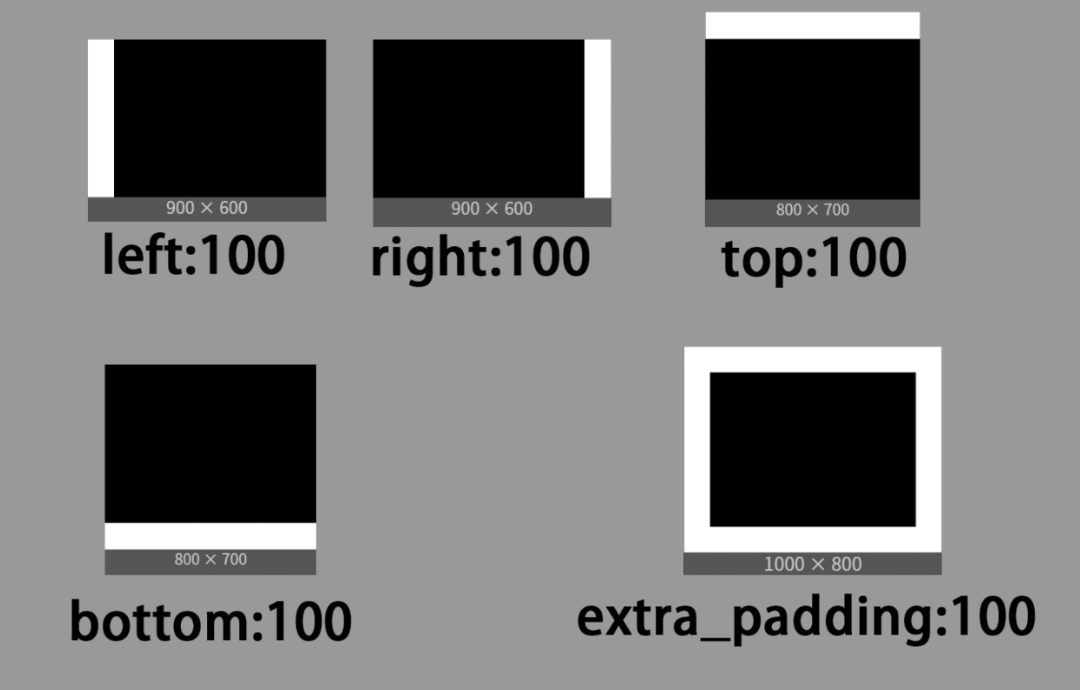
The parameters left, rght, top, bottom, and extra_padding represent how many pixels to extend the screen forward, backward, left, right, and all around, respectively.
After I set the values of these directions to 100 respectively, I ran to get the following results, it is easier to understand the meaning of the parameters by referring to the figure below.
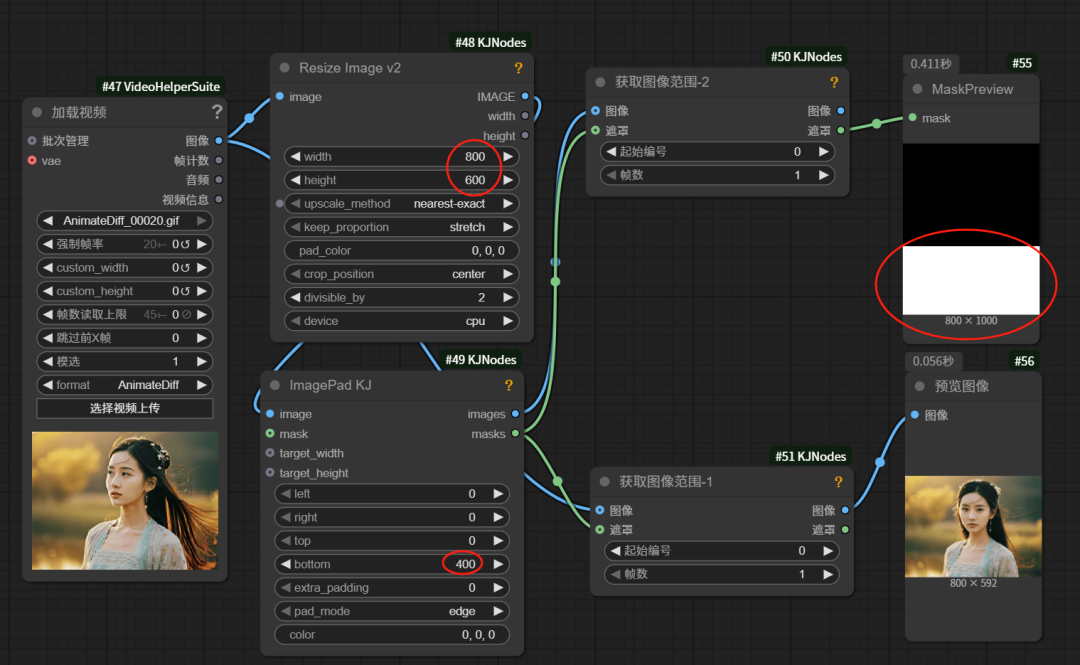
The original video is a horizontal version of the video, if we want to get a vertical version of the video, we need to expand the screen downward, we temporarily set the value of bottom to 400, run to see the preview of the screen effect.
II. Connecting basic workflows
Double-click in the margin to search and add the Get Image Size Quantity node

The node connection method is shown in the figure below.
The original video is resized via the "ImagePad KJ" node, and the new frame and size of the video is passed to the " WanVideo VACE Encode" node in the base workflow.
Well, at this point, the workflow is built.
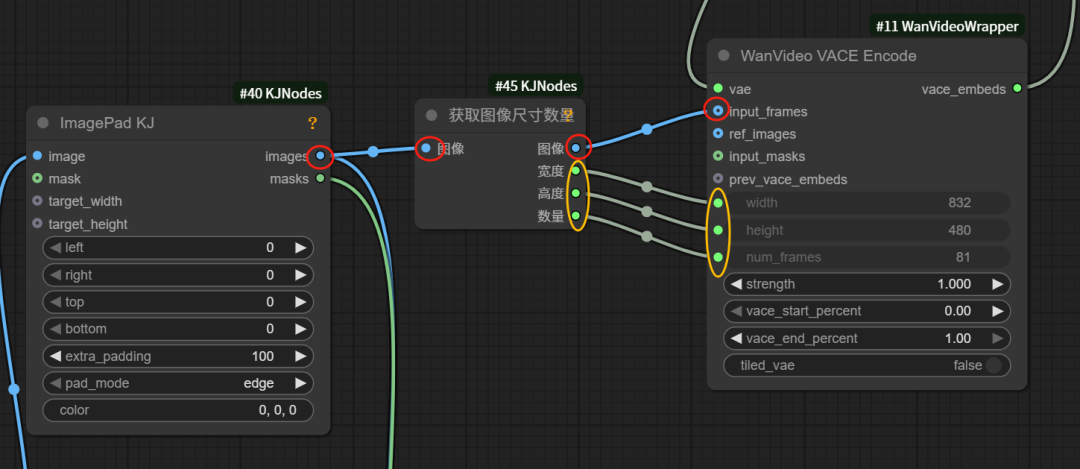
Here is a screenshot of the complete workflow
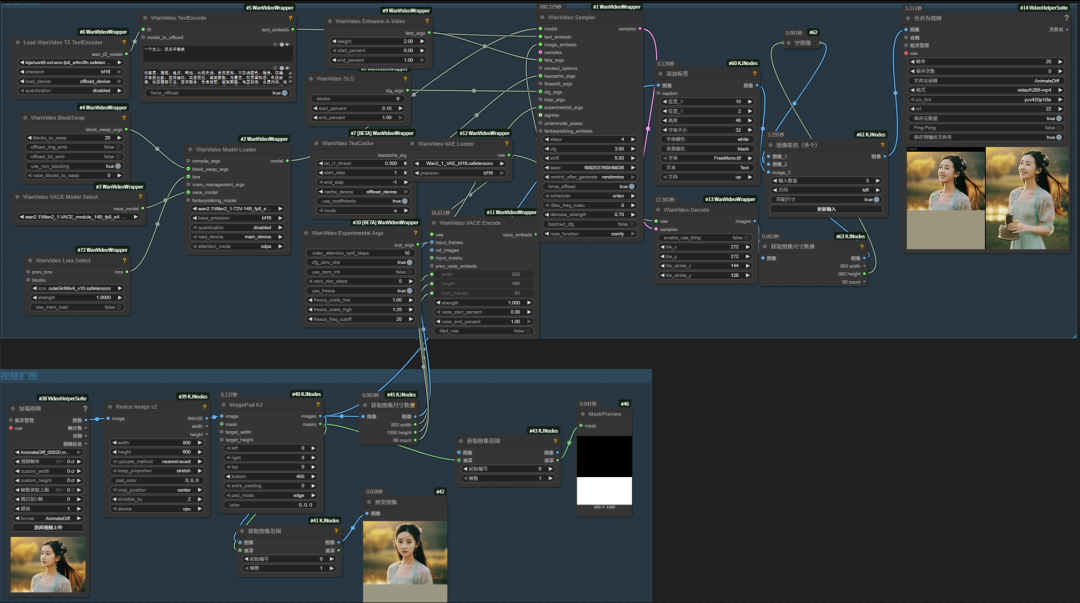
Click Run and the model complements the bottom screen perfectly, and the original horizontal video is converted to a vertical video.
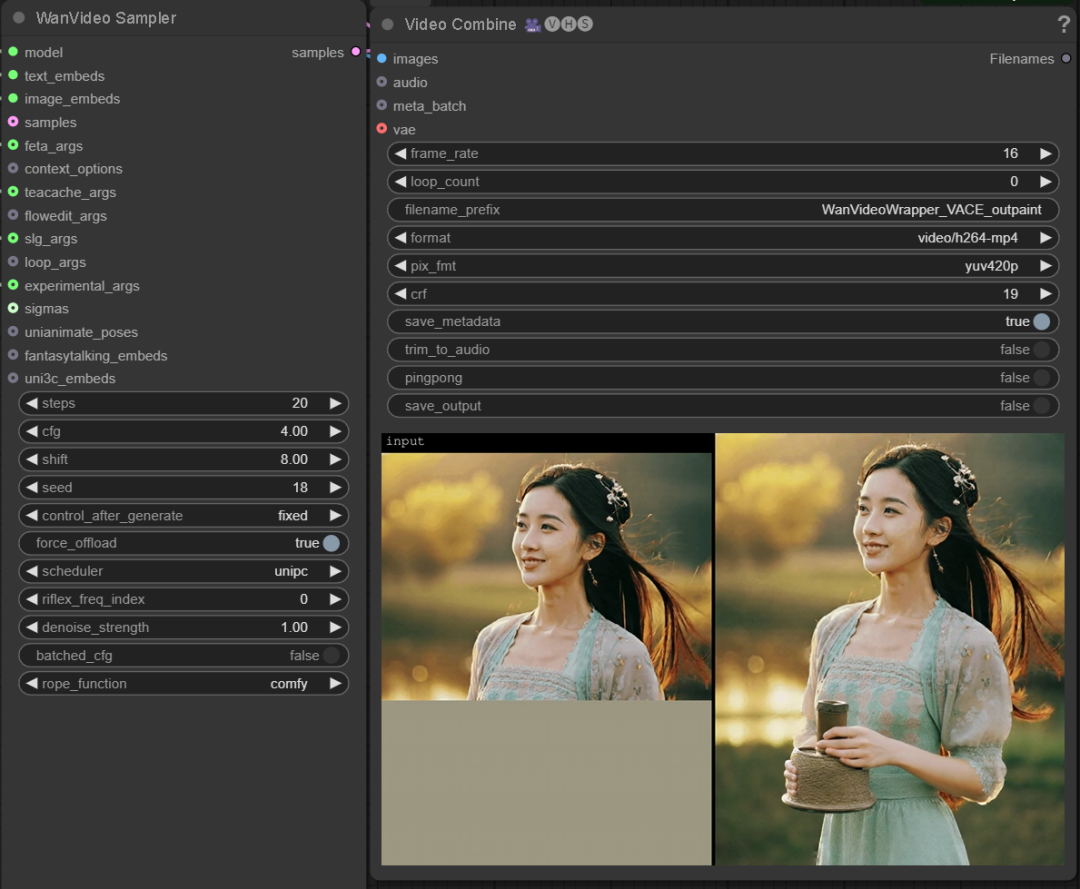
Just to be clear, the process of generating the video is essentially a card draw, and sometimes you don't get the perfect result all at once, requiring you to try a few more times.