



Previously written freeAI Digital HumanheygemLocal installation tutorials, many friends encountered a variety of problems, resulting in installation failure.
Digital Human Project Heygem Local Deployment Tutorial, Build AI Digital Human from Zero Base
To solve this problem, this time a lease was writtenAsgard CloudGPU, tutorial for installing heygem.
Pros of Xian Gong Cloud: Low price, about $1.6 per hour. Other GPU rentals cost $8 per hour.
Sengong Yun Cons: Insufficient resources. Need to grab the GPU in the morning, it's hard to grab a GPU after noon.
Preparation:
Cell phone number: Mainland China's cell phone number
1. Sign up for the Sengong Cloud
Open the official website of Xiangong Cloud. Click on "Register New User" on the right side.
Enter the cell phone number.
Website:
https://www.xiangongyun.com
2.Xiangong cloud recharge
The GPUs in the Sengong Cloud are pretty cheap, about $1.60 per hour.
Compared to others, such as GPU servers in AliCloud and Tencent Cloud, it costs about $8 per hour.
Deployment typically takes 2 to 5 minutes, and deployment is not counted as a cost.
Billing only starts after successful deployment. So a $10 recharge can play for quite a while.
3. Installation
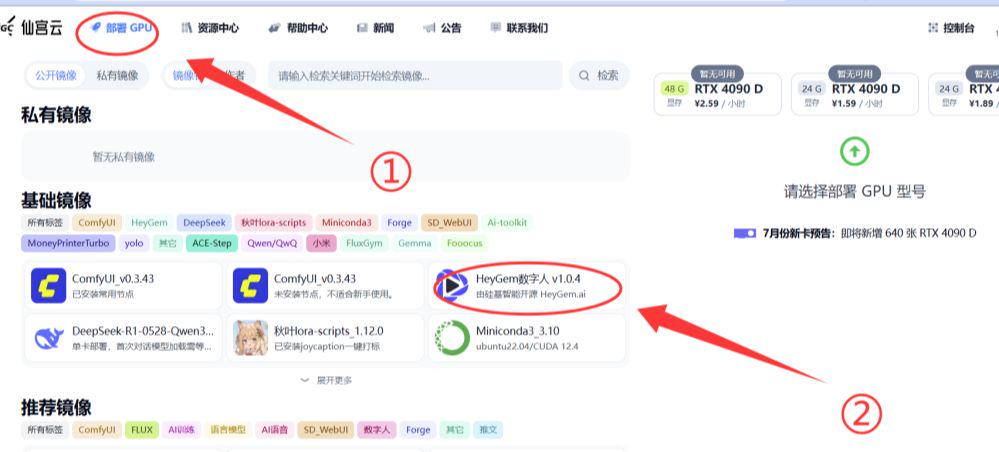

④ Just choose a cheap one. Here we choose RTX 4090 D, $1.59 per hour.
⑤ Click "Confirm Deployment".
The installation screen appears.
When installing, it is not billed. It is billed only after successful installation
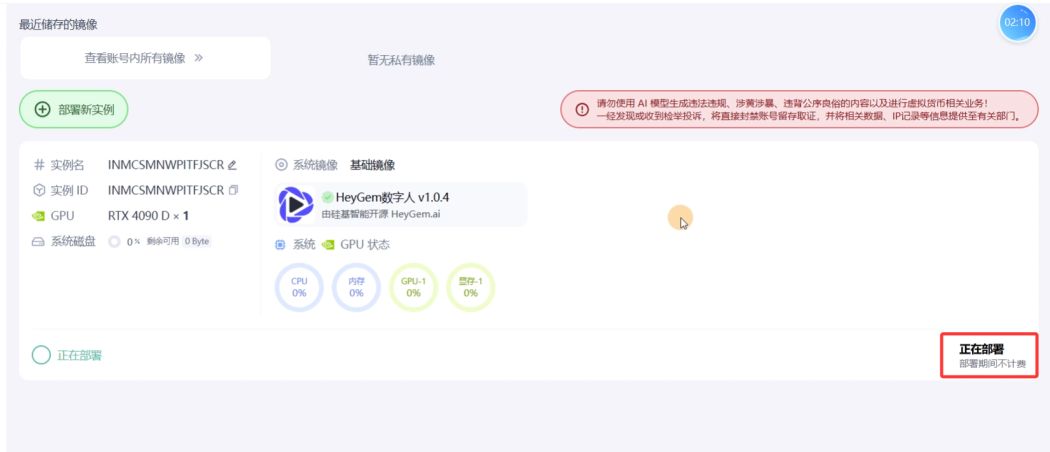
When the "Running" screen appears, heygem is successfully installed.
It takes about 1~2 minutes to install successfully.
4. Upload video files
4.1 Preparing video footage
For this step, we need to upload the video file.
This video file is larger than 8 seconds, speaks clearly, and gestures must not obscure the face.
If you don't have your own, you can use the practice materials I've prepared.
Exercise file download link:
[Exercise File (Zhao Liying Interview) - Xunlei.com:] https://pan.xunlei.com/s/VOUImSS1pH6GzAHeFAG2FqmuA1?pwd=wzby#
4.2 Uploading video clips
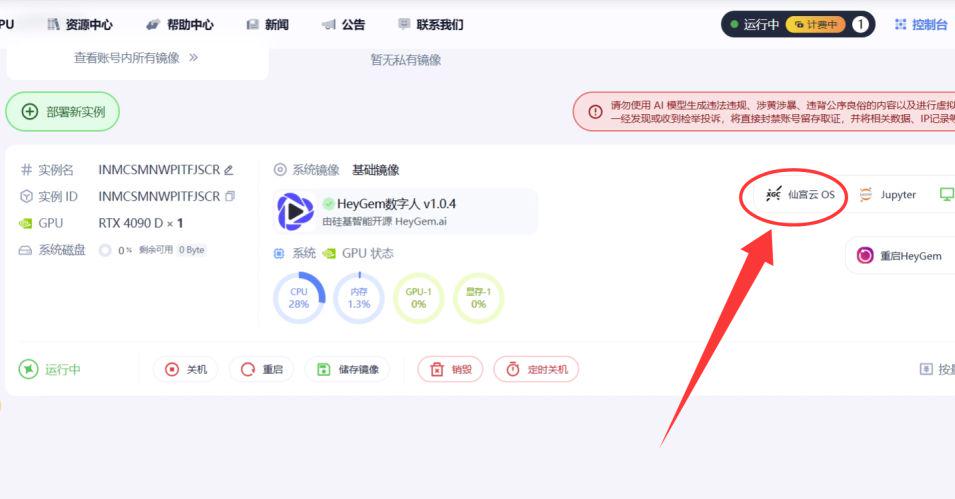
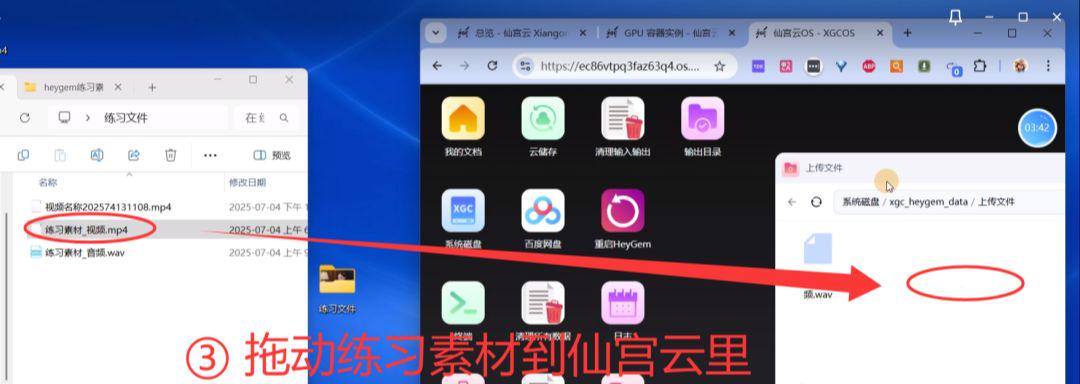
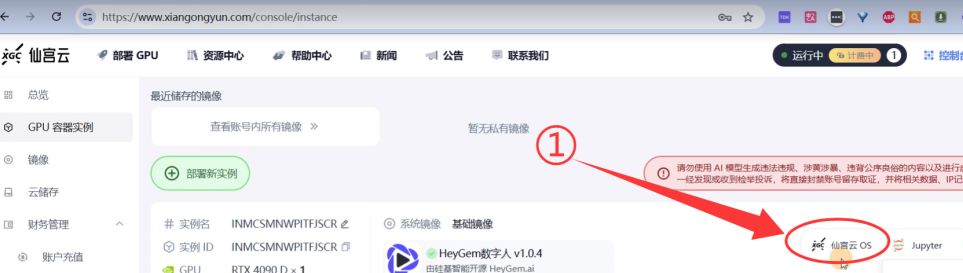
① Click on "Sengoku Cloud OS".
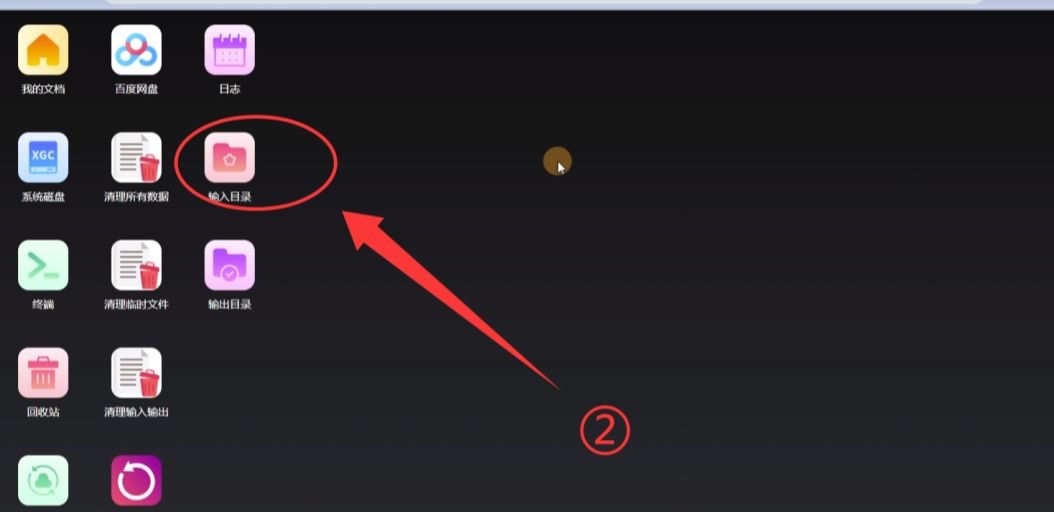
Click "Input Catalog".
③ Drag the exercise material to the fairy cloud.
5. Open heygem
① Click VNC
Click "Start VNC".

③ Double-click the icon to open heygem
6. Customized digital people
① Click "Quick Customization".
② Model name: Just name it!
③ Upload video: Click to upload video
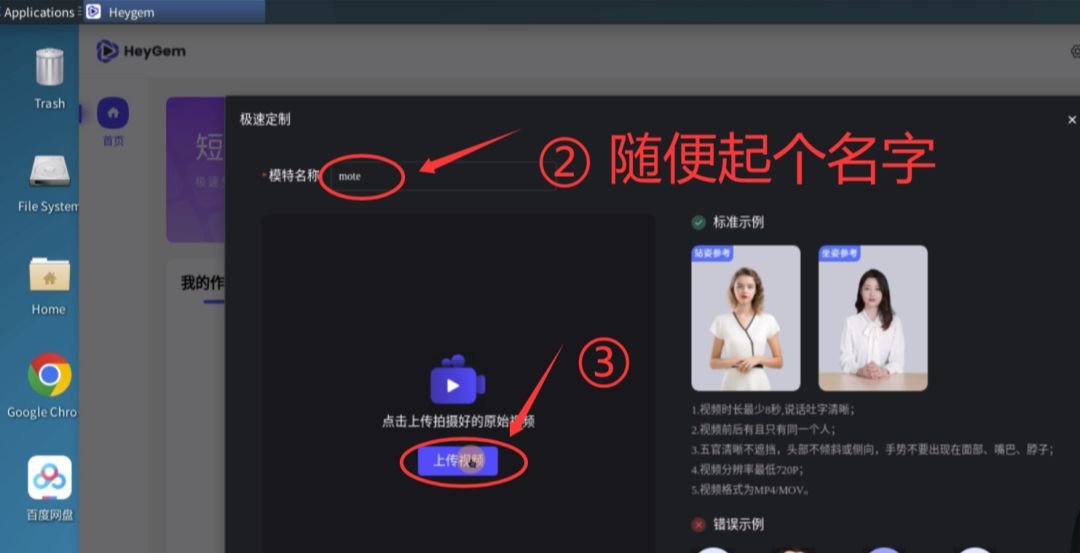
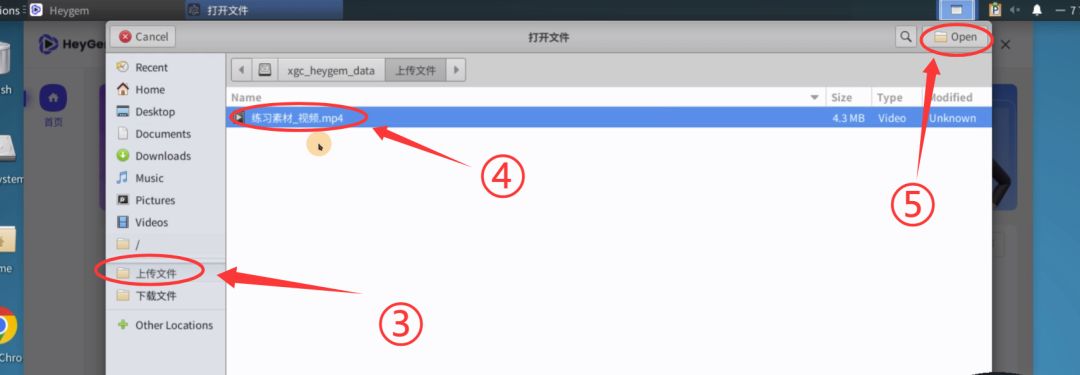
③ Click "Upload File".
④ Select "Exercise Materials".
⑤ Click "open".
(7) Click "Submit Customization".
⑧ Click "Go to the production progress".
⑨ Click on "Make a video."

7. Production of videos
① Input text:
For example:
- Hello, everyone. I'm an old friend of yours.
Click "Compose Video".
Click on "Go see the progress."

8. Save the video to the Xingu Cloud
① Click on "My Work".
② Click "Download Video" (Move your mouse over the video.)

③ Select "Download File".
④ Click Save.

9. Download the video to your computer
In this step, we take the finished video and save it to our computer.
Click on "Export Catalog"
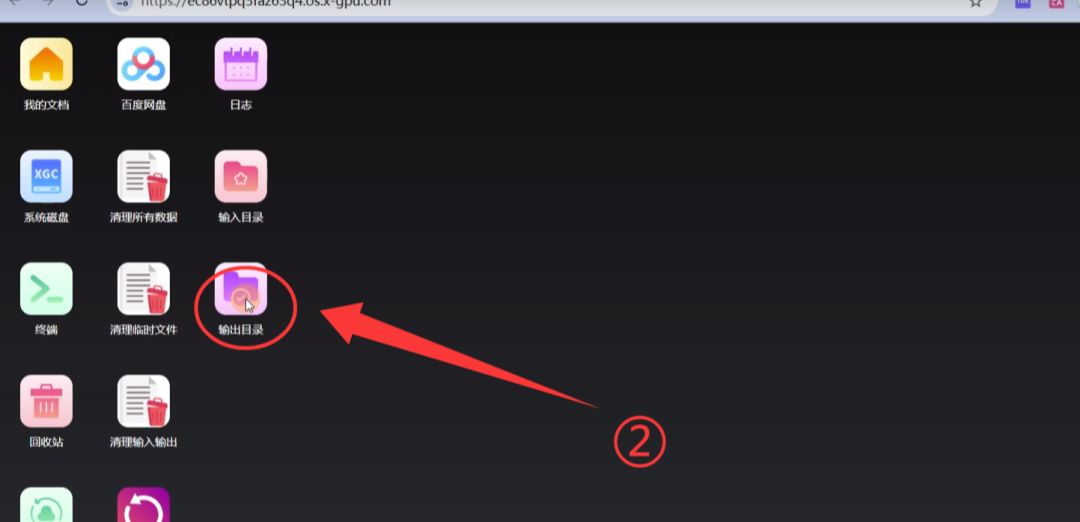
③ Right-click the video you want to download.
④ Select "Store locally".
④ In the local folder, you can see the downloaded video