



There's fun again! Qwen launched a new image generation and editing model。
this oneAI image modelNameZ-Image.
I'm going to give you a brief overview of this model, and it's likeIt's light, fast, good and right”.
Translation is that the computer's configuration is low, it's very fast, it's very effective, it's manageable and it's not limitedPut the key in the back).
No more information is given here. Say more than play。
The next hand is to teach you to install the configuration and to pull it directly to the end
1. Software download upgrade
To run this thing up, it's simple. Comfyorg did it in the first time。
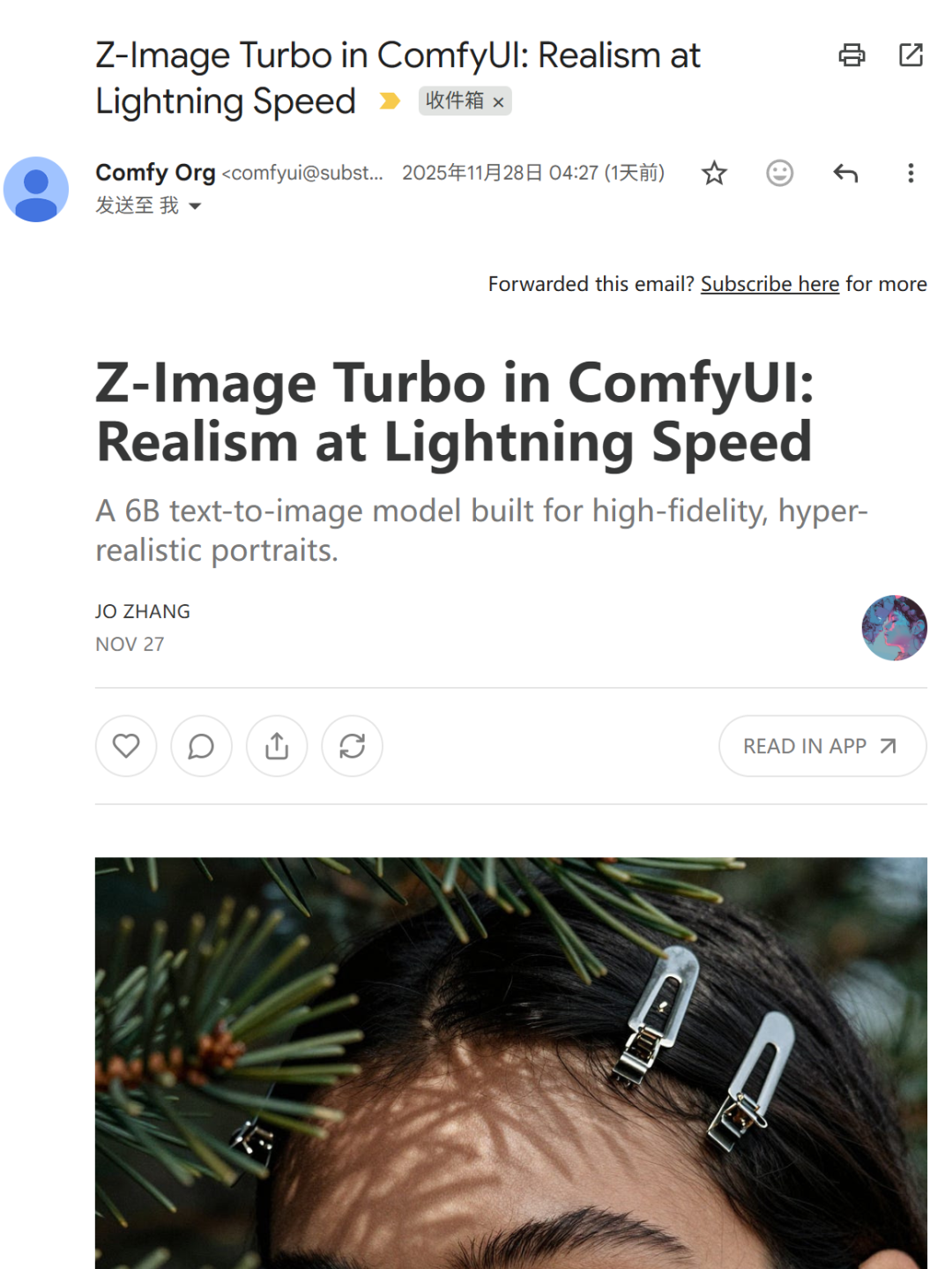
So all we have to do is download the latest version of ComfyUI, or upgrade the local version, and we can use it directly, without having to install a third-party node。
I've already got the CommyUI_Windows_portable, so I've chosen the upgrade。
upgrading is simple. could not close temporary folder: %s。
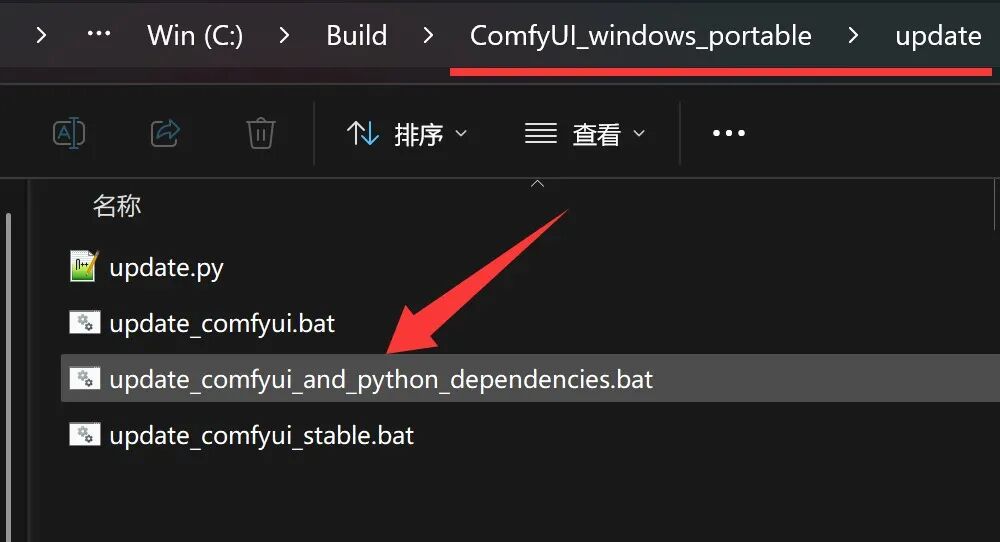
There are three scripts here that click directly on the update_comfyui.bat. Then you will automatically pull the latest code and automatically update the Python dependencies. (Extranet access capacity required)
If it is to be completely new, reference can be made to my previous article, which is very detailed。
2. Start-up software
after the upgrade is completed, you can click on the run_nvidia_gpu.bat to start the software。
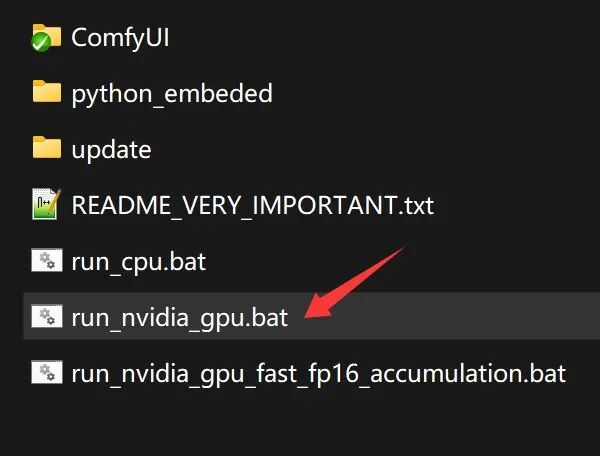
When started, you will automatically call the browser and open the main interface。
Loading workflows
When you open the main interface, you load a default workflow, or you load the last one you used. And we need Z-Image's exclusive workflow。
The workflow is built in, just open the template and click Z-Image-Turbo。
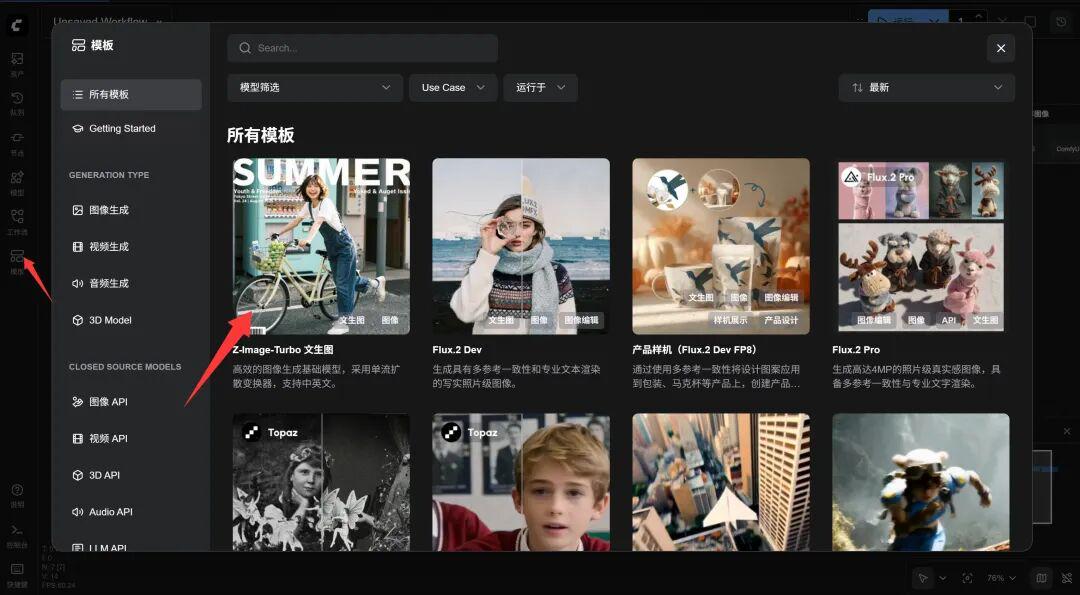
Currently, this template is in first place and can be easily found。
4. Download models
When you open a work stream, you will immediately pop up a hint of missing models. Don't panic
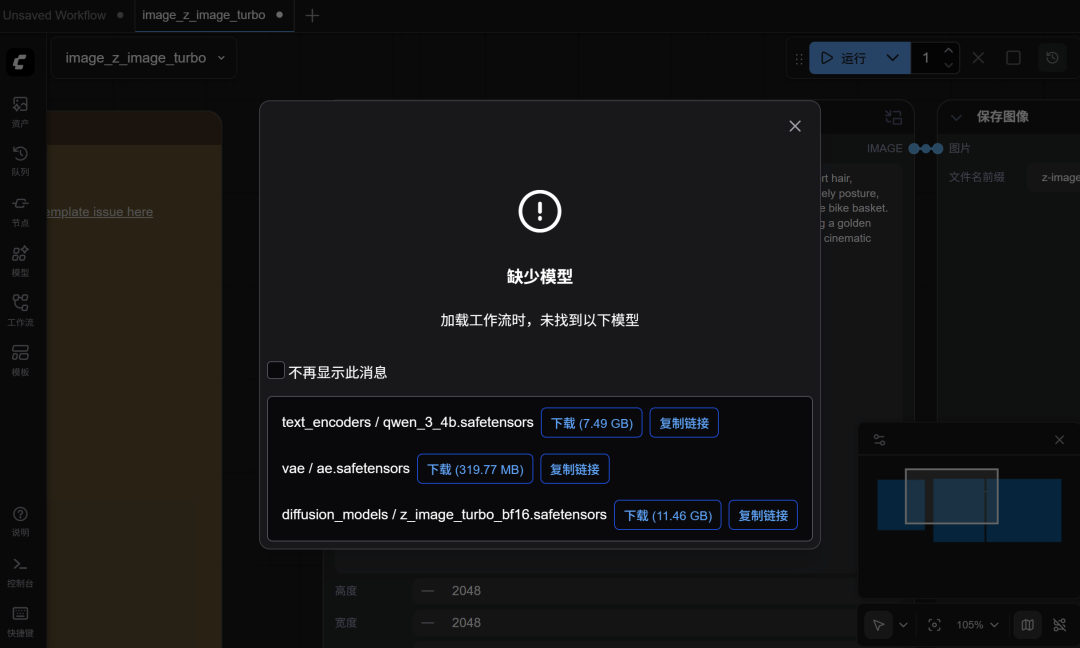
One benefit of the official workflow is the provision of a model downloading address. Just click on the blue download button, download the model. Here's the gap in the model, we look straight down。
After the model has been downloaded, it is placed in accordance with the hints in the chart below。
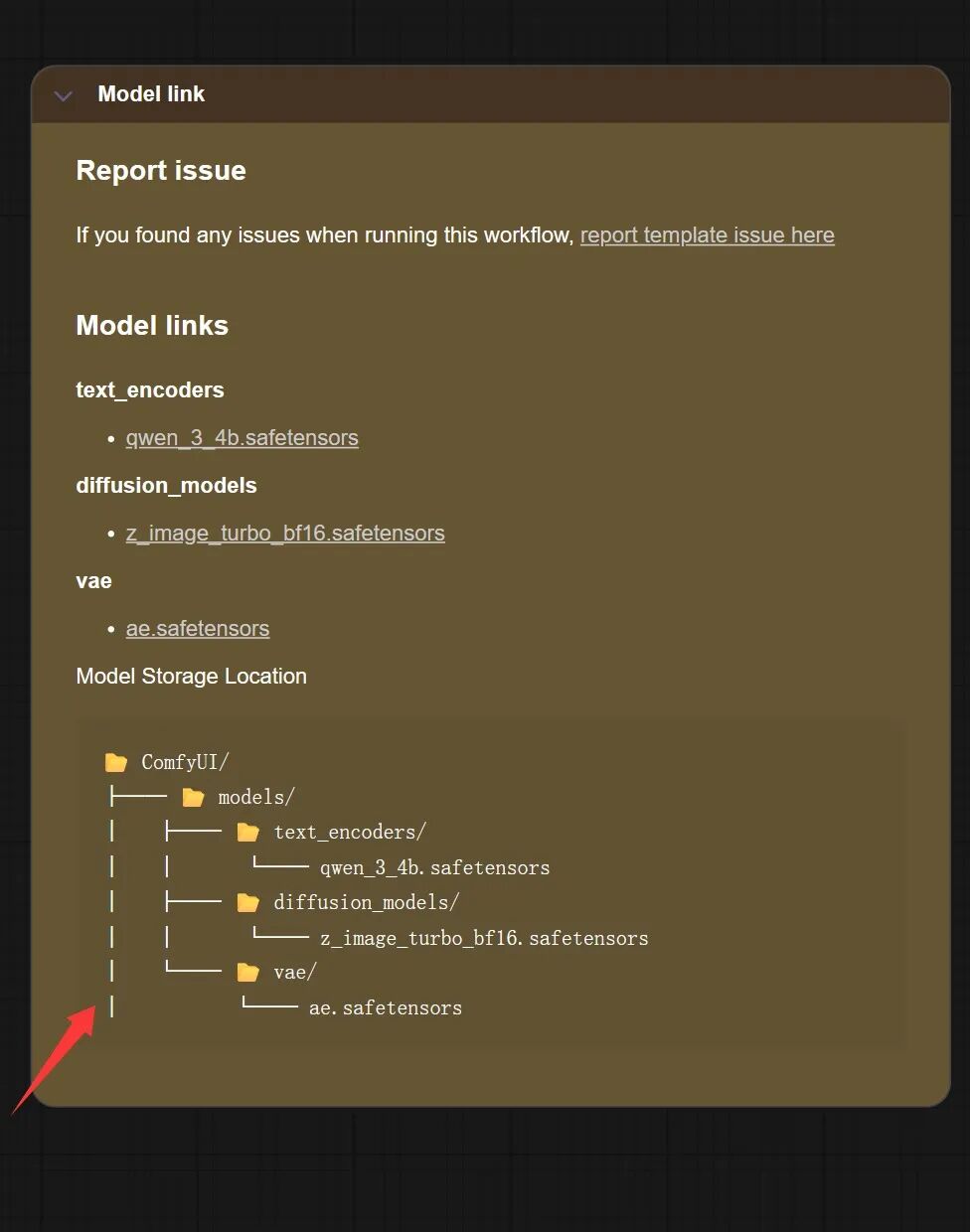
this time, only three core models are involved. just put these models in the corresponding directory below models。
Toggle a new frontend (optional)。
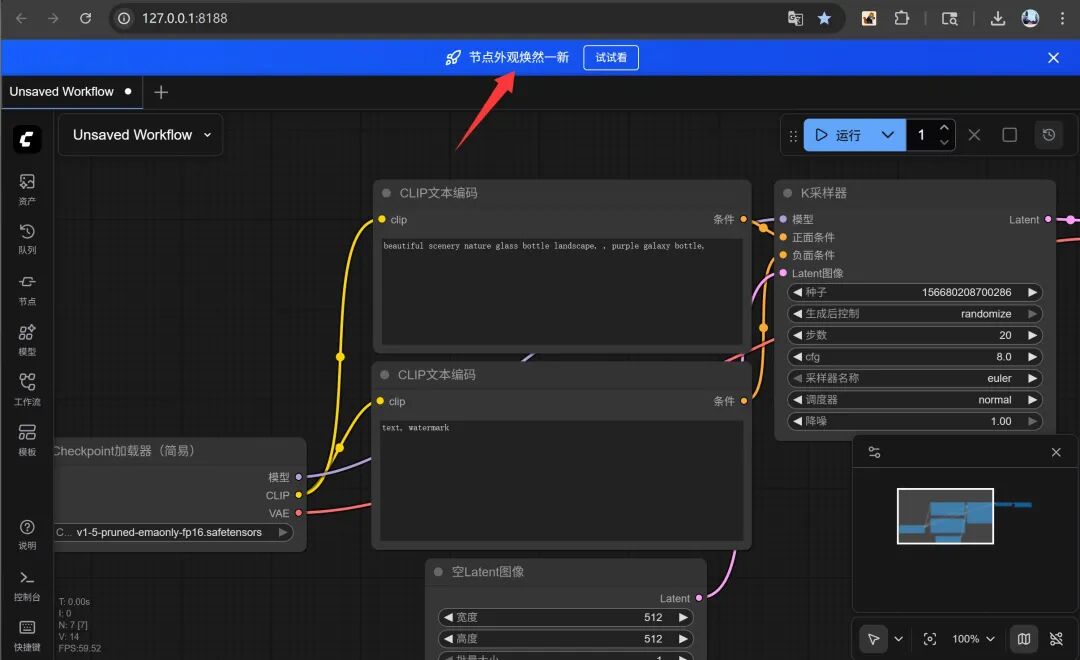
After opening the workflow, the top should have a hint. Reminds you to upgrade the ComfyUI front-end interface. You can try. Once enabled, the interface will be more modern。
5. Workstream profiles
This job stream looks very simple, just two nodes。
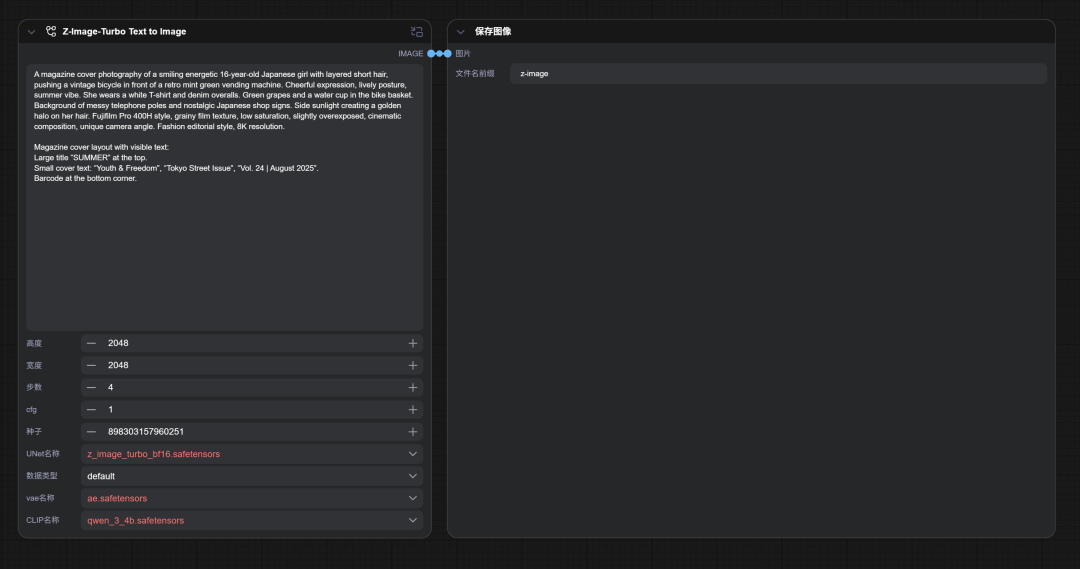
The core node is Z-Image-Turbo Text to Image. The other is a regular photo preview and save node。
In fact, the stream uses a subgraph, which looks so simple。
Click a small right top corner icon at the core node to view the full workflow。
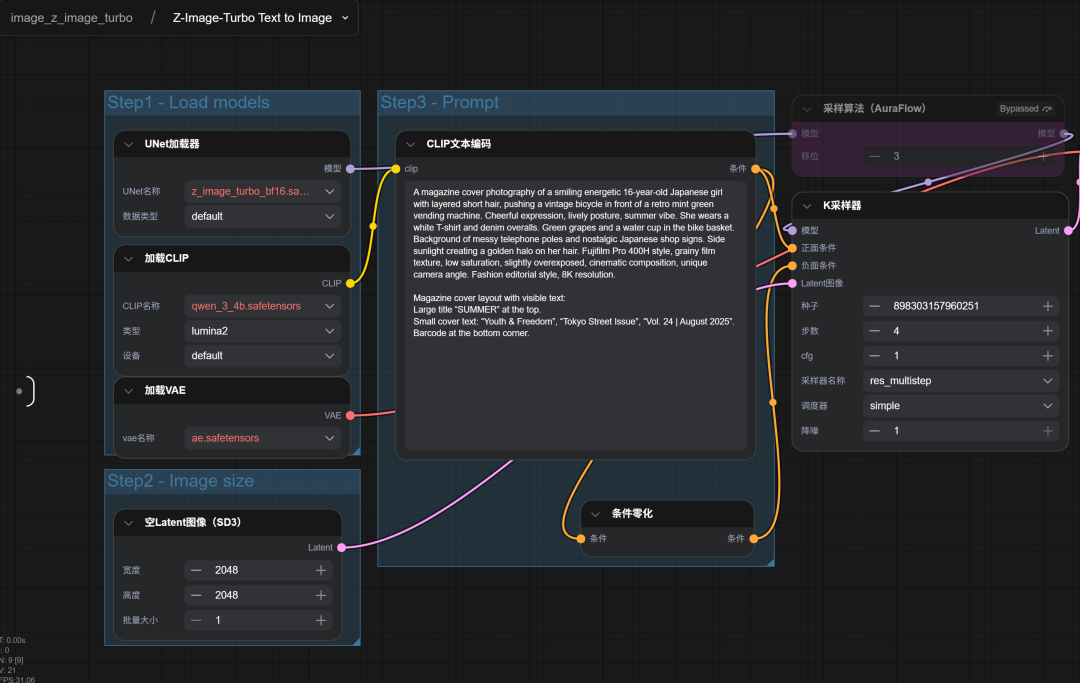
It's a little complicated. It's really simple。
Step 1: Load Model
Step 2: Set image size
Step 3: A hint
AND THEN YOU GIVE IT ALL TO THE K SAMPLER, AND THEN YOU CREATE A PICTURE AND SHOW IT。
There's a red alarm because there's no local model。
When we finish downloading the model and putting it in the right place。
Click on the upper left corner Icon -> Edit -> Refresh Node Definition.
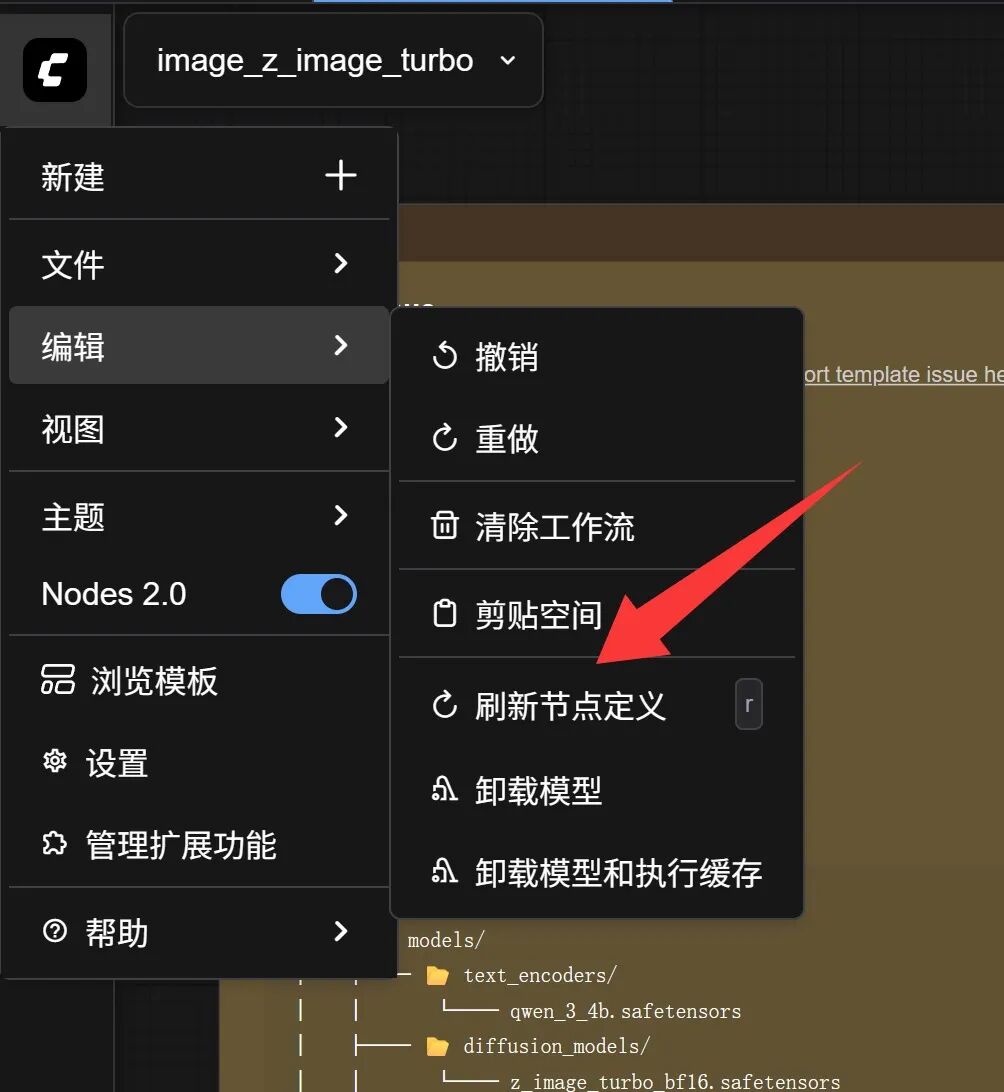
The red alarm disappeared when it was refreshed。
6. Operation generation
Everything's done. Just click on the top right run button。
Then we'll wait and see:
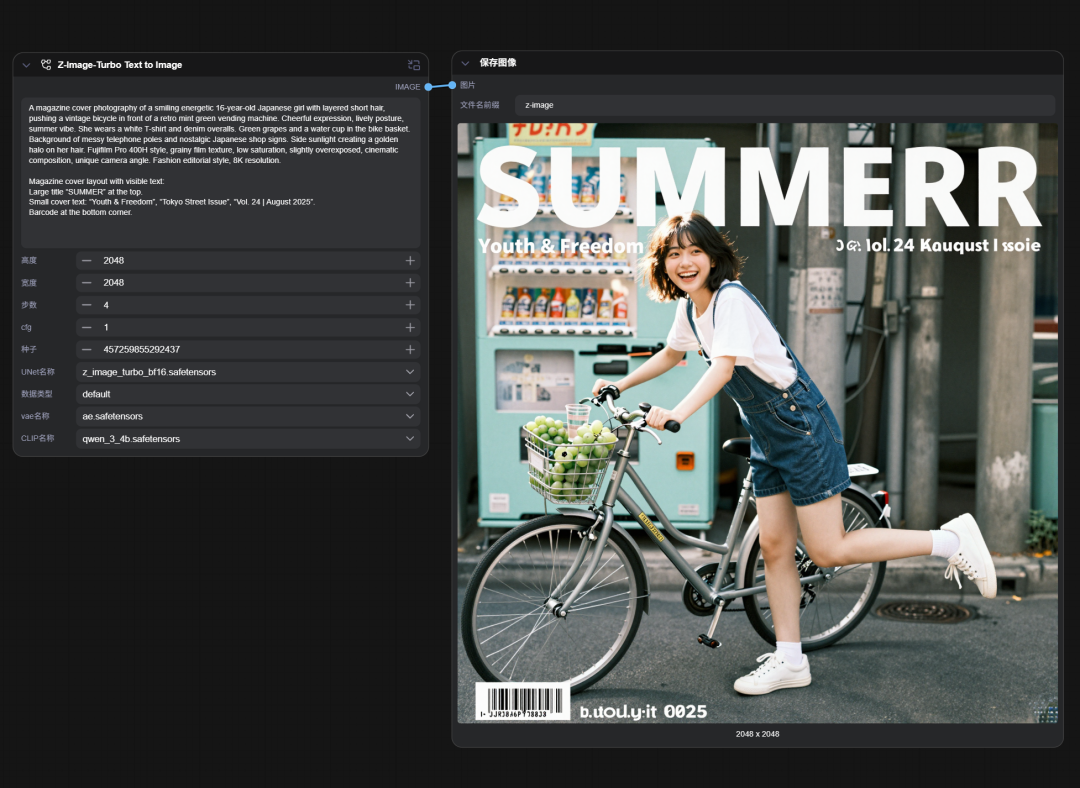
I tested the computer for RTX 5060 Ti 16GB. This example runs for about a minute。
FIRST OF ALL, 16 GB DOES WORK, BUT THERE IS A BIG GAP BETWEEN TIME CONSUMPTION AND EXPECTATIONS。
And the little bits of words in the picture are not coded。
After a simple test, it was found that the problem of speed was mainly related to the parameter setting, while the problem of obfuscation, which was somewhat random, appeared to be much more normal after adjusting the ratio。
As can be seen from the figure, the working stream defaults on the size of 2048 x 2048, which is clearly very large。
After I adjusted to 1024 x 1024, the speed went up a lot, six to seven seconds, and that's quite the speed。
Besides, I've adjusted the scale of the regular magazine, so there's nothing wrong with it。
Optimized settings are as follows:
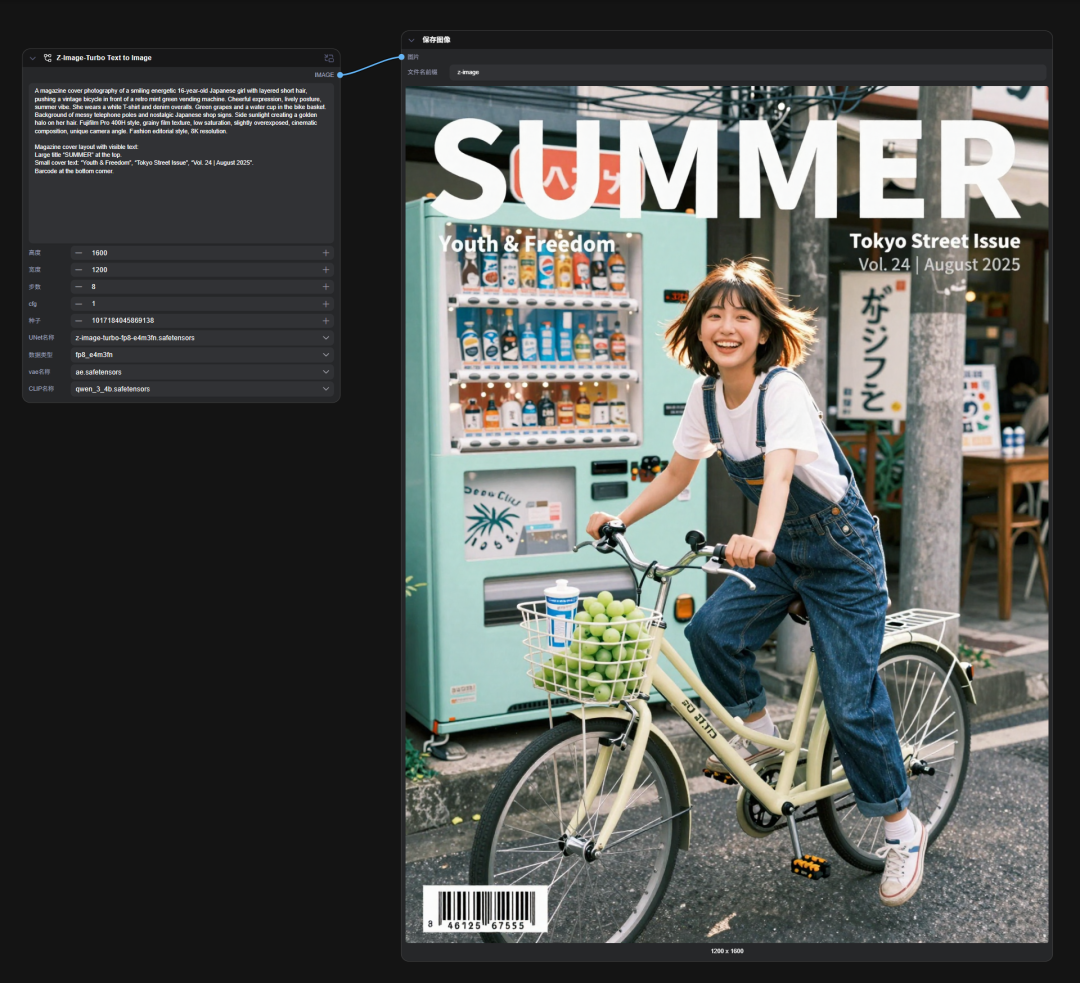
I tried the following three dimensions:
Zenium 1200 x 1600 px(Better vertical)
Zenium 1280 x 1700 px(Journal cover is more relaxed)
Zenium 1500 x 2000 px(appropriate for high-quality printing generation)
The results were good。
The larger figure is as follows:

Very successful, with no obvious problems。
AND I TRIED THE FP8 MODEL。
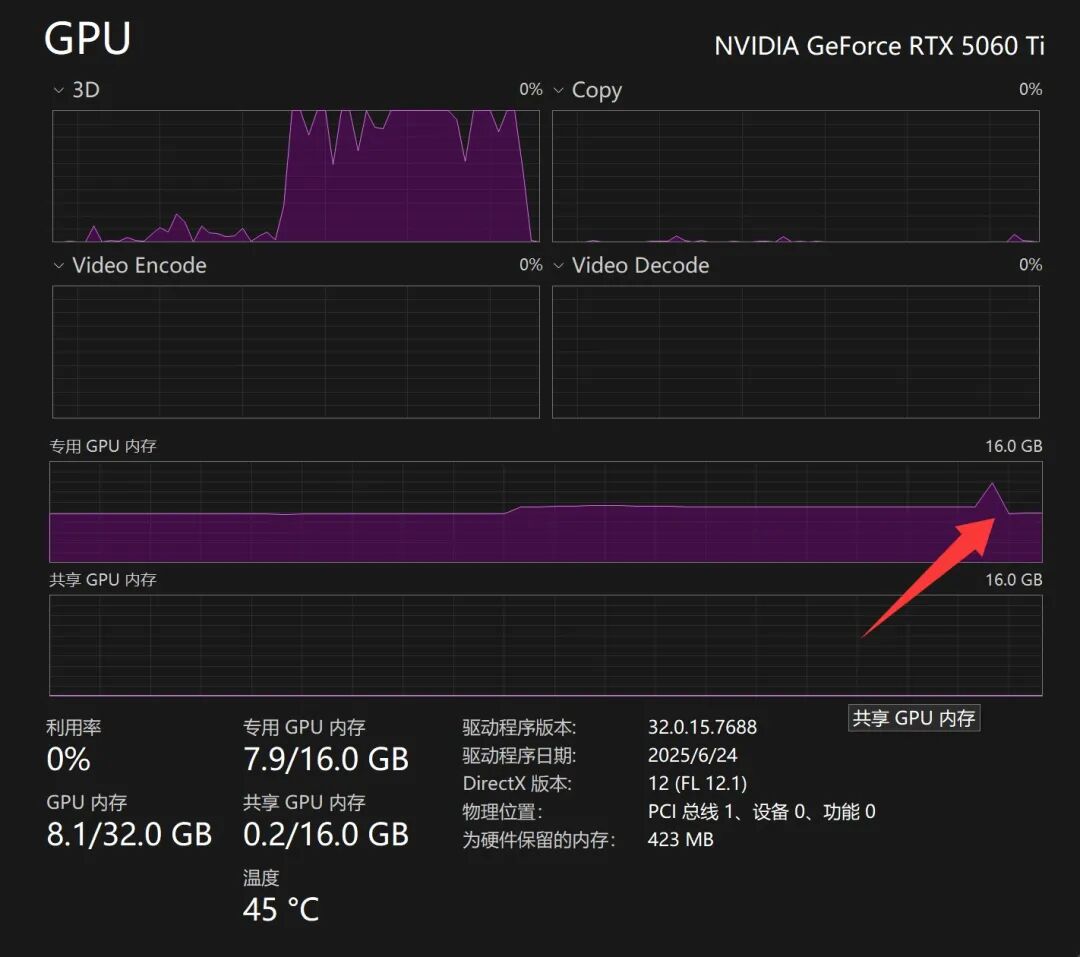
THE VISIBLE OCCUPANCY IS BASICALLY BETWEEN 8-9 GB, AND THE LAST SHIVER IS FINISHED. BECAUSE MY PRESENCE IS 16 GB, IT WILL TAKE AS MUCH OF IT AS POSSIBLE, AND IN THIS CASE 8 GB IS VISIBLE PLUS POINT MEMORY SHOULD BE OPERATIONAL. 8 G.B.F., TRY IT, GIVE IT A FEEDBACK。
THERE ARE ALSO GGUF MODELS ALREADY IN PLACE THAT SHOULD FURTHER REDUCE THE AMOUNT OF VISIBLE CONSUMPTION, SO ONLINE PEOPLE SAY 6 GB CAN RUN. IT'S A MATTER TO BE SUMMARIZED BY THE NETIZENS. I DON'T HAVE A GRAPHIC CARD BELOW 16 GB, I CAN'T TEST IT。
Our main objective today is to use it first, then we'll study it well

Downloading link: https://pan.baidu.com/s/1KJXt10VO06WUTTbgoaxLA?pwd=tony
ripping code: tony
counterpression password: tonyhub
Related Addresses:
https://tongyi-mai.github.io/Z-Image-blog/
https://www.modelscope.cn/aigc/imageGeneration
https://huggingface.co/T5B/Z-Image-Turbo-FP8/tree/main
https://huggingface.co/spaces/Tongyi-MAI/Z-Image-Turbo