



Starting today, I'll be leading an exploration of theAI PaintingThe marvelous world ofMidjourneyThis powerful tool. If you're new to AI painting or curious about Midjourney, then this beginner's guide will be the perfect starting point for you.
I. Why study Midjourney?
There are three main reasons to learn Midjourney:
- 1. industry demand: In the early stages of AI painting, many companies required that their employees would use Midjourney, and even though tools such as Stable Diffusion can replace some of this functionality as the technology evolves, Midjourney is still the primary tool used by many companies to create AI paintings.
- 2. Ability to perform tasks independently: Midjourney already has the ability to accomplish some tasks independently, such as wallpaper design, logo design, product inspiration artwork and IP design. For small companies or individual creators, using Midjourney can reduce costs and achieve high quality work.
- 3. An important part of the AI workflow: Midjourney can be used in conjunction with other AI tools such as Stable Diffusion to form an efficient AI workflow. In this way, the dual goals of low cost and good results can be achieved.
II. Register and Login to Discord
Midjourney is a service offered through Discord, a chat program. Therefore, to use Midjourney, you first need to sign up for a Discord account.
Here are the steps:
- 1. Visit the Discord website and click Register.
- 2. Enter your email address, nickname, username and password, and make sure your date of birth is set to 18 years or older.
- 3. After completing the human verification, you have successfully created a Discord account.
Step 1: Click to register for Discord

Step 2: Fill in the registration information

III. Create your own channel
After signing up, we need to create our own channel for better use of Midjourney.
Here are the steps:
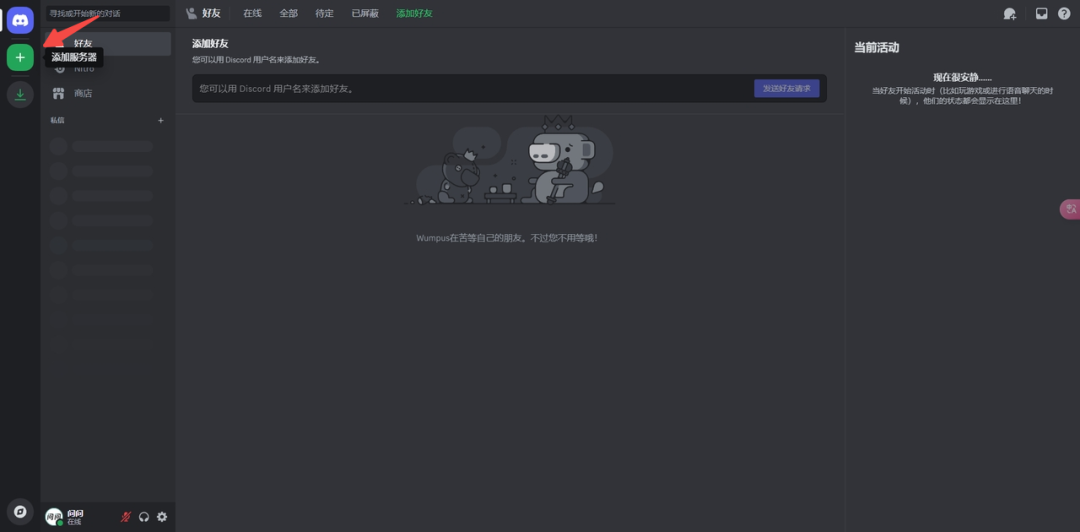
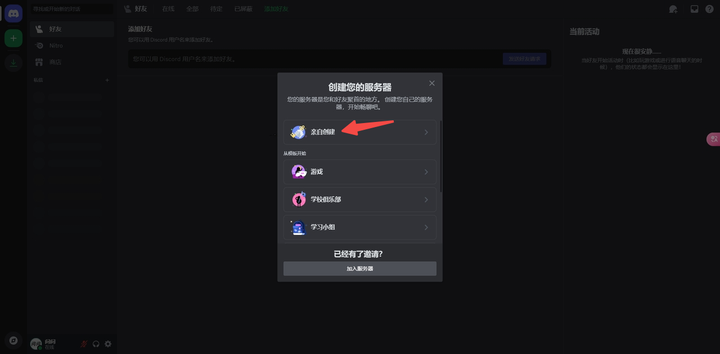
- 1. Click the "+" sign on the main screen of Discord and select "Create Server".
- 2. Name your server and click Create.
Step 1: Click Add Server
Step 2: Click to create it yourself
Step 3: Click on For Me and My Friends Only

Step 4: Name the server
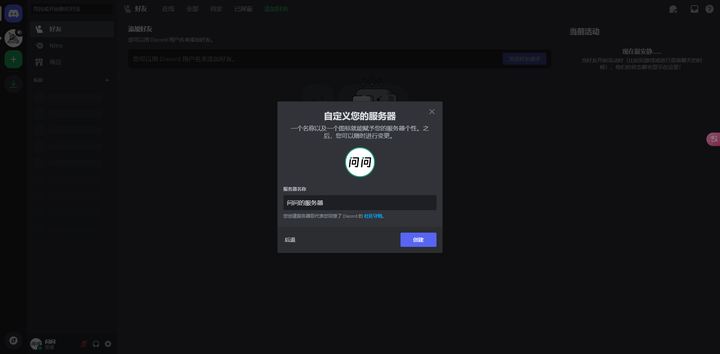
Step 5: Create the status of your server

IV. Inviting the Midjourney robot
Next, we need to invite the Midjourney bot to our server.
Here are the steps:
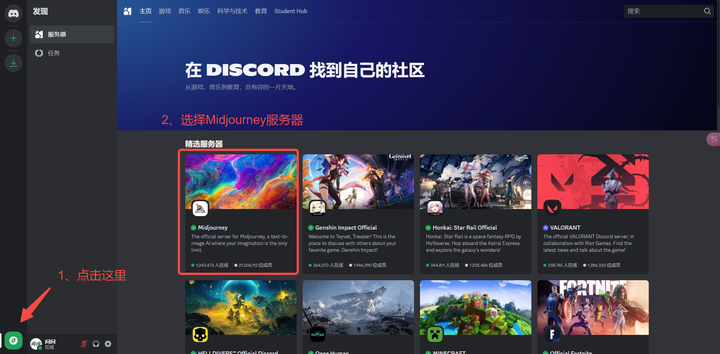
- 1. Find the Midjourney bot on Midjourney's Discord server.
- 2. Click "Add to Server" to select your server and authorize it.
Step 1: Select Midjourney Server
Step 2: Select the Midjourney bot

Step 3: Click Add to My App

Step 4: Select the server to add

Step 5: Authorize Midjourney bot
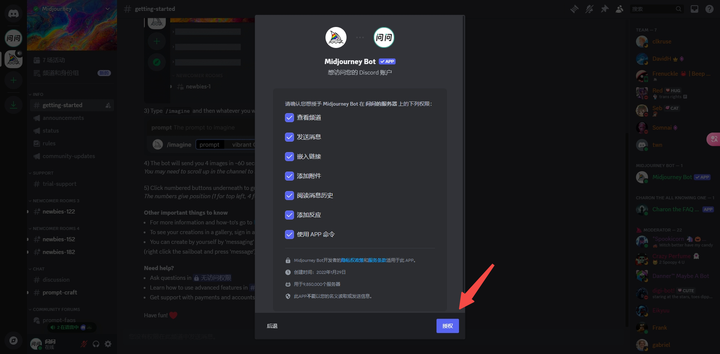
Step 6: Add Midjourney bot successfully

V. Subscription to Midjourney
Midjourney is not free, we need a subscription to use it.
Here are the steps:
- 1. Enter the /subscribe command in your server.
- 2. Visit the link provided, select a subscription plan and complete payment.
Step 1: Enter the /subscribe command

Step 2: Click Manage Account
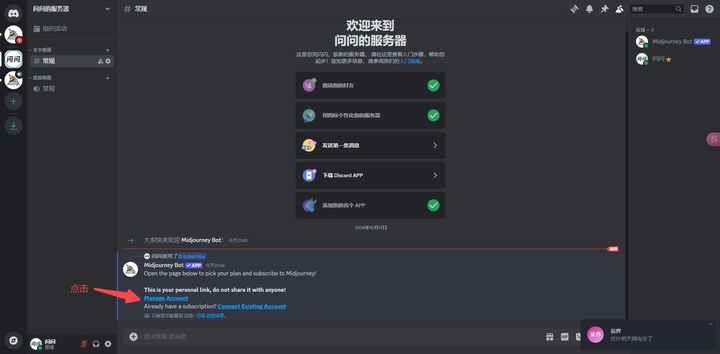
Step 3: View yearly billed subscription plans

Step 4: View monthly billing subscription plans

Step 5: I choose a subscription plan with monthly billing and finally settle the fee with paypal

VI. Generate the first AI drawing
Now that everything is ready, we can start generating our first AI painting.
- 1. Type the command /imagine in the chat box.
- 2. Use prompts to describe the desired picture, e.g. "A girl walking on the street, sunset, movie lighting effect".
- 3. Click Enter and wait a few moments for your work to be generated.
Step 1: Enter the /imagine command
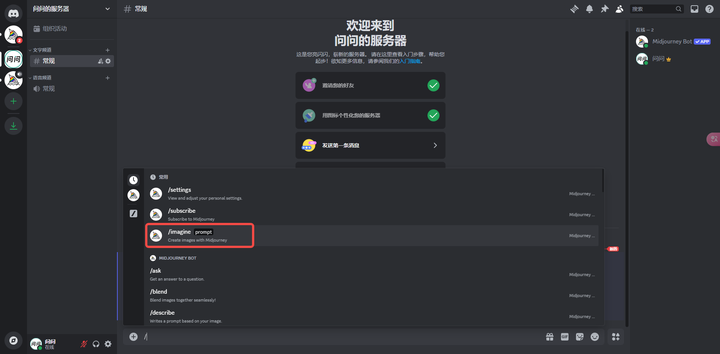
Step 2: Enter the cue word
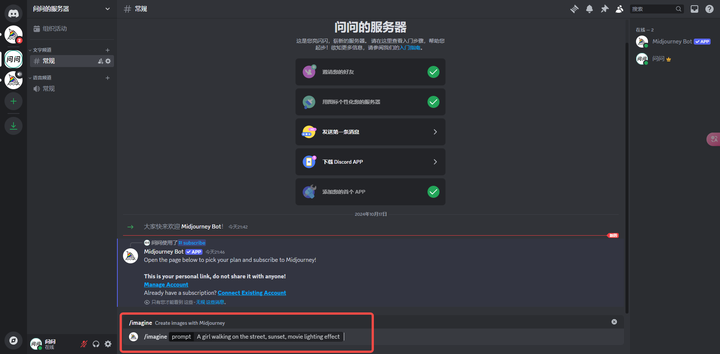
Step 3: Wait a few moments
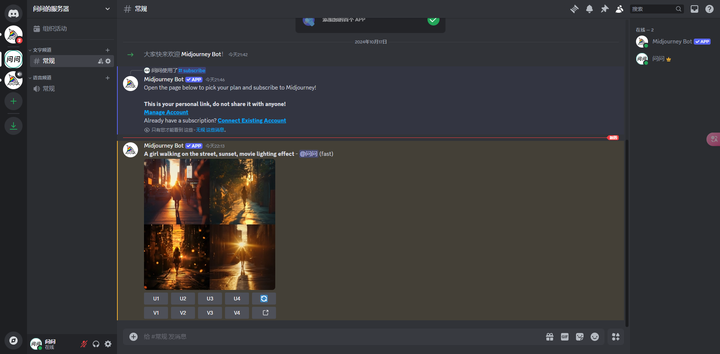
Step 4: Generate a four-panel image

VII. Conclusion
Now you can experiment with different cue words to generate various styles of images. This is just the beginning, we will follow up with more advanced features and techniques to make your AI paintings more professional and beautiful.