



In this issue we look at how to get a gemini pro account for free and Veo3 tips and tricks. To use Veo3 you need at least gemini pro account. It offers 1000 points per month in Google Flow and consumes 100 points per Veo3 video.
free access Gemini Pro Account Methods
How to get a gemini pro account for free:
Link to educational offer: https://gemini.google/students/ (gemini pro 15 months free)

After you click on it it will ask you to verify your edu email, then go to this website: https://etempmail.com/ to get a temporary email.
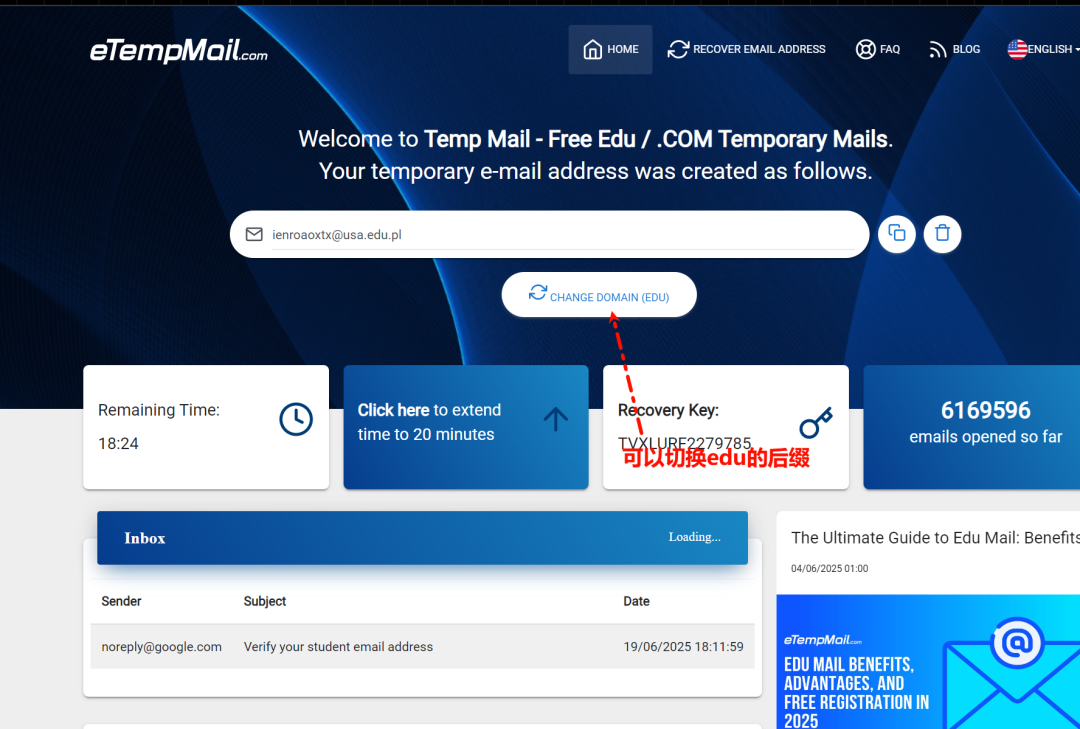

After filling in the temporary email address, you will be given the verification code in the location shown below.
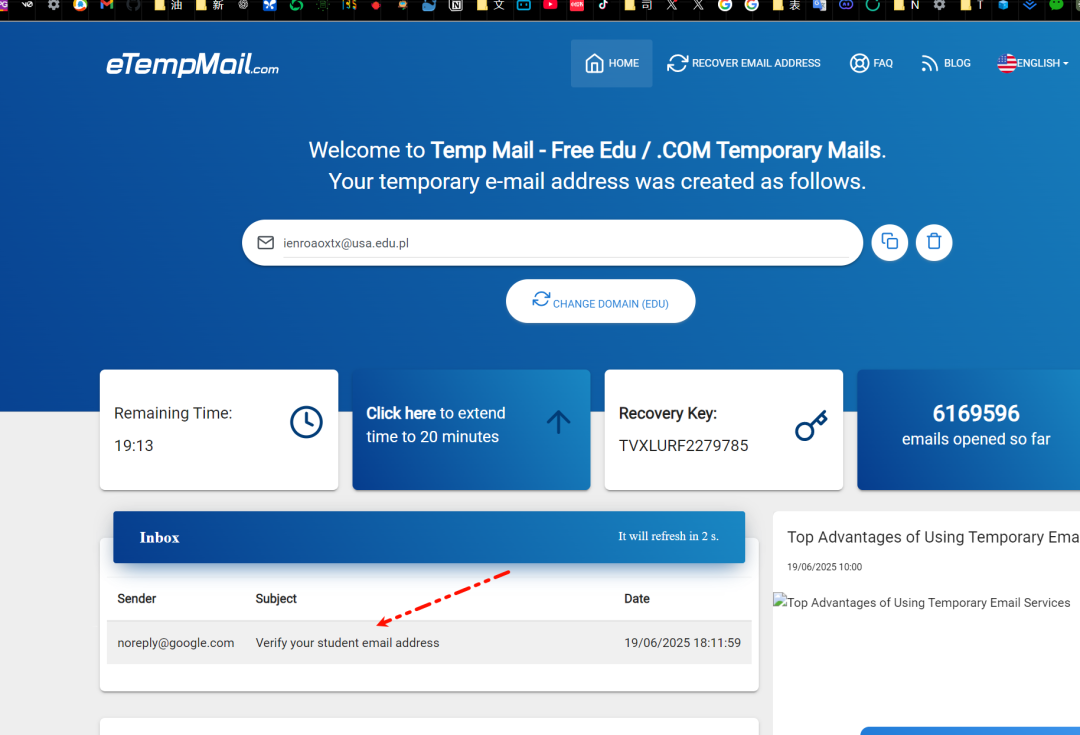
After that, the email verification was successful.
You will also need to bind a Visa card.
Once you have the card continue with the next steps and fill it in.


When you're done your Google account is Pro.
Tip: After binding this Visa card, you can choose to cancel your subscription before renewing it.
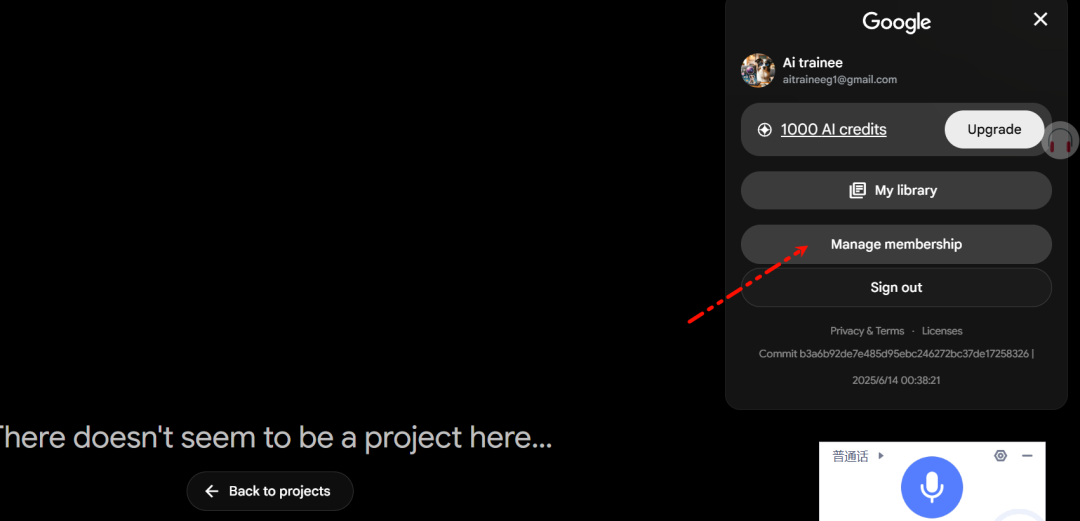
Using Veo3 on both platforms
Gemini Pro has 3 generation opportunities per day:
https://gemini.google.com
Flow platform 1000 points:
https://labs.google/fx/tools/flow/
This platform is better. He has room for one more online clip.
Go to the platform and after generating the video here.
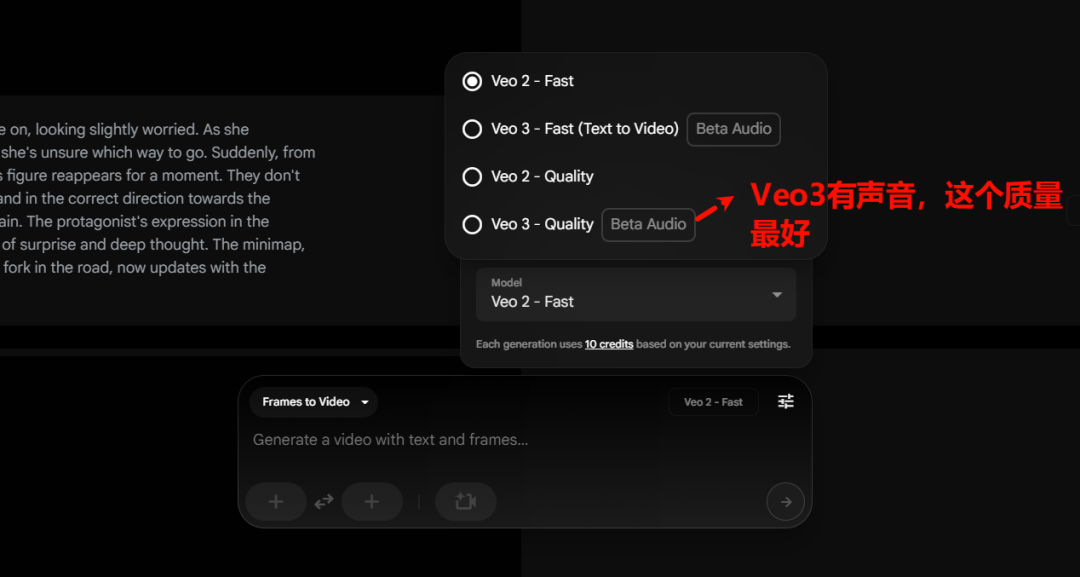
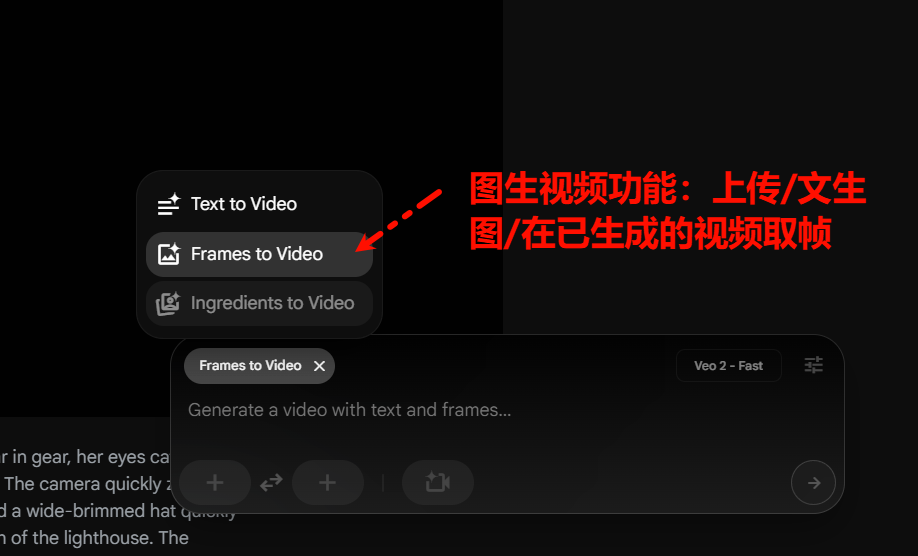
Click Scence again to add the generated video to the editing scene (online editing, not actually editing, is to facilitate the creation of continuous video sequences).
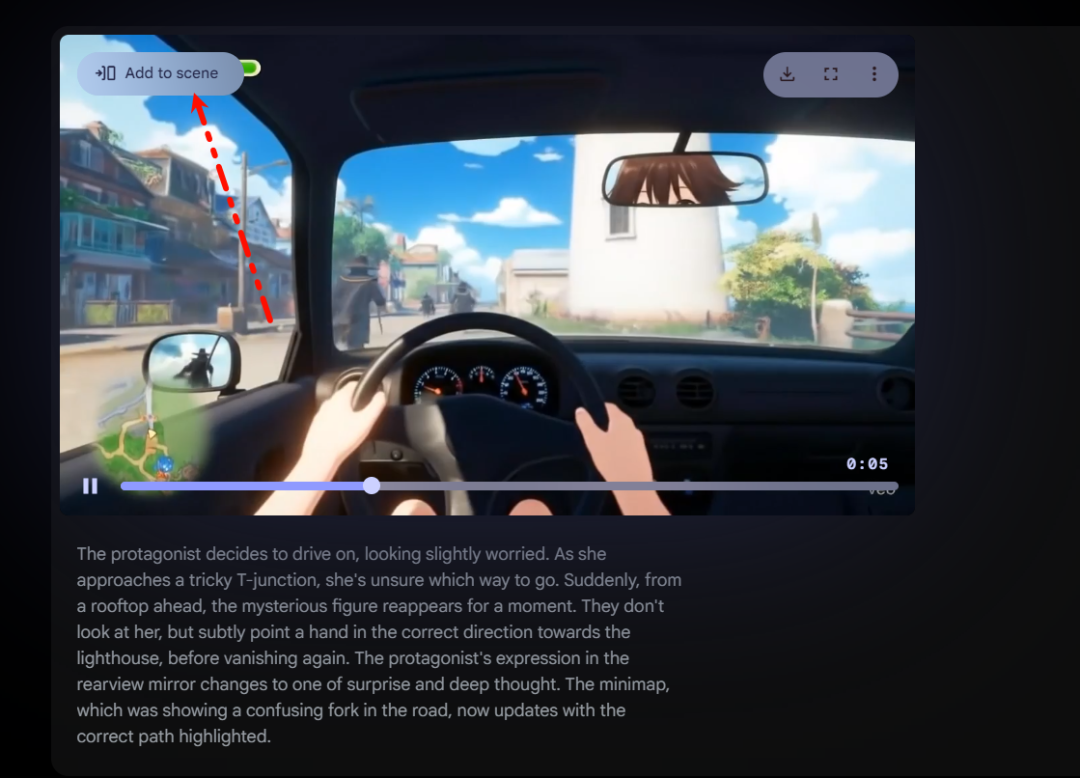
You can then generate your video sequences in this. Each time you generate 8 seconds, you can also drag the order of each 8 second video.
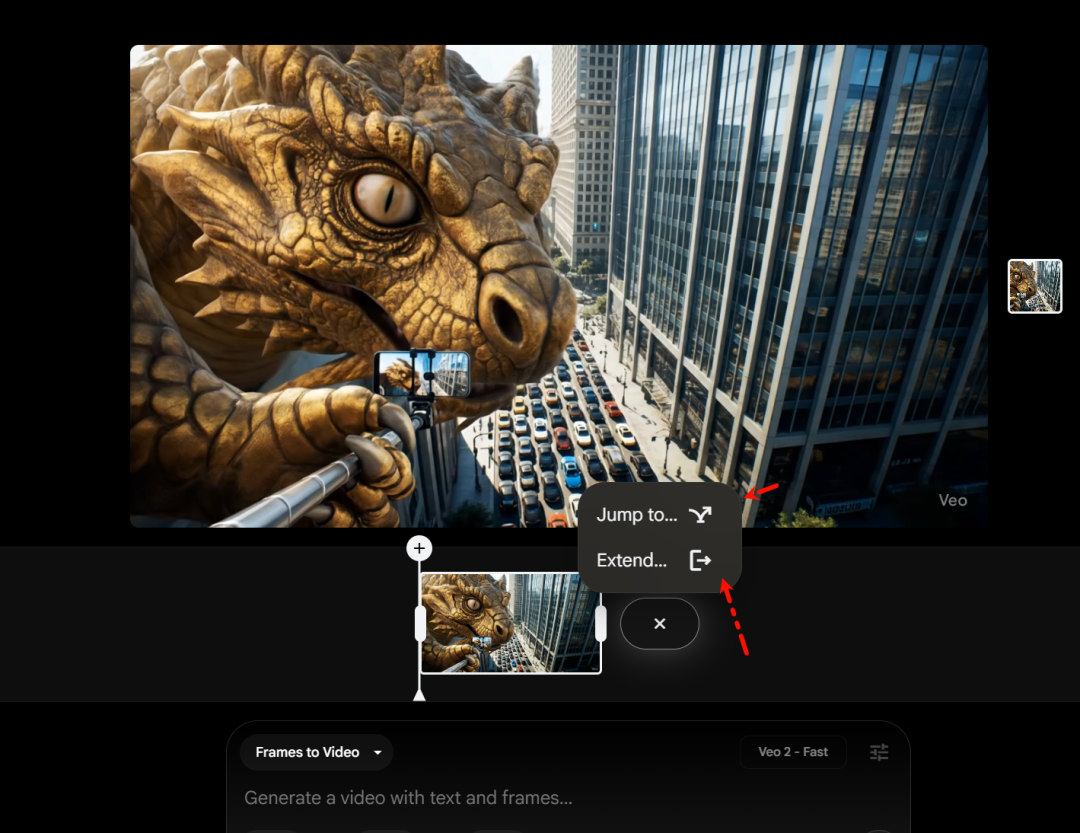
Click on the plus sign, he also has a jump (only supports veo2, the video will be no sound) and extend options, the difference is as follows

What about fluctuating its left and right sidebars, and also adjusting the length or selecting the reference frame for extend/jump.

When exporting, select the last video to download (bottom right), and he'll package the previous ones together and download them as one long video.

🧠 End-to-End Thinking in the Age of AI
In this ai era, some knowledge does not need us to fully understand (probably understand a good, most of the time with practice to deeper mastery) more can be adopted end-to-end thinking.
The main thing to think about is what we want. What needs to be fed to the AI and what we want him to output, so all these Veo3 experiences mentioned later can be fed directly to Gemini to understand. Let it expand its creativity and write more cue words.
for example:
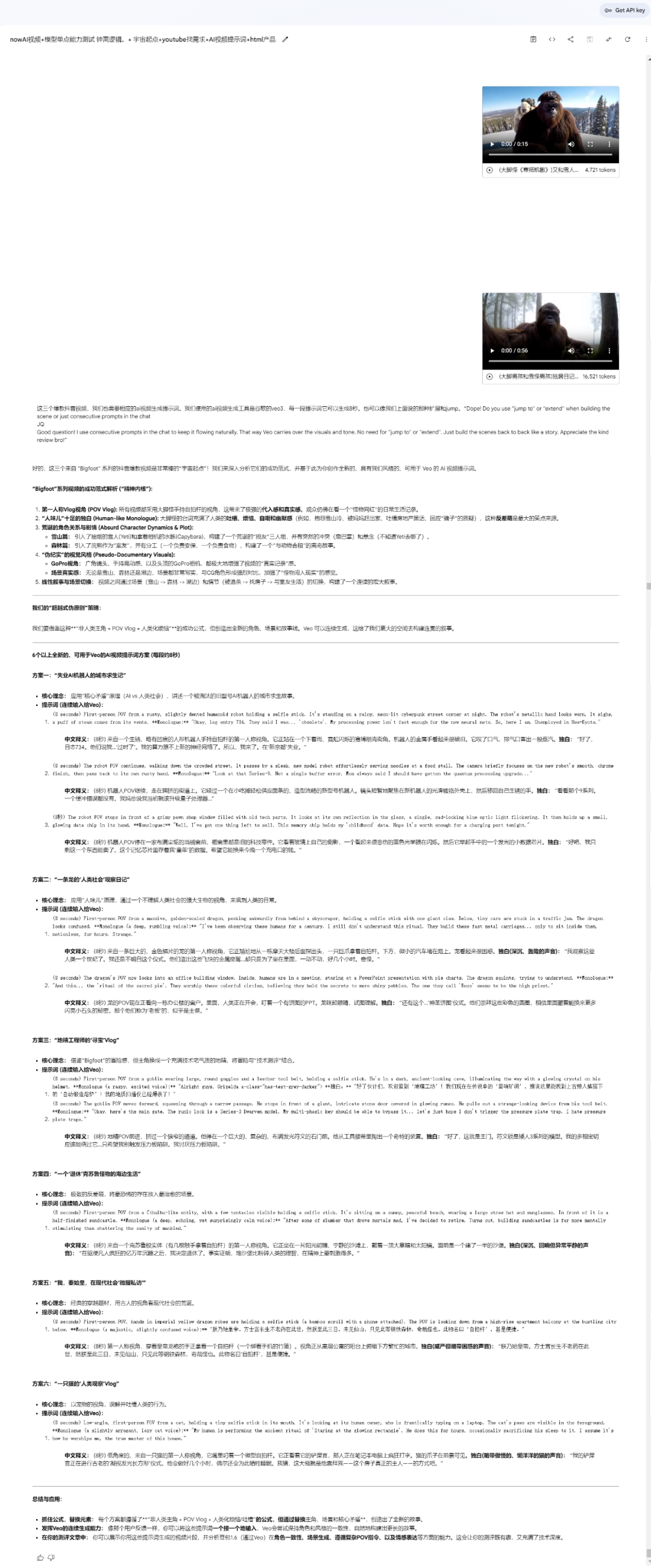
Let's take a look at some of the highlights.
want to use Veo 3 Generate good videos? Learn how to "talk" first
First, gotta get the basics. A well-written cue is the key to generating a good video.
The more specific you can be in your cue words, and the more plain language you can use to describe them, the easier Veo 3 will be to understand and the easier it will be to generate the video you want.
Veo3 Seven Elements of Cue Words
Master these 7 elements to generate professional-grade videos
- Subject. Who, or what, is in the scene? Is it a person, an animal, an object, or a landscape.
- Context. Where is the main body? Indoors? City streets? Or in the forest?
- Action. What is your subject doing? Walking, jumping, or turning his head?
- Style. What kind of visuals do you want? Cinematic, animated, stop-motion, and so on.
- Camera motion. Describe how the camera moves. Is it an aerial, flat, overhead, or low angle.
- Composition. How was the image composed? Is it a wide angle, close-up, or something else.
- Ambiance. Mood and light. You could say "warm colors", "blue light", or "night".
Change your cue word every time you generate it.
If you've ever played with a model like Midjourney or Flux, you probably know that running the same cue word more than once (i.e., with a different seed seed) will come out a little differently each time.
Veo 3 is different.
For the same cue word, even a very simple one, Veo 3 outputs very similar results.
You might get someone who looks the same and wears the same clothes in about the same place.
Important note: This is actually quite good when the results you're generating are a bit glitchy (like a bit of a problem with coherence or audio). You can run it again with a different seed and you'll probably get the results you want.
But if you're still in "discovery mode" and want to see the possibilities, then running the same cue several times is a waste of money.
If you're not quite sure what you want, then start with a couple of cue words in completely different general directions. If you already know which elements you want, then make those elements more specific.
for example
- What the woman looks like (hair color, hairstyle, skin tone).
- What she's wearing.
- Where she is.
- How she laughs.
- Why is she smiling.
Role consistency
Generally speaking, it's pretty hard to generate a video with a video model that doesn't have features like start frames or scene elements to try to keep the characters consistent.
These are features, however, that the Veo 3 will soon have.
Until then, we have other ways too.
This is because one of the features of Veo 3 is that similar prompt words will generate similar characters. So, as long as you keep the character descriptions consistent across different generation tasks, you'll usually get a character that looks the same.
This means that you can mess with a list of character descriptions and reuse them as is in different prompt words.
Sample Role Description:
"John, a man in his 40s with short brown hair, glasses, and a blue jacket, looked thoughtful."
The more unique and specific these descriptions are, the more visually coherent Veo 3 will be between the different scenes generated separately.
So, you can create some role reference sheets and write down the exact words used to ensure consistency.

How to write cues for audio
Because Veo 3 brings audio with it every time it generates a video, you'll also have to tell it what you want to hear.
Consider these elements below:
- What people say (in conversation). What the people in the scene are saying.
- Ambient noise (ambient sound). Background noise in a scene, such as the sound of a busy street, a noisy office, a bustling café, etc.
- Sound effects or out-of-scene sounds. Like the phone ringing.
- Music that may be required for the scene. Things like intense movie soundtracks, upbeat pop songs, and so on.
How to write dialog prompts and how to avoid subtitles
With Veo 3 you can create all kinds of interesting characters. They can talk, tell jokes, gesticulate, and sometimes act.
But if you want them to talk, you have to tell it in the cue word.
There are two ways to write dialog prompt words:
1. Explicitly.
"A man says: My name is Ben."
2. Implicitly.
"A man told us his name."
Both ways, a video of a man talking will be generated. The first, will use the exact lines you give; the second, will let the model decide what to say, for example, the model will give you a name on its own.
Note: Veo 3 does not support Chinese lines. To make the characters speak Mandarin, describe them in English:
Says in Mandarin: "[English sentence or Hanyu Pinyin]"
Write your own dialog
If you're going to explicitly tell the model character what to say, try to keep the dialog short.
Preferably the kind that can be said in about 8 seconds.
If you try to cram too much into the dialog, the character might talk fast.
If you let the character say too little, there can be awkward silences, or the character can say a bunch of AI gibberish that doesn't make much sense (like the second example below).
Without clear guidance, the model can't make up all the words it needs on its own.

Let Veo 3 write the lines.
If you're not good at writing dialog, using "suggestive dialog prompts" will help a lot. And you can always transcribe your favorite outputs and use them in new prompts later.
Here we have Veo 3 generating a video of a stand-up comedian telling a joke.
For the first time, we let Veo 3 decide on the content of the jokes.
For the second time, we had Veo 3 follow the joke given in our cue word.
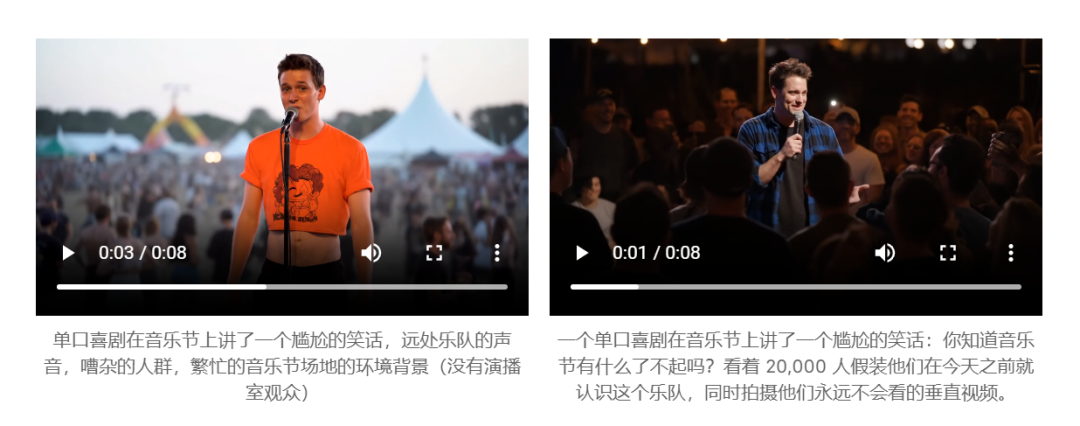
You see, Veo 3 can help you fill in all the dialog as long as the prompts are given the right words and the context is given.
Do you want to try out how flexible Veo 3 can be in terms of dialog? Try these prompt words below:
- A stand-up comedian tells a joke.
- Two people discussing a movie.
- A man arguing on the phone.
- A woman tells her life story.
Don't let the subtitles get in the way.
Veo 3 should train a lot of videos with embedded subtitles, so you'll often see badly spelled, wrong content subtitles in the generated results.
They often ruin a generation.
However, there are a few simple ways to avoid this:
- Put the line you want to hear after the colon, e.g., "A man said, My name is Ben," instead of using quotation marks, e.g., "A man said, 'My name is Ben' "
- Add "(no subtitles)" to the cue - this negative cue works quite well in Veo 3's cue.
- If none of the previous works, then keep repeating, "No subtitles, no subtitles!" several times.
Pronunciation.
Sometimes you'll find that models get the pronunciation of certain words wrong.
The easiest way to do this is to take these words and use theSpell it out phonetically..
Pronunciation examples:
Original article, "Read on for fofr and Shridar's guide to making videos"
Fixed: "Read on for foh-fur and Shreedar's guide to making videos"
He who speaks, he who listens.
When you're writing multiple characters' dialog in prompts, Veo 3 sometimes gets confused and doesn't know which line is spoken by whom.
This is especially common when character descriptions are more similar and Veo 3 can't quite tell who's who.
At this point in the cue, be specific about the speaker:
Example of a multiplayer dialog:
"The woman in pink says: But I'm the one in pink."
"The man with the glasses replied: No, I'm the one with the glasses."
Music should be included in the cue
As with the rest of the video, if you want music in the scene, it's in the cue word.
You can be extraordinarily articulate, describing the type, style and mood of music you want.
Of course, you could be vague and let Veo 3 decide for itself.
Style Control
If nothing is said, Veo 3 generates that well-produced live-action video by default.
Just imagine that smooth and professional demo, commercial, or MV.
If you want it not to run in that direction, you have to add to the cue wordhairstyle.
Style control example:
"In the manner of [style name]: a bearded man in a facecloth shirt and old jeans, sitting cross-legged by a throbbing campfire, the amber glow of the fire casting softly dancing shadows across the silent forest clearing covered in pine needles below him. Across from him, just beyond the edge of the firelight, stood a huge grizzly bear, calm and still, its fur reflecting the warm glow and its eyes reflecting the flames with an eerie intelligence. The two shook hands as if they were old friends."
You'll notice that not only has the overall graphic style of the video changed, but even the character movements and interactions have changed along with it.
In all of these examples, the audio is pretty much the same, and we didn't cue the audio individually, so it doesn't change much between styles.

camera movement
As you might expect, like other video models, the Veo 3 responds well to common camera motion cue words.
Using these words, you will be able to control the actions and images in the video:
- eye level
- high angle
- worms eye
- Dolly shot
- zoom shot
- Pan shot
- tracking shot

Selfie-style video: Veo 3 lets you "fake it till you make it"
The Veo 3 is amazingly good at generating the kind of selfie videos that really look like they were taken with a cell phone.
We have found that there are specific phrases that consistently unlock this effect.
For example, prompts that start with "a ...... selfie video" are much more effective than if you simply describe a person holding a camera.
in addition,Getting the arm in the frameIt's the key to ensuring realism.
That gorilla example illustrates this well, the cue word says "extend the camera to arm's length. His long, strong arms are clearly visible in the frame." This makes the video look more like a real selfie than a simple close-up.
Natural eye contact is also helpful. In that Tokyo example, the natural eye flow of "occasionally looking into the camera and then turning to point to an interesting booth" works better than staring at the camera all the time.
Here are two examples of how these techniques work:
Cue word one:
A selfie video of a travel blogger exploring the bustling markets of Tokyo. She wears a vintage denim jacket and has a look of excitement in her eyes. The afternoon sun casts beautiful shadows between the stalls. She talks as she savors street food, occasionally looking to the camera and then turning to point to interesting stalls. The image is slightly grainy and very cinematic. In a British accent, she says, "Well, you guys have to try this place when you come to Tokyo. These octopus croquettes are simply amazing, and the stall owner just told me that it's a craft that's been passed down in their family for three generations." She said giving a thumbs up.
Cue word two:
A handheld selfie style shot from the viewpoint of a gorilla in a lush jungle. A huge silverback gorilla extends the camera to arm's length. His long, strong arms are clearly visible in the frame and his face is perfectly composed. The gorilla says, "I'm just trying to see if this actually works, I'm going to turn around and post it on TikTok and basically just, think it's kind of cute, I'll probably delete it later" (with a mouth that looks like it's saying this)
Selfie video tips:
- The cue starts with "a selfie video from ......".
- Getting the arm in the frame is the key to realism
- Natural eye contact is also helpful
- The addition of a "slightly grainy, very cinematic image" takes the video away from the overly "clean" AI feel.

The Tokyo example also reveals a trick: adding a description such as "the image is slightly grainy and very cinematic" can help the result get rid of that overly "clean" AI feel.
Eventually, the video will look more like a real cell phone shot.
Veo 3 How do I get vertical video?
Currently, Veo 3 doesn't directly support vertical video, and can only generate 16:9 horizontal screens.
However, you can make a horizontal video first, and then use a model like Luma's Reframe Video to "outpaint" it to vertical.
Reframe Video lets you cram any video (up to 30 seconds) into it, and then it generates a new vertical video with the ratio you specify. All output is 720p.
Good news: Veo 3 will soon support vertical video natively. Also, Veo in Vertex-ai / Aistudio does support vertical video.
Physics: Veo 3 simulation is so realistic!
Veo 3 does a great job of simulating real physics effects.
It keeps objects moving and interacting correctly, while also applying a variety of different styles.
This means that even if the video is converted to a different art style, the model retains the natural trajectory of the object, ensuring that physics-based animations like falling, bouncing, and fluid motion remain physically correct.

Video quality: Pull up to 4K 60fps with one click
Veo 3 outputs 1280p x 720p video by default.
🚀 Recommended Tool: We recommend using Topaz Lab's Video Upscaler to take your video straight to 4K resolution and still nail 60 frames per second.
X-Platform Search Tips
Also, you can type Veo 3 Prompt on X to check out all the great Veo3 prompts.
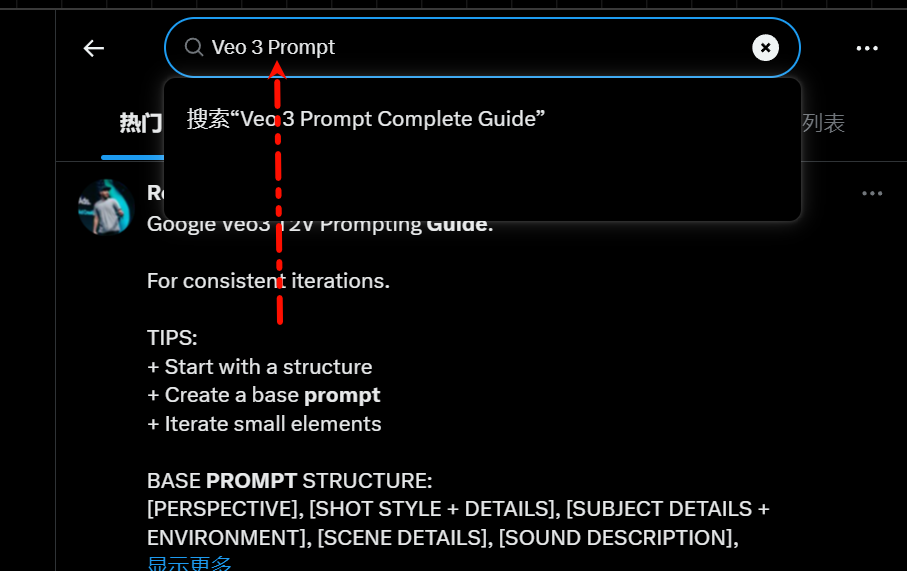
Some are still written in Jason format, which is usually more controlled and accurate.
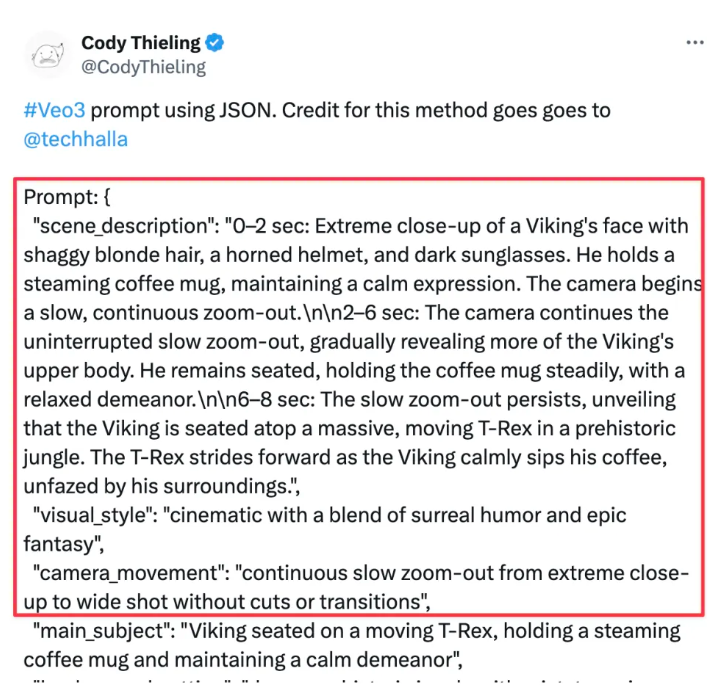
Summary of core points
The difference between a bland video, and a stunning video, is your cue word.
With Veo 3, you're not just describing what's happening, you'reDirecting a scene.
High-quality video takes the subject, the background, the action, the shots, the audio, and the atmosphere and layers them on top of each other.
Think like a filmmaker and Veo 3 will follow your lead.