



I. Preface
Want to deploy locallyComfyUIIn theory, it is possible to run ComfyUI with a CPU without a graphics card.
But running is running, and running AI purely on the CPU is very, very, very slow.
So if you're going to run comyUI with a CPU, it's just a figure of speech that opens up, with no arbitrary practical significance.
Regarding graphics card requirements, the configuration to run ComfyUI is a bit lower than stableDiffusion, a minimum 3G graphics card will be able to run it.
If you want to run comfyUI smoothly, you need at least 8G graphics card.
If you also want to run flux models, a video card of at least 12G is recommended.
The most important thing to remember is to always use an nvidia graphics card.
II. Installation requirements
1, AMD graphics card can install comfyUI?
The link below is the official page for comfyUI
https://github.com/comfyanonymous/comfyui
As you can see at the bottom of the page, AMD graphics cards that want to run comfyUI can only do so on a Linux installation.

2、Can Apple computer install comfyUI?
It is possible to install comfyUI on Apple computers, but it is also slower than it should be.
In particular, there will be a lot of plugins that won't work.

So, to play comfyUI, only nvidia graphics cards are recommended, although AMD graphics cards and Apple computers can play it, but they are not recommended.
III. Installation of integration packages
1、Download the integration package
Currently there are two mainstream installation methods for comfyUI: one is to download the official integration package from comfyUI's official website, and the other is to use Autumn Leaf's integration package.
(1) Official Integration Pack:
https://github.com/comfyanonymous/ComfyUI/releases/latest/download/ComfyUI_windows_portable_nvidia.7z

(2) Autumn Leaves Integration Pack Address:
https://pan.quark.cn/s/64b808baa960
Decryption code: bilibili-Akiba aaaki

2. Unpack the integration package
Whether you're using the official integration pack, or the Autumn Leaves integration pack, be sure to put it in a pure Chinese path with no Chinese or special symbols after unzipping.

IV. How to use the integration package
1、Official integration package
Unzip and double click to run the file with the word "cpu" to run through the cpu, with the word "gpu" to run through the gpu.

After clicking Run, a black command line window will pop up. comfyUI should not be closed the entire time it is working.
Note here: the process of installing and deploying and the later node installations require that you turn on scientific internet access.

After the startup is finished, don't close the command line and open the following address in your browser to open the comfyUI working interface.
The interface that opens is a comfyUI basic Vincentian diagram workflow, which reports an error when run because we haven't downloaded the model.
http://127.0.0.1:8188/

2. Autumn Leaves Integration Pack
The Autumn Leaves Integration Pack does a little better than the official integration pack in terms of ease of use, it not only integrates comfyUI into the launcher, but also integrates environments and commonly used nodes, etc., which saves us from having to download and install them one by one.
So, we'll be working with the Autumn Leaves Integration Pack from now on.

(1) Versioning
comfyUI is updated very quickly, and with the Autumn Leaves Integration Pack, we can easily switch to the latest version.

(2) Plug-in management
Many commonly used plug-ins have been integrated in the Autumn Leaves Integration Pack, and we can easily download and manage plug-ins through the integration pack.

(3) Chinese language interface
Click "Start" to run comfyUI.
The comfyUI interface is in English when you first open it, you can adjust the language to Chinese by using the settings button at the bottom left corner to find "AGL".

(4) Shared SD model
The comfyUI that you just installed does not contain the model, if you installed SD before, you can call the model from SD directly.
Come to the "comfyUI" folder, find "extra_model_paths.yaml.example", delete the extension and change it to "extra_model_paths.yaml", then this folder is officially valid. model_paths.yaml", and the folder is now official.
There are also changes to be made to the contents of the file below.
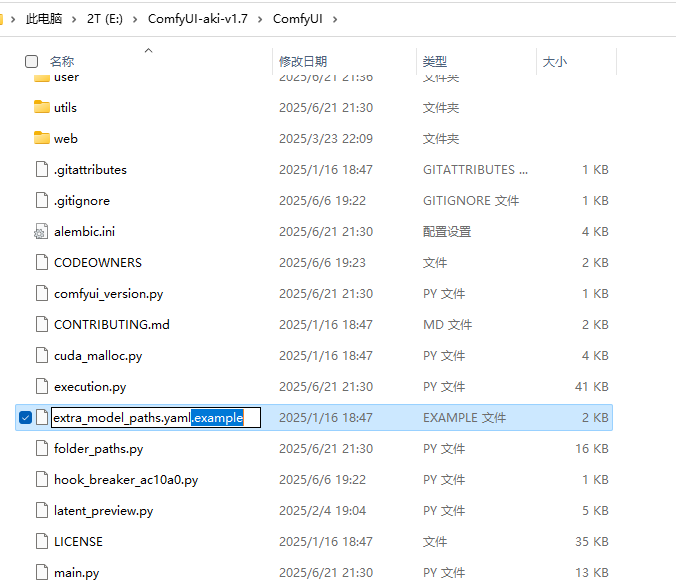
Open the "extra_model_paths.yaml" file with notepad, and replace the content in the red box with your SD installation path, so that comfyUI can share the big models, VAE, lora and other models installed in your SD.

The path to the controlnet model should be mentioned separately here, and the settings in the file should be changed as below in order to share the model in the SD folder properly.

After setting, save the "extra_model_paths.yaml" file and restart comfyUI.
At this point click Run again and we are ready to create AI paintings.
