



With the Black Forest's kontext-dev model open-sourced, we can finally experience the power of kontext locally for free.
kontext can edit and modify images with one sentence, including but not limited to everything removal, one-click watermark and scratches removal, character angle modification, double image integration, text replacement, style transformation, everything migration, image expansion, mosaic removal, etc.
Everything Migration + Character Consistency + Style Transpainting + Partial Repainting + Text Editing, the best consistency solution available, Flux.1 Kontext Pro Transformative Technology!
Comparable to GPT4o, with natural language modification of images, super character consistency, fux.1-kontext-dev free version is here!
Today we're going to talk about how to use kontext to achieve these features in a single sentence that used to require complex workflows to achieve.
Open a workflow template
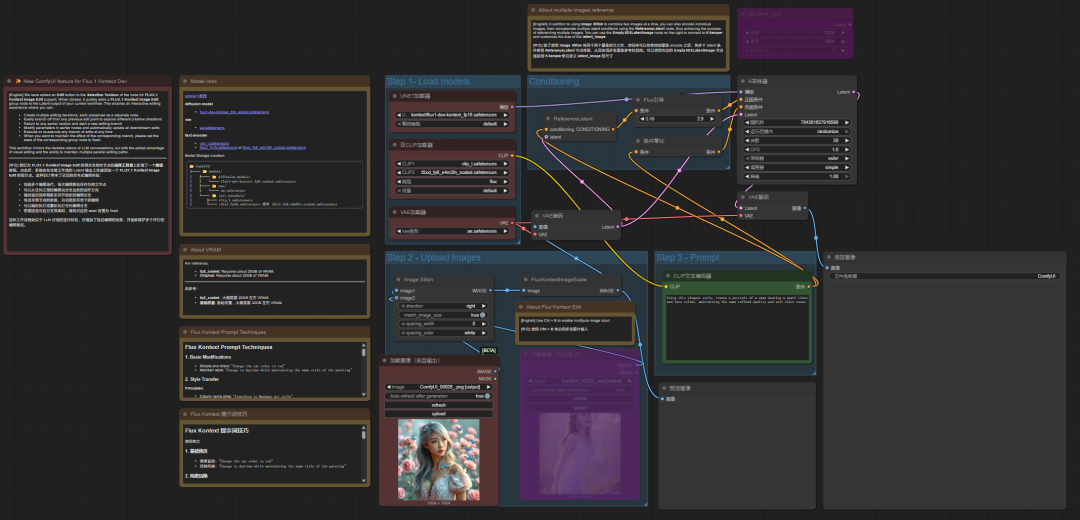
First of all, after upgrading comfyui to the latest version, we can find two kontext official workflows through the template, we take one of them as an example to explain the function.

The official workflow opens, which has quite a few official comments to make it easier for you to understand how the workflow works, and you can delete them.
There are two other disabled nodes in here (purple) that can also be deleted first.
Add translation node
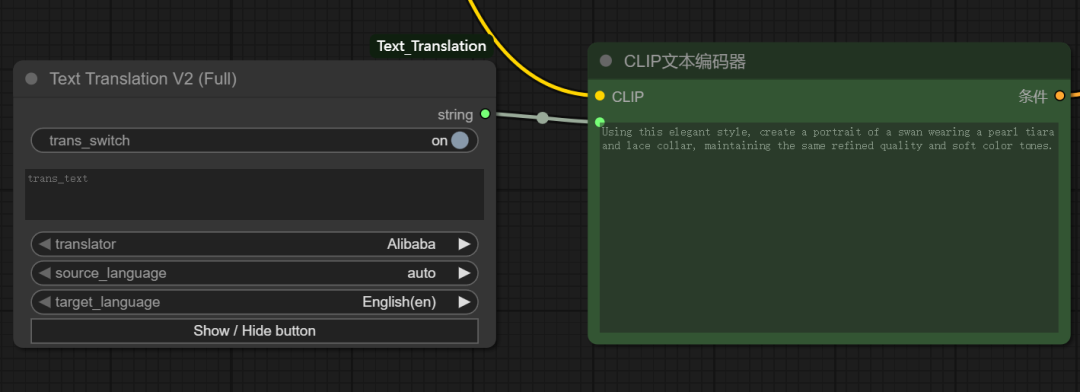
kontext is to edit pictures by prompt word, only support English prompt word, in order to facilitate our operation, you can add a translation node in front of the prompt word, so that you can use Chinese prompt word.
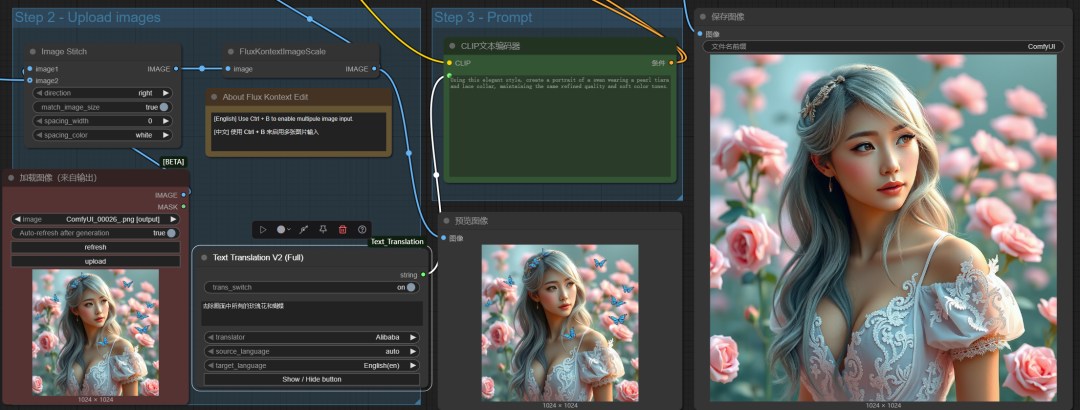
1、Edit the picture: modify the background of several uses
Cue word: Remove all roses and butterflies from the screen
It may be that the dev model has limited comprehension and the final result only removes the butterflies and not the flowers.
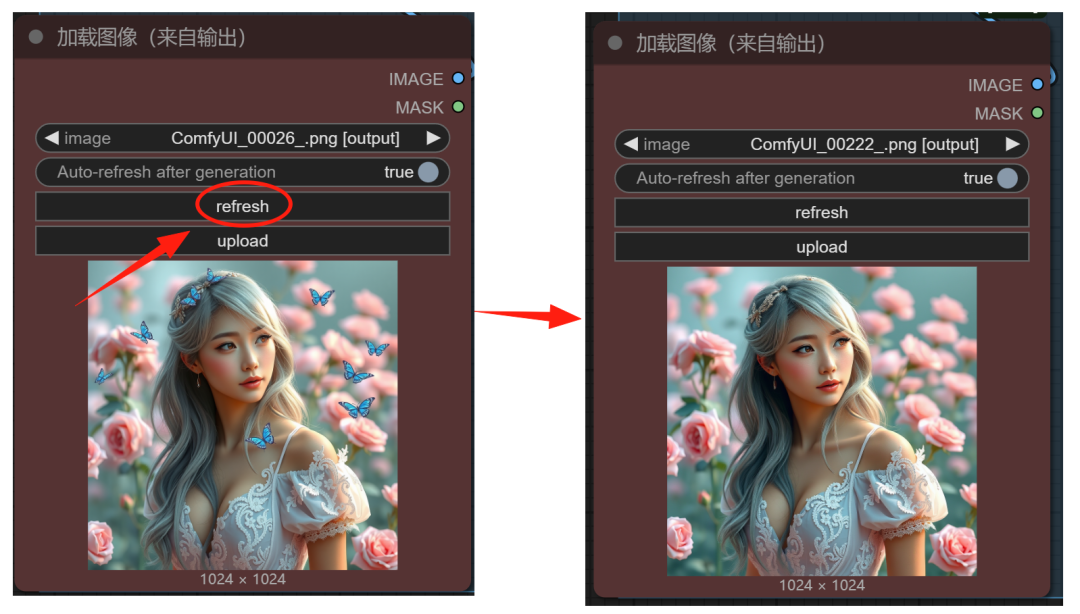
We can do multiple rounds of editing on this image.
multiround editing
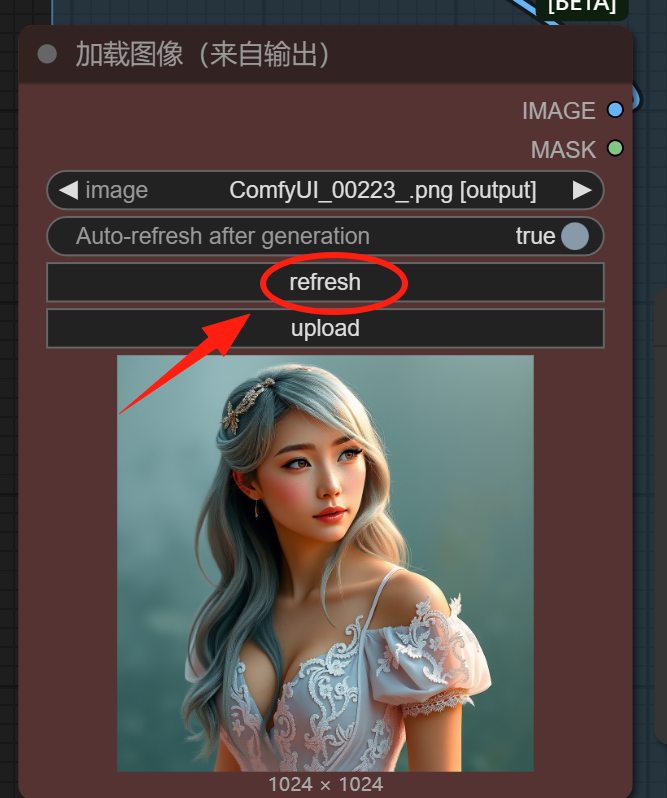
By clicking the "Update" button in the Load Image node, the image with the butterfly just removed will be loaded, so that multiple rounds of editing can be performed on the image.
Enter the prompt again: Remove all pink roses from the screen
This time the flowers in the background were perfectly removed
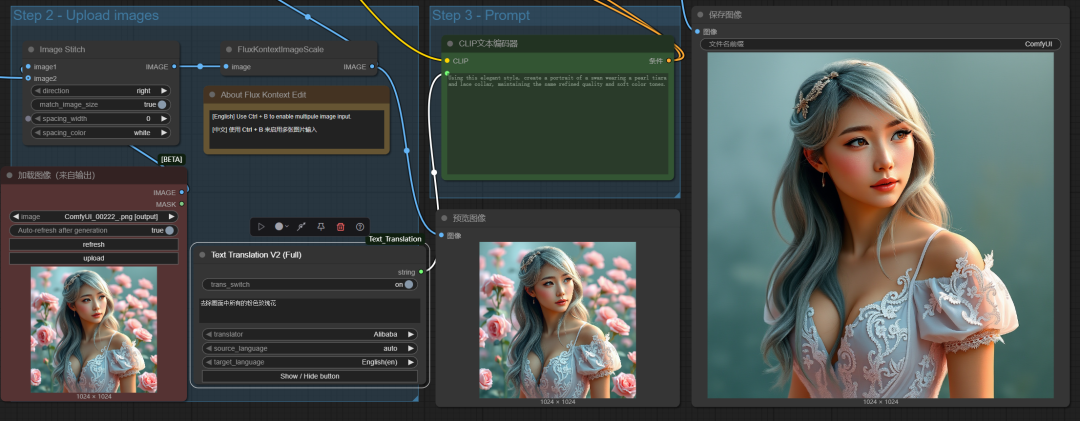
Continue with multiple rounds of editing to load the image just generated
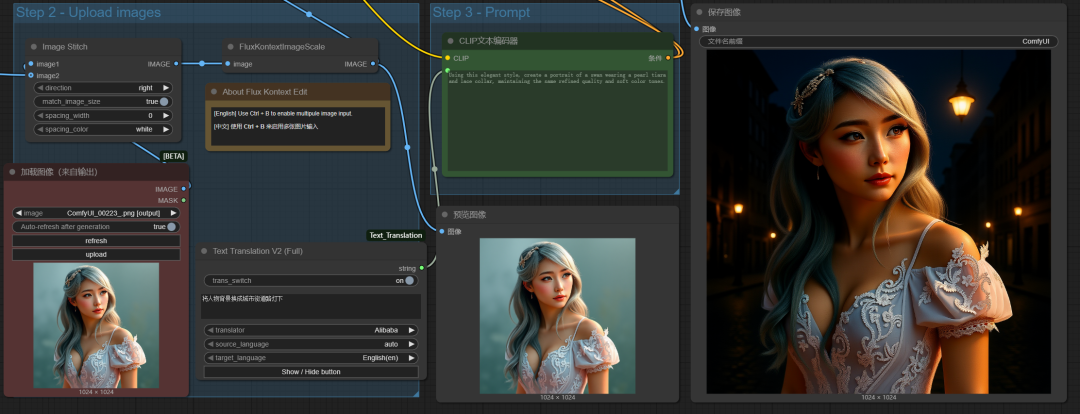
This time, enter the cue word: change the background of the character to a city street under a streetlight
The background of the character became a night scene with the character standing under a street lamp, and the overall lighting of the picture followed the change in the background to re-light the picture with a more natural light.
Still using the same picture as before, with a different cue: have the girl stand on the street curb under a nighttime streetlight
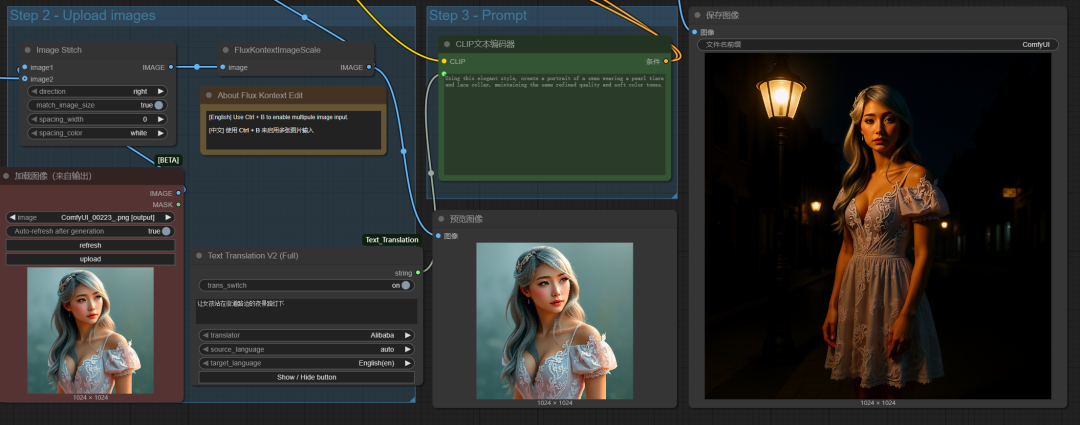
What's the difference between the two cues above that got different results with the same background change?
The difference between the two cue words: the previous one is to change the background of the character to something, the object of the operation is the background, the change is only the background, the character remains unchanged.
A cue word at the back is what position to put the character in, and the object of the operation is the character. So not only will the background change, but the character's pose may change as well.
2、Edit the picture: local redraw
If you want to make changes to the localization of the image, you need to right-click where the image is loaded and open it in the Mask Editor to apply a mask to the localization that needs to be edited.
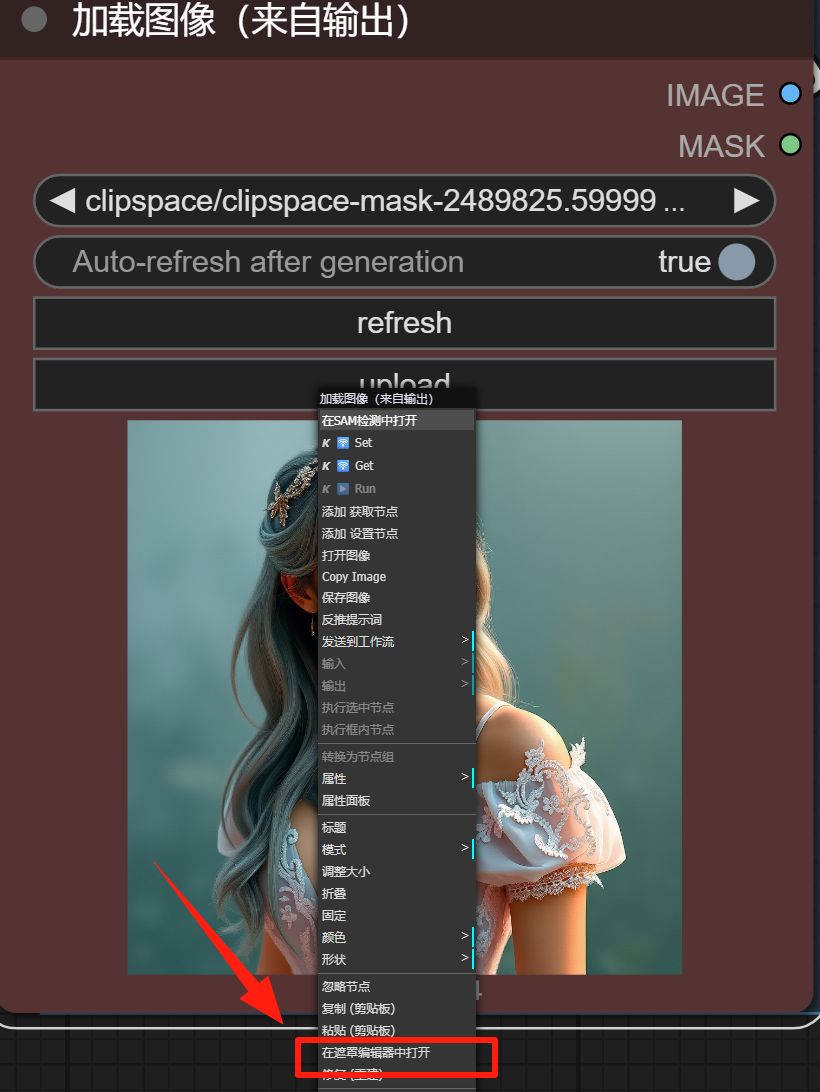
After applying the mask it looks like this below.
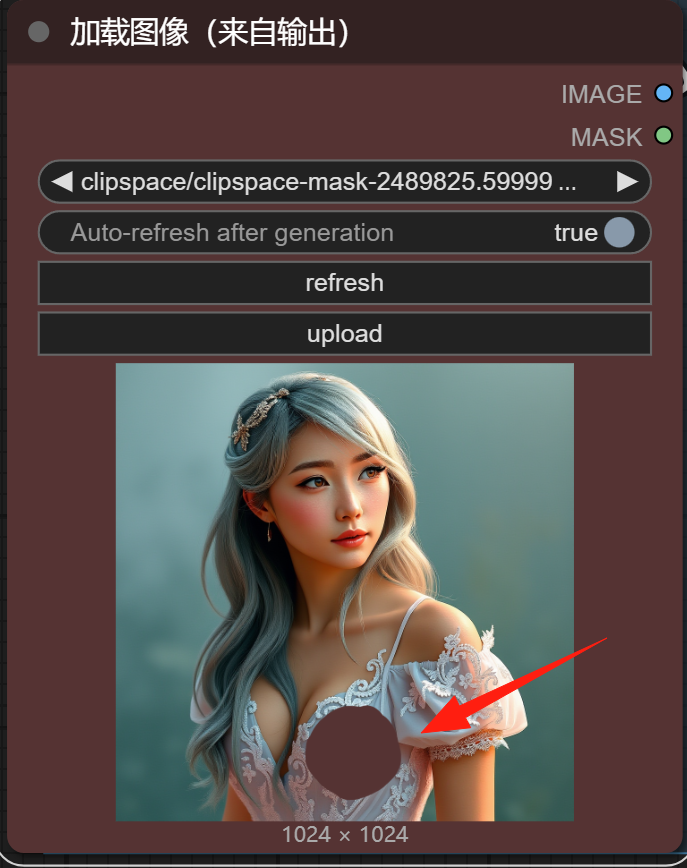
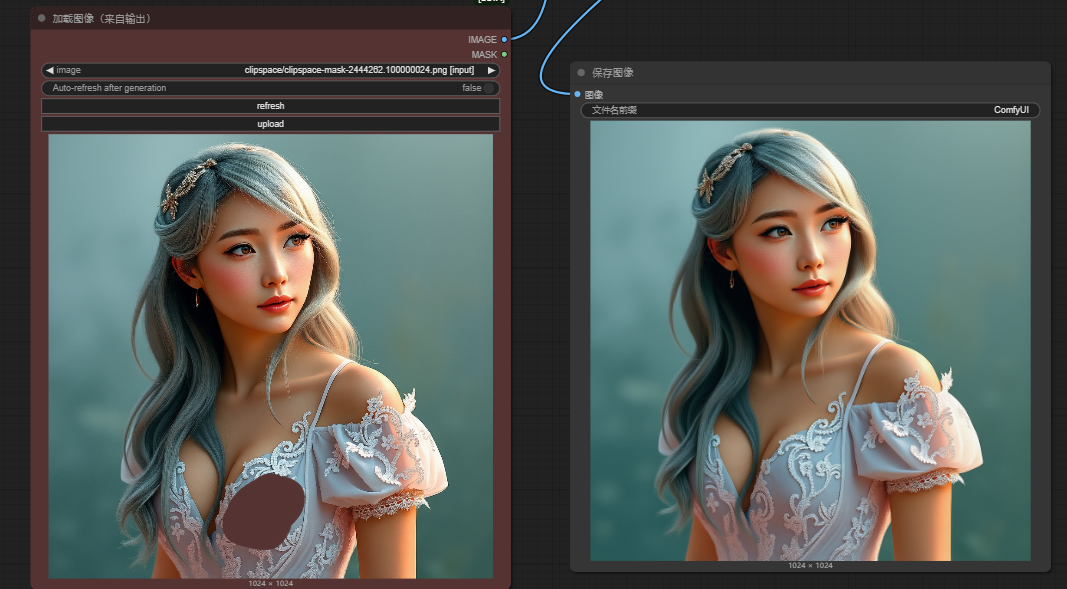
If we give the cue word directly and put a butterfly in the masked area, the resulting image does not change because kontext does not recognize the mask.
How to make kontext recognize masks
We can think of another way: the mask area will specify the color, for example, the red color number is "#FF0000", and then operate on the color area.
We need to make a copy of the loaded image node and add a "color overlay" node, the workflow is connected in the following way.
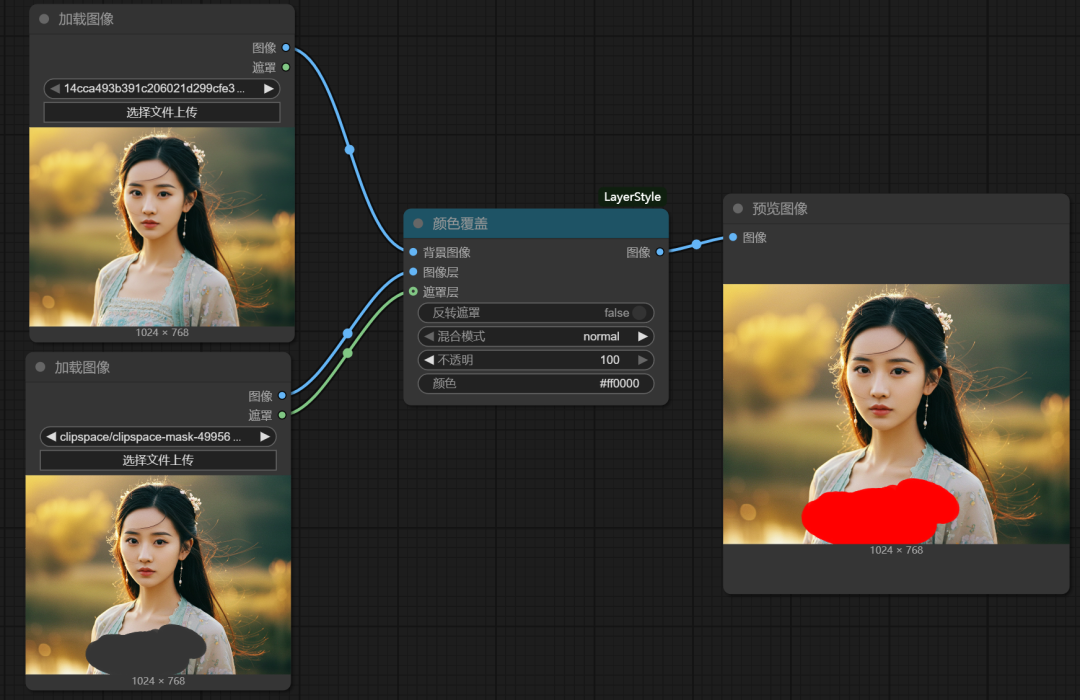
This is when the cue word is given again: put a butterfly in the red area
The butterfly has been generated, but the picture still has the red color that we don't need.
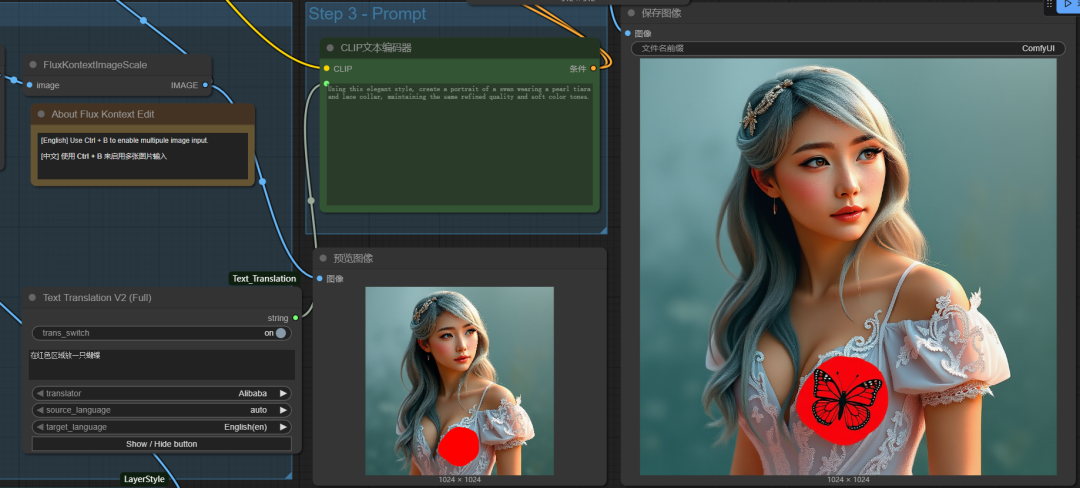
Modify the cue word: Remove the red area in the image and place a butterfly in this area
This time the desired result was generated, with butterflies appearing in the red area and the red color removed
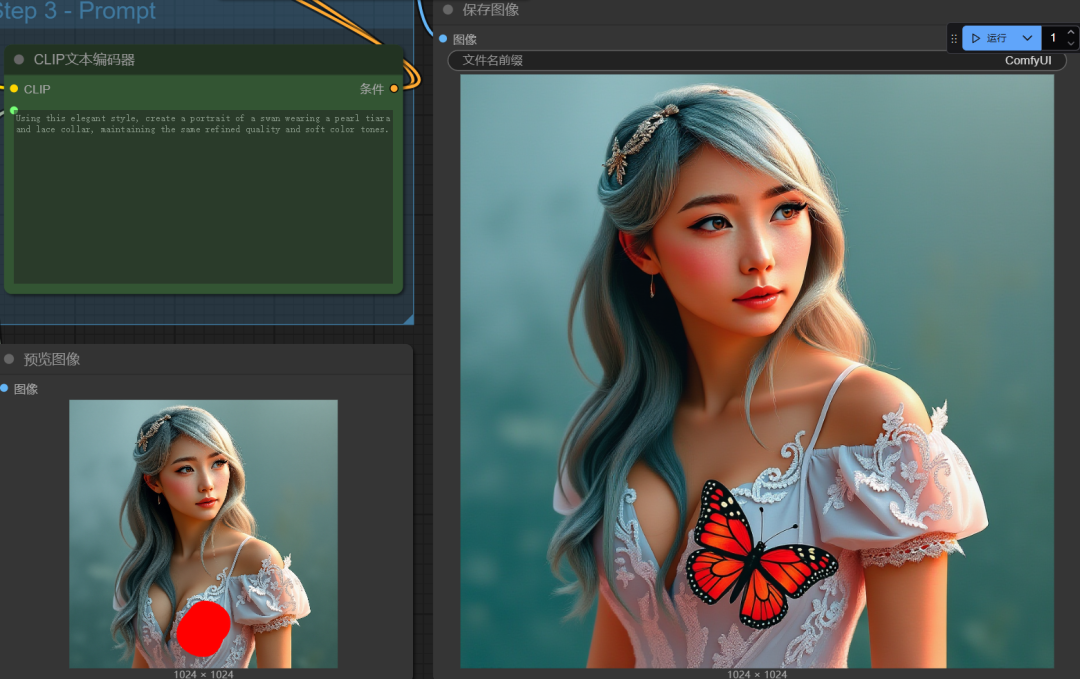
3、Remove the code saik
The operation of removing the code mosaic is also essentially a partial redrawing of the image.
We'll apply a mask to the mosaic area and designate it as red, and then give the directive: Remove the red area from the picture
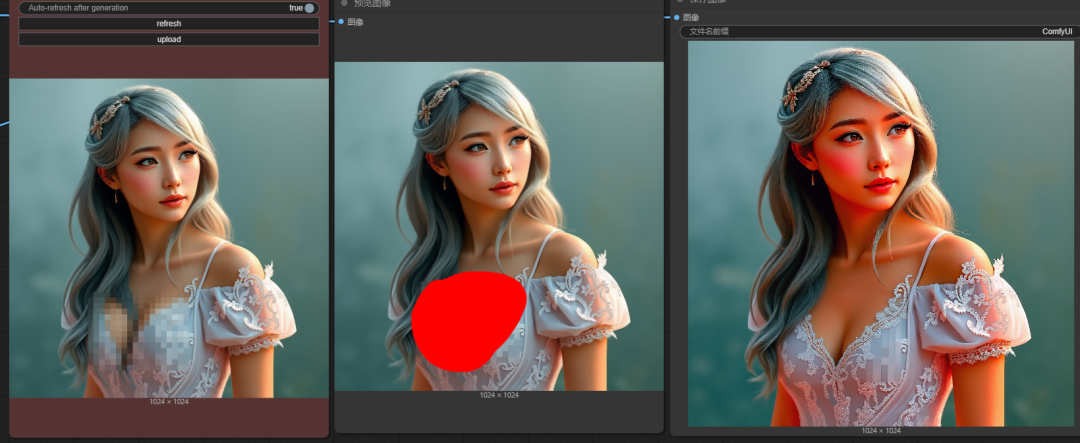
4. Text replacement
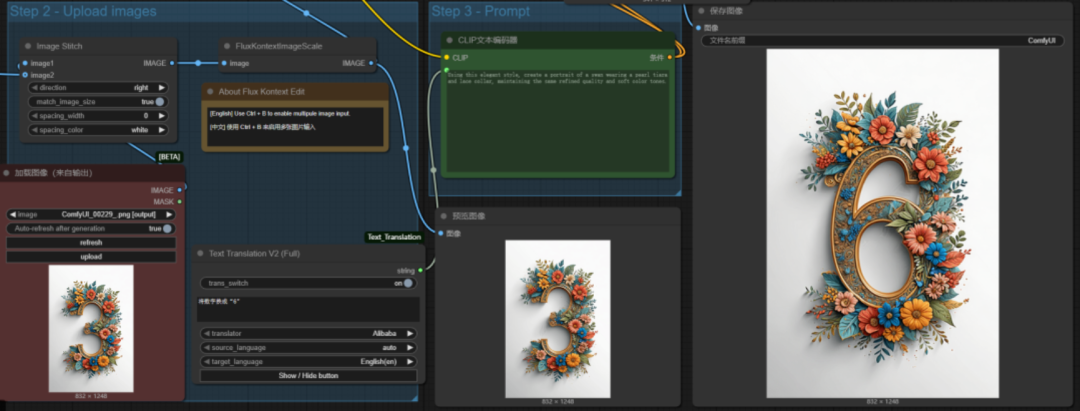
Currently kontext only supports text replacement in English, just type in the prompt word to replace the text.
Cue word: Replace the number with "6."
Note: Remember to put the number to be replaced in quotation marks
5. Expanding the map
Before scaling an image, you need to add a node for the image size: Scale by Aspect Ratio
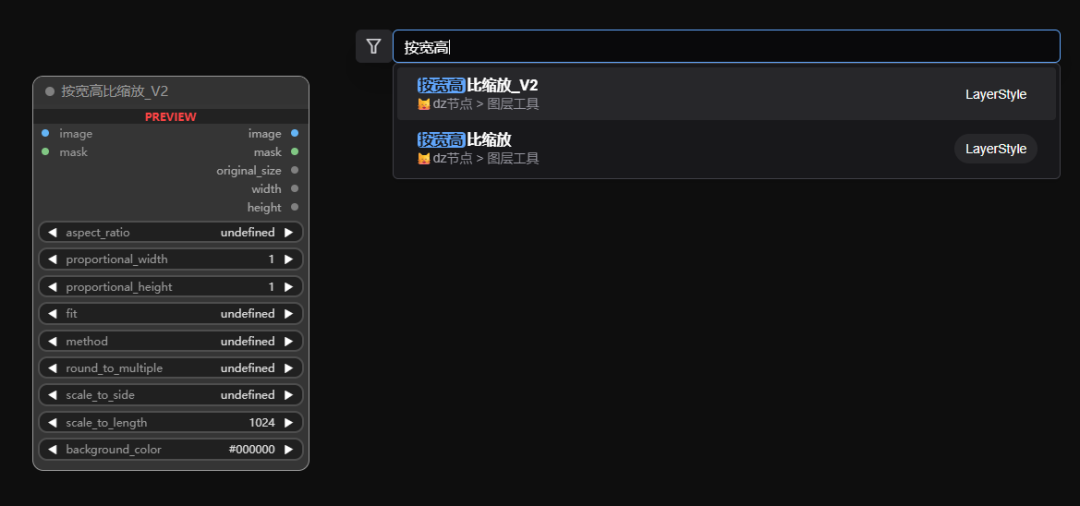
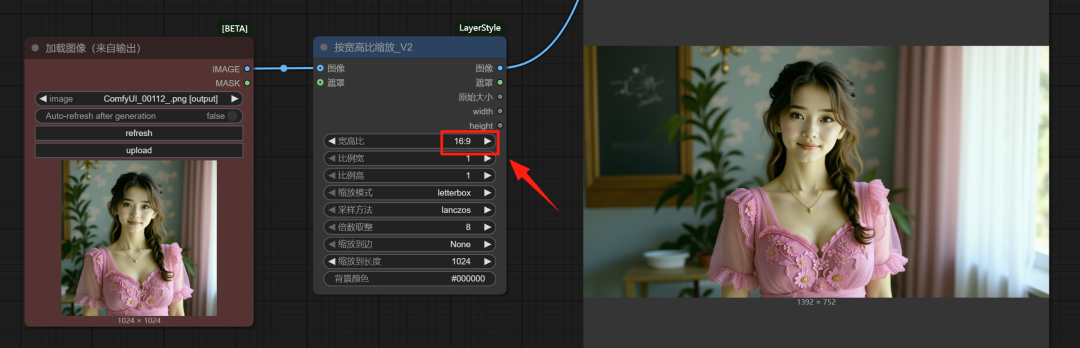
In the following workflow, the original image is a vertical image, we just need to change the scale of the image to a horizontal version, and do not need to enter any prompts, click Run to automatically expand the image
Customized and accurate map expansion
If you want to precisely control the size of the graph customized expansion, you need to add an expansion screen node
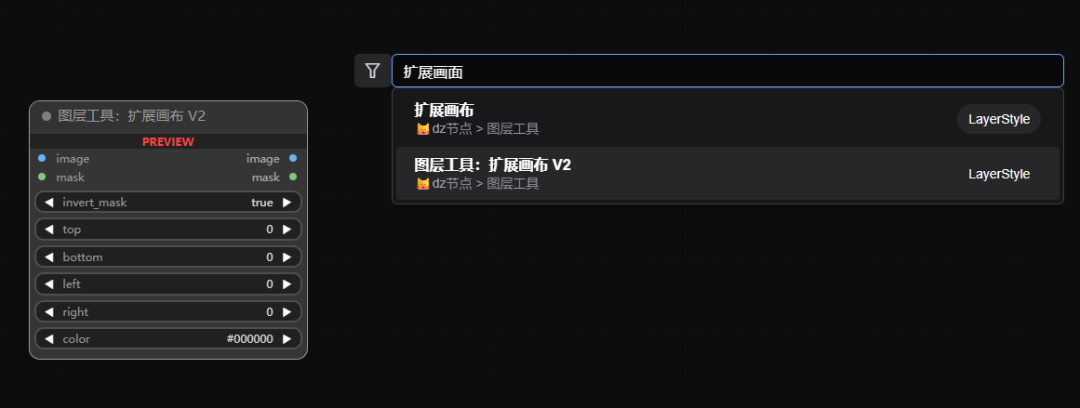
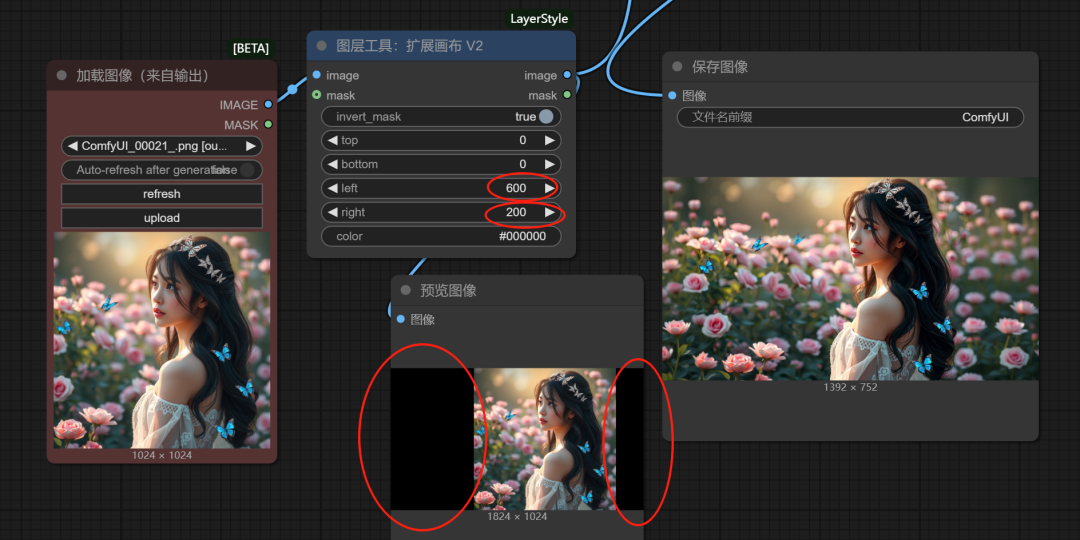
Add this Expanded Screen node behind the Load Image node and enter a custom size, for example, in the image below, add 600 and 200 pixels to the left and right sides of the screen respectively, so that we have very precise customized control over the image expansion.
6. Character Editing
kontext is able to recognize details in an image and edit them, for example, in the image below we enter the cue: woman raising her head and looking up to the left
The kontext is accurately done to control the characters.

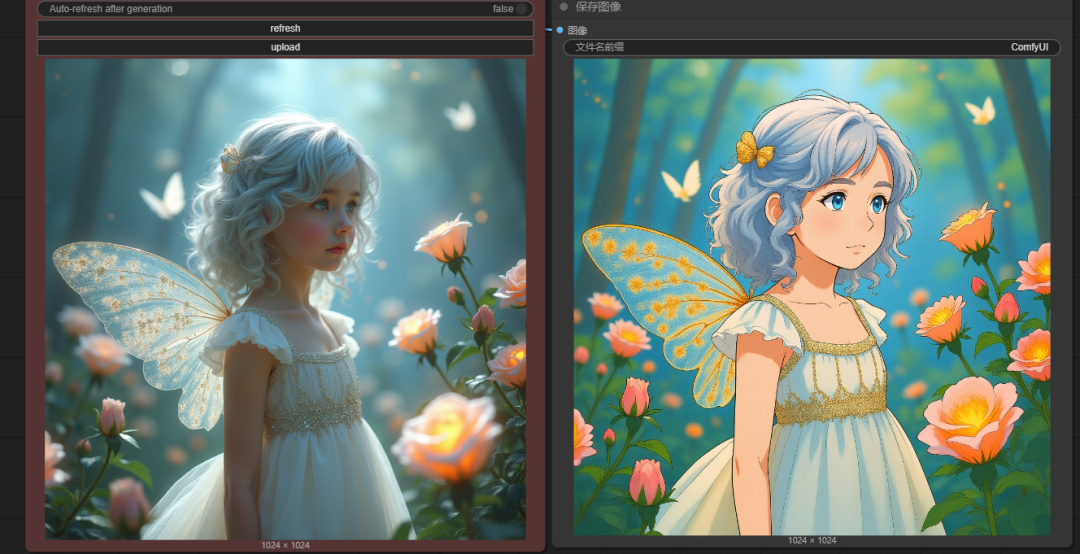
7. Style Conversion
kontext is also just a sentence away from styling an image.
The following image will be converted to Canon style with just one prompt word: Convert image to cartoon style
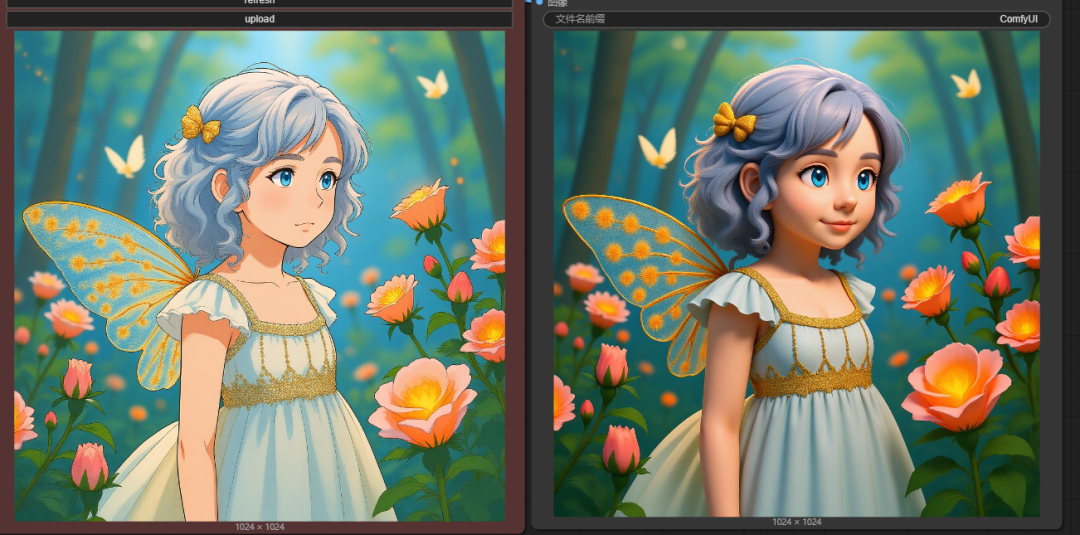
Continue editing the image in multiple rounds and enter the prompt word: it will be converted into a 3D cartoon effect.
We then get a cartoon effect style image.
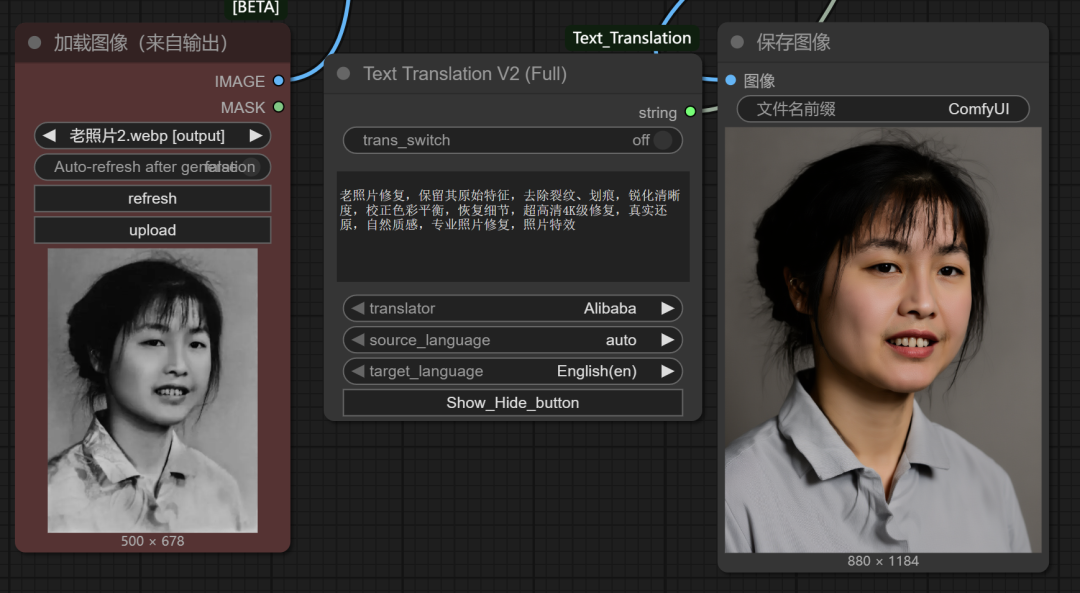
8, old photo restoration
Old photo restoration is also a piece of cake for kontext, just give the cue word to achieve the effect you want.
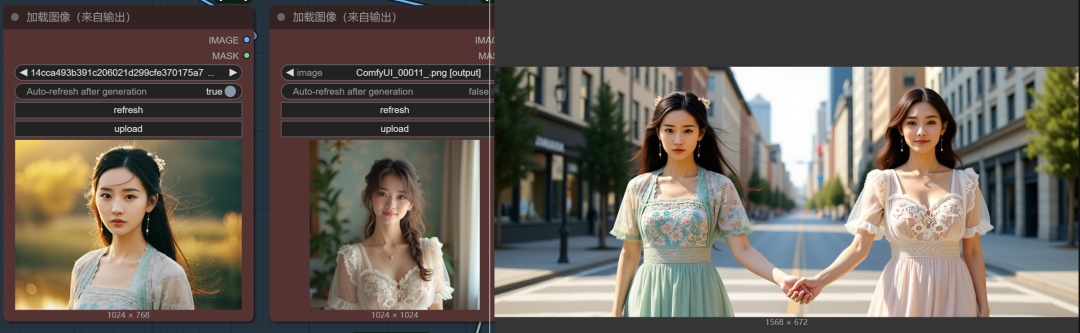
9、Double map merge
Remember when the official workflow opens with a disabled load image workflow, un-disable it so you can load two images.
Enter the cue word: Let two women stand in the street holding hands.
This way the two charts are fused into one.
Free up video memory
Here's an extra note on freeing up video memory
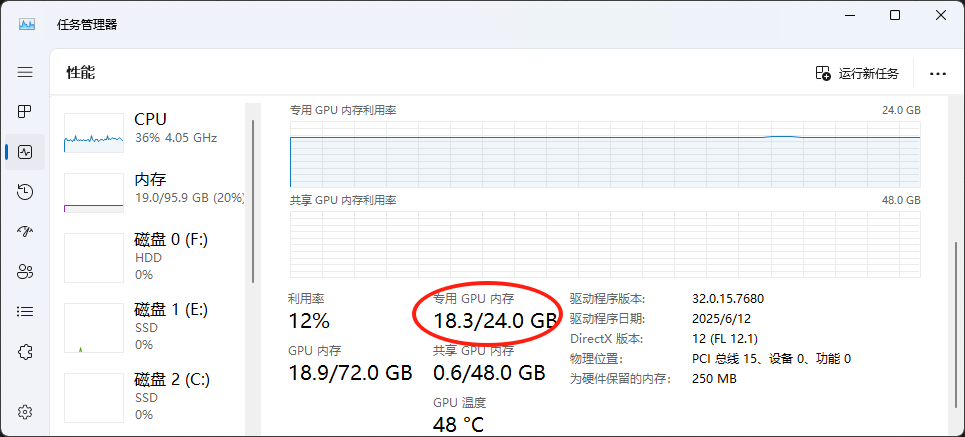
As many of you may have noticed, when the workflow runs out, the video memory is still occupied, which makes it easy to burst video memory.
Today to tell you how to solve this problem.
Method I:
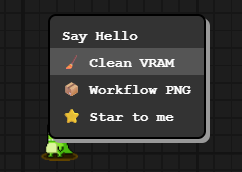
In the latest version of comfyui, there is a little green bug icon on the panel, right click on it and you will get the clear video memory option, click on it.
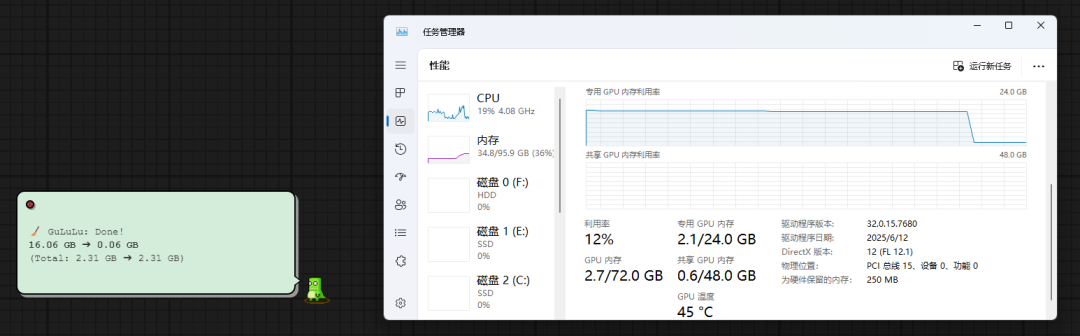
Here's what it looks like after clearing, the video memory is clearly freed up.
Method 2, add clear VRAM nodes
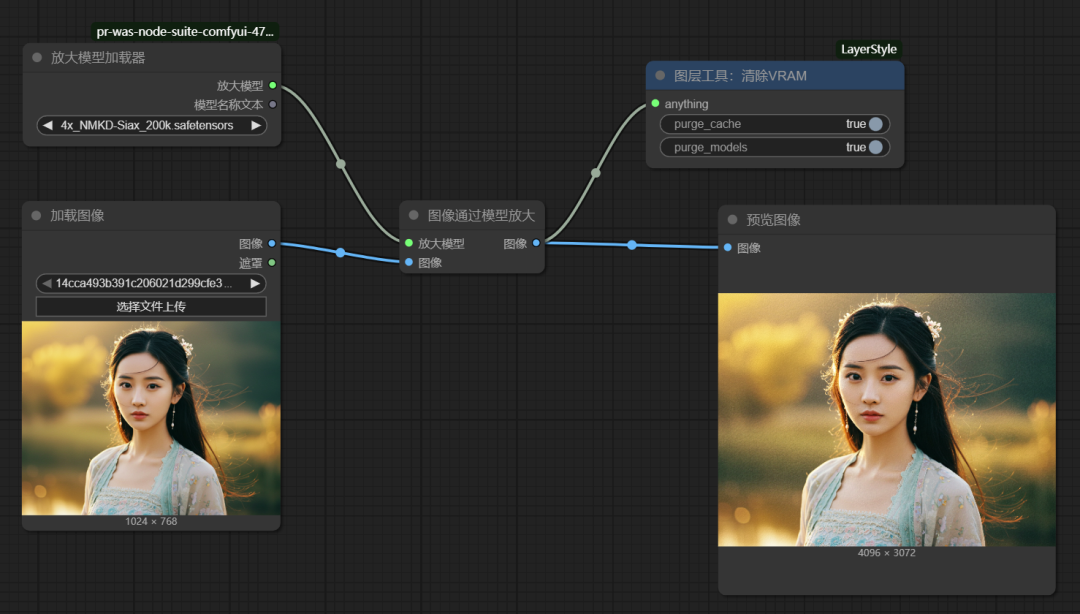
There are two versions of this node, one with V2 and one without.
Let's look at the differences
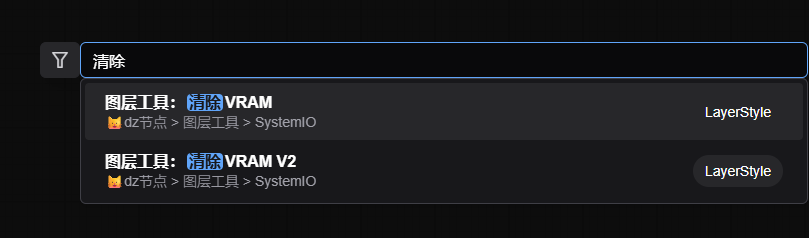
Nodes without V2: just connect behind a module and the workflow will automatically release the memory as it passes through this node
With V2 node: we can connect subsequent workflows directly behind this node
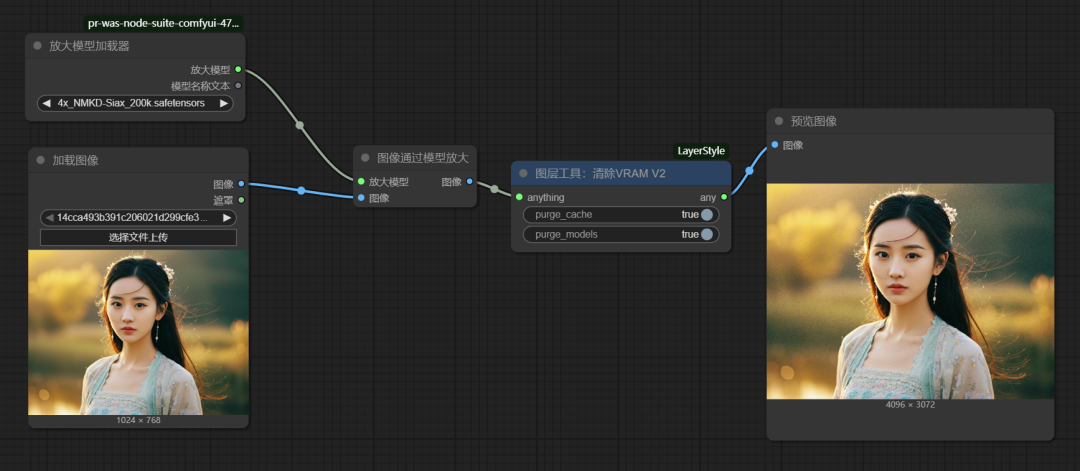
Tip: A workflow allows to add more than one release memory node, especially in some large workflows with multiple modules in series, we can add a release memory node after a template is run to reduce the chance of bursting memory.