



KontextEditing of images can be achieved in a single sentence, allowing theAI Drawingis much more playable, but if we want to have precise control over the localization in the picture, Kontext is sometimes a bit out of reach.
Open the official kontext workflow template, import a photo of a white goose wearing a crown, enter the prompt "change background to lake", and the background is easily changed to a lake.
Kontext is really fast and accurate for operations like changing backgrounds.

But if I want to make local edits to some complex images, such as the following picture, I want to make this goose in front of the right side of the picture become blue, at this time, on the one hand, the language description may not be accurate, and on the other hand, even if we describe it accurately, the Kontext may understand it incorrectly.
If you don't believe me, let's try it with the cue word "Make the goose in front of you on the right blue."
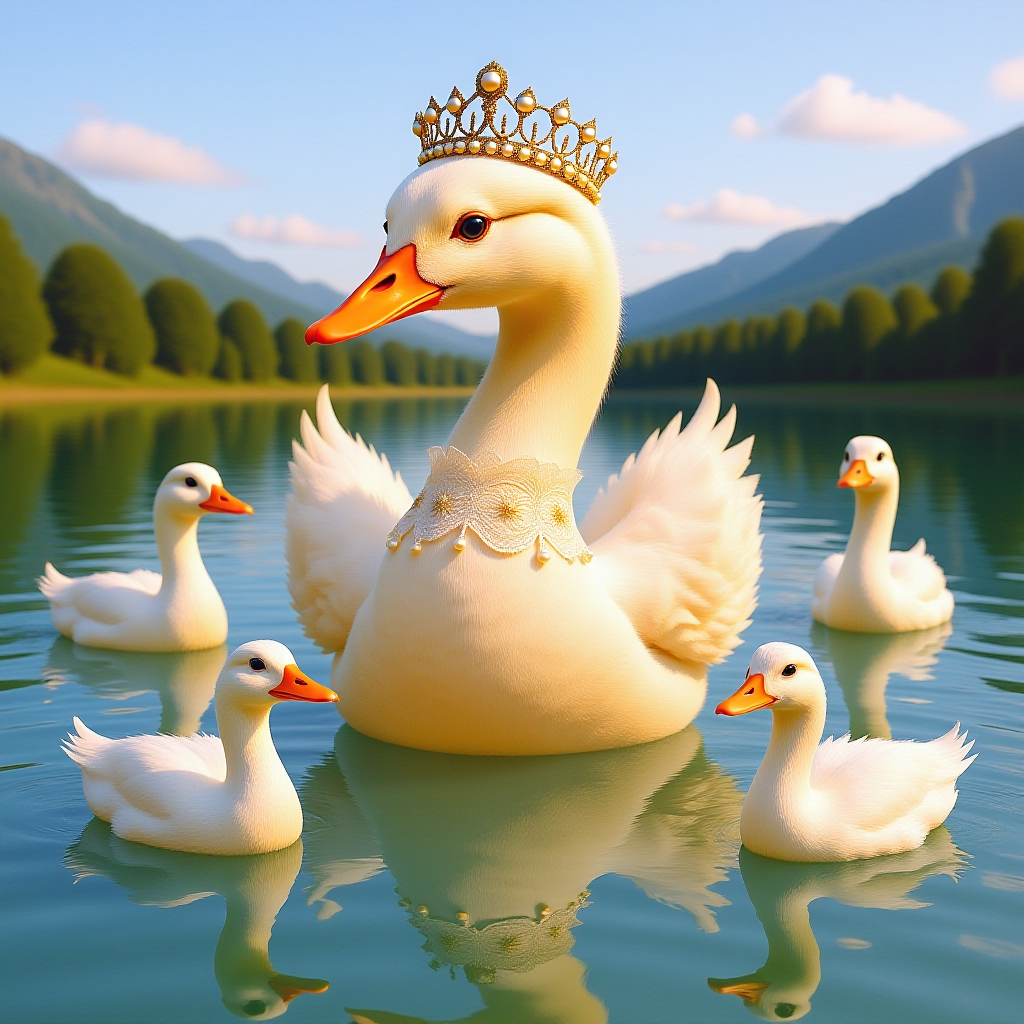
Obviously, Kontext didn't understand me very well, and Kontext turned all the geese in the picture blue.
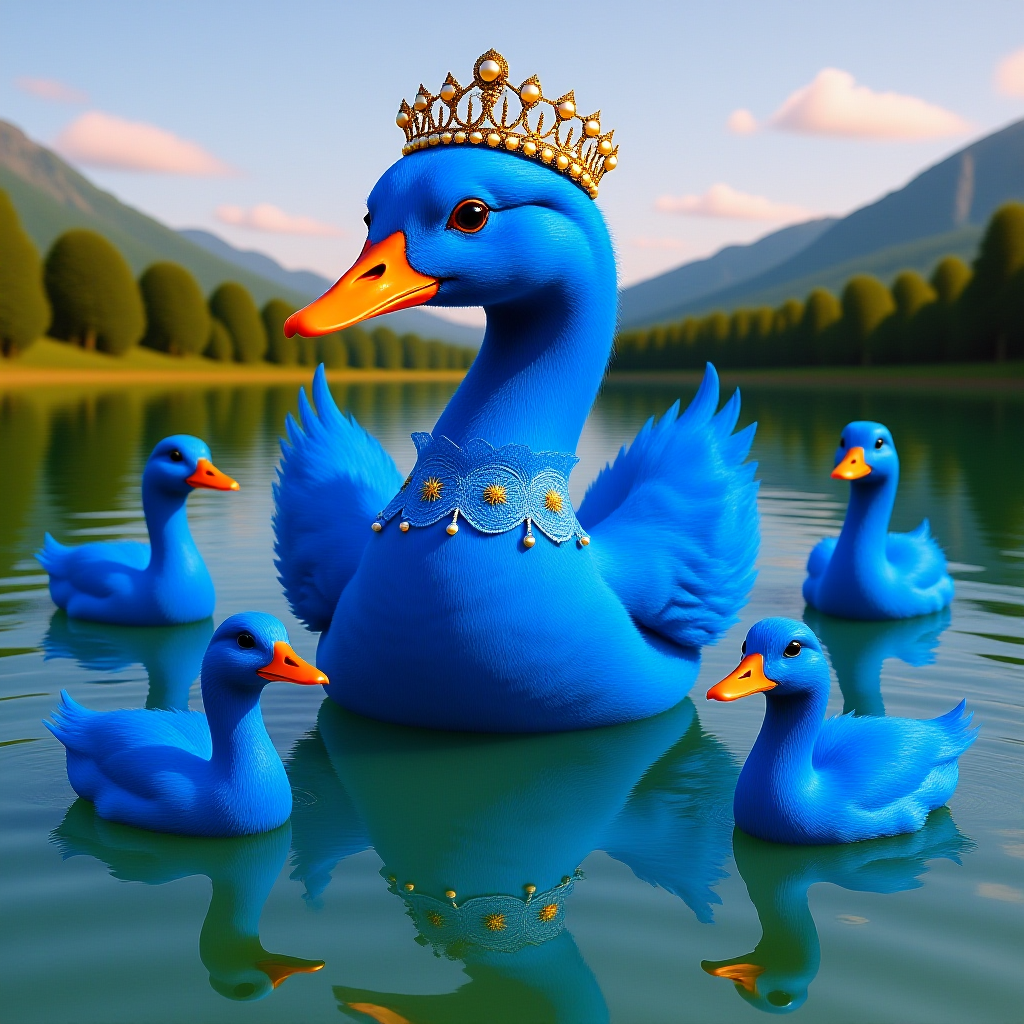
So, to make precise edits to localized parts of the picture, you have to use localized repaints.
I. Local repainting - local coloring
In Kontext, it is not possible to achieve our purpose by directly redrawing the original image locally and then giving instructions for the operation.
The correct way to do this is to make a copy of the loaded image node, one of which is used for editing the mask, and then add a "color override" node to specify the color of the masked area, for example, the color number of red is "#FF0000", and then operate on this color area.
The node connection diagram is shown below:
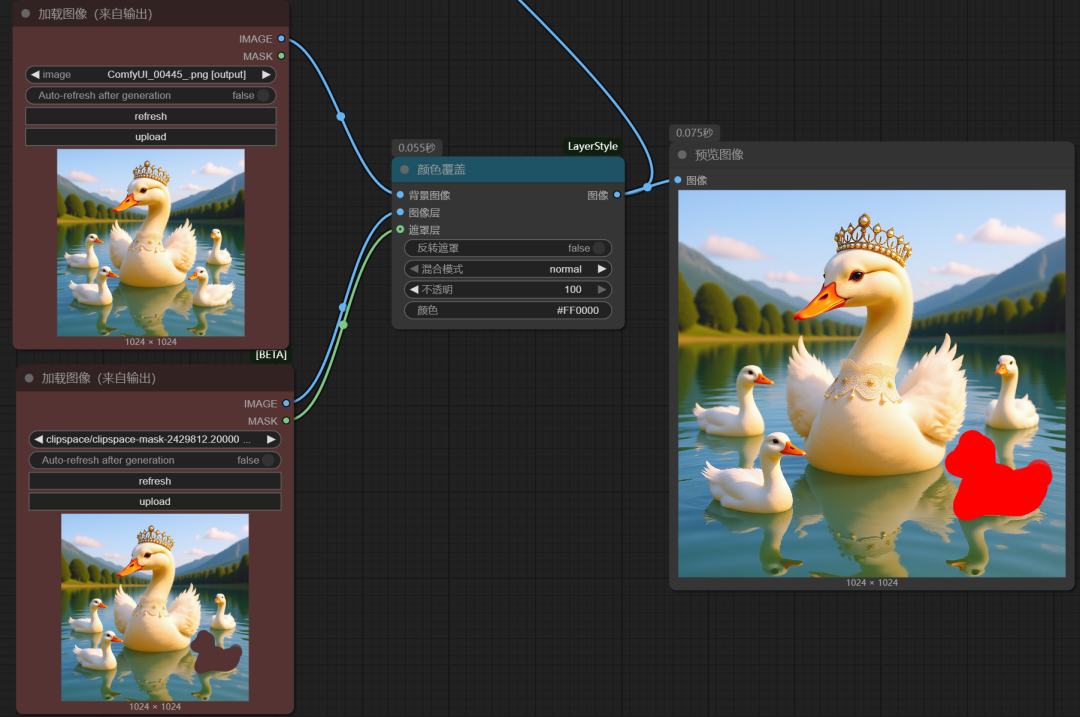
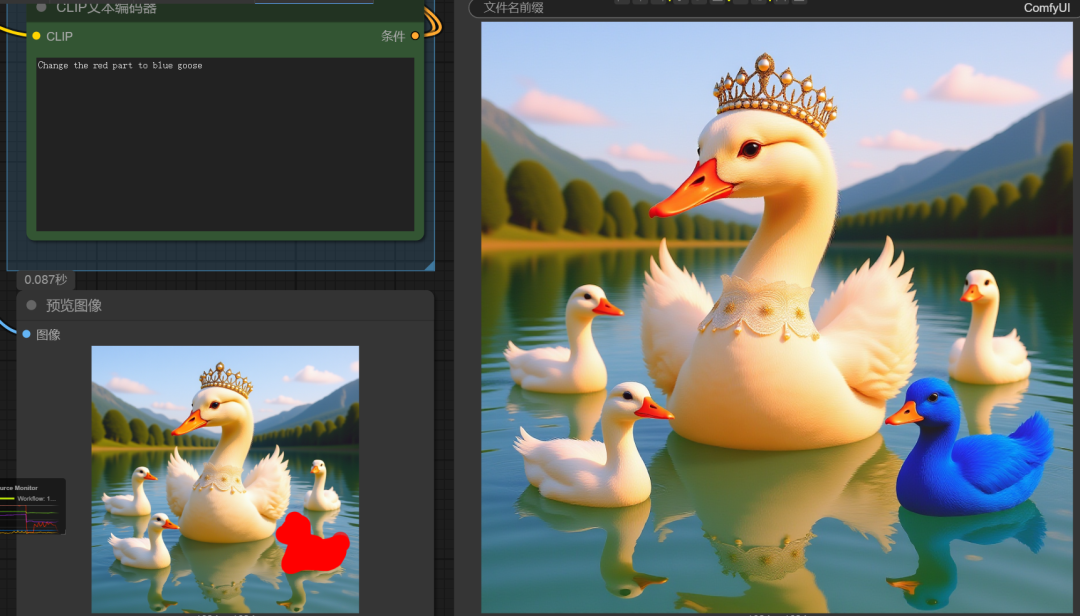
By giving the cue word "turn the red part into a blue goose", we have achieved precise control over the picture.
As you can see from the picture, when we drew the mask before, we only drew the body of the goose, and its reflection was not drawn, but in the final picture, Kontext changed the color of its reflection to blue.
Kontext's attention to detail is still very good.
The use of this method has been described in previous articles, so if you are interested, you can go through the previous articles:
Flux Kontext AI painting tutorials, a sentence to get the image editing
90% workflow can be thrown away, AI painting has become so simple, universal P chart model kontext advanced operation skills
Kontext-Ipainting Plugin
1. Plug-in installation
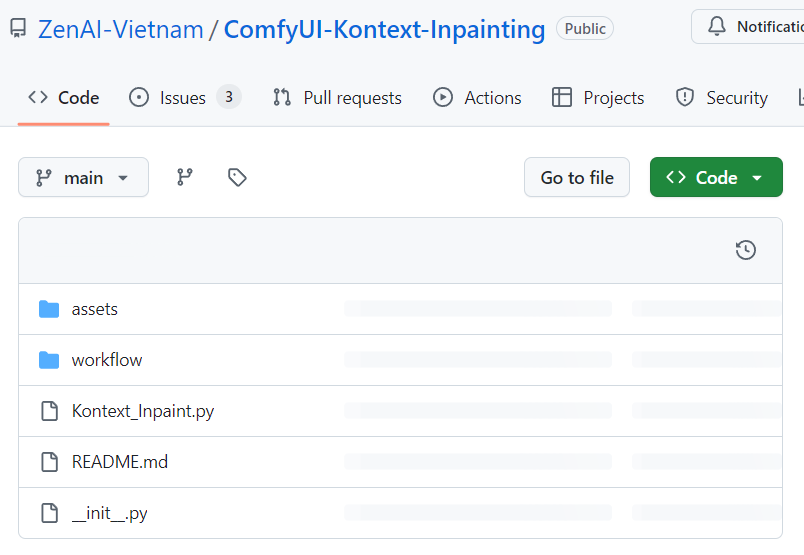
Kontext has a specialized plugin for local repainting: Kontext-Inpainting.
With this plugin, Kontext will only edit the masked area, not the area outside the mask.
Plugin Address:
https://github.com/ZenAI-Vietnam/ComfyUI-Kontext-Inpainting
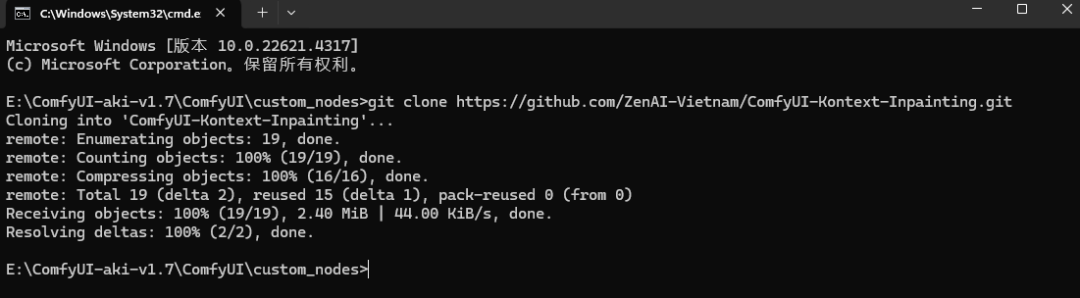
The installation method of the plugin can be found in the article:
AI Painting ComfyUI Getting Started Tutorial, ComfyUI Workflow Custom Node Installation
2. Workflow utilization
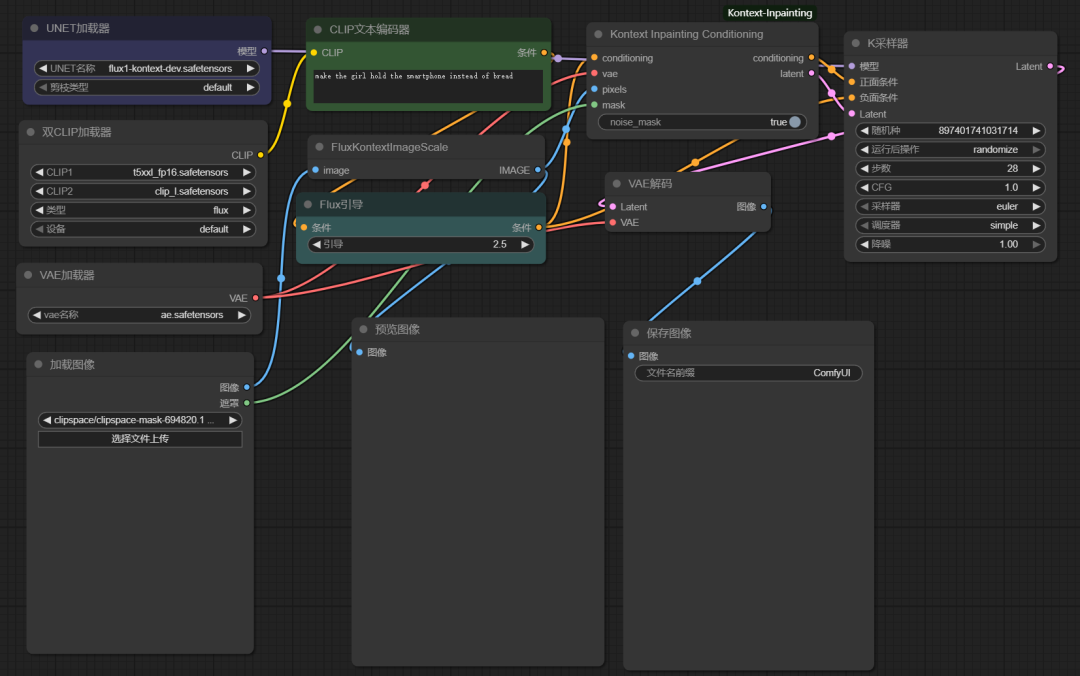
Once the plugin is installed, go to the workflow directory in the plugin directory to find the official default workflow.
The difference between this workflow and the Kontext default workflow is the addition of a "Kontext Inpainting Conditioning" node.
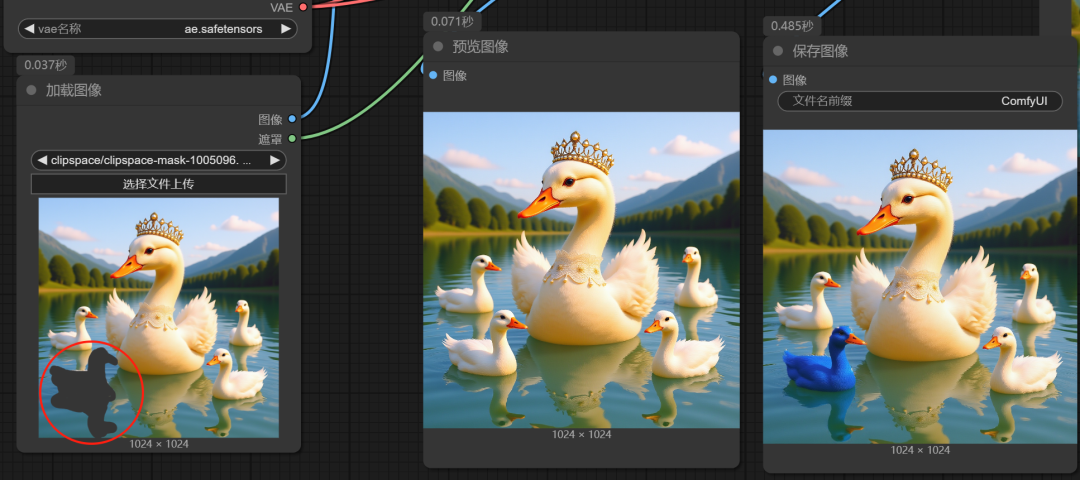
We want to make the goose in the lower left corner blue, draw the mask, and then give the cue word: Make the goose feathers blue.
The goose's body turns blue, but notice: this time the goose's reflection does not change color!
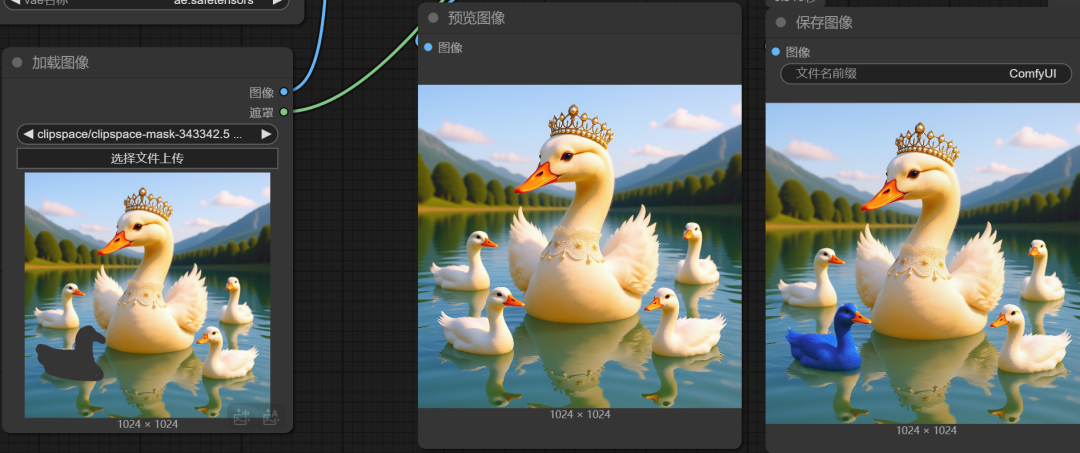
After re-expanding the selection and painting the shaded areas with masks as well, the goslings finally turned blue.
3, feathering the edges of the mask
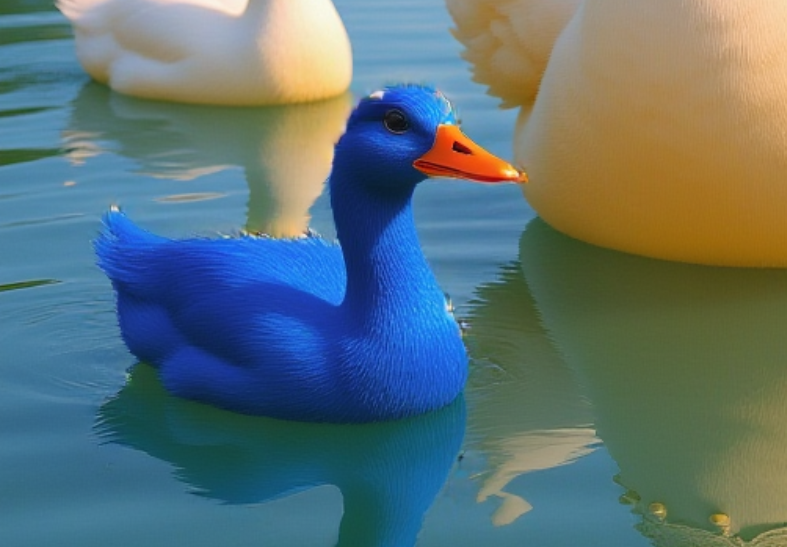
Look closely at the edges of the goslings, because the edges of our masks are harder, so the goslings are harder in comparison
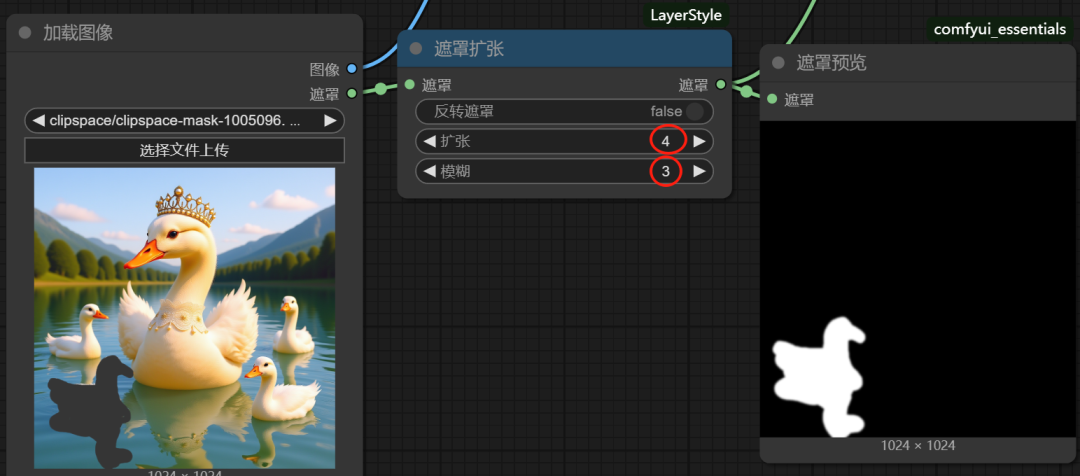
We can add a Mask Expansion node after the mask to give an expansion size and a blur value. The values are not fixed, so we can fine tune them back and forth depending on the situation.
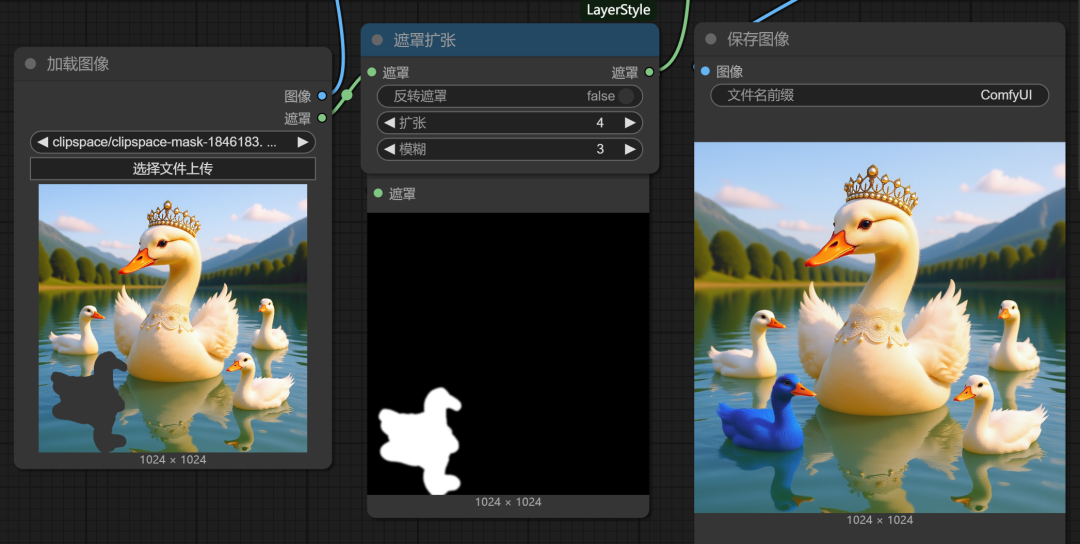
By increasing the feathering value, the edges of the mask become less raw.
That's all for today.