



Do you really believe thatIt's a short showDID IT COME FROM A FIVE-MAN TEAM USING AI? YES, IN 2025AI editingTechnology has made video production as easy as making a PowerPoint!
I'm sure those who have been doing short videos have found outAI skitsIt is becoming a traffic code! Whether it's a cross over reversal, sweet and abusive love, or suspenseful reversal, as long as you use AI technology to generate images and voiceovers, you can make an eye-catching short drama in a few minutes.
IT'S ALL ABOUT THE AI CLIPS. SOME PEOPLE EVEN SPENT TWO MILLION DOLLARS ON THESE SHORTS FOR THREE MONTHS。
Often receive private letters: "I want to do a short drama, shot the material but cut a mess" "AI tools a bunch, do not know which can really use" ...... In fact, short drama editing do not have to engage in complexity, grasp the accurate In fact, short drama editing does not need to be complicated, grasp the "fast, broken, burning" three points, and then use the right AI tools, novice can also produce results.
The following 8 tips are all summarized by the pitfalls I stepped in when I helped a small team to cut the drama, each with specific AI tools and operating steps, after reading open the software to try ---
First, the opening 3 seconds to catch the eye: using AI "pinch" cut high-energy clips
Pain point: character introductions and empty scenes are put in at the beginning, and the audience scratches away faster than they can turn the page.
Tip: The beginning of the skit must "come up with a conflict right off the bat", using AI to pick the most gripping clips from the material and dislike them straight to the beginning.
AI tool: cutscene (free, mobile/computer friendly)
Steps:
① Open Cinema Cut, import all the clips, and click "Smart Selection" next to "Library" in the lower left corner;
② Select the "Short Drama High Energy" template (in which scenes such as "Reversal, Conflict, Suspense," etc. are preset), and the AI will automatically scan the material for "High Action, High Emotion" clips;
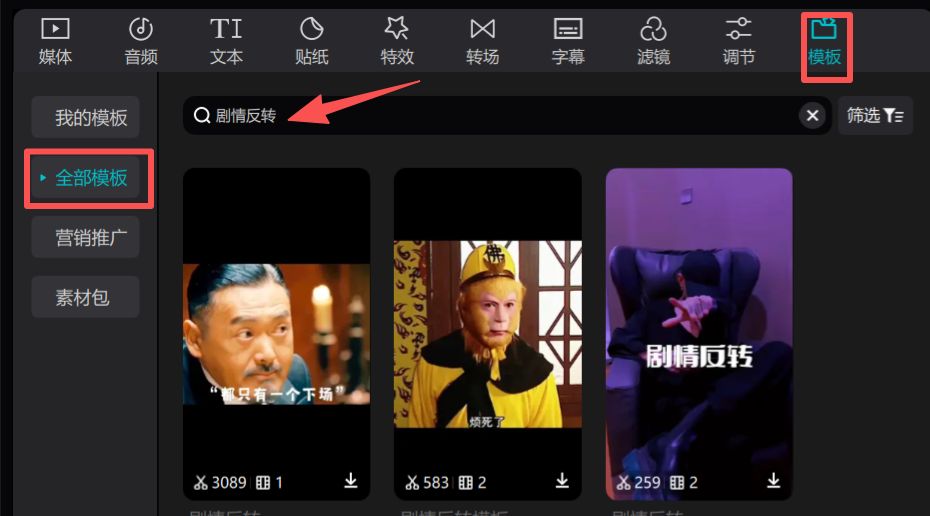

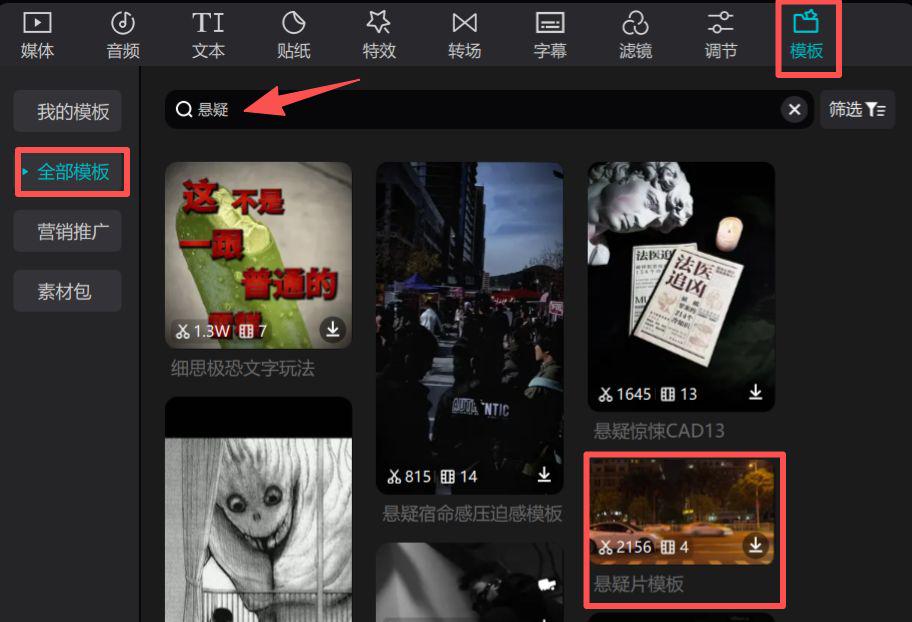
From the 3-5 clips selected by the AI, pick the one with the most conflict (e.g., the moment when the character drops something or shouts a line) and cut it to 0-3 seconds.
Effect: I have helped a team to change the drama, the beginning of the "protagonist walking on the road" replaced with AI picked "protagonist was splashed with water" clips, the completion of the broadcast rate directly rose 20%.
Second, the rhythm of the line card: AI automatically step on the point, do not have to manually on the timeline
Pain point: the lines don't match up with the picture, either half a second early or half a second late, and it's hard on the eyes to tune in.
Trick: Have the AI "jam" cut to the rhythm of the lines, even the breathing pauses are correct.
AI tool: CapCut (international version of CapCut, more versatile)
Steps:
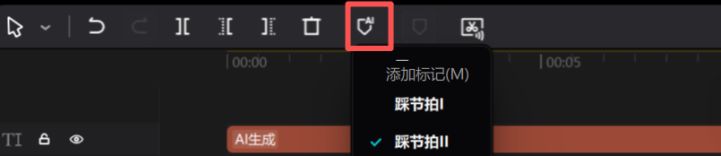
① Import the video and dubbing / line audio, and tap "Audio" at the top → "Auto Stomp";
② Select "Line Stepping" and the AI will automatically put a small mark at the beginning and end of each line;
③ Drag the screen clip to the marking point, e.g., "The protagonist says 'You lied to me'", and the screen just cuts to the protagonist's frowning expression.
A little reminder: If there is a noise in the live audio, use "AI Noise Reduction" in CapCut first to clear the noise, and then step on the spot more accurately.
Third, the transitions are not hard: AI "look at the picture" automatic matching transitions
Pain point: manually adding "flash white" and "blur" transitions that don't always match the plot and are either too jumpy or too boring.
Tip: Let AI choose transitions based on the content of the before and after images, for example, if you cut from "talking indoors" to "running outdoors", AI will automatically use "push and pull transitions" without abruptness.
AI Tools: Cutting and Screening 'Smart Transitions'
Steps:
① Place the two videos to be connected and tap the "Transition" icon in the center;
② Select "Intelligent Matching" and the AI will first analyze the "ending action" of the previous paragraph (e.g., the protagonist lifts his hand) and the "beginning action" of the following paragraph (e.g., the protagonist opens the door);
③ Corresponding transitions are automatically generated, such as "Action Articulation Transition", which fits 10 times better than manually selected ones.
Counter-example alert: don't put "petal transitions" between "fight clips", the AI won't even go that far...
Subtitles in 1 minute: AI automatically recognizes subtitles, no need to manually type!
Pain point: Manual subtitling is time-consuming with lots of typos, and it takes 1 hour to subtitle a 20-minute episode.
Tip: AI not only automatically recognizes lines for subtitles, but also corrects dialects and slips of the tongue, saving you time to cut the plot.
AI Tool: Cutting and Screening "Smart Captioning"
Steps:
① Import the video in Cut Screen, tap "Text" → "Smart Subtitle" → select "Mandarin" (supports dialects, such as Sichuanese and Cantonese);
② Wait 30 seconds for the AI to automatically generate subtitles for the whole play, focusing on the "slip of the tongue part" (e.g., the protagonist says, "I'm going tomorrow," when he actually wants to say, "I'm going today").
Efficiency Comparison: Before manually typing subtitles 1 hour / episode, after using AI 5 minutes / episode, and no typos.

Fifth, the tone of unity: AI one-key color mixing, do not have to remember the "RGB parameters"
Pain point: the light is not the same when shooting material, some shots are bright, some are dark, cut out like a puzzle block, not coherent.
Tip: Use the AI preset "short drama color tone" to adjust the whole drama into a unified style with one click, such as "urban drama cold color" "ancient costume drama warm color".
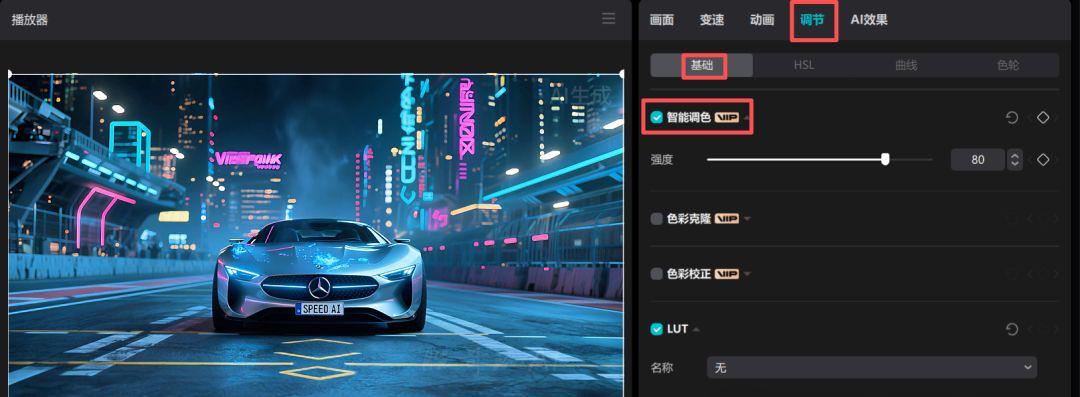
AI Tools: Cut and Match "Adjustments" -> "Basic" -> "Intelligent Color Mixing".
Steps:
① Start by picking a shot with "the most normal lighting", such as an indoor daytime scene, and tap "Filter" → pick a favorite skit filter (e.g. "Urban Gray");
② Check "Intelligent Color Adjustment" in the "Basic" module, and Cropping will automatically adjust the color tone of other shots to be the same as this one;
③ If individual shots are too dark, manually pull the "Brightness" again, no need to exceed 20, otherwise it will be blurry.
Pit avoidance reminder: don't mix "costume drama" into "cyberpunk colors", choose the right style template before AI matching!
Soundtrack: AI recommends BGM according to the plot, no need to search half a day!
Pain point: want to find "tension BGM", search half a day all the lyrical; or soundtrack volume over the vocals, for nothing.
Tip: The AI can not only recommend BGM according to the "mood of the plot", but also automatically adjust the volume so that the lines are clearer than the soundtrack.
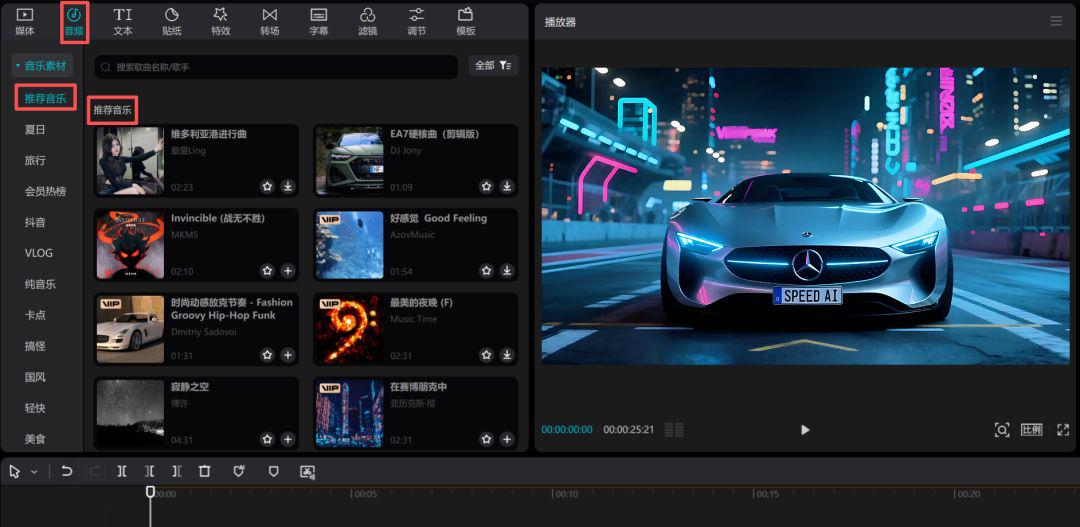
AI Tool: Motion Picture Cuts "Recommended Music"
Steps:
① Import the video into the Cinema Cut track, select "Audio" → "Recommended Music", Cinema Cut will automatically recommend some suitable BGM;
② Select the appropriate BGM in "Recommended Music" and listen to it once, and you will find that it is very suitable for the "mood of the plot" and the volume is also appropriate.
AI Intelligent Dubbing - Let the character "speak"
point of pain: High cost of finding a voice actor? Character voices don't match?
Tip: AI generates different styles of voiceovers, one-click replacement!
AI tools: ElevenLabs + CapCut
Steps:
① Enter your lines into ElevenLabs, select the "Boss" tone, and the AI will generate a low, magnetic voice.
② Import CapCut and directly replace the original voice, the effect is comparable to professional voice actors!
Tip: Try "humor" or "girly voices" to make the characters more three-dimensional.
Eight, the export does not rework: AI according to the platform requirements to adjust the parameters, do not have to change to change to
Pain points: after cutting and exporting, you find that Shake wants "9:16 vertical screen", and you guide yourself to "16:9 horizontal screen"; or the file is too big to be transmitted to the platform.
Tip: Use the AI preset "Platform Parameters" to export a version adapted to Shake, Shutter, and Video No. in one click, without having to remember the "resolution and frame rate".
AI Tools: Cutscreen "Export" → "Platform Preset
Steps:
① After cutting the video, tap "Export" in the upper right corner;
② Select the platform you want to send, such as "Shake", the AI will automatically adjust to "9:16 vertical screen, 1080P resolution, 30 frame rate";
③ Select "Intelligent Compression", the AI will compress the file to the size required by the platform (e.g. Shake single video is no more than 2GB), and it's not mushy yet.
Time comparison: before, it took 15 minutes to manually adjust the parameters + compression; with AI presets, it takes 3 minutes and you can't go wrong.
A final word of truth:
There's no need to pursue "grandeur" in short drama editing, but it's better to do the 3 steps of "catching the beginning, jamming the tempo, and clearing the subtitles" first, and then use AI to save time, rather than blindly pondering over complicated techniques.
So today you pick a skill tester -- for example, with the first "smart subtitle" of a clip, and tomorrow when you're cutting, you're going to find out that the time saved is one more set of plays。
What's the most painful part of your short play