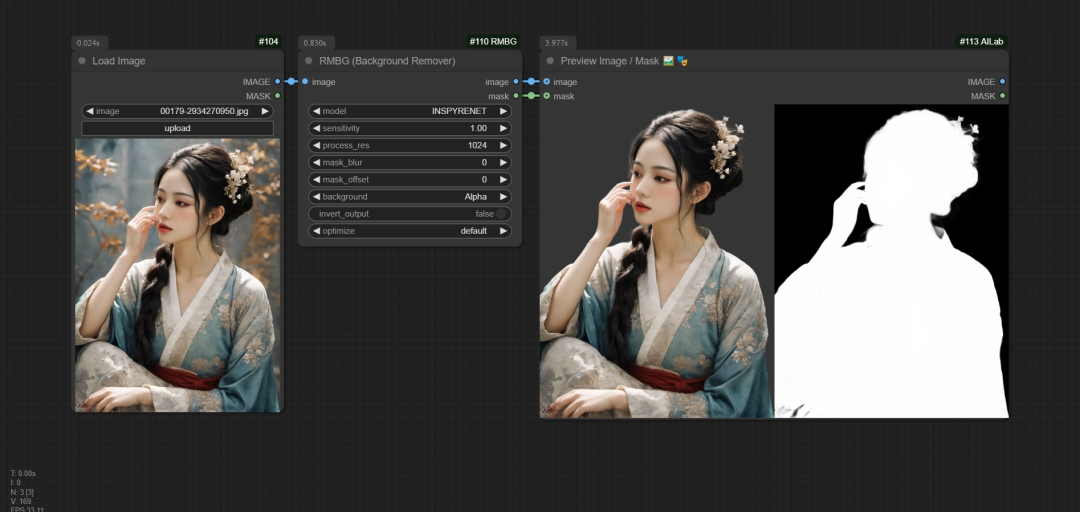
RMBG can be said to beComfyUIThe strongest go background (keying) plugin, it is not only powerful, and use in very simple, can be said to realize the function of a key to go background (keying).
Here's an official example image of it.

I. Installation method
There are various ways to install the plugin, the easiest way is to search for the RMBG plugin through the manager and download it.

If you still want to know how to install other nodes, you can read this article specifically:
RMBG plugin node address:
https://github.com/1038lab/ComfyUI-RMBG
II. Model Download
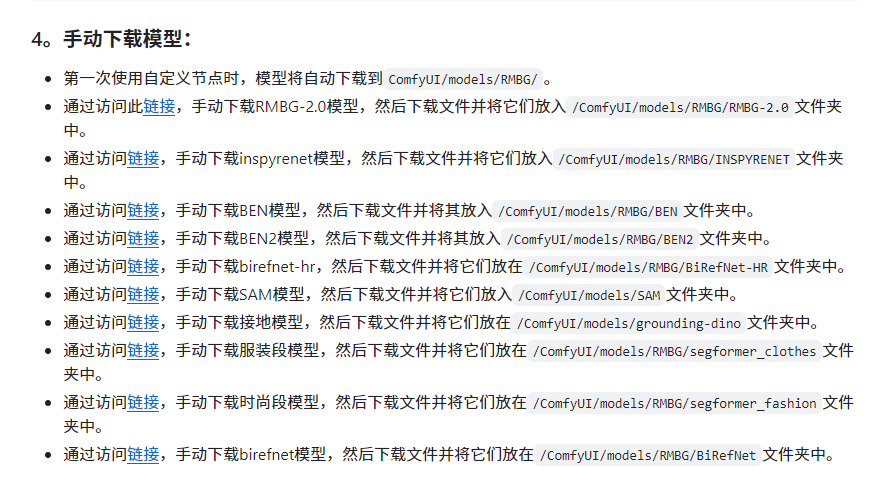
Once the plugin is installed, the system will automatically download the model when the RMBG plugin is run for the first time.
You can also go to the RMBG github page and download the model from the link provided in the page.
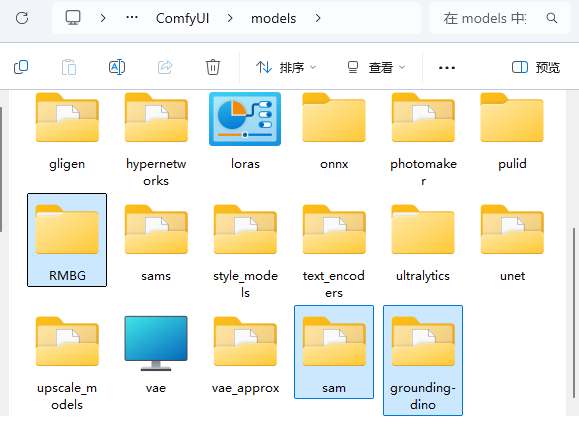
Once the models are downloaded, put them into the RMBG, SAM, and grouding-dino folders, and then put these three folders into the comfyUI/models path.
Third, the picture keying
first buildWorkflow.
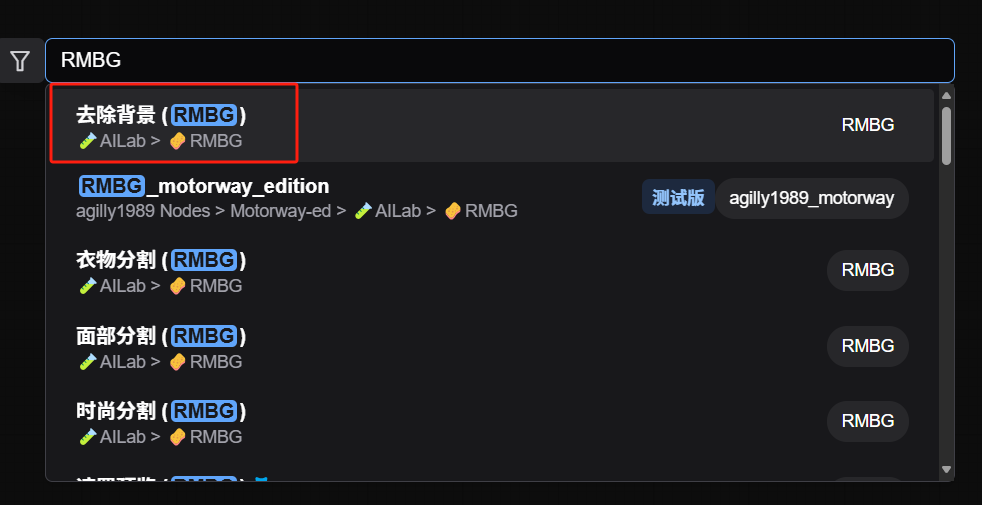
Double click on the blank space in the working interface, search for "RMBG" and select the first node.
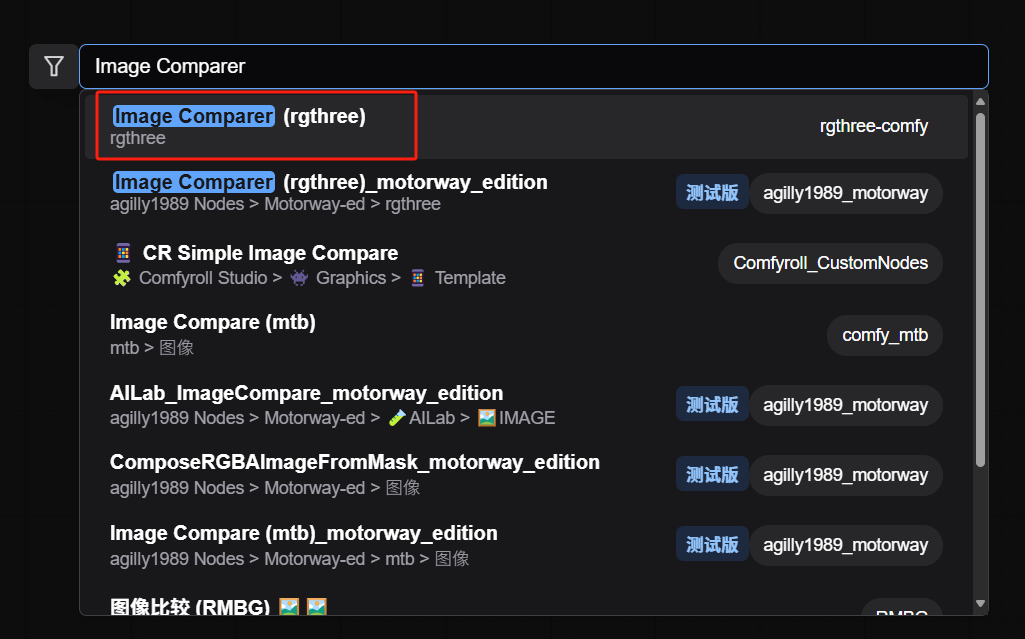
Then search for the Image Comparer node (Image Comparer )
The workflow is as follows:
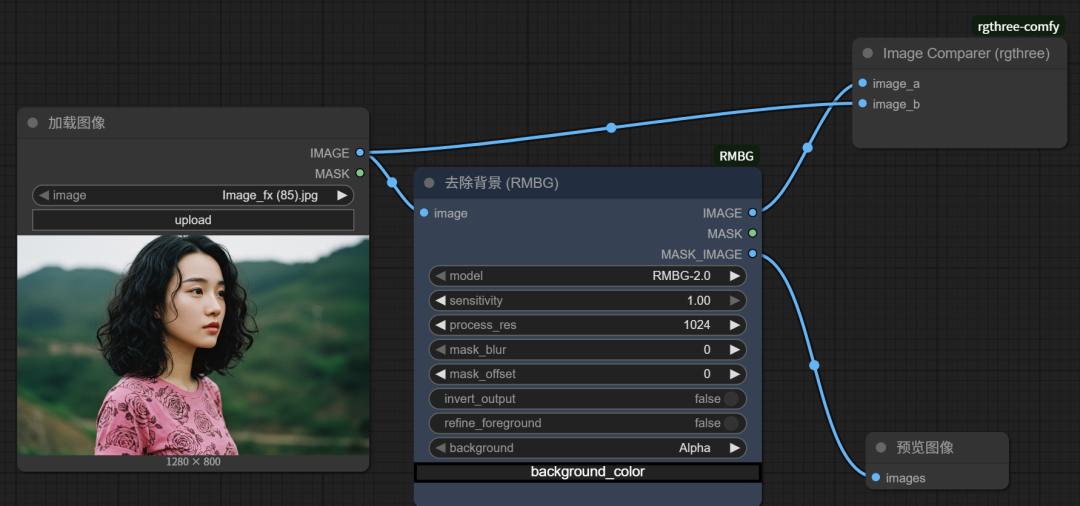
After clicking run, its supposed to take 1 second for the character to complete the snap image operation.
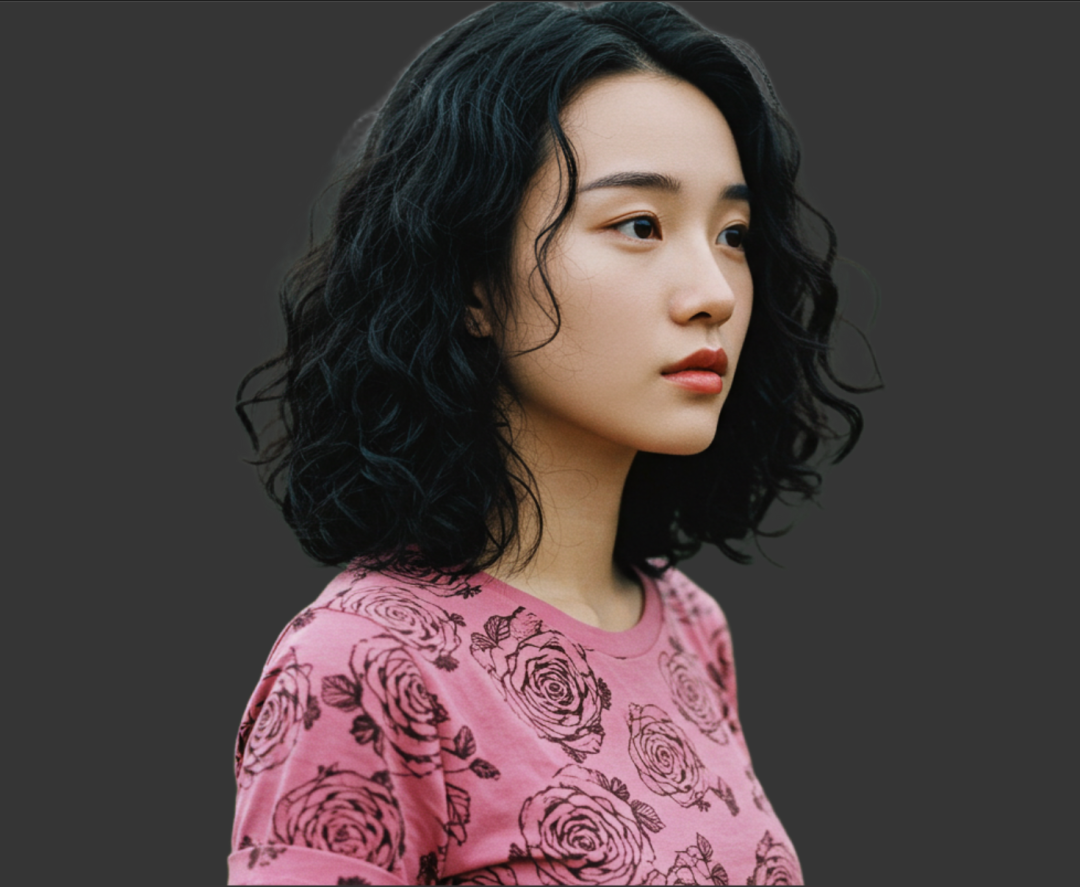
Since I'm adding an Image Comparator node, we can manually drag the vertical lines in the image to see the difference between the original image and the keyed image.
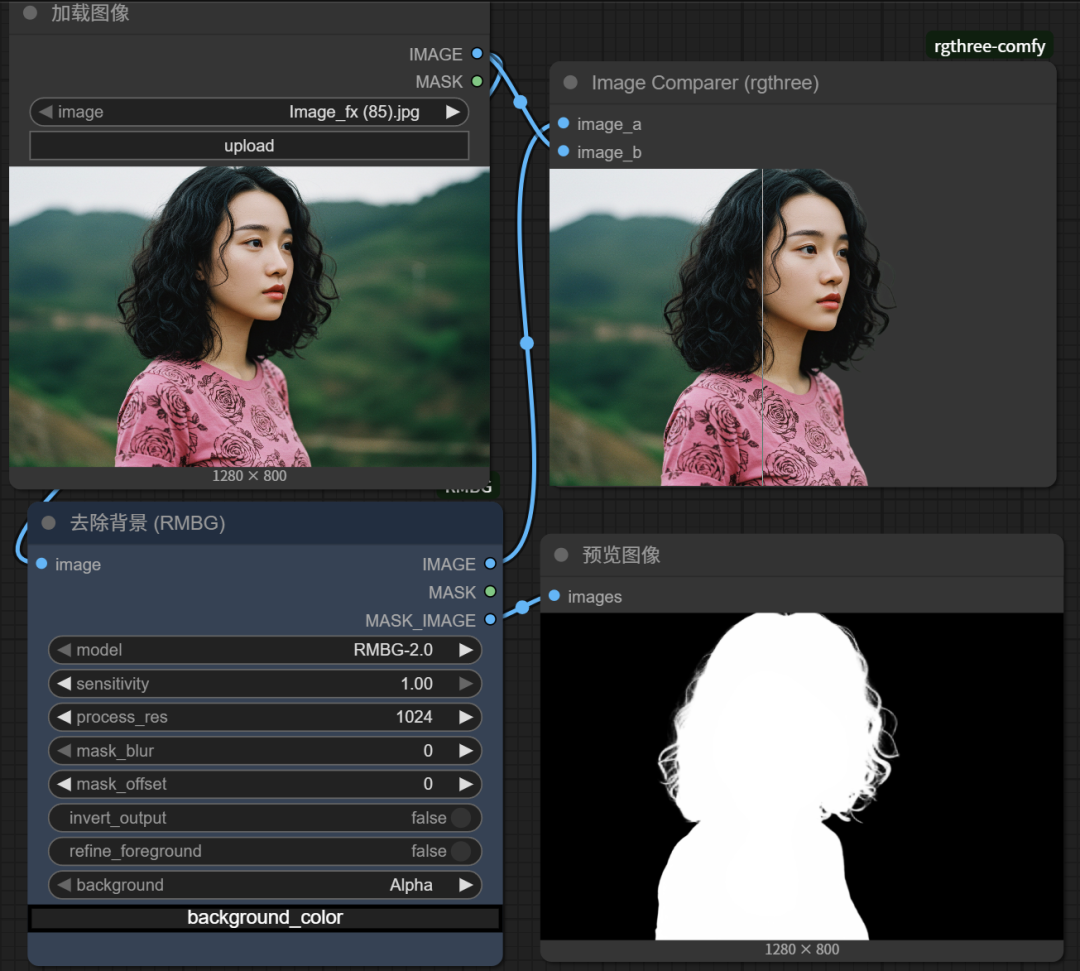
After zooming in and observing, the keying effect of the characters is still very good, and even the keying of the hair part is also done very well.
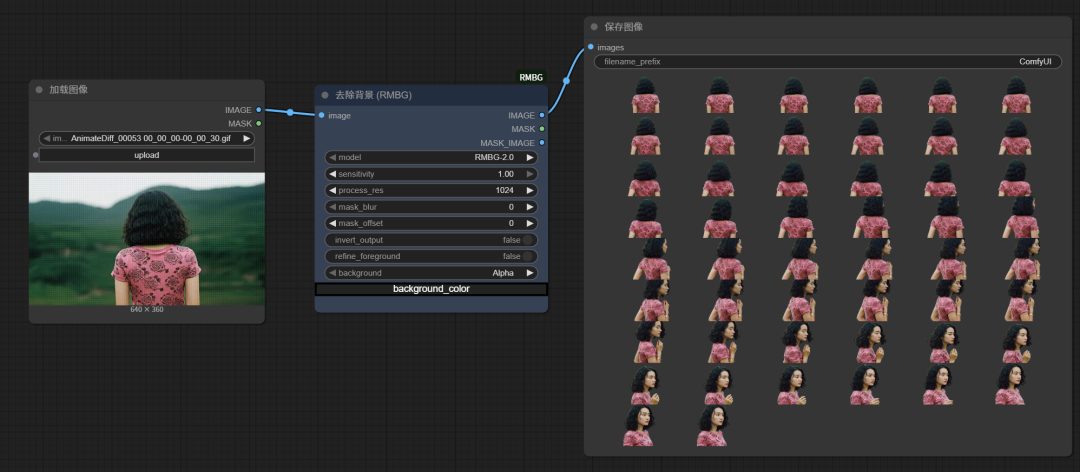
RMBG can key not only images, but also motion pictures, but the keyed image is frame by frame.
If you want to get betterkeyingEffectively, the original image is first of all a relatively clear large-sized picture, so we can first enlarge the original image in high definition, and then keying .
There are many ways to zoom in on an image in HD, see the article:
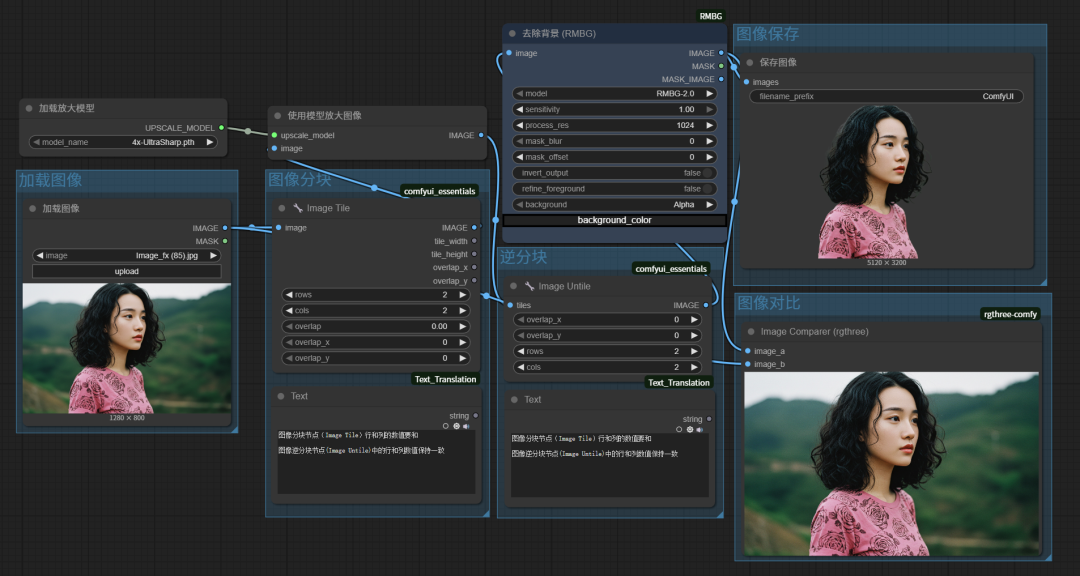
Fourth, the picture high-definition keying
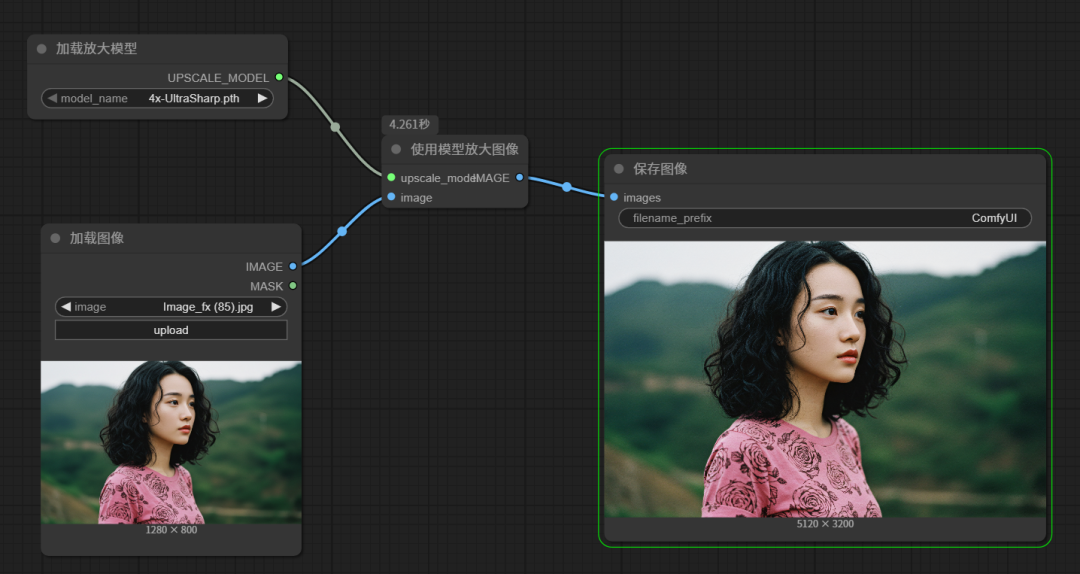
1, first build a simple picture HD zoom workflow
As shown in the figure below, this is the simplest model to zoom the image through the model HD, which consists of three nodes: "Load Zoom Model", "Zoom Image with Model" and "Save Image". nodes.
2, increase image chunking and inverse chunking node
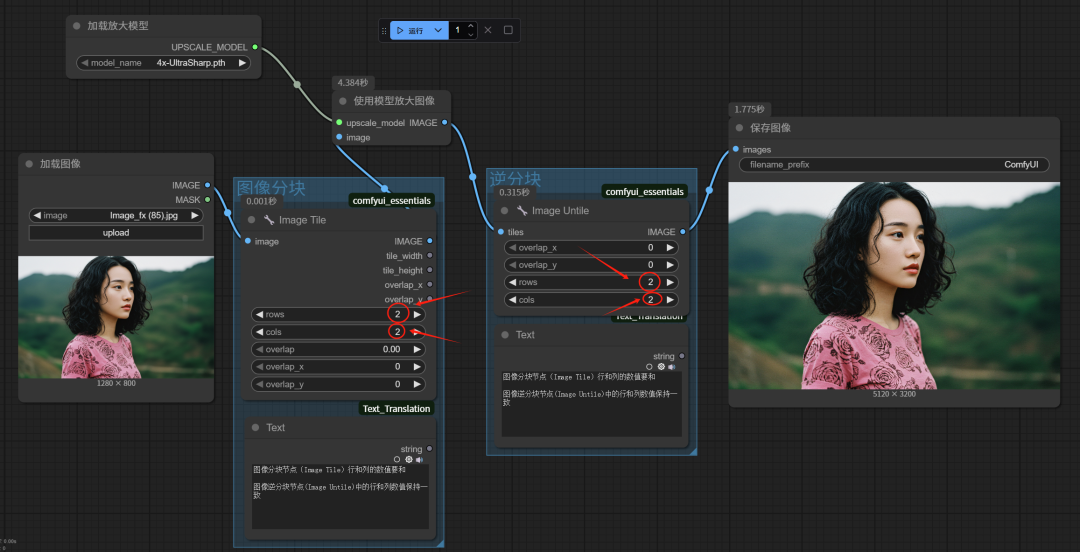
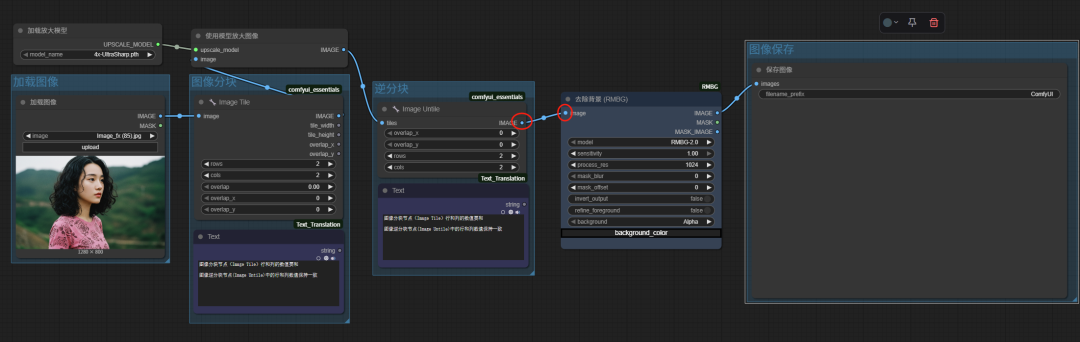
If we mount the image zoom node in front of other workflows, it will take up the already small amount of video memory. Increasing the image chunking node and the inverse chunking node allows the graphics card to perform chunking calculations on the image when calculating, which significantly reduces the computational pressure on the graphics card.
Note: The row and column values of the chunk node and the inverse chunk node should be consistent.
3. Mount the keying node
Connect the inverse chunked image output pipeline to the keying node, and then finally connect an image saving node, which accomplishes the purpose of first enlarging the image and then keying it.
Here is the complete workflow with the addition of the image comparison node