



Recently, I've been amazed by a new model that makes photo editing as easy as "WeChat".
All you have to do is upload a product image and a photo of a person, then type in a simple command like "person holding product" and you'll get a composite image in a few seconds:

Want to change the background? No problem, it also automatically adjusts the light and shadow so that the original image blends naturally with the background.
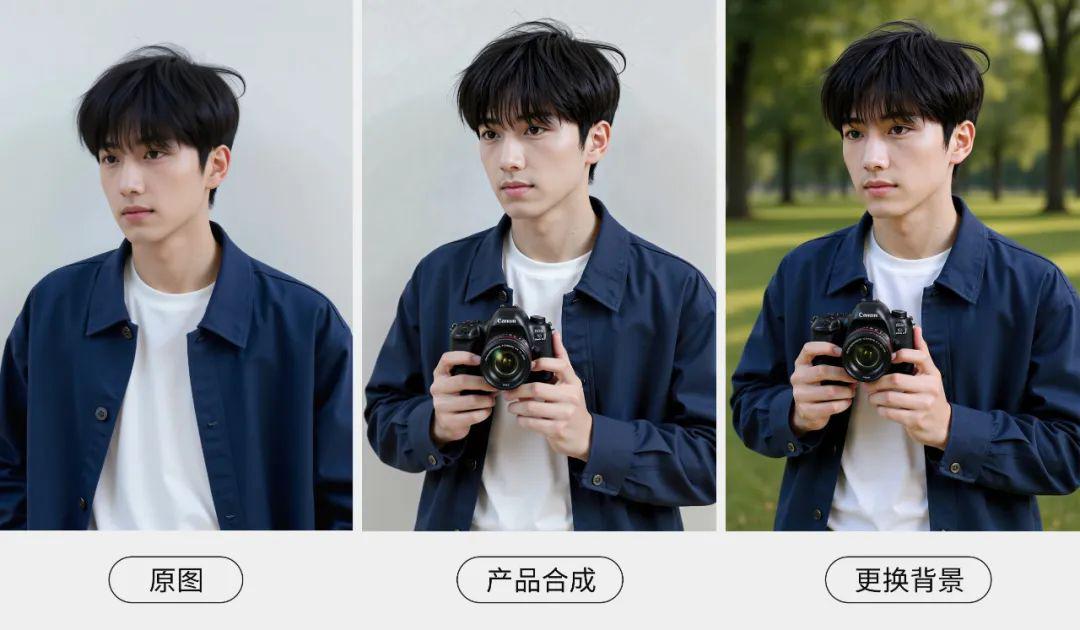
You can also directly modify the text content in the picture and easily replace the items in the screen - and all these operations can be realized with just a few keystrokes, and the process is like chatting with an assistant who understands design.
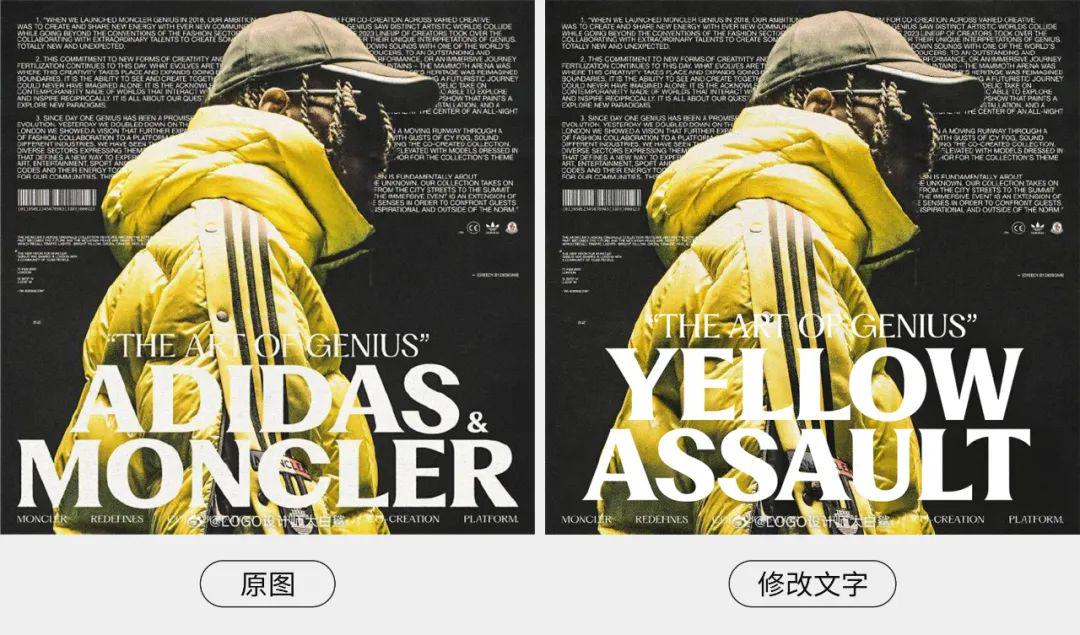
It is the new FLUX from Black Forest Labs. Kontext modelThe tool has no complicated parameter adjustments and does not require specialized design skills. Today's article, I'll give you a detailed disassembly of this eye-opening tool in the end how to use.
How to install FLUX.1 Kontext [Dev]?
1. UpdatesComfyUI
Make sure your ComfyUI is updated to the latest version. Either through Manager, or by using the update command that comes with the portable package.
2. Download the model
Prepare the model files needed for Kontext and place them in the corresponding folders.
01. Kontext model
flux1-kontext-dev.safetensors (23.8GB)
flux1-dev-kontext_fp8_scaled.safetensors (11.9GB)
File Location: ComfyUI\models\diffusion_models
02. Text Encoder
clip_l.safetensors (234MB)
t5xxl_fp8_e4m3fn.safetensors (4.55GB)
File path: ComfyUI\models\clip
03. VAE
ae.safetensors (335MB)
File Location: ComfyUI\models\vae
3. Loading workflows
After completing the above steps, open the "Workflow - Browse Templates" in the upper left corner of Comfy UI and you will find the Kontext workflow under the flux category.
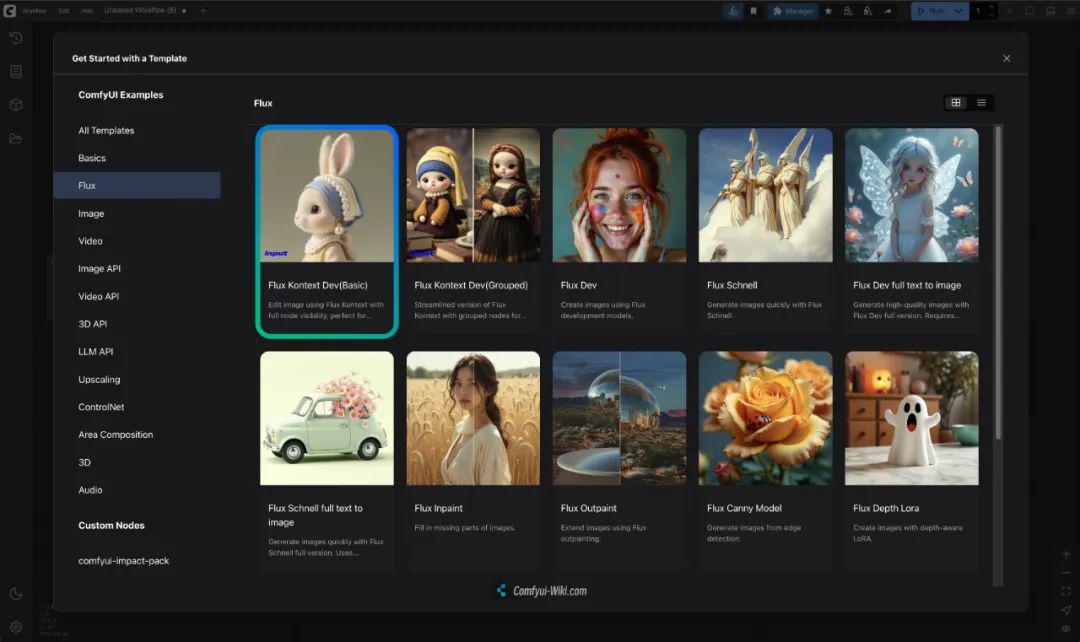
It should be noted that to run the kontext dev model locally, the computer needs about 32GB of video memory, and the fp8 version also needs about 20GB of video memory, if your computer configuration is not enough, the experience of using it may be discounted oh.
Getting Started with Kontext Basic Workflow
1. Single picture editing

① Load in Load Diffusion Model node
flux1-dev-kontext_fp8_scaled.safetensors model.
②Load in the DualCLIP Load node
clip_l.safetensors and t5xxl_fp16.safetensors or t5xxl_fp8_e4m3fn_scaled.safetensors models.
③ Load the ae.safetensors model in the Load VAE node.
④ Load the image in the Load Image node.
⑤ Fill in the prompt words in the CLIP Text Encode node.
⑥ Click the Generate button to run the workflow.
2. Multiple rounds of photo editing
When we need to combine multiple images into one, or make multiple edits to the same image, there are actually two methods that work well in ComfyUI, so follow me and try them out.
First: Use Image Stitch nodes
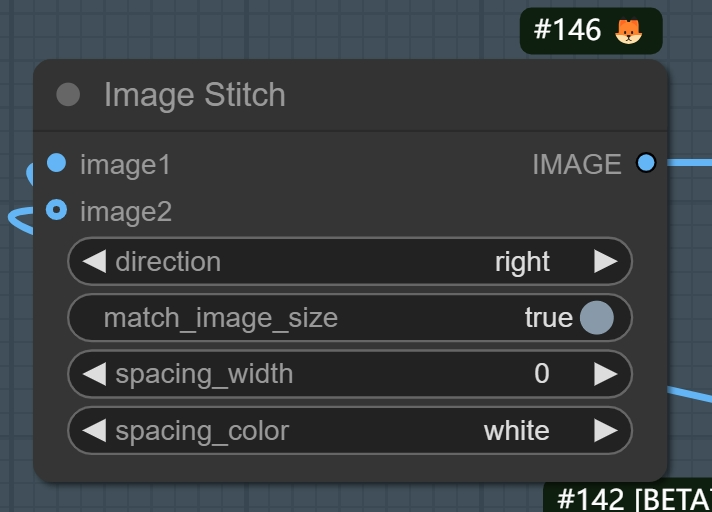
First, select the loaded image node in the "Bypass" state and press ctrl+B to bring it back into use.

Then, bring the node with the blank latent image in the upper right corner of the workflow back into use as well, and plug it into the K sampler instead of the original encoded image. At this point it is free to set the size of the image.
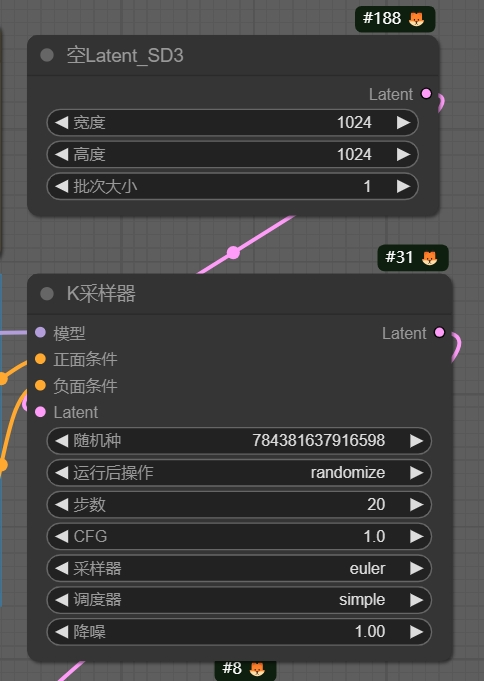
Once you're done, you can upload the image and fill in the prompt words.
Here I uploaded a photo of a bouquet of flowers and a photo of a girl, with the prompt "The young girl is holding this bouquet of flowers and looking straight at the camera while maintaining all background details and character features", and finally click Run Workflow to wait for the image to come out, isn't it very simple?

The second one: using ReferenceLatent to concatenate nodes
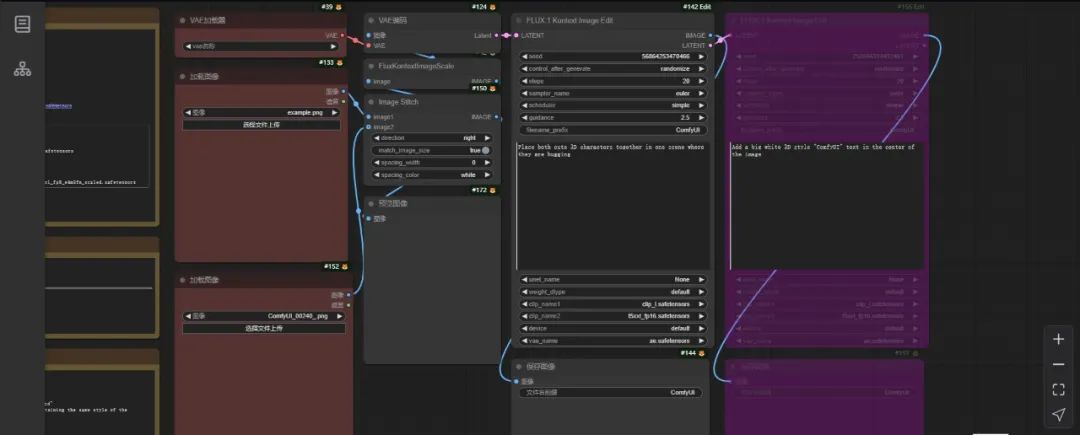
Here we use the Grouped version of the workflow, which packages a series of nodes into a group node, and selects the corresponding model in turn in the lower part of the group node.

Let's upload an image, and in the first group node, change the view out the window to snow; in the second group node, add a woman on the couch. Run it and you'll see this process of multiple rounds of editing.
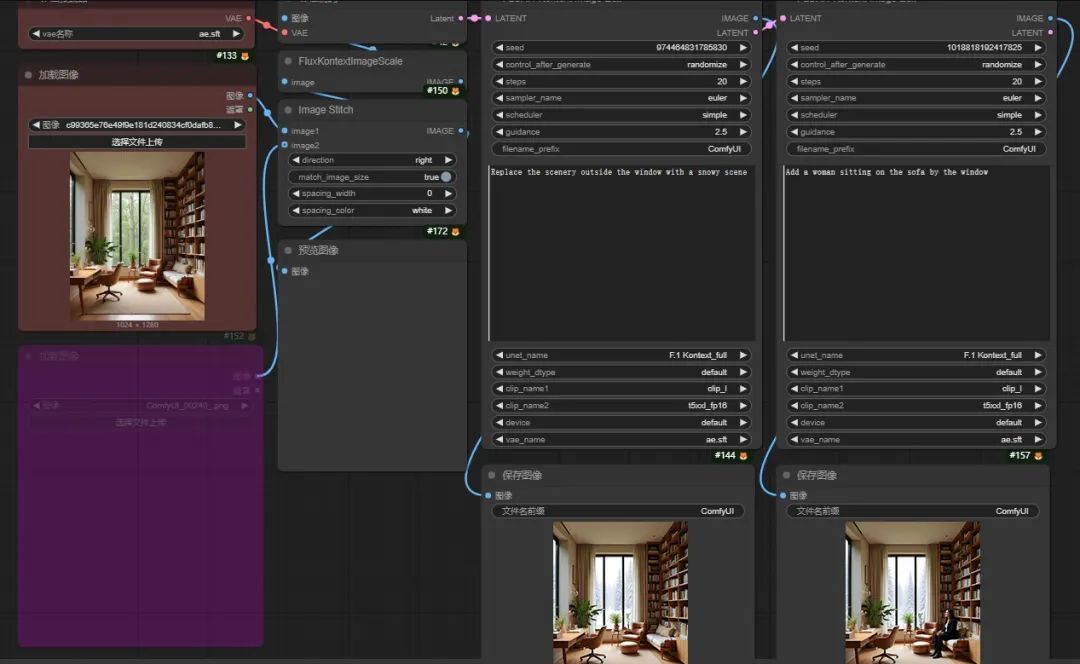
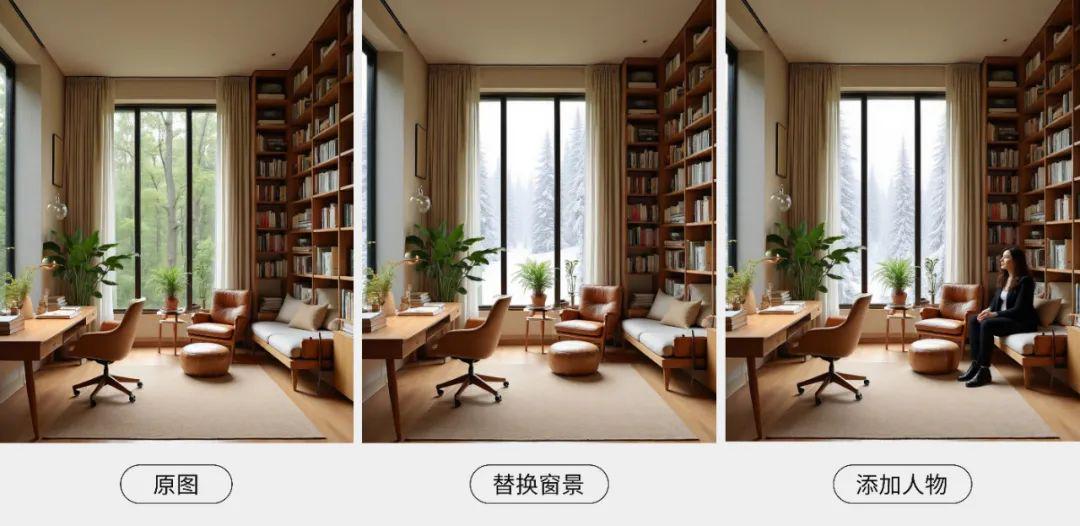
Well, this is the basic usage of Kontext model in Comfy UI. In fact, to play more tricks, the key lies in the cue word writing - next I'll tell you a few practical cue word techniques.
Playing with Kontext Prompt Words
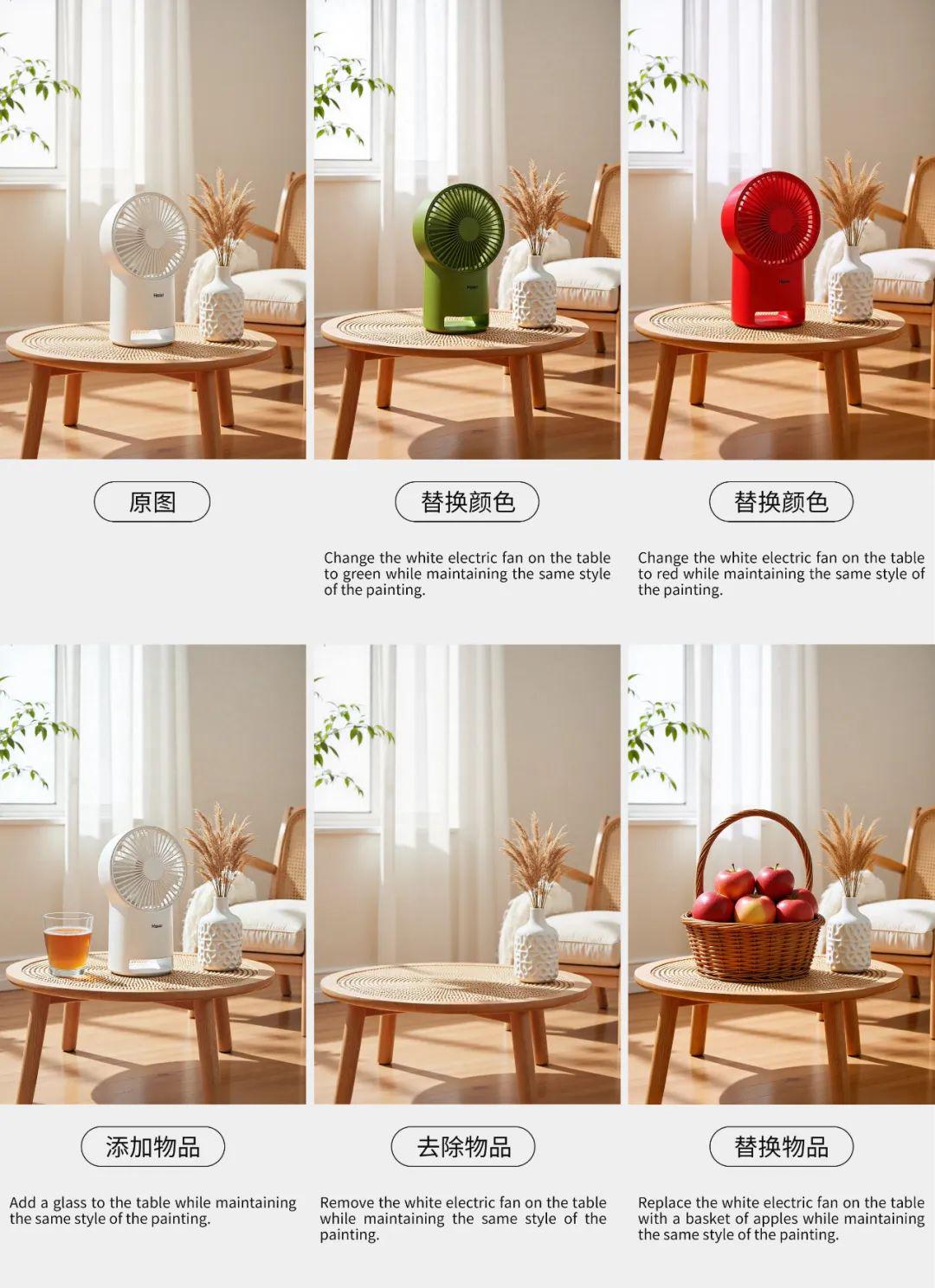
1. Basic object editing
Application scenarios: replacing items, modifying colors, adding/removing an object, etc.
Cue word formula: Change A to B, Add / Remove A at [position]
Also, add the phrase "while maintaining the same style of the painting" at the end of the prompt to ensure that the style and details of the picture are consistent with the original.
2. Style change
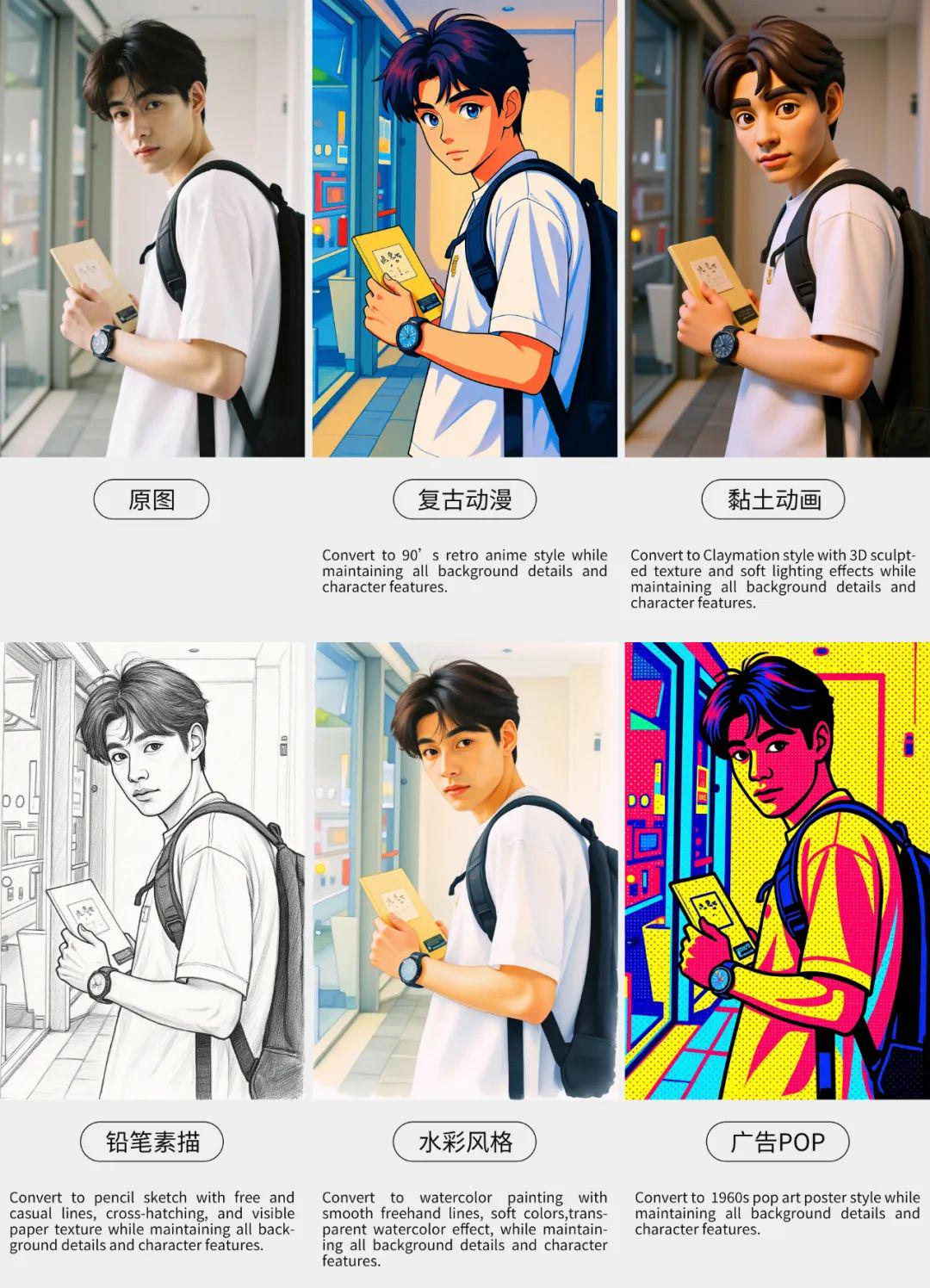
Prompts for style transitions involve writing the name of a specific style or citing a well-known genre, describing the key features of the picture, as well as pointing out which important elements are retained.
For example, "Convert to pencil sketch with natural graphite lines, cross-hatching, and visible paper texture while maintaining all background details and character features"
Avoid vague descriptions: "Make it artistic", "Make it look better", "Make it a sketch "
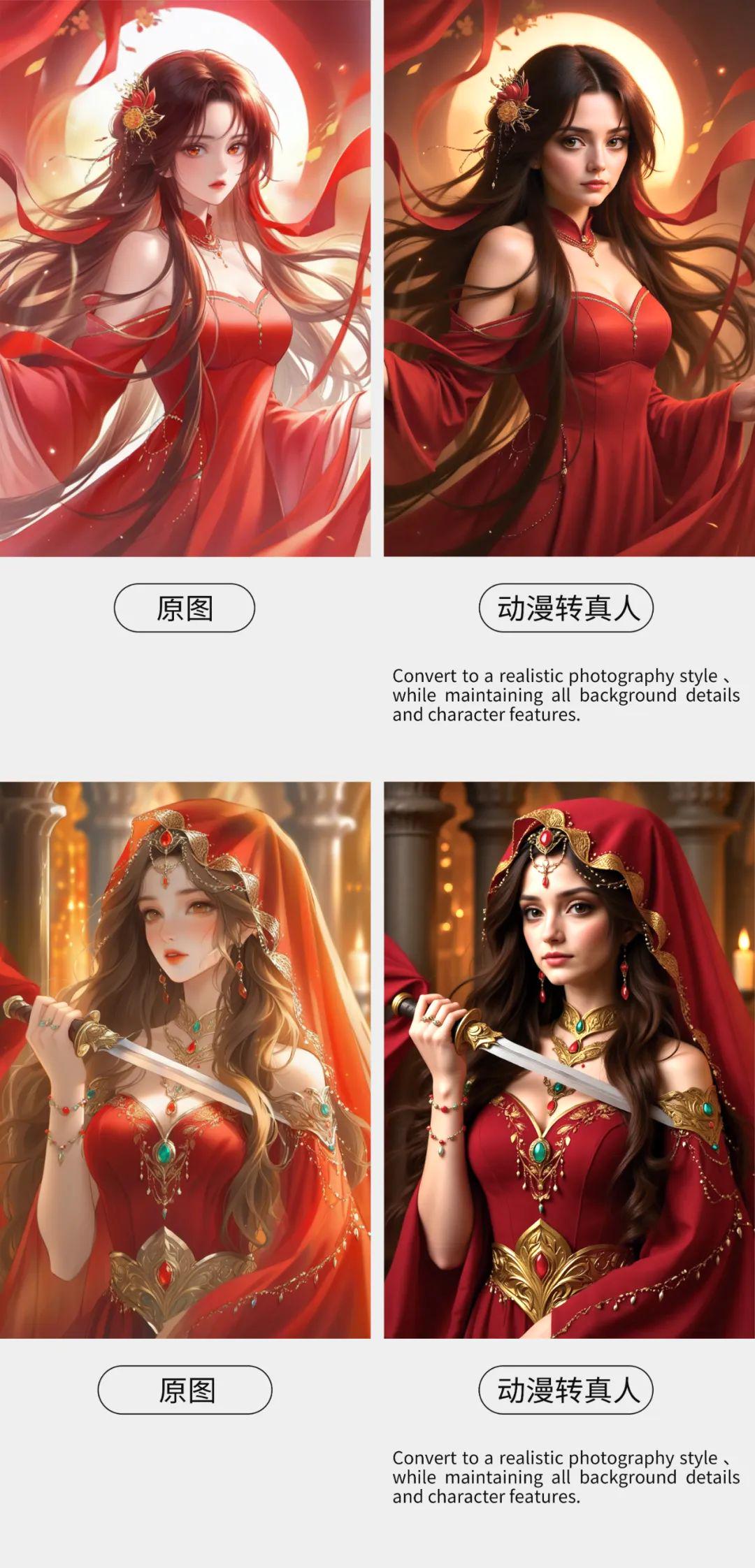
In turn, it's possible to convert paintings into live images!
3. Role consistency
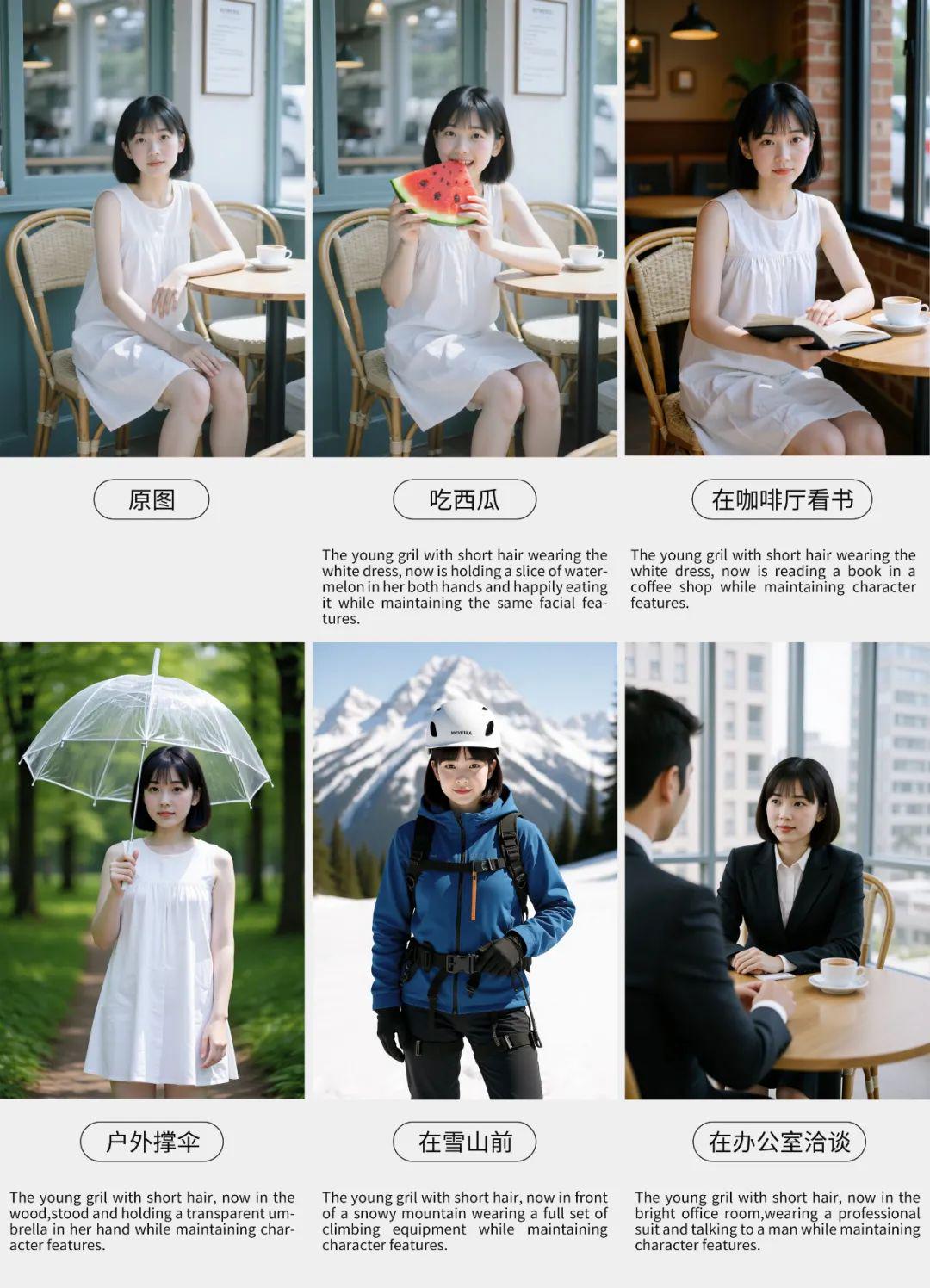
To make the character change while keeping his or her traits consistent during the raw drawing process, you can take this formula for writing prompts: make the character's identity clear + explain what has changed + keep the character's traits
For example, The woman with short black hair (明确角色)now in a tropical beach setting (改变内容)While maintaining the same facial features and expression (保留特征)
Avoid broad descriptions: "She", "He", "This person"
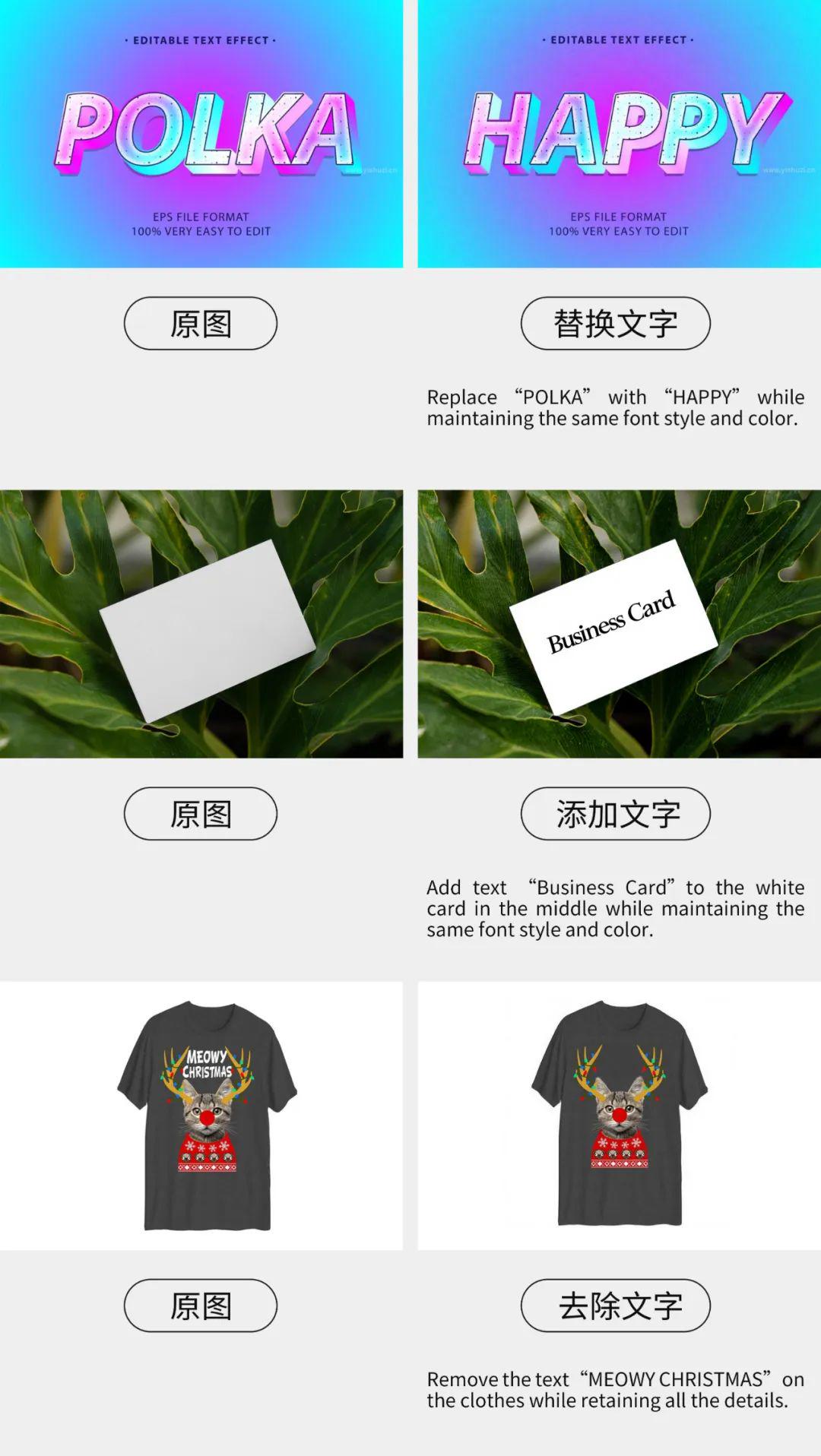
4. Text editing
Application scenarios: replace text, add text, delete text, etc.
Cue word formulas: Replace "[original text]" with "[new text]", Add text "[content]" at [position], Remove text "[content]" at [position], Remove text "[content]" at [position]. " at [position], Remove text "[content]" at [position]
Note that the modified textual content should be wrapped using quotation marks so that the AI can recognize it precisely.
Similarly, add "While maintaining the same font style and color" to maintain the original typography.
Congratulations! After reading this, you've surpassed your 90% buddies who only use the basic functions ~ go try these tips in ComfyUI!